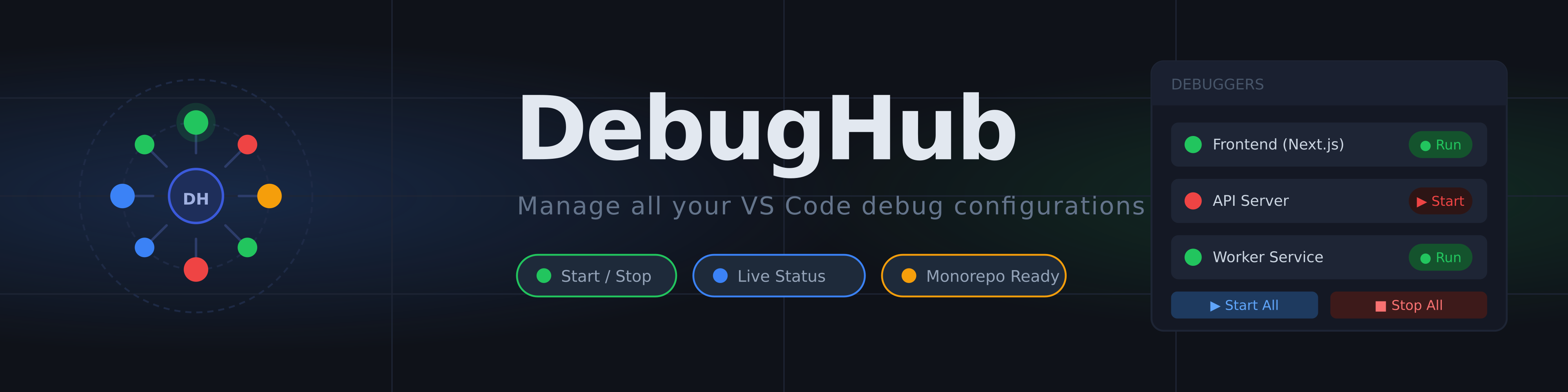
Manage all your VS Code debug configurations in one place. DebugHub simplifies debugging in monorepos and multi-service environments by providing a unified interface to view, manage, and control all your debuggers at once.
🎯 The Problem
Working with monorepos and multi-service applications in VS Code can be frustrating:
- VS Code's default debugger is slow to initialize
- Starting multiple debuggers requires launching them individually
- Managing multiple debug sessions becomes cumbersome
- No quick way to see the status of all active debuggers at a glance
✨ The Solution
DebugHub solves these challenges by providing a simple, unified interface to manage all your debug configurations:
- See all debuggers in one list — Every launch configuration from your workspace in a single quick-pick menu
- Status indicators — Know at a glance which debuggers are running (
🟢) and which are stopped (🔴)
- Quick actions — Start or stop individual debuggers with buttons, no waiting
- Batch operations — Start or stop all debuggers with a single click
- Multi-select — Select multiple configurations and manage them together
- Workspace-aware — Works with single and multi-root workspaces
📦 Installation
From VS Code Marketplace
- Open VS Code
- Go to Extensions (Ctrl+Shift+X / Cmd+Shift+X)
- Search for DebugHub
- Click Install
From Source
Clone the repository:
git clone https://github.com/JCassio1/DebugHub.git
cd debughub
Install dependencies:
npm install
Package the extension:
npm run package
Install the .vsix file in VS Code:
- Go to Extensions → Views and More Actions (⋯) → Install from VSIX...
- Select the generated
debughub-*.vsix file
🚀 Quick Start
Open DebugHub
- Click the DebugHub status indicator in the bottom right status bar (shows
● N where N is the number of active debuggers)
- Or use the command palette: DebugHub: Open Popover (Cmd+Shift+P / Ctrl+Shift+P)
Manage Debuggers
View configurations:
- All launch configurations from
.vscode/launch.json are listed
- Status indicator shows if each is running (
🟢) or stopped (🔴)
Start a debugger:
- Click the play icon (▶) next to any configuration
- Or select configurations and click Start All
Stop a debugger:
- Click the stop icon (■) next to any running configuration
- Or click Stop All to stop everything
Batch operations:
- Select multiple configurations using checkboxes
- Press OK to toggle all selected (start if stopped, stop if running)
🎮 Features
Status Bar Integration
- Real-time count of active debug sessions
- Click to open DebugHub popover instantly
- Color-coded indicator (green = active, gray = none)
Quick Configuration Browser
- All workspace launch configurations in one view
- Grouped by workspace folder (in multi-root setups)
- Description shows configuration type and request mode
Inline Actions
- Play button: Start individual debugger
- Stop button: Stop individual debugger
- Checkboxes: Multi-select for batch operations
Top-level Controls
- Start All: Launch all configured debuggers
- Stop All: Terminate all active debug sessions
Smart Selection Persistence
- Remembers which configurations you selected
- Automatically prunes invalid selections when configs change
📋 Commands
All commands can be invoked via the Command Palette (Cmd+Shift+P / Ctrl+Shift+P):
| Command |
Description |
debughub.openPopover |
Open the DebugHub quick-pick menu |
debughub.startAllDebugConfigurations |
Start all launch configurations |
debughub.startSelectedDebugConfigurations |
Start all selected configurations |
debughub.stopAllDebugSessions |
Stop all active debug sessions |
debughub.startDebugConfiguration |
Start a specific configuration |
debughub.stopDebugSession |
Stop a specific debug session |
debughub.refreshSidebar |
Refresh the status bar indicator |
⚙️ Configuration
DebugHub reads all launch configurations from:
.vscode/launch.json in each workspace folder- Workspace settings for multi-root setups
Supported Debug Types
DebugHub works with any VS Code debugger type:
node / pwa-node — Node.jspwa-chrome — Chrome/Chromiumdebugpy — Pythongo — Gocppdbg — C/C++- And many more...
Example .vscode/launch.json
{
  "version": "0.2.0",
  "configurations": [
    {
      "name": "Backend API",
      "type": "pwa-node",
      "request": "launch",
      "program": "${workspaceFolder}/server/app.js",
      "console": "integratedTerminal"
    },
    {
      "name": "Frontend Dev",
      "type": "pwa-chrome",
      "request": "launch",
      "url": "http://localhost:3000",
      "webRoot": "${workspaceFolder}/client"
    }
  ]
}
🛠️ Development
Requirements
- Node.js 18+
- npm 9+
- VS Code 1.85+
Build
npm install
npm run compile
Watch Mode
npm run watch
Test
npm test
Package
npm run package
🤝 Contributing
Contributions are welcome! Here's how to get started:
- Fork the repository
- Create a feature branch:
git checkout -b feature/your-feature
- Make your changes
- Run tests:
npm test
- Commit:
git commit -am 'Add feature'
- Push:
git push origin feature/your-feature
- Open a pull request
See CHANGELOG.md for version history.
📄 License
This extension is licensed under the MIT License. See license.txt for details.
🎓 Tips & Tricks
- Keyboard navigation: Use arrow keys to navigate configurations, Space to select, Enter to confirm
- Filtering: Type to search configuration names in the quick-pick menu
- Multi-root workspaces: Configurations are grouped by folder; your selection applies to all
- Python debugging: If using
debugpy, ensure your script calls debugpy.listen() before DebugHub attempts to attach
❓ FAQ
Q: Why doesn't my configuration show up?
A: Ensure the configuration is defined in .vscode/launch.json and has at least a name property.
Q: Can I exclude certain configurations?
A: Not yet, but you can filter in the UI by typing. Consider removing unused configs from launch.json.
Q: Does DebugHub support remote debugging?
A: Yes! Any debugger type that VS Code supports (including remote attach configurations) will work.
Made with ❤️ for developers who debug monorepos

