Format, explore, and clean up JSON — right inside VS Code. Paste raw JSON or CSV, convert it in one click, and explore the result as a collapsible tree or a browsable table, alongside a full set of in-editor formatting commands.
How to Use
1. Find the status bar button — look for JSON Formatter Plus in the bottom status bar and click it to open the Convert & Explore tab.

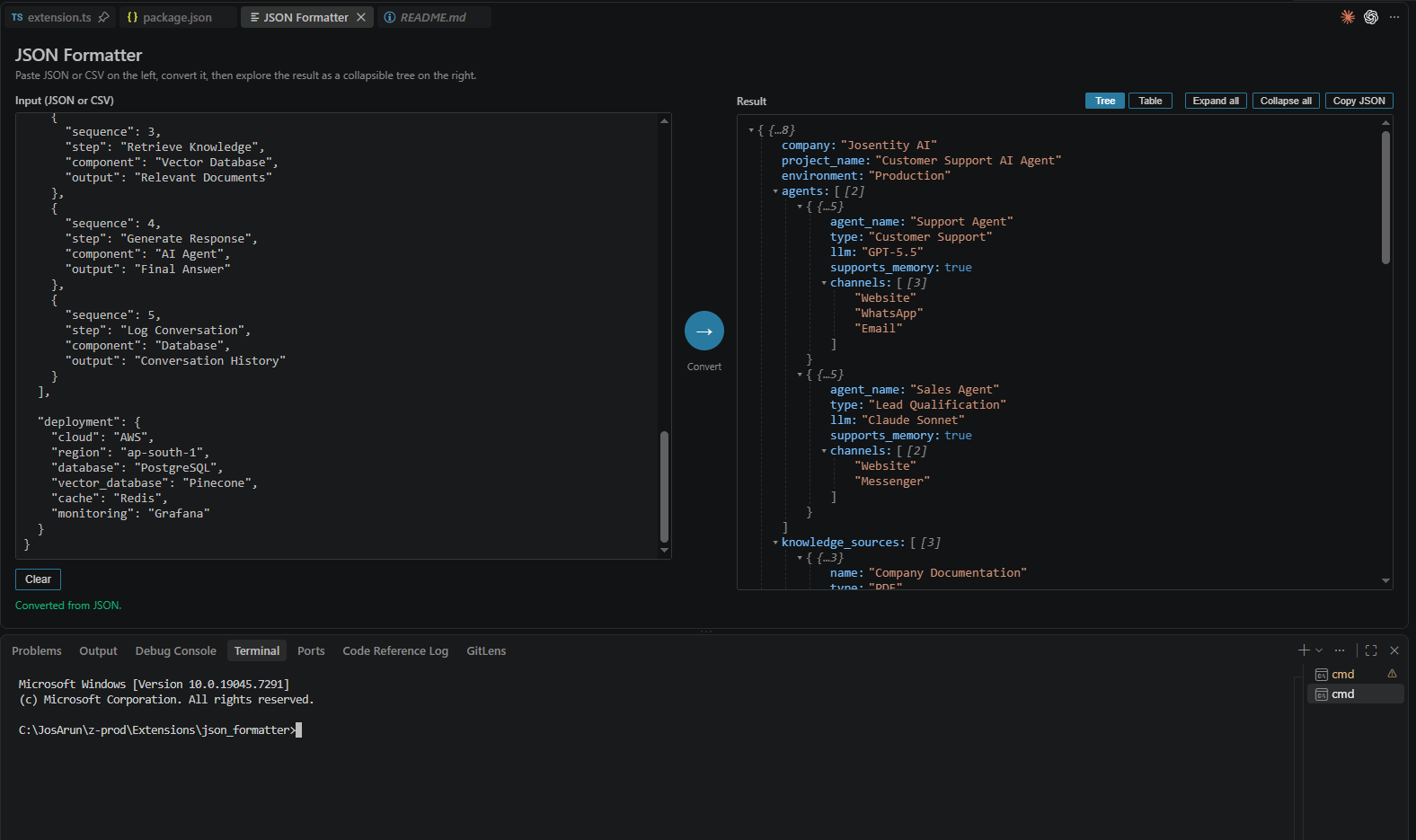
2. Paste JSON or CSV and convert — paste your data on the left, hit the convert arrow, and browse the result as a collapsible tree.
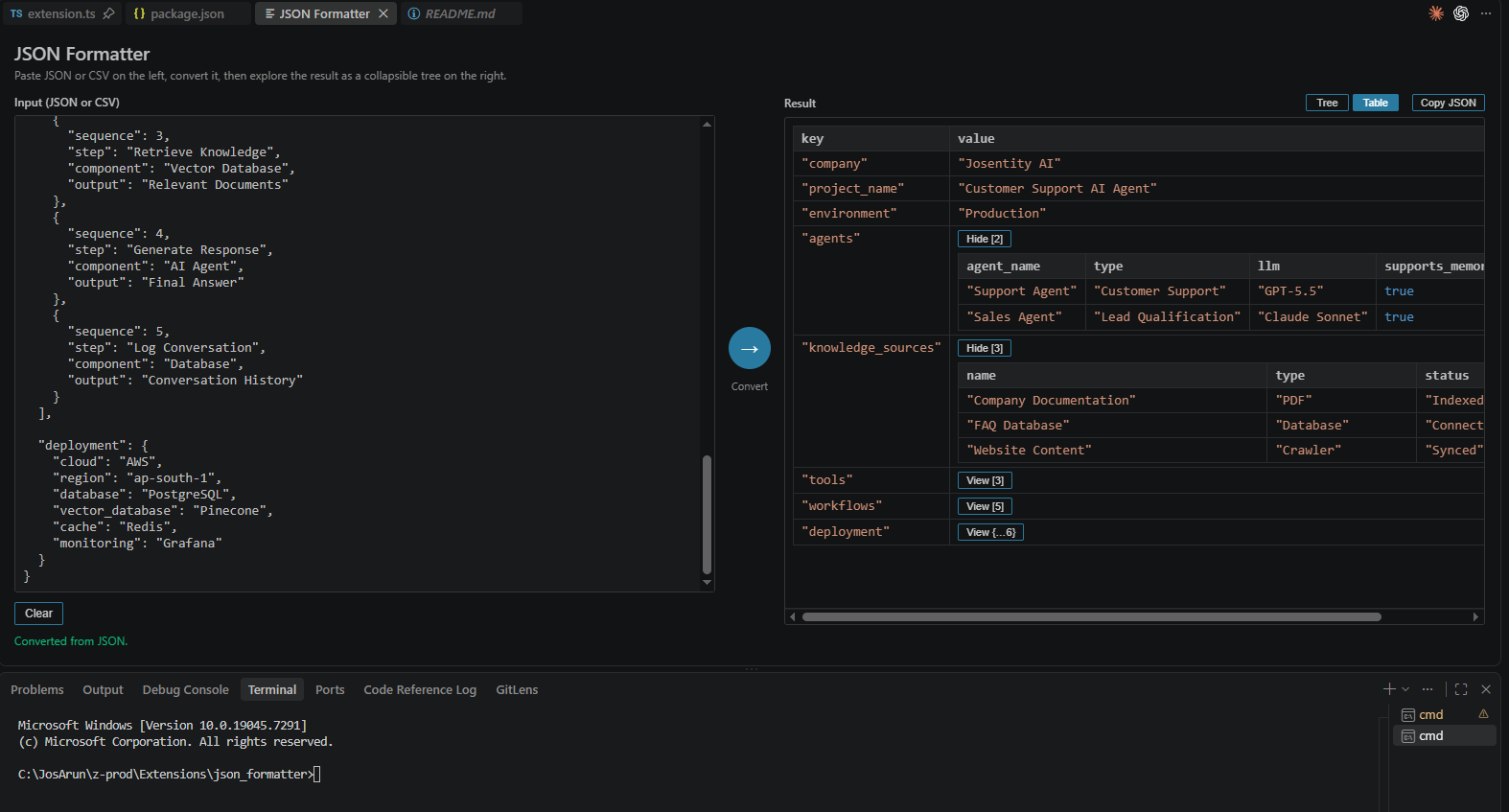
3. Switch to Table view — for arrays of objects, switch to Table to see rows/columns, with nested values expandable via "View".
👀 Look at the bottom of your window
Once installed, a { } JSON Formatter Plus button appears in the status bar at the bottom of VS Code. Click it any time to open the JSON Formatter Plus tab — no sidebar hunting required.
Features
🔁 Convert & Explore panel
Open the dedicated JSON Formatter Plus tab (via the status bar button, Command Palette, or keybinding) for a split-screen workspace:
- Left — paste raw JSON or CSV.
- Center — one click on the convert arrow to process it.
- Right — explore the result as:
- a collapsible tree, with expand/collapse per node and type/count summaries (
{…3}, [5]) on collapsed branches, or
- an interactive table, with array-of-objects rendered as proper rows/columns, and nested values expandable in place via a "View" button — plus an always-visible horizontal scrollbar so wide data never gets lost off-screen.
- Expand All / Collapse All, and one-click Copy JSON.
- Format the active JSON/JSONC document or just a selection, with your own indentation (spaces or tabs).
- Minify JSON down to a single compact line.
- Optional format-on-save.
✅ Validate & Diagnose
- Inline error diagnostics with exact line/column on invalid JSON.
- Duplicate key detection, surfaced as warnings in the Problems panel.
- Live status bar validity + size/object stats while editing JSON files.
- Sort object keys (ascending/descending, optionally recursive).
- Remove empty values (
null, "", {}, []).
- Convert CSV to JSON directly from any selection or file.
📋 Copy Shortcuts
- Copy the formatted or minified JSON straight to your clipboard.
⌨️ Keybindings
| Command |
Default Keybinding |
| Format Document |
Ctrl+Alt+F |
| Minify JSON |
Ctrl+Alt+M |
| Validate JSON |
Ctrl+Alt+V |
| Sort Keys |
Ctrl+Alt+S |
| Copy Formatted JSON |
Ctrl+Alt+C |
All commands are also available from the Command Palette (JSON Formatter: …) and the editor right-click menu.
Extension Settings
| Setting |
Default |
Description |
jsonFormatter.indentSize |
2 |
Spaces per indent level (ignored if useTabs is on). |
jsonFormatter.useTabs |
false |
Use tabs instead of spaces. |
jsonFormatter.sortKeys |
false |
Sort object keys alphabetically when formatting. |
jsonFormatter.recursiveSort |
false |
Sort keys at every nesting level, not just the top. |
jsonFormatter.formatOnSave |
false |
Auto-format JSON files on save. |
jsonFormatter.trailingNewline |
true |
Ensure formatted JSON ends with a newline. |
jsonFormatter.enableStatistics |
true |
Show live JSON stats in the status bar. |
jsonFormatter.showNotifications |
true |
Show info notifications for successful operations. |
Getting Started
- Install the extension.
- Click
{ } JSON Formatter Plus in the bottom status bar.
- Paste your JSON or CSV, hit the convert arrow, and explore it as a tree or table.
Enjoy!
Powered by Josentity · support@josentity.com

