Port Hub: Kill Process on Port in VS Code
See what is using a port, which project started it, and kill it in one click, right next to your terminal. A port manager for VS Code, Cursor and other VS Code-based editors, on macOS, Linux and Windows.
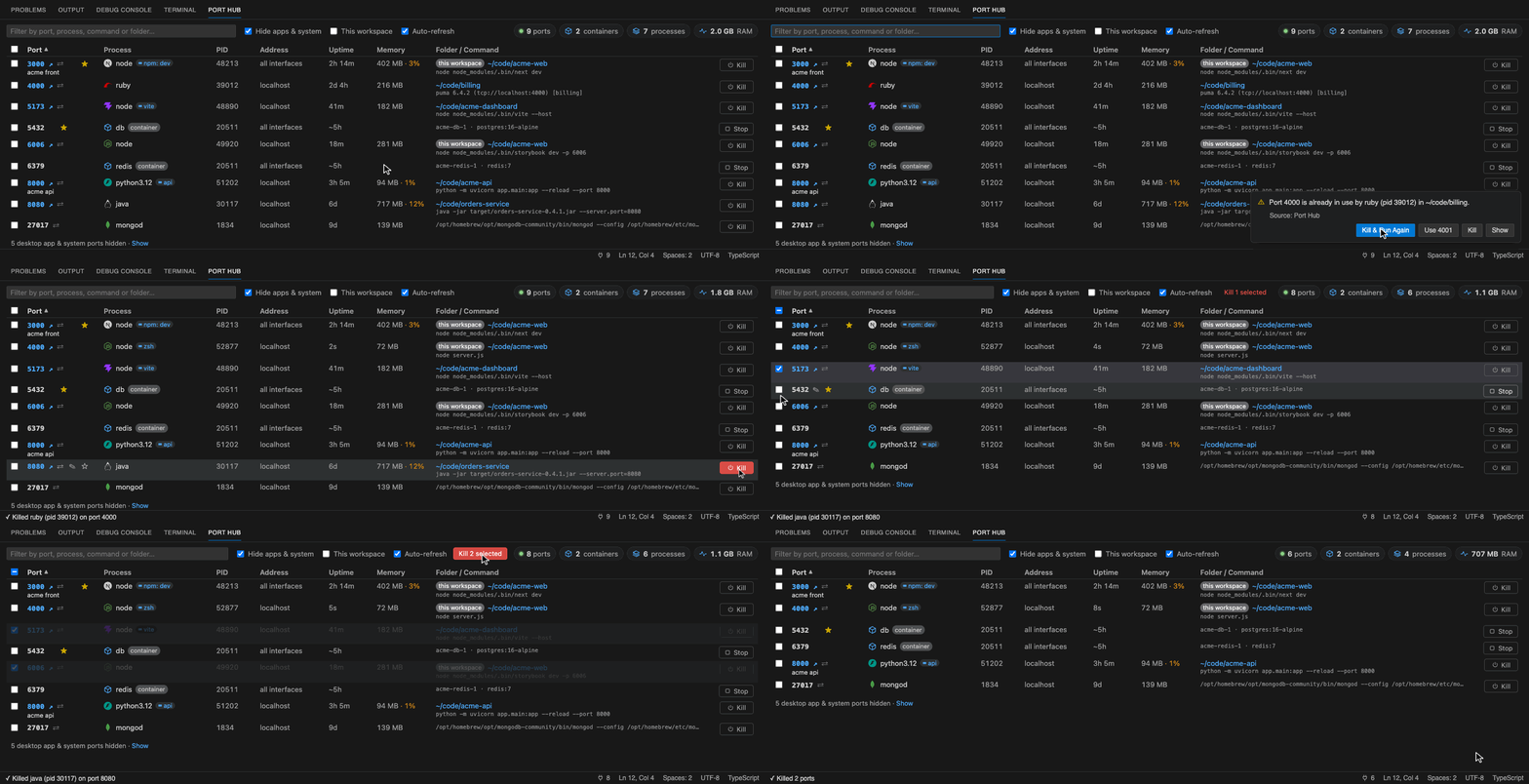
When you run several dev servers, databases and tools at once, sooner or later you hit EADDRINUSE: address already in use :::3000 (or "Port 3000 is already in use") and have no idea what is on port 3000. Port Hub adds a Port Hub tab to the bottom panel (next to Terminal, Problems and Output) that lists every listening TCP port on localhost with:
- the process and PID
- the folder it was started from, so you can tell which project is holding the port (rows from the open workspace get a
this workspace badge)
- the full command line (click it to copy)
- uptime, memory and CPU (when busy) of the process
- the VS Code terminal it was started from (click to jump there)
- a link to open it in the browser when it's a web server
- a Kill button (Shift+click to force kill), or Stop for Docker containers
No more lsof -i :3000, netstat -ano | findstr :3000 or npx kill-port 3000. It works on macOS, Linux and Windows, and in remote windows (WSL, SSH, Dev Containers, Codespaces).
VS Code extension
"Port already in use" in the terminal
When a command in the VS Code terminal fails because its port is taken, Port Hub pops up:
Port 3000 is already in use by node (pid 4121) in ~/code/other-app. [Kill & Run Again] [Kill] [Show]
Kill & Run Again frees the port and re-runs your command in the same terminal. It recognises Node (EADDRINUSE), Vite and Next ("Port 3000 is in use, trying 3001"), Go, Python/uvicorn, Rails/Puma, PHP, Spring Boot, Create React App and Docker. When the error doesn't say which port (Python), the port is read from the command (python -m http.server 8000, --port 8001, PORT=4000…).
This needs VS Code 1.93+ and terminal shell integration (on by default). Turn it off with porthub.detectPortConflicts.
Free the port before debugging
Add a porthub task and use it as preLaunchTask, so F5 never fails with "port already in use":
// .vscode/tasks.json
{ "version": "2.0.0", "tasks": [{ "label": "Free port 3000", "type": "porthub", "ports": [3000] }] }

// .vscode/launch.json, in your configuration:
"preLaunchTask": "Free port 3000"
Ports you've labeled also show up in Terminal → Run Task → porthub.
Stop this workspace's servers
Port Hub: Stop Servers Started in This Workspace (also in the panel's … menu) stops every server started from the open folder, after one confirmation. Turn on porthub.stopServersOnClose to do it automatically when the window closes, so nothing is left holding your ports (Docker containers are left running on close).
Move a server to another port
Running something on 3000 and need 3000 for something else? Click ⇄ on its row (or Port Hub: Move Server to Another Port…), pick the new port (the nearest free one is suggested) and confirm the command. A process can't change its port while running, so Port Hub restarts it:
- It works out the new command: changes the port if it's written in the command (
--port 3000, -p 3000, PORT=3000, :3000), otherwise adds the right option for the tool (Vite, Next, Nuxt, Astro, Angular, webpack, Remix, Storybook, Gatsby, uvicorn, Flask, Django, Rails, Laravel, Symfony, Hugo…, with -- for npm run), otherwise sets PORT=3001. You see the command and can edit it before it runs.
- If the server runs in a VS Code terminal, it's stopped with Ctrl+C and restarted in the same terminal; otherwise it's restarted in a new terminal in its folder.
- Your label and ★ watch move to the new port, and you get Open when it's up.
When a command of yours fails because its port is taken, the prompt also offers Use 3001: run your command on a free port and leave the other server alone.
Docker containers can't be moved this way (their ports are fixed when created): change the mapping in your compose file.
Two programs on one port (IPv4 + IPv6)
The OS lets one program listen on port 3000 over IPv4 and another over IPv6 at the same time, so neither gets "port already in use". But then http://localhost:3000 (IPv6 is tried first) and http://127.0.0.1:3000 open different apps. Port Hub marks both rows ⚠ shared, labels them IPv4 / IPv6, says which one localhost reaches, makes each row's ↗ link open the right address, and warns once with Move one… (porthub.warnSharedPorts).
Watched ports
Click ☆ on a port (or set porthub.watchPorts, e.g. [3000, 5432]) to watch it. Watched ports stay in the panel as "not listening" when they're down, the status bar turns into a warning (⚠ 5432 down), and you get a notification when one stops or starts, with Open for web servers.
Docker containers
Ports published by Docker Desktop, OrbStack or Podman show the container (compose service, image, project folder) instead of com.docker.backend. Its button says Stop and runs docker stop on just that container (Shift+click for docker kill). Port Hub never kills Docker itself, since that would stop every container.
Using it
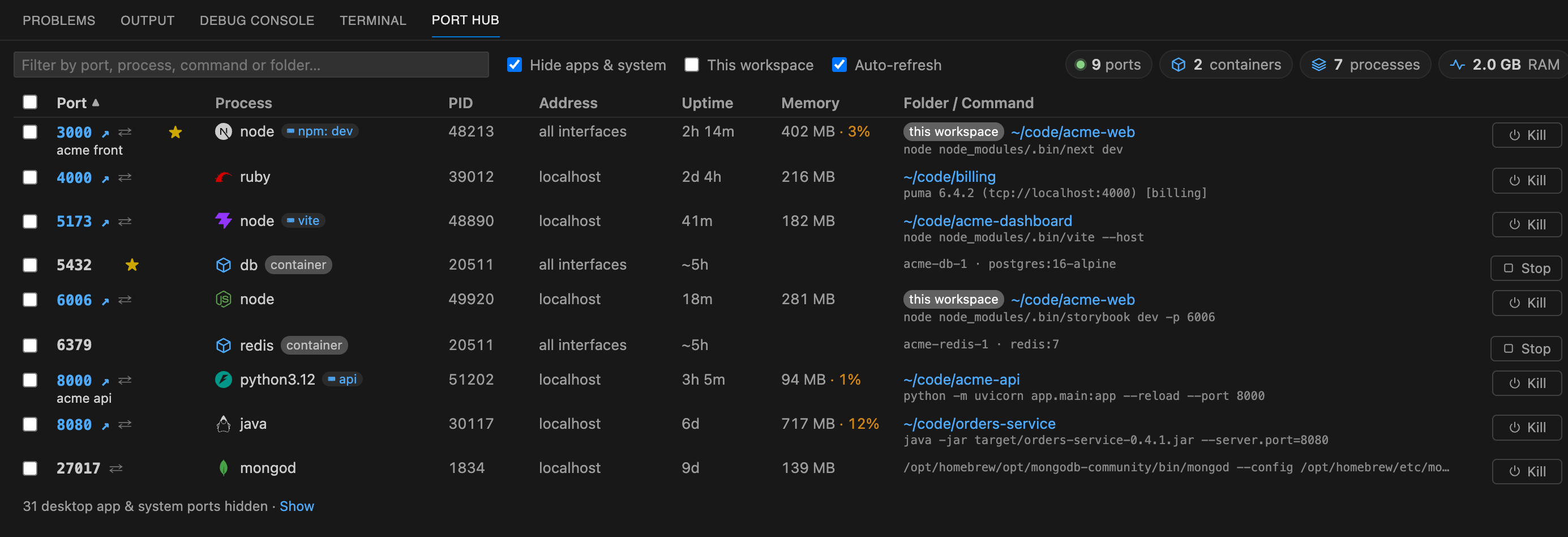
- Open the Port Hub tab in the bottom panel, or click the
🔌 7 item in the status bar.
- Hide apps & system (on by default) hides ports held by desktop apps (Discord, Chrome, VS Code's own helpers…), OS services and editor/agent helpers like Claude Code, based on where the program is installed, not guesswork. Docker containers, and dev servers installed as apps (Postgres.app, Herd, Ollama), stay visible. On a typical Mac this takes the list from ~45 ports to ~15.
- This workspace shows only servers started from the folder open in this window.
- The note under the table says what's hidden, with Show to bring it back. The Address column shows
localhost or all interfaces for every port.
- Type in the filter box to match a port, process name, command, folder, container or label.
:3000 matches exactly port 3000.
- Ports that answer HTTP show as a link (
5173 ↗): click to open it in your browser, or in VS Code's Simple Browser (porthub.openBrowserIn).
- Started from a VS Code terminal? Click the ⌨ terminal badge to jump to it. The "port in use" prompt offers Go to Terminal too.
- Click Kill. You will be asked to confirm, and you can choose Kill (graceful) or Force Kill.
- Click any column header to sort; click again to reverse. Uptime and Memory start with the oldest / biggest first, which is handy for spotting forgotten dev servers.
- Tick several rows (or the header box to select everything visible), then Kill N selected. Tip: filter by a project name first, then select all.
- Hover a port and click ✎ to give it your own name ("rezicard front"). Names are shown under the port, searchable in the filter, and stored in the
porthub.portLabels setting.
- The ⚙ button in the panel's title bar opens Port Hub's settings.
- Command palette:
Port Hub: Kill Process on Port… lets you pick from a list or type a port number. Port Hub: Refresh reloads the list.
Port Hub will not let you kill VS Code itself; those rows are marked VS Code and their Kill button is disabled.
Settings
| Setting |
Default |
What it does |
porthub.hideAppsAndSystem |
true |
Hide desktop apps, OS services and editor/agent helpers |
porthub.workspaceOnly |
false |
Only show servers started from this workspace |
porthub.hideSystemPorts |
false |
Hide ports below 1024 |
porthub.portRange |
"" |
Only show e.g. 3000-9999 or 3000-3999,5432,8080 |
porthub.autoRefreshInterval |
5 |
Seconds between refreshes (0 = off). Only runs while the window is focused |
porthub.confirmBeforeKill |
true |
Ask before killing |
porthub.portLabels |
{} |
Your names for ports, e.g. { "3000": "rezicard front" } |
porthub.watchPorts |
[] |
Ports you expect to be running; warns when one is down |
porthub.notifyWatchedPorts |
true |
Notify when a watched port stops or starts |
porthub.openBrowserIn |
external |
Open web servers in your browser or in VS Code's Simple Browser |
porthub.stopServersOnClose |
false |
Stop this workspace's servers when the window closes |
porthub.warnSharedPorts |
true |
Warn when two programs share a port (one on IPv4, one on IPv6) |
porthub.detectPortConflicts |
true |
Offer to free the port when a terminal command fails with "port in use" |
porthub.showStatusBar |
true |
Show the port count in the status bar |
FAQ
How do I find out what is using port 3000 in VS Code?
Open the Port Hub tab in the bottom panel (or click 🔌 in the status bar) and type :3000 in the filter. You see the process, PID, its project folder and the full command.
How do I kill the process on a port?
Click Kill on its row, or run Port Hub: Kill Process on Port… from the command palette and type the port number. Shift+click forces it (SIGKILL / taskkill /F).
How do I fix "EADDRINUSE: address already in use"?
When a command in the VS Code terminal fails with it, Port Hub offers Kill & Run Again (free the port and re-run your command) or Use 3001 (run yours on a free port instead).
Does it work with Docker?
Yes. Ports published by Docker Desktop, OrbStack or Podman show the container and compose service, and Stop runs docker stop on that container only.
Does it work in Cursor, Windsurf or VSCodium?
Yes, it works in any editor based on VS Code 1.90 or newer.
How it works
| OS |
Listening ports |
Command line |
Folder |
| macOS |
lsof -iTCP -sTCP:LISTEN |
ps |
lsof -d cwd |
| Linux |
lsof, else ss -ltnp, else /proc/net/tcp |
ps, else /proc |
/proc/<pid>/cwd |
| Windows |
netstat -ano + tasklist |
PowerShell Win32_Process |
not available |
Remote windows (WSL, Remote SSH, Dev Containers, Codespaces): Port Hub runs where your workspace runs, so it shows the ports on that machine or container; the panel says where (· Dev Container). It works even in minimal containers without lsof, ss or ps, by reading /proc.
Without admin rights, the OS only shows the owner of ports opened by your own user. Ports owned by root or other users appear with PID ? and cannot be killed from here.
Development
npm install
npm run build             # bundles the extension
npm test                  # unit tests + real-system tests (starts a server, finds it, kills it)
npm run test:integration  # runs the extension inside a real VS Code (downloads one; or set VSCODE_EXECUTABLE_PATH)
npm run typecheck
npm run package           # produces packages/vscode/porthub-<version>.vsix
- Run the extension: open this folder in VS Code and press F5.
- CI:
.github/workflows/ci.yml runs everything on macOS, Linux and Windows, against the latest VS Code and the oldest supported one (1.90).
- Releasing: see
RELEASING.md in the repository.
packages/
  core/    shared port listing + kill logic (no VS Code dependency)
  vscode/  the extension (panel webview, commands, status bar, terminal watcher)

