Job-Finish
English · 한국어 · 中文 · 日本語
Stop watching the chat to see whether your AI agent is done.
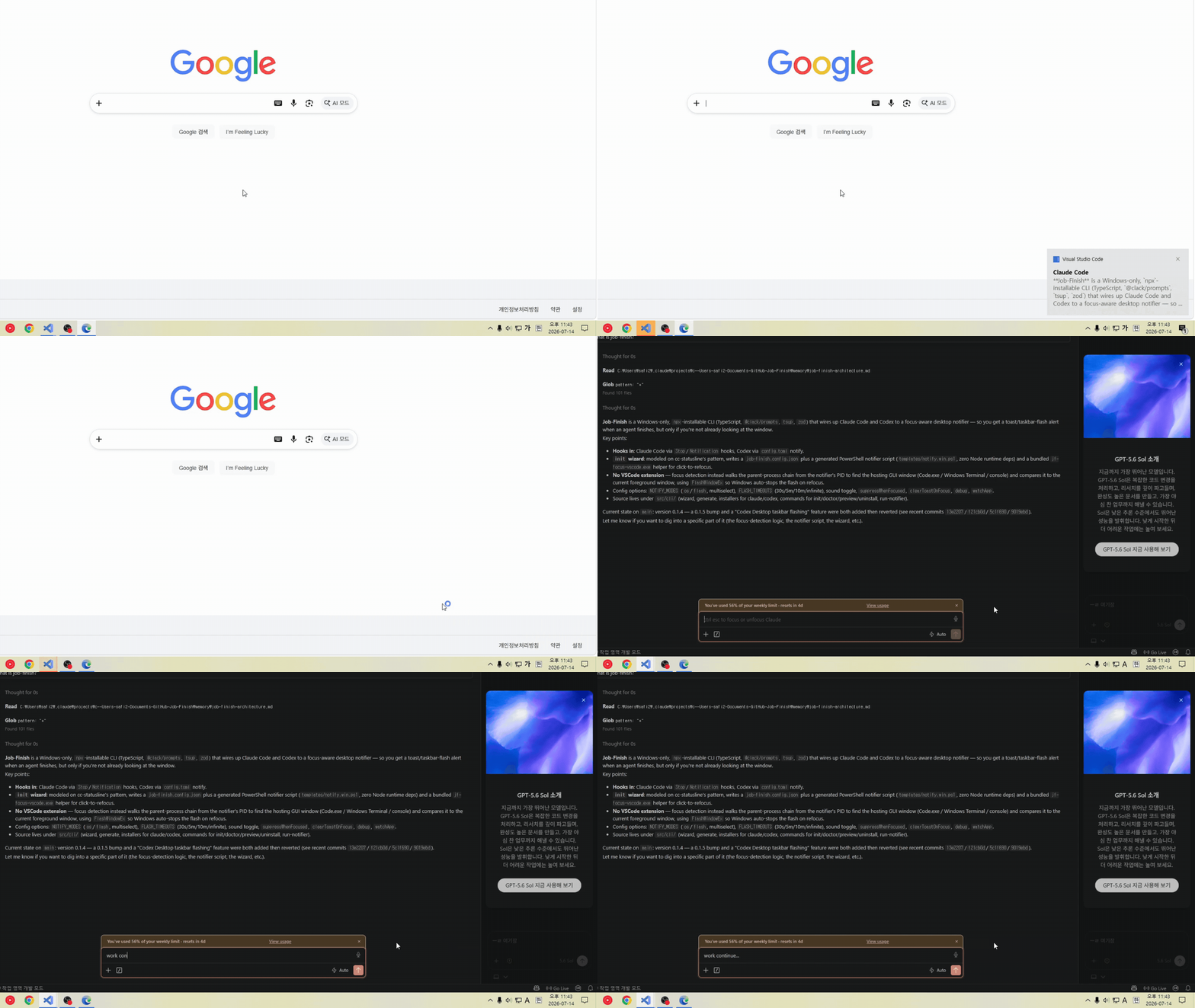
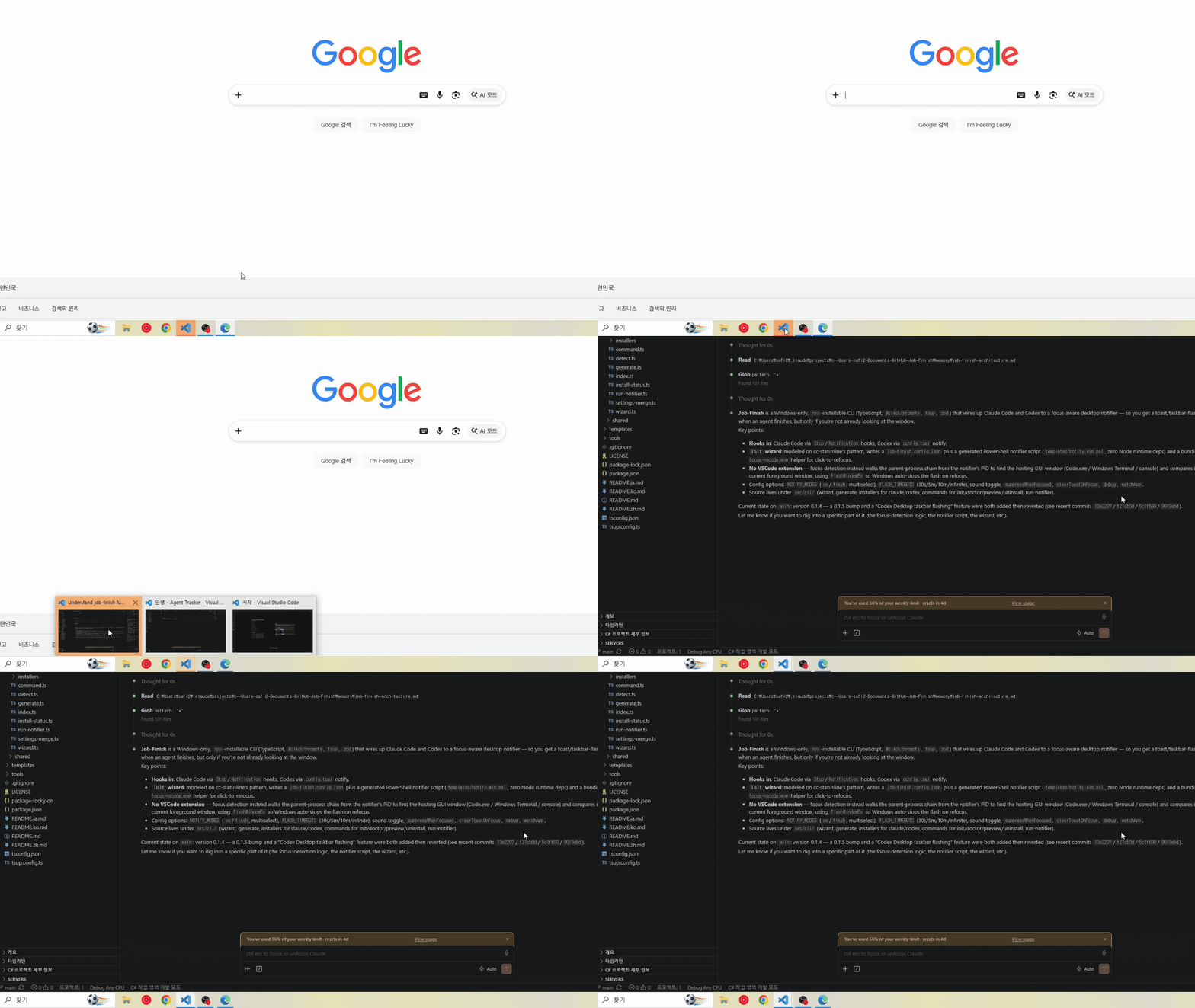
When Claude Code or Codex finishes, needs input, or encounters an error, Job-Finish notifies you and brings you back to the right VS Code window.
| Windows toast notification |
Taskbar flashing |
 |
 |
| Click the toast to return to the task's VS Code window |
Spot the waiting window even if you miss the toast |
These GIFs show the earlier version's notification behavior; the current extension's toast appearance may differ.



Features at a glance
| Feature |
What you get |
| Claude Code + Codex |
Automatically detects supported activity in the existing VS Code extensions. |
| Completion, input, and error alerts |
Alerts you when tasks finish, fail, or wait for a choice, answer, or approval. |
| Click to return |
Brings the VS Code window that sent the notification to the front, including when several windows are open. |
| Taskbar flashing |
Highlights the task's window until you return or the configured timeout expires. |
| Focus awareness |
Skips new toasts and flashing while you are already looking at that window. |
| Recent results |
Review the agent's responses with Job-Finish: Show Results. |
Install and update
Requires Windows x64, VS Code 1.99+, Node.js 22+, and a trusted local workspace. Install and sign in to the Codex or Claude Code VS Code extension you use, then run:
npx job-finish@latest install
The installer installs the bundled VS Code extension and backs up and removes detected old PowerShell/C# installations. Run it from your project folder to include that project's old installation. Reload VS Code if prompted; Job-Finish starts automatically. No separate .NET installation is needed.
To update:
npx job-finish@latest update
Add --dry-run to preview changes or --profile "Profile name" to choose a VS Code profile. Equal or newer extension versions are preserved. See the installer guide for details.
Install the CLI globally
npm install -g job-finish@latest
job-finish install
After installing the latest CLI, you can also use job-finish update and job-finish uninstall.
Install a VSIX manually
- Prepare
JobFinish-win32-x64.vsix using the source build steps below.
- In VS Code, press
Ctrl+Shift+P and select Extensions: Install from VSIX….
- Select the VSIX file and reload VS Code if prompted.
To update, install the new VSIX the same way. Manual installation does not remove old PowerShell/C# installations.
Build the VSIX from source
With Node.js 22+ and .NET SDK 8+, run these commands from the repository root:
npm ci
npm run check
npm run package
The output is JobFinish-win32-x64.vsix. Press F5 instead to open a development window.
If you used the old PowerShell/C# version, the installer can back up and remove it before installing the extension:
npm --prefix tools/installer ci
npm run install:extension -- --vsix ./JobFinish-win32-x64.vsix
Use the extension
- Work in your usual Codex or Claude Code chat in VS Code. Job-Finish is enabled by default.
- While the task's window is inactive, completion, errors, and requests for a choice, answer, or approval trigger a toast and taskbar flashing.
- Click the toast to return to that window and respond in the original chat.
Open the command palette with Ctrl+Shift+P and search for Job-Finish:
| Command |
Purpose |
| Show Results |
Review recent responses. |
| Stop Flash |
Stop taskbar flashing immediately. |
| Show Diagnostics |
Check detection and notification status. |
| Run Codex / Run Claude |
Start a task directly through Job-Finish. |
| Answer Pending Request |
Answer questions or approvals for tasks started through Job-Finish. |
Direct execution requires an installed, authenticated Codex CLI or valid authentication for the bundled Claude SDK CLI. If Codex is not on PATH, set jobFinish.codexExecutable.
Automatic detection supports local agents in the same VS Code Extension Host. WSL, remote workspaces, external terminal agents, and desktop agent apps are outside this scope. If detection stops working after a provider update, check Show Diagnostics.
Settings at a glance
Open VS Code Settings (Ctrl+,) and search for Job-Finish.
| Setting |
Default |
Description |
jobFinish.enabled |
true |
Turn automatic detection and notifications on or off immediately. |
jobFinish.toast |
true |
Show Windows toast notifications. |
jobFinish.flash |
true |
Flash the task's VS Code window in the taskbar. |
jobFinish.flashMode |
manual |
manual: flash every 0.5 seconds. system: use Windows' default flashing behavior. |
jobFinish.flashTimeoutSeconds |
300 |
Stop flashing after this many seconds. 0 keeps it going until focus returns, the toast is clicked, or Stop Flash is used. |
Uninstall
Remove the VS Code extension and detected old installations:
npx job-finish@latest uninstall
Reload VS Code if prompted. Add --dry-run to preview removal, --profile "Profile name" for a specific VS Code profile, or --project "C:\Projects\MyProject" for another project's old installation.
If you installed the CLI globally, remove it after uninstalling the extension:
npm uninstall -g job-finish
This last command removes only the npm CLI, not the VS Code extension.
Remove only the VS Code extension manually
In VS Code Extensions (Ctrl+Shift+X), find Job-Finish, choose Uninstall, and reload if prompted. You can also use:
code --uninstall-extension JobFinish.JobFinish
Remove only the old PowerShell/C# version
Use npx job-finish@latest uninstall-legacy, or run these commands from the repository root:
npm --prefix tools/installer ci
npm run uninstall:legacy -- --dry-run
npm run uninstall:legacy
This removes old Job-Finish hooks and installation files; it does not uninstall the VS Code extension. Use --project "C:\Projects\MyProject" for each additional project installation. See the installer guide for backup behavior and other options.
For implementation details and verification, see the development document and verification report.
License
MIT. Bundled third-party components retain their respective licenses.

