v2.1.29 更新
- 在行尾按 Shift+Enter 换行、接着用中文输入法打字:光标会跳回上一行、字插进段落开头(笔记第一行标题下面那一句"路边等间隔种树…"就是这么被顶掉的)。现在字老老实实落在新行上。
- 行内公式(Ctrl+Shift+E)后面接着打字:用右方向键走出公式再输入,字以前会被写进公式源码里、光标跟着跳回公式内;现在落在公式外面。
- 方向键碰到行内公式不再整块跳过去,而是打开公式源码编辑区、把光标送进公式里(与 Typora 的做法一致);在源码里再按方向键就一个字符一个字符地走,走到两头自然出来。
- 公式行尾按 Shift+Enter 换行,接着用输入法打字:换行与字都落在公式外面,不会被
$ 吸走。
v2.1.28 更新
- 工具栏能收起来了:点工具栏最右边那个「收起」按钮,整条工具栏收成右上角一个小按钮,正文跟着上移、把这块空间让出来;再点一下原样展开。收起状态会记住,下次打开还是收着的。
- 窗口缩窄之后,标题左边那个 H1 / H2 级别角标不再被挤到写作区边上——它左边始终留着空白,与右侧一样不贴边。
v2.1.27 更新
- 长文档撤销之后,被跳过渲染的部分会丢掉记下来的高度,文档总高被抬到真实值的 8 倍,滚动条比例与「上次读到哪里」跟着漂,而且不会自己恢复。现在会当场补回,几乎察觉不到。
- 长文档打字时,被重建的那一段此前会悄悄退回默认高度(滚动条随之轻微失真),现在会随即补齐。
v2.1.26 更新
- 可以导入你自己的 Typora 主题:「主题」里选整套主题的 CSS(可多选,
@import 的子文件一起选)或直接粘贴;导入即生效,随时停用、删除。
- 主题自带的字体文件与图片不会跟过来(相对路径的引用会被拦掉,不让编辑器去请求不存在的文件),用主题自带字体的地方退回系统字体。
- 主题里
@media、:has()、@import、主题自己定义的配色变量都照常生效;只作用于正文,工具栏与菜单保持 MarkPilot 自己的体系。
- 导入后给一行统计:生效多少条规则、丢弃多少条、多少本地字体没加载——一眼知道和 Typora 里的差别在哪。
- 修一个界面缺陷:导入的主题一多,主题对话框会长过窗口、底部按钮点不到。
v2.1.25 更新
- 标题左边点得住:点开标题露出
# 之后,点在井号左边的空白处,光标就停在井号左边,不再被弹到标题文字前面;井号不闪、整行不推。
- 块首退格不再吃掉井号:光标在
# 之前按退格=块首删除(上一段是正文就合并上去;上一段是表格/代码块/公式时什么也不做),不会再出现井号被删、标题降级成普通段落。
- 浮层菜单收得干净:编辑模式、标题这类菜单点开后,指针一离开工具栏就收起来,不再压着正文不走。
- 桌面版工具栏去掉「使用vscode默认编辑器」入口(桌面端编辑能力都在本程序里);插件版保留,在 VS Code 里它就是回到 VS Code 自己的文本编辑器。
- ⋮ 菜单里的「代码块主题预览」「内容主题预览」已移除(点了没反应);编辑器配色用工具栏一级的「主题」与「阅读调色盘」。
v2.1.24 更新
- 地址怎么写都能用:
https://api.deepseek.com、.../v1、.../anthropic 都指向同一个端点,照服务商文档原样粘贴即可;密钥按平台保存,改模型名不会丢。
- 换地址不再顺手关掉 AI,而是告诉你协议是按地址判定的,以及新地址需要填一次密钥。
- 出问题时能自己排查:报错会带上服务商返回的原文与实际请求地址。
v2.1.23 更新
- AI 建议框可以滚了:建议很长时在框内滚动查看,窗口按光标上下的空间自动放大;点一下框不会消失、也不会把光标挪走,读完按 Tab 接受、Esc 取消。
- 补全配置完全由你决定:不再预设任何服务商与模型。粘贴 Claude Code / cc-switch 的
settings.json、一段 JSON 或 KEY=VALUE 即可配好;不需要的模型配置随时删除,密钥一并清掉。
- 出问题不再只报一句「暂无建议」:会区分密钥没填、地址不对、模型只回了思考内容、生成被截断,并附上实际请求地址。
- 公开版与自用版合并为一条发行线,只有一个发布产物;密钥只存在你自己机器的加密存储里。
MarkPilot — AI-native Markdown editor inside your IDE
A free Typora alternative that lives in VS Code and Trae: inline AI completion, formulas you can click into, and print-quality typography.
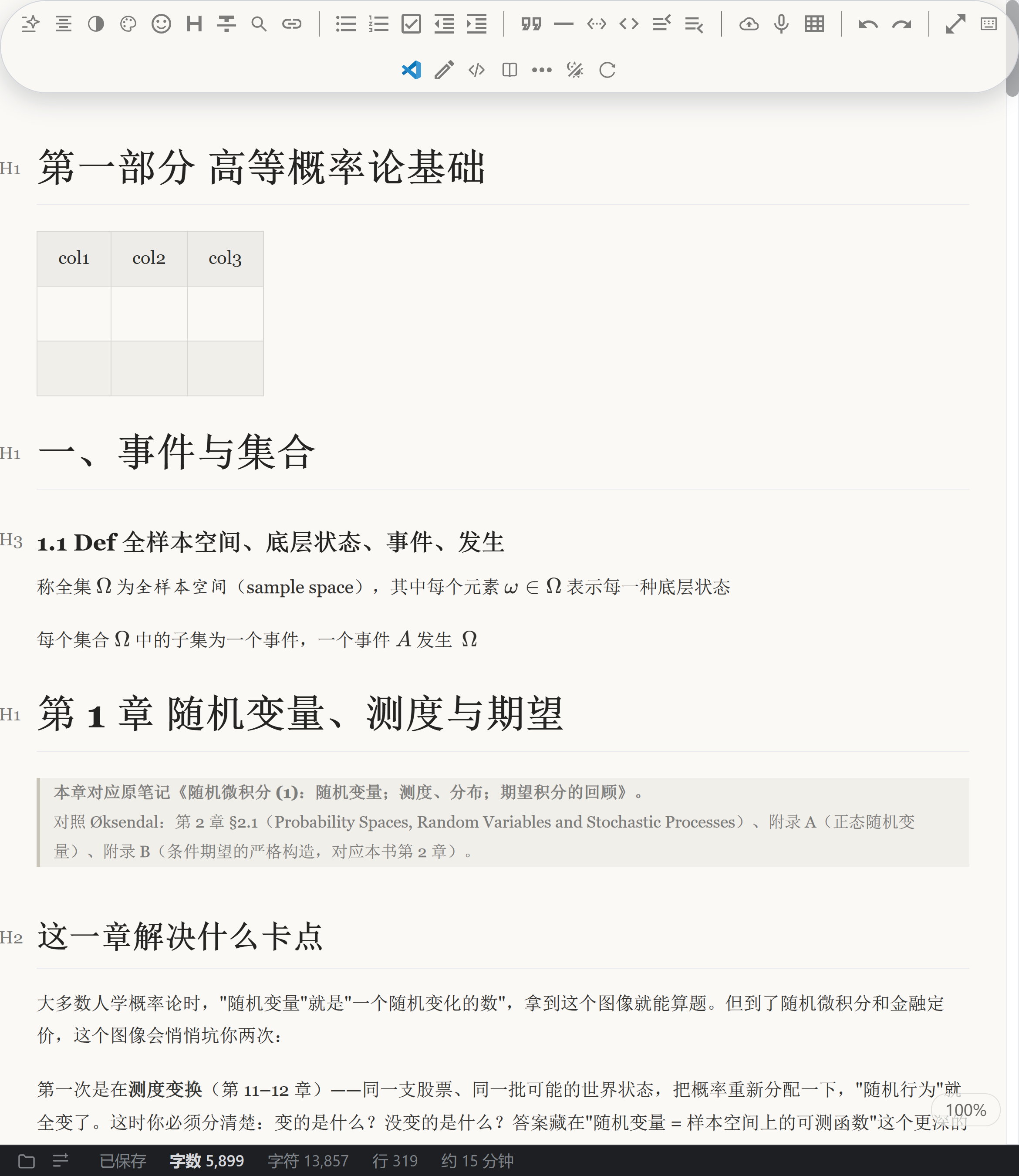
While you type one sentence, MarkPilot is already drafting the next one — and underneath the text sits a real typesetting engine: Typora-style live rendering, KaTeX math, Mermaid diagrams, and CJK/Latin spacing with serif themes.
New in 2.1.7
- Opening a folder from the start screen now gives visible feedback: the sidebar expands and the welcome page tells you where the file tree is.
- A normal exit keeps the window session, so reopening the app restores every window with its file, position and size.
- File-tree delete works: it asks once through the host dialog and sends the file to the Recycle Bin.
- Create/rename failures show a visible error instead of being swallowed by an invisible
alert.
- "Open file in this window…" really replaces the document in the current window instead of opening a new one.
- In-document anchors (
[text](#heading)) scroll to the heading and flash it.
- Ctrl+multi-selected images delete in one action (and keep keyboard focus in the editor).
- Completion popups stay clear of the line being edited and of the mouse pointer, in short windows too.
New in 2.1.6
Right-clicking an image no longer sends the caret back to the top of the document. With no caret in the document yet (a freshly opened file), a right-click on an image, a rendered formula, a highlighted code block or a diagram moved the caret to position 0 — thousands of pixels away in a long file, so the next keystroke landed at the very top. Those right-clicks now leave the caret next to the block you clicked; right-clicks on body text, headings, table cells and code source are unchanged.
The file tree’s new-file / rename box now catches your typing. After clicking New Markdown or pressing F2 the name box used to open without focus — typing went nowhere, and clicking into it first appended to the default name (未命名.md我的笔记.md). It now focuses itself and pre-selects the base name (extension kept).
Line endings are no longer rewritten on save. A CRLF document used to be converted to LF wholesale on the first save; saving now restores the original line endings, keeps a missing final newline missing, and preserves a UTF-8 BOM.
Content-zoom shortcuts work again. Ctrl+= / Ctrl+- / Ctrl+0 did nothing in the desktop app; they now zoom and reset as expected.
Markdown source forms are no longer damaged on save. Trailing-space and trailing-backslash hard breaks, four-space indented code blocks, fence info strings (js {1,3-5}) and reference-definition titles are preserved — including in CRLF documents.
New in 2.1.5
- Clearing the whole document no longer writes your next sentence as a formula. After
Ctrl+A and one Backspace, if the last block of the document is a display formula, the caret used to stay inside the emptied $$ — so everything typed next went into the formula source (typing abc produced $$\nabc\n$$, rendered as a formula). The cleared document is now an ordinary empty paragraph and typing goes to the body; one Ctrl+Z still restores the document byte for byte.
New in 2.1.4
- Word-wise delete next to a formula no longer breaks it.
Ctrl+Backspace / Ctrl+Delete used to bypass the formula boundary guard: with the caret in front of a $$…$$ block, one press merged the whole formula into the preceding paragraph. Those modified keys now run through the same guard; nothing else about them changes.
- Clicking the blank band above or below a display formula never eats its source. A click a few pixels above (or below) a collapsed
$$…$$ block used to resolve into the hidden TeX source, so the Backspace that followed deleted the last character of the formula. Such clicks are now mapped to just before/after the formula, by geometry.
- Caret movement in large documents costs about 3× less. The formula-state pass that runs on every caret move spent ~90% of its time in one lookup; on a 490 KB / 5,634-formula document the pass went from 0.289 ms to 0.099 ms.
New in 2.1.3
- Clicking the blank space around a formula no longer drops the caret into its hidden source. That invisible caret was why "put the caret before
(2) and press Backspace" deleted a character inside the $$…$$ (x+y=1 → x+y=). A click in the blank area now lands before/after the block, never inside it.
- The caret can sit on the
$$ fences themselves — before the $, between the two $, or after them, at whichever fence you click. Typing there puts the character into the source on that side; the fences and the Markdown stay intact.
- Backspace on a fence or on a formula's edge changes nothing, and says so. A one-line notice explains that
$$ is generated by the renderer (so a single $ cannot be deleted there) and points at the source view, where the fences are ordinary text.
- A paragraph edge inside a different block quote is protected too, so backspacing at the start of a
> (2) line whose formula lives in the previous block quote no longer strips the > prefixes.
New in 2.1.2
- Boundary Backspace no longer touches the formula. 2.1.1 turned "one press dissolves the whole
$$…$$ block" into "first press selects the whole formula, second deletes it" — which still destroyed it in two presses. Now the press only moves the caret to the nearest text outside the formula; the document does not change, and the next press deletes ordinary text outside it.
- The
$$ fences put the caret where you click (opening → start of the source, closing → end of the source), and characters typed afterwards really land on that side.
- The expanded state is enforced, not raced, so a preview box can no longer linger at a line end.
- Element-level caret positions (the shape produced when you click a formula body) are recognised as formula boundaries too — this was why 2.1.1 could still destroy a block with a single Backspace.
New in 2.1.1
- Editing next to a formula now behaves the way you expect. Putting the caret at the end of a line that ends with a formula no longer pops that formula's preview box; only clicking the formula itself expands its source.
- The
$$ of a $$ … $$ block are real, clickable text — the caret can go inside and between them instead of being stuck at the first source position.
- Backspace at a formula block's edge no longer destroys it — the document is left unchanged on the first press (2.1.2 revisited the follow-up press: it no longer deletes the whole formula either).
- Ctrl+B / Ctrl+I / Ctrl+U no longer corrupt TeX source, and Enter inside an inline formula no longer splits it into garbage.
New in 2.1.0
- Every file gets its own tab. A single click used to reuse the same preview tab and replace the document you were reading; 2.1.0 pins tabs by default, so several documents stay open side by side.
- "Open with MarkPilot (new tab)" in the explorer context menu and the command palette — it forces a new tab under any settings combination.
- Switching back to a tab re-syncs it with the latest content, so a tab that sat in the background no longer shows stale text.
- Desktop builds are multi-window: one file, one independent window. Copy, cut and paste between two windows — tables, formulas, images and rich table cells — all keep their formatting and stay tied to the document you paste into.
- Bug fixes in this release are listed separately at the end of
CHANGELOG.md.
Inline AI completion, the way you actually write
It knows which section you are in, what came before, and whether you are inside a formula — then shows a grey ghost suggestion right after the caret. Press Tab to accept.
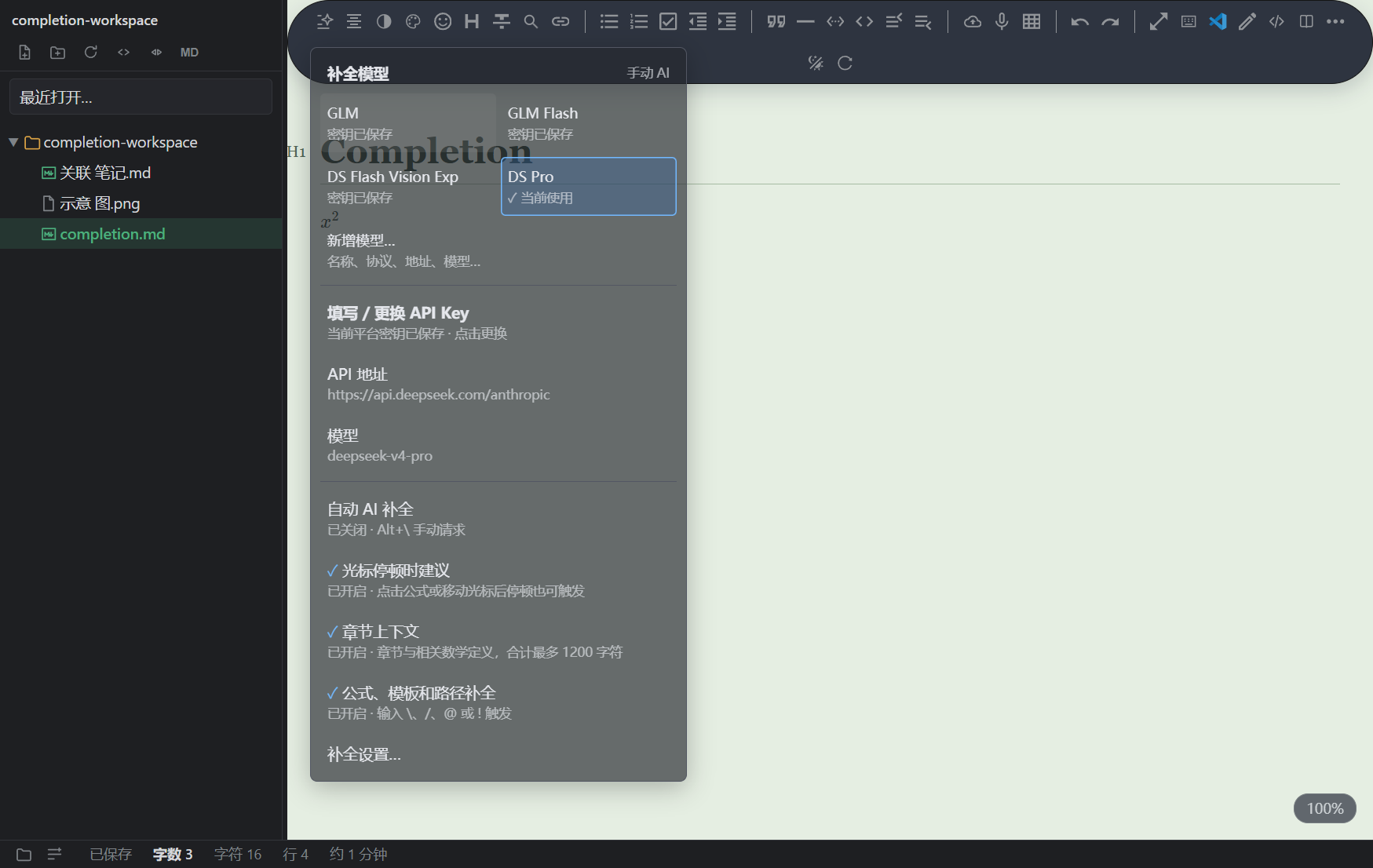
- Two engines. A cloud model with ready-to-use presets (Zhipu GLM and DeepSeek, both notably cost-effective) plus a local rule engine for formulas, templates and paths — so completion still works offline or with no key configured.
- Bring your own key. The key is stored in your editor's encrypted secret storage. It is never uploaded and never bundled into the package.
- Context aware. Section context, surrounding text and math-environment detection, capped so requests stay small and fast.
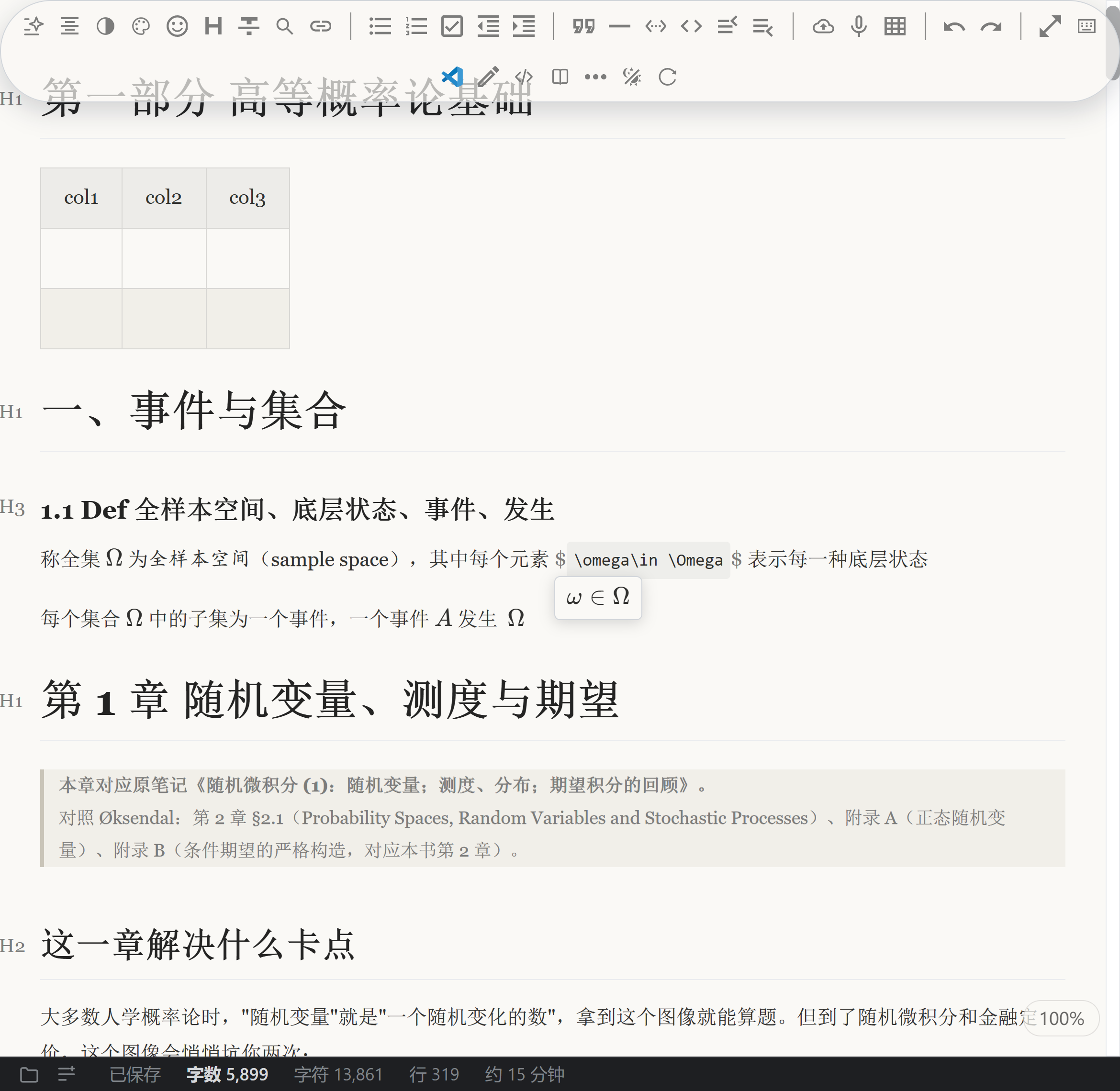
Rendered math, Typora-style: when the caret comes near, the source appears with instant preview. MarkPilot maps the rendered output back to the source — click a symbol and the caret lands exactly on the source that produced it.
Click the ω in $\omega\in\Omega$ → the caret lands on the o of \omega:
Click the subscript n of f_n(\omega) → the caret lands on that very n:
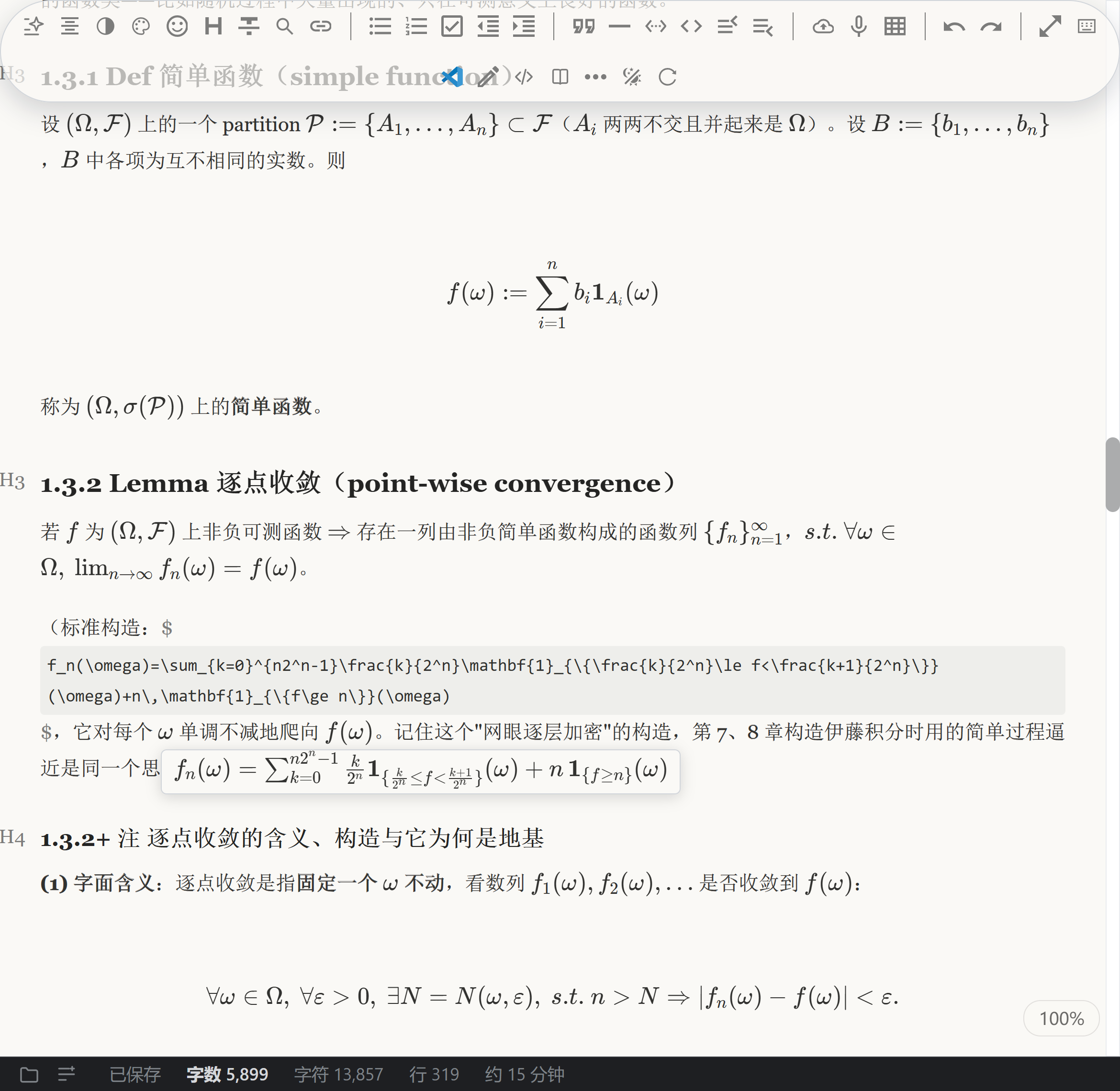
The mapping survives formulas inside table cells and nested blocks, with precise undo/redo.
Typography that reads like paper
Serif themes (宋体-朙 / 宋体-暗), automatic spacing between CJK and Latin text, and optimal line breaking on export — the same family of algorithm TeX has used for decades.
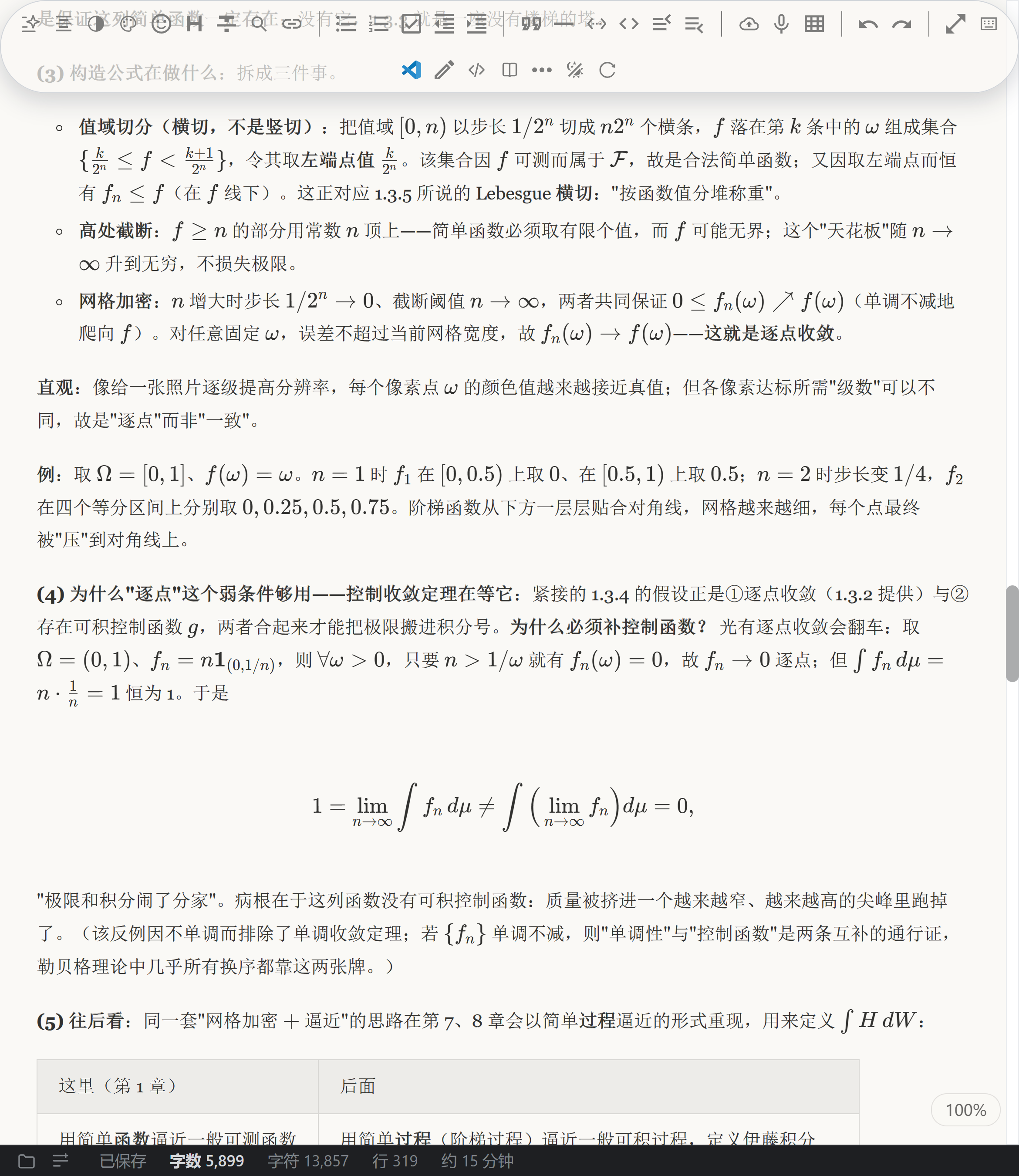
Surfaces are translucent by default and you control how much: Interface opacity has separate sliders for popups/menus and the toolbar (10–100%).
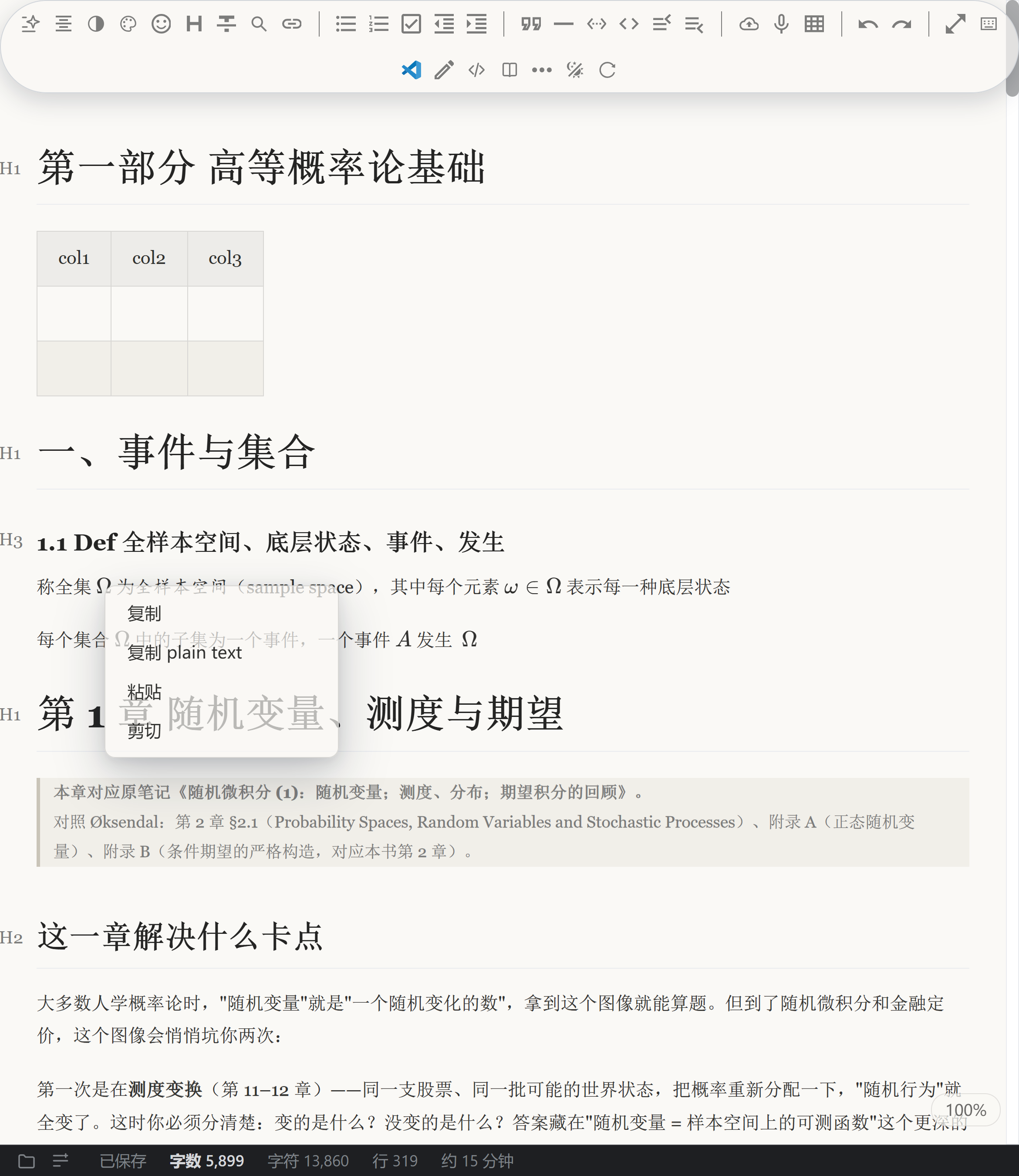
Large documents that stay smooth
Chunked background rendering with source-cache reuse: open a big document, then keep typing, undo, and jump around the outline — it stays responsive even with thousands of formulas. In internal benchmarks, CPU cost per edit dropped by 57–87%.
The rest of the editor
- Three modes — live preview / WYSIWYG / source — switch any time
- Outline tree in the sidebar, click a heading to jump
- Smart table editing, including formulas inside cells
- Mermaid diagrams, code highlighting, paste-and-archive images
- Floating toolbar island: it tucks itself away, click any blank space to keep writing
- Export to Word / Excel / PowerPoint with formulas as editable OMML — no Pandoc required
- Light and dark themes, reading palettes, Ctrl+wheel zoom
- Also available as a Windows desktop app (installer or portable): releases page
MarkPilot vs Typora
|
MarkPilot |
Typora |
| Inline AI completion (cloud + local engine) |
✅ |
❌ |
| Click a symbol in a rendered formula to edit its source (tables and nested blocks included) |
✅ |
partial |
| Print-quality CJK typography (CJK/Latin spacing, serif themes, Knuth–Plass line breaking on export) |
✅ |
partial |
| Large-file performance (chunked rendering + cache) |
✅ |
❌ |
| Runs inside VS Code / Trae |
✅ |
❌ desktop only |
| Price |
Free |
$14.99 |
Getting started
- Install this extension and reload the window — a MarkPilot icon appears in the activity bar.
- Open any
.md file with MarkPilot (right-click a file → Open With… → MarkPilot, or use the MarkPilot workbench view).
- For AI completion, open the MarkPilot view, pick a model, then paste your own API key — GLM and DeepSeek presets are built in, and any Anthropic-compatible endpoint works too.
中文说明
同一套编辑内核,现在装进了 VS Code / Trae:活动栏点开 MarkPilot 就是一个完整的 Markdown 工作台——AI 行内补全(内置智谱 GLM 与 DeepSeek 预设,填自己的 Key 即用)、公式源码与渲染结果一一对应(点符号即定位源码,表格内与嵌套都不丢)、界面上每一处弹窗与工具条的透明度都能调、二十万字文档依然流畅、印刷级中文排版(宋体主题 + 中西文自动间距 + 导出整段最优断行)。桌面版见 Releases。
License
The extension is free to use, for personal and commercial work alike. The full source of the editing core is available under a separate paid license — open an issue in the repository to get in touch.
Privacy
Local first. Editing, rendering and exporting happen on your machine; AI completion connects directly to the model provider you choose, only when you trigger it, and your key stays in your editor's encrypted storage.
Repository · Report an issue · if MarkPilot is useful to you, a ⭐ helps other people find it.
New in 2.1.8
- Anchor restore converges again. The scroll-restore loop's "is the anchor on target" check
subtracted its two terms in the wrong order, yielding 2× the real offset: the ±2 px convergence
line was unreachable, so every document open kept rewriting
scrollTop every 120 ms until the
6 s give-up (76 rewrites measured; ≤10 expected). The check now matches the repositioning
formula (settles in ~1 s) and corrections below 1 px no longer write to the scroller at all.
- Context menu placement follows the same rule as the completion popup: below the line, else
above it, else beside the pointer — never covering the mouse or the line being acted on
(
media-tools.js), and the file-tree menu in the shell follows the same rule.
New in 2.1.9
- Drag-select across inline math: the crossed formulas keep their rendered form and get the normal selection highlight; on mouse-up the boundary formulas unfold to
$…$ source (Typora parity).
- Copy of such a selection yields the LaTeX source; the collapsed-source 0×0 box no longer makes the copy blank.
- Clicking a formula still unfolds it and places the caret in the source.
New in 2.1.10
- Backwards drag-select across a math paragraph now selects the whole paragraph and copies full source (reversed ranges need
setBaseAndExtent, not Range.setEnd).
- Inline math previews are selectable so a press on a formula arms a native drag; block math unchanged.
v2.1.11 更新
- 光标不再掉进"记号洞":点加粗收尾与标点之间时,光标过去会被吸进看不见的
** 记号里——退格会吃掉一个星号、Shift+选再打字会插出 *X*。现在落进这种记号会被请回正文边界;用键盘进记号改标记不受影响。
- 向上拖拽不再抽搐抖动:Vditor 拖拽中把端点所在公式原地翻成源码(行宽行高全变)→ 指针下文字位移 → 端点又换一条,来回打转。现在按下期间公式保持渲染态(视觉压制,松手恢复),全程零布局变化。
- 松手落点可见:松手那一点画一根 2px 闪烁竖线(打字即撤);选中底纹覆盖跨过的公式。
- 修回归:块公式渲染结果的点击映射恢复(2.1.10 的门挡住了它)。
v2.1.12 更新
- HTML 图片能正常删掉了:点选后按 Delete/退格,以前图片不动、却把别处一个字吃掉、光标跑到标题上(选区被收塌,旧守卫放弃删除,按键落给浏览器)。现在按点选状态删:只删那段
<img …>,别处一个不动,光标落在图片原来的位置,一次 Ctrl+Z 复原。
v2.1.13 更新
- 点行内公式渲染结果的光标落点修好了:落点改成在按下那一刻映射(那时版面正是用户瞄准的版面)。以前只在
click 时算,而此时产品已经把公式翻成展开态、渲染结果量不出字形,映射失败就兜底 placeCaret(code, 0)——一律扔到公式源码最前面。另加"最近字形"兜底,字形缝隙里的点击停在缝边上;兜底也改成按落点在框的哪一半贴左/贴右。
v2.1.14 更新
- 紧贴块公式的正文,点字的上半截不再跑到行首:
blankLanding(把"公式旁的空白留白"翻译成公式前/后插入点)的 ±10px 纵向容差,会把"上一块块公式紧贴着的下一段正文第一行字的上半截"整段算成留白。现在落点压在别的块盒子里就认定是正文,交回浏览器。
v2.1.15 更新
- 块公式渲染行的末尾点击不再跳过末尾那个逗号:落点改成半格判定(字形左半→停在它之前、右半→停在它之后),公式最后一个字形除外(点它仍停在它之前),命令一律落到反斜杠之后。
- 显示模式的 ∑/∫/lim 点上去插到
\ 与后一个字母之间:KaTeX 在显示模式下不给大运算符本体任何源码映射(映射在外层 mop 上),旧实现退到"最近的映射字形"于是选中了下标里的 =。现在压到"自己没映射但确实画着字"的元素上时用外层容器的位置。
- 公式提示栏避开预渲染框:面板落位新增一条规则,权重排在"条目更多"之前。
- 图片删除只要一次 Ctrl+Z:Vditor 的历史快照带光标位置,纯光标移动会被记成一条 markdown 不变的空撤销;现在补历史点前先比 markdown。
- 删除顶边滚出上沿的图片:下方文字不动(补偿量按内容总高变化量算,图片盒/块的几何会差 39px)。
v2.1.16 更新
- 块公式行末口径改正:点最后一个字形(左右半边都算)及它右侧的空白带 → 光标落到公式源码末尾;前面字形仍按半格;命令仍落到反斜杠之后。
- 图片删除后第一次 Ctrl+Z 就复原:Vditor 在
setValue 之后的去抖 push 会留下一条"markdown 没变"的空历史,压在删除补丁上;撤销/重做现在跳过空步(记录一侧不动)。
- 拖拽经过
$$ 不再抖:按下期间不展开块公式(实测 --expand 翻转 4→0、块盒高度全程不变)。
- 补全面板以工具栏下沿为天花板,不再顶到屏幕最上面。
v2.1.17 更新
- 公式命令补全加回"同类补全":
\mathbb 带出同族字体命令(\mathscr/\mathbf/\mathcal/\mathfrak…),\frac 带出 \sqrt/\dfrac,\sum 带出 \prod/\int;个数自适应(前缀命中不足 4 条才补同族),只敲 \ 时仍是原来那 12 条常用命令、顺序不变。命令表 42 → 215 条。
- 说明:公式模板补全一直是离线的(静态表 + 本地匹配);联网的只有可选的 AI 续写(需自填 API Key,公开版无此代码路径)。
v2.1.18 修复
- 公式命令候选说明栏不再出现「同一类(字体)」这类分组字眼(说明栏只放命令自己的中文解释;同族候选照旧一起给)。
v2.1.19 更新
- 公式命令补全排序重做(参照 VS Code 的排序模型):完全命中 → 前缀命中(按"键入部分占命令名的比例")→ 同族兄弟(紧跟强命中,按与键入那条的最长公共前缀)→ 说明 → 模糊;
\mathbb → \mathbf/\mathcal/\mathscr…,\frac → \sqrt/\dfrac…
- "公式里出现过"只做同档内次级键,不再把
\int/\in 顶到常用命令之前;命令表 42 → 215 条。
v2.1.20 更新
- 展开态块公式单击不再整块闪烁:按下期间冻结已展开的块公式(不展也不收),松手后恢复"光标在不在公式里"的收放;单击期间 KaTeX 不重跑、预渲染子树与公式源码逐字节不变。
v2.1.21 更新
- 行内公式的预渲染浮框(展开态下浮在源码下方那片)现在与折叠态渲染结果共用同一条"像素 → 源码偏移"映射:点哪个字形,光标落到那个字符;点框的内边距按最近字形算;点最后一个字形按行末口径落到公式末尾。
- 按下期间不再收回展开态:以前光标被浏览器夹到框外正文里,refreshMathEditing 见"光标不在公式里"就把 --expand 摘掉,松手后又装回来(一次点击跳两下)。
- 双击选词与带修饰键的按下照旧交给浏览器;从浮框里拖拽仍然能起选区。
v2.1.22 更新
- 按下已经展开的行内公式(源码或它的浮框)时给它挂
.typora-ir-pressed,把那组"按下期间从视觉上压回渲染态"的 CSS 用 :not(.typora-ir-pressed) 排除——否则正在编辑的这条公式每点一下就被折起来一次、松手再弹回来。
- 展开态浮框的落位改用 CSS 锚点定位(anchor-name 挂在源码 code 上,浮框
left: anchor(... left) / top: anchor(... bottom)):源码跨行时不再以"第一个行盒片段"为基准(那会跑到上一行行尾)。
- 回归场景 92 扩到 44 条断言:新增 G 组(跨行公式的浮框落位)与 H 组(按住已展开公式期间逐帧不许被折起来)。
| |

