



Turn an existing RTL project into the schematic you would have drawn on a whiteboard.
Point an AI agent (Claude Code, Codex, Cursor) at a Verilog folder and it reads the code and writes
the graph itself — one file per component, every box and every net carrying the line of code it came
from. Prefer to draw it yourself? Write the JSON by hand and use the same canvas, no agent required.
Not a netlist viewer. The picture a person draws to explain the design — and every line of it traces back to the code, and to the brief the design was asked for.
A Quick Look
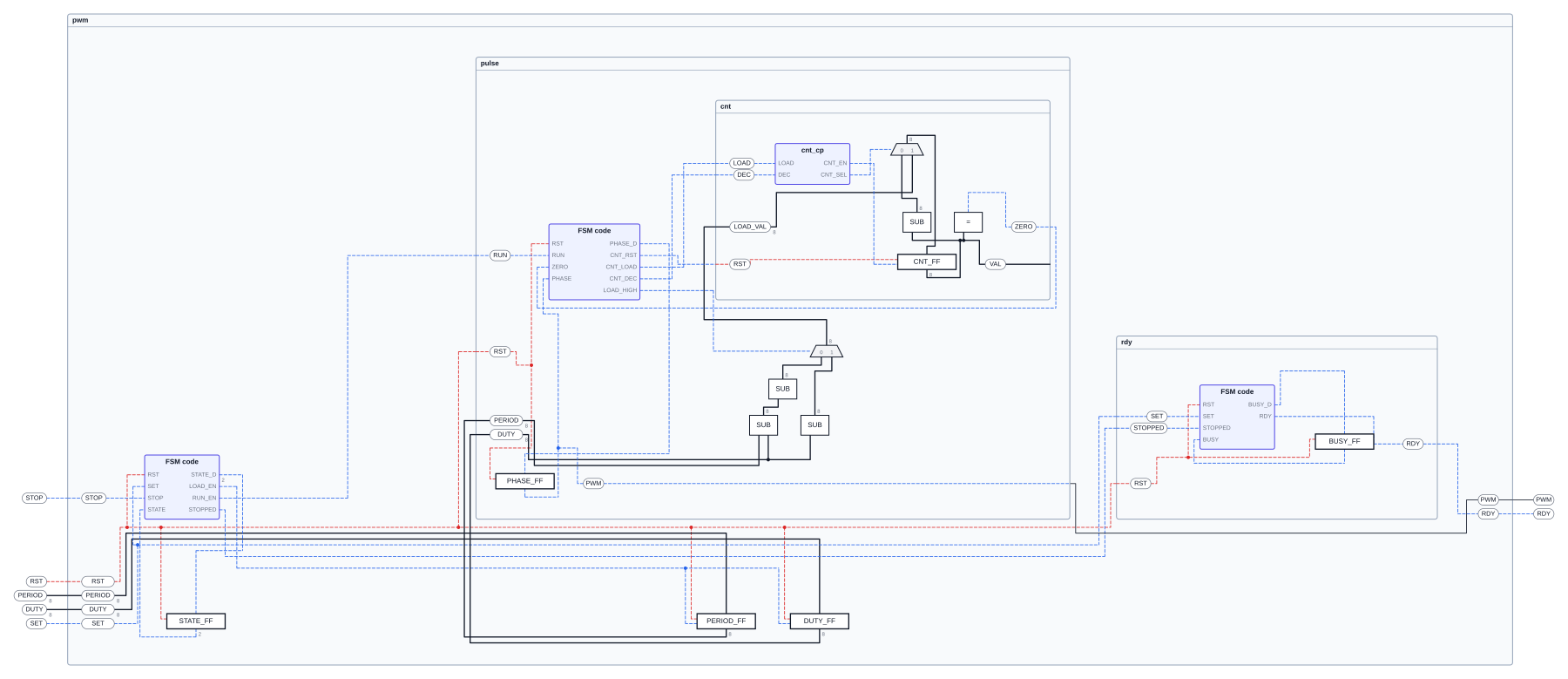
demo/pwm, three levels of components open at once — each frame is its own file, and every box opens the Verilog it came from
Getting there takes four steps:
- Build the extension and press F5 (see Installation — it is not on the Marketplace yet)
- Right-click your RTL folder and run
RTLGraph: Copy Agent Spec to Workspace
- Paste the generated
.prompt/rtlgraph/components/rtlgraph/english.md (or korean.md) into your agent, filling in the project path
- Open the finished
<top>.rtlgraph.json
Perfect for
- Explaining a design you did not write, by reading its shape before its syntax
- Assignments handed out as a skeleton, where the folder may not be touched and the brief is a PDF — the JSON sits beside the code and every box can open the sentence it exists for
- Figures for a report or slides, since any view exports to SVG, PNG or PDF cropped to what is on screen
- The tables the design was built from, since a schematic exports to XLSX: control signals, truth tables, state transitions
- Checking an agent's reading of your RTL, because every claim carries a
file:line and the validator says when it does not match
Motivation
Vivado will draw an elaborated schematic, and it is unreadable: every net, every hierarchy level, laid
out by a tool that has no idea which parts matter. The picture a person draws on a whiteboard is a
different object — a dozen boxes, the data path across, the control path underneath, the state machine
in a corner — and there is no tool that keeps that picture beside the code.
So the drawing is kept as data: a small JSON per component, which an agent writes by reading the
RTL. That makes the picture reviewable (it is a diff), regenerable (re-run the agent after a
refactor), and checkable — origin on every box and net names the file and line it came from, and the
validator reads the Verilog back to confirm the line really says that. An agent that invents a
connection is caught by the same pass that would catch a typo.
The hand still matters, so everything you arrange — moving a box, resizing a frame, bending a wire,
cutting a link, drawing one the code does not have yet — is written under layout and nowhere else.
Re-extraction never overwrites it. A link you draw that the RTL has no net for is drawn amber and
listed as an open goal, the way a proof assistant lists what is left to prove: the sketch says what the
code should do, and the panel keeps asking until it does.
And an assignment arrives as a PDF. The root names it once in source.spec and every file below
inherits it, so any box in the design can open the brief; a box that also quotes a sentence opens it
inside the editor with that sentence highlighted, so "does the circuit do what was asked" is one
click rather than a memory test.
Screenshots

A *.rtlgraph-fsm.json opens as a state diagram — every transition says when it is taken, in words, with the code's own condition kept beside it
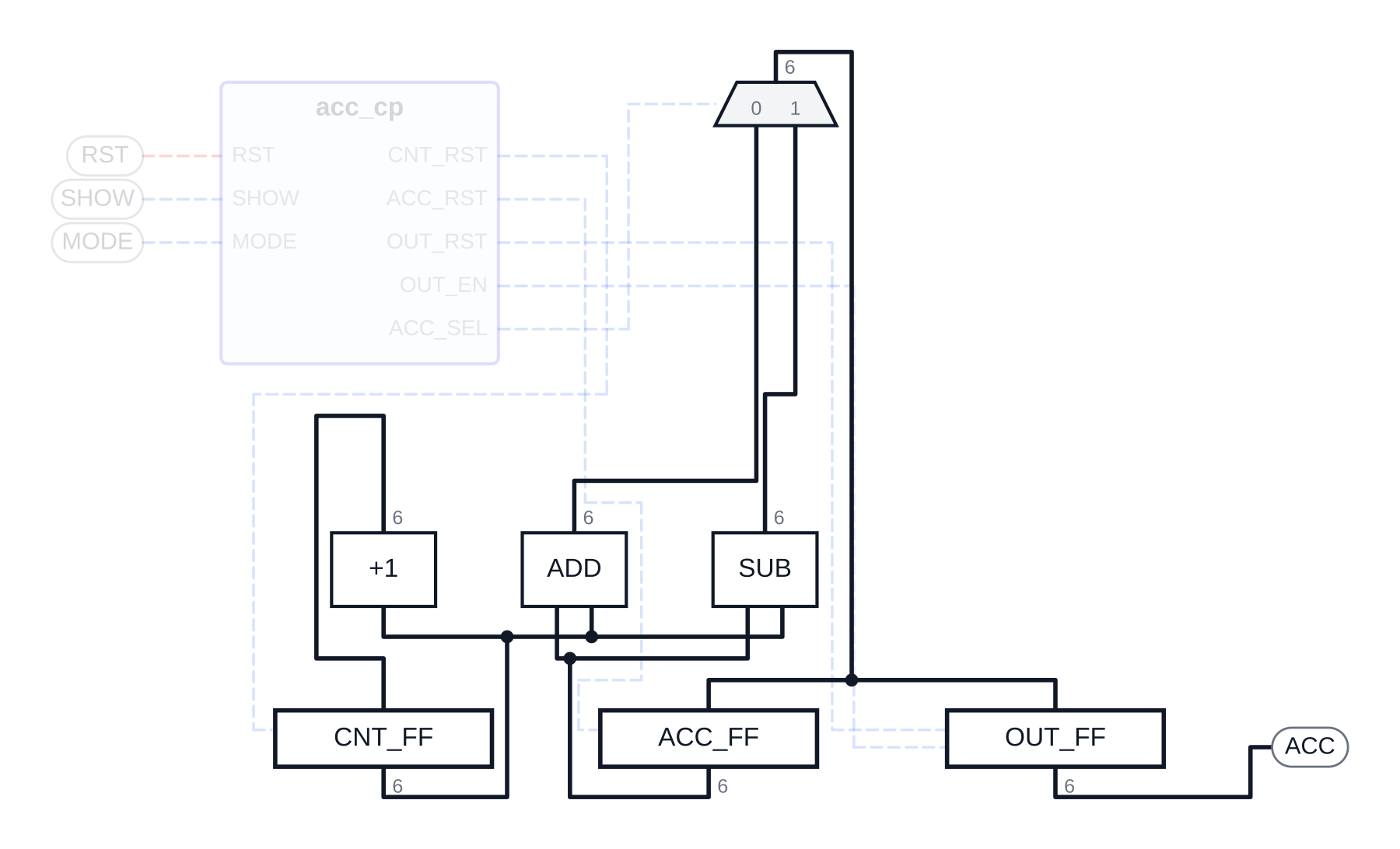
The same kind of file under the Datapath preset — the filter is two levels deep, so the control path can be taken out of the picture entirely
Features
|
|
| Component hierarchy |
One root plus a schematic per component, each beside the code it describes; fold a frame to a box, or open three levels at once. Opening a box shows one level — what is inside it always starts folded, so the same box always opens to the same picture |
| Two-level filter |
Comb opens Data / Control, Seq opens Registers / FSM — the way a top module is drawn on a slide — plus presets (Datapath, Control path, Registers only…) |
| Code jump |
Right-click any box or net to open the exact file:line it came from, in the editor group to the right of the drawing |
| Requirement jump |
Right-click to open the brief the design was asked for, in pdf.js's own viewer — sidebar, find bar, zoom, print — with the quoted sentence highlighted. It is located by the sentence, never by stored coordinates, so it is still found when the document has been re-issued |
| Hand editing that survives |
Move boxes and frames, resize, bend wires, cut a link, draw one the code lacks; all of it lives under layout and re-extraction leaves it alone |
| Open goals |
A link the RTL has no net for is drawn dashed and listed conclusion-first ("Drive CNT_FF:D — nothing does yet"), so the sketch can run ahead of the code |
| State machines |
*.rtlgraph-fsm.json draws Moore or Mealy as a diagram with the transition table beside it |
| Export |
SVG / PNG / PDF of exactly what is on screen, and XLSX of the tables behind it — all written without a dependency |
| Validator |
Schema, widths, ports, unreachable nets, missing meaning, and every origin checked against the Verilog itself. A source.root pointing at the wrong folder is reported once, with the value it should have, instead of once per element |
| Its own file icon |
RTLGraph marks the tabs it owns — the schematic, the state diagram, the waveform, the requirement reader — whichever icon theme you use. In the Explorer the icon belongs to your theme; RTLGraph: Mark RTLGraph Files in the Explorer teaches Material Icon Theme about them |
| A reader for the specification |
A spec written by components/codespec opens in a reader of its own (📖): the document rendered in your VS Code theme, with the steps of every scenario listed under its heading. Click one and that cycle opens on the code |
| Walk a scenario through the code |
▶ workflow on a scenario steps its cycle-by-cycle table through the editors — the current step top right, the one before it underneath, the stretch to read bracketed down the gutter. One event is followed across modules: transmitter → the top's flops → receiver, one step per file |
| Hover a signal for what the spec says |
Hovering a name in the .v shows that signal's section 6 entry — where it is made, where it is read, the range it holds — with every citation in it a link to that line |
| Agent-friendly |
.agent/rtlgraph/SPEC.md plus seven ready-to-paste prompts, one per kind of job, and three chains that run several of them in order |
Agent / AI Editing
Before pointing an agent at a project, run RTLGraph: Copy Agent Spec to Workspace once —
right-click the folder in the Explorer (or run it from the Command Palette). It writes, into that
folder and nowhere else — everything under its own name, so nothing collides with what another
tool writes into .agent/ or .prompt/:
.agent/rtlgraph/SPEC.md              how to turn RTL into *.rtlgraph.json (and how to write RTL)
.agent/rtlgraph/ENVIRONMENT.md       which simulators and tools this machine has
.agent/rtlgraph/validate.mjs         the validator the agent runs on what it wrote
.agent/rtlgraph/run-tb.sh            runs the testbenches and says which passed
.agent/rtlgraph/make-submission.sh   collects the .v files to hand in, checks them, zips them
.agent/rtlgraph/wave.mjs             reads a simulation's dump and says what it measured

.prompt/rtlgraph/components/rtlgraph/korean.md    existing RTL → RTLGraph
.prompt/rtlgraph/components/assignment/korean.md  the same, for a skeleton that may not be touched
.prompt/rtlgraph/components/rtl/korean.md         spec → RTL in the three-layer layout, then RTLGraph
.prompt/rtlgraph/components/refactor/korean.md    existing RTL → restructured RTL, then RTLGraph
.prompt/rtlgraph/components/spec/korean.md        an idea → SPEC.md
.prompt/rtlgraph/components/waveform/korean.md    a run that happened → why it happened
.prompt/rtlgraph/recipe/assignment/korean.md    a whole handout: draw, test, explain, check the submission
.prompt/rtlgraph/recipe/marking-day/korean.md   the marking bench arrived: run it, dump it, explain it
.prompt/rtlgraph/recipe/read-code/korean.md     someone else's RTL: draw it, run it, explain it
.prompt/rtlgraph/README.korean.md               which to reach for — for you, not the agent
.base/DFF.v                            the primitives this design instantiates, plus a note
Only what this project needs is written: the prompts in the language rtlgraph.language is set to
(auto writes both korean.md and english.md), and out of .base/ only the primitives the code
actually instantiates — DFF, INC, ADD, SUB, MUX2, CMP_EQ are all there to be had, and a
folder with no RTL in it yet gets the lot, since there is nothing to go on.
Those are the tools. What a run produces belongs to the project, not to them:
waveform/<given|mine>/<bench>.waveform.json (opens as a waveform) and the .vcd beside it — plus
.waveform.md if you asked for --report. The compiler's scratch goes in .rtlgraph-build/,
which is removed again when the bench passes (--keep-build keeps it).
.agent/rtlgraph/run-tb.sh --wave closes the loop the other way. It dumps a waveform — adding a
module that calls $dumpvars, so no testbench is edited, the handed-out one included — and
wave.mjs turns the dump into waveform/<given|mine>/<bench>.waveform.json: clock period and whether it wobbles, when the reset
let go and what was still undefined afterwards, when each valid/ready transfer was taken and
how long it waited, and the run cut into one stretch per check the bench printed. Measurements
only. The reading of why is a separate job, for .prompt/rtlgraph/waveform/*.md, which is told
to take every number from the dump and cite file.v:line for every claim.
And a *.waveform.json opens as a drawing, not as JSON: the places worth going to down the left —
how the design came up, then one per check the bench printed, each with what was measured there,
the instants worth looking at as buttons, and the line of the testbench that printed it — and
the traces on the right, where each signal's name opens the line of RTL that drives it.
Matching every instant of a waveform to code is hopeless; matching a check and a signal is not,
and those two jumps are what a reader actually asks for.
And when an agent has written the other half — waveform/<given|mine>/<bench>.waveform-analysis.md, from the
waveform prompt — the view reads it back and puts each section beside the check it explains,
in a panel to the right of the traces so the signals it is about stay on screen: the
measurements are the claim, that is the argument, one click away, with every file.v:line in it
a button. Every section is written in the same three fields — purpose, how it was driven, what came
of it — and what does not bear on the verdict folds away, so a check reads in thirty seconds.
Sections that belong to no single check are kept at the end rather than pinned onto one. Click a place, or walk them with ← and →; hover for the value of
every signal at that instant. One row per net (a port either side of a boundary is one wire, not
two), grouped under the module each belongs to — read off the line of RTL that drives it, so a
name never has to be traced by hand — and a signal that is x drawn in red so an undefined stretch
is visible rather than merely absent. It is not a Vivado wave window, where you add what you want and everything you added
stays: it opens on a screenful of the signals a check is usually about, and the header counts what
that leaves out — 20 / 33. The rest are three buttons: clk for the clock (a grey blur at any
zoom that shows a frame, which is why it is not first), var for the bench's own counters and
parameters, ⋯ for every remaining signal.
.base/ is the one thing not under rtlgraph/: it is a library the design compiles against and
source.lib points at it by path, so it belongs to the project rather than to this extension.
.agent/rtlgraph/run-tb.sh is there for one moment in particular. Coursework is marked with a testbench
that arrives after the work is done, so the benches are kept apart by who wrote them —
tb/given/ for the handout's, tb/mine/ for yours — and the script swaps one at a time into the
project folder, where a handout expects a bench to sit, runs it against the rest of the design,
takes it back out, and prints a verdict line per bench. The day it arrives:
cp tb_uart.v <project>/tb/given/ && .agent/rtlgraph/run-tb.sh given. --keep leaves the last bench in
the project folder for Vivado's GUI.
Running the command again refreshes everything except a primitive the project has adapted:
.base/DFF.v edited to take BITWIDTH stays as it is, and the notification says which files were
left alone. Overwriting it would leave a project that no longer elaborates.
.agent/rtlgraph/make-submission.sh closes the same day at the other end: it stages every .v in the
project that is not a bench — the handout asks for the RTL, nothing else — plus whatever those
files need in order to elaborate. A handed-out skeleton often instantiates a primitive it does
not ship (DFF is the usual one), and a zip that cannot be compiled is not a submission, so the
script asks the compiler what is missing, finds who defines it in the project, and adds exactly
that under base/ — saying which files it added and why. --no-deps hands in the project's own
files alone, for a marking project that supplies its own copy. Benches, all of .base/, the RTLGraph
JSON and the handout stay opt-in (--with-tb, --with-base, --with-rtlgraph, --with-pdf, or
--all), and --list shows what would go in without writing anything.
.base/ is copied, not referenced: a handed-out skeleton often instantiates DFF without
shipping one, and a project that cannot elaborate on its own is not much of a project. Point
source.lib at it. If the code's primitive differs from the stock one — the UART assignment's
DFF takes BITWIDTH, the width, where ours takes BW, the top bit index — adapt the copy and
say so; RTLGraph still draws it as a register and reads its width from the nets.
Which prompt. .prompt/rtlgraph/README.md answers that in one table and a page per branch — it is
written for a person deciding, not for an agent. In short: rtlgraph and assignment both leave
the code exactly as it is; they differ in where the JSON goes. rtlgraph builds the contract layout (a folder per component) — use it on your
own projects. assignment creates no folder: each JSON sits beside the module it describes
(demo/hw), or set RTLGRAPH_FOLDER in the prompt and they all go in one folder of their own
(demo/lab, code left in src/). refactor is the only one that restructures code, and it is a
separate task on purpose. RTLGraph: Copy Prompt Path puts the path of whichever branch you want on
the clipboard.
Key rules the spec holds the agent to:
- Every node and net carries
origin (file, 1-based line) — the validator reads the line back, so a guess is caught
meaning is required on every control and reset net: what happens when it is asserted cannot be read off the picture, and the control table and the workbook are built from it- A state machine is a file of its own, and every state says what the design is doing there, every transition when it is taken — in words, with the code's condition kept beside it
- Where a brief exists,
source.spec names the document and an element quotes the sentence verbatim; a requirement the design does not implement is a diagnostic, not a quote
layout is the reader's, never the agent's: rewriting the graph leaves the arrangement alone
Example prompt
After running RTLGraph: Copy Agent Spec to Workspace on your project folder, paste this in — the same
text is written out as .prompt/rtlgraph/components/rtlgraph/english.md, so you can hand the agent that path instead.
PROJECT_FOLDER = <ABSOLUTE PATH TO THE RTL PROJECT>

PROJECT_FOLDER/.agent/rtlgraph/SPEC.md and PROJECT_FOLDER/.agent/rtlgraph/ENVIRONMENT.md
are already prepared for you — read both in full.

Read the RTL without changing it, then write the root <top>.rtlgraph.json and
one *.rtlgraph-schematic.json per component, following the spec exactly.
Every node and net must carry the file and line it came from.

Run PROJECT_FOLDER/.agent/rtlgraph/validate.mjs on the result and fix what it
reports, until it is clean. Tell me when done.
An assignment with a PDF brief
Assignments are what the assignment prompt exists for: the skeleton's folders and names may not be
touched, so nothing is moved and each JSON is written beside the module it describes. Give the agent
the handout as well and it fills in source.spec plus a spec: { quote, page } on the elements the
document actually talks about. Right-clicking one of those opens the PDF beside the drawing with that
sentence highlighted; any other box in the same design offers the brief itself. demo/hw is the worked
example, handout included.
Mouse & Keyboard
Canvas
|
|
| Drag |
Pan |
| Scroll |
Zoom |
| Click |
Select a box, a frame or a wire |
| Double-click a component |
Fold or unfold just that one |
| Right-click a box or net |
Where to go: the schematic inside it, its code, its requirement |
Esc |
Deselect |
Edit mode
|
|
| Drag a box or frame |
Move it |
| Drag a frame's corner |
Resize it |
| Drag a straight run of a wire |
Shift that run sideways |
| Drag from a pin |
Draw a link — drop it on a pin, or anywhere over the target box and it snaps to the nearest pin that can take it; while you drag, only the pins that can take it stay lit |
| Right-click a wire |
Flip the nearest corner: an L becomes a Γ and back. A wire only ever turns at right angles, so two runs meeting at a corner span a rectangle and there are exactly two ways round it — right-clicking swaps them, and right-clicking again puts it back. The editor says which wire it turned; a wire that runs straight has no corner and says so |
Delete |
Cut the selected link (drawing it again puts it back) |
Everything here is written under layout in the file, and nothing else is.
Installation
RTLGraph is not on the Marketplace yet. To run it from source:
git clone https://github.com/Jeong-jin-Han/RTLGraph
cd RTLGraph
npm install
npm run check      # typecheck + tests; also builds the extension bundles
Or build a .vsix and install that:
npm run package                            # writes releases/rtlgraph-<version>.vsix
code --install-extension releases/rtlgraph-0.1.1.vsix
Every build that was released is kept in releases/, so an older one can always
be installed again.
npm run package copies this README and the licence into the extension folder
and rewrites their relative links to absolute GitHub ones, so the marketplace
page is this same document — images and all.
Open the repository in VS Code and press F5 (Run RTLGraph). An Extension Development Host
opens on demo/; try acc/acc_top.rtlgraph.json or pwm/pwm_top.rtlgraph.json.
Node ≥ 22.18 is required — the packages are TypeScript sources, run directly.
File icons
The tab of anything RTLGraph draws carries its mark already: the editor owns its
own tab, so it sets the icon whatever theme you use. The Explorer is a different
matter. That icon comes from your file icon theme; RTLGraph contributes a
rtlgraph language (JSON's grammar, unchanged, so highlighting survives) which
the default theme falls back to, but a theme that resolves by extension —
Material Icon Theme, say — sees .json and draws braces before ever asking.
Run RTLGraph: Mark RTLGraph Files in the Explorer and it offers to add the four
patterns to Material's associations (it asks first; it is your settings file). On
the default theme nothing is needed — RTLGraph's own icon is used there.
Files
One root per project and one schematic per component, each next to the code it describes:
<project>/
├── <top>.rtlgraph.json                       root: the top's ports and component boxes, no logic
└── <main>/                                   the main component — a folder even when it is the only one
    ├── comb/  seq/  tb/
    ├── <main>.rtlgraph-schematic.json        its schematic; a component inside it is a box that refers to…
    ├── <main>.rtlgraph-fsm.json              …and, if it runs a machine, the machine
    └── <child>/<child>.rtlgraph-schematic.json   …its own schematic, and so on
The FSM and Schematic buttons walk between a component and its machine. Fold state is
remembered per file by VS Code, never written into the JSON.
The shape of a schematic file:
{
  "version": "0.1.0", "kind": "component", "title": "cnt",
  "source": { "root": ".", "spec": "../spec/brief.pdf", "files": ["seq/cnt_top.v"], "top": "cnt_top" },
  "signals": {
    "CNT_EN": { "width": 1, "flow": "control", "driver": "control_path:CNT_EN", "sinks": ["CNT_FF:EN"],
                "meaning": "1=the counter register takes a new value",
                "origin": { "file": "seq/cnt_top.v", "line": 19 } }
  },
  "nodes": {
    "CNT_FF": { "kind": "reg", "flow": "data", "time": "seq", "module": "DFF",
                "ports": { "CLK": "in", "RST": "in", "EN": "in", "D": "in", "Q": "out" },
                "spec": { "quote": "Count up while EN is high.", "page": 1 },
                "origin": { "file": "seq/cnt_top.v", "line": 22 } }
  },
  "layout": { "nodes": { "CNT_FF": { "x": 240, "y": 120 } } }   // the reader's, never rewritten
}
See .agent/rtlgraph/SPEC.md (or packages/vscode-ext/assets/agent/RTLGRAPH_SPEC.md) for the whole
schema, and docs/DECISIONS.md for why each part is the way it is.
Export
Export… writes what is on screen — the current filter and fold state, cropped to what is visible —
next to the graph file:
acc/acc_top.rtlgraph.json
acc/.out-acc_top/acc_top.datapath.svg   vector; Inkscape, Illustrator, web pages
acc/.out-acc_top/acc_top.datapath.png   2× image; slides, chat
acc/.out-acc_top/acc_top.datapath.pdf   vector; papers, reports
acc/.out-acc_top/acc_top.control.xlsx   the tables behind it; Excel, LibreOffice
XLSX is the drawing read back as the tables it was made from — one tab of control signals per level
(what drives each, what reads it, what it means), one tab per truth table, and, where a brief is cited,
one tab of requirements against what carries each. A *.rtlgraph-fsm.json gives the machine, its
states and every transition.
A figure holds the schematic and nothing else: fold markers stay in the editor, and a root that only
wraps one main component is left out. The file name carries the view (all, datapath, controlpath,
comb, registers, fsm, or the groups spelled out). The folder is the rtlgraph.export.folder
setting, default .out-${name} — hidden, like NodeGraph's .<name>-imgs.
PDF text uses the built-in Helvetica font, so non-Latin labels (e.g. Hangul) come out as ? there —
you are warned, and SVG/PNG show them correctly.
Without VS Code:
node packages/rtl-render/src/cli.ts <graph> datapath --unfold --format pdf -o out.pdf
node packages/vscode-ext/dist/agent/rtlgraph-validate.mjs <graph>
Commands
Ctrl+Shift+P → type RTLGraph:
| Command |
What it does |
RTLGraph: Copy Agent Spec to Workspace |
Writes the agent files into a folder (also on folder right-click in the Explorer) |
RTLGraph: Copy Prompt Path |
Pick a branch of work; its .prompt/rtlgraph/…md path goes to the clipboard |
RTLGraph: Run the Testbenches |
Runs .agent/rtlgraph/run-tb.sh in a terminal — both folders, or only given / mine |
RTLGraph: Package the Submission |
Runs .agent/rtlgraph/make-submission.sh — list first, or write the zip |
rtlgraph.language (setting) |
auto, english or korean — RTLGraph's own wording in the waveform view and in what --wave writes. Names from the code are never translated |
RTLGraph: Read the Specification |
Opens a codespec specification in RTLGraph's reader (also the 📖 above the document, and the book in its title bar) |
RTLGraph: Walk a Workflow |
Walks one scenario's path through the code; alt+→ / alt+← step, and the status bar's ◀ RX-N1 3/6 ▶ steps by clicking |
RTLGraph: Mark RTLGraph Files in the Explorer |
Teaches Material Icon Theme about *.rtlgraph.json and *.waveform.json (asks before touching your settings) |
RTLGraph: Export Schematic (SVG / PNG / PDF) |
Exports the current view (also the Export… toolbar button) |
RTLGraph: Fold Components / Unfold Components |
The selected component — on its own (what is inside goes back to folded) or with everything inside — else the whole hierarchy |
RTLGraph: Open Component Schematic |
Opens the selected component's own schematic file |
RTLGraph: Open the Code of the Selected Box |
Jumps to the origin line, in the editor group right of the schematic |
RTLGraph: Open the Requirement of the Selected Box |
Opens the brief in the reader, with the quoted sentence highlighted |
RTLGraph: Open State Machine / Open the Component Schematic |
Walks between a component and its machine |
RTLGraph: Back Out of This Schematic |
Up one level to the component this one sits inside, or out to the root — the Prev button asks which |
RTLGraph: Open Root File |
Straight out to the root of the hierarchy |
RTLGraph: Set View Preset |
All · Datapath · Control path · Combinational only · Registers only · State registers only |
RTLGraph: Fit View |
Fit the schematic to the window |
Repository layout
| Path |
What |
packages/rtl-ir |
IR types, validator, source cross-check, layout merge, view filter — no VS Code, no dependencies |
packages/rtl-registry |
Symbols for the base/ primitives, width and port checks |
packages/rtl-layout |
Row-based placement and orthogonal wire routing |
packages/rtl-render |
IR → SVG and PDF, shared by the editor and the CLI |
packages/rtl-sheet |
IR → XLSX: control signals, truth tables, a machine's transitions |
packages/rtl-pdf |
Finding a quoted sentence on a page of a PDF, and the boxes to paint over it |
packages/vscode-ext |
The extension: custom editor, requirement reader, commands, agent spec and prompts |
demo/acc |
D01-2 accumulator: root, main component acc/, golden SVGs |
demo/base |
Shared primitives (DFF INC ADD SUB MUX2 CMP_EQ) |
demo/pwm |
D02-2 PWM controller: three levels, three state machines, a one-page brief |
demo/hw |
An assignment skeleton: one flat folder, JSON beside the code, handout included |
demo/lab |
The same idea, files kept together: code in src/, every JSON in rtlgraph/ |
demo/sys |
Three levels of hierarchy — the case for folding, and the render golden |
demo/updown, demo/stopwatch |
Written end to end by an agent, and deliberately non-conforming student code |
packages/vscode-ext/assets/pdfjs-viewer |
Mozilla's PDF viewer, mounted whole (Apache-2.0, licence beside it) |
LICENSE, docs/THIRD-PARTY.md |
MIT, and what is shipped inside the extension under what terms |
docs/DECISIONS.md |
Schema, layout, filter, editor and agent decisions, with the reason for each |
tools/logo.py |
Makes the icon and banner from the drawn logo (run by hand; the PNGs are committed) |
Only packages/vscode-ext imports vscode.
Develop
npm run check    # tsc typecheck + node --test
npm run golden   # regenerate the golden SVGs after an intended visual change

# end-to-end in a real VS Code with a throwaway profile, off screen
VSCODE_EXECUTABLE=/usr/share/code/code xvfb-run -a npm run e2e
Every demo also simulates, and every demo project validates with no errors and no warnings — both are
checked by the test suite.
Tech Stack
- TypeScript, run directly by Node ≥ 22.18's type stripping — no build step for the packages,
node --test for the tests
- esbuild for the two webview bundles and the extension-host bundle
- No runtime dependencies. The SVG, PDF and XLSX writers are all ours — a PDF is a Scene of text and lines, an XLSX is a stored zip of XML parts
- pdf.js's reference viewer, mounted whole for the requirement reader (
packages/vscode-ext/assets/pdfjs-viewer, Apache-2.0); the sentence itself is located by our own matcher in packages/rtl-pdf and handed to the viewer's find controller
- Verified against real tools: iverilog simulates every demo, LibreOffice and
pdftotext read the exports back, and the end-to-end suite drives a real VS Code
Privacy
Everything runs locally. The extension makes no network requests: it reads the JSON, the Verilog beside
it, and the documents you point it at. What an AI agent does with your code is between you and that
agent — RTLGraph only reads the files it wrote.
License
MIT — see LICENSE.
What is shipped inside the extension is written down in
docs/THIRD-PARTY.md: the requirement reader is Mozilla's
pdf.js viewer, Apache-2.0, mounted whole with its licence text beside it. That
licence is compatible with this one; nothing else is bundled.
The sibling of NodeGraph, with
Verilog instead of papers as input.

