Zeytin Database MonitorThis extension is the VsCode extension for Zeytin Database Monitor, a useful monitor for your Zeytin database server. Getting Started
Zeytin Database Monitor securely stores your login information using cookies. It does not transfer data to an external server. Don't Have a Database Server?Zeytin works with the Dart programming language and should run in environments where Dart runs. Enter this quick start command on your server: Access all Zeytin database details here. "Can I keep Zeytin locally?" Yes!You can run Zeytin on your own home computer just like running it on a server. If you are using Windows, you can install it with WSL2, or if you are using Windows, you can manage it by installing directly via terminal and running Access Zeytin server locallyZeytin opens the database to the world on port 12852. Therefore, you can verify that Zeytin is running by going to this connection: Therefore, you can now provide the
Create and Connect to a TruckWhat is a Truck?Truck is the database file. Data is listed there.
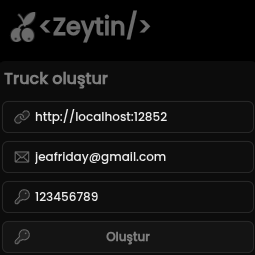
Assuming we are running with localhost, we provide localhost as the connection. Email & Password should be your secure login credentials that you set. Have fun! |