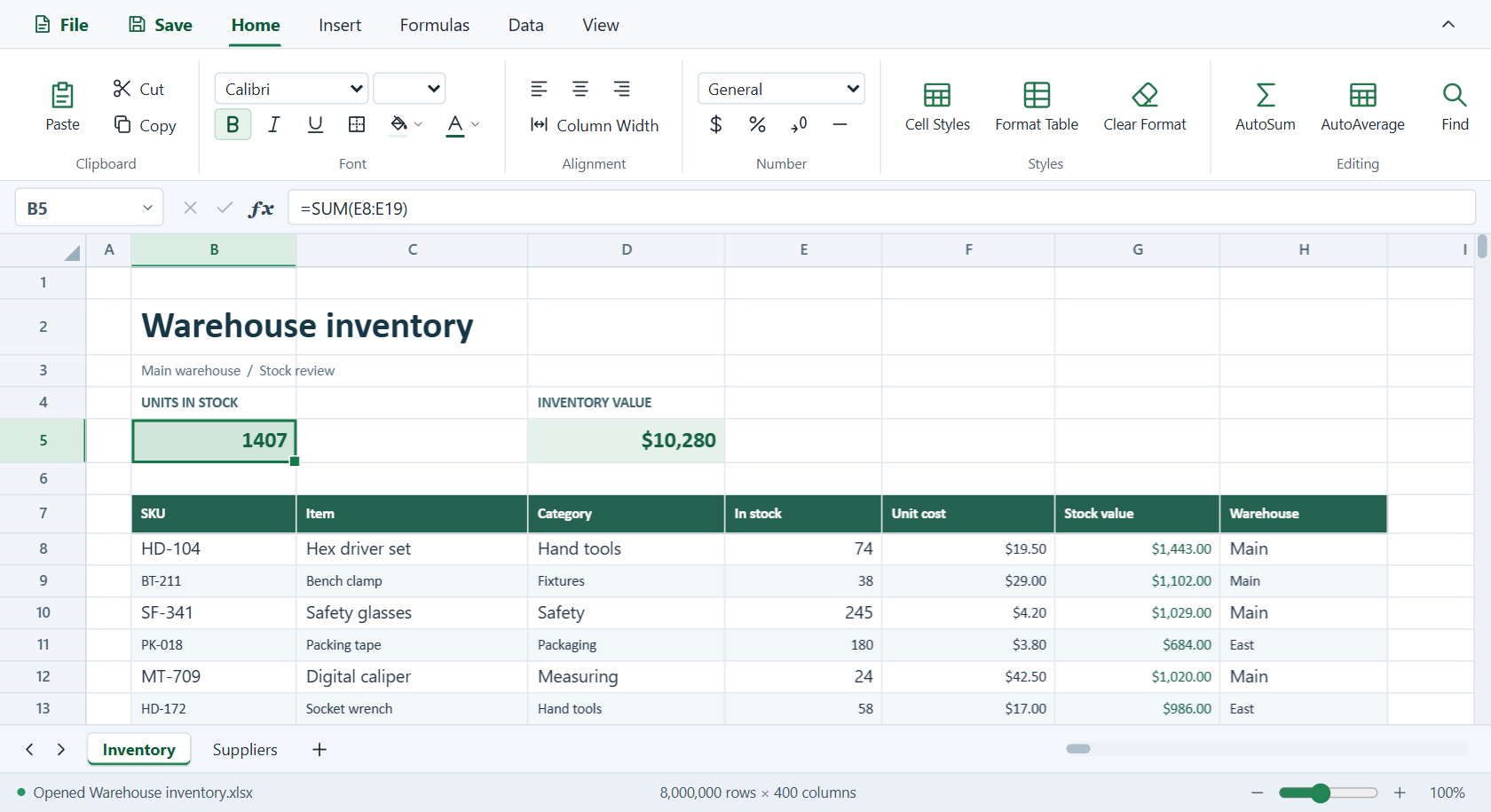
Open a spreadsheet, edit it and save it without leaving VS Code. Grids&Tabs works offline with XLSX workbooks, native .gridsntabs workbooks and delimited text files.
Open, edit and save
Open a file. Right-click an XLSX, .gridsntabs, CSV, TSV or TXT file in the VS Code Explorer and choose Open With… → Grids&Tabs.
Edit the sheet. Double-click a cell or select it and type. Enter a formula such as =SUM(B2:B10) in the cell or formula bar. Use the tabs at the bottom to switch sheets.
Save your changes. Click Save in the ribbon to update the open file. To write a separate copy, choose File → Save as XLSX (.xlsx) or File → Save delimited data….
Choose which files open in Grids&Tabs
Drop an XLSX workbook onto the VS Code editor area to open it in Grids&Tabs. In Extensions, find Grids&Tabs and select Manage ⚙ → Extension Settings to change which formats open automatically. You can also run Grids&Tabs: Choose Which Files Open in Grids&Tabs from the Command Palette.
For TXT files, Grids&Tabs looks for a table. It opens ordinary text in VS Code’s text editor.
Work with your data
To
In Grids&Tabs
Format values and cells
Use Home to set number formats, colors and borders.
Sort or filter a table
Right-click a header to sort or filter the table.
Plot or summarize data
Select a range with headers and choose Insert → Chart or Insert → Pivot Table.