TabPalette - Tab Groups

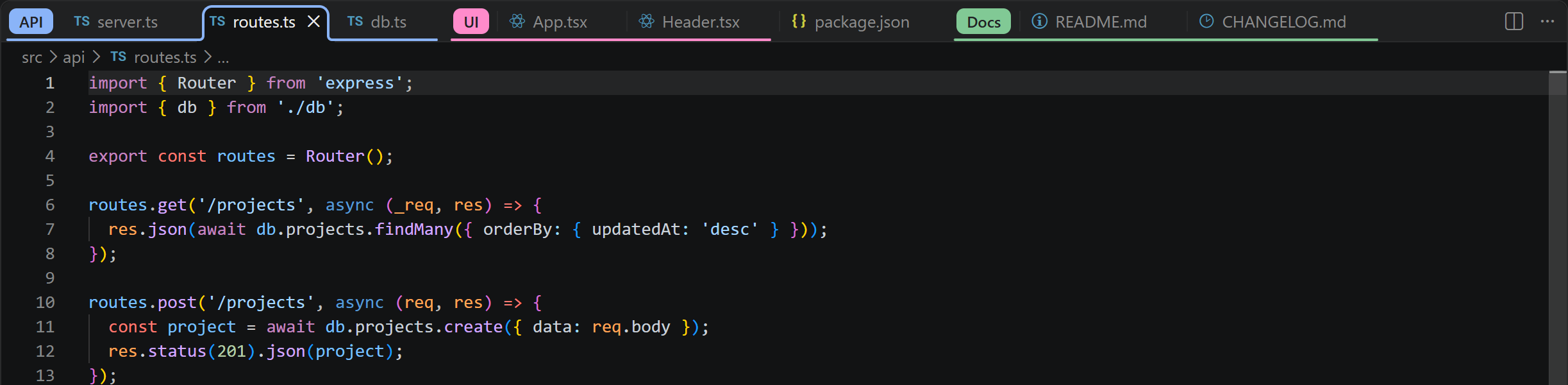
TabPalette brings Chrome-style tab groups to VS Code. Name and color a group of tabs, collapse it to a single chip, and drag tabs in and out of it, right on the tab bar.
Features
- Group chips and lines. Each group shows a colored chip with its name in front of its tabs, and a line in the group's color runs under them. The active tab in a group gets Chrome's rounded outline.
- Nine colors, your palette. Chrome's grey, blue, red, yellow, green, pink, purple, cyan and orange by default, tuned for light and dark themes. Each of the nine can be changed in your settings (see Custom colors).
- Collapse with a click. Click a chip to hide the group's tabs, and click it again to bring them back.
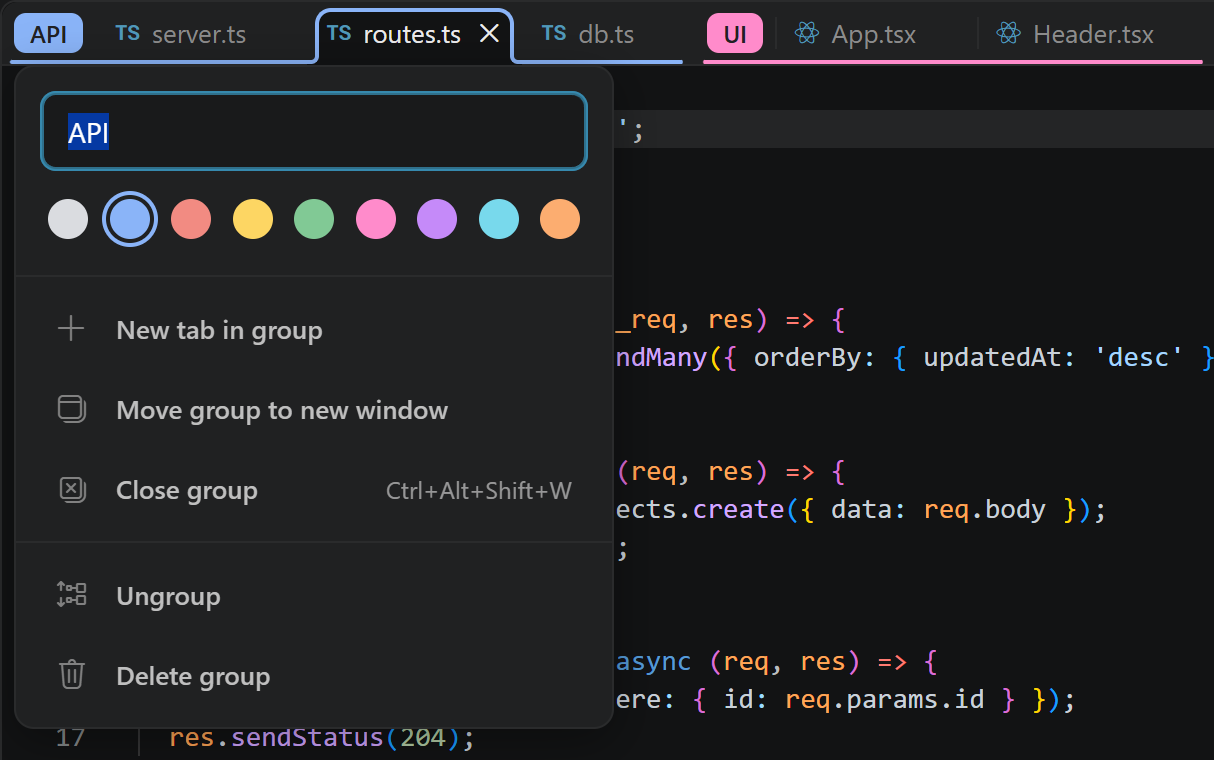
- Edit in place. Right-click a chip to rename the group, pick a color, open a new tab in it, move it to a new window, or close, ungroup or delete it.
- Drag and drop. Drag tabs into a group, out of it, or between groups, and drag a chip to move the whole group. The drop line shows what will happen: the group's color when the tab will join, red when it will leave.
- Groups stay together. A tab added to a group moves next to it. A tab removed from the middle of a group moves just past the group, so the group never splits.
- Saved per workspace. Groups come back when you reopen the folder, including closed groups.
Getting started
- Install TabPalette - Tab Groups from the Extensions view, or run
ext install JJLIM00.tabpalette in Quick Open (Ctrl+P).
- On first start, TabPalette asks to Enable Chrome-style tab groups. Confirm, then reload the window. (Why it asks: see How it draws on the tab bar.)
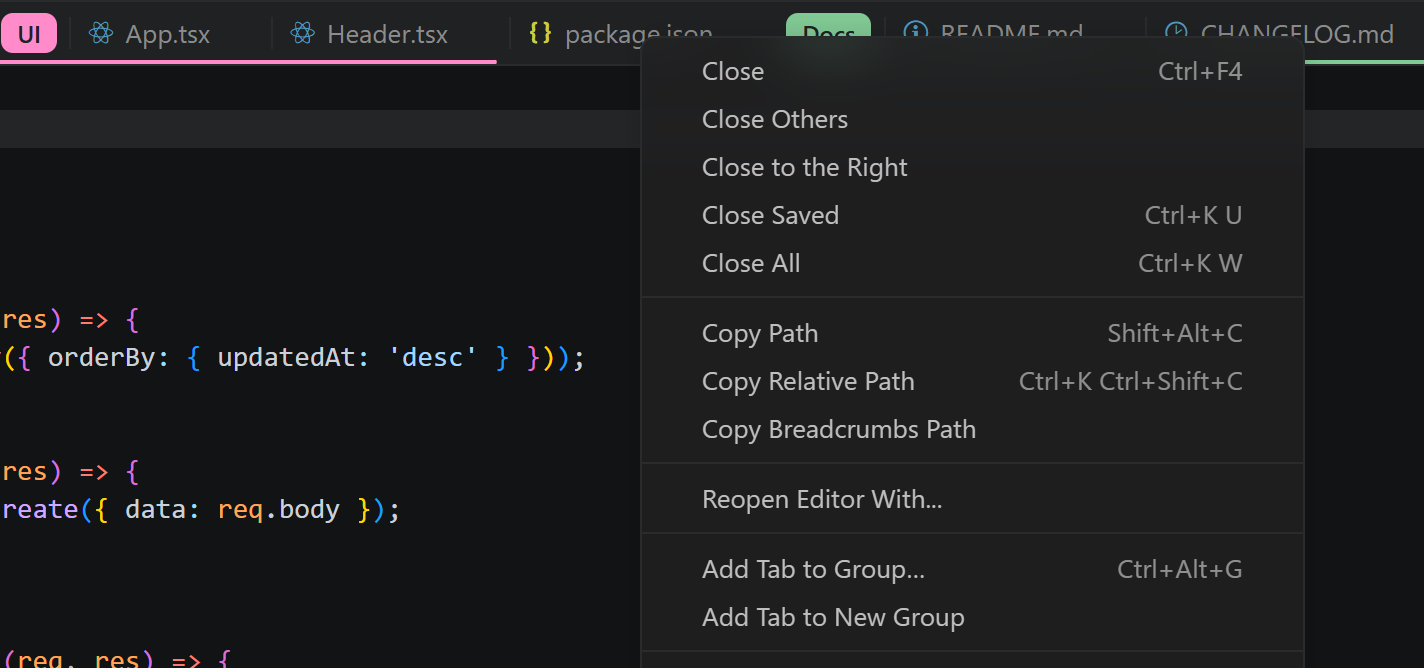
- Right-click a tab and choose Add Tab to New Group. Type a name, pick a color, and press Enter.
- Right-click more tabs and choose Add Tab to Group…, or drag them onto the group's tabs.
Usage
| To… |
Do this |
| Create a group |
Right-click a tab → Add Tab to New Group. The group gets the next free color, and its editor opens so you can name it. |
| Add a tab to a group |
Right-click the tab → Add Tab to Group…, or drag it onto any tab of the group, even a group with a single tab. |
| Group several tabs at once |
Ctrl/Shift+click the tabs, then right-click → Add Selected Tabs to Group… (or …to New Group), or drag them onto a group together. |
| Add a file from the Explorer |
Right-click the file in the Explorer → Add Tab to Group… |
| Remove a tab from its group |
Right-click → Tab Group → Remove Tab from Group, or drag it out of the group: onto an ungrouped tab, a chip, or the empty end of the tab bar. |
| Put a tab next to a group without joining it |
Drop it on the group's chip: it lands just before the group. |
| Collapse or expand |
Click the chip. Opening a hidden tab (Quick Open, Explorer…) expands its group. |
| Rename or recolor |
Right-click the chip. The name updates as you type. Enter or Esc closes the editor. |
| Move a group |
Drag its chip to a new place on the tab bar. |
| Close a group |
Chip editor → Close group. The tabs close and the group is kept; reopen it from Tab Groups: Show Tab Groups (Ctrl+Alt+T). |
| Ungroup or delete |
Ungroup keeps the tabs open. Delete group closes them too. |
Closing a tab removes it from its group, and a group disappears when its last tab is closed. A group's only tab keeps its group wherever you drag it.

Keyboard shortcuts
| Shortcut |
Command |
Ctrl+Alt+G (Cmd+Alt+G on macOS) |
Add the current tab, or the selected tabs, to a group |
Ctrl+Alt+Shift+W (Cmd+Alt+Shift+W) |
Close the current tab's group |
Ctrl+Alt+T (Cmd+Alt+T) |
Show Tab Groups: all groups in this workspace, including closed ones |
Every action is also in the Command Palette under Tab Groups:.
Custom colors
The nine group colors are numbered slots, Color 1 to Color 9. By default they are Chrome's colors, but you can set each slot to any color you like and make your own palette. Together with the red "ungroup" drop line, they are theme colors that you change in your settings:
"workbench.colorCustomizations": {
  "tabPalette.color1": "#9E9E9E",
  "tabPalette.color2": "#4285F4",
  "tabPalette.ungroupDropLine": "#FF9800"
}
| Id |
Default (Chrome color) |
Used for |
tabPalette.color1 |
grey |
Color 1 |
tabPalette.color2 |
blue |
Color 2 |
tabPalette.color3 |
red |
Color 3 |
tabPalette.color4 |
yellow |
Color 4 |
tabPalette.color5 |
green |
Color 5 |
tabPalette.color6 |
pink |
Color 6 |
tabPalette.color7 |
purple |
Color 7 |
tabPalette.color8 |
cyan |
Color 8 |
tabPalette.color9 |
orange |
Color 9 |
tabPalette.ungroupDropLine |
red |
The drop line while dragging a tab, when releasing it would take the tab out of its group |
A group color applies everywhere the group shows: its chip, its group line, the active tab's outline, the swatch in the group editor, and the dots in the Command Palette pickers. New groups take the next unused slot, in order.
You can also set colors for one theme only, e.g. "[Default Dark Modern]": { "tabPalette.color3": "#E53935" }.
How it draws on the tab bar
VS Code's extension API cannot draw on the tab bar. To show chips and group lines, TabPalette adds one small script to VS Code's own UI file, workbench.html. It asks before doing so, and you can undo it at any time.
- "Your Code installation appears to be corrupt." VS Code shows this after any change to its files. It is expected; choose Don't Show Again.
- VS Code updates replace the file. On the next start, TabPalette offers to add the script again.
- Tab bar not showing the latest version? After an update, run Tab Groups: Reload Tab Bar Script from the Command Palette. It writes the script again and reloads the window.
- Permissions. If VS Code is installed for all users (for example under Program Files), run VS Code as administrator once to enable or disable. Per-user installs don't need this.
Without the script, groups still work from the context menus and the Command Palette, but nothing is drawn on the tab bar.
Privacy and security. TabPalette never changes your settings and sends nothing over the network. The script talks to the extension through a WebSocket on 127.0.0.1 only. That socket accepts only VS Code's own window origin, and only with a random token that is created for each session.
Uninstalling
Before you uninstall, run Tab Groups: Disable Chrome-style Tab Groups from the Command Palette. It removes the script and restores VS Code's original file exactly. Then reload the window and uninstall the extension.
Known limitations
- Chips are drawn in the main window only. Groups moved to a new window keep their tabs, but are not drawn there.
- Only file tabs can be grouped. Settings, the Welcome page and other special editors can't join a group.
- Works in VS Code desktop only, not in VS Code for the Web or in Codespaces in the browser.
Feedback
Found a bug or have an idea? Open an issue. Contributions are welcome; see CONTRIBUTING.md.
License
MIT
| |

