Skip to content
| Marketplace
Sign in
Visual Studio Code>Programming Languages>ITMO CodeNew to Visual Studio Code? Get it now.
ITMO Code

ITMO Code

ITMO Code

|
26 installs
| (0) | Free
AI coding agents, concurrent teams, and educational workflows in VS Code.
Installation
Launch VS Code Quick Open (Ctrl+P), paste the following command, and press enter.
Copied to clipboard
More Info

ITMO Code

Plan, build, and review with an AI agent—or a team of them—inside Visual Studio Code.

ITMO Code brings project-aware coding tools and concurrent agent teams into your editor. Work with one agent for a focused change, or let an orchestrator coordinate specialists across a larger task. Choose the providers and models, inspect what each worker is doing, and keep approvals under your control.

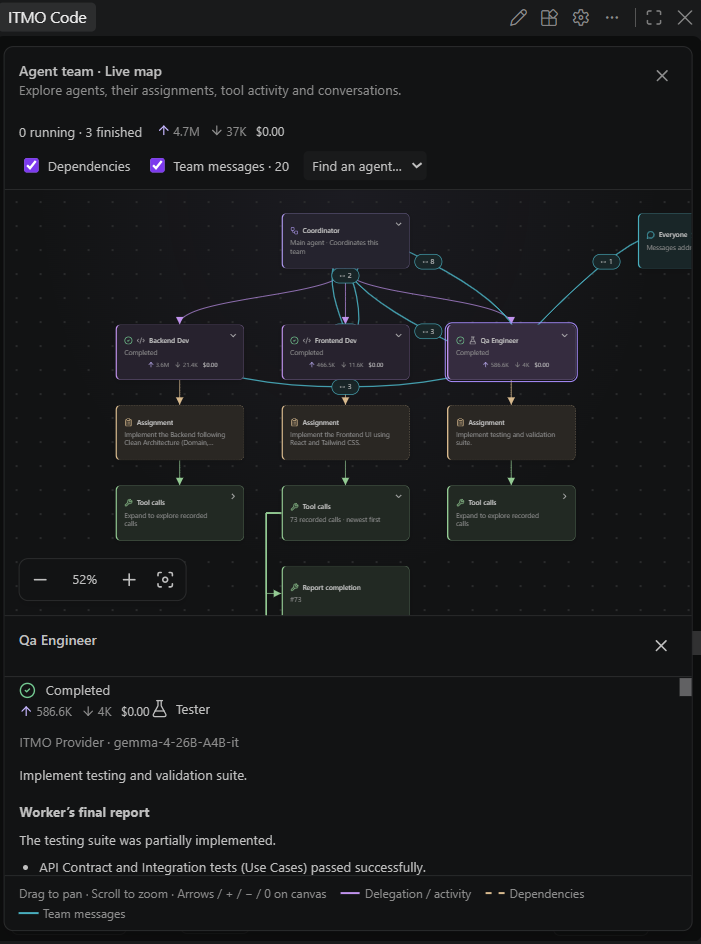
ITMO Code Live map with backend, frontend, and QA worker branches and recorded team messages

What's new in 2.0

Feature What it gives you
Concurrent agent teams An orchestrator and up to eight workers with separate conversations and roles.
Live map An interactive view of agents, dependencies, and recorded messages.
Worker activity inspector On-demand tool calls, results, terminal output, final reports, and usage.
Per-worker model selection Automatic or manual choices across your configured accounts and models.
Allowed-model tree Allow an entire provider account, or expand it and select individual models.
Compact Working activity Consecutive thinking and tool calls stay together instead of filling the chat.

Get started

  1. Open ITMO Code from the VS Code sidebar and configure an AI provider in Settings.
  2. Choose a mode for your task. Use Code for implementation, Ask for questions, or Orchestrator for coordinated work.
  3. Open the brain button beside the mode selector to choose a saved provider/account profile and model.
  4. Describe the outcome you want. Review proposed edits and commands, or enable auto-approval only for operations you trust.

For a team, choose Orchestrator and a worker limit before sending your message. A higher limit allows concurrent work; it does not force the agent to create unnecessary workers.

AI coding agent

Describe a task in the ITMO Code sidebar and let the agent help you:

  • understand, explain, and improve existing code;
  • create and edit files with a reviewable diff;
  • inspect diagnostics and project context;
  • run approved terminal commands;
  • use browser and MCP tools;
  • organize longer work with modes, task history, and checkpoints.

You remain in control. Review proposed file changes and commands before approving them, and configure auto-approval only for operations you trust.

Multi-agent workspace

Give independent work to specialists

Choose 1–8 concurrent workers. The orchestrator can delegate implementation, exploration, review, testing, or debugging to built-in or custom modes. Every worker has its own conversation, task, and model selection. Workers can communicate and coordinate dependencies while unrelated work continues in parallel.

For example:

Build a library management system with Books, Members, and Loans. Follow clean architecture and separate domain logic from infrastructure. Use concurrent workers for the backend, frontend, and tests. Agree on the API contract first, coordinate shared files, and run the available checks before summarizing the result.

Keep team progress in view

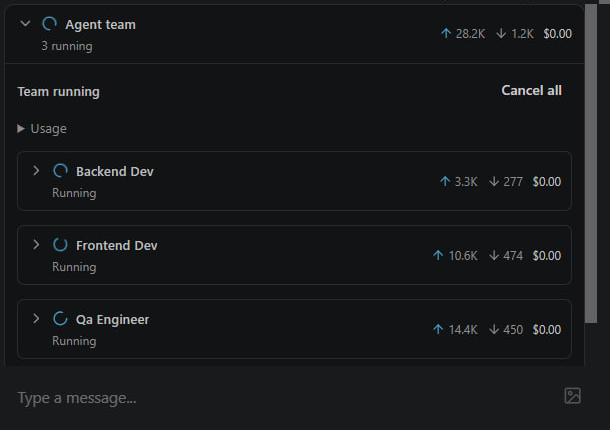
The compact Agent team monitor shows the team's status and usage without taking over your chat. Expand it to follow workers running concurrently and see which ones need attention.

Concurrent workers

Expanded Agent team monitor with backend, frontend, and QA workers running at the same time

Explore the Live map

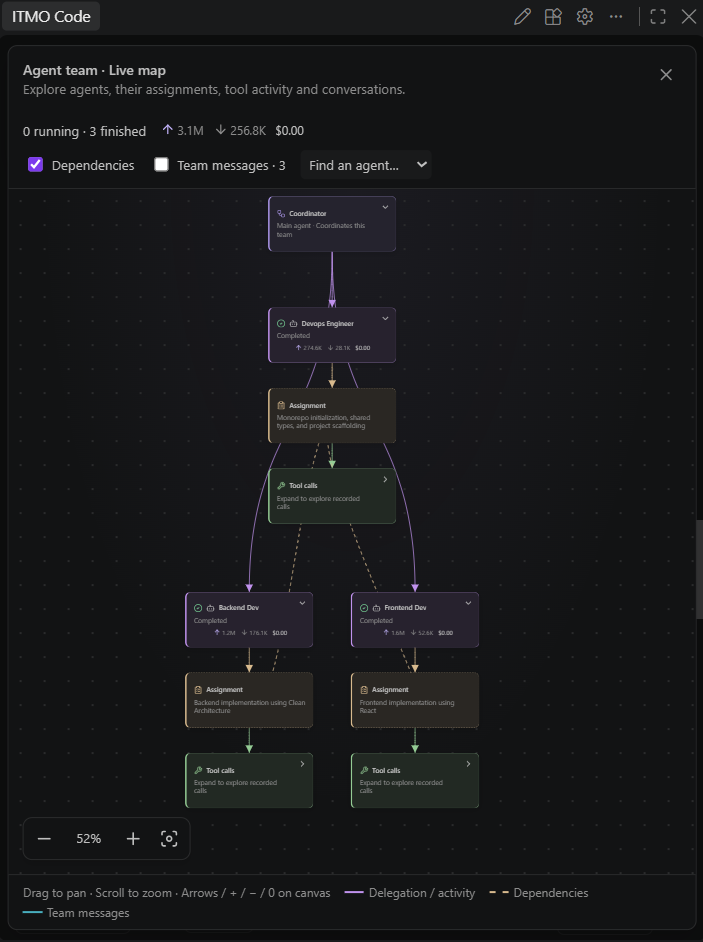
Open Live map to explore the coordinator, workers, and dependencies. Pan, zoom, or find an agent to follow how the work is organized without interrupting the task.

Live map showing a coordinator, a setup worker, and dependent backend and frontend workers

Inspect a worker's activity

Select a worker in the map to inspect its actual account and model, usage, and final report. Enable Team messages to show recorded communication between agents.

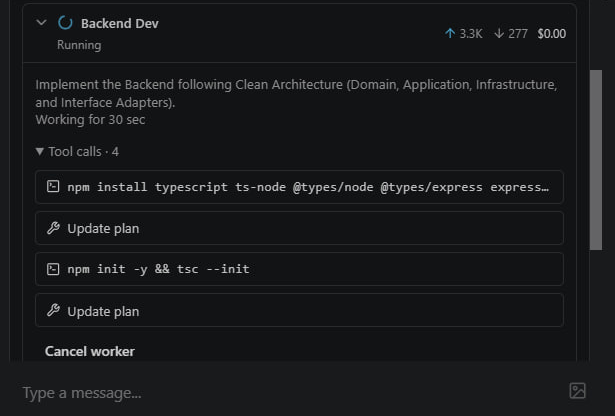
Expand Tool calls in a worker card to inspect recorded file-tool results or terminal output. History loads on demand, so details stay available without filling the conversation.

Expanded backend worker card showing its task, elapsed time, and recorded tool calls

Choose the accounts and models workers may use

The brain menu keeps orchestrator and worker settings together:

  • Orchestrator: choose a saved Profile, then its Model.
  • Workers — Auto: let the orchestrator choose an eligible account and model for each worker. In Allowed accounts, check a whole account to allow its eligible models, or expand it and select only the models you want. Different accounts can have different model selections.
  • Workers — Manual: choose a default worker Profile and Model using the same style of dropdowns as the orchestrator.

An account label identifies the provider/account—not a fixed model. Auto workers can use different models from the same account without duplicate profiles. Auto uses the orchestrator's existing planning turn, rather than a separate routing conversation, and validates choices against your allowed pool before launch.

These settings belong to the chat and lock when it starts. Ordinary retries keep the worker's selected model; changing an account's saved default does not silently switch an active worker. A stopped worker can be continued with its saved context, with explicit next-attempt changes available within the allowed pool.

  • Contact us
  • Jobs
  • Privacy
  • Manage cookies
  • Terms of use
  • Trademarks
  • Your Privacy Choices
  • Consumer Health Privacy
© 2026 Microsoft