🇬🇧 English · 🇫🇷 Français
Skylift — The Easiest SFTP for VS Code
Set up in 60 seconds. No JSON to write. No config to debug. Just click.
One-click push, visual diff, atomic uploads, production audit to catch leaked secrets and orphan files on the server.



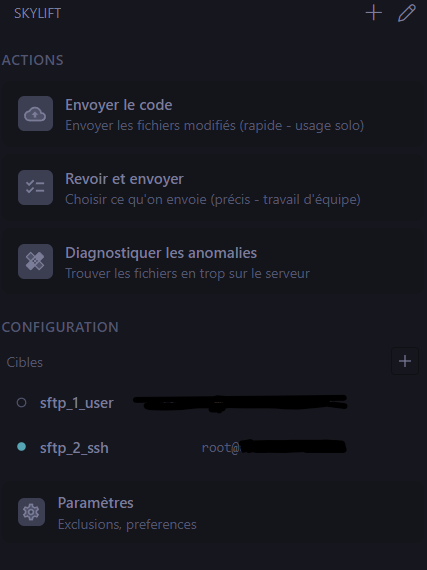
The simplicity, in one paragraph
Most VS Code SFTP extensions assume you know how to write JSON, that you'll remember which key is host and which is username, and that you'll debug escape sequences in shell paths at 11pm. Skylift takes the opposite stance: a 4-step point-and-click wizard asks you the obvious questions (host? user? password or key?), tests the connection, lets you browse the remote tree to pick the right folder visually, and writes the config for you. After that, Push code is a single click in the sidebar — or a keyboard shortcut. No sftp.json. No YAML. No template variables. No documentation safari.
Skylift is a VS Code SFTP extension designed for developers who deploy code by SFTP and don't want to write JSON, fight with stale settings, or guess what's actually on the server. It's a modern alternative to liximomo/vscode-sftp and Natizyskunk/vscode-sftp with point-and-click setup, content-accurate sync, and a focus on safety (atomic uploads, security-sensitive ignore alerts, server-modified file detection).
Table of contents
Why Skylift
Existing VS Code SFTP extensions are powerful but heavy: dozens of settings, JSON-only configuration, no diff before push, no signal when something looks wrong on the server. Skylift starts from the opposite end. Everything is built around three principles:
1. Simple by default
- Point-and-click setup: a 4-step wizard, no JSON to edit, ever.
- One-click push: a button in the sidebar (and a keyboard shortcut). That's the whole interface for the common case.
- Auto-detection: SSH keys in
~/.ssh/ are listed automatically. Common patterns (.git/, node_modules/, .env, .DS_Store) are pre-configured. PuTTY .ppk keys are converted on the fly. Nothing to read in advance.
- Visual remote browser: pick the destination folder by clicking through the server's tree. You never type a path.
- Sensible defaults everywhere: every preference has a default that matches what 95% of developers want. Open the panel, click Push, you're deploying.
2. Accurate
- Smart Push: walks both local and remote on every push with an aggressive directory cache. Always accurate, even after a
git pull or in multi-developer setups.
- Visual diff before send: sender / receiver columns and direction arrows (green = upload, red = download), folder-level cascade actions, status filters.
- Diagnose anomalies (production audit): catches critical files leaked to the server (
.env, .git/, secrets), orphan folders from old deploys, and any drift between local and remote in either direction. Per-file actions: delete, download, backup, or always-ignore.
3. Safe
- Atomic uploads: write to a temp file then rename. A killed upload never corrupts the live file.
- Mtime preservation: rsync
-t semantics — server mtime stays aligned with local after every upload, no false "remote is newer" alarm.
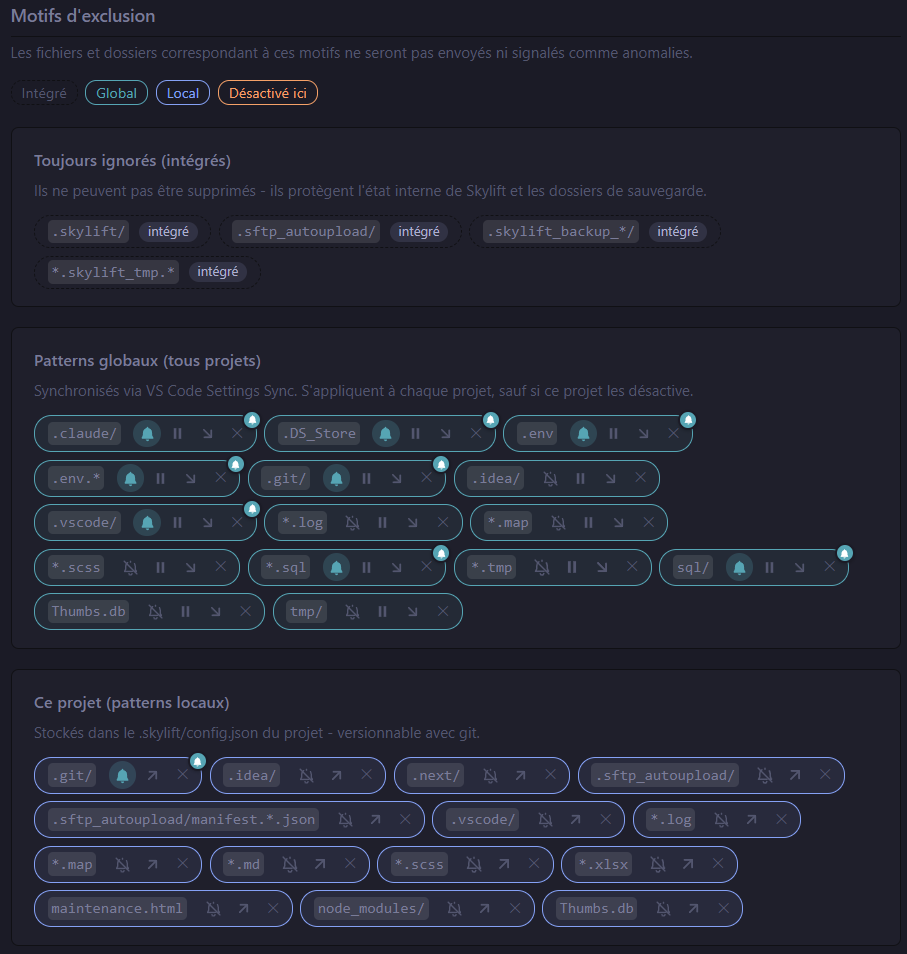
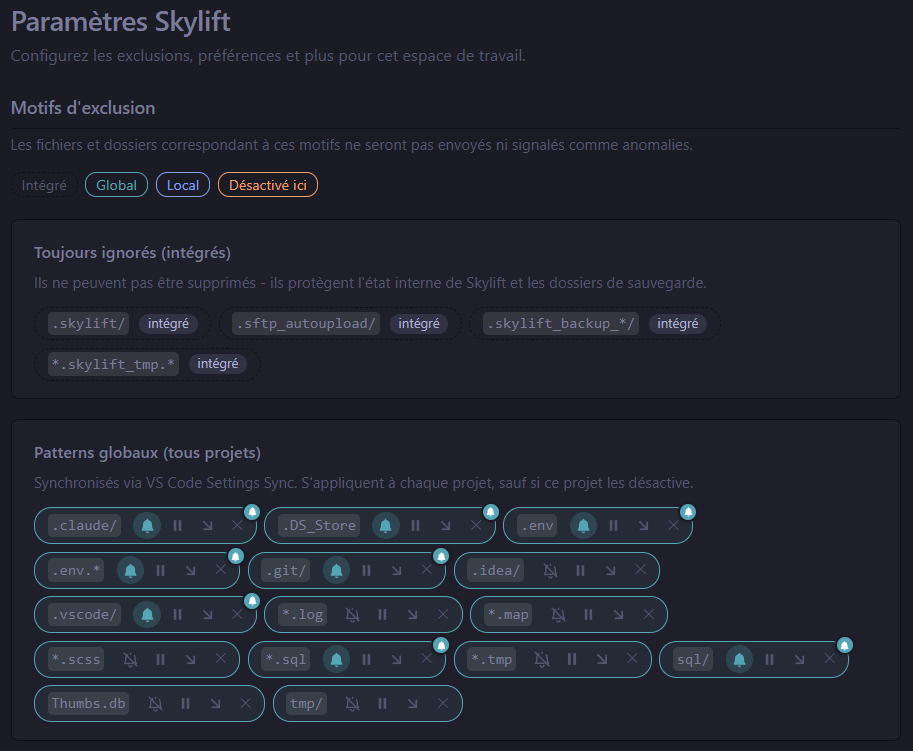
- Security-aware ignore patterns:
.env, .git/, .env.* are flagged as alerting (raise an anomaly if found on the server) — the rest are silent.
- Secrets stay out of the repo: passwords and key passphrases live in the OS keychain via VS Code
SecretStorage. Never written to JSON.
- No telemetry.
Install
From the VS Code Marketplace (recommended)
- Open VS Code.
Ctrl+Shift+X (Extensions).- Search for Skylift.
- Click Install.
Or from the command line:
code --install-extension IdoExperiences.skylift
From a .vsix file (offline / pre-release)
Grab the latest .vsix from the Releases page and install:
code --install-extension skylift-X.Y.Z.vsix
Quick start (60 seconds)
- Click the Skylift icon in the activity bar (left rail).
- Click Set up a target. The wizard walks you through:
SFTP connection (host, port, user)
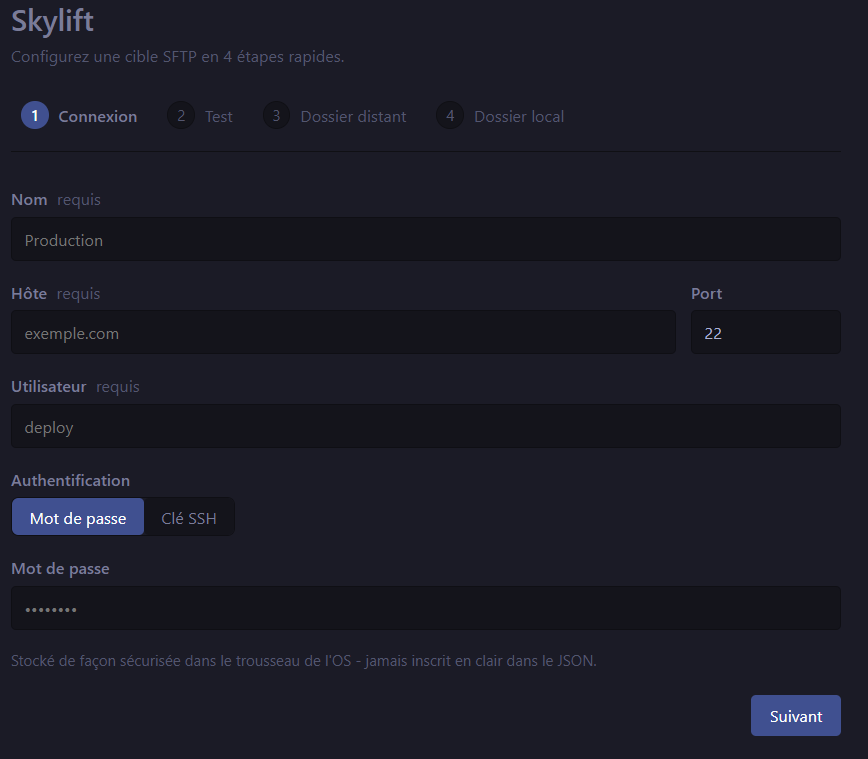
Auth (password or SSH key — keys in ~/.ssh/ are auto-detected, .ppk PuTTY format supported)
Connection test
Pick the remote folder by browsing the server interactively (no path-typing)
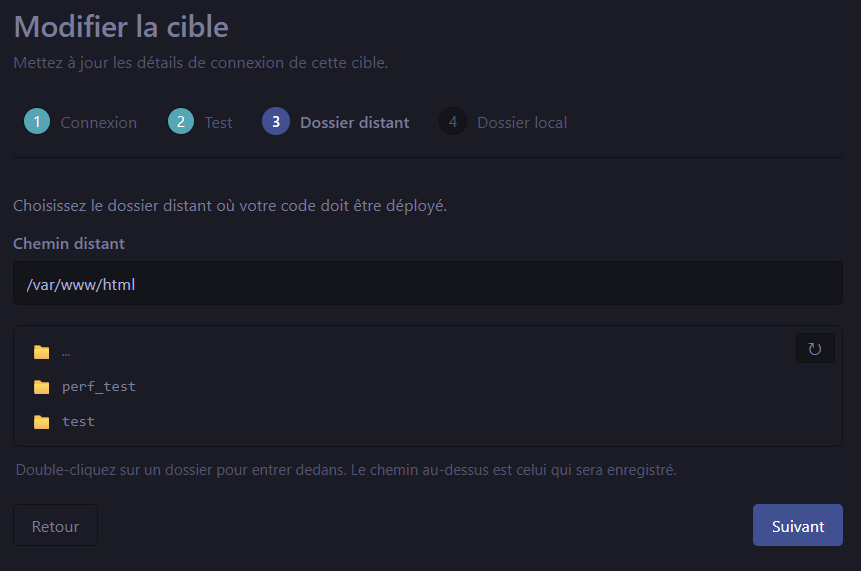
Pick the local folder (defaults to your workspace)
- Click Push code — done.
That's it. No sftp.json to write, no escape sequences to debug.
Features
One-click push
Skylift: Push code (Ctrl+Alt+U / ⌘⌥U) walks both sides, computes the diff, and uploads only what changed. Works in solo or team setups thanks to direct local↔remote comparison (no manifest staleness after a git pull).
Review & push (selective upload)
Skylift: Review & push (Ctrl+Alt+Shift+U) opens a panel with a sortable, filterable, searchable table of every change. Each row shows local size+mtime side-by-side with remote, plus a directional arrow:
- → green: local is newer (upload makes sense)
- ← red: remote is newer (download is the safe default — uploading would clobber a fresher remote)
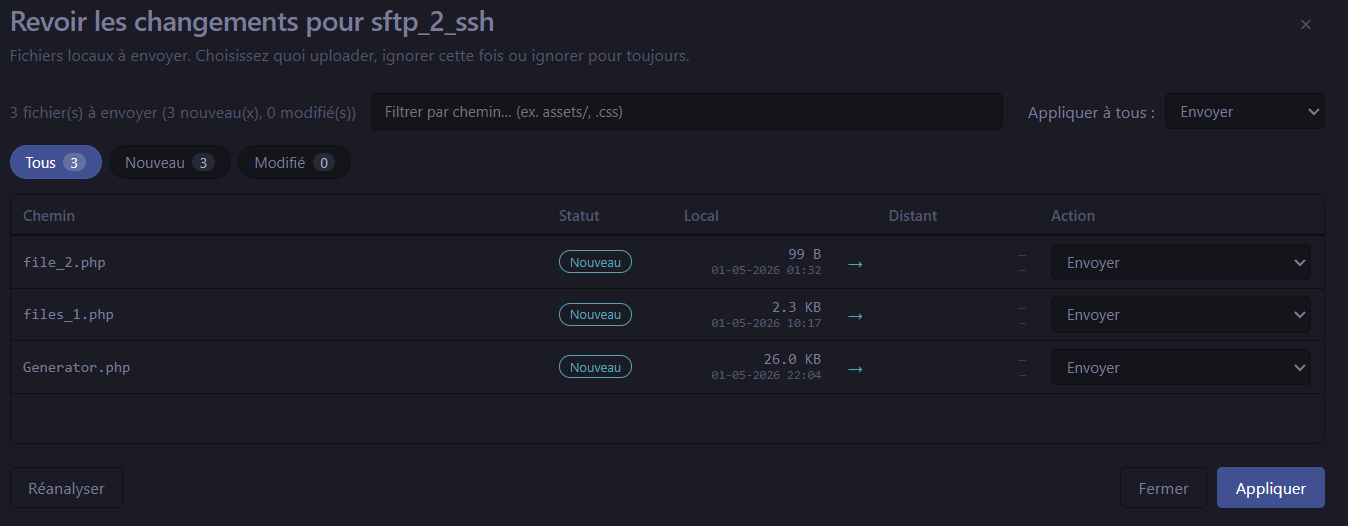
Folders not yet on the server are surfaced in a separate card with cascade actions (Upload all / Skip all / Always ignore folder / Custom per file).

Diagnose anomalies — production audit
Skylift: Diagnose anomalies is the production audit command. Its primary job is to answer one question: did anything critical leak onto the server? Beyond that, it surfaces every kind of drift between your local project and the production target, in either direction.
What Diagnose finds:
- 🚨 Critical leaks — files that match an alerting ignore pattern but ended up on the server anyway. Typical culprits:
.env with production credentials, .git/ exposing your full source history, .env.local with API keys. These are flagged with a "Critical leak" badge and are the first thing you should act on.
- 🧹 Orphan files & folders on the server — leftovers from old deploys, deleted features, files dropped by hand via FTP, or directories that used to be in the repo but were since removed. Flagged as "Orphan on server".
- 🔁 Drift between local and remote — files that exist on one side and not the other, or whose content diverged. Used in tandem with Review & push for a full sync picture.
Per-file actions:
- Delete the file from the server (most common for critical leaks)
- Download to bring the orphan back into your local project
- Backup to rename it into a
.skylift_backup_<timestamp>/ folder on the server (audit-friendly: keeps the file but moves it out of the way)
- Ignore to add it to your ignore patterns so it stops appearing in future audits
Two cards, one panel:
- Orphan folders on the server — entire directories absent from your local project, with cascade actions (delete the whole tree, back it up wholesale, download recursively).
- Per-file anomalies — every file with a Where column (always remote) and a Source column (Critical leak / Orphan on server) so you instantly know what action makes sense.
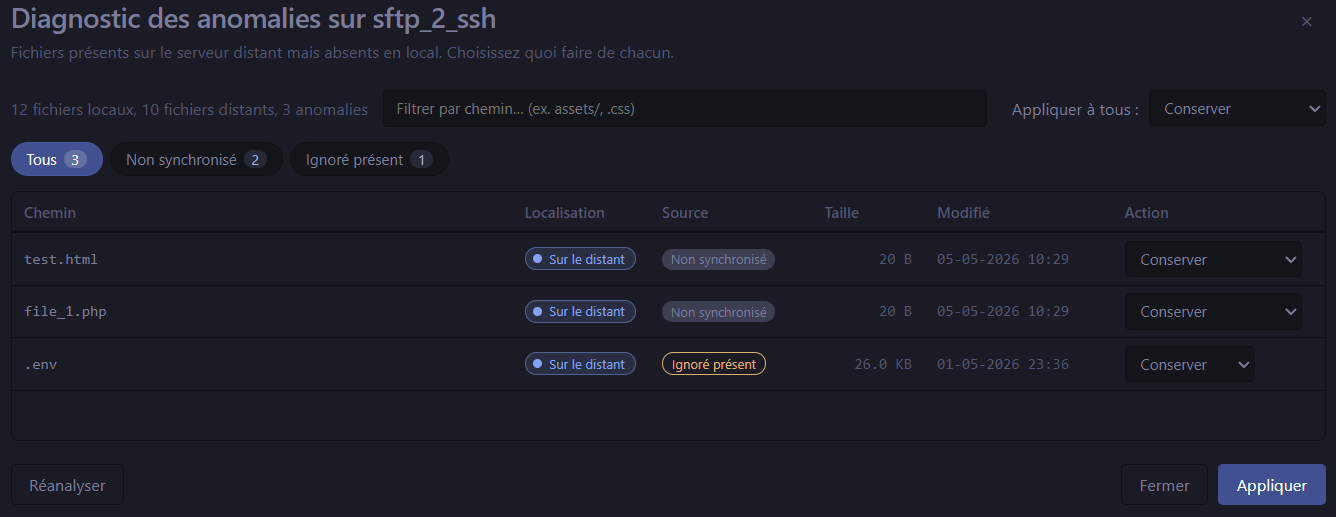
Run Diagnose before every production deploy as a sanity check, and after if you want to verify the deploy left no debris. It's also the right tool when migrating between hosts or after a server restore.
Push current file (one file, three ways)
Three equivalent ways to push the file you're working on, without opening the full Push code panel:
- Right-click in the editor → Skylift: Push current file
- Right-click in the Explorer (the file tree on the left sidebar) on any file → Skylift: Push current file
- Keyboard shortcut:
Ctrl+Alt+P (Windows / Linux) or ⌘⌥P (macOS) while the file is open
Single-file upload via the active target. Useful for quick fixes, hotfixes, or when you've only touched one file and don't want to wait for the full diff scan.
Pull changes from the server (two-way sync)
Working with a team that edits files directly on the server? Skylift can download remote changes, not just upload.
Skylift: Pull changes from remote (Ctrl+Alt+D / ⌘⌥D, or the ⬇ button in the Skylift sidebar toolbar) runs a three-way diff — local vs remote vs the last-synced state recorded in the manifest — and downloads the files a collaborator changed while your local copy stayed untouched.- Files changed on both sides are reported as conflicts and are never overwritten silently. Pick one to open a Remote ↔ Local diff and resolve it by hand.
Skylift: Pull current file from remote (editor / Explorer right-click) downloads a single file, replacing the local copy.- The Review & push panel shows an incoming changes banner with the download / conflict counts and a one-click Pull from server button.
Opt-in auto-download: a per-project toggle in the ↓ To download section of the Review panel (off by default). When enabled it polls in the background and pulls safe remote changes automatically — a countdown to the next sync shows on the Rescan/Refresh buttons. Conflicts and files open with unsaved edits are always left for manual resolution.
Compare with remote
Right-click → Skylift: Compare with remote. Side-by-side diff using VS Code's native diff editor.
Atomic uploads (rsync-grade safety)
Every upload writes to .<file>.skylift_tmp.<random> first, then posix-renames into place (atomic on modern OpenSSH; falls back to delete + rename on older servers). A killed upload never replaces a working file with a corrupt half. After the rename, the remote mtime is set to match the local mtime via setattr (rsync -t semantics).
Multi-target
Add several remote destinations and switch between them from the sidebar. Skylift: Push to multiple targets fans a single push out to several servers (staging + production, two clusters, etc.).
Auto-upload on save (opt-in)
Settings → Auto-upload on save: pushes the current file every time you save it. Disabled in untrusted workspaces. Disabled by default.
Auto-push on git commit
Settings → Git push trigger → list watched branches (e.g. main, production). When you commit on a watched branch, Skylift fires a push. Useful for staging environments tied to a branch.
Background auto-scan (Review)
Settings → Review auto-scan (off by default). When enabled, Skylift runs a Review scan in the background at a configurable cadence (1 min to 1 hour). Two benefits:
- Activity-bar badge stays fresh — the count of pending uploads is always up to date, you don't have to open the panel to know the state of the target.
- Review & push opens instantly — no scan delay on open, results come straight from the background cache. A "last scan X min ago" banner with a manual refresh button is shown at the top of the panel.
Paused automatically while a Push is running, in untrusted workspaces, and when no active target is set. Diagnose anomalies is unaffected — it always scans on open.
Smart Push (zero-config team workflow)
Push code walks both sides on every run. Combined with Trust same-size (default ON, mirrors rclone/rsync defaults) and per-file mtime preservation (rsync -t), Skylift's diff is accurate regardless of whether you work alone, in a team, with or without git, and regardless of mtime drift after a git pull.
Skylift: Reset mtimes from git (optional, git users)
Aligns each tracked file's local mtime to its last git commit date. Files with uncommitted changes are preserved. Makes Skylift's manifest cache stable across machines on the same git history. Run on demand. Requires git on PATH; surfaces a clear error otherwise.
Skylift: Verify against remote (deep check)
Bulletproof content-hash comparison: hashes every file on both sides and reports mismatches. Slow (downloads each remote file to compute its hash) but absolute. Run when you suspect drift. Manual command — never runs as part of routine pushes.
Project-scoped, versionable config
All preferences live in .skylift/config.json next to your code. Commit it; the rest of your team gets your wizard's setup automatically. Secrets are NOT in the JSON — they live in the OS keychain (DPAPI / Keychain / libsecret) via VS Code SecretStorage.
Multi-language UI
French, Spanish, German, Italian, Brazilian Portuguese. Override per project (Settings → Language) or follow VS Code's display language.
Custom modal alerts
A SweetAlert2-inspired in-webview modal with smooth animations replaces the default confirm() dialog. Used for destructive actions (delete a global pattern, purge manifest, run a deep check) so the UX matches the polish of the rest of the panel.

Theme-aware UI
Every panel pulls VS Code CSS variables, so Skylift looks at home in dark, light, and high-contrast themes without configuration.
Working in a team
Skylift's sync model is designed to work the same way whether you're solo, in a team, with or without git:
Push code and Review & push walk both LOCAL and REMOTE on every run, then diff content directly. The per-target manifest in .skylift/manifest.<target>.json is purely a cache (skips redundant SFTP readdir calls when directories haven't changed) — it is no longer the source of truth for what's in sync. This makes Push code accurate regardless of mtime drift after git pull or other out-of-band changes.
Trust same-size (Settings → Preferences) is on by default. When local and remote sizes match, Skylift treats the file as in sync even if mtimes drifted. Mirrors rclone / rsync defaults. The theoretical edge case "same size, different content" is essentially zero for code/text. Use Verify deep check if you want a bulletproof guarantee.
Skylift: Reset mtimes from git is an optional helper for git users. It sets each tracked file's local mtime to the date of its last git commit. After running it, two developers on the same git checkout have identical local mtimes for every tracked file. Run it after a git pull if you want to keep manifests bit-stable across machines.
Skylift: Verify against remote (deep check) hashes every file on both sides and reports mismatches. Slow but absolute. Use when you suspect drift or before a critical deployment.
.skylift/ is a per-developer artefact and should be added to .gitignore. Skylift won't upload it to the server (built-in ignore pattern) but committing it would create merge conflicts on every push.
Comparison with other VS Code SFTP extensions
| Feature |
Skylift |
liximomo/vscode-sftp |
Natizyskunk/vscode-sftp |
| Wizard / point-and-click setup |
✅ |
❌ JSON only |
❌ JSON only |
| Atomic uploads (temp + rename) |
✅ |
❌ |
❌ |
| Visual diff before push |
✅ |
⚠ basic |
⚠ basic |
| Direction arrows + sender/receiver columns |
✅ |
❌ |
❌ |
| Folder-level cascade actions |
✅ |
❌ |
❌ |
| Status filters (new / modified / ignored) |
✅ |
❌ |
❌ |
| Production audit (leak + orphan + drift detection) |
✅ |
❌ |
❌ |
Mtime preservation (rsync -t) |
✅ |
❌ |
❌ |
| Content hash deep check |
✅ |
❌ |
❌ |
| Reset mtimes from git |
✅ |
❌ |
❌ |
| Multi-language UI (FR/ES/DE/IT/PT-BR) |
✅ |
❌ EN only |
❌ EN only |
| Settings stored in keychain |
✅ |
⚠ in JSON |
⚠ in JSON |
| Last commit |
✅ active |
⚠ low activity |
⚠ low activity |
FAQ
Does Skylift require git?
No. Skylift works on any project, with or without git. The optional Skylift: Reset mtimes from git command is the only feature that needs git on PATH; if git isn't present, the command surfaces a clear error and the rest of Skylift continues to work.
Will Skylift re-upload everything after a git pull?
No. Push code uses Smart Push: it walks both local and remote on every run and compares directly. Combined with the Trust same-size preference (on by default), Skylift recognizes that files of identical size are in sync even when mtimes drifted after a git pull. If you want manifests bit-stable across machines anyway, run Skylift: Reset mtimes from git after each pull.
Can two developers share a .skylift/ config?
The non-secret parts yes — commit .skylift/config.json to git and your team gets the same target setup. Secrets (passwords, key passphrases) stay per-machine in the OS keychain. The per-target manifest.<target>.json is a per-machine cache and should be .gitignored.
Are my passwords stored in plaintext?
No. Passwords and SSH key passphrases are stored in VS Code's SecretStorage API, which is backed by:
- Windows: DPAPI (Data Protection API)
- macOS: Keychain
- Linux: libsecret (GNOME Keyring / KWallet)
Never written to disk in plaintext, never shipped to the marketplace, never logged.
What happens if the upload is killed mid-transfer?
The original file stays intact. Skylift writes to .<file>.skylift_tmp.<random> first, then atomically renames it over the target. A killed upload leaves the temp file (filtered automatically by the *.skylift_tmp.* enforced ignore pattern) and the live file untouched. On the next Diagnose run, you'll see an "orphan temp files" banner with a one-click cleanup.
Does Skylift support .ppk keys (PuTTY)?
Yes. PuTTY-format keys are converted on the fly via sshpk. Just point Skylift at the .ppk file in the wizard's Auth step.
Does Skylift work over SSH only, or does it need SFTP enabled on the server?
It needs SFTP enabled (subsystem sftp in sshd_config, which is the default on every modern OpenSSH server). Pure SSH without SFTP doesn't work.
What VS Code-compatible servers are supported?
Anything that speaks SFTP: OpenSSH (Linux/macOS/Windows OpenSSH server), Bitvise, ProFTPD with SFTP, Pure-FTPd with SFTP, AWS Transfer Family, Cerberus, GoAnywhere, and any standard SSH/SFTP service. If your server speaks SSH and the SFTP subsystem, Skylift speaks it back.
Why is my first push slow on a large repo?
The first push walks the entire remote tree once to build the directory cache. Subsequent pushes hit the cache (typically 1 round-trip for the root listing, then near-zero for stable subtrees). On 5000 files in 800 directories, the first push takes about 30 seconds; the second one is nearly instantaneous.
Does Skylift collect telemetry?
No. Zero telemetry, zero tracking, zero phoning home. Skylift is fully local except for the SFTP connection to your own server.
How do I report a bug?
Open an issue on GitHub. Include your VS Code version, Skylift version (Extensions view → Skylift), OS, and a description of what you expected vs. what happened. Logs from Skylift: Show logs (Output channel) help a lot.
Is the source code open?
The public repo (idoexp/skylift) hosts releases, documentation, the issue tracker and release notes. The full source code is in a private repository for the time being. This may change in the future. The license of the published .vsix is MIT.
Bug reports, feature requests, screenshots, and translations are welcome. Code contributions are not currently accepted (closed source). Star the repo if you want to follow updates — it's the easiest support signal.
Troubleshooting
"Git not found on PATH" when running Reset mtimes from git
Skylift uses your system's git binary. Install it from https://git-scm.com/downloads and make sure it's on PATH. On Windows, ticking "Use Git from the Windows Command Prompt" during the Git for Windows installer takes care of it.
"Connection refused" or "Connection timeout"
Check that:
- The host and port are correct (default SFTP port is 22).
- Your firewall / corporate proxy allows outbound SSH/SFTP.
- The server is up.
Skylift: Test connection from the sidebar gives you a focused error message.
"Unknown host key" / "HOST KEY MISMATCH"
Skylift verifies the server's host key against ~/.ssh/known_hosts (same as ssh), including hashed and [host]:port entries. If the host isn't known yet, an interactive action (Test connection, Push, the wizard) shows a trust-on-first-use dialog with the server's SHA256 fingerprint — compare it with the one your hosting provider publishes, accept, and it's pinned per target (hostFingerprint in .skylift/config.json). Background scans never prompt; they just skip until you've accepted.
A mismatch means the key on file (known_hosts or the pinned fingerprint) doesn't match what the server presented — possible man-in-the-middle. If the server's key legitimately changed (reinstall, migration), remove the old known_hosts line or the hostFingerprint field, then re-accept.
"All my files are showing as 'modified' on every push"
Likely a clock drift between your local machine and the server, or you're in a multi-dev setup with strict mtime checking. Solutions:
- Check that Trust same-size is ON (Settings → Preferences). It absorbs most drift cases.
- After a
git pull, run Skylift: Reset mtimes from git.
- For absolute correctness, run
Skylift: Verify against remote (deep check).
"Push code is slow"
The first push on a new target walks the entire remote tree. On steady-state pushes, the directory cache reduces this to near-zero. If it's still slow:
- Add more aggressive ignore patterns (Settings → Exclusion patterns) for
node_modules/, build artefacts, etc.
- The walk concurrency is 4 round-trips in parallel by default. Some servers cap concurrent SFTP channels — if you're getting "too many open channels" errors, that's the cause.
Pre/post push hooks
Each target can run a local shell command before a Push code (non-zero exit aborts the push — perfect for a build or lint step) and after a successful push (cache purge, notification, …). Configure them in Skylift: Settings → Pre/post push hooks, or directly in .skylift/config.json (preHook / postHook per target). Hooks run in the target's local root with a 60 s timeout, only in trusted workspaces, and their output is streamed to Skylift: Show logs.
Server backups
The Diagnose panel's Backup action moves remote files into a timestamped .skylift_backup_<ts>/ folder instead of deleting them. Skylift: Browse server backups lists those folders and lets you restore everything, restore a single file, download a copy locally, or delete the backup once you're sure.
Watching changes made outside VS Code
By default only files you save in VS Code are auto-uploaded. Enable Settings → Also upload files changed outside VS Code to also push build outputs, generated files or edits from other tools (2 s debounce per file, ignore patterns and Workspace Trust respected, no echo loops after pulls).
Roadmap
- v0.6: multi-root workspace support. Complete de/es/it/pt-br translations.
- v0.7: WebDAV target support. S3 target support.
- v1.0: API stabilization. Full open-sourcing decision.
Support
License
MIT — see LICENSE. The published .vsix is licensed under MIT. The source code is currently private and may be open-sourced in the future.
Made by @idoexp. Built with care for developers who deploy from VS Code every day.

