Show your MiniMax Token Plan quota (5-hour and weekly) right inside VS Code — status bar and a detail dashboard with an interactive usage history chart.
Screenshots
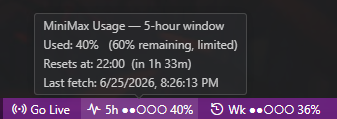
Status bar (bottom-right)
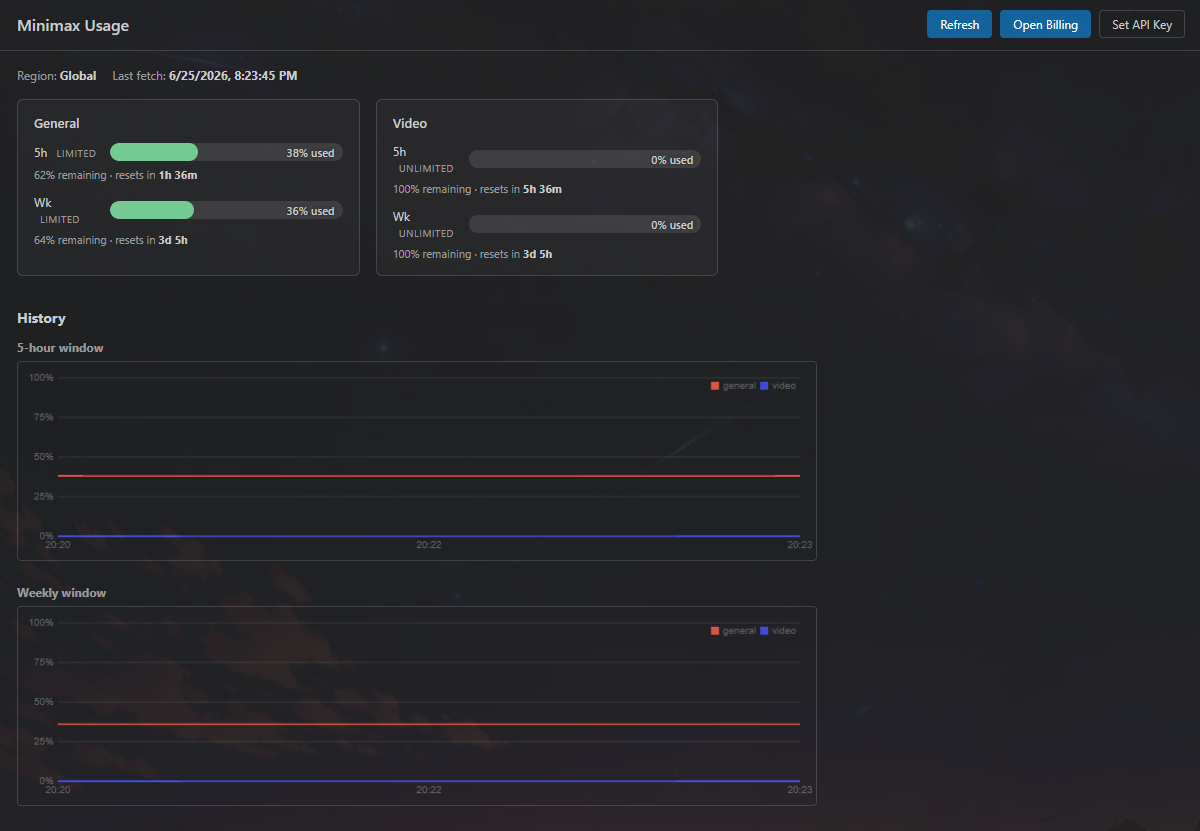
Detail dashboard
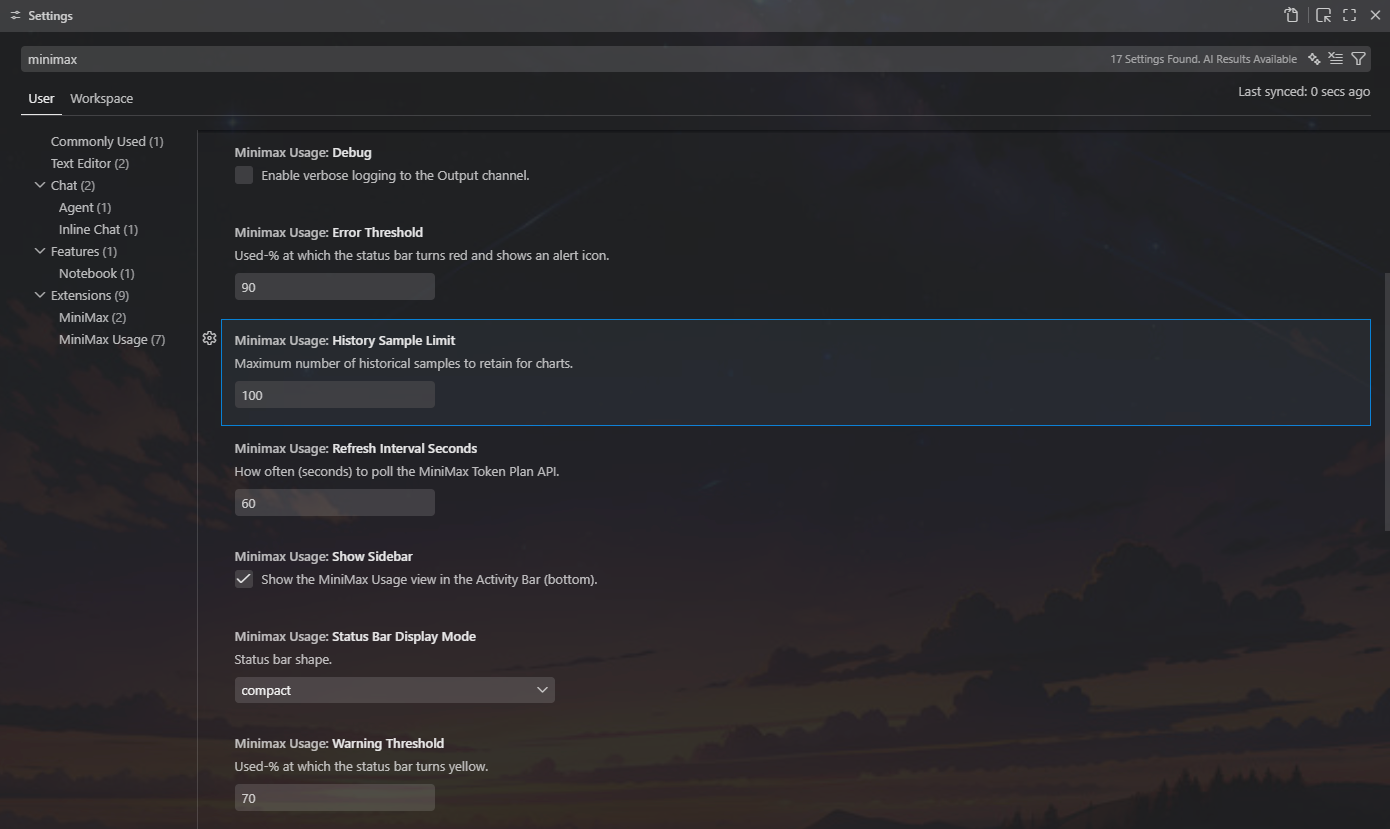
Settings
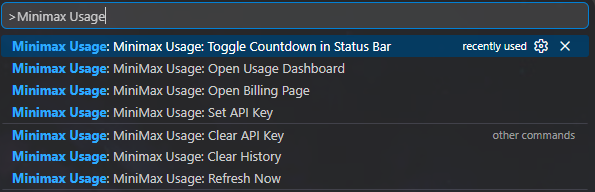
Commands (Ctrl+Shift+P / Cmd+Shift+P)
Features
Status bar (bottom-right): live 5-hour and weekly used %, color-coded (green / yellow / red), with reset countdowns on hover. The $(clock) 2h 14m countdown is opt-in — toggle it on once and it stays on across restarts.
Detail dashboard: big usage bars per model, reset countdowns, interactive history chart of usage over time. Hover for a crosshair + tooltip showing per-model used % at that timestamp.
Interactive charts:
Time-range chips:1h / 6h / 24h / 3d / 7d / All. Chips with no data are auto-disabled; picking an empty range shows a "Show <suggested range>" shortcut.
Hover tooltip: crosshair line + floating panel with timestamp + per-model percentage.
Persistent history: chart samples survive VS Code restarts (mirrored to globalState, debounced 5 s, flushed on shutdown). At the default 100-sample limit, worst-case on-disk size is ~5 KB. Safe to run with multiple VS Code windows against the same workspace.
Command palette:MiniMax Usage: Set API Key, Refresh Now, Open Usage Dashboard, Open Billing Page, Toggle Countdown in Status Bar, Clear History, Clear API Key.
Private by design: API key in OS keychain (SecretStorage); no telemetry, no analytics, zero runtime npm dependencies.
Installation
Install the MiniMax Usage extension from the VS Code Marketplace (search "MiniMax Usage" or run ext install Hukilow.minimax-usage).
Open the Command Palette (Ctrl+Shift+P / Cmd+Shift+P).
Run MiniMax Usage: Set API Key and paste your Subscription Key from Billing → Token Plan.
The status bar should populate within a few seconds.
A Subscription Key is the Team-level key issued when you subscribe to MiniMax Token Plan. It is not the same as a pay-as-you-go Open Platform API key.
Commands
Command
What it does
MiniMax Usage: Set API Key
Prompt for a Token Plan Subscription Key and save it to SecretStorage.
MiniMax Usage: Clear API Key
Wipe the stored key (with confirmation).
MiniMax Usage: Refresh Now
Force an immediate poll (does not wait for the configured interval).
MiniMax Usage: Open Usage Dashboard
Open the detail dashboard webview.
MiniMax Usage: Open Billing Page
Open the MiniMax billing page in your OS browser.
MiniMax Usage: Toggle Countdown in Status Bar
Flip the inline $(clock) 2h 14m countdown on each status bar item.
MiniMax Usage: Clear History
Wipe both the in-memory ring buffer and the on-disk history blob.
Settings
Setting
Default
Description
minimaxUsage.refreshIntervalSeconds
60
Polling interval (30–600 s).
minimaxUsage.statusBar.showCountdown
false
Append the live reset countdown ($(clock) 2h 14m) to each status bar item. Toggled via the MiniMax Usage: Toggle Countdown in Status Bar command.
minimaxUsage.warningThreshold
70
Used-% at which the status bar turns yellow.
minimaxUsage.errorThreshold
90
Used-% at which the status bar turns red.
minimaxUsage.historySampleLimit
100
Hard cap on chart history samples (20–2000). Older samples are downsampled so on-disk size stays bounded (~5–100 KB).
minimaxUsage.charts.timeRange
24h
Default time range for the dashboard charts (1h / 6h / 24h / 3d / 7d / all).
minimaxUsage.charts.persistHistory
true
Keep chart history across VS Code restarts. Disable to wipe stored data and stop writing new samples.
minimaxUsage.debug
false
Verbose logs in the Output channel (Minimax Usage).
Privacy
Reads your Token Plan usage (one outbound HTTPS call to api.minimax.io).
Never writes to your MiniMax account, never calls LLM APIs, never sends data anywhere else.
API key is stored locally in your OS keychain via VS Code's SecretStorage API.
No telemetry, no analytics, no error reporting service.
Zero runtime npm dependencies (CVE surface = 0).
See SECURITY.md for how to report vulnerabilities.