

🦆 Duck Viewer
About This ForkThis extension is a fork of ChuckJonas/duckdb-vscode, created and maintained by Charlie Jonas. All credit for the original design and the vast majority of the code belongs to him. The fork is published as Duck Viewer ( The fork carries its own name, icon, and in-product labels rather than DuckDB's. An earlier build reused the DuckDB logo and led with the DuckDB name, and the VS Code Marketplace removed it as impersonation. That was a fair call: nothing about this project should suggest it comes from DuckDB Labs. The activity-bar container, command palette entries, and Open With… editors are all labelled "Duck Viewer", and the marketplace icon is original rubber-duck artwork. Command IDs and settings keep their Changes carried by this fork:
Bug reports for these changes belong in this repository's issues. Everything else should go to the upstream project. OverviewThis extension brings DuckDB directly into VS Code with a focus on creating a productive "DuckDB workspace". Write and execute SQL queries, view results with column statistics, explore database schemas, and manage multiple database connections. How It WorksAll queries execute using the DuckDB Node API embedded in VS Code. By default, queries run against an in-memory database that resets when VS Code closes. You can attach persistent Performance Note: When you execute a query, the extension creates a temporary table to enable sorting, filtering, and exporting. Results stream into the viewport via infinite scroll — only the visible rows are in the DOM. For large datasets, DuckDB will spill to disk automatically — see Memory & Performance settings if you run into limits. FeaturesSQL Execution
File Integration
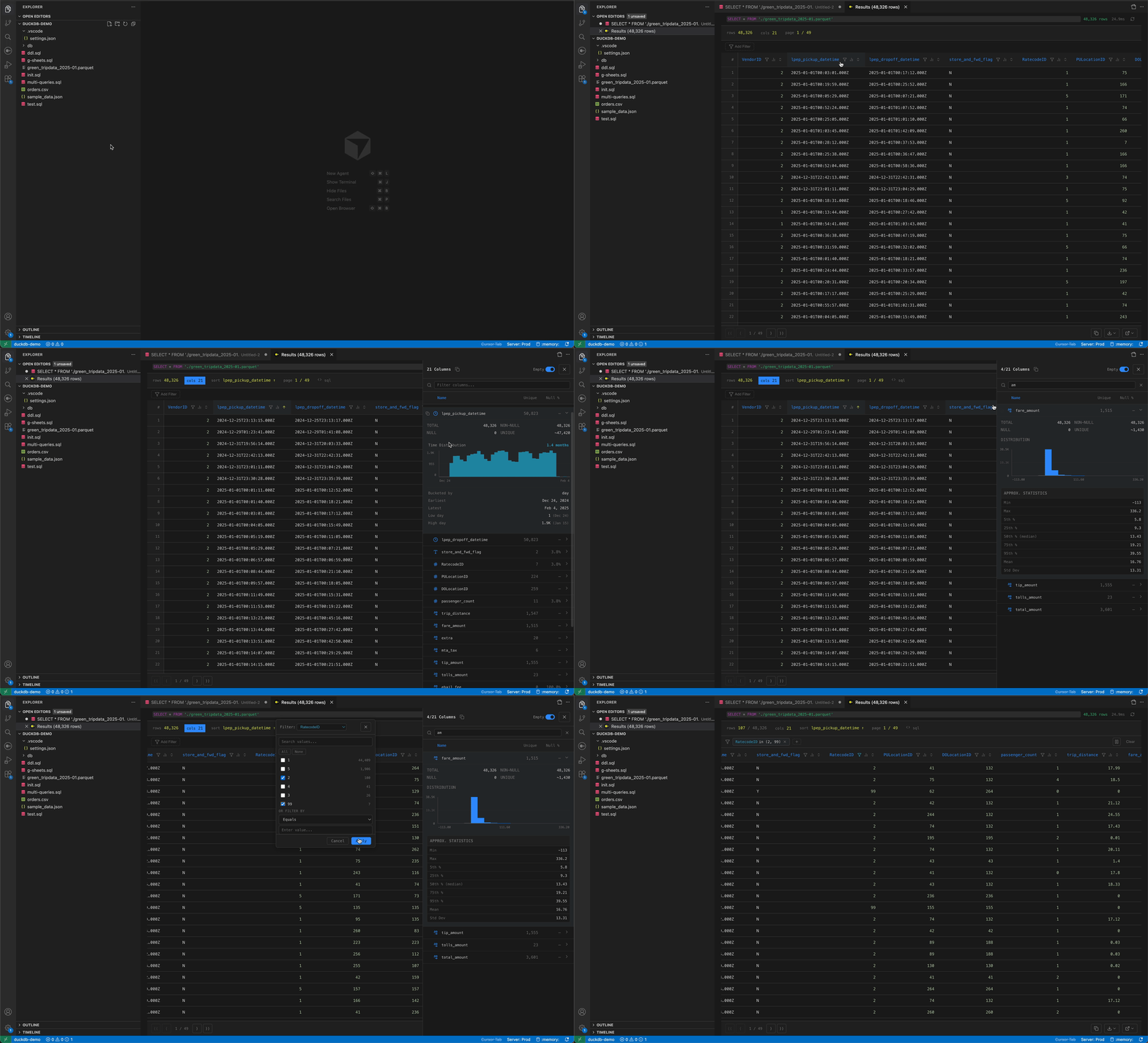
Results Table
Column Statistics
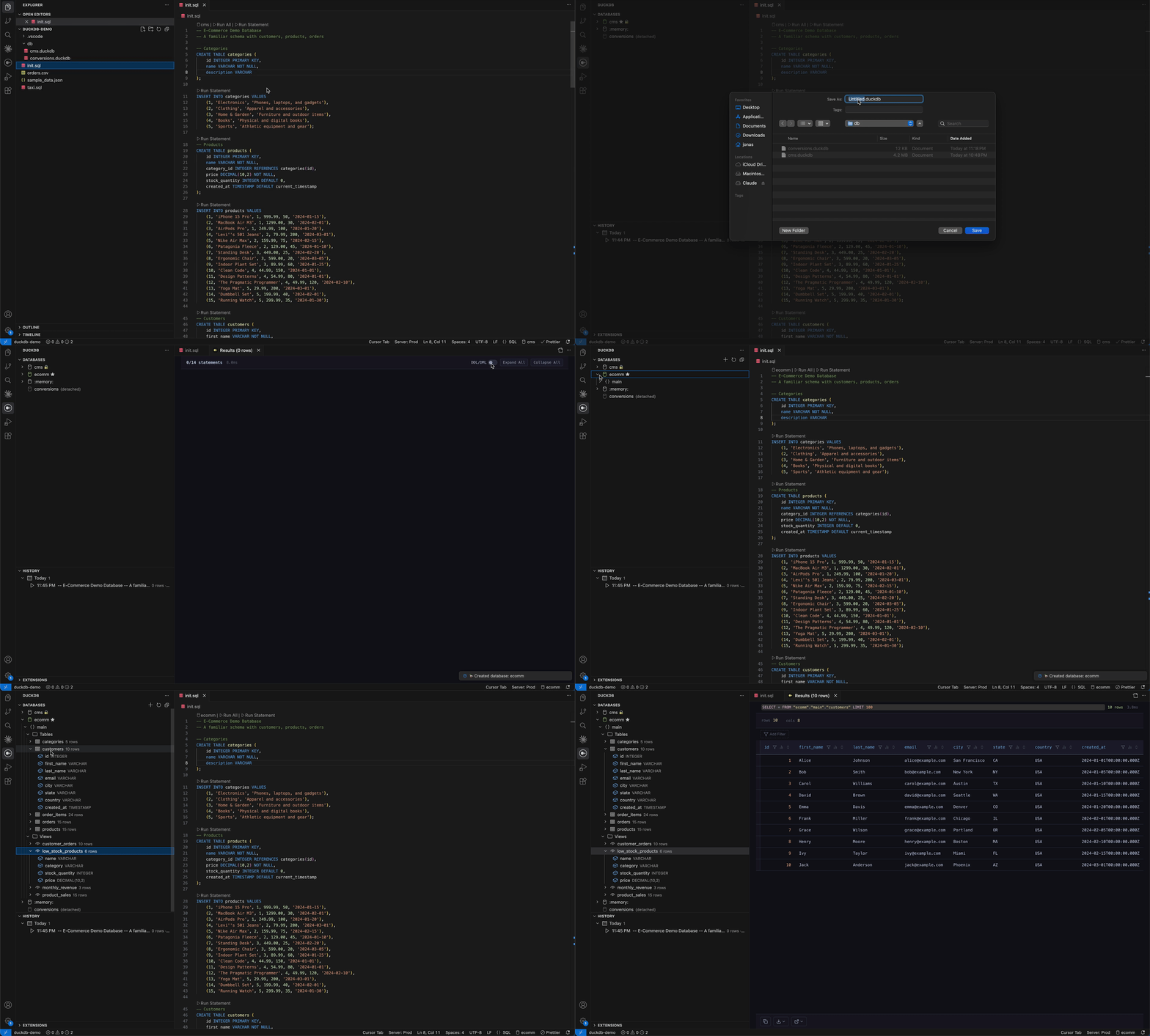
Database Explorer
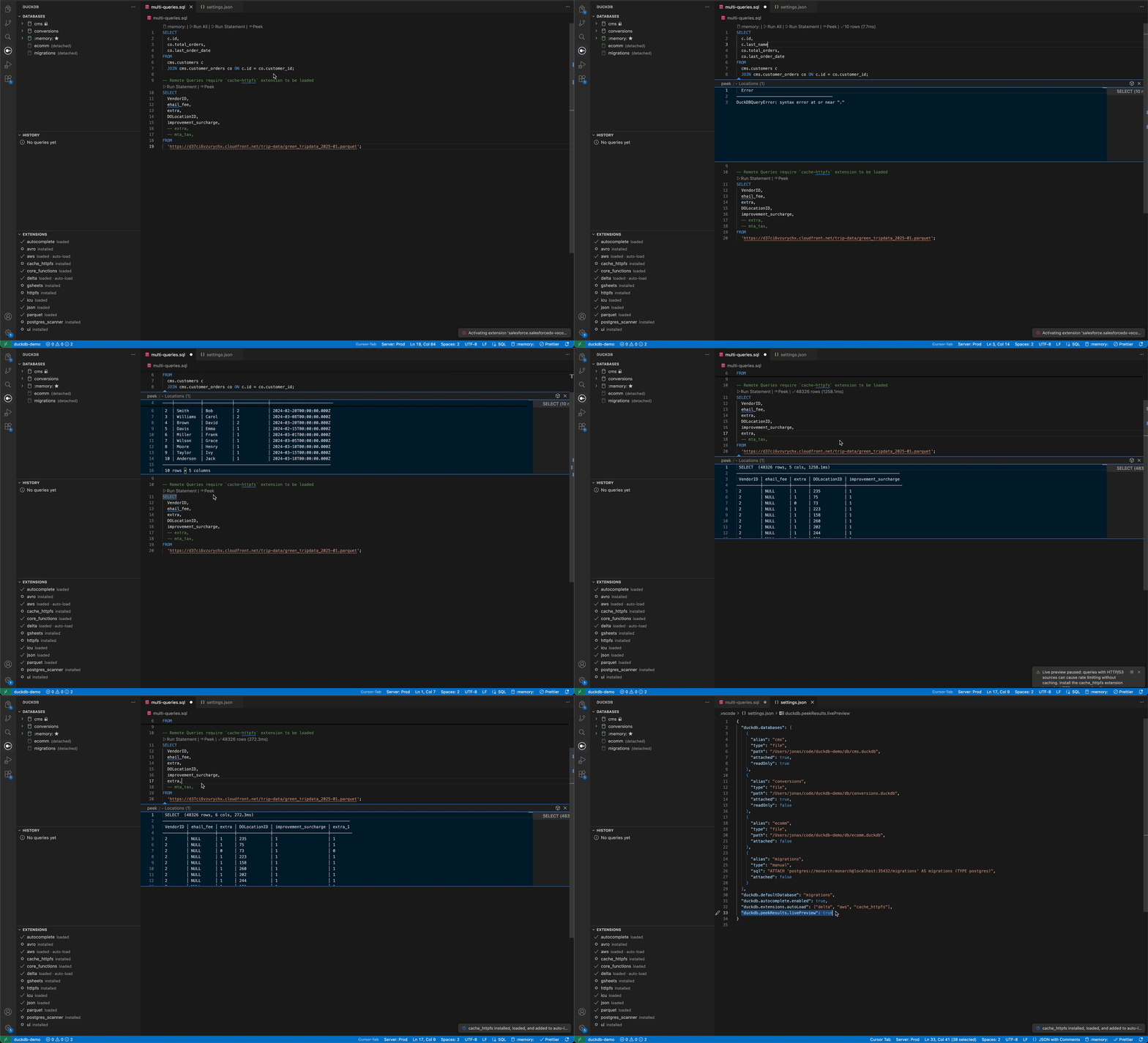
Inline Peek Results
Extensions
Query History
SettingsConfigure in Database Configuration
|



| Property | Type | Description |
|---|---|---|
alias |
string | Database name to use in queries |
type |
"memory" | "file" | "manual" |
Database type |
path |
string | Path to .duckdb file (for file type) |
readOnly |
boolean | Open in read-only mode (default: false) |
attached |
boolean | Auto-attach on startup (default: true) |
sql |
string | Raw ATTACH statement (for manual type) |
duckdb.defaultDatabase
Database to USE after attaching (default: "memory").
duckdb.extensions.autoLoad
Extensions to automatically install and load on startup.
{
  "duckdb.extensions.autoLoad": ["httpfs", "parquet", "json", "postgres"]
}
Inline Preview
duckdb.peekResults.livePreview
Enable live preview mode (default: false). When enabled, peeking a statement will auto-refresh results as you type. See the warning above about remote data sources.
duckdb.peekResults.maxRows
Maximum rows in the peek preview (default: 50, range: 5–500).
duckdb.peekResults.debounceMs
Debounce delay in ms for live preview (default: 600, range: 200–5000). Higher values reduce query frequency.
Data File Viewer
duckdb.fileViewer.parquet
Automatically open .parquet files with the DuckDB data viewer (default: true).
duckdb.fileViewer.csv
Automatically open .csv and .tsv files with the DuckDB data viewer (default: true).
duckdb.fileViewer.json
Automatically open .jsonl and .ndjson files with the DuckDB data viewer (default: false). Plain .json files are always available via Open With… but are never auto-opened to avoid disrupting config files.
duckdb.fileViewer.excel
Automatically open .xlsx files with the DuckDB data viewer (default: true). For workbooks with multiple sheets, a sheet picker is shown first. Requires the DuckDB excel extension, which is auto-installed on first use.
duckdb.fileViewer.database
Automatically open .duckdb and .ddb database files with the DuckDB data viewer (default: true). The file is attached (read-only when the file allows it) and its tables and views are listed; opening one shows the usual schema/data view. An attachment already held by the Database Explorer is reused, and one created by the viewer is detached when the last editor for the file closes.
duckdb.fileViewer.openMode
Landing view when opening a data file (default: "schema").
| Value | Description |
|---|---|
schema |
Show column metadata first — safe for any file size. Click "Query" to load rows on demand. |
data |
Jump straight into rows. The full result is materialized into a DuckDB temp table and rows stream into the viewport via infinite scroll. |
Large files: In
datamode the entire file is loaded into a temp table. DuckDB will spill to disk if it exceedsmemoryLimit, but very large files can still be slow to open. If you regularly work with multi-GB files, keep the defaultschemamode and use the query buttons to sample or project specific columns.
duckdb.fileViewer.openRowLimit
Optional row cap when openMode is "data" (default: 0 = unlimited).
Set to a positive number (e.g. 100000) to apply a LIMIT to the auto-open query. Useful for sampling huge files without materializing the full result.
Results Display
duckdb.resultsLocation
Where to open query results (default: "active").
| Value | Description |
|---|---|
beside |
Open in a new editor group beside the SQL file |
active |
Open in the same editor group as the SQL file |
Tip: To open results below your SQL file instead of beside it, set VS Code's workbench.editor.openSideBySideDirection to "down".
duckdb.pageSize
Chunk size for virtualized scroll in the results table (default: 100, range: 10–10,000). Rows load on demand as you scroll; this controls how many are fetched per network round-trip to the extension host.
duckdb.maxCopyRows
Maximum rows for copy/export operations (default: 50000, range: 1,000–1,000,000).
Memory & Performance
The extension runs DuckDB inside VS Code's extension host process, which has a limited memory budget (~1.5 GB). To avoid crashing the extension when querying large files, DuckDB is configured to spill to disk when memory is exhausted.
duckdb.memoryLimit
Maximum memory DuckDB can use before spilling to disk (default: "1.5GB").
Warning: The VS Code extension host has a hard heap limit of approximately 1.5 GB. Setting this significantly higher (e.g.
"3GB") will crash the entire extension with no error message — VS Code simply kills the process. If you experience silent crashes, check this setting first.
duckdb.maxTempDirectorySize
Maximum disk space for DuckDB temp/spill files (default: "15GB").
When DuckDB exceeds memoryLimit, it spills data to temporary files on disk. If those spill files exceed this limit, you'll see an error like:
DuckDB IO Error: failed to offload data block of size 256.0 KiB (5.8 GiB/5.8 GiB used).
This limit was set by the 'max_temp_directory_size' setting.
Increase this if you work with very large datasets:
{ "duckdb.maxTempDirectorySize": "50GB" }
duckdb.tempDirectory
Directory for DuckDB temp/spill files (default: OS temp directory, e.g. /tmp/duck-viewer on macOS/Linux).
Leave empty to use the OS temp directory, which is automatically cleaned up on reboot. Override this if the default location doesn't have enough disk space or isn't writable:
{ "duckdb.tempDirectory": "/path/to/large/disk/duckdb-temp" }
Database Explorer
duckdb.explorer.defaultRowLimit
Default row limit for Select Top Rows and Select Distinct Values in the database explorer (default: 1000, range: 1–100,000).
duckdb.explorer.ignoredSchemas
Schema names to hide from the database explorer tree (default: []). Schemas can also be hidden via right-click → "Hide Schema" in the explorer.
Autocomplete
duckdb.autocomplete.enabled
Enable SQL autocomplete suggestions (default: true).
SQL Formatting
duckdb.format.keywordCase
Keyword casing style (default: "upper").
| Value | Description |
|---|---|
upper |
Uppercase keywords (SELECT, FROM, WHERE) |
lower |
Lowercase keywords (select, from, where) |
preserve |
Preserve original keyword casing |
duckdb.format.indentStyle
Indentation style (default: "standard").
| Value | Description |
|---|---|
standard |
Standard indentation |
tabularLeft |
Tabular style, keywords left-aligned |
tabularRight |
Tabular style, keywords right-aligned |
duckdb.format.logicalOperatorNewline
Where to place logical operators relative to newlines (default: "before").
| Value | Description |
|---|---|
before |
Place AND/OR before the newline |
after |
Place AND/OR after the newline |
Query History
duckdb.history.persist
Save query history to .vscode/duckdb-history.db (default: false).
duckdb.history.maxEntries
Maximum history entries to keep (default: 1000).
Commands
| Command | Keybinding | Description |
|---|---|---|
| Duck Viewer: Execute Query | Cmd+Enter / Ctrl+Enter |
Run all SQL in active editor |
| Duck Viewer: Run Statement | — | Run a single statement (via CodeLens) |
| Duck Viewer: Run at Cursor | Cmd+Shift+Enter / Ctrl+Shift+Enter |
Run the statement under the cursor |
| Duck Viewer: Select Database | — | Switch active database |
| Duck Viewer: Manage Extensions | — | Install/remove extensions |
| Duck Viewer: Query File | — | Query a data file (right-click) |
| Duck Viewer: Summarize File | — | Profile a data file |
| Duck Viewer: Copy Query | — | Copy SELECT statement for file |
| Go to Source File | — | Navigate from results to source SQL |
Requirements
- VS Code 1.85.0 or later
- macOS, Linux, or Windows
License
MIT. The original work is copyright Charlie Jonas (ChuckJonas/duckdb-vscode); this fork keeps the same license.
Duck Viewer is an independent, unofficial project. It is not affiliated with, endorsed by, or supported by DuckDB Labs. DuckDB is a trademark of DuckDB Labs and is used here only to identify the engine this extension embeds.