A delightful bubble tea inspired theme for Visual Studio Code, drawing its color palette from the standard colors used in Charmbracelet projects like Bubble Tea and Lipgloss.
Installation
Launch VS Code Quick Open (Ctrl+P), paste the following command, and press enter.
A delightful, cute, and modern theme for Visual Studio Code, inspired by the sweet and refreshing world of Bubble Tea, and drawing its color palette from the standard colors used in the amazing Charmbracelet projects like Bubble Tea and Lipgloss.
🎨 Flavors
The Bubble Tea Theme now comes in two delicious flavors:
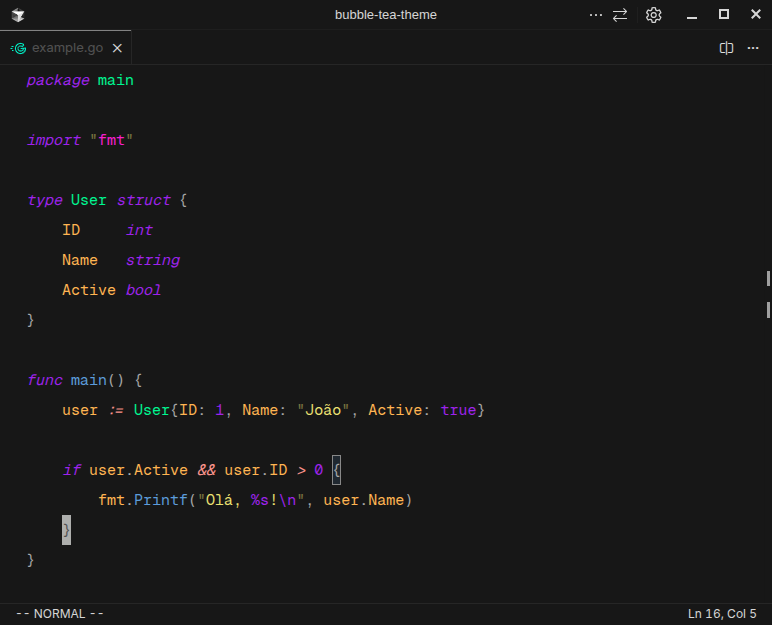
Bubble Tea: The main theme, featuring a high-tech, ultra-tuned syntax for a modern and precise coding experience. It's perfect for developers who love a feature-rich and visually optimized environment.
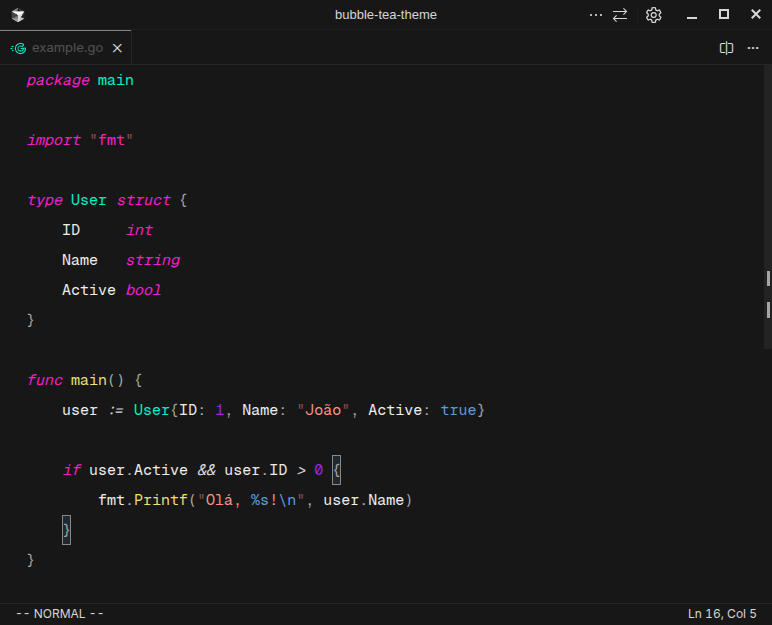
Bubble Tea Classic: A new variant that provides a more traditional syntax highlighting style. It's a great choice for those who prefer a simpler, more classic setup without sacrificing the beautiful Bubble Tea color palette.
✨ Features
Soothing Colors: A carefully selected color palette that is easy on the eyes, perfect for long coding sessions.
Visual Debugging: Colors are chosen to facilitate visual debugging, making it easier to spot issues.
Focus on What Matters: The design reduces "scan time" by highlighting important elements and deemphasizing distractions.
Comprehensive Syntax Highlighting: Enhanced readability across a wide range of languages.
Custom Icon Pack: Over 200 custom file and folder icons to give your workspace a unique and consistent look.
Minimalist & Clean UI: A decluttered interface that helps you focus on what matters: your code.
📸 Screenshots
New Syntax
Classic Syntax
📦 Installation
Open Visual Studio Code.
Go to the Extensions view (Ctrl+Shift+X or Cmd+Shift+X).
Search for Bubble Tea Theme.
Click Install.
Go to File > Preferences > Theme > Color Theme and select your preferred flavor: Bubble Tea Theme or Bubble Tea Classic.
(Optional) Go to File > Preferences > Theme > File Icon Theme and select Bubble Tea Icons.