Hawkeye Search for VS Code
Search your codebase with Hawkeye without leaving VS Code.
Hawkeye helps developers search across large projects, multiple repositories, and other folders from VS Code. Results appear as you type. Users can create reusable groups with folder and file filters, search selected groups together, and open results in VS Code or configured external tools. The search runs on an indexed dataset and queries run locally.
A useful example is a developer working across several game projects or a large codebase: they can keep separate groups for each project or area, narrow a search to .cpp files, exclude unwanted matches, and jump straight to the relevant file. The extension can also generate groups from the current workspace.
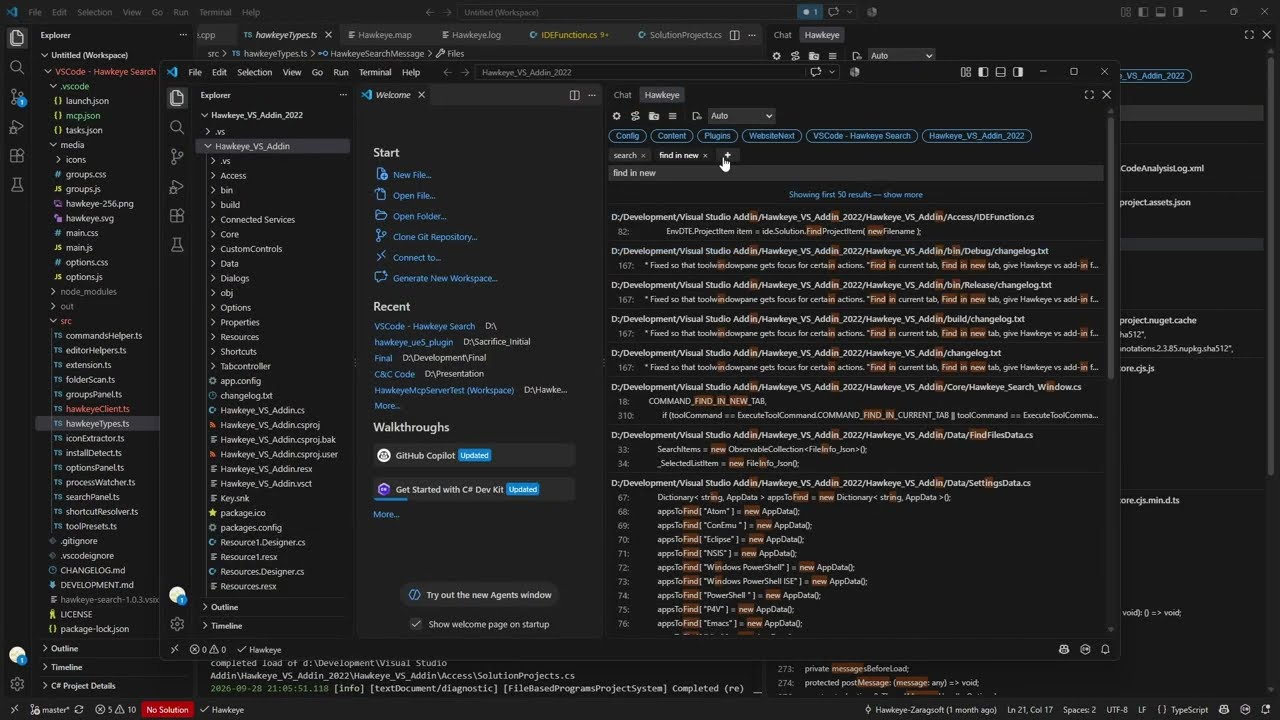
The results are shown while you are typing, and you can switch workspace really easily. Video below shows it in action.
Requirements
- Windows. This extension launches the Hawkeye desktop app (
hawkeye.exe) locally and currently only supports Windows.
- Hawkeye installed and indexing the project you want to search.
Features
- Multi-tab search, with each tab remembering its own query, group filters, and results.
- Toggleable search groups that works as your filters.
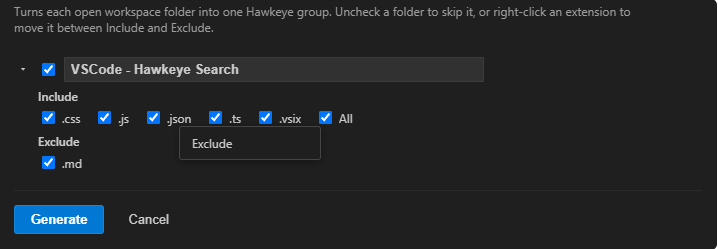
- Configure Groups: scans your open workspace's top-level folders with include/exclude filters.
- Results grouped by file, with matched terms highlighted inline.
- Right-click a result to open it with any tool you've configured (or pulled straight from Hawkeye's own tool list), open its repo as a VS Code workspace, or reveal it in File Explorer.
- Right-click a tab to close others, or everything to the left/right.
- Status bar indicator for whether Hawkeye is running, with one-click start / install prompts.
How it works
Groups
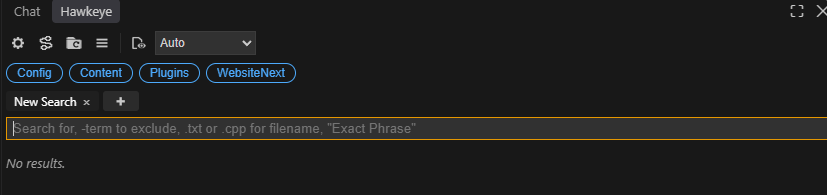
This image shows how you can separate your groups. A group is basically one or many folders with filters. Can be entire projects but can also be specific folders that you usually access.
After you have installed the extension you can choose to configure groups based on the project you are working in. Then each time you open a new one you can just easily add new groups with the settings that you would like to have.
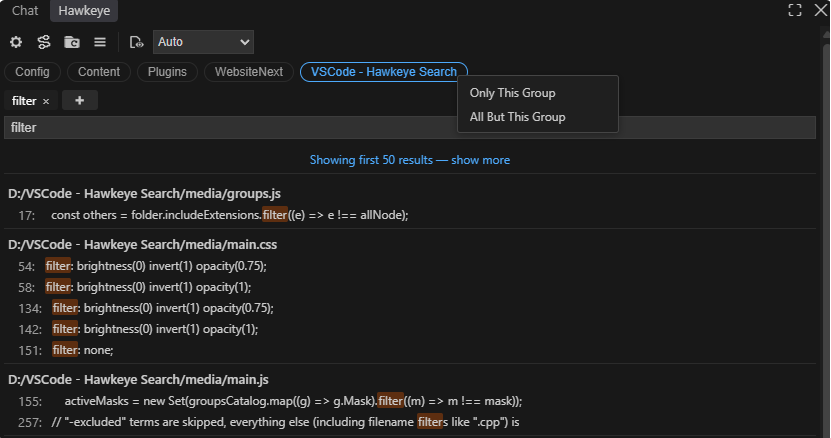
After you press generate a new group is created and you can start to search in that group only or in whatever groups you want active.
Opening results
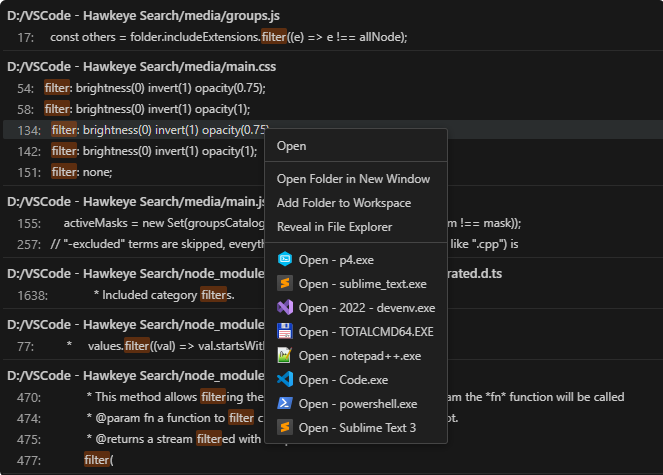
When you right-click a result inside the result list you can choose a number of things based on your setup. Basics are:
- Open folder in new window — Basically the same as opening a folder for VS Code.
- Add folder to workspace — Add this base folder to the workspace as well.
- Reveal in file explorer — Show in explorer.
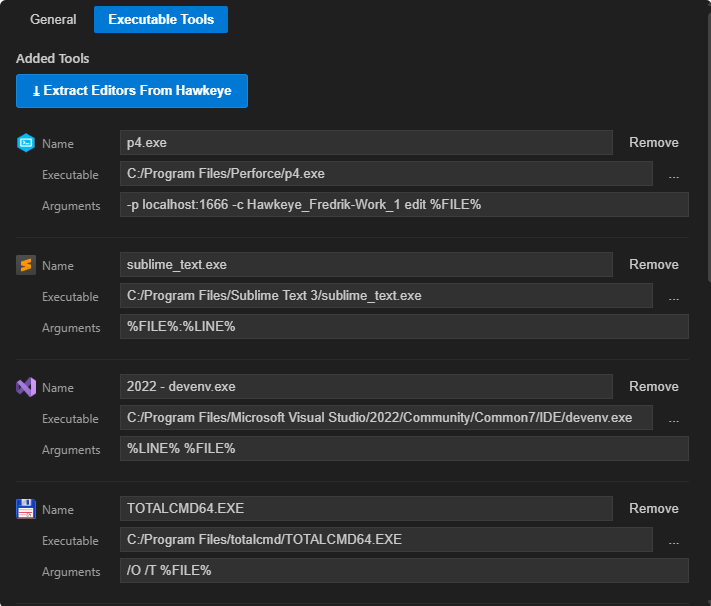
- The rest is dynamic — I have chosen to open in Total Commander, Sublime, P4, PowerShell, or whatever you want to set up; it will feed the file and line into the command and you can choose the setup for it.
Searching
After this you can start to search for what is needed.
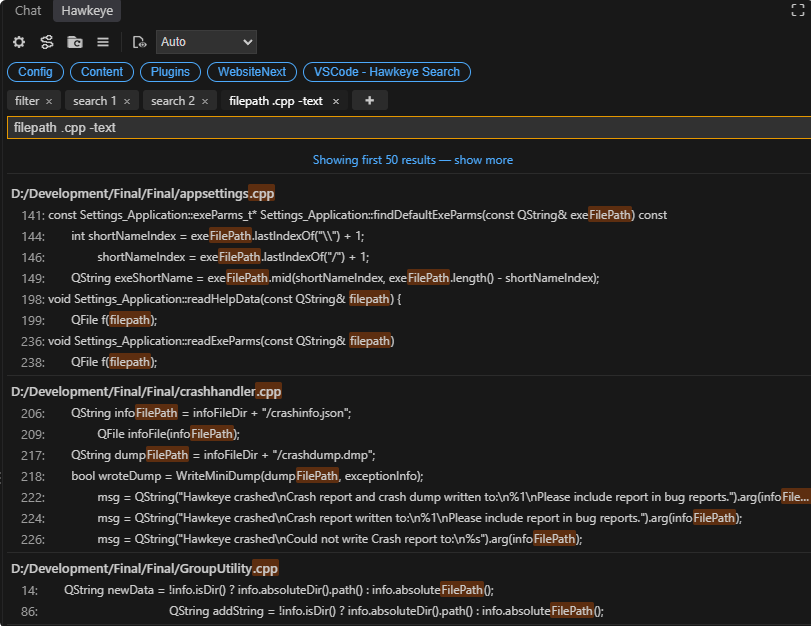
In the example below I searched for filepath, only inside .cpp files, excluding the word text.
.cpp — Filter so that you get the cpp files.-term — Filter so that any line that contains term will be removed from the results."Find the while query" — Without the quotes, Hawkeye will list the findings for each of the terms. But with the quotes it will only list the results where the entire query is present.("String") — Adding quotes around parenthesis will give you results that include the "".
Getting started
- Install and run Hawkeye and index the project(s) you want to search.
- from vs code search for Hawkeye Search in View -> Extensions
- Open the Hawkeye icon in the VS Code activity bar.
- If prompted, set the Hawkeye install path via Hawkeye: Options (this is usually auto-detected).
- Start typing in the search box.
Commands
| Command |
Description |
| Hawkeye: Find Selection In Current Tab |
Searches the active tab using your current selection |
| Hawkeye: Find Selection In New Tab |
Opens a new tab and searches using your current selection |
| Hawkeye: Search For Files |
Opens a new search tab |
| Hawkeye: Focus Search Panel |
Brings the Hawkeye panel into focus |
| Hawkeye: Go To Linked File |
Jumps between related files (e.g. .h / .cpp, .xaml / .xaml.cs) |
| Hawkeye: Search In External Hawkeye App |
Opens the same search in the standalone Hawkeye app |
| Hawkeye: Run Command 1-4 |
Runs the 1st–4th tool from your configured list (in order) against the active editor — for assigning keybindings to your most-used tools. Not shown in any menu since the label can't reflect which tool is actually in that slot; bind a shortcut to it via the Keyboard Shortcuts editor if you want instant single-key launch |
| Hawkeye: Run Tool... |
Also appears when you right-click a file in the Explorer or an open editor — lists every configured tool by its real name and icon and runs whichever one you pick against that file |
| Hawkeye: Reload |
Refreshes the Hawkeye index |
| Hawkeye: Options |
Opens Hawkeye settings |
| Hawkeye: Configure Groups |
Scans your workspace and generates Hawkeye groups from it |
| Hawkeye: Show Output |
Shows the raw Hawkeye communication log, useful for troubleshooting |
None of these ship with default keybindings — bind the ones you use via the Keyboard Shortcuts editor.
Support
www.zaragsoft.se

