Skip to content
| Marketplace
Sign in
Visual Studio Code>Other>Hawk's Styled Markdown PreviewNew to Visual Studio Code? Get it now.
Hawk's Styled Markdown Preview

Hawk's Styled Markdown Preview

Hawk Lee

|
8 installs
| (0) | Free
Preview and export Markdown as styled HTML using Hawk's template.
Installation
Launch VS Code Quick Open (Ctrl+P), paste the following command, and press enter.
Copied to clipboard
More Info

Hawk's Styled Markdown Preview 🦅

English | 中文说明

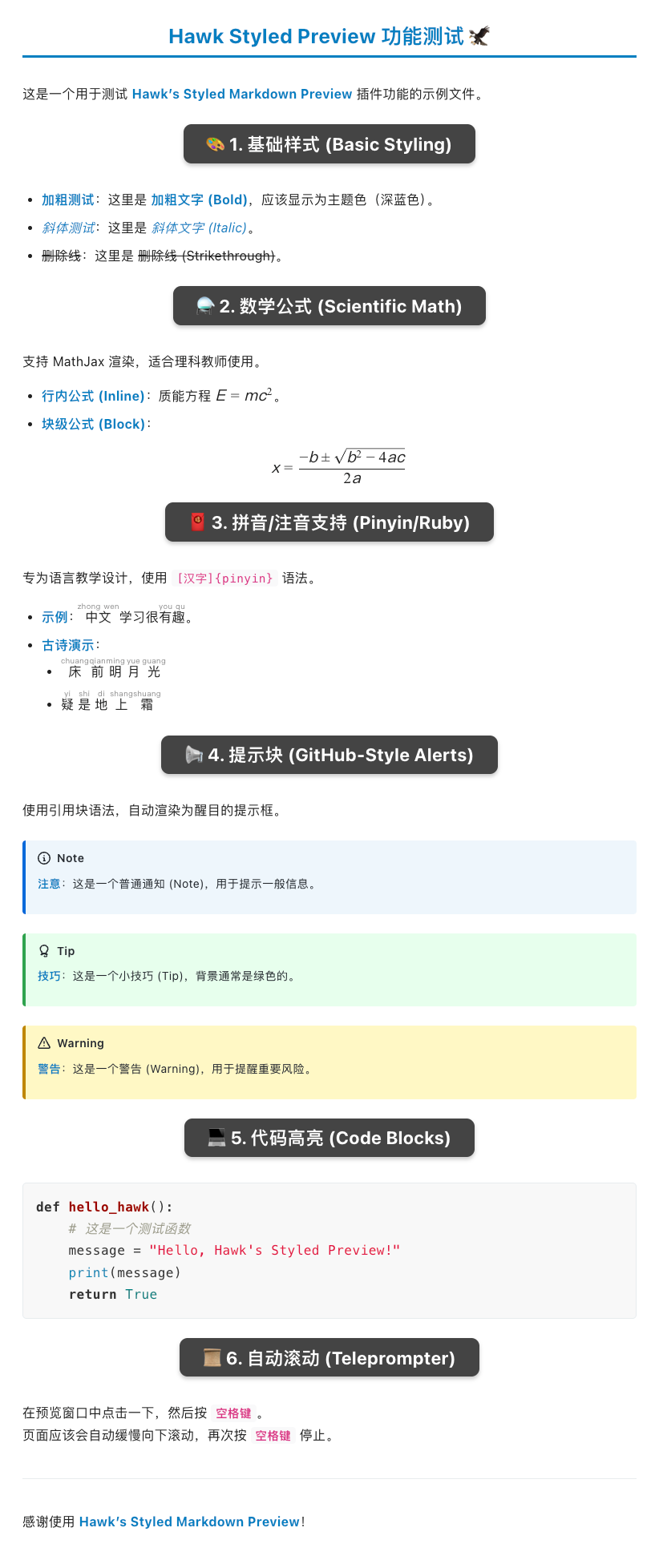
Preview and export your Markdown files using a beautiful, academic-styled template designed for educators and content creators.

Preview Demo

✨ Features

  • 🎨 Beautiful Styling: Renders Markdown with a clean, modern, academic-style CSS theme.
  • 🖼️ Local Image Support: Displays relative image paths correctly using Markdown syntax ![alt](https://github.com/NCU-AI-Educators/educator-toolkit/raw/HEAD/path) or HTML <img> tags.
  • 📂 Absolute & Special Path Support: Renders images from anywhere on your disk (absolute paths) and handles paths with spaces or non-ASCII characters (e.g., Chinese) seamlessly.
  • ⚗️ Scientific Math Support: Built-in MathJax support for high-quality mathematical notation (Inline $E=mc^2$ & Block $$...$$).
  • 🧧 Pinyin/Ruby Support: Easily add phonetic guides using [Text]{pinyin} syntax.

  • 📢 GitHub-Style Alerts: Supports [!NOTE], [!TIP], [!WARNING] blockquotes with color-coded styling.
  • 📜 Auto-Scroll (Teleprompter): Press Space in the preview window to toggle auto-scrolling—perfect for recording videos or lectures.
  • 📤 One-Click Export: Save your work as a standalone, self-contained HTML file to share with students or colleagues.

🚀 Usage

  1. Open: Open any Markdown (.md) file in VS Code.
  2. Preview: Click the Starburst Icon (🔯) in the editor title bar (top-right).
    • Alternative: Press Cmd+Shift+P and type Hawk: Preview Styled HTML.
  3. Export: Inside the preview panel, click the "Export HTML" button in the top-right corner.
  4. Auto-Scroll: Click the preview content and press Space to start/stop teleprompter mode.

中文说明

Hawk's Styled Markdown Preview 是专为教育工作者和内容创作者设计的 VS Code 插件,提供美观、学术风格的 Markdown 预览与导出功能。

预览演示

✨ 核心功能

  • 🎨 精美样式:内置现代、简洁的学术风格 CSS 主题,让文档瞬间专业起来。
  • 🖼️ 本地图片支持:完美支持 Markdown 语法 (![alt](https://github.com/NCU-AI-Educators/educator-toolkit/raw/HEAD/path)) 和 HTML 标签 (<img src="https://github.com/NCU-AI-Educators/educator-toolkit/raw/HEAD/...">) 的相对路径本地图片渲染。
  • 📂 全路径与特殊字符支持:支持加载磁盘任意位置的图片(绝对路径),并自动处理包含空格或中文字符的文件路径。
  • ⚗️ 数学公式:完美支持 LaTeX 数学公式渲染(MathJax),支持行内 $E=mc^2$ 和块级 $$...$$ 公式。
  • 🧧 拼音/注音支持:支持 [汉字]{han zi} 格式的注音语法,适合制作语文或语言教学材料。
  • 📢 提示块 (Alerts):支持 GitHub 风格的 [!NOTE], [!TIP], [!WARNING] 引用块,自动应用醒目的颜色。
  • 📜 自动滚动 (提词器):在预览窗口按 空格键 即可开启/暂停自动滚动,录课、直播时的绝佳帮手。
  • 📤 一键导出:将渲染好的文档导出为独立的 HTML 文件,方便分发给学生或发布。

🚀 使用方法

  1. 打开:在 VS Code 中打开任意 Markdown (.md) 文件。
  2. 预览:点击编辑器右上角标题栏的 星芒图标 (🔯)。
    • 或者:使用命令面板 (Cmd+Shift+P) 输入 Hawk: Preview Styled HTML。
  3. 导出:在预览窗口中,点击右上角的 "Export HTML" 按钮即可保存。
  4. 自动滚动:在预览区域点击一下,然后按 空格键 即可启动或暂停自动滚动。

🔧 Commands / 命令

  • mdStyledHtml.preview: 打开带样式的预览 (Open the styled preview).
  • mdStyledHtml.export: 导出为 HTML (Export the current markdown to HTML).

📄 License

MIT License © 2025 Hawk Lee

  • Contact us
  • Jobs
  • Privacy
  • Manage cookies
  • Terms of use
  • Trademarks
© 2026 Microsoft