VgScript
Write branching video-game dialogue in plain text.
VgScript (.vgs) is a screenplay-like format for game narrative: scenes,
speakers, dialogue, actions, conditions and player decisions, one tagged line at
a time. This extension colors every line, checks the script as you type and
keeps every jump in place. The vgs engine ships inside it, so there is nothing
else to install or configure.
Documentation ·
Example project ·
Unreal Engine plugin ·
JetBrains plugin
See the story's shape at a glance
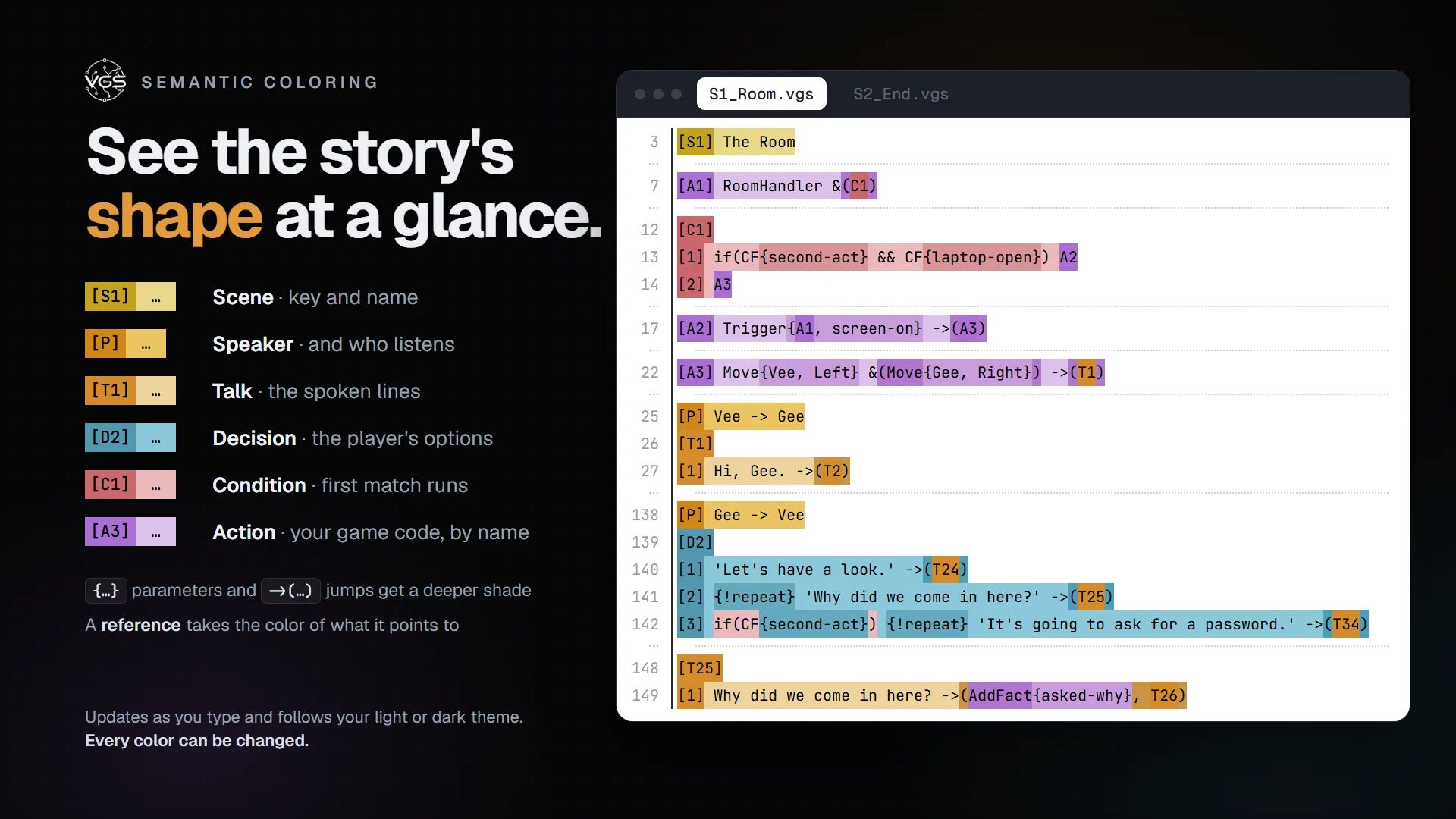
Every marker tints its own line: [S] scene, [P] speaker, [T] talk,
[D] decision, [C] condition and [A] action, so dialogue, choices and game
code are told apart without reading them. {…} parameters and ->(…) jumps get
a deeper shade, and a reference takes the color of what it points to. The tint
updates as you type and follows your light or dark theme, and every color can be
changed (vgscript.colors).
Catch mistakes as you type
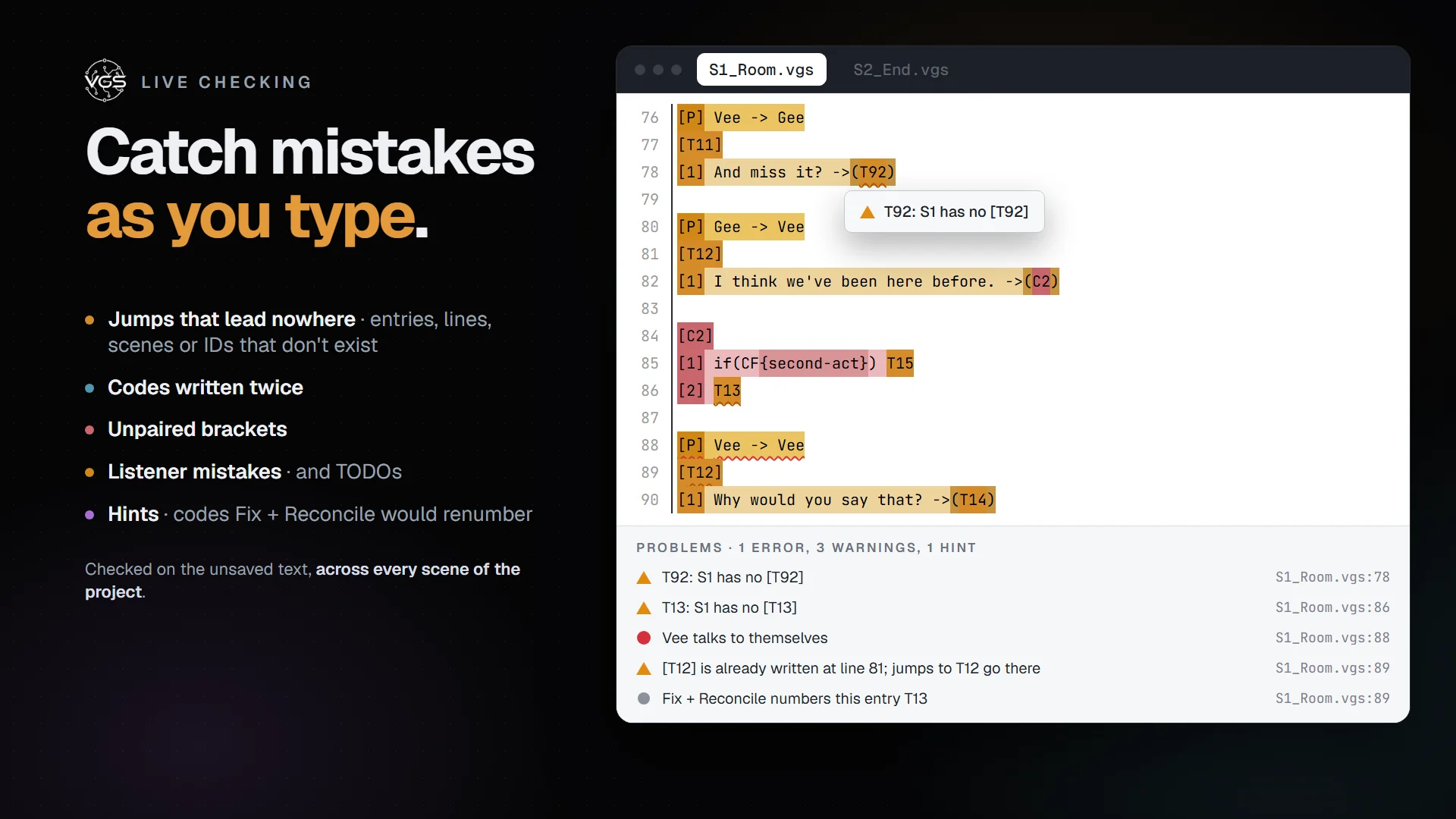
Problems are underlined where they happen and listed in the Problems panel.
The unsaved text is checked against every scene of the project:
- Jumps that lead nowhere: entries, lines, scenes or IDs that don't exist
- Codes written twice
- Unpaired brackets
- Listener mistakes, such as a speaker talking to themselves, and TODOs
- Hints on codes that Fix + Reconcile would renumber
Move through the story like code
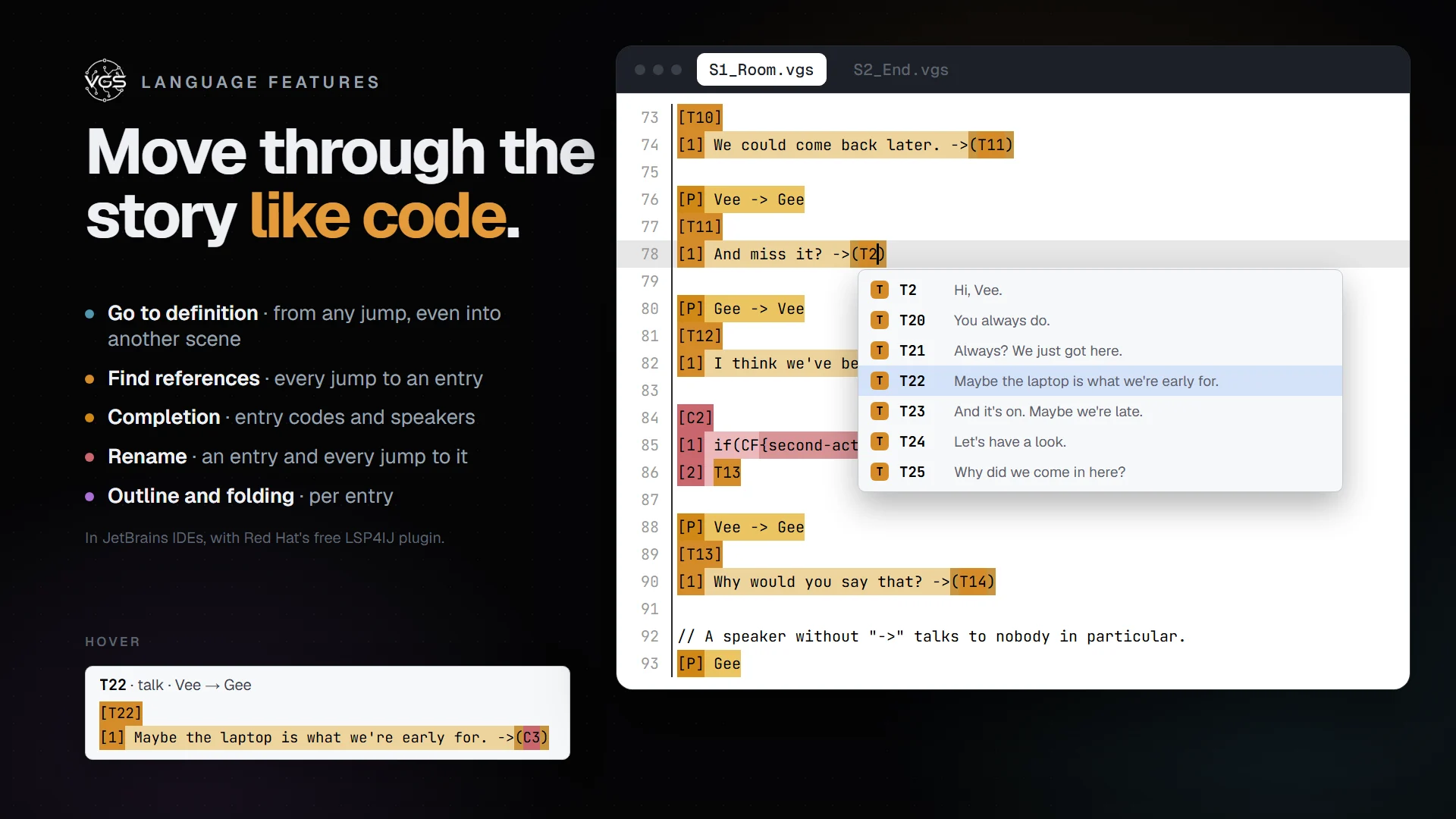
The bundled vgs language server starts when you open a .vgs file:
- Go to definition (F12) from any jump, condition,
[C] branch,
=(T1-1) copy or cross-scene S2-A1
- Find All References (Shift+F12): every jump to an entry
- Completion of entry codes inside
->(, &(, =( and if(, each with its
first line, and of speakers after [P]
- Hover shows who speaks and the entry's first lines
- Rename (F2) changes an entry's code and every jump to it; the next
Fix + Reconcile keeps its ID
- Outline and folding per entry
Find every loose end
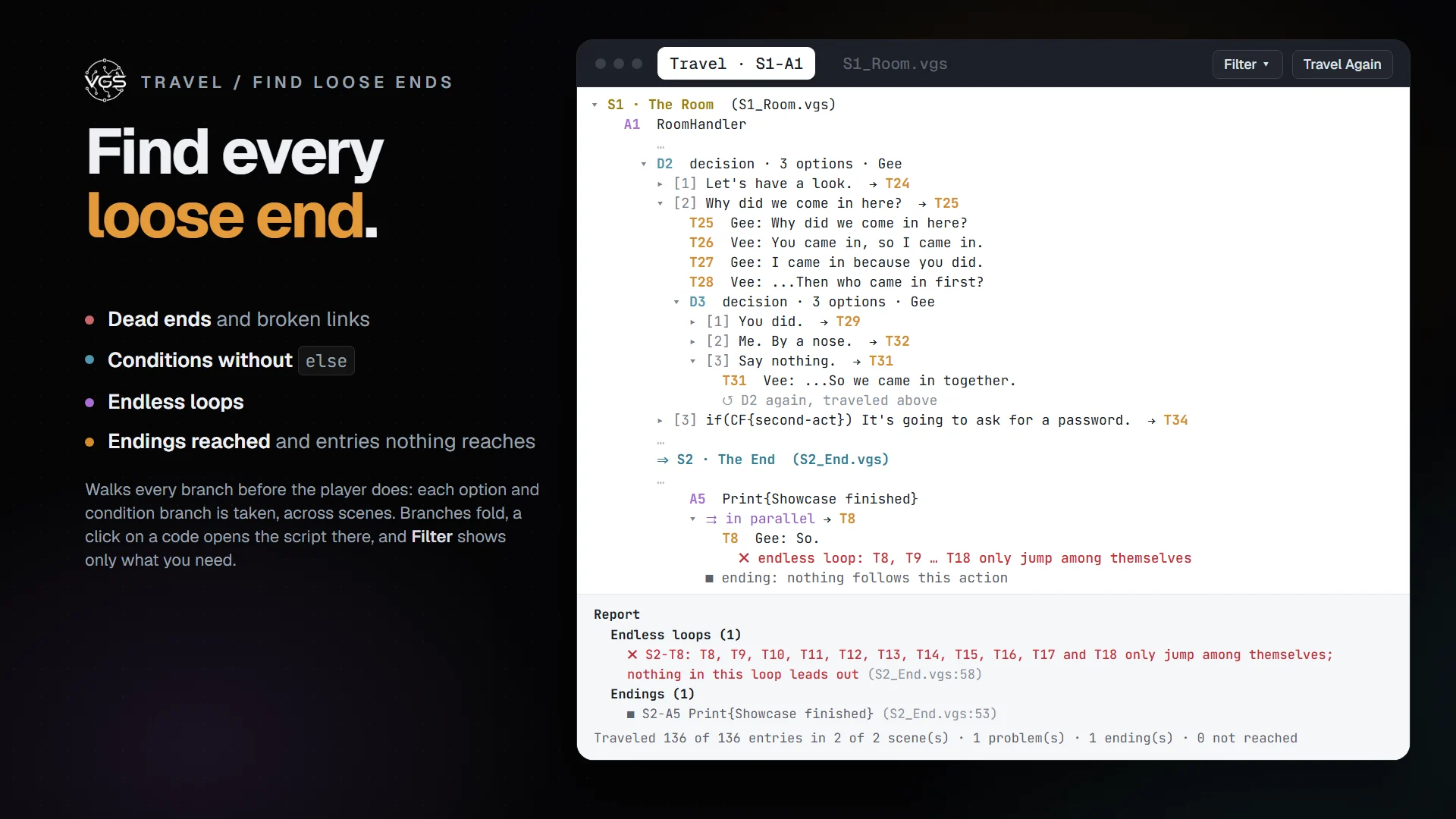
Travel / Find Loose Ends walks every branch before the player does. It
starts at the first action of the first scene, or wherever you pick, takes every
decision option and condition branch across scenes, and reports:
- Dead ends and broken links
- Conditions without
else
- Endless loops
- The endings reached and the entries nothing reaches
The travel opens in its own tab. Each branch folds under the decision or
condition that opened it, problems are colored, and Ctrl/Cmd+click on a code
opens the script there. Filter picks what to show, with a count beside each
part: only the dead ends, say, or every problem but No fallback. Without
Whole travel, it keeps only the paths to what you picked. The filter is
remembered for the workspace, and Travel Again runs it again in the same
tab. No condition is evaluated, so every path is followed.
Keep every script in sync
Right-click a .vgs file (or a folder, for the project-wide actions) →
VgScript, use the VgScript buttons in the status bar, or run them from
the Command Palette. Each one streams its output into a console, so you can read
exactly what changed.
| Action |
What it does |
Runs |
| Fix + Reconcile |
number the entries, fill decision text and rewrite the sidecar |
vgs fix <file.vgs> |
| Validate / Find Mistakes |
report the script's problems, change nothing |
vgs find-mistakes <file.vgs> |
| Fix + Reconcile All (Scenes.txt) |
the same, for every scene in Scenes.txt |
vgs fix-all <dir> |
| Travel / Find Loose Ends |
follow every branch and report where it gets stuck |
vgs travel <dir> --from <entry> |
| Resolve Cross-Script Links |
turn jumps into other scenes into stable IDs |
vgs resolve-links <dir> |
| Reorder Scenes (Scenes.txt) |
put the scenes back in Scenes.txt order |
vgs reorder-scenes <dir> |
Fix + Reconcile is the one to know. Next to every script sits a sidecar file,
<name>.vgs.meta: the plain-JSON version your game reads. You write the .vgs;
the tool writes the .meta (never hand-edit it). One pass numbers the entries,
keeps their IDs stable across edits so references survive renumbering, fills
decision options from the talk they lead to, and rewrites the sidecar. Run it
when you finish a script, and Fix + Reconcile All before a build.
The reconcile pass, step by step →
Validate / Find Mistakes also reports through its exit code: 0 nothing
wrong, 1 problems found, 2 the file wasn't there.
Reorder Scenes records the order one of two ways, set by
vgscript.renameSceneFiles: off (default) numbers Scenes.txt with [n]
prefixes and leaves filenames alone; on renames each .vgs to S<n>_<Name>.vgs
and writes Scenes.txt without the [n] prefixes.
Ready for your game engine
The script is plain text and the .vgs.meta sidecar is plain JSON, so nothing
ties the story to one engine. The
Unreal Engine plugin imports the scripts and
plays talks, decisions, conditions, facts and actions, with CSV localization.
More engines are on the roadmap.
The extension also installs vgs as a command for build scripts, terminals and
AI agents (vgs fix-all, vgs check-all, vgs travel), at
%LOCALAPPDATA%\vgscript\bin\vgs.exe on Windows and
~/.local/share/vgscript/bin/vgs on macOS and Linux.
Settings
| Setting |
Does |
vgscript.enableDecorations |
turn the semantic line coloring on or off |
vgscript.enableDiagnostics |
turn the live checking on or off |
vgscript.colors |
per-marker colors, with light and dark variants |
vgscript.colors.useWholeLineSoft |
tint the whole editor line, not just the text |
vgscript.renameSceneFiles |
whether Reorder Scenes renames files |
vgscript.showStatusBarButtons |
show the VgScript buttons in the status bar |
vgscript.rustBinaryPath |
point at your own vgs binary instead of the bundled one |
Where the engine comes from. The extension ships the compiled vgs for its
platform, so the actions work out of the box. If you build your own, it also
picks up core/tool/target/{release,debug} inside the open workspace or a vgs
on your PATH, and vgscript.rustBinaryPath always wins.
Writing with an AI assistant?
The agent guide covers the language, the
vgs commands and the rules an assistant must follow. Its
plain-text copy can be handed
straight to the assistant or pasted into your repo's AGENTS.md. The public
vgscript-example project is
a working sample of a repo set up that way.
Troubleshooting
- An action says the binary is missing: set
vgscript.rustBinaryPath to a
vgs binary. The extension looks in its bundled bin/, then
core/tool/target/{release,debug} under the open workspace, then PATH.
- No underlines, go to definition or completion: the language server runs
the same
vgs binary as the actions. Run VgScript: Restart Language Server,
and check the vgscript output for why it stopped. A vgscript.rustBinaryPath
that points at an older vgs without lsp turns these features off.
- Colors don't appear: check
vgscript.enableDecorations, then open
View → Output and select vgscript for the log. Some themes override
token colors; try another theme.
- A cross-script jump is missing: both scenes need reconciled
.meta files
and an entry in Scenes.txt; then run Resolve Cross-Script Links again.
Same experience in VS Code and JetBrains. Both plugins are built from the
same vgs engine and grammar and expose the same VgScript actions, so a team
can mix editors and get identical results.
VgScript for JetBrains IDEs →
More at vgscript.com/docs.

