Solder
A lean coding agent beside your editor. Solder sits in VS Code's side bar and reads, searches and edits the code in your workspace. It talks to any OpenAI-compatible Chat Completions endpoint that supports tool calling, such as your company's gateway or a server on your own PC, and to nothing else.
Getting started
Install it:
- from the Marketplace: search for Solder in VS Code's Extensions view;
- or from a
.vsix file, for a PC that can't reach the Marketplace: in the Extensions view, choose ⋯ → Install from VSIX…, or run code --install-extension solder-<version>.vsix.
Solder needs VS Code 1.100 or later. Docs search also needs SQLite in VS Code's runtime, which recent versions have. If yours doesn't, Settings says so.
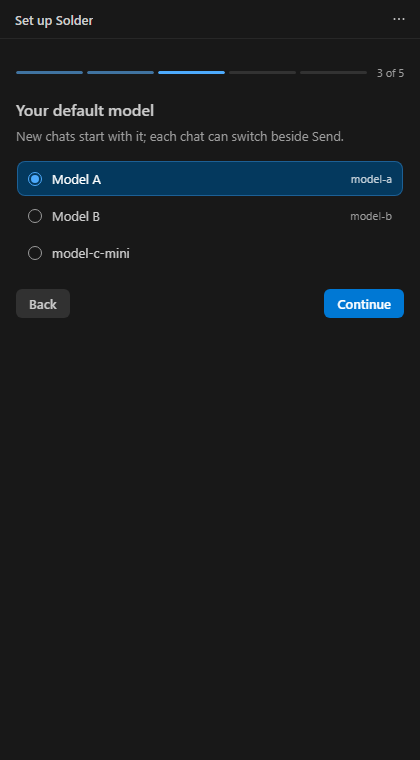
Run the guided setup. Solder offers it the first time it starts. You can also run it any time from the panel's ⋯ menu → Guided setup…. It asks for:
- your gateway's address: the full Chat Completions URL, ending in
/chat/completions;
- your API key: kept in VS Code's secret storage, never in settings. Solder checks it by listing the models;
- your default model;
- your own docs folders: optional, see Your docs;
- a few rules about you and your code: optional, for example "We target Python 3.10" or "Never edit files under
generated/".
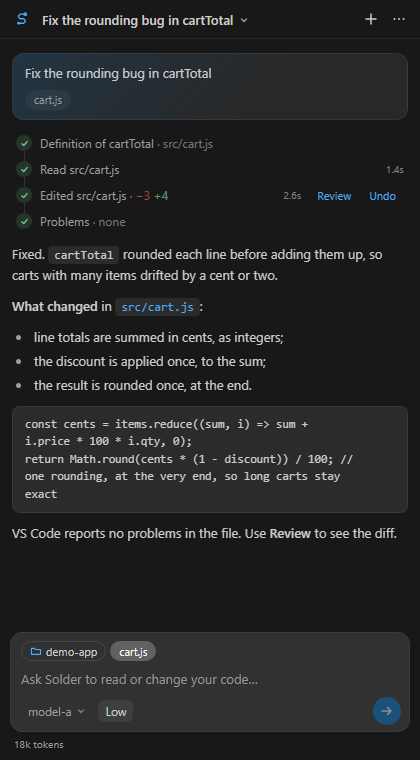
Ask. Type in the box at the bottom and press Enter; Shift+Enter adds a new line. Or pick one of the cards on a new chat: summarise the codebase, explain or fix a script, clean up, learn something, review your changes, or ask what Solder can do.
Using Solder
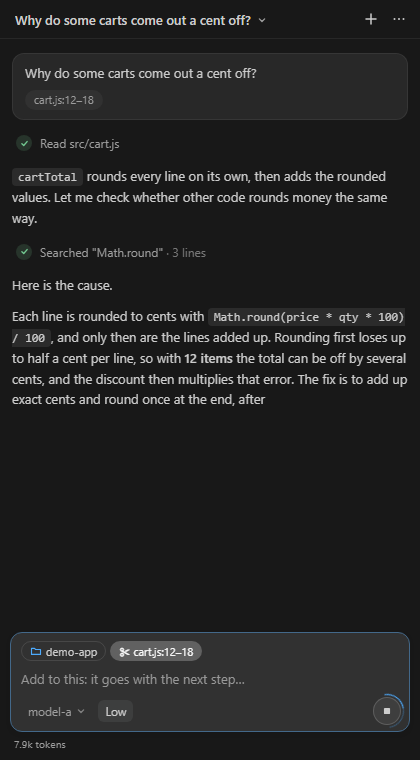
What it looks at. Chips above the box tell Solder where you are:
- The working folder: relative paths and searches start there. Click the chip to change it, or right-click a folder in the Explorer and choose Work in this folder.
- Several folders: every folder in the window counts as the workspace (add one with File → Add Folder to Workspace…): Solder searches them all and edits in any of them without asking. Pick a folder that isn't in the window as the working folder and Solder offers to add it. Your chats follow their folder, so they're there whichever window you open it in.
- The open file, or your selection: click a chip to include it, or click it again to leave it out.
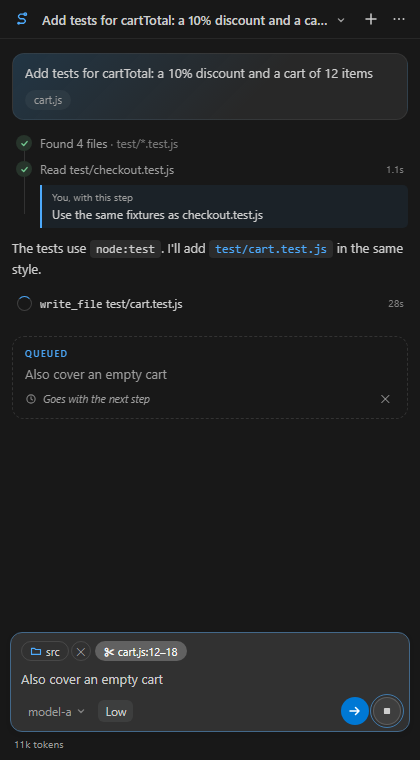
While it works, each step shows as a line with how long it took. Click a line to see its output. If you type something meanwhile, the message is queued and goes with the next step. Its ✕ takes it back.
From the editor: select some code, right-click, and choose Solder → Explain this, Fix this (it sends the problems VS Code shows in the selection too) or Add to chat (the selection goes with your next message).
Every edit can be reviewed and undone. Review opens VS Code's diff of that step. Undo puts the file back as it was, and Solder is told with your next message. VS Code's own Ctrl+Z works too.
It asks first before:
- deleting anything;
- changing a file outside the workspace, or one with unsaved changes;
- changing git's or VS Code's own files (
.git, .vscode, .gitattributes), where a change can make programs run;
- reading a file outside the workspace and your docs folders.
You can add a note for the model when you answer.
Slash commands. Type / in the box for the list; the arrow keys move, Enter or Tab picks one, Esc closes it:
- /new starts a new chat, and /fork carries on in a copy of this one (the original stays as it was);
- /compact summarises the chat now to save tokens; add what matters most, as in
/compact the API names;
- /rename, /model and /effort change this chat's name, model or effort, as in
/effort high;
- /review reviews what's changed since the last commit; /settings opens the settings; /help opens this guide.
Stop and Resume. Stop (or Esc) ends the reply. After a stop, or a connection problem, Resume carries on from the last finished step, so nothing that's done is lost.
Models and effort. The model picker beside Send switches models for this chat. Low / Medium / High sets how hard the model thinks: High is slower and uses many more tokens.
Settings (⋯ → Settings) open right in the panel: the connection, the model and effort, your docs folders (with how far indexing has got), rules, and cost. Each field saves as you leave it.
Chats are saved per workspace. The title menu lists them: pinned ones first, then by age (today, the last 7 days, the last 30 days, older), with archived ones folded away at the end. Right-click a chat there (or press Shift+F10) to pin, rename, fork, archive or delete it. Solder names each chat after its first answer, and again after the third; a name you give it is kept.
What it can do
Solder has ten tools, and no shell. It never runs commands: when something needs building or testing, it says what to run, and you run it.
| Tool |
What it does |
read_file |
Reads a file, or a range of lines. It sees unsaved changes, and reads Word, Excel and PowerPoint files as text. |
symbols |
A file's outline (classes, functions, methods), or where a name is defined and every place it's used, from VS Code's language support. |
search |
Searches the workspace, or your docs folders. |
find_files |
Lists files matching a pattern. |
changes |
Shows what's changed in git since the last commit. |
edit_file, write_file |
Changes or writes a file (creating any folders it needs), then reports any new errors VS Code finds in it. |
move_item |
Moves, renames or copies a file or folder, creating any folders it needs. It never overwrites, and lists the lines that still use the old path so they get fixed. It can be undone. |
remove_item |
Deletes a file or folder, after asking. It can be undone. |
problems |
Lists the errors and warnings VS Code shows. |
Your docs
Point Solder at folders of reference documentation that only exist on your PC: in-house APIs, schematics, specifications. The model then searches them when a task needs them.
- Add a folder: in the guided setup; with Use as Solder docs on a folder in the Explorer; or in the Docs folders setting. Each folder can have a short note on what's in it, which tells the model when to look there.
- What's searched:
- any plain text:
.txt, .md, .rst, .html, .xml, .json, .yaml, .csv, .log, and code and headers such as .c, .h, .py, .cs and .ps1, in UTF-8 or UTF-16;
- Word, Excel and PowerPoint files:
.docx, .xlsx, .pptx, and their macro versions.
- What isn't:
- PDFs, images and scans;
- the old
.doc, .xls and .ppt formats;
- files over 5 MB (40 MB for Office files);
- anything beyond 20,000 files in one folder.
.git and node_modules are skipped.
- Privacy: the index is built and kept on your PC, and refreshed in the background. Only the passages the model reads are sent to your endpoint.
- Search by meaning (optional): in Settings → Your docs, choose Keywords + meaning and your gateway's embeddings model (Test checks it). Searches then also find passages that say the same thing in other words, merged with the keyword results. It sends every passage of your docs folders to the gateway once, to be turned into numbers, then only changed files, plus each search's words. The log (⋯ → Copy diagnostics) shows the tokens each run used.
Instructions it follows
AGENTS.md: if your workspace has one at its root, Solder follows it. One in a subfolder applies once Solder reads files there. The Instruction files setting adds others, such as CLAUDE.md.- Your rules: a few plain lines in the Rules setting, or in the guided setup, added to every chat.
Tokens and cost
Each step sends the whole chat again, so long chats cost more per step. Solder keeps that down:
- it cuts old tool output down to short stand-ins;
- it leaves out earlier turns' big file writes;
- it summarises the older part of a chat once it passes Compact at tokens, 100,000 by default.
The panel shows what the chat has used, and the status bar shows the allowance left when your gateway reports one. A new chat for each new task is the cheapest habit.
Settings
| Setting |
What it's for |
| Endpoint |
your gateway's /chat/completions address |
| Model, Model filter, Model names |
the default model; which models are offered; short names for the picker |
| Effort |
how hard new chats think |
| Compact at tokens |
when the older part of a chat is summarised |
| Max rounds |
the most steps with tool calls for one message |
| Rules, Instruction files |
what the model always follows |
| Docs folders |
your own reference docs |
| Storage limit GB |
the most disk space Undo's backups may use, 5 GB by default; past it, the oldest go first |
The API key is set with Solder: Set API key, or in the guided setup. It's never stored in settings.
Privacy
- Network: Solder contacts only the endpoint you set. There's no telemetry, no update check and no other network call, and the panel loads nothing from the internet. ⋯ → Send feedback… opens your own email app, addressed to support, with only the Solder and VS Code versions filled in.
- Your key: kept in VS Code's secret storage.
- Your chats and the docs index: stay on your PC, in VS Code's storage for Solder.
Troubleshooting
- "Can't reach the endpoint": run Solder: Check connection from the command palette. It lists the models, then makes one tool round trip, and reports each step in the Solder output.
- "The allowance is used up": your gateway's daily limit was reached. Everything so far is saved, so choose Resume once it resets.
- The outline or symbols come back empty: VS Code has no language support for that kind of file, or it's still starting. Solder falls back to text search.
Contributing
See CONTRIBUTING.md. To report a security problem, see SECURITY.md. Solder is MIT licensed, and what's changed is in CHANGELOG.md.
| |

