GreenLight - Visual HTML, Astro, and Markdown Editor
GreenLight is a visual builder for local .html, .astro, .md, and .mdx files inside the editor. It combines drag-and-drop page building, CSS editing, class management, variable systems, responsive controls, animation tooling, wireframes, Markdown content editing, and WordPress export in one workflow.
Watch the YouTube tutorial: https://www.youtube.com/watch?v=2crlUZOcqv4
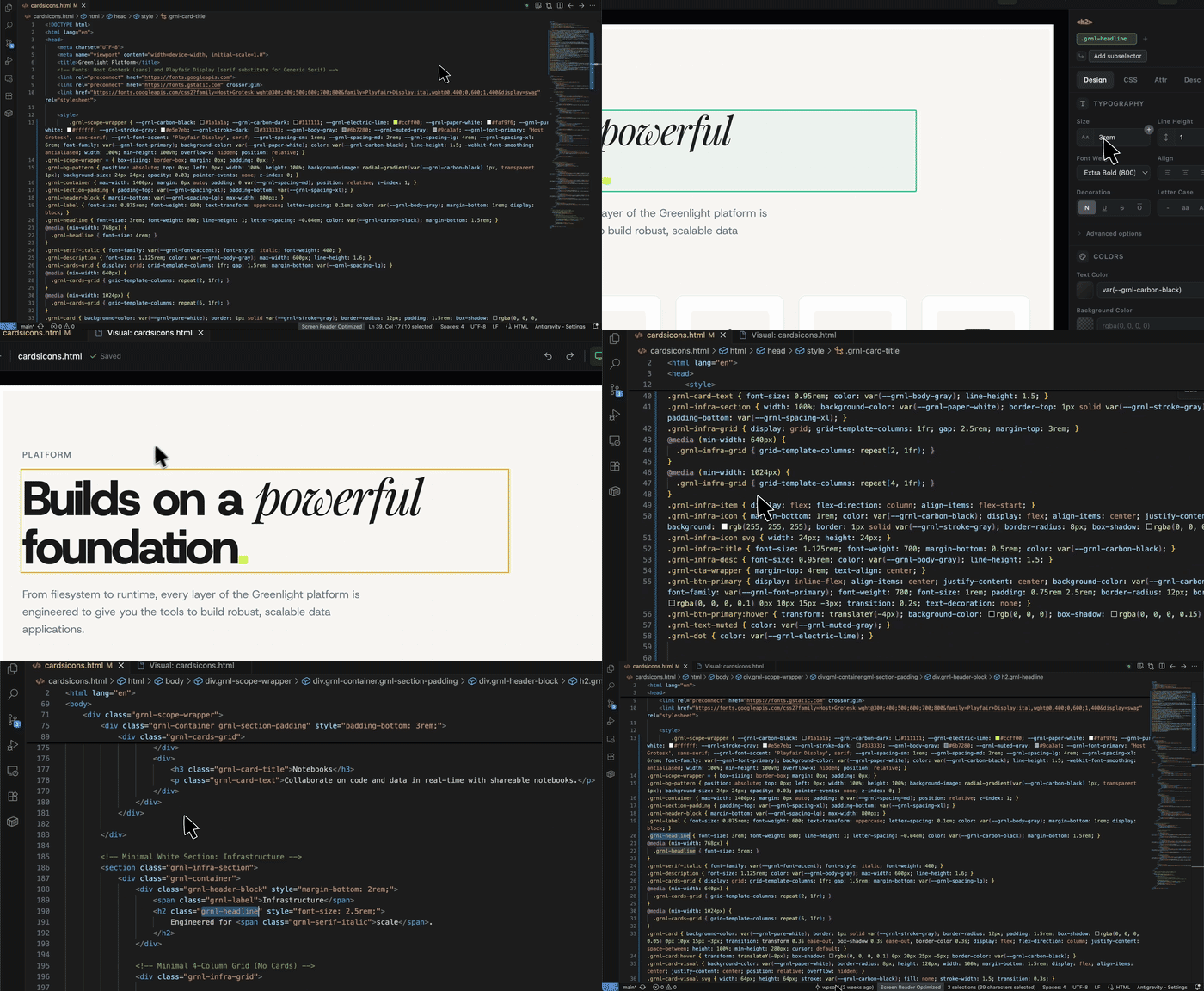
What It Does
GreenLight lets you:
- Open local
.html, .astro, .md, and .mdx files in a visual editor inside VS Code or any VS based IDE like Cursor, WindSurf, etc.
- Select, edit, move, reorder, and delete elements directly on the canvas or from tree view.
- Build layouts with flexbox, grid controls, and a visual grid builder.
- Edit typography, colors, spacing, size, borders, effects, transforms, shadows, and positioning.
- Manage CSS classes, subselectors, custom properties, and inline vs class-based styling.
- Create a design system with global CSS variables and export them across sibling HTML files.
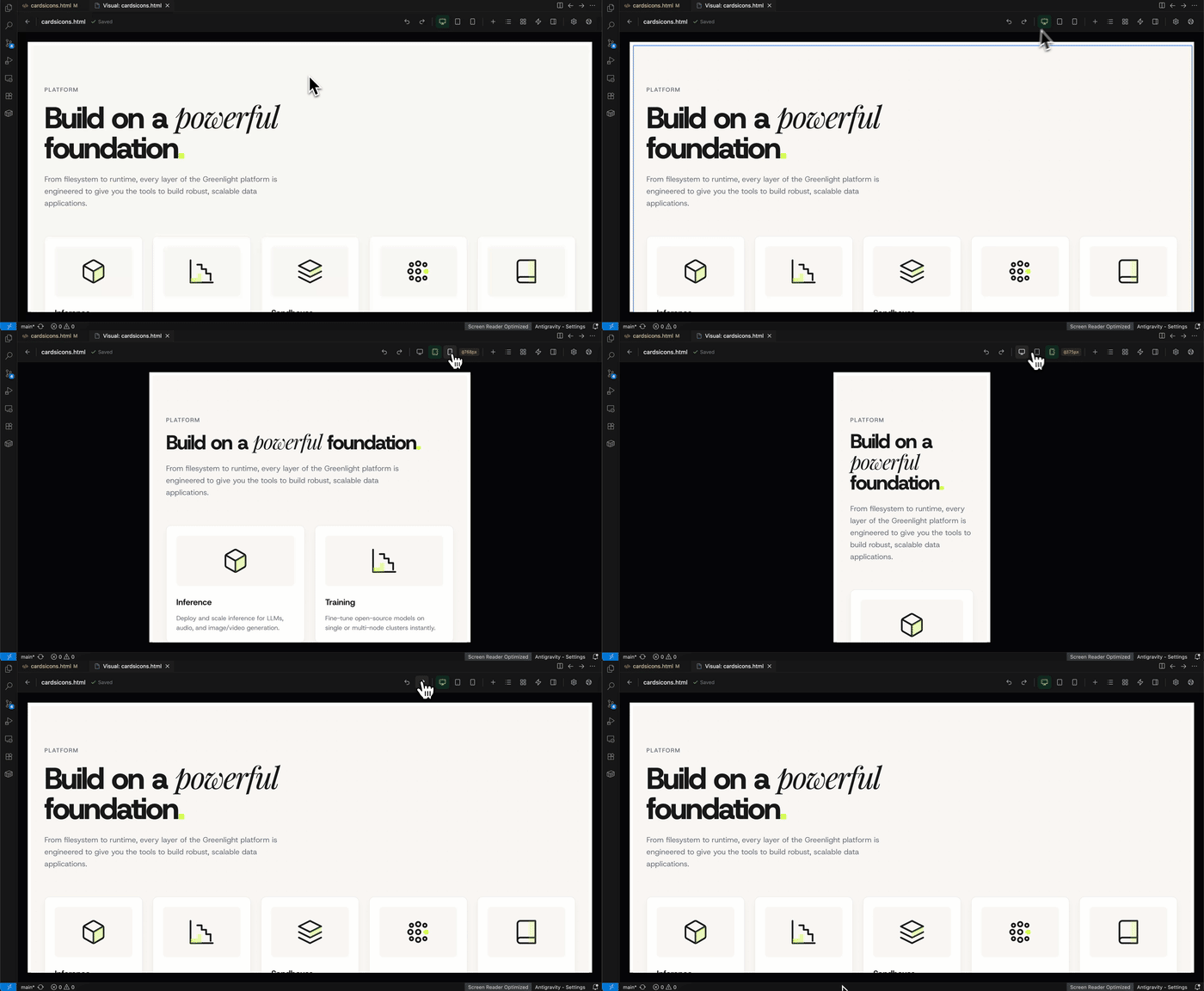
- Switch between desktop, tablet, and mobile editing modes.
- Insert starter blocks like headings, paragraphs, buttons, images, sections, and containers.
- Edit Markdown content visually while keeping the source file in sync.
- Work with Astro component files that contain editable markup content.
- Use Astro Live mode to preview runtime-rendered Astro pages and edit source-linked elements.
- Create and apply reusable animations and keyframes.
- Browse wireframe blocks from a local template server (Cloud is in plans with user storage).
- Save changes back into the source file with auto-save and file sync.
- Export HTML into GreenShift/GreenLight-compatible WordPress block code.
- Connect to WordPress, upload media, export variables, and create or update pages.
Installation
Requirements:
- VS Code
^1.85.0
- A local
.html, .astro, .md, or .mdx file to edit
Install the extension, then right-click a supported file and choose Open with GreenLight Visual Editor.
Quick Start
- Open a local
.html, .astro, .md, or .mdx file in VS Code.
- Run
GreenLight: Open with GreenLight Visual Editor, or use the command from the Explorer or editor context menu.
- Click an element on the canvas to select it.
- Use the right-side panels to edit structure, styles, classes, attributes, and animations.
- Add new blocks from the toolbar.
- Switch between desktop, tablet, and mobile modes to make responsive edits.
- Let GreenLight auto-save the updated HTML back to disk.
Core Editing Features
Visual file editing
- Opens
.html, .astro, .md, and .mdx files in a dedicated visual webview panel inside VS Code.
- Renders the current document live using local markup and assets.
- Keeps the editor in sync when the source file changes outside the webview.
- Uses patch-based saving where possible to reduce unnecessary changes to the file.
- Safely removes known browser-extension UI accidentally embedded by Chrome's Save Page As feature. The cleanup is token-aware and preserves scripts, templates, comments, malformed markup, GreenLight-owned styles, and unrelated source bytes. It targets only known Plasmo, Grammarly, Loom, ColorZilla, and Monica artifacts; cleanup becomes permanent only when the edited file is saved.
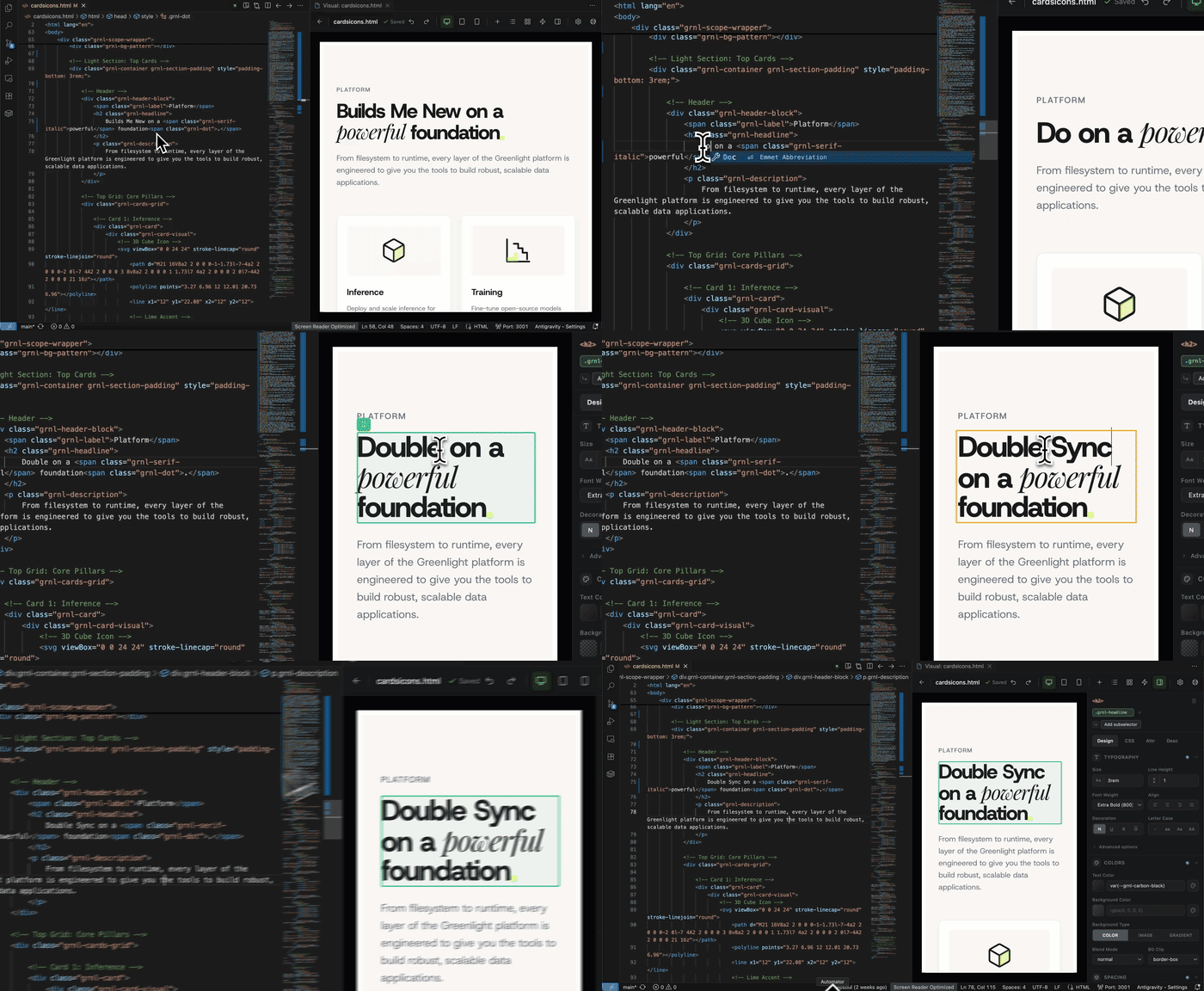
Double sync — editor and source stay in sync
GreenLight keeps the visual editor and the source file synchronized in both directions. Changes in the visual editor update the source file, and external changes to the source file are reflected live in the canvas.
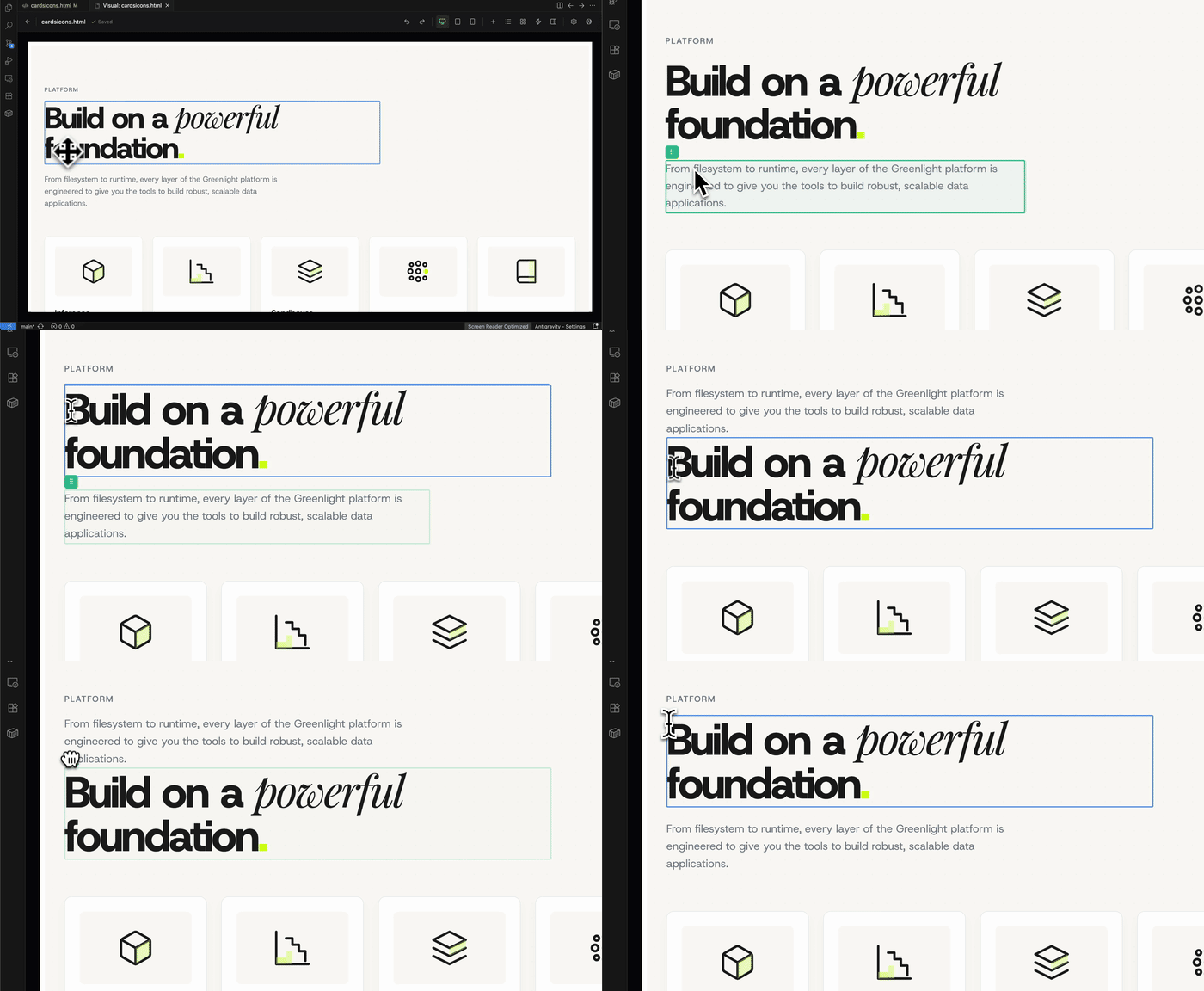
Drag and drop
Drag elements directly on the canvas to reorder, reparent, or move them between containers. Visual drop indicators show exactly where the element will land.
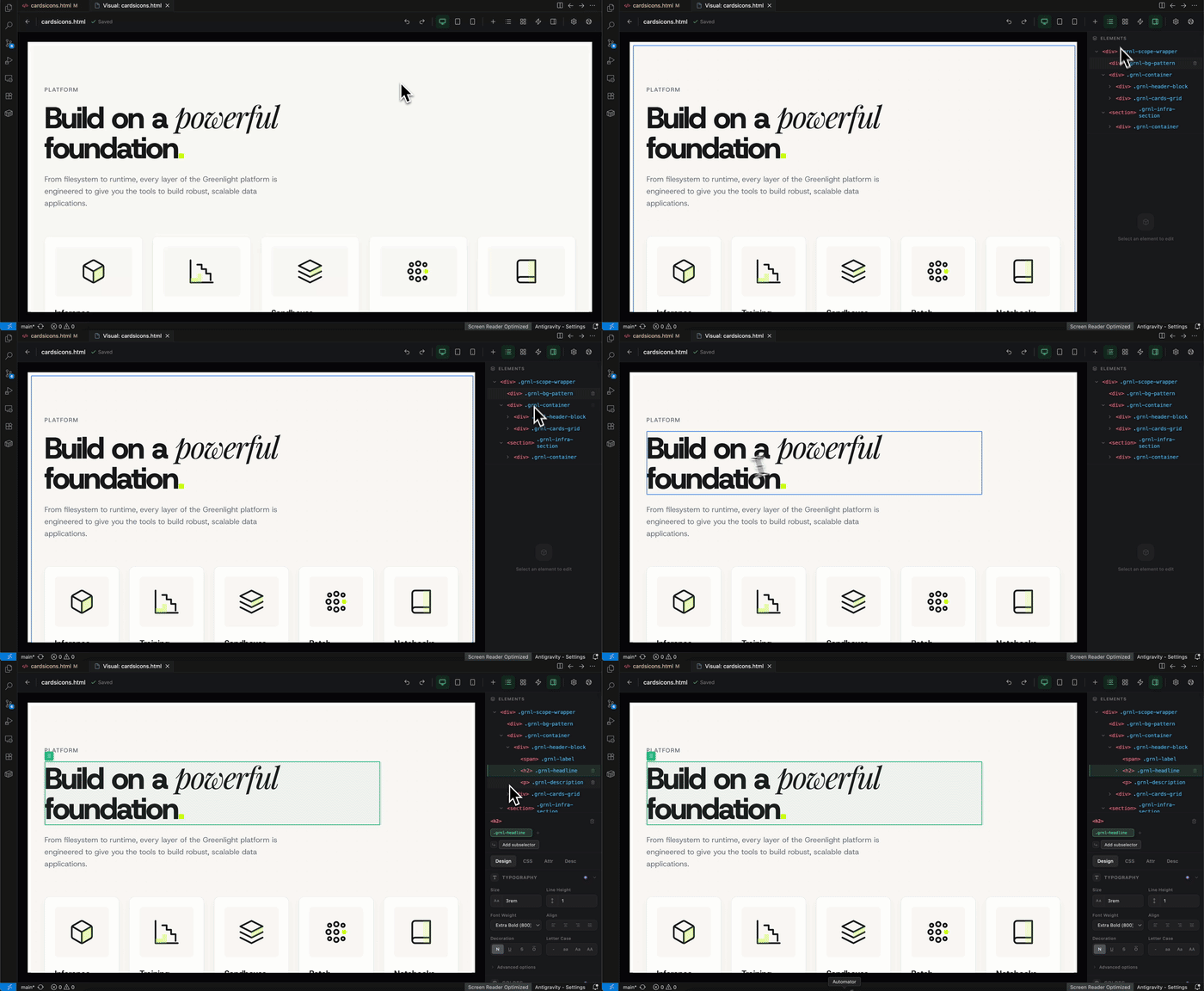
DOM tree view
Use the tree panel to inspect, select, reorder, retag, hover-highlight, or delete nodes. The tree stays in sync with the canvas and provides a structural overview of the document.
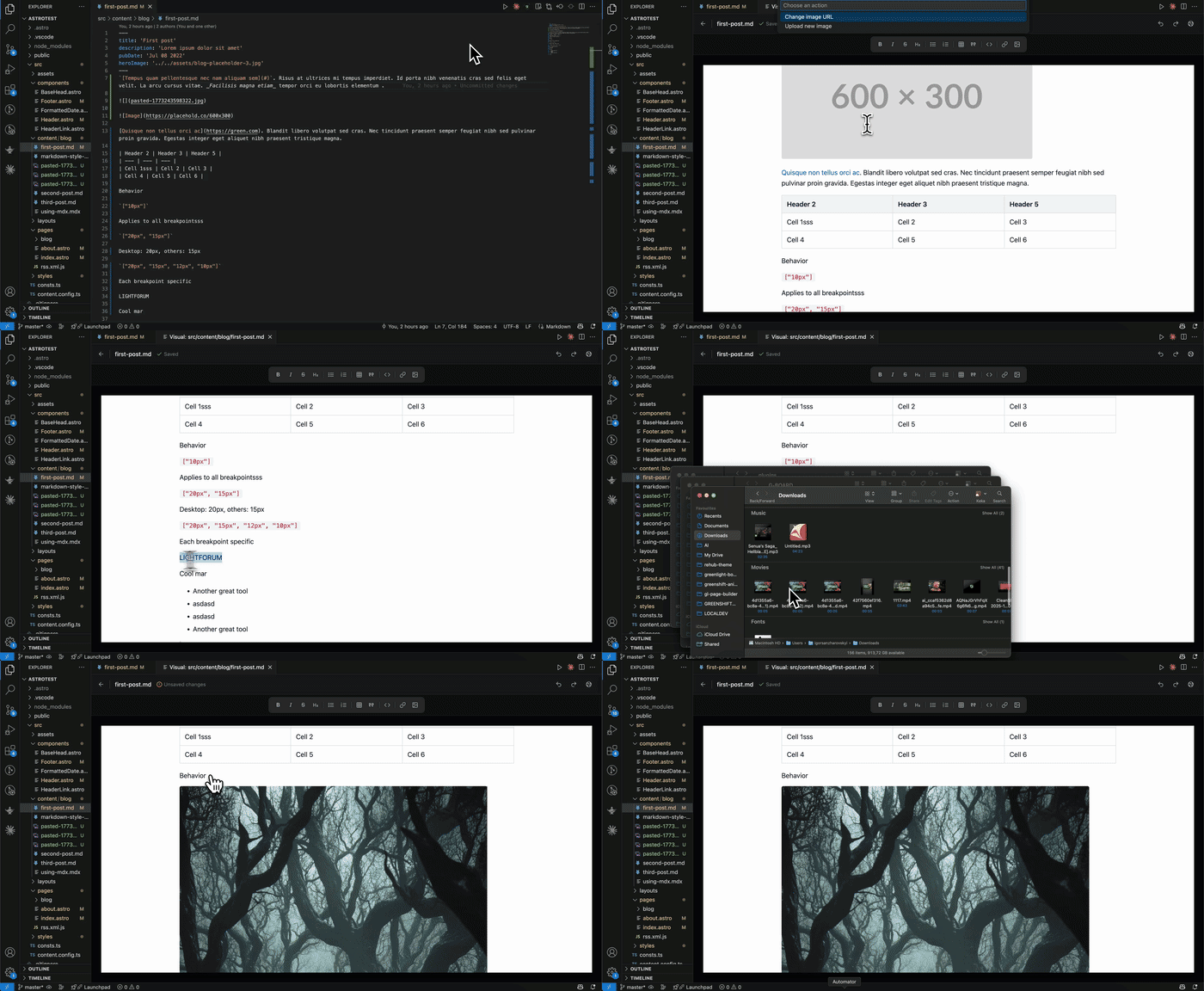
Astro and Markdown support
- Supports Astro component editing for files with editable markup content.
- Supports Markdown and MDX documents in the same visual editor workflow.
- Lets you modify content visually while preserving the underlying source file format.
- Markdown toolbar with formatting actions: bold, italic, strikethrough, headings (H1–H6), ordered/unordered lists, tables, blockquotes, code blocks, links, and images.
Astro Live mode
Astro Live mode starts from the runtime-rendered Astro page, so layouts, imports, styles, and page routes are shown as they appear through the dev server. Click any element in the Live preview to inspect its source location, edit the element source, open it in the editor, or refresh the preview after changes.
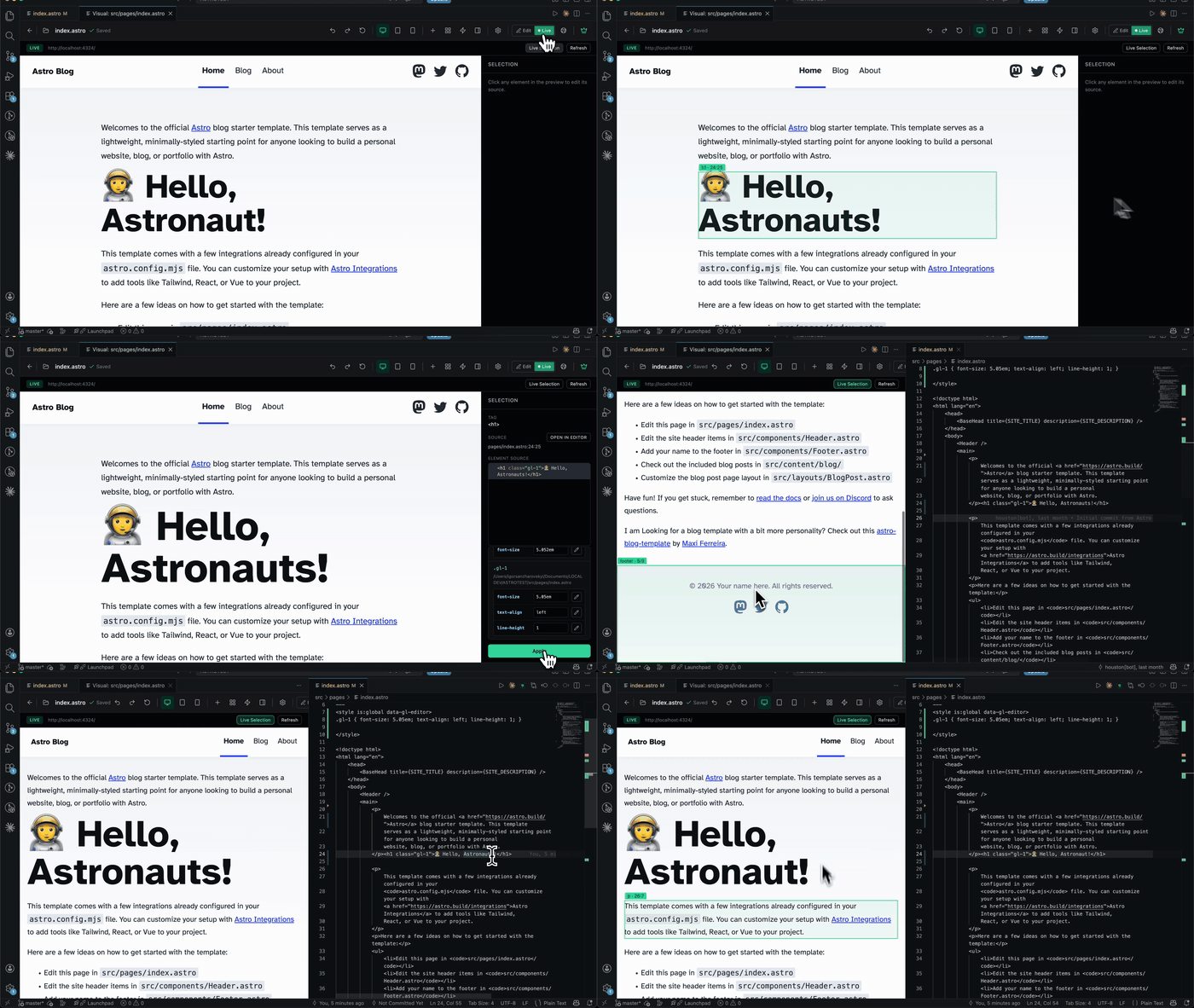
- Maps pages from
src/pages to their route and can find a page that references the selected component.
- Uses Astro source location data to connect selected preview elements back to their
.astro, .md, or .mdx source.
- Shows related CSS rules and declaration values for the selected element.
- Lets you edit source-linked CSS declarations and choose whether new Astro styles are saved locally in the current file or globally in
src/styles/global.css.
- Includes Live Selection for automatically revealing selected elements in a split editor (Premium feature)
Free Move mode
Free Move lets you break any element out of normal document flow and position it freely with visual handles — no need to manually set CSS position properties.
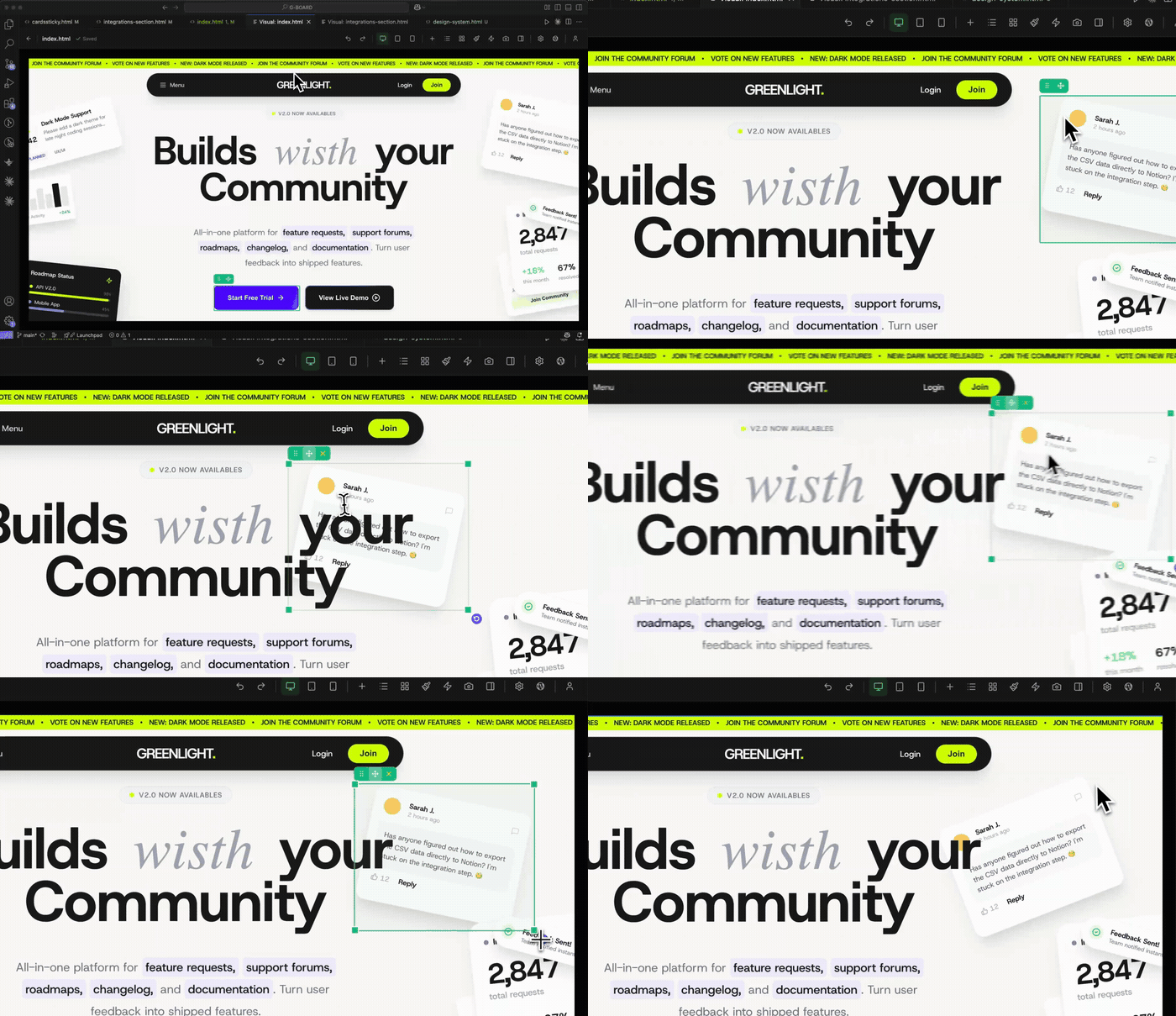
- Click the move icon on the element toolbar to activate Free Move
- Drag the element anywhere on the canvas to reposition it
- Use corner handles to resize
- Use the rotation handle to rotate
- Smart positioning automatically switches between top/bottom and left/right based on which parent edge is closer
- Click the reset button (X) to restore the element to its original position, size, and rotation
- Hover and selection of other elements is suppressed while dragging for a clean editing experience
Capture pixel-perfect screenshots of any selected element at multiple device widths in one click.
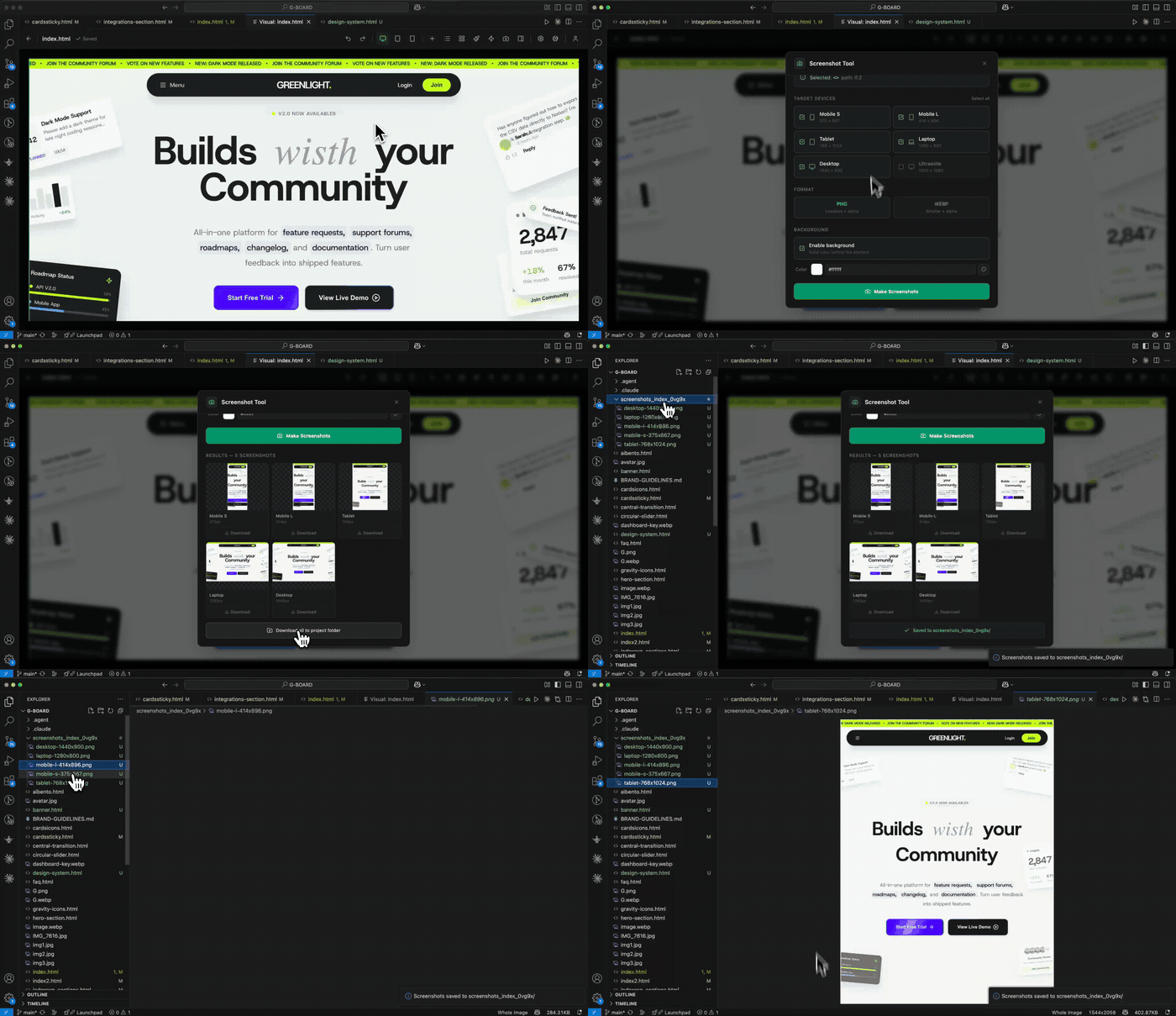
- Select any element, then open the Screenshot Tool from the toolbar
- Choose target devices: Mobile S, Mobile L, Tablet, Laptop, Desktop, Ultrawide
- Pick PNG or WebP format with optional background color
- All screenshots are generated at 2x resolution for crisp output
- Download individual screenshots or save all to your project folder
- Viewport-relative units (vh, vw) resolve correctly for each device size
Canvas interactions
- Click to select elements.
- Double-click to edit text inline.
- Drag existing elements to reorder them visually.
- Use a DOM tree panel to inspect, select, retag, hover, or delete nodes.
- Exit editing or deselect with
Escape.
- Use
Cmd/Ctrl+Z and Cmd/Ctrl+Shift+Z for undo and redo.
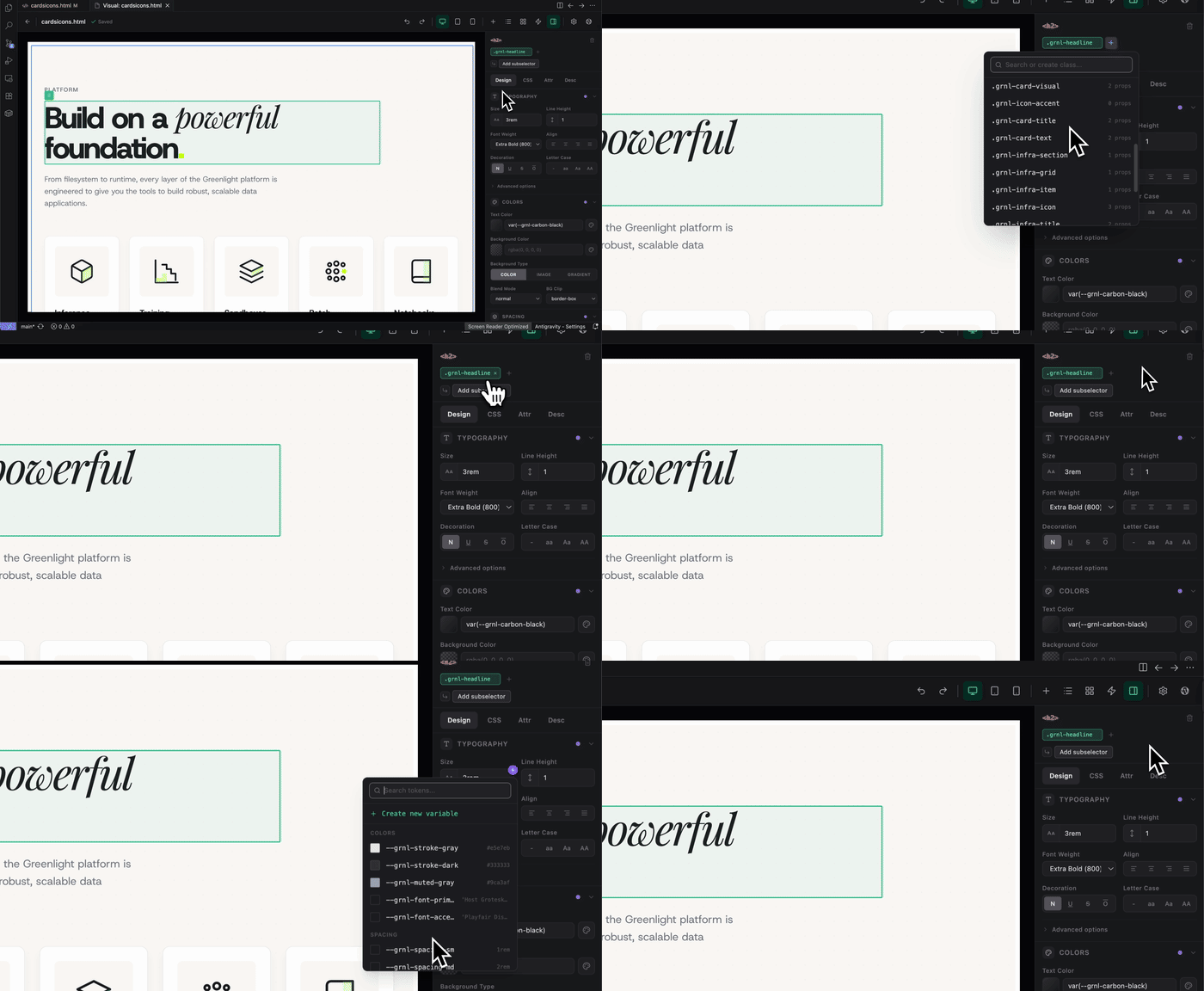
GreenLight includes a multi-panel design inspector for editing:
- Typography
- Colors
- Spacing
- Layout
- Position (static, relative, absolute, fixed, sticky, with isolation control)
- Size
- Border
- Shadow
- Transform
- Effects (opacity, filters, transitions, backdrop filters, clip-path, masks)
Color picker
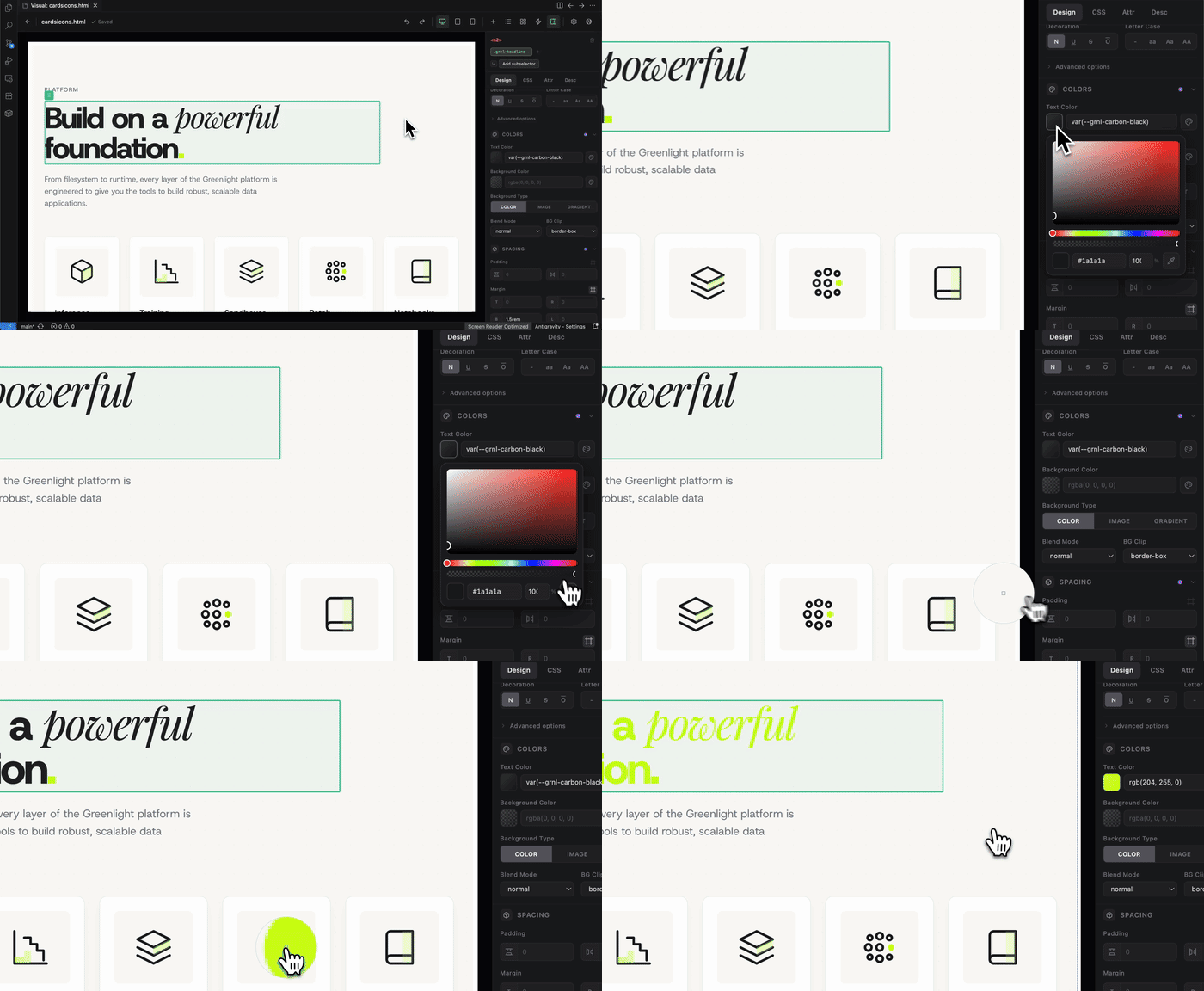
A full-featured color picker with HSV color wheel, opacity slider, hex/RGB input, and eyedropper support. Colors can be applied to text, backgrounds, and borders.
Descendant color editing
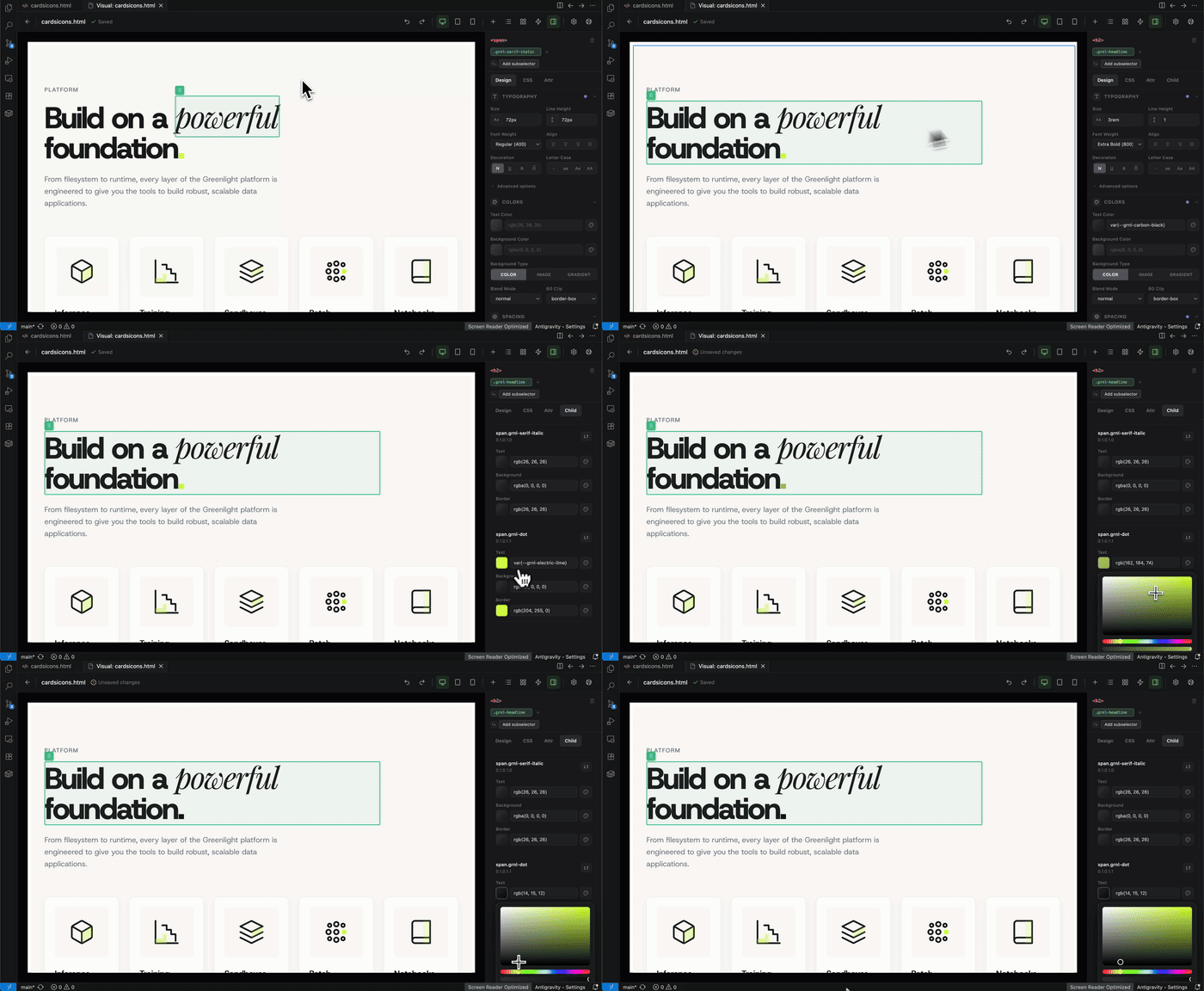
Edit text, background, and border colors of all child elements from the parent selection — without needing to select each descendant individually.
CSS property editing
The CSS panel shows all applied and computed CSS properties in a searchable list. Click any property to edit its value directly. See at a glance whether values come from inline styles, class rules, or ID rules.
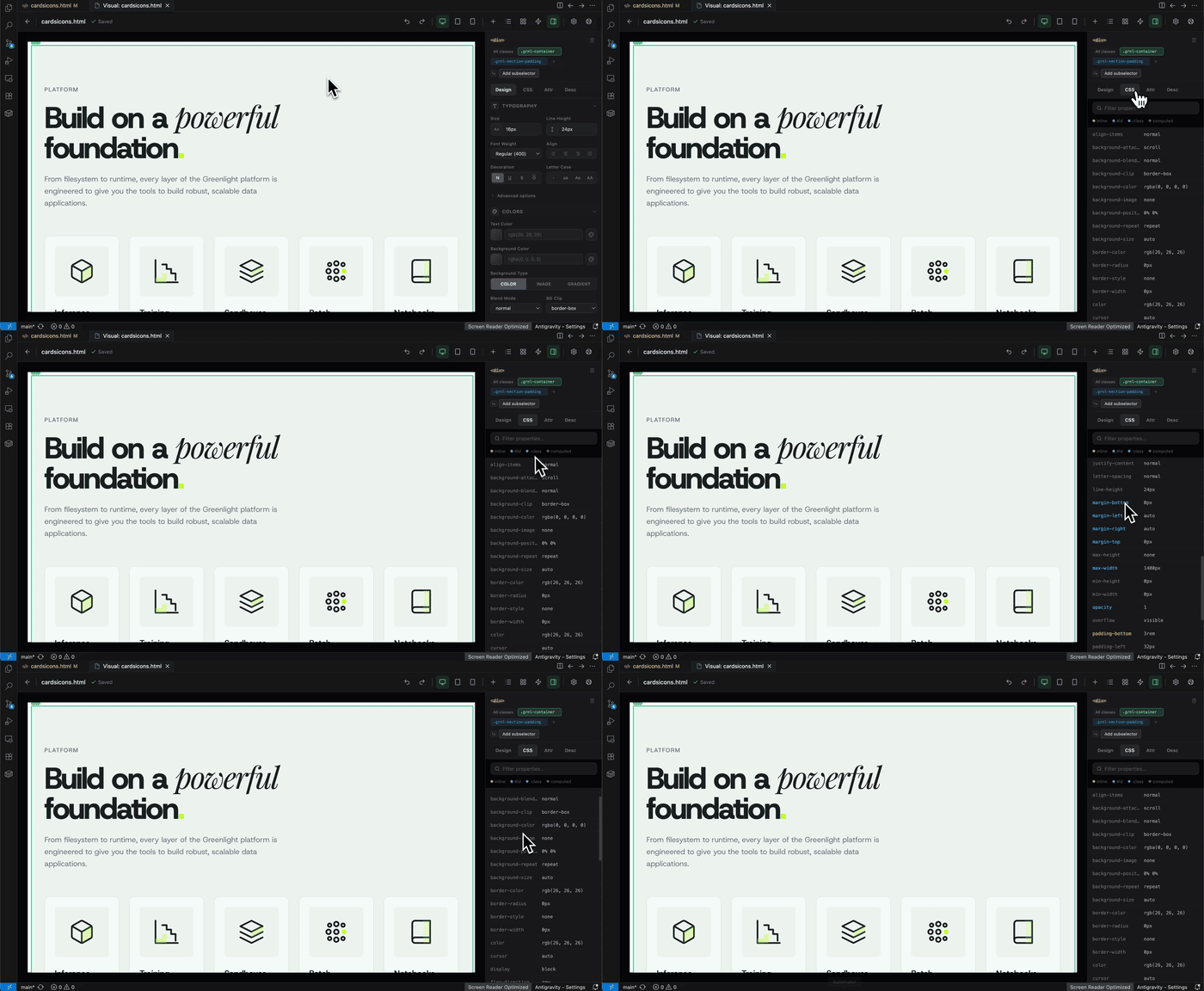
Image upload
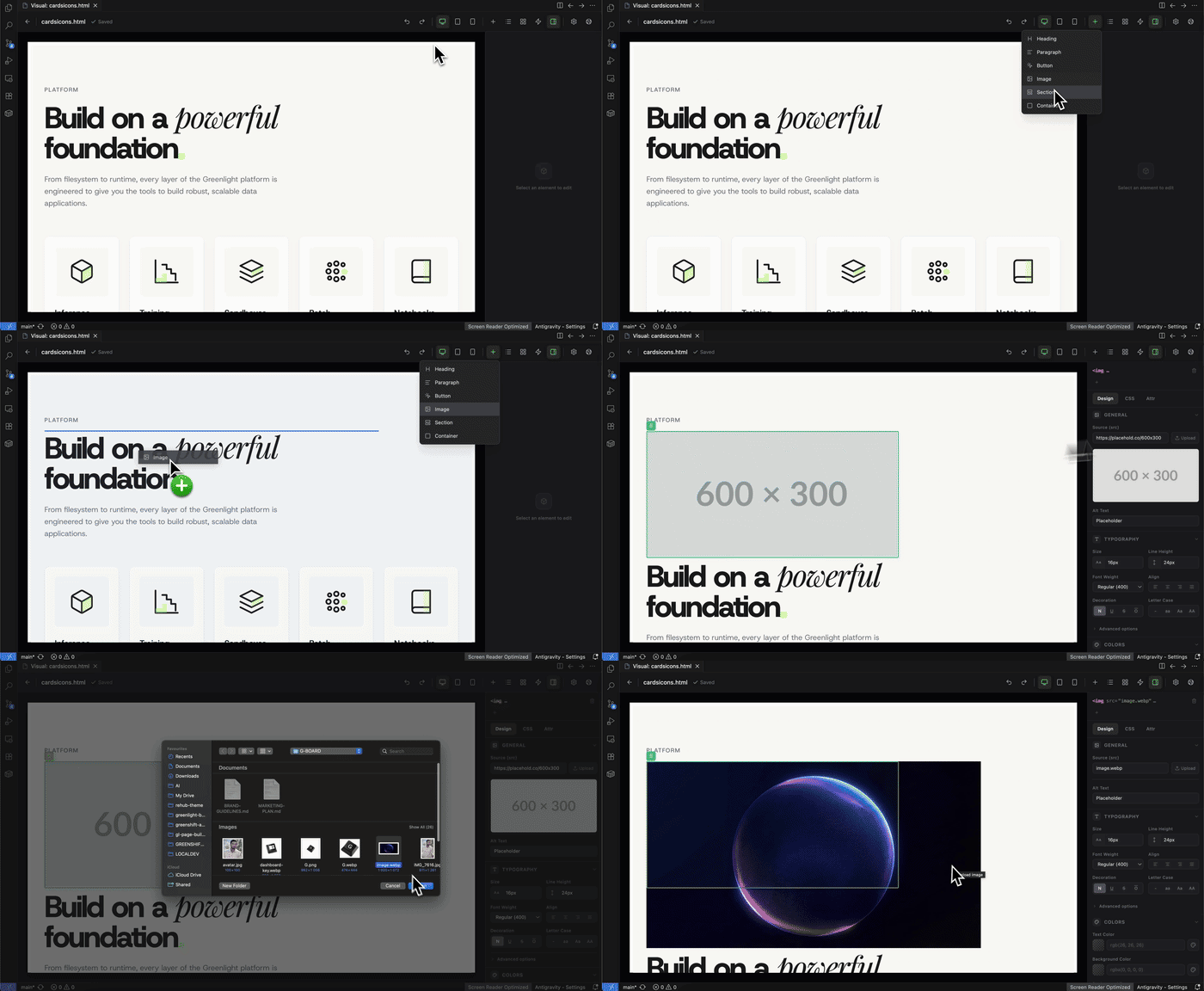
Upload local images directly from the editor for use in background images and other style properties.
Design System (Global Variables)
The Design System panel provides a centralized place to manage CSS custom properties (variables) across your project. All variables are stored in a dedicated <style id="gl-design-system-variables"> block in your HTML.
- Search, create, edit, and delete CSS variables from one panel
- Color variables display a visual color swatch preview
- Export all variables as a
:root CSS block — copy to clipboard or save directly to all sibling HTML files in the same directory
- Variables are automatically migrated into the design system block on load
The "Save on Sibling Files" export option writes the design system variables into every .html file in the same folder, keeping your design tokens consistent across all pages.
- An attributes panel for adding, editing, and removing arbitrary HTML attributes.
- Class management for adding, creating, renaming, switching, or removing classes.
- Subselector editing for class-based variants such as
:hover.
- CSS variable picking and creation for token-style workflows.
class and inline style application modes.
Responsive and Layout Editing
GreenLight includes responsive editing modes for:
Switch between breakpoints to make responsive edits. Each breakpoint stores its own style overrides.
Layout tooling includes:
- Flexbox controls
- Grid controls
- Child placement controls
- Alignment and gap controls
- A visual Grid Builder for creating responsive grid layouts
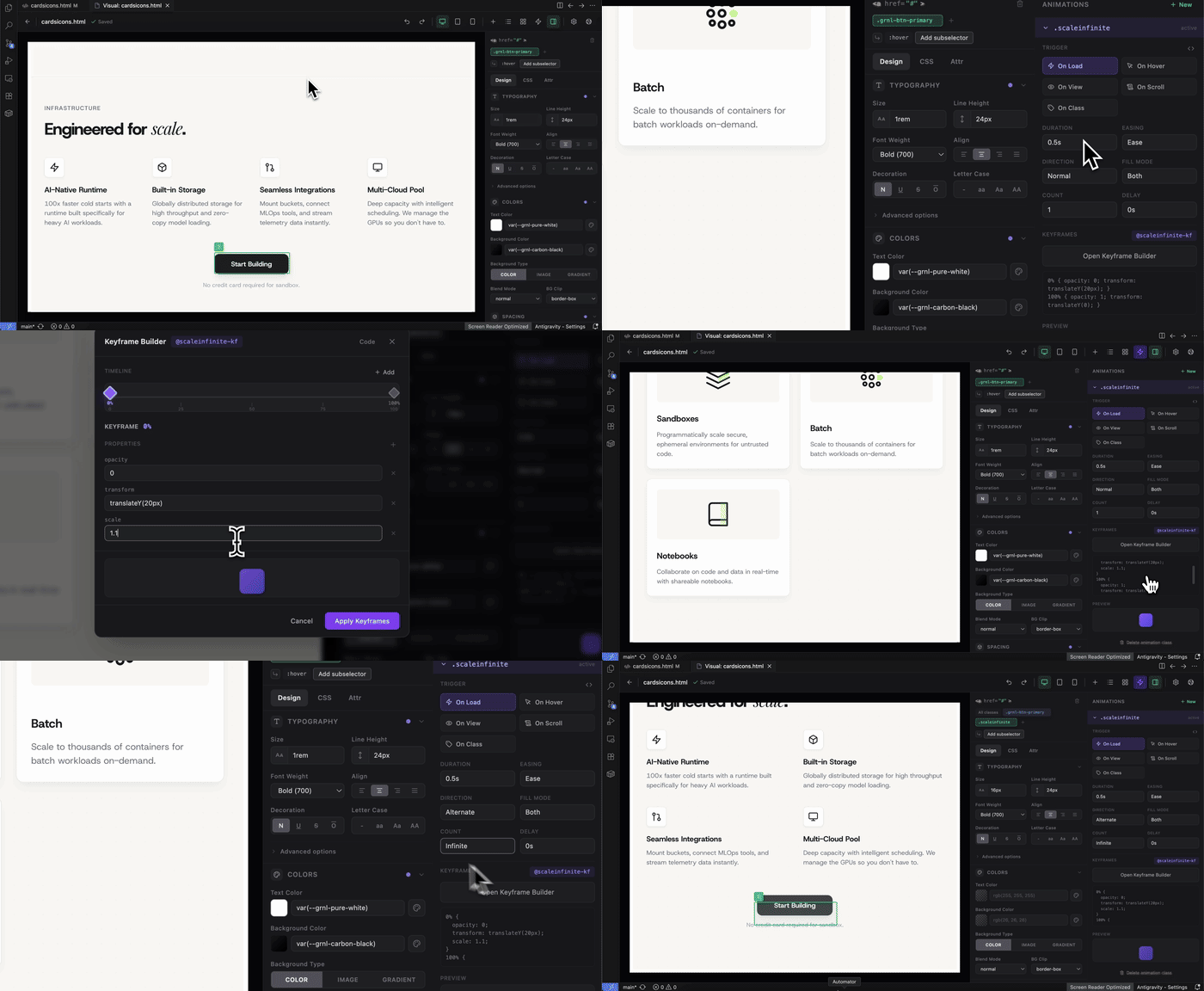
GreenLight includes an animation builder that can:
- Create reusable animation classes
- Start from presets like fade, slide, grow, spin, pulse, and bounce
- Configure triggers such as load, hover, in-view, scroll, or class-based activation
- Edit keyframes visually and as raw CSS
- Configure duration, easing (including spring curves), direction, iteration count, delay, and fill mode
- Preview and inspect generated animation CSS
- Search and manage existing animation classes
- Apply animation classes to any element
Wireframes and Templates
GreenLight can load draggable wireframe/template blocks from a local backend service.
This is useful for:
- Starting pages from predefined sections
- Browsing categories of templates
- Dragging ready-made sections into the canvas
Template loading currently depends on a local server running on port 5050.
WordPress and GreenShift Export
GreenLight supports two export-oriented workflows:
- Generate code from the current HTML
- Export directly to WordPress
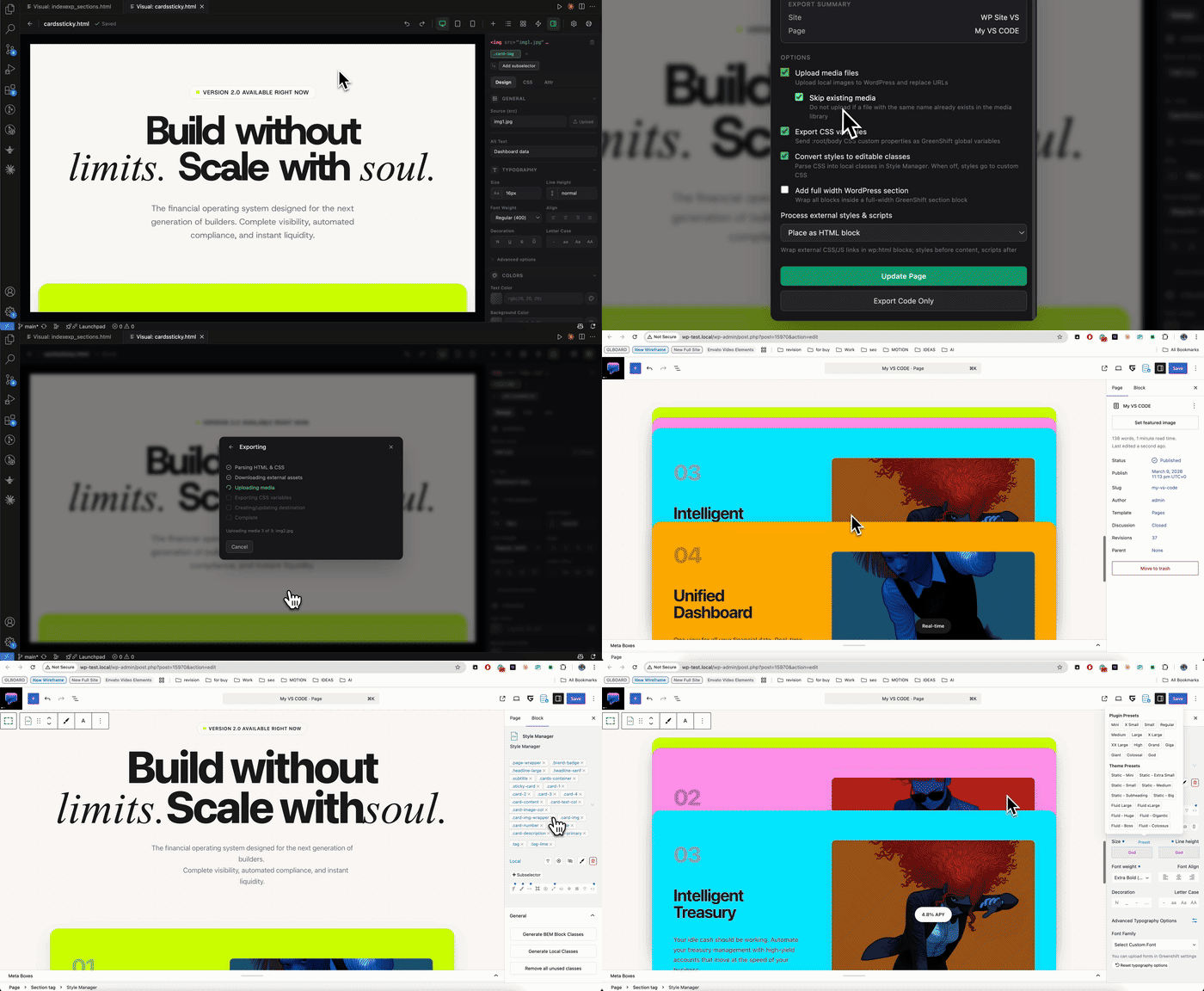
The WordPress flow can:
- Save multiple site connections
- Store site metadata in extension state
- Store application passwords securely in VS Code Secret Storage
- Search existing pages
- Create new draft pages
- Upload local media during export
- Export CSS variables as GreenShift global variables
- Convert the edited HTML into GreenShift-compatible block code
- Create or update WordPress pages
- Show progress, retry, cancellation, copy-code, and open-page actions
WordPress setup
To connect a site, you currently need:
- WordPress site URL
- Username
- WordPress Application Password
- GreenShift plugin endpoint available on the site
Commands
GreenLight: Open with GreenLight Visual Editor
This command is available for .html, .astro, .md, and .mdx files from:
- Explorer context menu
- Editor title actions
- Editor context menu
Settings
greenlight.styleMode
Controls how style changes are applied:
class: apply changes to CSS classesinline: apply changes as inline styles
Keyboard and Mouse Shortcuts
Click: select elementDouble-click: edit textDelete / Backspace: remove selected elementEscape: stop editing or clear selectionCmd/Ctrl+Z: undoCmd/Ctrl+Shift+Z: redo
Current Limitations
- GreenLight currently works with local
.html, .astro, .md, and .mdx files, not arbitrary file types.
- The main editor flow is focused on one document at a time.
Who It Is For
GreenLight is useful for:
- Visual HTML, Astro, and Markdown editing inside VS Code
- Rapid landing page and marketing page building
- CSS layout experimentation
- Responsive design tweaking
- Animation prototyping
- Converting HTML into a WordPress/GreenShift workflow
| |

