Skip to content
| Marketplace
Sign in
Visual Studio Code>Other>GoalPath — My WorkNew to Visual Studio Code? Get it now.
GoalPath — My Work

GoalPath — My Work

GoalPath

| (0) | Free
See your assigned work, progress status, check off subtasks, and flag blockers — all from the VS Code sidebar.
Installation
Launch VS Code Quick Open (Ctrl+P), paste the following command, and press enter.
Copied to clipboard
More Info

GoalPath — My Work

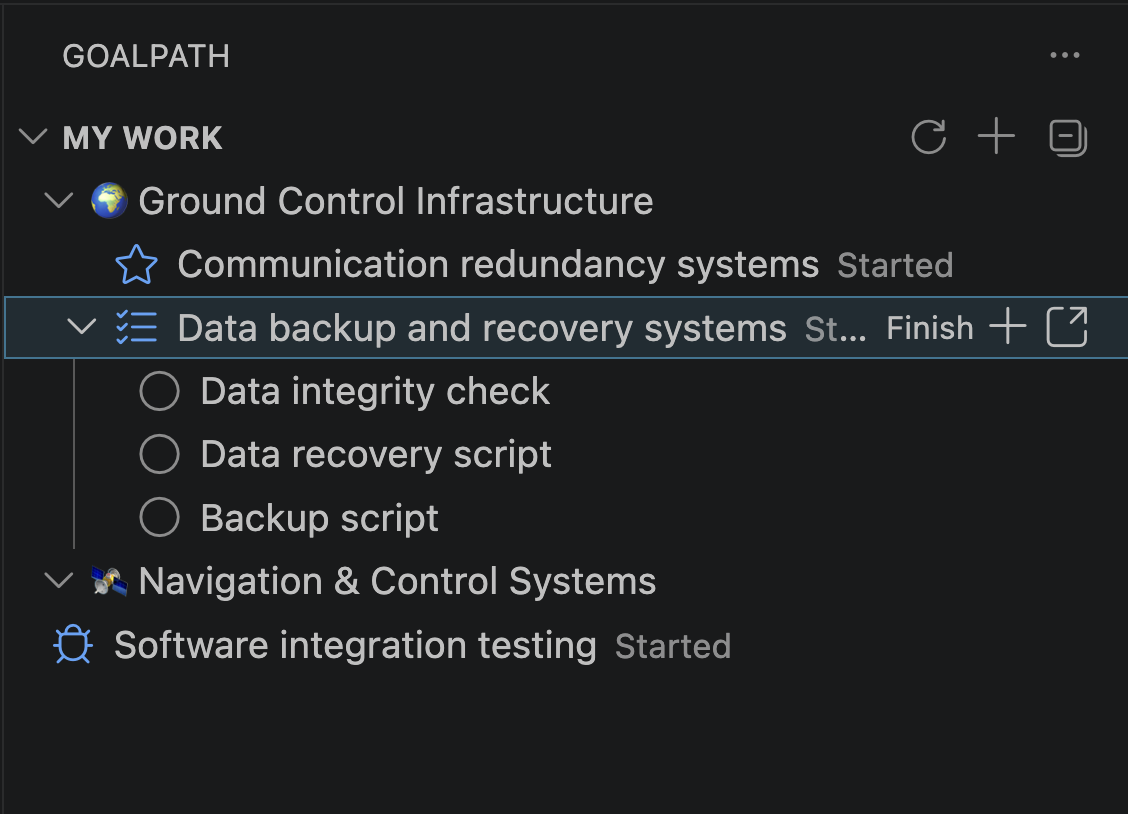
Your assigned items, right where you code. See what's next, progress status, check off subtasks, and flag blockers — without leaving VS Code.

My Work sidebar showing milestones, items, subtasks, and inline actions

Features

Your work, organized by milestone

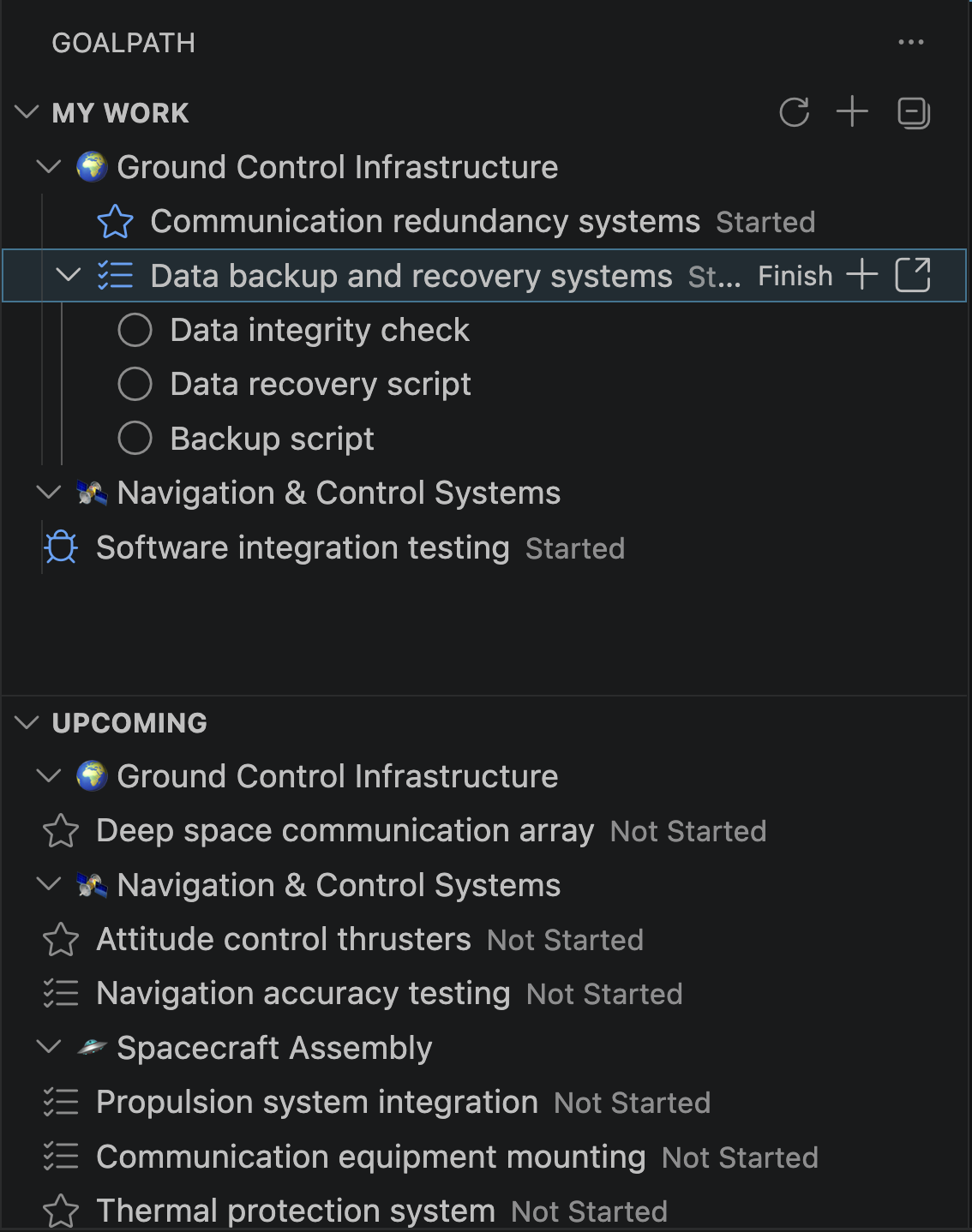
Items grouped by milestone with status and progress. Expand any item to see its subtasks — click to check them off.

Full view with My Work and Upcoming sections

Progress items with one click

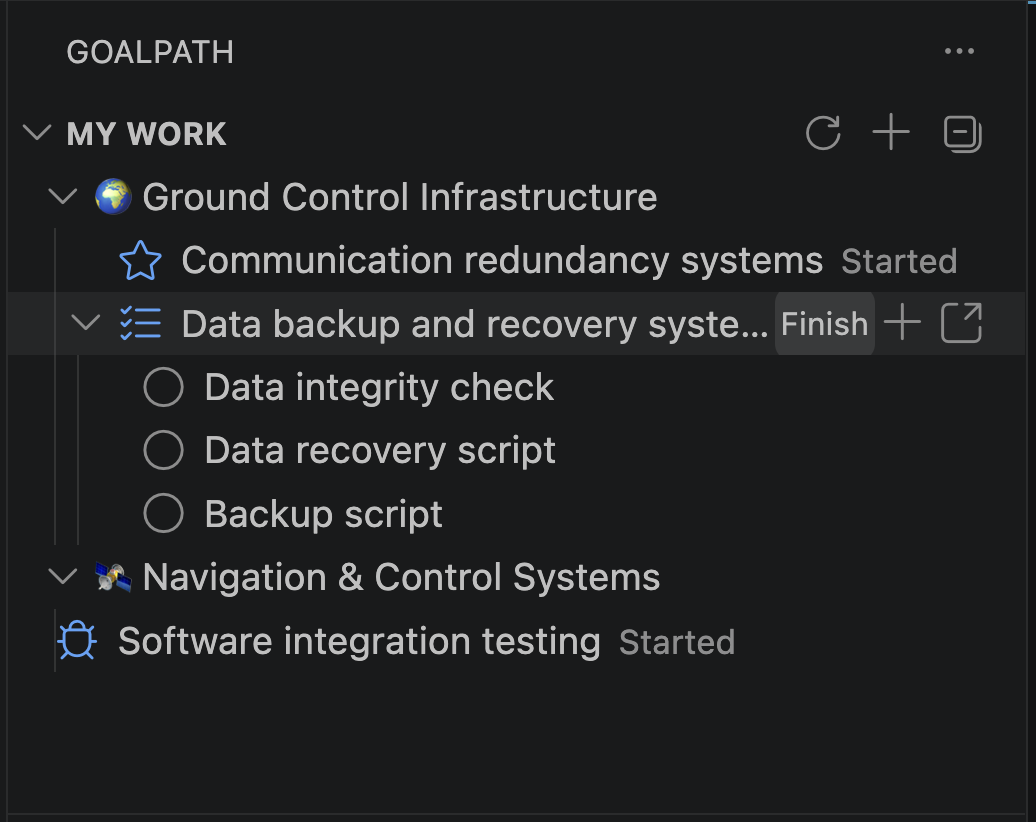
Hover any item to see the next action: Start, Finish, Deliver. Accept or reject delivered items. Add subtasks or open in GoalPath — all inline.

Finish button appearing on hover

See what's coming next

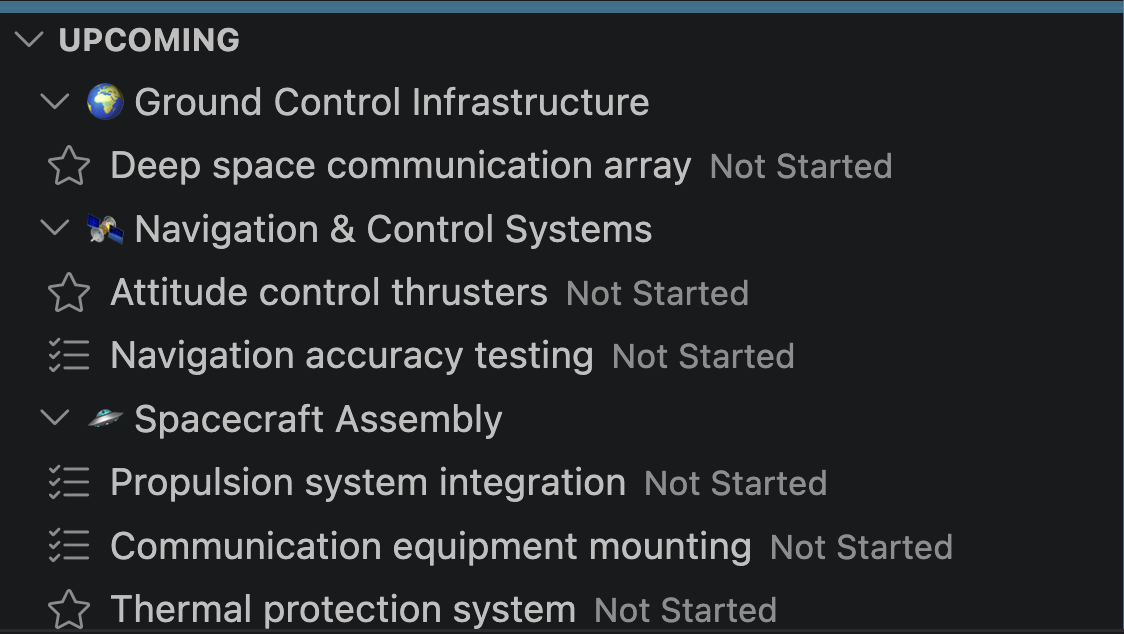
The Upcoming section shows unstarted items from your active milestones. Pick up work without opening the browser.

Upcoming items from active milestones

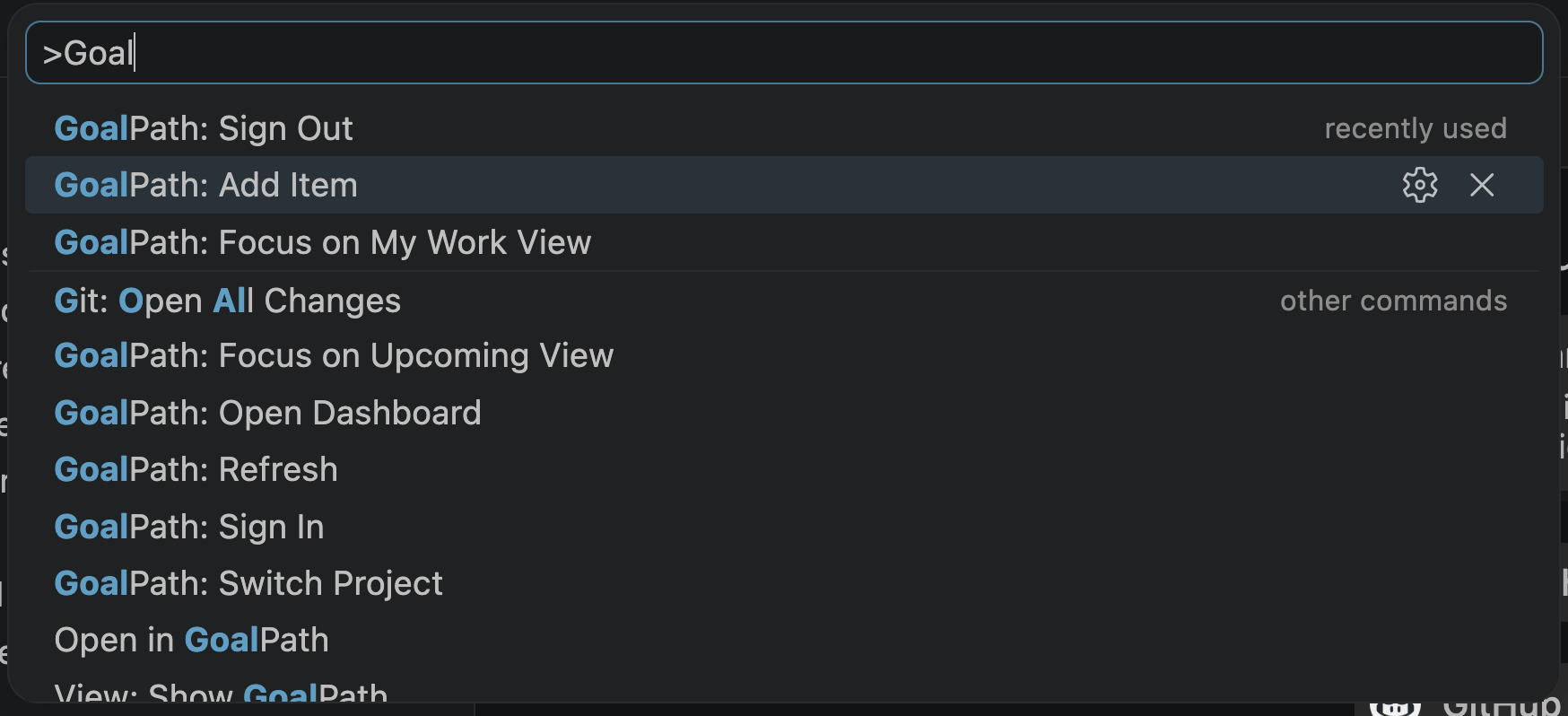
Everything from the command palette

Sign in, switch projects, add items, refresh — all available from Cmd+Shift+P.

GoalPath commands in the command palette

And more

  • Rich tooltips — hover any item for the full description and recent comments
  • Flag blockers — right-click to mark items as Blocked, Question, or Discussion
  • Add comments — post updates without opening the browser
  • Auto-refresh — syncs every 60 seconds and on window focus
  • .goalpath file — commit it to your repo so your team auto-connects to the right project

Getting started

  1. Install the extension
  2. Click the GoalPath icon in the Activity Bar
  3. Click Sign In and paste your API key — generate one here
  4. Select your project

If your repo has a .goalpath file (from the GoalPath CLI or MCP server), the project is selected automatically.

Configuration

Setting Default Description
goalpath.serverUrl https://goalpath.app GoalPath server URL
goalpath.pollInterval 60 Auto-refresh interval in seconds
goalpath.upcomingLimit 5 Max upcoming items per milestone

What is GoalPath?

GoalPath is a project delivery tool for software teams. It guides your development workflow — from planning to delivery — with the methodology built into the interface. Forecasts and stakeholder updates generate automatically from your team's actual work.

Learn more at goalpath.app

  • Contact us
  • Jobs
  • Privacy
  • Manage cookies
  • Terms of use
  • Trademarks
© 2026 Microsoft