A focused chat sidebar for OpenCode agents in VS Code.
OpenCode Chat Sidebar is an unofficial community extension for OpenCode. It is not affiliated with, sponsored by, or endorsed by OpenCode.
OpenCode Chat Sidebar is a VS Code chat interface for the OpenCode coding agent that already runs on your machine. It connects to your own local OpenCode service. OpenCode keeps doing the real work: models, providers, agents, tools, permissions and session history.
This extension is not a coding model, an AI provider, a hosted service or a replacement for OpenCode, and it does not give you model access. You use whatever providers you have configured in OpenCode.
Why
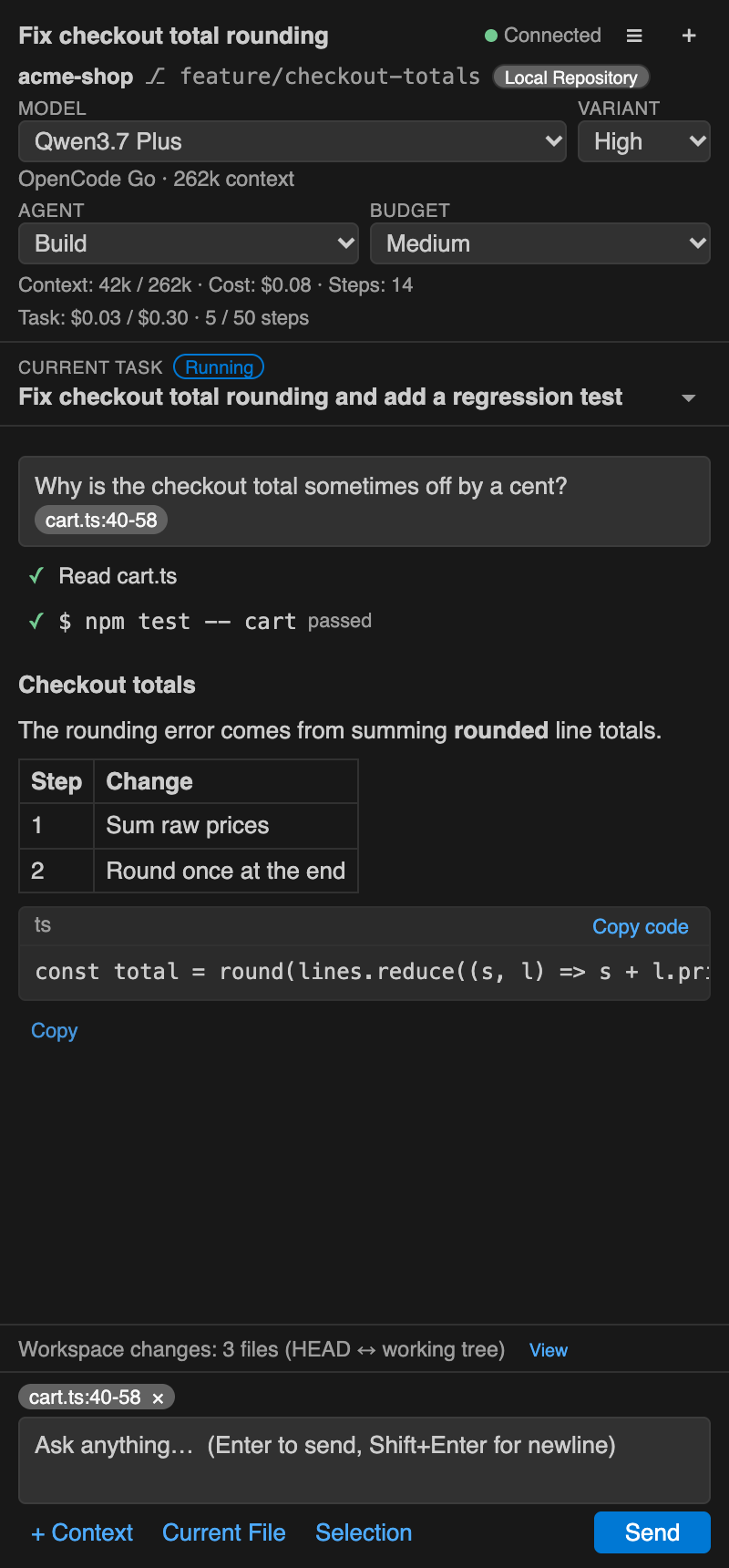
OpenCode is usually driven from its terminal UI, desktop app or API. This extension puts it in a sidebar beside your editor. You can chat with the agent, attach exactly the code you mean, watch what it does, answer its questions and permission requests, and review its changes in VS Code's own diff editor without leaving your code.
Features
Chat and sessions
- Streaming chat with Markdown, tables and code blocks.
- New sessions, plus recent sessions for the current workspace (history comes from OpenCode).
- A Current Task bar under the session title shows the prompt the agent is working on. Expand it to read or copy the full prompt.
- Model picker grouped by provider, an agent picker (for example Build / Plan), and a Variant picker (such as reasoning effort) when OpenCode lists variants for the model.
- Git branch and repository type in the header, with a warning when you work in a secondary Git worktree.
Context you choose
- Attach the current file, the selected lines (only those lines, with path and line range) or any file from the + Context file picker.
- Nothing is attached automatically.
Seeing and controlling the agent
- Tool activity: file reads, searches, shell commands (command, working directory, status, collapsible output) and edits (+/− per file).
- Permission requests answered in the sidebar: Allow once, Always allow (when OpenCode offers it), Deny. There is an extra warning for sensitive paths such as
.env, SSH keys, credentials, keystores and private keys.
- Questions and forms raised by the agent, answered in place.
- Stop cancels the running task through OpenCode. Running commands are terminated, not just hidden.
- Steer a running task or Queue the next instruction.
- Budget Guard to stop runaway agent loops.
- Context, cost and step figures, as reported by OpenCode.
- Native VS Code notifications when a task completes, needs your input, fails or is stopped by Budget Guard.
Results
- Copy the full assistant response, and Copy code for individual code blocks.
- Agent changes (what this OpenCode session changed) kept separate from Workspace changes (HEAD ↔ working tree), both in VS Code's native diff editor.
- Readable messages for provider and model problems (for example insufficient funds, rate limits, unknown model), with Change model and Retry.
Screenshots
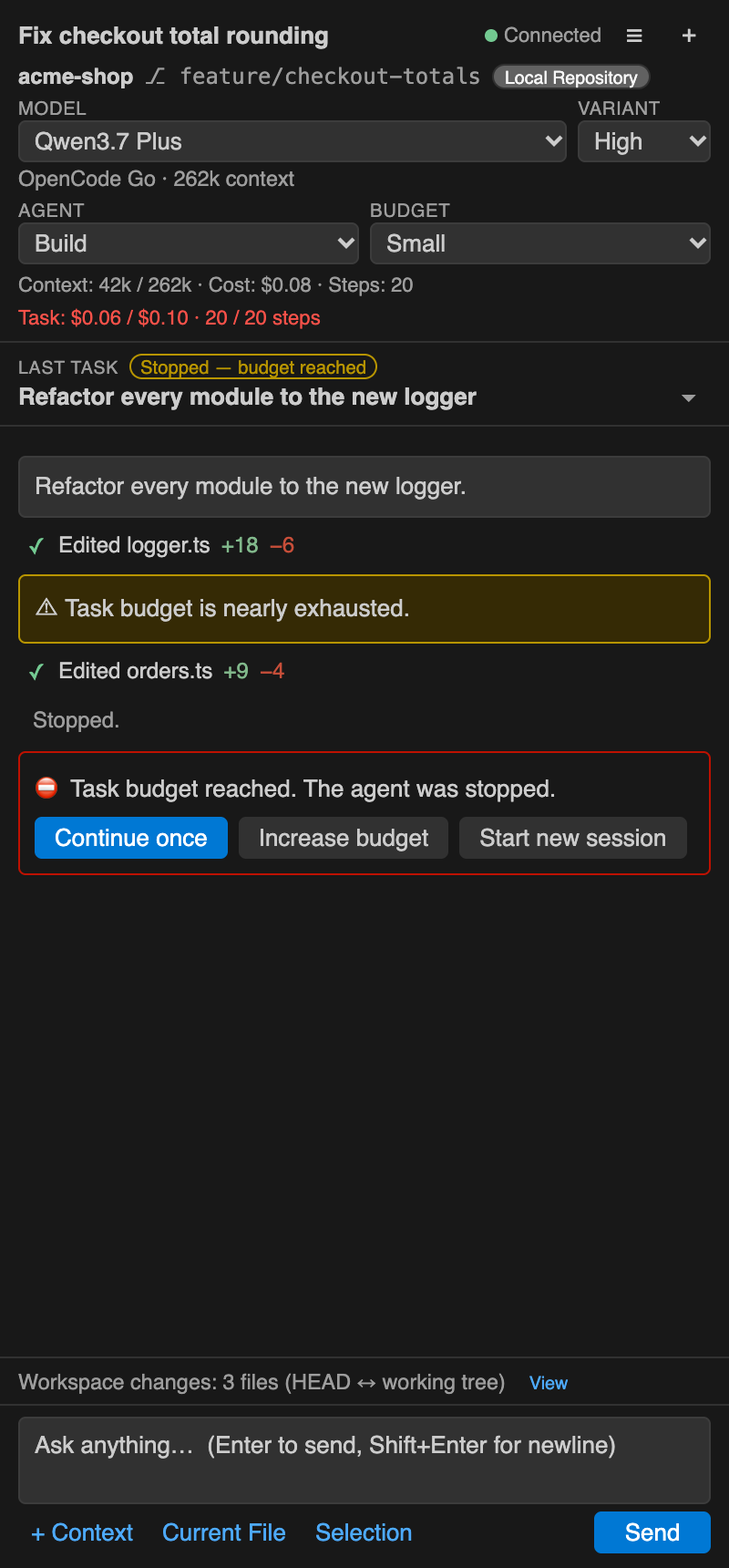
| Budget Guard |
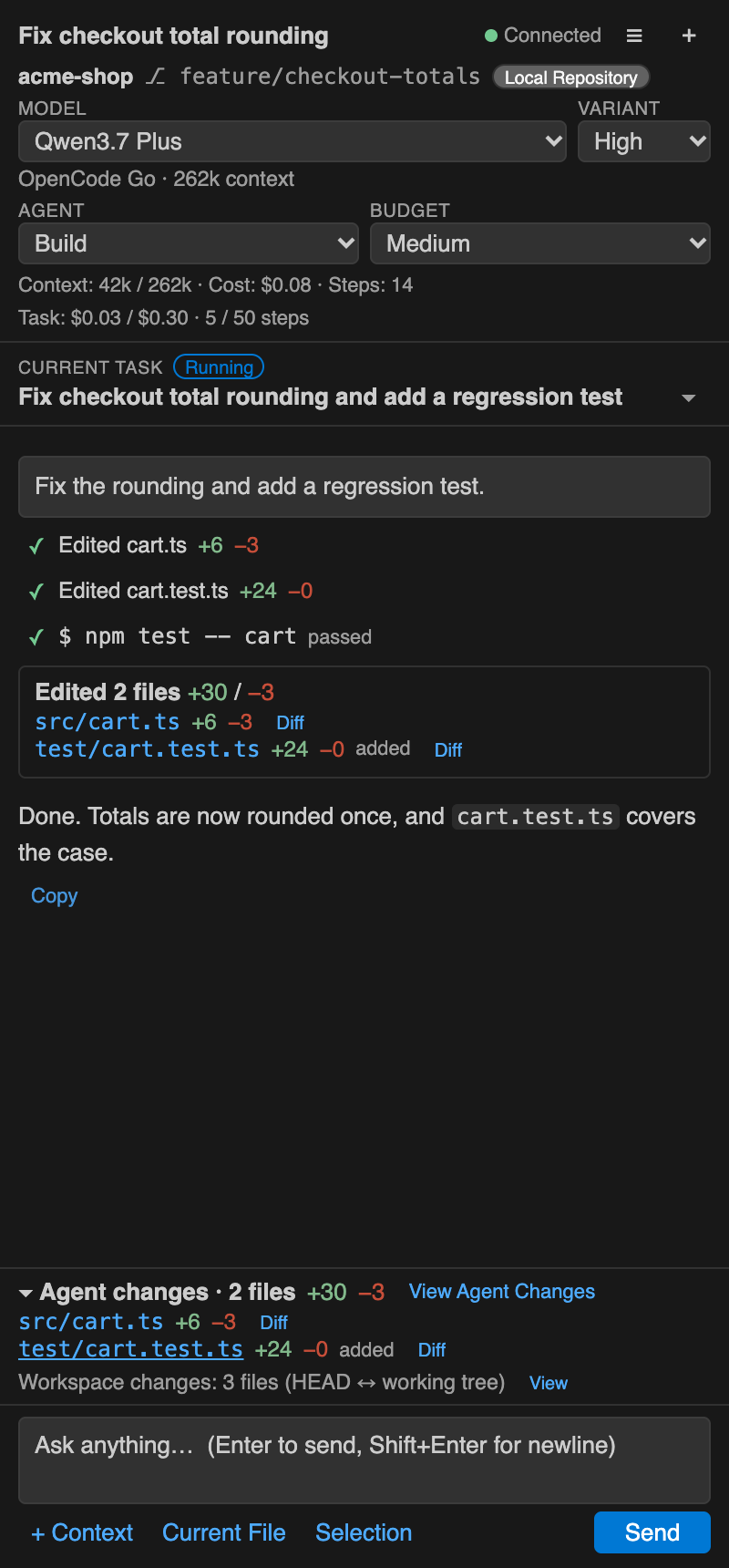
Agent changes |
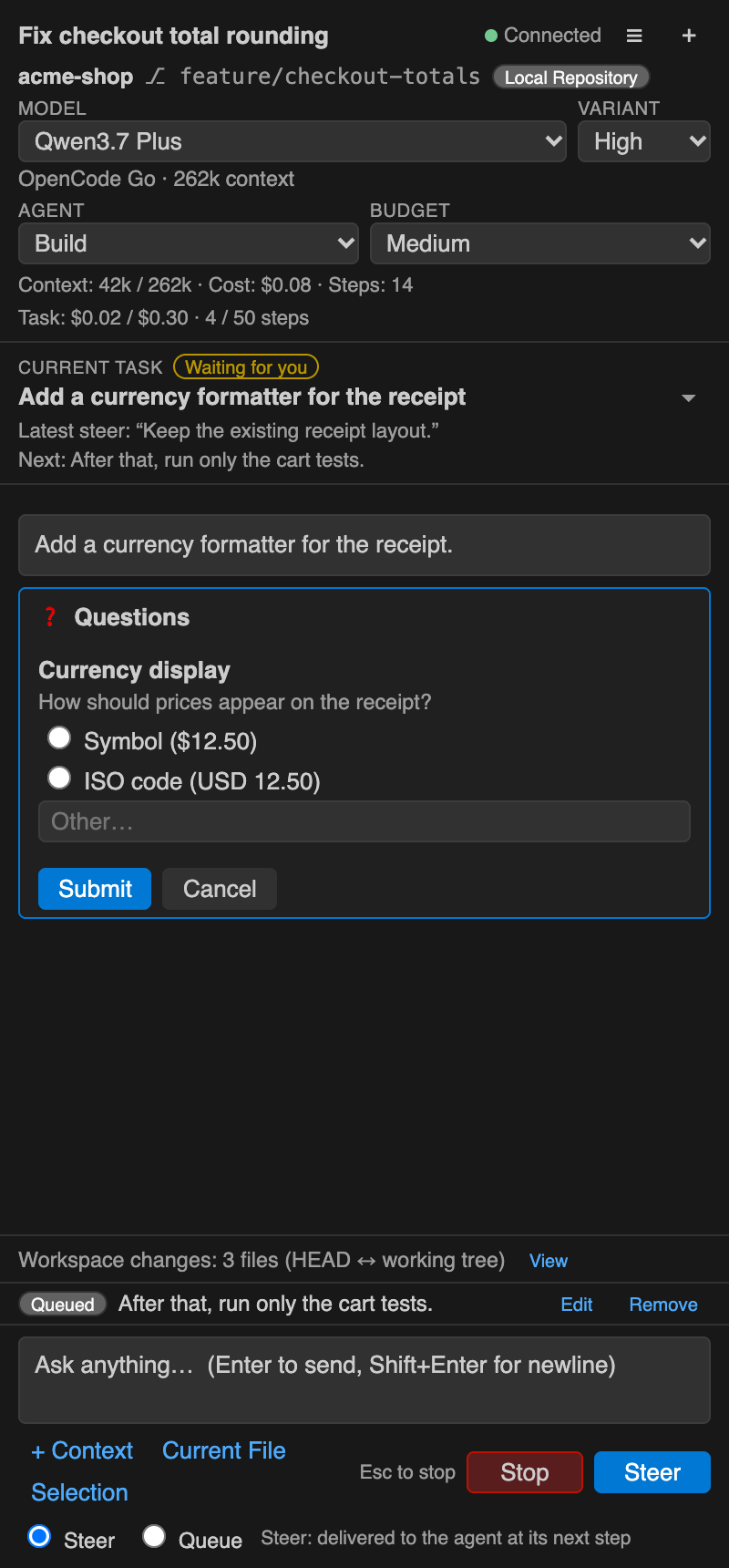
Questions, steer and queue |
 |
 |
 |
Requirements
- Visual Studio Code 1.95 or newer.
- OpenCode 2.x installed locally, with its v2 background service (
opencode service). OpenCode 1.x is not supported.
- At least one model provider configured and signed in within OpenCode (for example with
opencode auth). Model usage and any costs are between you and your provider.
- A trusted workspace. The extension is disabled in Restricted Mode, because OpenCode can read files and run commands.
Installation
- Open the Extensions view in VS Code.
- Search for OpenCode Chat Sidebar.
- Click Install.
- Click the OpenCode icon to open the chat view.
- If OpenCode isn't running, click Start OpenCode (this runs
opencode service start). If the opencode executable can't be found, use Configure Path.
- Pick a model and an agent, then type your message.
Recommended layout: drag the OpenCode icon to the Secondary Side Bar (the right side), or right-click it and choose Move To → Secondary Side Bar. The chat then sits beside your editor and the Explorer stays on the left. The extension shows this tip once and never moves your layout itself.
Current Task
The session title says what the session is about. The Current Task bar under it says which instruction the agent is working on right now.
- The summary is taken locally from your own prompt, with no extra model call. It uses the first meaningful line (skipping greetings, "Repository:"-style labels, metadata and bare paths) or an explicit "Task:" / "Your assignment:" line after a "You are …" intro.
- Click the bar to see the full original prompt in a scrollable area. Copy Prompt copies it exactly as sent, including Markdown, code blocks and attached selections.
- Status comes only from OpenCode's own state: Running, Waiting for you (a question or permission is pending), Completed, Stopped, Stopped — budget reached, or Failed.
- When the run ends the bar reads Last task until you send the next prompt. A new, empty session shows no task.
- A Steer message doesn't replace the task. It appears underneath as Latest steer. The next queued message appears as Next (with "+N queued" when there are more), and becomes the Current Task once OpenCode delivers it.
- Continue once after a Budget Guard stop continues the same task.
- Reopening a session restores its task from the messages OpenCode stored.
Notifications
OpenCode Chat Sidebar uses VS Code's normal notifications, each with an Open Chat action:
- ✅ the task completed (not shown while you're watching the chat: view visible and VS Code focused)
- ❓ OpenCode needs your input (a question or permission request), always shown
- ❌ the task failed
- ⛔ Budget Guard stopped the task
Messages use the Current Task summary. A task you stop yourself is never reported as completed, and reopening a session doesn't repeat old notifications. Each type can be turned off in Settings.
Copying responses
- Every completed assistant response has a Copy button underneath it. It copies the response's exact stored text: the original Markdown with headings, lists, tables, code fences, inline code, links and line breaks.
- Only the response is copied. Tool activity, labels, model names, counters and permission cards are left out.
- Each code block has its own Copy code button.
- Copy is disabled while a response is still streaming. If you stop a response, you can still copy the partial text.
Budget Guard
Budget Guard is a local safety limit for each agent task, meaning one agent run started by your message. Choose Off, Small, Medium, Large or Custom next to the model and agent pickers. The limits are configurable in Settings.
It uses only figures OpenCode reports:
- Task cost: the increase in session cost during the task.
- Step count: completed agent steps.
- Context percentage: a warning when the context window gets full (80% by default). This never stops the agent.
If OpenCode reports no cost, only steps are enforced.
What happens:
- Near the limit (80% by default): "Task budget is nearly exhausted."
- At the limit, the agent is stopped through OpenCode's real cancellation, and you choose:
- Continue once: one more budget's worth for this task. Your setting does not change.
- Increase budget: move to the next level and continue.
- Start new session
Budget Guard does not know about your provider or OpenCode account limits. It cannot read OpenCode Go rolling, weekly or monthly quotas, or any provider account balance.
| Level |
Default max cost |
Default max steps |
| Small |
$0.10 |
20 |
| Medium |
$0.30 |
50 |
| Large |
$1.00 |
120 |
| Custom |
$0.50 |
80 |
Steer and Queue
While the agent is working, the message box offers two ways to send:
- Steer: OpenCode adds your instruction to the running task at its next step. Example: "Don't touch Finance yet; finish Inventory first."
- Queue: OpenCode runs your instruction after the current task finishes.
Messages OpenCode hasn't delivered yet are listed above the input with Edit and Remove.
- Remove cancels the message in OpenCode.
- Edit cancels it and puts the text back in the input so you can change and resend it.
If OpenCode has already delivered the message, the sidebar tells you instead. Delivery timing is decided by OpenCode.
When the agent asks you something through OpenCode, a question card appears in the conversation. It supports these OpenCode field types:
- Text, optionally with a list of choices and an "Other" answer. Email, URL, date and date-time formats are supported.
- Numbers and whole numbers, with limits.
- Yes/no checkboxes.
- Multi-select lists.
- Links to open.
Answers are checked against the rules OpenCode sends (required fields, lengths, ranges, choices). You can submit or cancel. A pending question reappears when you reopen the session, and a question that is no longer pending is shown as expired.
Agent changes and workspace changes
- Agent changes tries to show only what the current OpenCode session changed. It uses OpenCode's own session snapshots, so changes you already had uncommitted before the session are not counted as the agent's. View Agent Changes opens them in VS Code's native diff editor.
- Workspace changes is the usual Git view: HEAD ↔ working tree, including your own edits.
When the agent's changes cannot be attributed reliably (for example binary files, or OpenCode providing no snapshot diff), the sidebar says "Agent-only diff unavailable" and offers the workspace diff instead of guessing. Snapshots cover the whole working tree between agent steps, so a file you edit while the agent is in the middle of a step may be included.
Commands
| Command |
What it does |
| OpenCode Chat Sidebar: Focus Chat |
Reveal the chat and focus the input |
| OpenCode Chat Sidebar: New Session |
Start a fresh conversation |
| OpenCode Chat Sidebar: Add Current File |
Attach the active editor's file |
| OpenCode Chat Sidebar: Add Selection |
Attach the selected lines (path + range) |
| OpenCode Chat Sidebar: Stop |
Cancel the running task |
The extension adds no default keyboard shortcuts. You can bind these commands in Preferences: Open Keyboard Shortcuts.
Settings
| Setting |
Default |
Description |
opencodeSidebar.executablePath |
empty |
Path to opencode. Empty means PATH and common install locations are searched. |
opencodeSidebar.serverUrl |
empty |
Use a specific OpenCode server instead of the discovered local background service. |
opencodeSidebar.allowRemoteServer |
false |
Allow serverUrl to point at a non-loopback host. |
opencodeSidebar.defaultModel |
empty |
providerID/modelID to preselect for new workspaces. |
opencodeSidebar.defaultAgent |
empty |
Agent to preselect (e.g. build, plan). |
opencodeSidebar.autoStart |
false |
Start the OpenCode background service when the view opens. |
opencodeSidebar.showUsage |
true |
Show context, cost and step figures. |
opencodeSidebar.budget.default |
medium |
Budget level for workspaces without a saved choice. |
opencodeSidebar.budget.small/medium/large/custom |
see table above |
{ "maxCost": USD, "maxSteps": n }; 0 disables that metric. |
opencodeSidebar.budget.warnPercent |
80 |
Warn at this share of the budget. |
opencodeSidebar.budget.contextWarnPercent |
80 |
Warn when the context window is this full; 0 turns the warning off. |
opencodeSidebar.notifications.taskComplete |
true |
Notify when a task completes (suppressed while you are watching the chat). |
opencodeSidebar.notifications.needsInput |
true |
Notify when OpenCode needs your input. |
opencodeSidebar.notifications.taskFailed |
true |
Notify when a task fails. |
opencodeSidebar.notifications.budgetStopped |
true |
Notify when Budget Guard stops a task. |
Privacy
- The extension talks only to your local OpenCode service, by default on
127.0.0.1. It does not send anything to any service of its own.
- No telemetry is collected by this extension.
- No credentials are stored by the extension. Provider credentials stay in OpenCode. The local service password is read from OpenCode's own registration file and kept in memory only.
- Model and provider traffic is handled by OpenCode and your provider configuration. Those services have their own policies.
- Workspace content is sent only when you attach it, or when the agent reads it through OpenCode's tools under OpenCode's permission rules.
- The extension does not scan your repository on activation. The file list for + Context is built only when you open that picker.
- Diagnostic logs go to the OpenCode Chat Sidebar output channel. Prompts and file contents are not logged, and credential-looking values are redacted.
Security
The extension connects only to loopback addresses unless you explicitly allow a remote server, and never auto-approves permissions. It warns about sensitive paths, redacts diagnostics and requires a trusted workspace. Details are in SECURITY.md.
Known limitations
- Requires OpenCode 2.x and its background service.
- OpenCode reads attached files from disk, so unsaved editor changes are not included (you'll get a reminder).
- Provider quota figures are not available from OpenCode and are not shown.
- When you reopen a session, only its most recent 400 messages are loaded.
- The interface is in English; a few strings (Copy, Budget Guard, Steer/Queue) are also available in Arabic.
License
MIT. See LICENSE.
Source code, issues and releases: https://github.com/globalwebsolutions/opencode-chat-sidebar

