FuiSQL Fusion Compare
A FuiSQL product for Oracle Cloud ERP, alongside the FuiSQL query tool.
Find out what differs between two Oracle Fusion environments before you migrate, test or go live. Compare setup between DEV and TEST (or any two environments), task by task, and review the differences in VS Code.
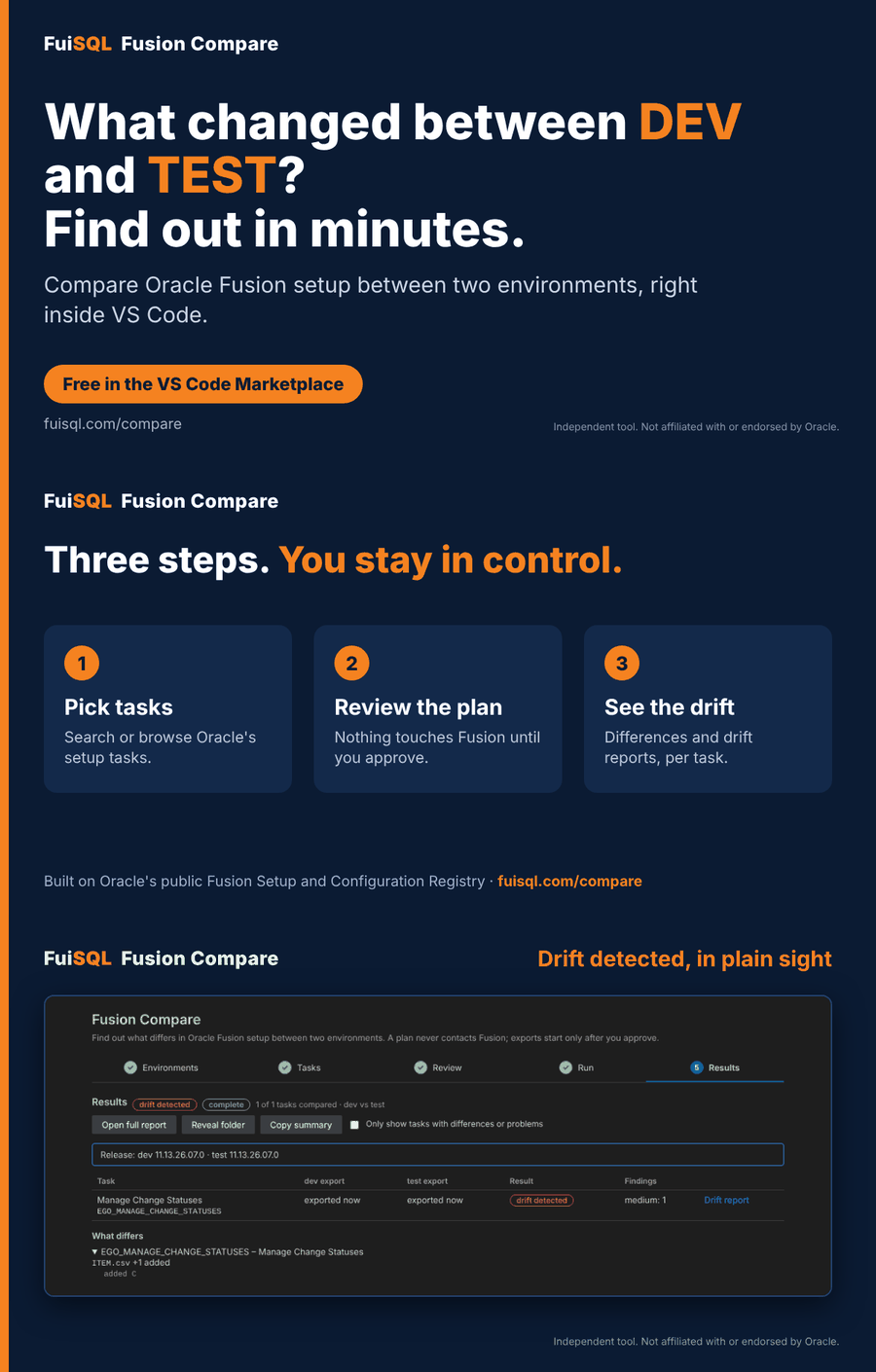
Pick a baseline and a target environment, choose setup tasks (or a whole functional area), preview the plan, approve, and the extension exports each task from both environments, compares the pairs offline, and shows one roll-up: what differs, what is missing, and what could not be compared.
Why use it
- Catch drift early. Find setup that was changed in one environment and never repeated in the other.
- Check a migration. Compare before to see what must move, and after to confirm the environments match.
- See the gaps. Tasks that could not be exported or compared are reported, so a clean result is never assumed.
- Safe by design. Setup data is read, never changed. Everything runs on your computer, and you approve the plan before the first export.
New to this? Read the guides: how to compare Fusion configuration between environments, the DEV to TEST migration checklist and FSM exports explained.
Status
Version 1.0. Start with non-production environments. Exports only read setup data; nothing is changed in Fusion.
Requirements
- Nothing to install for Python when you use a platform build (it includes its own). The universal build needs Python 3.10 or newer on your computer.
- For each environment: an OAuth client registered once in Oracle Cloud (see Set up the OAuth client below) and a properties file with
environment, restBaseUrl, clientId and scope. The extension's form creates the file for you; the form can also store boss_scope, fusion_common_scope and ai_scope, but comparing needs only scope.
- Privileges in each Fusion environment to create and retrieve FSM CSV export packages.
Set up the OAuth client
Fusion Compare signs in to Fusion the way a mobile app would, through your browser. That needs a small OAuth client, registered once for each environment (development, test and so on). The client holds no password, and nothing in Fusion is changed. You, or your Identity Domain administrator, create it in the Oracle Cloud console. The extension shows the same steps next to the form, with a Copy button for the redirect URL.
Open the Oracle Cloud console as an Identity Domain administrator. Go to Identity & Security > Domains, open the domain linked to the Fusion environment, and choose Integrated applications > Add application.
Choose Mobile Application, then Launch workflow. Give it any name (for example FSCR) and Submit.
Open the application, choose OAuth configuration, then Edit OAuth configuration.
Enable the Authorization code grant. Enable Allow non-HTTPS URLs and register this exact redirect URL:
http://127.0.0.1:8765/oauth/callback
Under Token issuance policy, enable Add resources, then Add scope for each Fusion resource you have (see the scopes below). Submit.
Choose Actions > Activate. The status must change to Active before sign-in works.
On OAuth configuration > General Information, copy the Client ID.
In VS Code, open Fusion Compare, start a comparison and choose Add an environment. Fill in the form with the values below. The extension saves them in a properties file, which holds no password.
| Field |
What to enter |
| Label |
A short name for the environment, such as dev, test or uat. Letters, digits, ., _ and -, up to 30 characters. |
| Environment name |
Optional. Shown in plans and results. If empty, the label is used. |
| Fusion base URL |
The address you sign in to every day, up to the first single / only, for example https://your-pod.fa.us2.oraclecloud.com. It must start with https:// and have no path. It is not the Oracle Cloud console address or the identity (login) address. |
| Client ID |
From step 7. Not the Application ID on the Details tab and not the application name. |
scope |
The scope of the resource named Oracle Applications Cloud (Fusion), from the Token issuance policy. It is the only scope the comparison needs. Copy it exactly; never build it from the environment name or copy one from another environment. |
boss_scope, fusion_common_scope, ai_scope |
Optional. Used only by other FSCR skills, not by the comparison. Leave them empty if you do not have them. |
Check these first if sign-in fails
- A 401 after signing in usually means a missing or wrong
scope. Add the resource under Token issuance policy, activate the application again, and copy the scope.
- The application must be Active, with the redirect URL registered exactly as shown, including
127.0.0.1 and port 8765.
- Each environment needs its own client. A Client ID or scope from another environment will not work.
- Console page names can differ slightly between Oracle releases.
The first time you run a comparison against an environment, the Review step asks you to approve it for sign-in on this computer. That records the environment name and Client ID in the properties file. Fix them under Environments first if either is wrong.
Use
Click the Fusion Compare icon in the activity bar. The sidebar has an Overview (start a comparison, your last result, and a collapsed Technical details group with the Python in use and the results folder), your saved Environments, Recent Comparisons and your License. Select New Comparison to start the wizard:
- Environments. Pick a baseline and a target from your saved environments, or add one: choose an existing properties file, or fill in a short form and let the extension create the file (it holds no secrets).
- Tasks. One card with three tabs: search every setup task by name or code, browse by offering and functional area, or paste task codes. Tasks that cannot be exported as CSV are hidden unless you ask to see them. Up to 20 tasks per comparison on the free plan, 25 with a license.
- Review. See exactly which exports exist and which would be created. Nothing has contacted Fusion yet.
- Run. Approve, and the extension exports each task from both environments with live progress. A browser tab opens for sign-in, once per environment. No passwords are entered in VS Code.
- Results. See what differs, what failed, and the release each side reported. Open the full or per-task report, copy a summary, or reveal the files.
Finished comparisons stay under Recent Comparisons, so you can reopen them later. If a run is incomplete, fix the cause and choose Adjust and run again: finished exports are reused and only the failed ones are retried.
License
Fusion Compare is free for 3 months. Without a license you can compare up to 20 tasks at a time; a license allows 25 per comparison.
The License section at the bottom of the sidebar shows your plan (free trial, monthly, 6-month or annual), when it ends, and what it allows.
- Choose Start free trial (or Upgrade to a full plan). fuisql.com opens with your machine ID already filled in. Enter your email.
- Go back to VS Code. The extension finds the key by itself within a few minutes. To do it right away, choose Check for license; it tells you which plan it found. There is no key to copy.
- If the automatic pickup does not work, open Machine ID and manual key in the same section. It has your machine ID (Copy machine ID) and a field to paste a key from the email you received, then Activate. Remove license from this computer is there too.
The same actions are in the Command Palette as Fusion Compare: Start Free Trial, Buy a License, Check for License, Enter License Key, Copy Machine ID and Remove License Key.
A key is tied to one computer, is verified offline, and is checked with the license server about once a day to see whether it was revoked (a week of grace when you are offline). Keys are issued by FuiSQL's license service but are specific to this extension. When a subscription renews, the extension fetches the renewed key by itself.
Safety
- Runs on your computer only. The comparison engine listens on
127.0.0.1 behind a per-session token that stays in the extension host. The wizard itself has no network access and cannot reach it directly.
- Exports are created only after you approve a plan for the same selection. Setup data is read, not changed.
- Tokens are handled by the bundled OAuth code and cached outside the extension. The extension never reads or stores them.
- Persisted logs have URL hosts, query strings and tokens removed by pattern. Exports and results still contain tenant setup data: keep the results folder out of source control.
- Interpreter, results folder and port settings are machine-scoped, so a workspace cannot redirect what the extension runs.
Settings
fusionCompare.pythonPath, .workspaceFolder, .propertiesFolders, .preferredPort, .caBundle and .trustSystemCertificates (see Python below), and .licenseServer (only for testing against another license server).
Python and certificates
Builds named ...-<platform>.vsix (for example darwin-arm64, win32-x64) include their own Python, so nothing needs to be installed. Settings: fusionCompare.pythonPath uses a Python of your choice instead. A build without a runtime (the universal .vsix) needs Python 3.10 or newer on the computer.
On macOS and Linux the bundled Python ships with a certificate bundle (Mozilla roots, via certifi). If your network inspects HTTPS traffic with a company certificate, set fusionCompare.caBundle to that certificate file, or on macOS turn on fusionCompare.trustSystemCertificates to also trust certificates added to the System and login keychains. On Windows the bundled Python uses the Windows certificate store. A certificate marked "not trusted" in Keychain Access is still included when the macOS option is on. SSL_CERT_FILE and REQUESTS_CA_BUNDLE, if already set, are respected.
Third-party software
Bundles Oracle's Fusion Setup and Configuration Registry (UPL 1.0). See NOTICE. Oracle and Fusion are trademarks of Oracle and/or its affiliates. FuiSQL is an independent company and is not affiliated with, endorsed by or sponsored by Oracle.
More at fuisql.com/compare.

