FuiSQL Config Sync
A FuiSQL product for Oracle Cloud ERP, alongside the FuiSQL query tool.
Compare the setup of two Oracle Fusion environments, see exactly what is missing or different, and complete the configuration, without leaving VS Code.
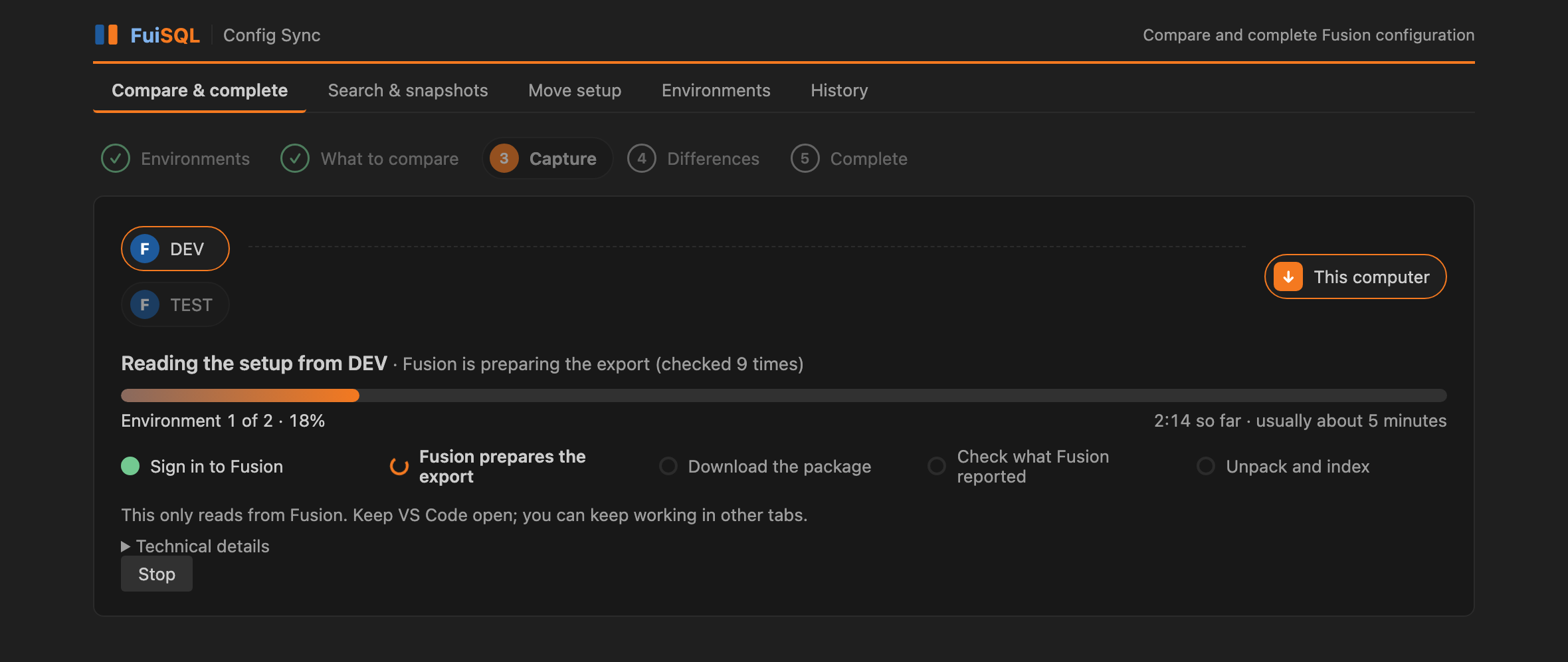
- Capture. A copy of the setup is read from each environment.
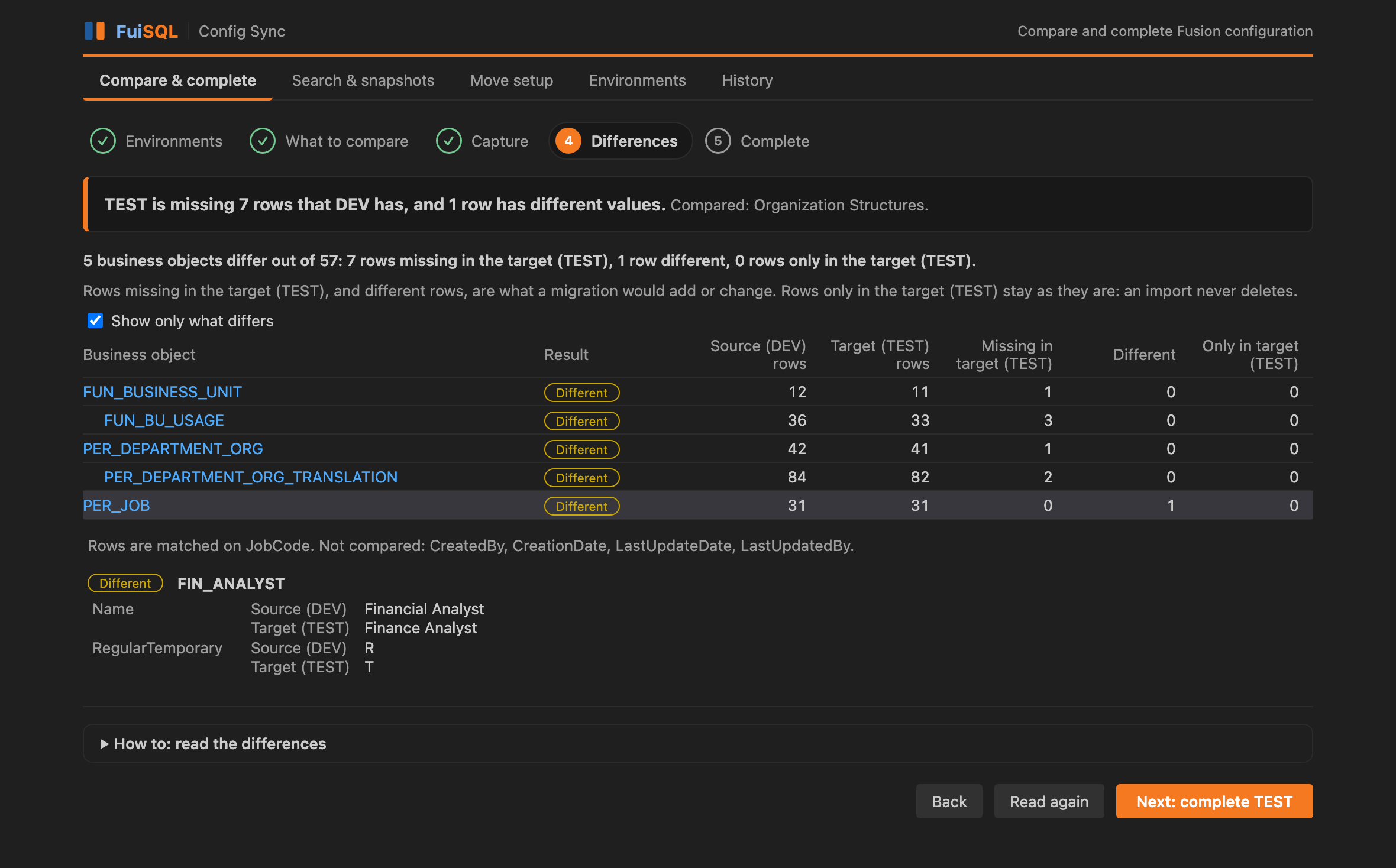
- Compare. You see what is missing or different, business object by business object and row by row.
- Complete. You choose what to move into the environment that is behind, and confirm before anything is sent.
Also included:
- Search the configuration: find a value, such as a business unit or lookup code, anywhere in the setup you captured.
- Move setup: export a task, functional area or offering from one environment and import it into another directly.
- Config Sync: browse and search every offering, functional area and setup task. Works offline.
Status
Version 0.1, a preview. Start with non-production environments. Exports only read setup data. An import changes setup data in the target environment, so imports are switched off for each environment until you allow them.
Getting started
Select the FuiSQL Config Sync icon in the Activity Bar. The side bar has these sections:
- Overview: Compare two environments, the place to start (the first time the extension runs it opens this for you), then Search captured setup, Move setup without comparing and History and logs. If no usable Python is found, that is shown here too.
- Environments: the Fusion environments you added, and whether each is ready or still needs sign-in approval. A folded Technical details group at the end shows the Python in use, where captured setup is kept, and the log.
- Recent Comparisons: what you compared lately, with the two environments and how fresh the data is. Select one to open it again.
Below them, folded away, Setup Task Catalog is Oracle's list of setup tasks for reference. Right-click a task, functional area or offering there and choose Compare This Between Environments… to compare just that.
Compare and complete
A five-step wizard, with a "How to" box on every step.
- Environments. Choose the environment that has the configuration you want, and the one that should match it. Add them right there with Add an environment (see Set up the OAuth client below); each is approved for sign-in once.
- What to compare. Choose a task, a functional area or an offering. A functional area is usually the right size.
- Capture. A copy of that setup is read from each environment and kept on this computer. If you already have a recent copy you can use it again. A progress bar shows which environment is being read and which stage it has reached (sign in, Fusion prepares the export, download, check, unpack). This only reads from Fusion: about a minute for a task and about five minutes for a functional area, for each environment.
- Differences. One sentence says where the second environment stands, for example "TEST is missing 7 rows that DEV has". Below it, each business object shows how many rows are missing in the target, different, or only in the target; select one to see the rows and values. Columns that only record who changed a row and when are not compared.
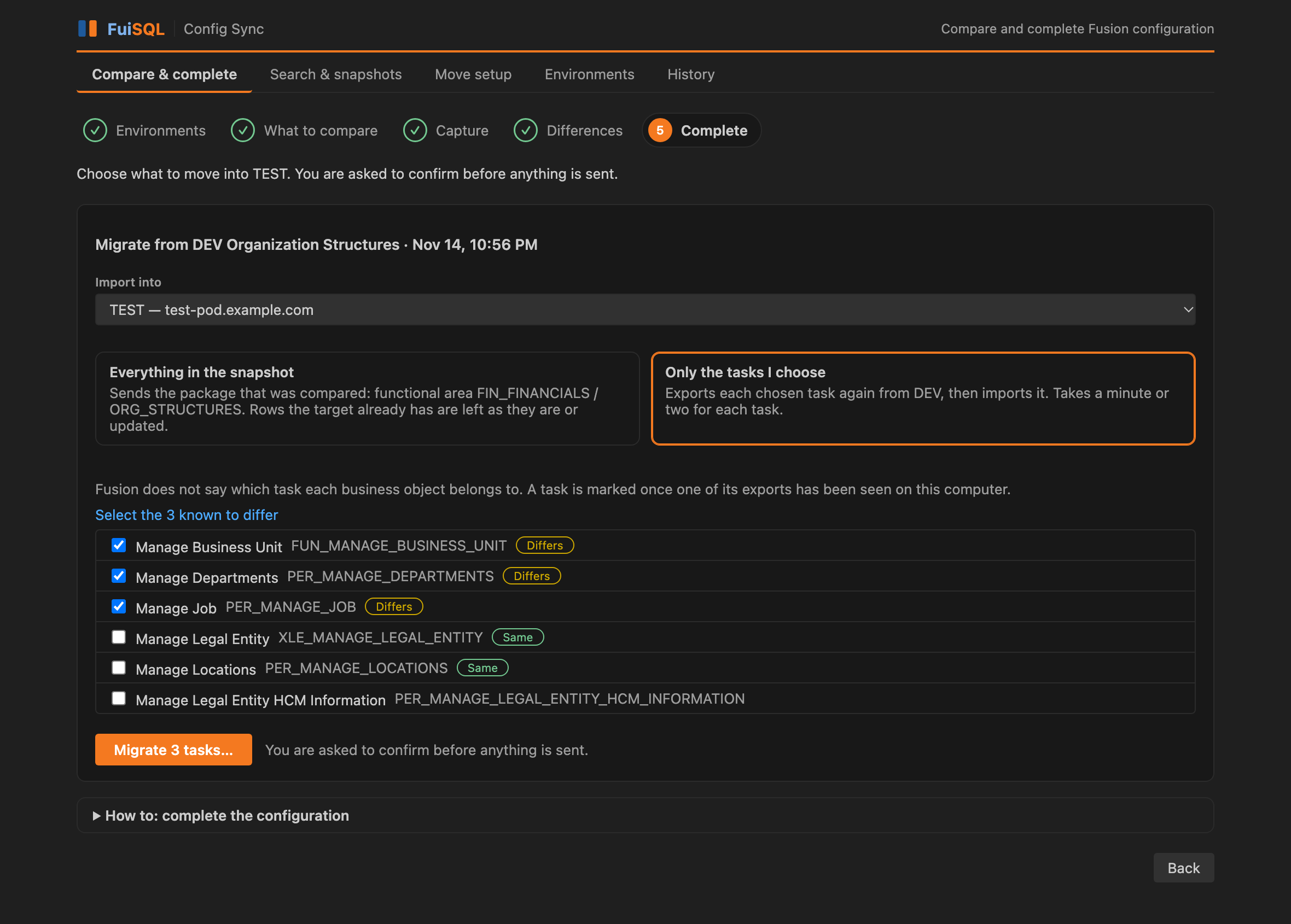
- Complete. Move everything that was compared, or only the tasks you choose, into the target. One dialog asks you to confirm. Afterwards, Check again reads the target once more and compares, so you can see that it is complete.
Rows that only the target has are left alone: an import never deletes.
To come back to a comparison, use Recent comparisons in the side bar or at the bottom of step 1. Open shows the differences found last time without reading Fusion; Run again reads both environments afresh and compares. One entry is kept for each pair of environments and scope.
The setup catalog
- Browse the catalog as a tree: pillar, offering, functional area, task. Tasks are listed in the order the catalog gives them.
- Search all setup tasks by name, code or description. Every word you type must match. Select the search icon at the top of the Setup Task Catalog view.
- Filter by pillar, offering and functional area, and to tasks that support CSV, tasks that are required, or tasks that are in no offering.
- See where a task is used. One task often appears in several offerings. The details show every place, its sequence there, and whether it is required there.
- Follow the HCM setup order. For HCM, a task's details show which tasks come first inside its topic and which topics to set up beforehand. To browse the whole order as a tree in the side bar, switch on the
configSync.showHcmSetupOrder setting.
- Export the tasks you have filtered to a CSV file, or copy them as a Markdown table.
The search page opens on a short guide with example searches and a key to the labels and icons. To jump straight to a task, run FuiSQL Config Sync: Go to Setup Task from the Command Palette and type part of its name or code.
The other tabs
Move setup exports from one environment and imports into another directly, without comparing first. You can also open it by right-clicking a task, functional area or offering and choosing Move This Setup…. It is a five-step wizard, with a "How to" box on every step.
- Environments. Choose what you want to do: export, then import (the usual way to move setup), export only, or import a package you exported earlier. Then choose the environments. Each one must be added under Environments first (see Set up the OAuth client below) and approved for sign-in once. You can approve it, or allow imports, from this step.
- What to migrate. Choose a task, a functional area or an offering. To import a ZIP file instead of a saved export, choose the file here and say what it contains.
- Review. See the plan and a list of checks (sign-in approved, imports allowed, different systems, your plan allows it). Nothing has been sent to Fusion yet. The run can start only when every check passes.
- Run. A browser tab opens so you can sign in to Fusion; you never type a password in VS Code. After an export, a dialog asks you to confirm the import before anything is sent. Fusion's process log is saved with the result.
- Results. See what Fusion reported for the export and the import: how many business objects and rows were processed, and which failed or finished with warnings. Open the logs, or import a package you exported but did not import. If rows failed, the run is shown as completed with errors, even when Fusion finished the process.
Search & snapshots keeps the copies the comparison reads, and lets you take one yourself: a named copy of an environment's setup data on this computer. Choose an environment and a task, functional area or offering, and take the snapshot; it only reads from Fusion. Then choose View contents to see the setup tasks it covers and its business objects with their row counts, and select a business object to see its rows. An export in History can also be kept as a snapshot.
Search the configuration on that tab looks for a value, such as a business unit, ledger or lookup code, in every snapshot or in one. It searches the values, not the column names, and every word you type must be in the same row. Each result shows the business object, the row and the cells that matched; select the business object to open it in its snapshot.
Compare any two snapshots, at the bottom of that tab, compares snapshots the wizard would not pair, such as two copies of the same environment taken at different times.
When you choose Only the tasks I choose on the Complete step, each task is exported again from the source environment and imported, in Fusion's order, stopping at the first that does not complete. Fusion does not say which task a business object belongs to, so a task is marked Differs or Same only once one of its exports has been seen on this computer.
The Environments tab holds your environments, and History lists every export and import with its log and folder.
Only tasks that support CSV export and import in Fusion can be migrated. The task list marks the others, and they cannot be chosen. A functional area or offering is exported by Fusion as one package, which can take several minutes.
Imports are off by default. For each environment you must choose Allow imports into this environment before it can be a target. Leave it off for production. Importing into an environment changes its setup data and cannot be undone from here, so try it on a test environment first. Check that the target has the same offerings and functional areas enabled as the source.
Requirements
- An OAuth client registered once for each environment (see below).
- In each environment, privileges to create and retrieve setup CSV export packages, and for import targets the privileges to import setup data.
- Nothing to install for Python when you use a platform build (it includes its own). The universal build needs Python 3.10 or newer on your computer.
Set up the OAuth client
The extension signs in to Fusion the way a mobile app would, through your browser. That needs a small OAuth client, registered once for each environment (development, test and so on). The client holds no password. You, or your Identity Domain administrator, create it in the Oracle Cloud console. The environment form shows the redirect URL with a Copy button.
Open the Oracle Cloud console as an Identity Domain administrator. Go to Identity & Security > Domains, open the domain linked to the Fusion environment, and choose Integrated applications > Add application.
Choose Mobile Application, then Launch workflow. Give it any name and Submit.
Open the application, choose OAuth configuration, then Edit OAuth configuration.
Enable the Authorization code grant. Enable Allow non-HTTPS URLs and register this exact redirect URL:
http://127.0.0.1:8765/oauth/callback
Under Token issuance policy, enable Add resources, then Add scope for Oracle Applications Cloud (Fusion). Submit.
Choose Actions > Activate. The status must change to Active before sign-in works.
On OAuth configuration > General Information, copy the Client ID.
In VS Code, open Environments > Add an environment and fill in the form below. The extension saves the values in a properties file, which holds no password.
| Field |
What to enter |
| Environment name |
A short name for the environment, such as DEV, TEST or UAT. Letters, digits, ., _ and -, up to 30 characters. |
| Fusion address |
The address you sign in to every day, up to the first single / only, for example https://your-pod.fa.us2.oraclecloud.com. It must start with https:// and have no path. It is not the Oracle Cloud console address or the identity (login) address. |
| Client ID |
From step 7. Not the Application ID on the Details tab and not the application name. |
| Scope |
The scope of the resource named Oracle Applications Cloud (Fusion), from the Token issuance policy. Copy it exactly; never build it from the environment name or copy one from another environment. |
The same steps are in the form itself, under How to get these details, with a button that copies them as text to send to your administrator.
Using a properties file instead. Choose Use a .properties file in the form when a colleague has sent you theirs, or to keep an environment's details in a file of your own. It is a small text file with one setting on each line, written as name=value; it holds no password, and its name must end in .properties. The form lists the settings and can save a template for you to fill in:
environment=DEV
restBaseUrl=https://your-pod.fa.us2.oraclecloud.com
clientId=
redirectUrl=http://127.0.0.1:8765/oauth/callback
scope=
environment, restBaseUrl, clientId and scope are required. boss_scope, fusion_common_scope and ai_scope are optional.
Importing from FuiSQL Fusion Compare. If that extension is installed, Import from Fusion Compare brings across the environments you set up there, instead of typing them again. Fusion Compare asks which ones to share. They use the same properties file and the same sign-in approval, so they are ready straight away, and imports stay switched off for them until you allow them. This needs a version of Fusion Compare that offers its environments; with an older one, only environments created inside Fusion Compare are found.
Check these first if sign-in fails
- A 401 after signing in usually means a missing or wrong scope. Add the resource under Token issuance policy, activate the application again, and copy the scope.
- The application must be Active, with the redirect URL registered exactly as shown, including
127.0.0.1 and port 8765.
- Each environment needs its own client. A Client ID or scope from another environment will not work.
- Console page names can differ slightly between Oracle releases.
Approve sign-in. The first time you use an environment, choose Approve sign-in on its card. That records the environment name, address and Client ID in a file in your home folder, so the extension only ever signs in to addresses you approved. If you change the address or Client ID of an environment, approve it again.
Safety
- Everything runs on your computer. Nothing about what you browse, search or migrate is sent to FuiSQL.
- An import is only sent after you confirm it in a VS Code dialog that names the package, the source and the target environment. A page inside VS Code cannot confirm it for you.
- Tokens are handled by Oracle's sign-in code and cached outside the extension. The extension never reads or stores them.
- Saved logs have URL hosts, query strings and tokens removed by pattern. Exports and logs still contain setup data from your environments: keep the folder out of source control (see
configSync.workspaceFolder).
- Interpreter, folder and certificate settings are machine-scoped, so a workspace cannot redirect what the extension runs. Comparing and moving setup are turned off in a workspace you have not trusted.
Python and certificates
Builds named ...-<platform>.vsix (for example darwin-arm64, win32-x64) include their own Python, so nothing needs to be installed. configSync.pythonPath uses a Python of your choice instead. A build without a runtime (the universal .vsix) needs Python 3.10 or newer.
If your network inspects HTTPS traffic with a company certificate, set configSync.caBundle to that certificate file (PEM), or on macOS turn on configSync.trustSystemCertificates to also trust certificates added to the System and login keychains. On Windows the bundled Python uses the Windows certificate store. SSL_CERT_FILE and REQUESTS_CA_BUNDLE, if already set, are respected.
Free plan and license
Browsing, searching and task details are free. On the free plan:
- an export to CSV or a copy as Markdown from the catalog includes the first 20 matching tasks;
- Comparing, snapshots and moving setup work on one task at a time.
A free 3-month trial or a license removes both limits: exports include every matching task, and you can migrate a whole functional area or offering.
Open the License card in the Config Sync side bar to start the free trial or see the plans. After you start a trial or buy a plan on fuisql.com, the extension finds it by itself within a few minutes. A license is tied to one computer.
To look for and check a license, the extension sends this computer's VS Code machine ID, and the license key once you have one, to fuisql.com. Nothing about what you browse, search or migrate is sent.
About the data
The catalog comes from Oracle's Fusion Setup Configuration Registry and describes Oracle Fusion release 26D. It is a reference list, not a reading of your own environment: the offerings and features you have enabled, and any release after 26D, can differ from what is shown.
"Required" is what the catalog marks as required for a task in a given functional area. Most tasks support exporting and importing their setup data as a CSV package in Setup and Maintenance; the ones that do not are marked "No CSV".
Support
Email support@fuisql.com.
Oracle and Oracle Fusion are trademarks of Oracle and/or its affiliates. This extension is not affiliated with or endorsed by Oracle.
Settings
configSync.pythonPath, .workspaceFolder, .caBundle and .trustSystemCertificates, .showHcmSetupOrder (adds the HCM Setup Order view to the side bar), and .licenseServer (only for testing against another license server).
Third-party software
Includes data from, and bundles scripts of, Oracle's Fusion Setup Configuration Registry (UPL 1.0). See NOTICE. Oracle and Fusion are trademarks of Oracle and/or its affiliates. FuiSQL is an independent company and is not affiliated with, endorsed by or sponsored by Oracle.

