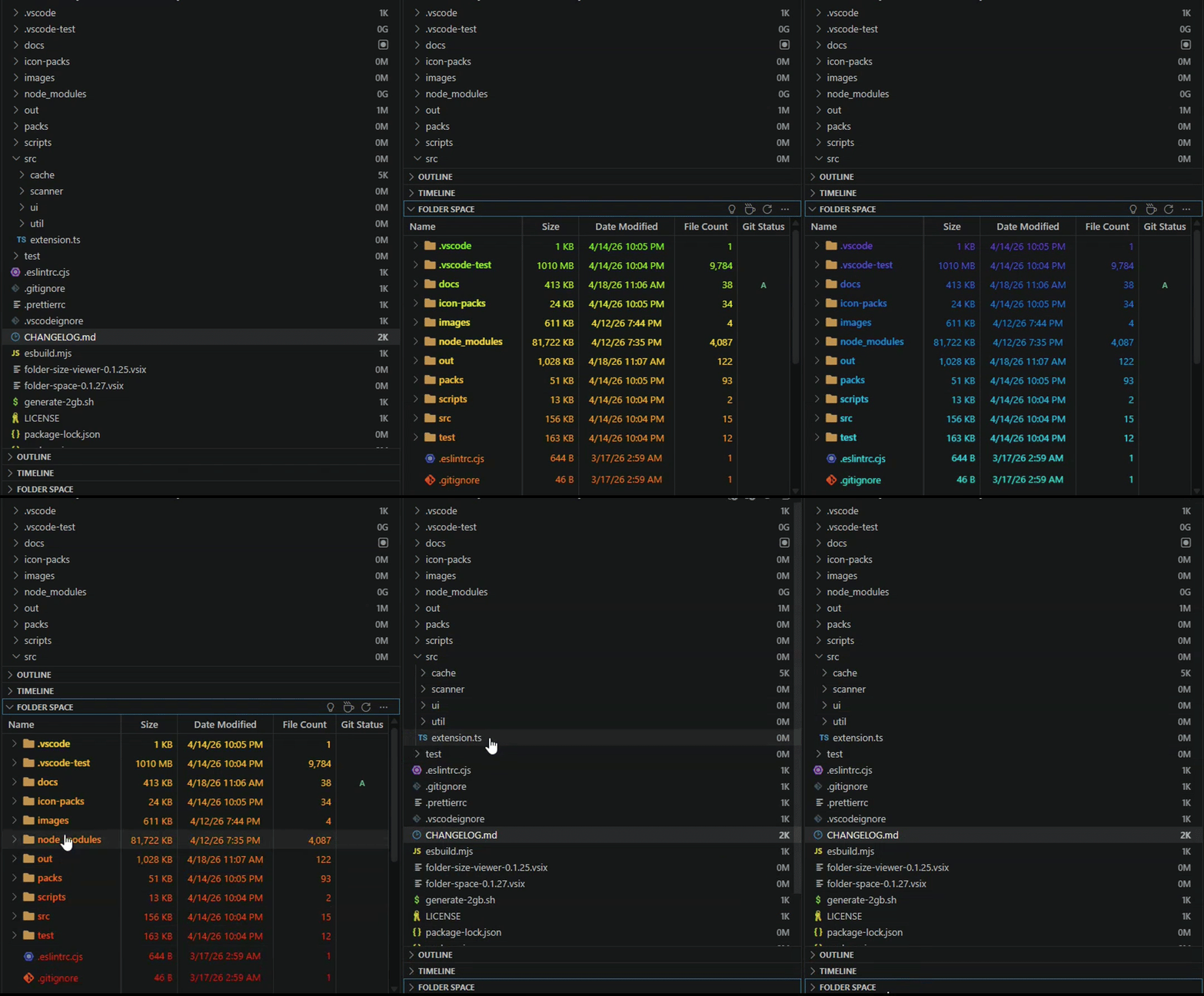
Display file and folder sizes directly in the VS Code Explorer sidebar with color-coded size badges and a detailed companion tree view.
Features
Size Badges in Explorer
Every file and folder in the native Explorer gets a compact 2-character badge showing its size at a glance (e.g. 4K, 2M, 1G).
Companion Tree View
A collapsible Folder Space panel appears in the Explorer sidebar, showing detailed columns for every entry:
Column
Example
Size
456 MB, 1.00 GB, 2.00+ GB
Type
.ts, .json, Folder
Date
2026-03-16 10:04
Column toggles — Show or hide Size, Type, and Date columns from the view's 3-dot menu.
Sorting — Sort by Size (default, descending), Name (ascending), or Date (descending).
Expand folders inline without re-scanning.
Copy size — Right-click any entry to copy its formatted size to the clipboard.
Large Folder Threshold
Folders whose cumulative size meets or exceeds a configurable threshold display their actual size with a + suffix (e.g. 2.00+ GB, 4.66+ GB), making oversized directories easy to spot.
Benchmark & Logging
A dedicated Folder Space output channel logs timestamped scan lifecycle events.
Run Folder Space: Show Benchmark to see a table of labeled durations (total scan time, per-directory time, decoration pass time).
Settings
Setting
Type
Default
Description
folderSpace.enabled
boolean
true
Enable or disable size decorations in the Explorer.
folderSpace.scanOnStartup
boolean
true
Automatically scan the workspace when the extension activates.
folderSpace.maxFiles
number
50000
Maximum number of files to scan to maintain system performance. Higher limits can have longer wait times.
folderSpace.scanConcurrency
integer
0
Maximum number of folders scanned in parallel. 0 = auto (3 for local FS, 2 for remote FS). Range: 0–10.
folderSpace.maxDisplaySize
number
2
Folder size threshold (in GB) for the + indicator. Options: 2, 10, 50, or 100 GB.
Getting Started
Install the extension from a .vsix file: Extensions view → ⋯ menu → Install from VSIX…
Open a workspace.
Run Folder Space: Scan Workspace from the Command Palette (Ctrl+Shift+P / Cmd+Shift+P).
Size badges appear on Explorer items and the companion tree view populates.