git review workflow — VS Code extension
Review a pull request by editing and running it, not just reading it. The
whole PR lands in your working tree as one staged diff; your fixes are then
extracted onto a clean branch automatically. This panel shows where you are in
the review and drives every step of it without leaving the editor.
And when an AI agent wrote the change, it can write the reading order
too — a walkthrough committed next to the code saying which file to read first
and why. The panel picks it up on its own and walks you through the diff in
that order, instead of alphabetically.


Project README · Website · Changelog
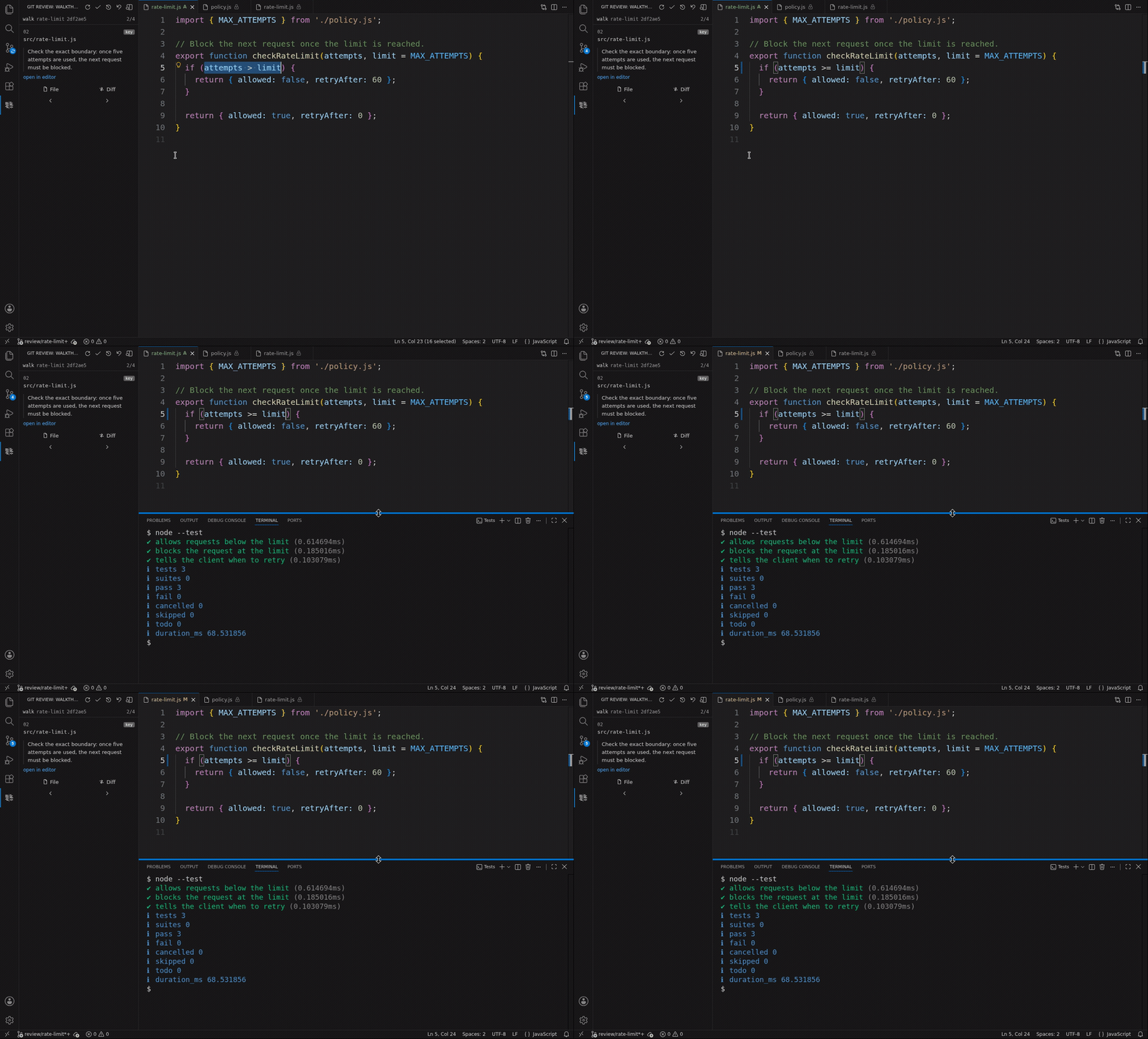
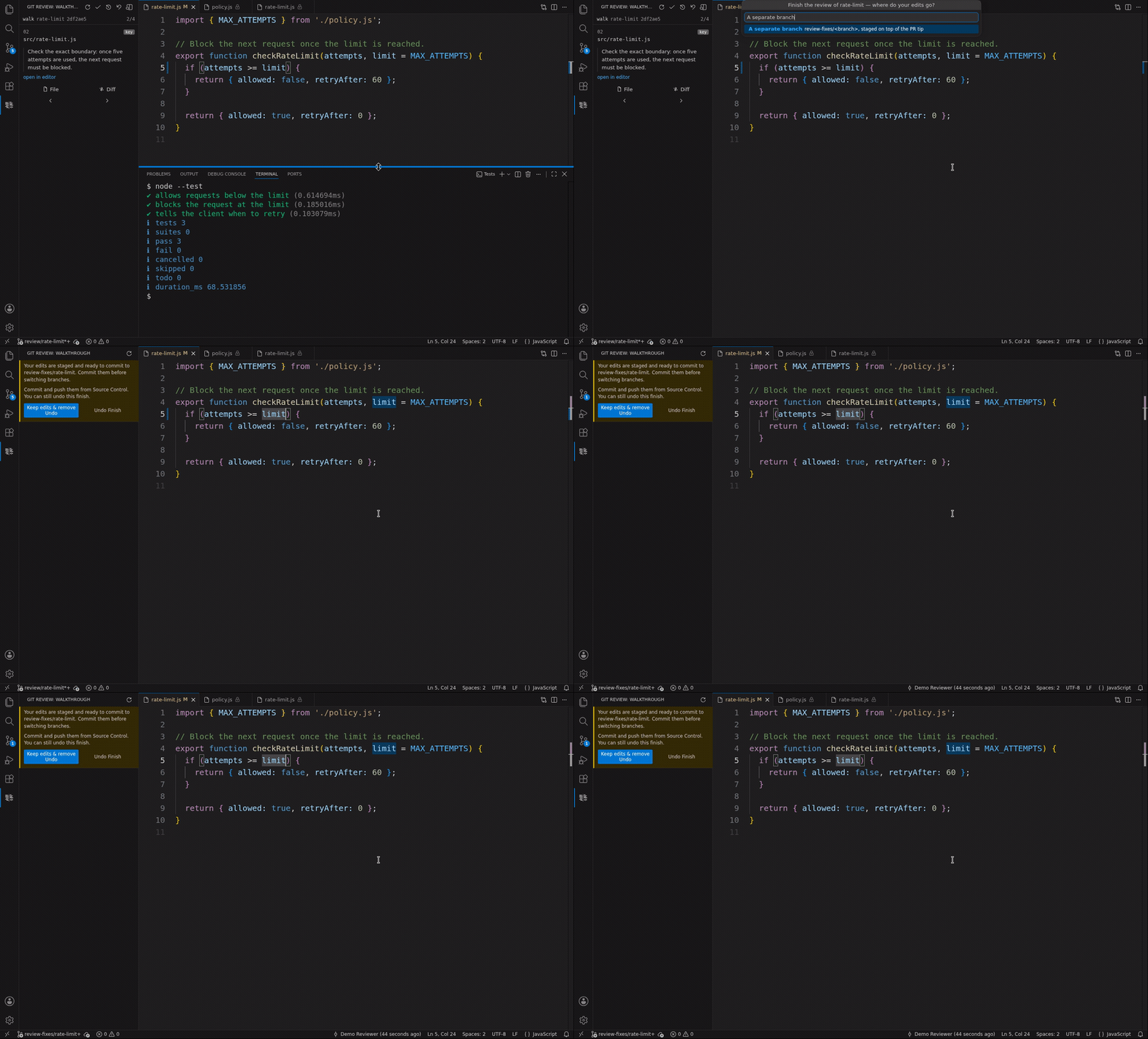
Watch the 40-second demo — follow the reasoning, fix a boundary error, run the tests, and keep your correction on a separate branch.
See the workflow in action
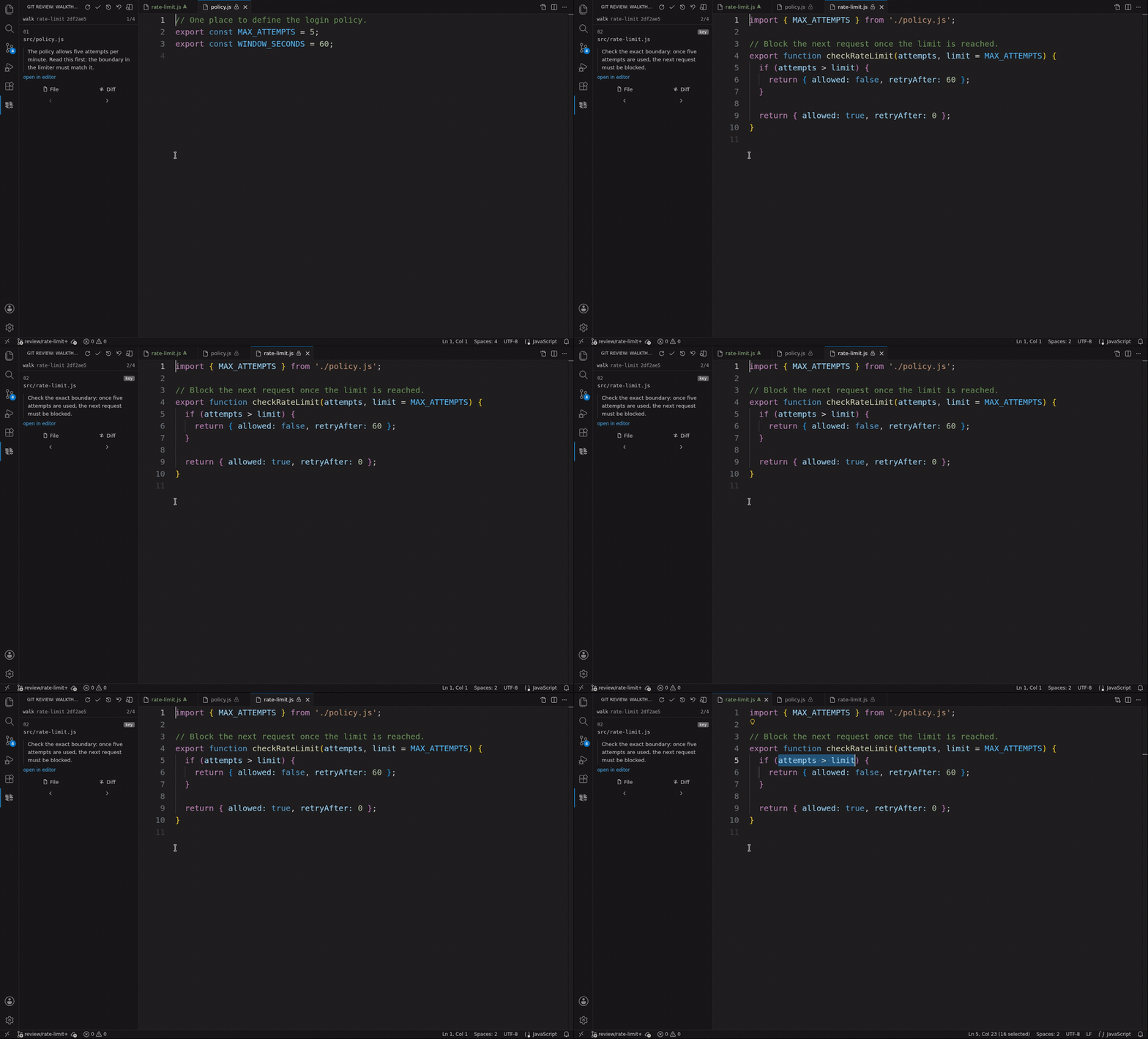
Follow the author's reading order.
Edit the code and run the tests.
Take only your fix to a separate branch.
This is the editor surface of
git-review-workflow, a git
subcommand that stages an entire PR in your working tree as staged,
uncommitted changes — so you read the diff, edit it inline and run the tests
like ordinary local work, and git review finish then extracts your edits
onto a separate branch. The extension does not reimplement any of that: it
drives the same CLI and shows you its state.
The CLI is required. The extension is a panel over git review, not a
standalone reviewer. See Requirements.
What the panel shows
A reading order, when the PR has one. If the author (often an AI coding
agent) committed a walkthrough alongside the change, the review runs in walk
mode and the panel shows the current entry: the file, its position in the order
the author chose, whether they marked it key, and the why they wrote for it.
The full sequence — and the files the walkthrough doesn't cover — is one
keystroke away in a quick pick, and commands jump to the file, advance and go
back without leaving the editor.
The files the range touches, when it doesn't. A review without a walkthrough
runs in whole mode, and there the panel is the list of changed files: a row
opens that file's diff, and one control above them opens every change at once.
The last row you opened stays marked, so a list you are halfway through still
says where you were after closing the editor.
Or the reading order you write yourself. When the PR ships without one, the
start assistant offers Build a reading order first: it writes a skeleton
listing every file in the range, and the assistant closes. Nothing waits on you.
The half-written order shows up in the panel, under Reading orders you
started, with how far along it is (3/9, counted by the CLI) and four
controls on its row — two buttons underneath and two glyphs beside the count:
- Copy for agent — puts a one-line instruction naming that file on the
clipboard, for whatever you want to hand it to. Copying is copying: no
service is contacted and no assistant is invoked.
- Validate and start — validates it (on the CLI, so a rejection tells you
exactly what to fix, in the CLI's own words) and, when it passes, starts the
review on your order. It stays switched off, with a tooltip saying why, while
the order is unfinished or the CLI cannot tell how the draft was generated.
- Beside the count, open the reading order — the file, at the path the CLI
reported — and discard it, after a confirmation that names the command.
The count is one unit per entry plus the ## Heads-up section, which is what
--build demands too: it reaches N/N exactly when no placeholder is left.
Deleting the whole heads-up section is a legal way to finish it, and the total
drops when you do. The progress follows the file: hand the draft to an agent
and the count moves on its own as it writes, with nobody hitting Refresh.
It survives closing the editor, so a reading order you started on Friday is the
first thing the panel says on Monday. The draft is yours and local: it lives
outside the working tree, never gets committed or staged, and git status does
not change at any point. Nothing about it is written for you; it is a file you
fill in. Once it is in, the review reads it exactly like an author's
walkthrough, and the panel marks the mode (draft) so it is clear whose reading
order you are on.
Your other reviews, when this branch has none. With no review on the current
branch the panel lists the ones open elsewhere in the repository — active and
saved, with their mode and position — so a review you put aside doesn't have to
be remembered by name. Saved ones offer Continue; an active one is listed
without an action, because going back to it is a branch checkout and the
editor's branch picker already does that.
Getting started
Install the CLI. With Node:
npm install -g git-review-workflow
Homebrew, a native Windows (PowerShell) installer and a no-Node one-liner are
all in the
installation guide.
Tell it where PRs are integrated, once per repository — from the panel
(git review: Set the Base Branch) or on the command line:
git config reviewworkflow.base develop
Open the git review panel in the activity bar and hit Start a review.
It asks for the branch, where to read it from, the range, and how to read it
— offering only the layouts the CLI reports as viable for that PR. (Or run
git review start feature/login in a terminal; the panel follows.)
Panel actions
Everything below is a command the panel exposes. Lifecycle actions (Finish,
Save, Cancel, Preview and Refresh) are icon buttons on the view title bar; the
rest are buttons inside the panel or entries in the Command Palette, all under
the git review category.
Each one shells out to the matching git review verb — the extension never
invents a second way to change review state.
| Action |
When it appears |
CLI |
| Start a review |
Empty state; also the palette after a finished review, if the tree is clean |
git review start … |
| Next / Previous entry |
While a walk or step review is open |
git review next / prev |
| Go to entry |
While a review is open — the quick pick with the whole sequence |
(navigation only) |
| Open entry / Open changes |
While a review is open — opens the file or its diff |
(opens the editor's diff view) |
| Finish review |
Title bar, while an active review is open (hidden on a read-only compare) |
git review finish / --onto-source |
| Save for later |
Title bar, while an active review is open |
git review save |
| Cancel review |
Title bar, while an active review (or a mid-conflict finish) is open |
git review abort |
| Preview edits |
Title bar or palette, while a review is open; optional diffstat |
git review preview / --stat |
| Undo finish |
After a finish, while undo is still available — including one stopped mid-conflict |
git review finish --abort |
| Continue (finish) |
A finish stopped mid-conflict, once you resolve the markers in the tree |
git review finish --resume |
| Clean |
After a finished review; also the palette for any leftover |
git review clean [--keep-fixes \| --fixes-only] [<branch>] |
| Continue (saved review) |
Inventory row for a review paused with Save for later |
git review continue <branch> |
| Discard / Forget |
Inventory row, or the palette for saved reviews and --delta markers |
git review forget --saved / --delta, git review clean |
| Compare revisions |
Empty state, under Compare at the foot of the panel; also the palette. The result is read-only — no writeback |
git review compare <a> <b> |
| Init / Update / Build |
Empty state, on the walkthrough row under Walkthrough (this is the author flow); also the palette, where they are spelled Walkthrough: Init / Build. Reads Update once a walkthrough exists, because that is what the verb does then: it keeps every entry whose file is still in range and adds the ones that are new |
git review walkthrough init / build |
| The walkthrough row |
The first row under Walkthrough, named after the branch it annotates: whether the one you wrote still matches what the PR changes (up to date / may be out of date), how much of it is written, an icon that opens it, the two buttons above, and Copy for agent — a one-line instruction naming the file |
git review config --porcelain reports it; Build is what answers it exactly |
| Create / open / discard a guide |
Empty state, under Walkthrough: the conventions a walkthrough is written to — the repository's shared one, and yours |
git review walkthrough guide [--team] [--delete] |
| Build a reading order first |
Inside Start a review, at the reading-order step, when the PR has none (the reviewer flow) |
git review walkthrough draft |
| Copy for agent / Validate and start / open / discard |
A row of Reading orders you started, in the empty state. Once its review is over the row keeps only open and discard, under Reading orders you finished with |
git review walkthrough draft --build, git review start, git review forget --draft |
| Discard extracted edits |
A row of Edits you extracted, at the foot of the empty state: one per review-fixes/ branch a finish left behind, with what git can say about dropping it |
git review clean --fixes-only <branch> |
| Discard all |
Edits you extracted, above the rows: drops every review-fixes/* branch at once |
git review clean --fixes-only |
The branches your finishes left behind. Every finish leaves a
review-fixes/<branch>, and they pile up one per review. The empty state lists
them under Edits you extracted, collapsed at the foot, each with what git can
say about dropping it: empty (it still sits where finish created it, so it
holds none of your work), merged, unmerged, or unknown with no base
configured. Dropping one runs clean --fixes-only <branch>, which
leaves the review session standing — including the undo point of a finish you can
still abort. Discard all runs the same command with no branch: by clean's
own scoping that only ever enumerates review-fixes/* and never touches a live
review/* session, unlike a bare clean. It is still behind a confirmation,
because what these rows hold is work you wrote by hand.
Mutations (the lifecycle actions, clean, forget, compare and writing a
walkthrough) ask for a confirmation that names what will happen. Preview is
read-only and does not.
A finished review is not the empty state: the panel names where your staged
edits landed — review-fixes/<branch>, or the PR branch itself with
--onto-source — and offers Clean (drop the leftover undo point, keep the
edits) or Undo finish. Commit and push those edits from Source Control as
usual. A finish stopped mid-conflict keeps the review readable (mode, branch,
current entry) but locks navigation until you Continue or Undo finish.
Requirements
- VS Code 1.75 or newer.
- git-review-workflow 0.7.0
or newer, discoverable as a git subcommand (
git review -h works), or
pointed at directly with the gitReview.path setting.
- A single-folder workspace. Multi-root workspaces are not supported: the
panel needs exactly one git repository root, the same way the CLI has one cwd.
Open the repository folder on its own, or pick one root and open that.
- On Windows the CLI itself runs under Git Bash, which
Git for Windows provides.
Settings
| Setting |
Default |
What it does |
gitReview.path |
(empty) |
Path to the git-review dispatcher, for when git does not discover it. Empty means the extension invokes git review. |
gitReview.defaultSource |
remote |
Which origin the start wizard preselects: remote (fetch and review the remote tip), local (no fetch), offline (no network at all). |
gitReview.path on Windows
On Windows, a bare POSIX path such as …/bin/git-review — no .cmd, .bat or
.exe extension — is spawned through sh, which only works if Git Bash's sh
is on your PATH. Prefer one of:
- leave
gitReview.path empty and install the CLI so that git review works as
a subcommand (npm or the PowerShell installer both set that up), or
- point
gitReview.path at a Windows-native shim — the .cmd an npm global
install leaves behind, for example.
If spawning fails with ENOENT while gitReview.path points at an
extensionless file, the cause is the missing sh, not a missing CLI.
Troubleshooting
The panel reports what it found rather than failing silently — a missing CLI, a
version too old, a repository with no base configured — and offers the action
that fixes it. When you need the detail, git review: Show CLI Log prints
every invocation the extension made and what came back.
Learn more
License
MIT ©
EzeVillo

