Hermes AgentAn unofficial community VS Code extension for Hermes Agent with editor-aware context, structured execution, session continuity, skills, memory, and approval controls. Not affiliated with Nous Research. Installation Launch VS Code Quick Open ( Ctrl+P), paste the following command, and press enter.Copied to clipboard |

Hermes Agent for VS CodeBring Hermes Agent into the editor where the work already lives. Hermes Agent for VS Code combines editor-aware context, visible agent execution, reusable skills, persistent memory, session continuity, and run controls in one focused workspace. Why Hermes Agent for VS CodeEditor-native contextHermes works beside your code instead of in a detached chat window. The current file or selection can travel with the prompt, while workspace search and local attachments make it easy to add the exact context a task needs.
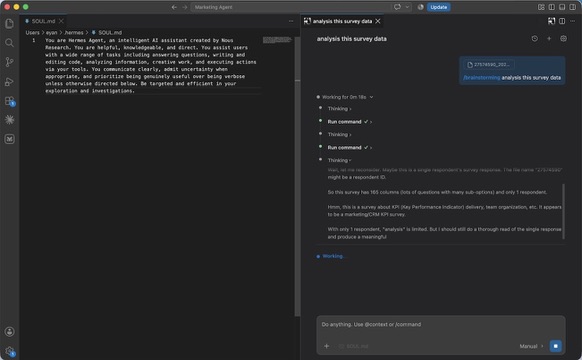
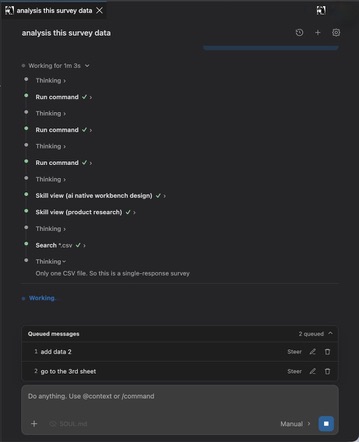
Transparent and controllable executionFollow long-running work through structured Thinking and Action records rather than an opaque stream of text. Review sensitive edits before they are applied, stop an active turn when the direction is wrong, and use Queue or Steer to control what happens next without losing the conversation.
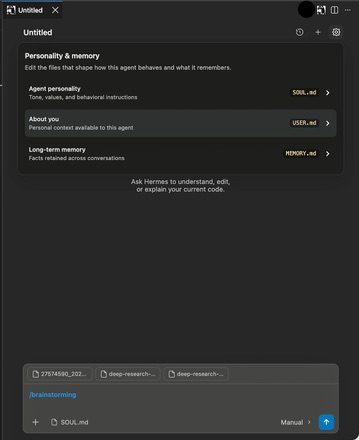
A persistent agent workspaceSessions preserve the flow of a project, while editable personality, memory, and reusable skills let Hermes carry stable working preferences across tasks. Model, reasoning-effort, and approval-mode controls stay close to the composer so each run can match the level of autonomy you want.
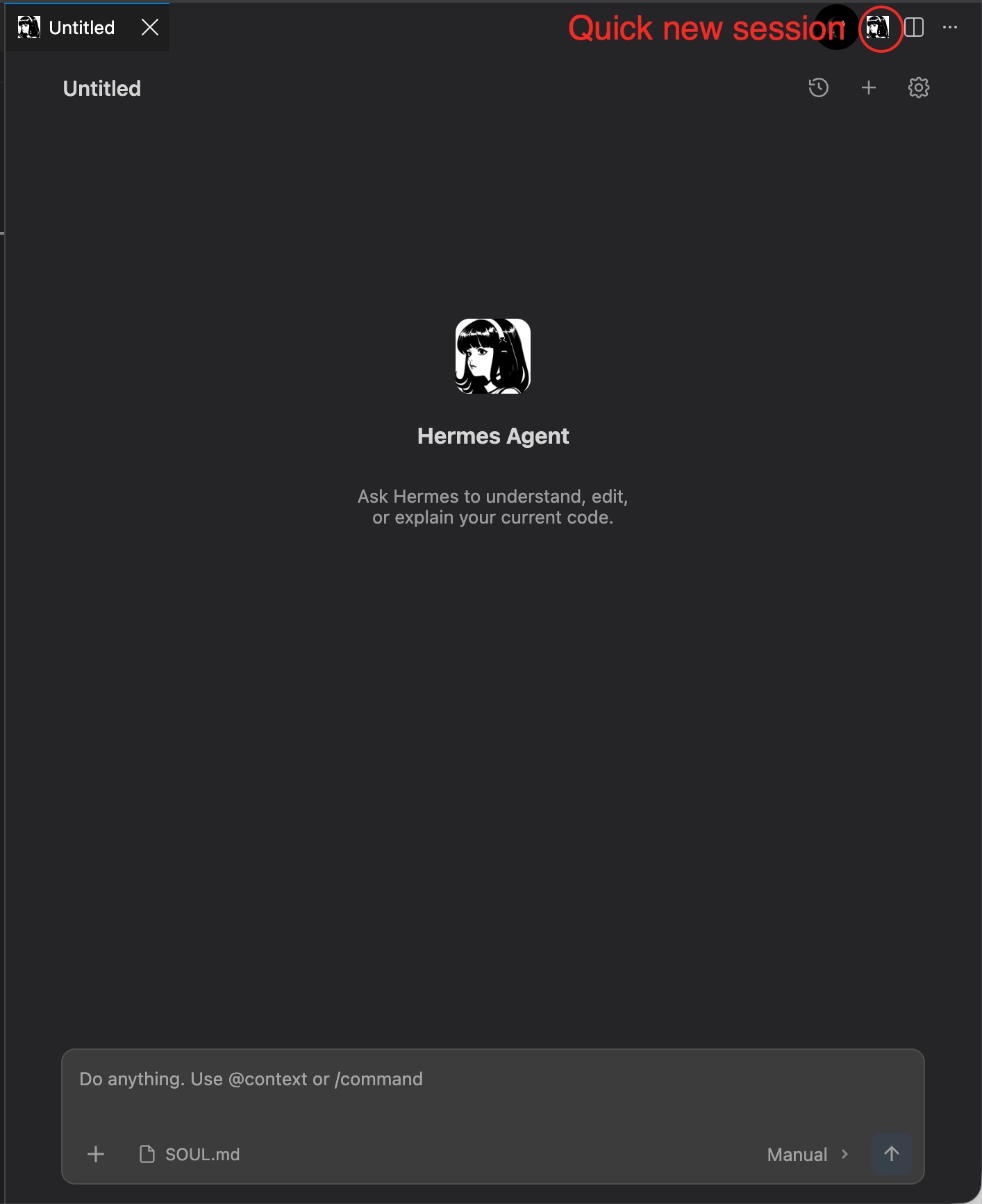
Start a clean session directly from the editor whenever a task needs a fresh context, then continue with the same editor-aware composer and workspace tools.
Background session continuityActive Auto-mode tasks can continue in a standalone background host after VS Code closes. Reopening the same workspace restores the previous Agent workspace and session, including structured Thinking, Actions, and the final response. History shows running sessions and marks completed sessions that have not yet been viewed. This capability requires a standalone Node.js installation. The extension can detect Node.js automatically, or you can set an explicit executable with Feature overview
Hermes CLI IntegrationThe extension requires a local Hermes Agent CLI installation. ACP is the default transport for structured Thinking, Actions, permissions, model controls, and resumable session state. Install Hermes with ACP support and keep the Background session continuity also requires a standalone Node.js installation. The extension automatically checks common Node.js locations; use The CLI fallback remains configurable through The extension sends the user prompt, selected skill, attachments, and current editor context to Hermes. If ACP is unavailable or disabled, the configured CLI fallback streams Hermes output into the same conversation UI. If Community project noticeHermes Agent for VS Code is an independent, unofficial community extension. It is not affiliated with, endorsed by, or connected to Nous Research. The Hermes Agent name and the Nous girl logo ( |