SightMD - Markdown Editor
A preview-first Markdown editor for VS Code with rich rendering, three editing modes, outline navigation, themes, diagrams, equations, and practical code tools.
Demo
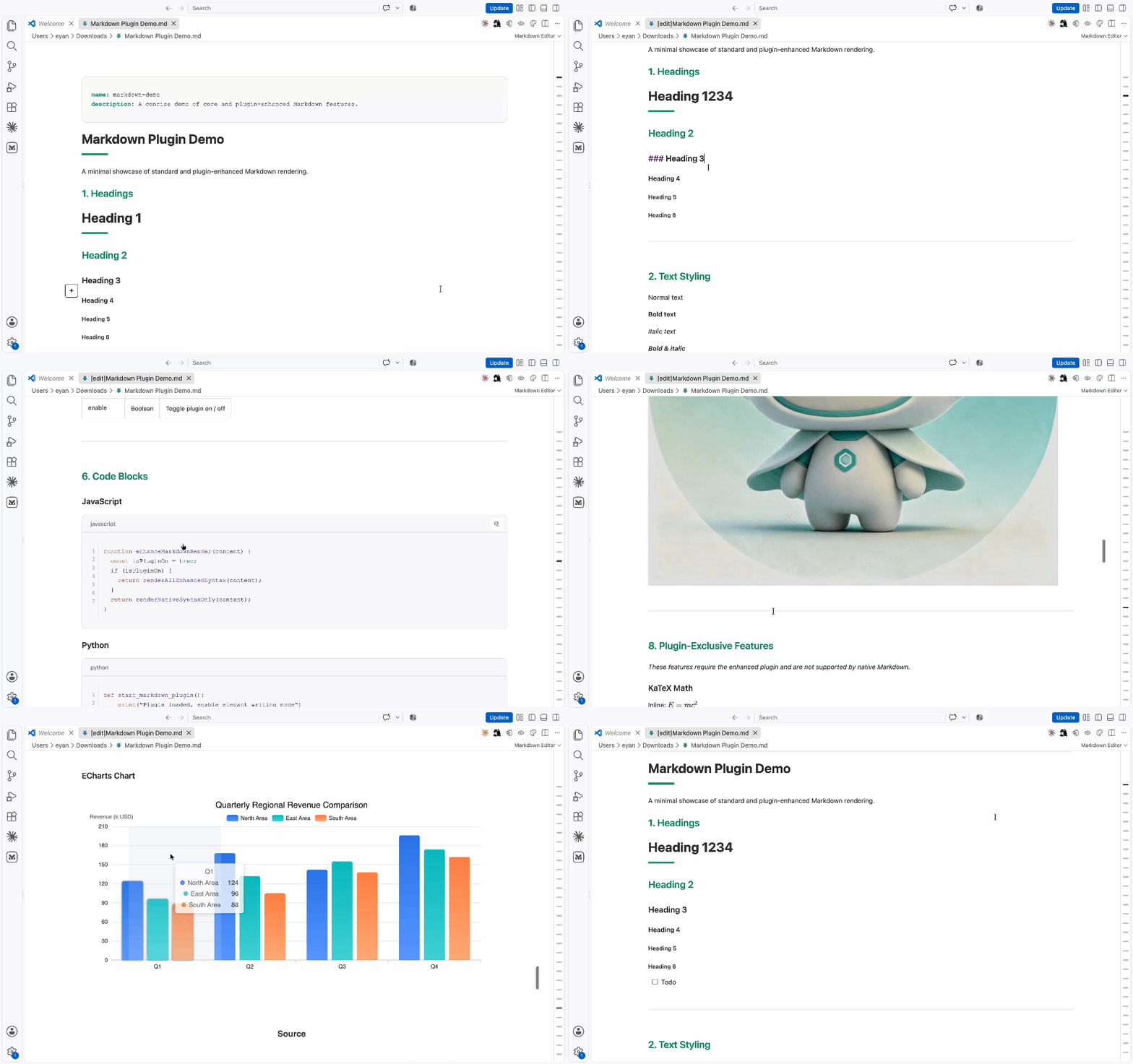
Editing Modes
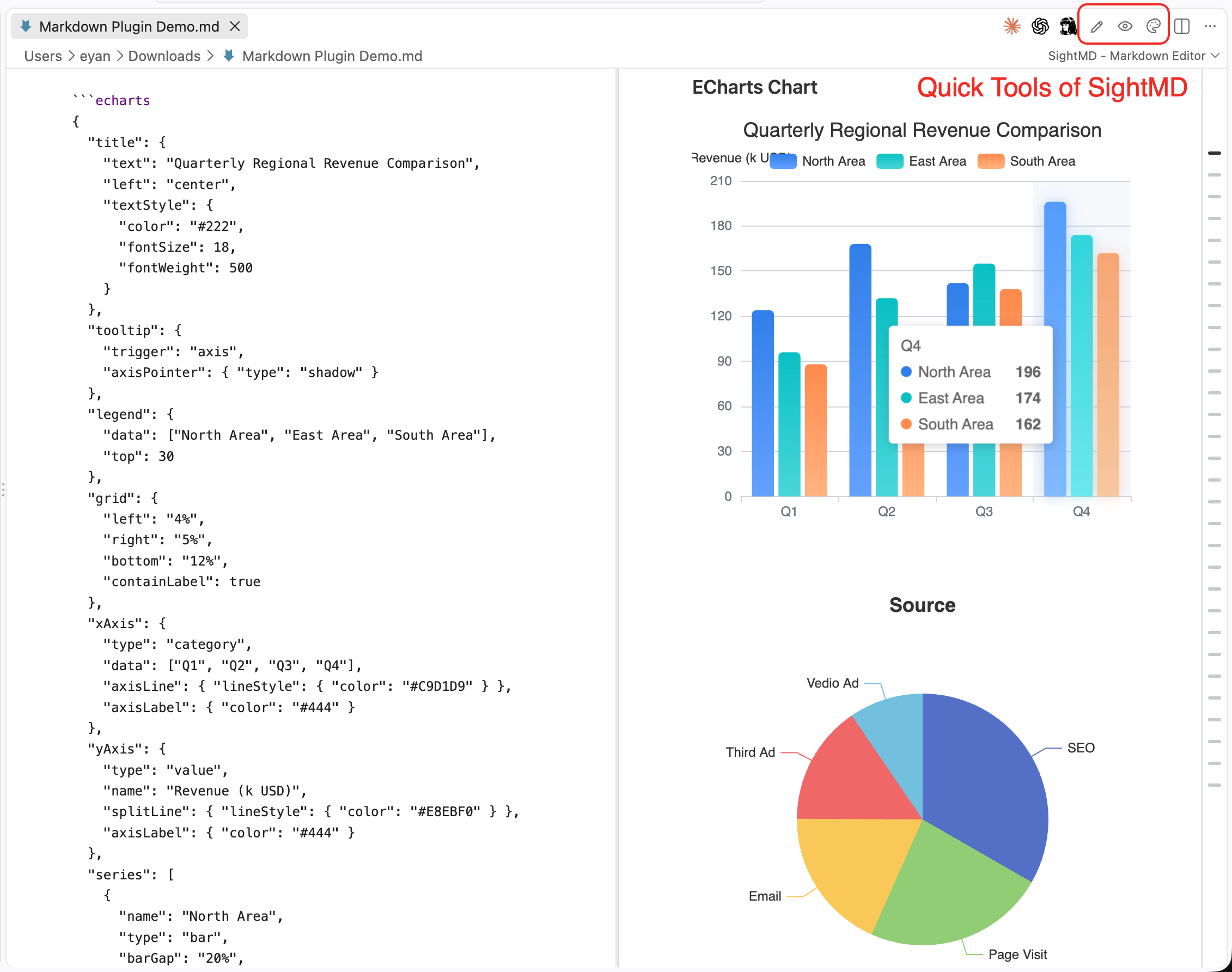
Switch modes directly from the VS Code editor title bar.
| Mode |
Best for |
Behavior |
| Edit |
Reading and making focused changes |
Edit Markdown directly in the rendered document. Click a block to expose its source when needed. |
| Split Edit |
Working with source and output together |
Edit Markdown source on the left while the synchronized rendered preview stays visible on the right. |
| Read Only |
Reviewing and navigating |
Select and copy text or open links without entering edit mode. |
All three modes operate on the same VS Code TextDocument, so changes remain connected to the active Markdown file.
Rich Content Rendering
Markdown Editor supports standard and GitHub-Flavored Markdown content, including:
- Headings, paragraphs, emphasis, links, images, blockquotes, lists, and task lists
- Tables, fenced code blocks, syntax highlighting, and inline code
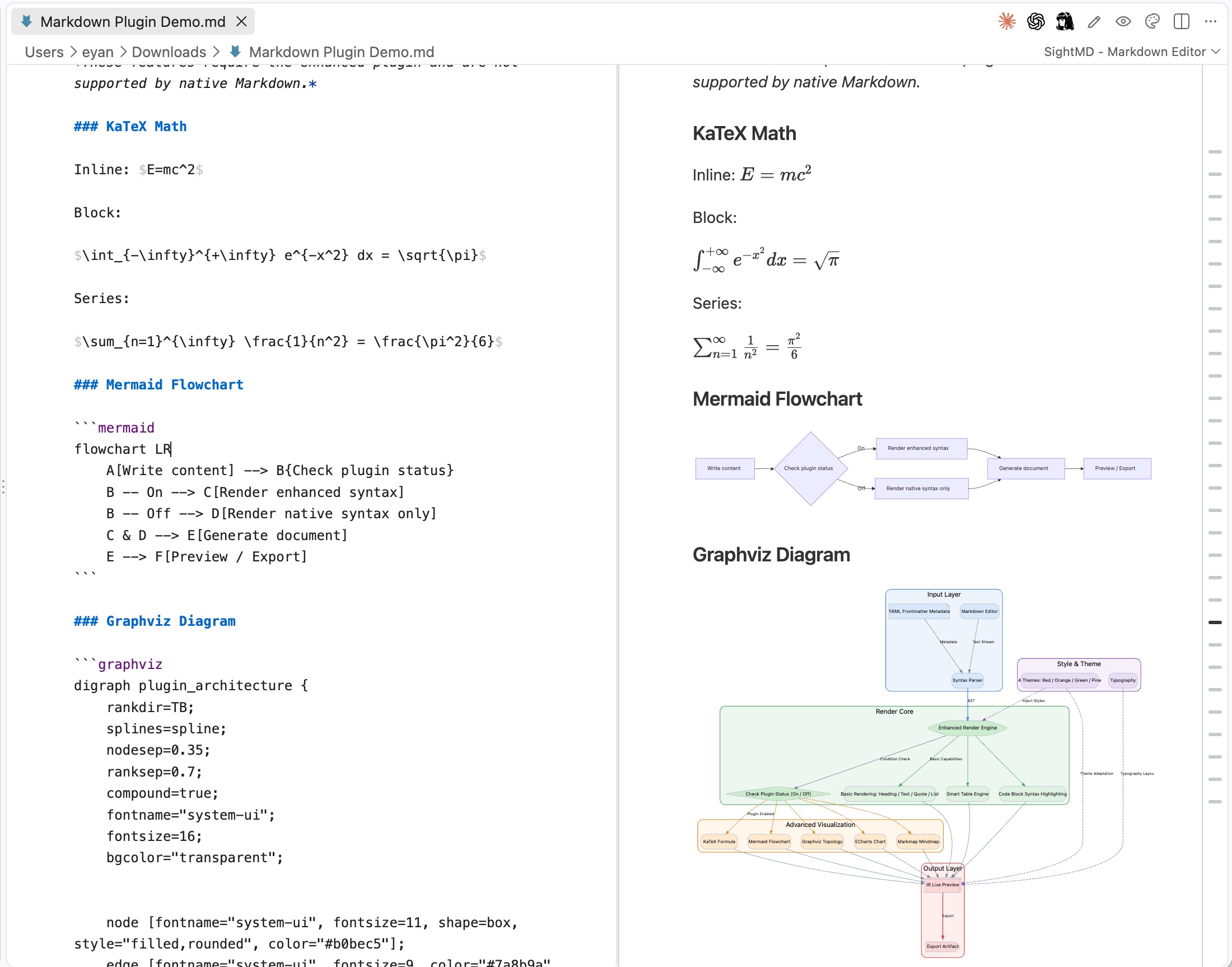
- KaTeX equations
- Mermaid and Flowchart diagrams
- Graphviz diagrams with responsive scaling
- ECharts visualizations
- Markmap and mind maps
- abc.js music notation
- PlantUML diagrams and SMILES structures through the bundled Vditor renderers
Some advanced renderers load their runtime dependencies from unpkg.com and require network access.
- Inline preview editing with block-level source access
- Synchronized source and rendered preview in Split Edit
- Code-block language labels, line numbers, and source copy actions
- Source copy actions for Mermaid, Flowchart, Graphviz, and ECharts blocks while editing
- Find in document with
Ctrl+F or Cmd+F
- Local image paste and drag-and-drop through the upload handler
- Automatic image saving to a configurable asset folder
- Automatic synchronization with external changes to the VS Code document
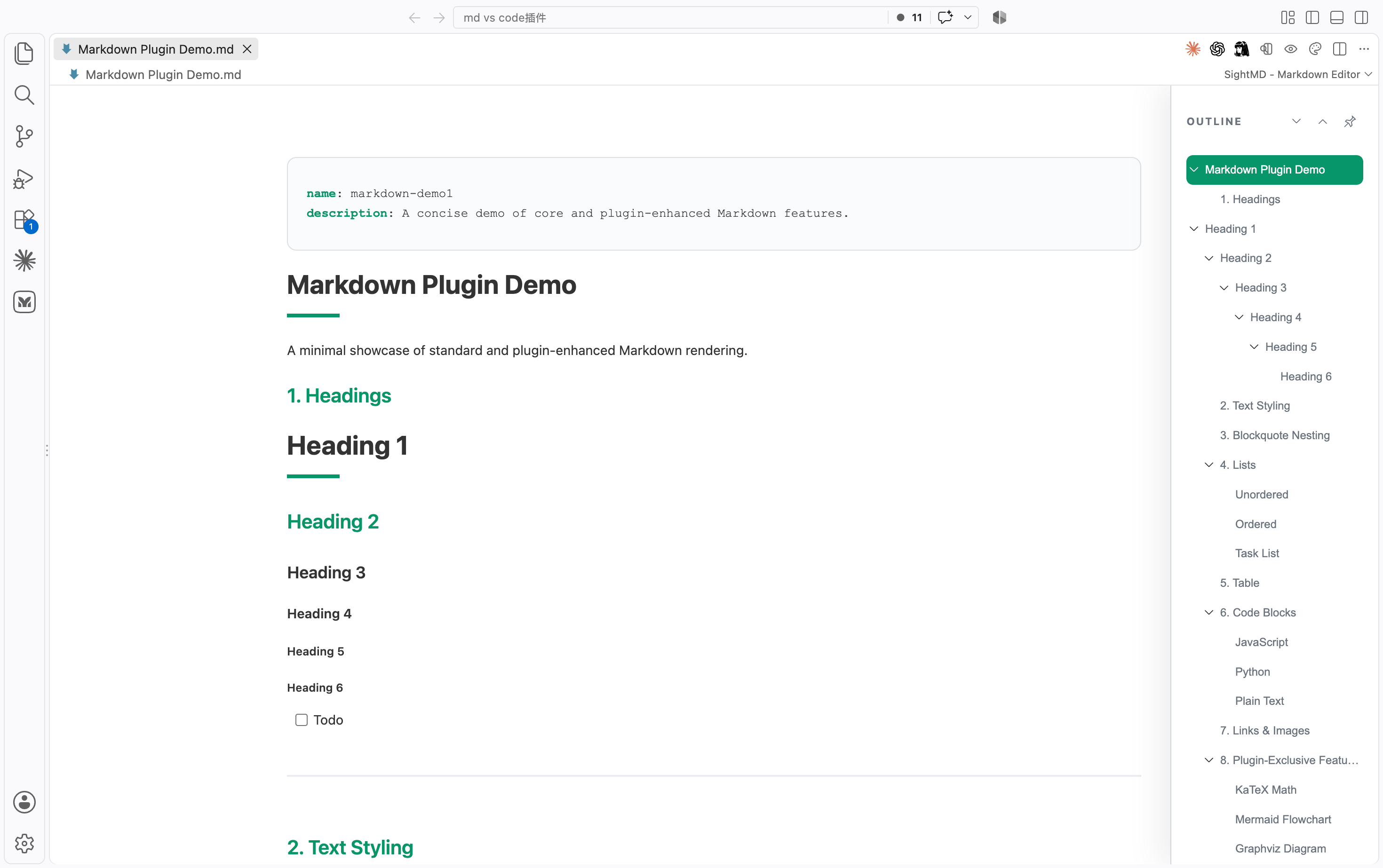
Outline Navigation
The document outline stays out of the way until it is needed:
- Hover over the right-side rail to expand it
- Pin it open while navigating a long document
- Jump directly to any heading
- Follow the active section as the document scrolls
Themes
Choose a rendering theme from the VS Code editor title bar:
- Default
- Pine Ink
- Red
- Orange
- Green
The Default theme follows the active VS Code light or dark appearance. The other themes provide consistent reading palettes independent of the workbench theme.
Open Markdown Editor
Use any of these entry points:
- Open a Markdown file, then run Markdown Editor: Open with markdown editor from the Command Palette.
- Press
Ctrl+Shift+Alt+M on Windows/Linux or Cmd+Shift+Alt+M on macOS.
- Right-click a Markdown file in Explorer and select Open with markdown editor.
- Right-click an open Markdown tab and select Open with markdown editor.
- Use Open With... and select Markdown Editor. You can also configure it as the default editor for Markdown files.
Settings
| Setting |
Default |
Description |
markdown-editor.imageSaveFolder |
assets |
Folder used for pasted, dropped, or uploaded local images. Supports ${projectRoot}, ${file}, ${fileBasenameNoExtension}, and ${dir} placeholders. |
markdown-editor.useVscodeThemeColor |
true |
Uses the active VS Code editor colors for the Default theme. |
markdown-editor.customCss |
Empty |
Adds custom CSS to the editor WebView. |
markdown-editor.theme |
default |
Selects default, pine, red, orange, or green. |
Example:
{
  "markdown-editor.imageSaveFolder": "${projectRoot}/docs/assets",
  "markdown-editor.theme": "pine"
}
Installation
To install a packaged build locally:
- Open the Command Palette.
- Run Extensions: Install from VSIX....
- Select the packaged VSIX file.
- Reload VS Code when prompted.
License
Markdown Editor is available under the MIT License. See LICENSE.txt for the current project license and THIRD_PARTY_NOTICES.md for required third-party notices.
Copyright (c) 2026 Eyan Lin.

