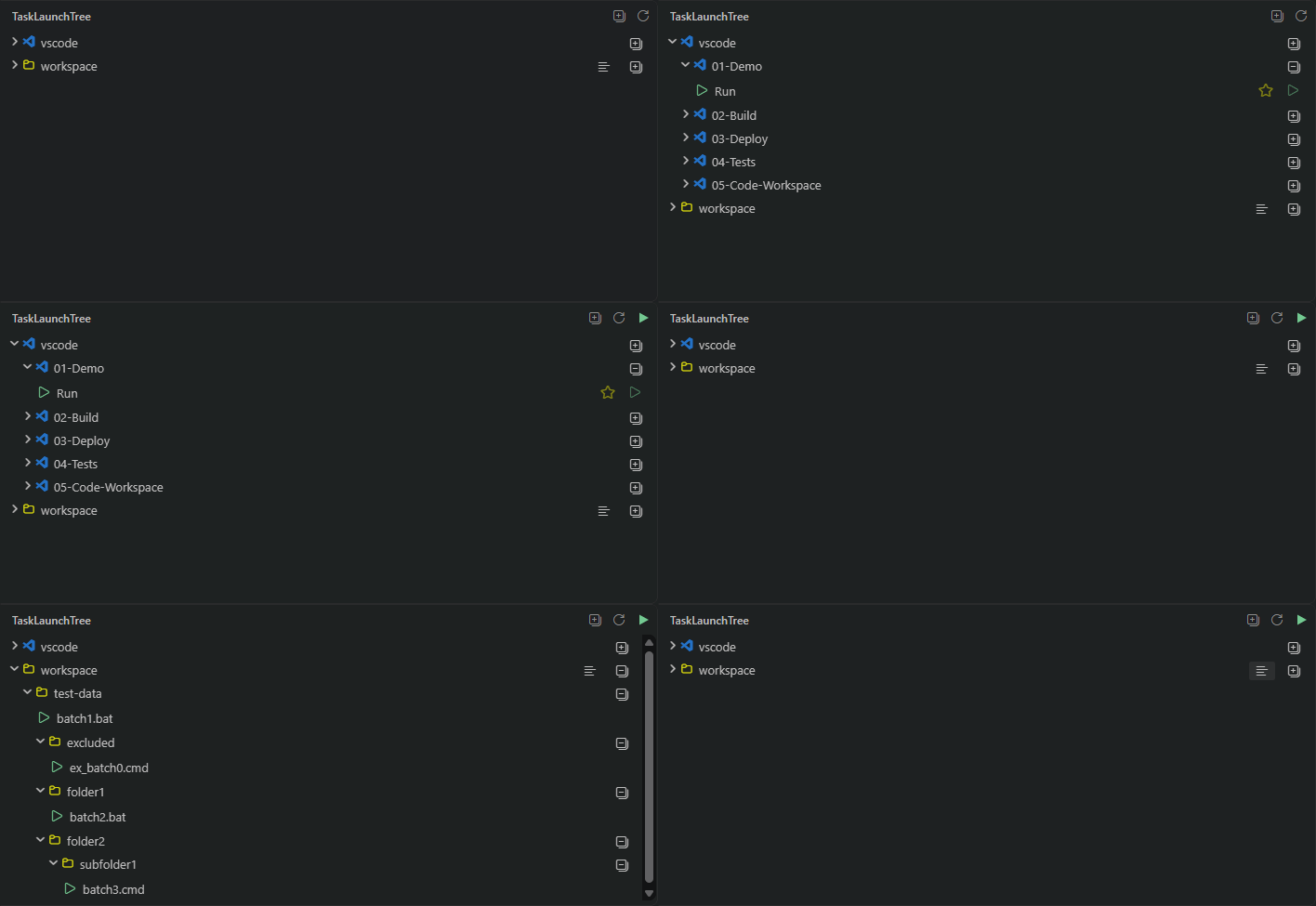
TaskLaunchTreeTaskLaunchTree adds a sidebar view for discovering and managing tasks defined in the VS Code workspace, including tasks from Demo
UseSelect TaskLaunchTree in the Activity Bar to browse and run available tasks. Select Run to start a task, Stop to terminate a running task, or double-click its row to run it. Use the expand-all/collapse-all and refresh icons in the view title to fold or unfold every group and reload the task list, or use a group header to fold it individually. Tasks can be starred. Use star icon or right-click a task or executable leaf (including a starred shortcut) for Run, Stop, and Star or Un-Star. Select the Edit icon on a leaf to open its task configuration ( The view has its own Activity Bar container by default. Use Move View from its header context menu or drag its header to stack it inside Explorer or another container. Use View: Reset View Locations to restore the default layout (this resets locations for all views). The last used task will be mapped to Run icon on the view toolbar and to Status bar for quick and convenient re-run. The last successfully started task is remembered per workspace across VS Code restarts and window reloads, including discovered executable files. The rerun controls are restored at startup without opening the sidebar, but stay hidden while that task is unavailable. If the remembered task is unavailable, an error is written to the TaskLaunchTree Output channel. Repeated refreshes do not repeat the error unless the task becomes available and then unavailable again. Task Tree LayoutThe tree has these top-level groups:
Controlling Node View StateGroups start collapsed and can each be folded independently. Expanded state is preserved across sessions and when running or stopping tasks and refreshing the view. Group: starredHover over a task under vscode or workspace and select the yellow outline Star icon immediately left of its Run button. Select it again to remove the star, including from the shortcut under starred. A starred task displays a yellow star outline over its green task icon in both locations. The shortcuts support the same Run, Stop, and double-click actions as the original leaves. Star selections and the starred group's expanded state are saved per workspace across VS Code restarts and window reloads. Unavailable tasks and executables keep their saved stars but are hidden until available again. Group: vscodeTasks under vscode can be divided into nested groups using task labels and separators. Each separator creates a branch or sub-group. Leading and trailing whitespace is stripped from each task label segment. Configure separators with For example, 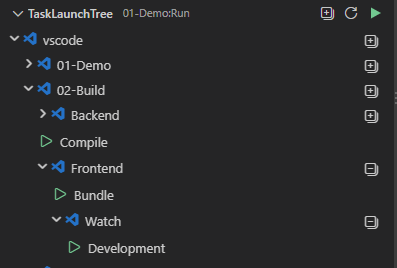
Each group header has an expand-all/collapse-all icon that controls that branch and all its nested groups without changing siblings. Tasks and groups are sorted alphabetically at each level. Group: workspaceUnder workspace, each workspace folder is a group, followed by its subfolders and executable file leaves. Folder and file names are kept literal. Only files that match file extension list in Files run as shell tasks with workspace root directory as the working directory, using the configured VS Code task shell. The configured file extensions select files, they do not grant execution permissions or install required interpreters. Executable discoveryExecutable discovery is disabled by default. Enable The default filter is ExclusionsSet An invalid regex is reported as an error (and logged, see Logging below) but does not stop discovery. The rest of the configured exclusions still apply and scanning continues. Setting changes refresh discovery automatically. Exclusions affect only executable discovery, not tasks under vscode group. Set The workspace node shows list-flat in tree mode and list-tree in flat mode. Click the corresponding icon to switch modes. The selected tree/flat view is saved per workspace and restored across VS Code sessions. In flat mode, leaf tooltips show Path and the folder relative to its workspace root using In flat mode, right-click workspace and select Group Executables by Extension to show extension groups containing flat executable lists. Use Show Flat Executable List to return to the ungrouped flat view. The extension-grouping choice is also saved per workspace across sessions. Set LoggingThe extension writes to its own TaskLaunchTree Output channel (View: Output, then select TaskLaunchTree). Errors always appear there. Set
|