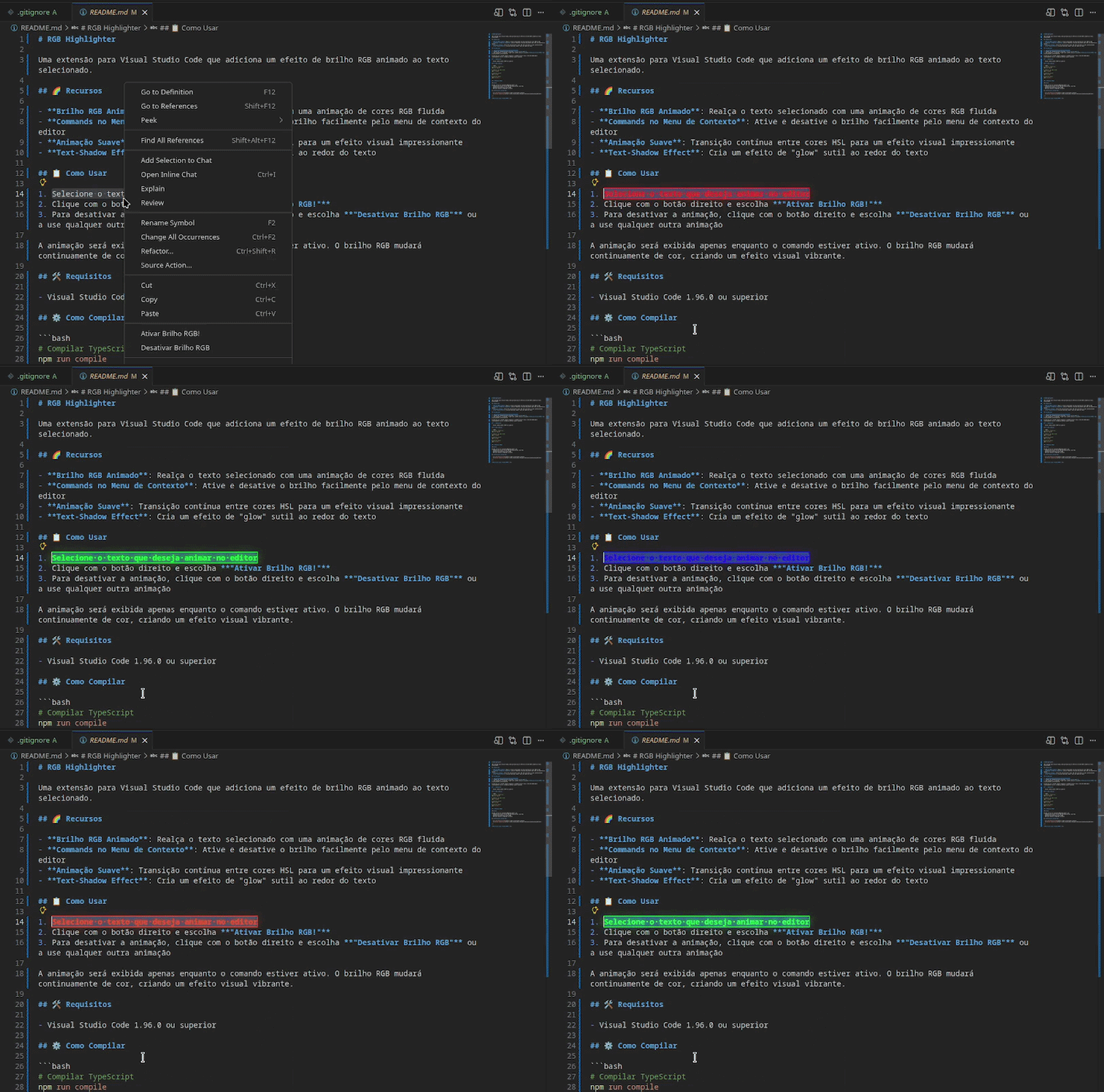
A Visual Studio Code extension that adds animated RGB highlight effects to selected text.
🌈 Features
Animated Rainbow Highlight: Highlights selected text with a smooth flowing RGB color animation
Multi-Selection Highlighting: RGB: Highlight Text now applies to every active selection created with multi-cursor or multi-select
Optional Highlight All Occurrences: A dedicated command can highlight every occurrence of the selected text in the active file
Static Color Highlight: Marks text with a static color and neon glow effect
Configurable Colors: Choose between Rainbow (animated), Yellow, or any custom color for all highlights
Unified Color Configuration: Both manual and line highlighting use the same configured color
Smart Toggle Shortcut: The line highlight shortcut intelligently toggles on/off or reapplies when partially highlighted
Context Menu Commands: Easily enable and disable highlights from the editor's context menu
Smooth Animation: Continuous transition between HSL colors for an impressive visual effect
Text-Shadow Effect: Creates a subtle "glow" effect around the text
Highlight Type Preservation: Maintains the highlight type (animated or static) even when editing text within the marked area
Persistent Color Preference: Saves your custom color choices between VS Code sessions
Safer Saved Highlight Loading: Loads saved highlights before new highlight changes are written, preventing persisted highlights from being lost
The animation is displayed only while the command is active. The RGB highlight will continuously change color, creating a vibrant visual effect.
📋 How to Use
Commands and Shortcuts
Action
Command (Command Palette)
Shortcut
Highlight Text
RGB: Highlight Text
Ctrl+Alt+L (Win/Lin) / Cmd+Alt+L (Mac)
Highlight Text (All Occurrences)
RGB: Highlight Text (All Occurrences)
-
Highlight Line
RGB: Highlight Current Line
Ctrl+Shift+L (Win/Lin) / Cmd+Shift+L (Mac)
Remove Highlight
RGB: Remove Highlight
-
Set Color
RGB: Set Color
-
Load Saved Highlights
RGB: Load Saved Highlights
-
In the Editor
Manual Highlight: Select any block of text, including multiple selections with Alt+Click or column/multi-cursor selection, then use Ctrl+Alt+L (Win/Lin), Cmd+Alt+L (Mac), or Right-click > "RGB: Highlight Text". The extension will highlight every selected range using the color configured via RGB: Set Color (Rainbow by default). If a selected range is already fully highlighted, the command removes the effect from that selected area instead of applying it twice.
Highlight All Occurrences: Select a word or text > Right-click > "RGB: Highlight Text (All Occurrences)". The extension will find and highlight every exact match in the active file using the configured color.
Line Highlight with Smart Toggle: Use Ctrl+Shift+L (Win/Lin) or Cmd+Shift+L (Mac) to intelligently toggle the highlight on/off:
First press: Highlights the entire current line with your configured color
Second press (if entirely highlighted): Removes the highlight
Press while partially highlighted: Removes all highlights and reapplies to the entire line (useful after text edits that expanded the line)
Configure Color: Right-click or use command palette to access "RGB: Set Color" to choose between Rainbow (animated), Yellow, or any custom color for both manual and line highlights.
Surgical Highlight: To remove the highlight from just one word within a sentence that's already highlighted, select the word and use the "RGB: Remove Highlight" command. The rest of the sentence will continue to glow!
Safe Editing: After applying any highlight, the text is automatically deselected to prevent accidental overwrite when you press a key.
🛠️ Requirements
Visual Studio Code 1.96.0 or higher
⚙️ How to Build
# Compile TypeScript
npm run compile

# Compile in watch mode
npm run watch

# Run tests
npm run test

# Lint code
npm run lint
📝 Release Notes
1.3.1 - 2026-04-16
✨ New Features
Highlight All Repetitions: Added a dedicated RGB: Highlight Text (All Occurrences) command to highlight all matching occurrences of the selected text in the active file using the configured color.
Multi-Selection Support:RGB: Highlight Text now highlights all active selected ranges, not just the primary selection.
Manual Highlight Shortcut: Added Ctrl+Alt+L / Cmd+Alt+L as a direct shortcut for highlighting only the current selected ranges.
🐛 Bug Fixes
Load Before Save: Saved highlights are now loaded before creating or updating highlights, preventing existing persisted highlights from being overwritten by a new highlight action.
Activation Restore: Highlights for the active editor now load automatically when the extension starts.
Selected Highlight Toggle:RGB: Highlight Text now removes the effect from a selected area when that area is already highlighted, instead of stacking duplicate effects.
Saved Highlight Reapply: If a saved highlight is first loaded during a manual highlight action, the selected area is reapplied instead of being mistaken for an immediate toggle-off.
1.3.0 - 2026-04-07
🚀 New Features
Persistent Highlight: The highlight can now be saved.