About Embold:
Embold is an AI-based software analytics platform that helps teams analyse and improve software quality. It analyses source code across 4 dimensions: code issues, design issues, metrics and duplication, and surfaces issues which impact stability, robustness, security, and maintainability. The Embold Score helps teams understand risk areas and prioritise the most important fixes.
Embold for Visual Studio Code:
Embold VSCode extension uncovers potential code issues, vulnerabilities, metrics and hard-to-detect anti-patterns that make your code difficult to maintain and can lead to error-prone solutions. The extension currently supports C/C++, JAVA, JAVASCRIPT, TYPESCRIPT, C_SHARP.
How it works:
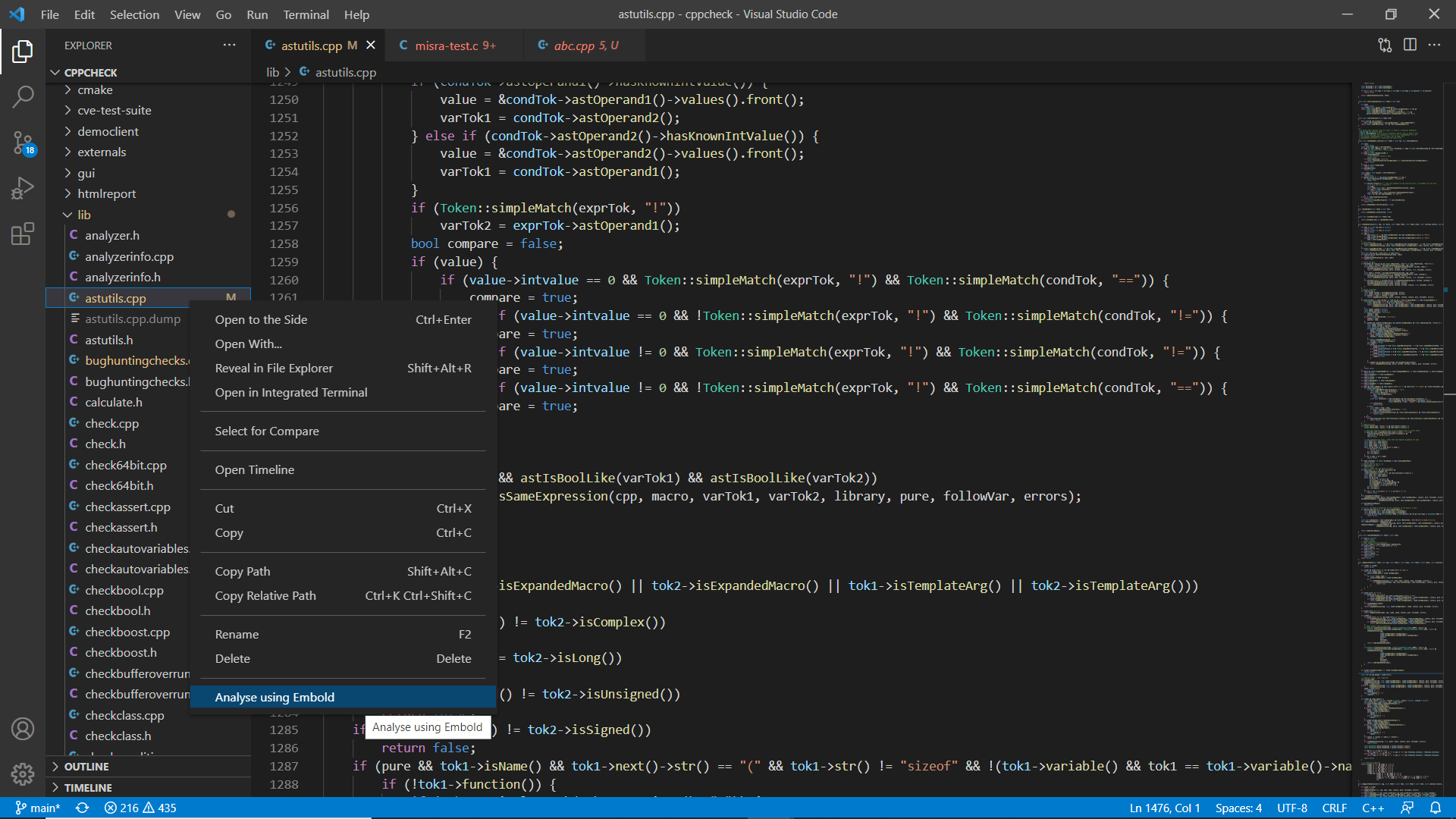
- Right click on any CPP, JAVA, JAVASCRIPT, TYPESCRIPT, C_SHARP file or folder containing any of these files.
- Click on 'Analyze Using Embold'.
Please Note - First scan will take some time. This is because we are downloading packages on first scan. Next scans will be quick.
Get Issues from Server (Quick Analysis):
This feature allows you to retrieve pre-analyzed issues from your Embold server without running a full local analysis, providing faster results.
Prerequisites:
- Embold server must be configured with your project already analyzed
- Required settings must be configured:
- Embold URL: Your Embold server URL
- Embold Token: Valid access token for authentication
- Repository UID: The unique identifier of your repository on the server
How to use:
- Open VS Code settings.
- Search for "Embold" settings
- Enable the checkbox "Get issues from server"
- Ensure all required settings (URL, Token, Repository UID) are properly configured
- Right-click on any supported file or folder
- Click 'Analyze Using Embold'
- Issues will be fetched from the server and displayed in:
- Problems Panel: Shows issues with file navigation
- EMBOLD ISSUES Tab: Comprehensive view of all retrieved issues
Benefits:
- Faster analysis: No local processing required
- Consistent results: Uses server-side analysis results
- Quick feedback: Instant access to pre-analyzed issues
Note:
If the checkbox is disabled, the extension will use the traditional local analysis method.
Analysis of output :
• After scan completion analysis results will show up on problems view.
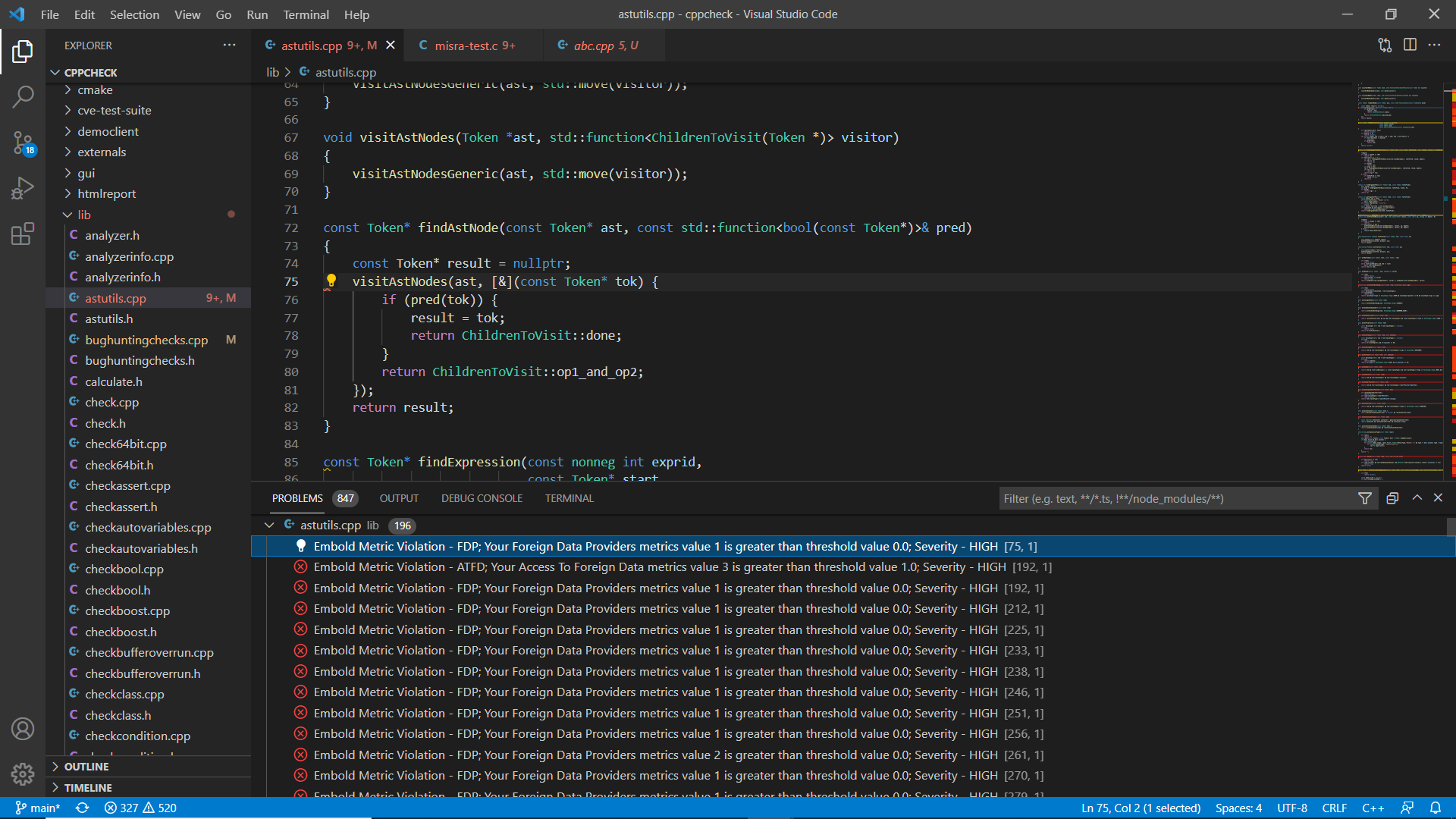
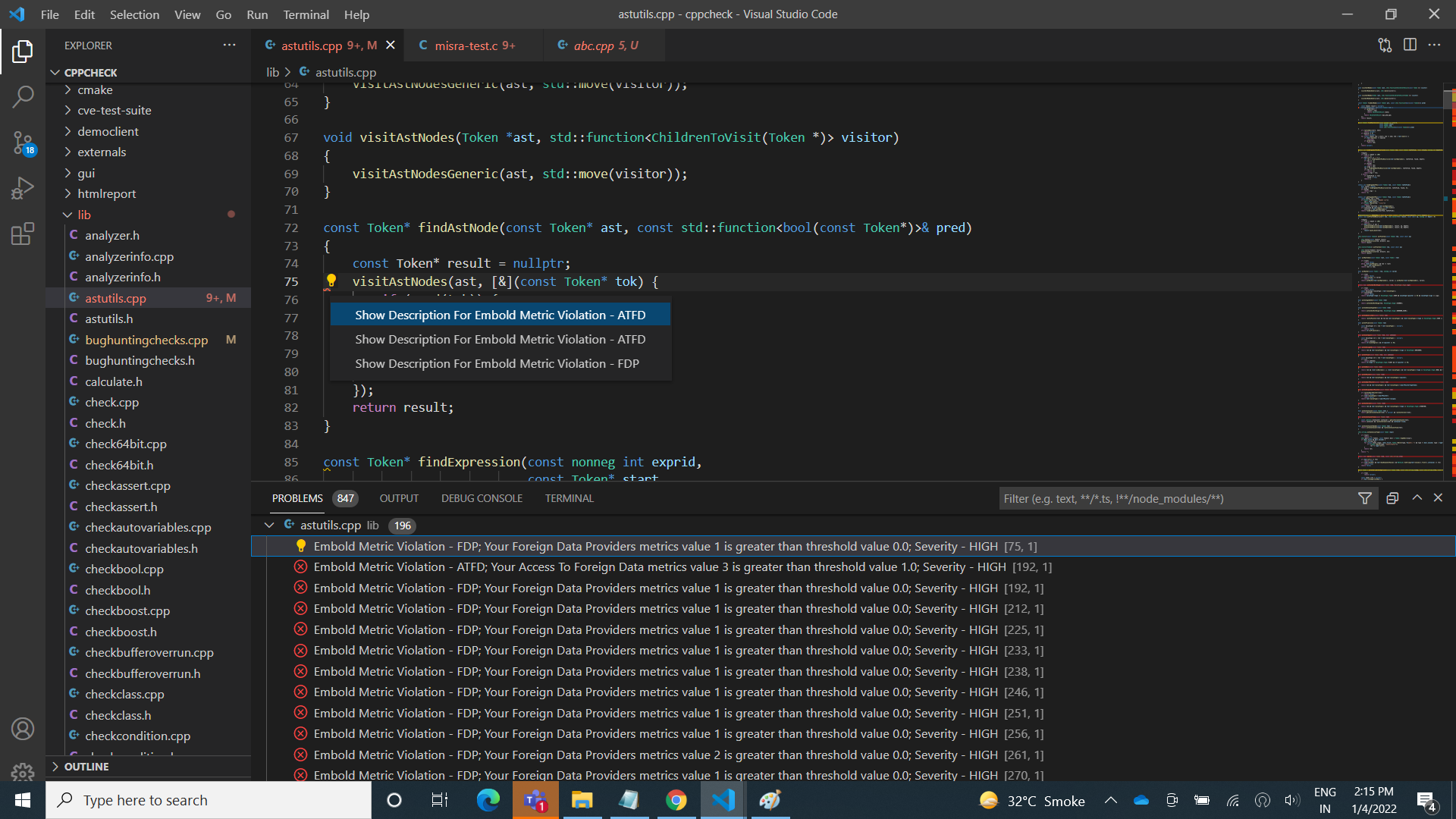
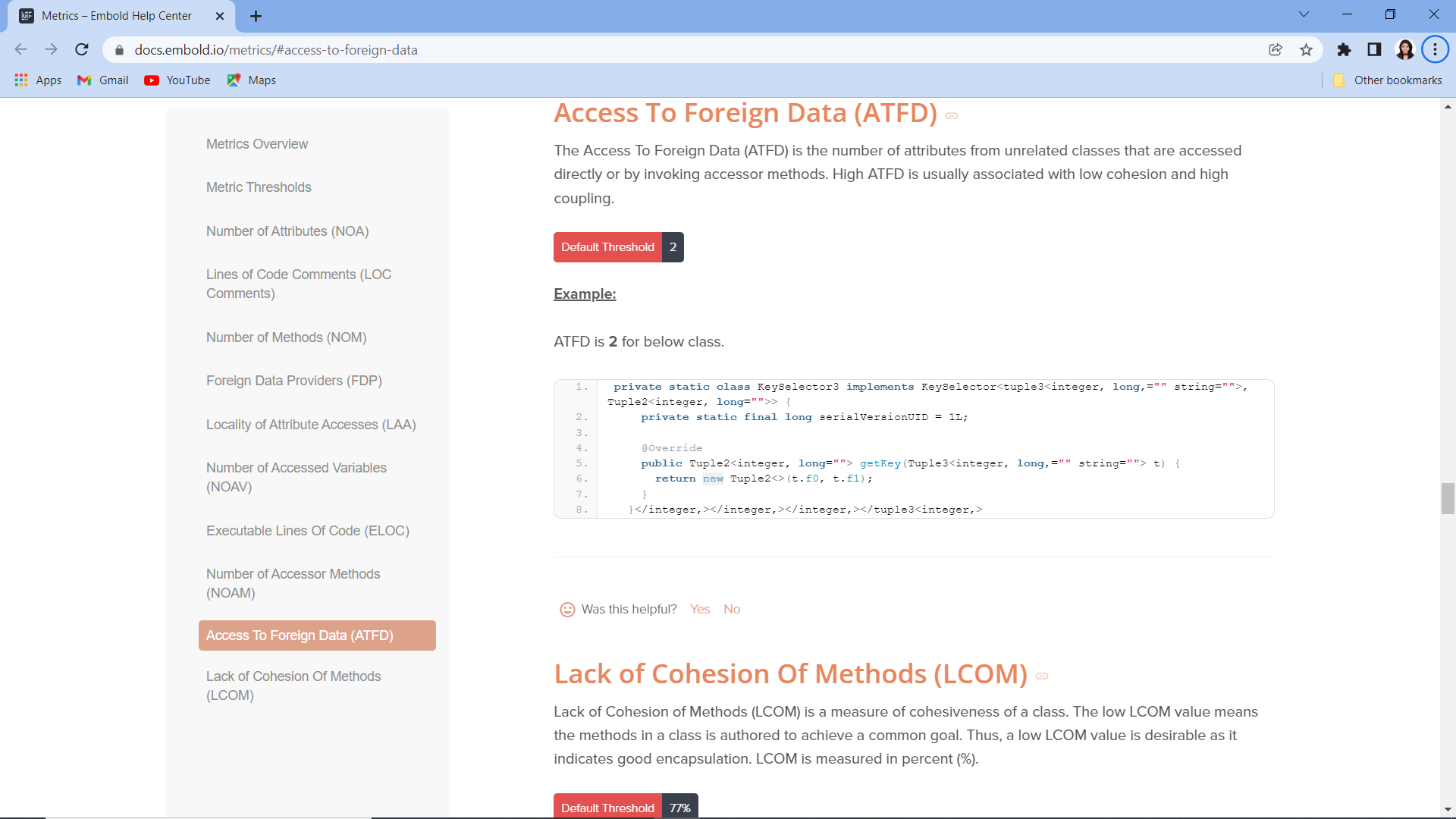
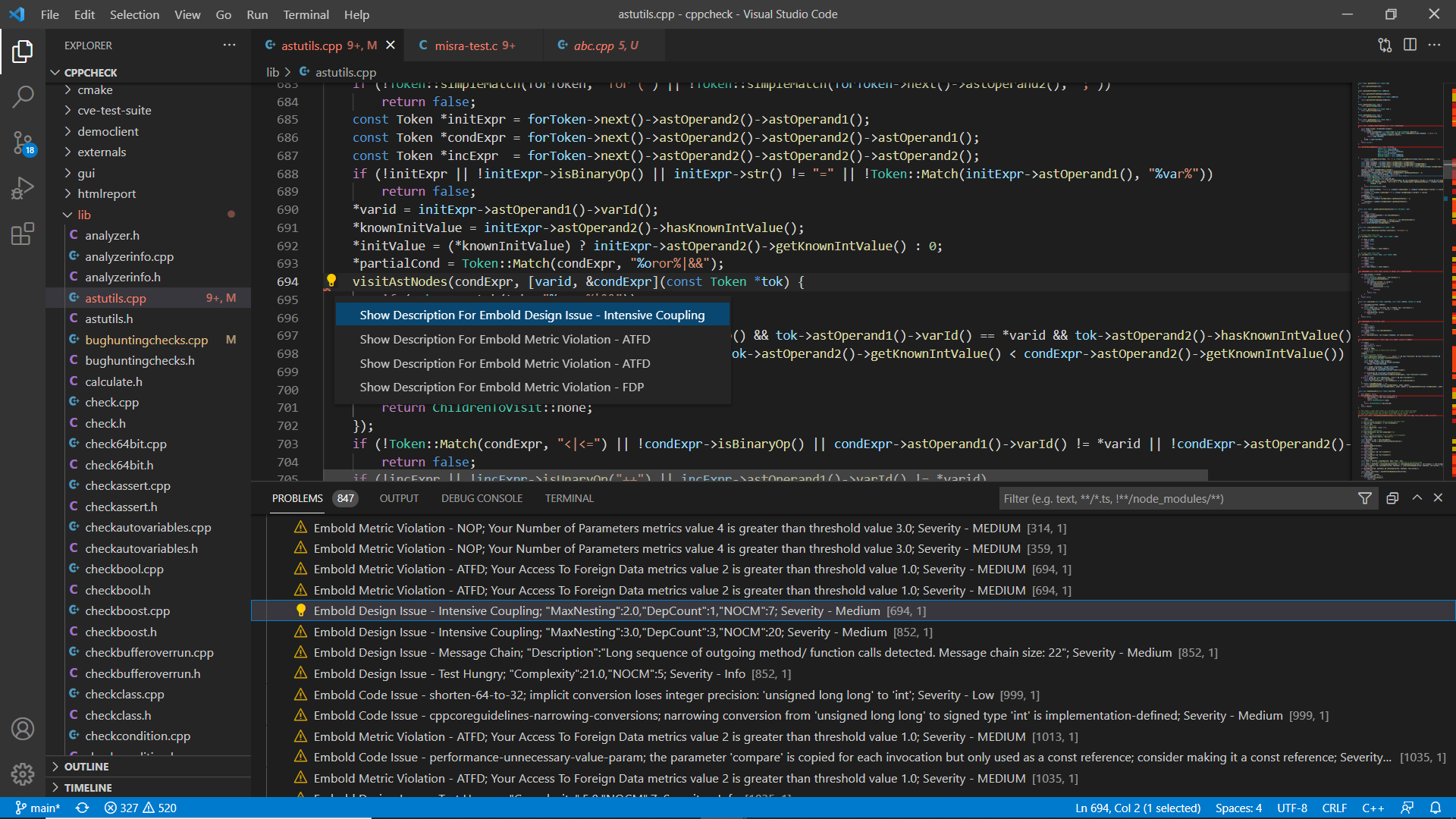
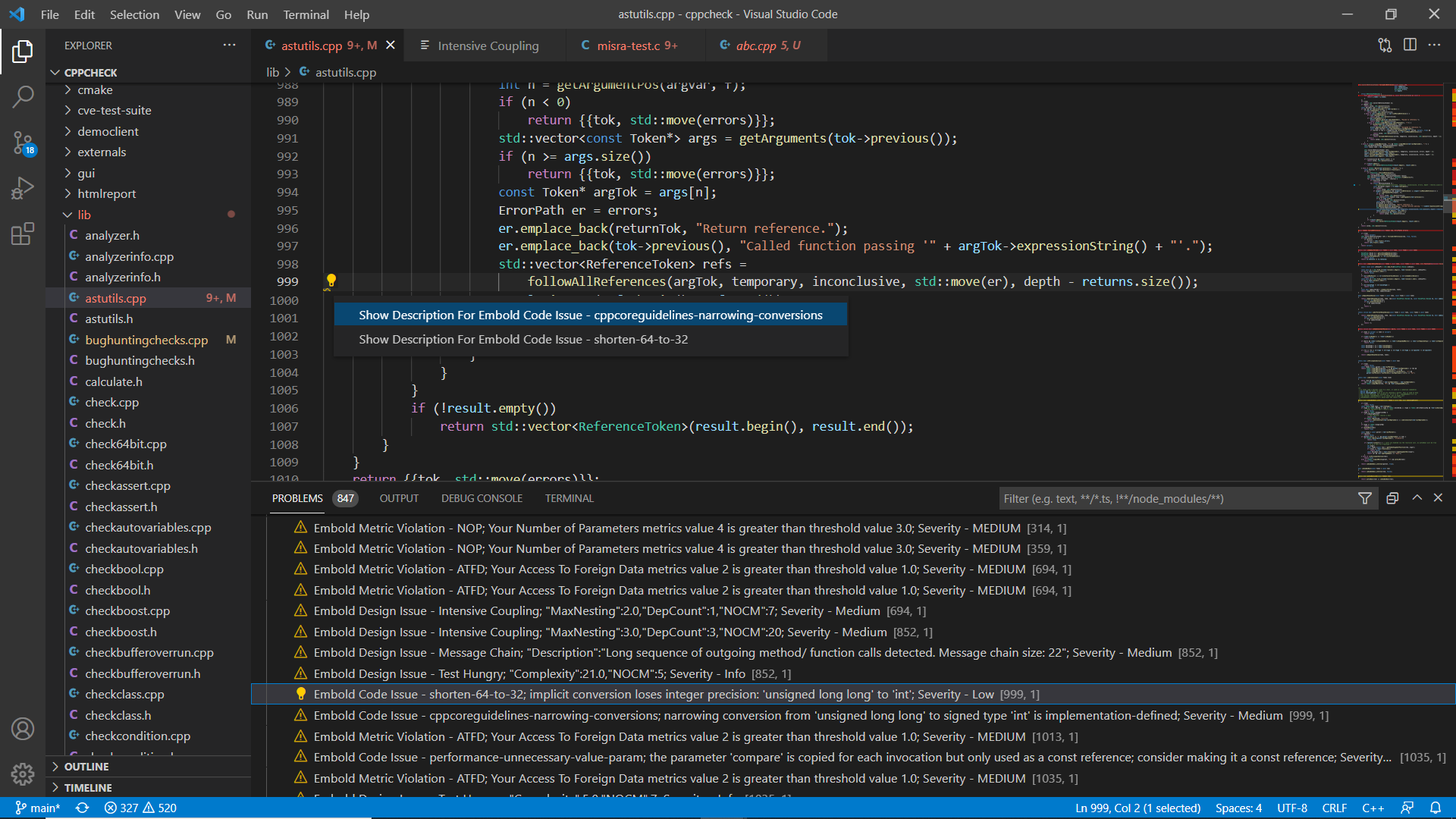
• Show Description option is available on quick fix. For metric violation – quick fix will redirect to documentation page.
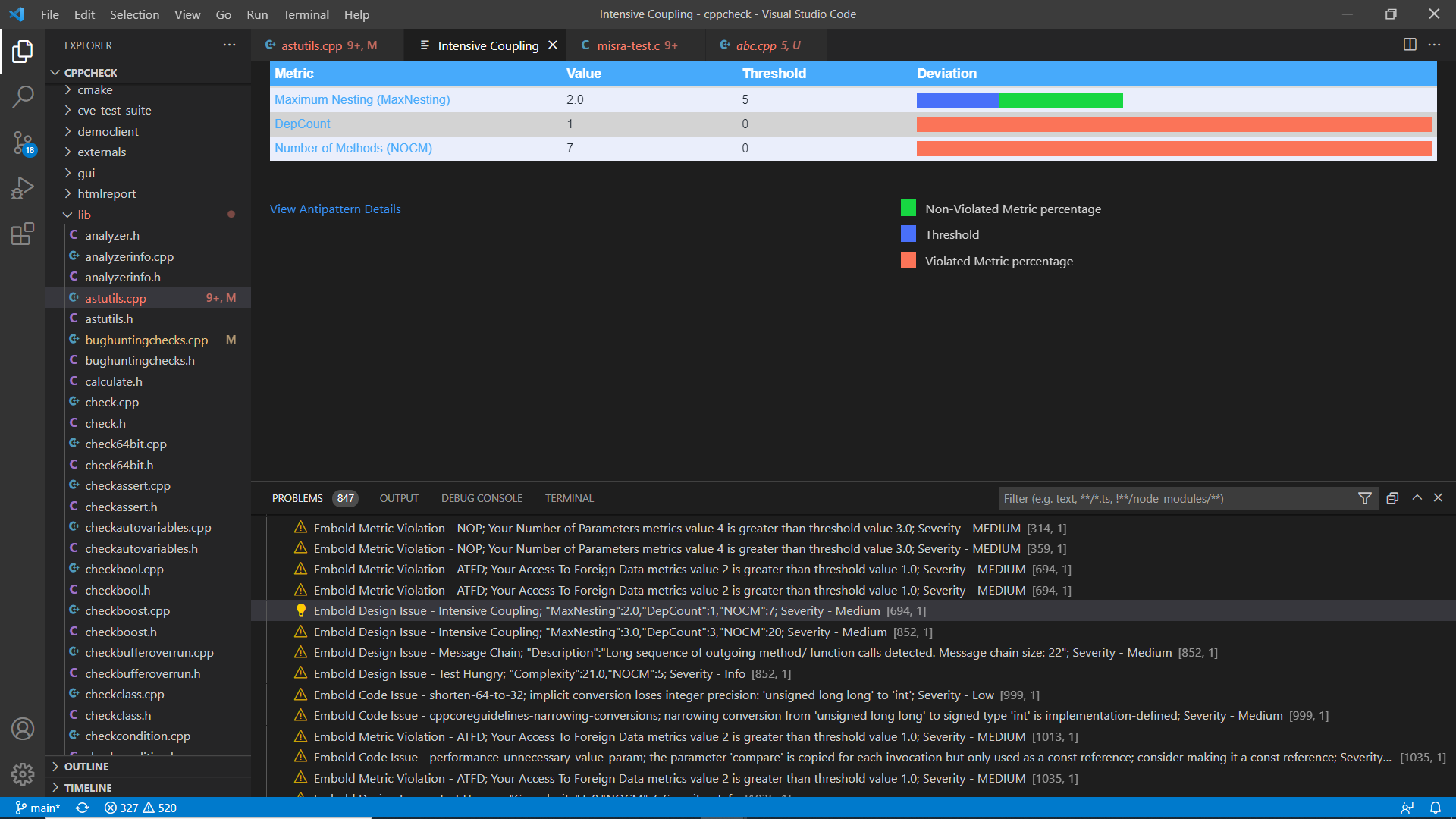
• For Design Issue – It will show new tab for insights with animated progress bar.
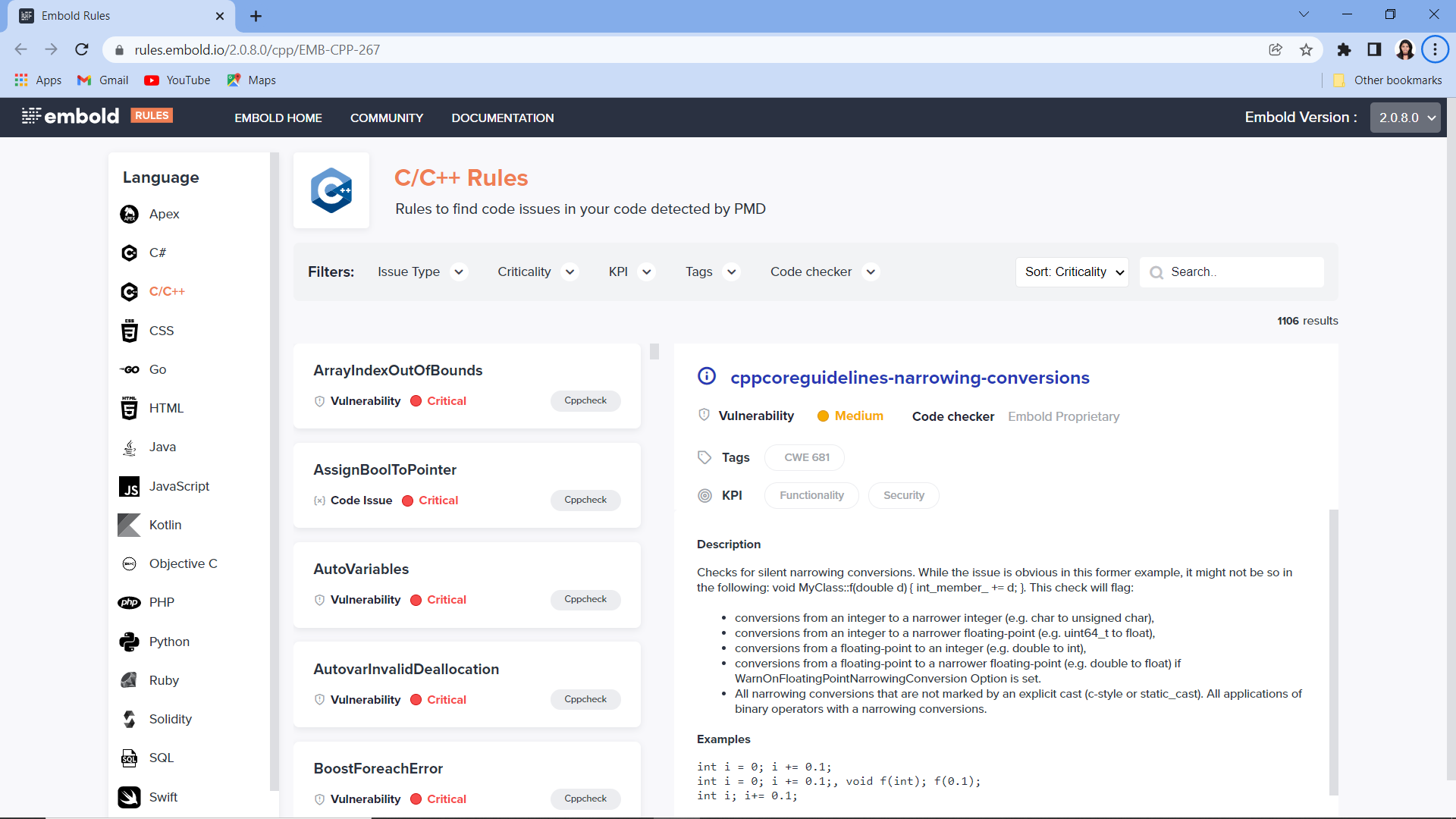
• For Code Issue – It will redirect to documentation page (https://rules.embold.io/).
Requirements:
- Supported Vscode version: 1.62.0+
- Java version: 1.8 or higher (64 bit)
- Cppcheck version : 2.4.1
- Eslint version: v7.32.0
- Tslint version: 5.9.1
- Jshint (Optional - Only if you are enabling in Embold server) version : 2.9.5
- Supported Languages: C/CPP, Java, JavaScript, Typescript, C#
- Supported OS: Linux, Windows and Mac OS
Note :
For Mac OS, C# language is not supported.
Install Cppcheck -
windows -
- Go to 'https://sourceforge.net/projects/cppcheck/files/cppcheck/2.4/cppcheck-2.4.1-x64-Setup.msi/download'.
- Open downloaded .msi file.
- Install Cppcheck.
- Check version on cmd - cppcheck --version.
linux -
- git clone --branch 2.9.x https://github.com/danmar/cppcheck.git /cppcheck
- mkdir /cppcheck/build
- cd /cppcheck/build
- cmake ..
- cmake --build . -- -j16
- make install
- cd /
- rm -rf /cppcheck
- cppcheck --version
Mac -
- brew install cppcheck
- cppcheck --version
Install Eslint -
Execute command from cmd/terminal –
sudo npm install -g eslint@v7.32.0
#or
sudo yarn add eslint@v7.32.0
Install Tslint -
Execute command from cmd/terminal –
sudo npm install -g tslint@5.9.1
#or
sudo yarn add tslint@5.9.1
Install Jshint -
Note : Jshint (Optional - Only if you are enabling in Embold server)
Execute command from cmd/terminal –
sudo npm install -g jshint@2.9.5
#or
sudo yarn add jshint@2.9.5
Embold Extension Settings -
1. Embold URL -
		Embold server URL.

2. Embold Token -
		Embold Access Token for user authentication Refer the [link](https://docs.embold.io/embold-access-token-eat) for more information.

3. Repository UID -
		This feature is currently only available for existing Embold On-Premise users.Refer the [link](https://github.com/acellere/embold-vscode-plugin/blob/HEAD/"https:/docs.embold.io/projects-repositories#get-repository-uid\) for more information.(Add in workspace setting.)

4. Repo sync -
	Enable this checkbox to sync repository configuration with server repository.(Enable in workspace setting.)

5. Get issues from server -
	Enable this checkbox to retrieve pre-analyzed issues from Embold server instead of running local analysis. This provides faster results by fetching issues that have already been analyzed on the server.
Proxy setting -
Setting up Proxy and no_proxy
If you are behind a proxy or need to bypass the proxy for certain domains, follow these steps:
1. Set Proxy Environment Variables (if required)
- `EMB_PROXY_HOST` (e.g. 192.168.1.127)
- `EMB_PROXY_PORT` (e.g. 3128)
- `EMB_PROXY_USERNAME` (Optional)
- `EMB_PROXY_PASSWORD` (Optional)
2. Set no_proxy to Bypass Proxy for Specific Domains
- You can set the `http.noProxy` setting to specify domains that should bypass the proxy.
- Example (VsCode setting):
	- In setting search `http.noProxy`
	- `http.noProxy`: Add host to exclude from proxy
- The extension will automatically merge the `no_proxy` value from your environment and VS Code settings for correct proxy bypass behavior.
3. Restart VS Code
- After setting environment variables or changing VS Code proxy settings, restart VS Code for changes to take effect.
Embold Server Certificate Installation -
Handling Certificate Issues
If you encounter certificate errors when connecting to your Embold server:
Install the Embold Server Certificate
- Follow the official guide to install your Embold server's certificate on your system.
SSL Certificate Handling in the Extension
- The extension provides an option to add your SSL certificate directly:
- Use the Certificate Path field in the extension settings to specify the path to your SSL certificate(use same certificate mention in
Install the Embold Server Certificate step). This is the recommended and secure way to trust your Embold server.
- If you do not want to add a certificate, you can disable SSL verification by setting
http.proxyStrictSSL to false in VS Code settings. In this case, the extension will bypass SSL certificate validation (not recommended for production environments).
- You can change the strict SSL option in VS Code settings:
http.proxyStrictSSL.
Restart VS Code
- After making certificate or proxy changes, restart VS Code.
Supported Rules: https://rules.embold.io/
Feedback
Feel free to use Embold Community to give feedback, request features or to report a bug.
LICENSE
https://docs.embold.io/end-user-license-agreement-eula-for-ide-plugins/


