Skip to content
| Marketplace
Sign in
Visual Studio Code>Other>Protree - Project Tree GeneratorNew to Visual Studio Code? Get it now.
Protree - Project Tree Generator

Protree - Project Tree Generator

Ednoer

|
1,302 installs
| (1) | Free
Generate folder & file structures from tree-like text input directly in VS Code.
Installation
Launch VS Code Quick Open (Ctrl+P), paste the following command, and press enter.
Copied to clipboard
More Info

🪵 Protree — Project Tree Generator for VS Code

Protree is a Visual Studio Code extension that lets you quickly generate, delete, and inspect project folder structures using a clean tree-style text editor.

Ideal for:

  • Scaffolding boilerplate projects quickly
  • Converting existing folders into tree text
  • Documenting projects and designs
  • Reproducing folder layouts from specs or notes

✨ What’s new

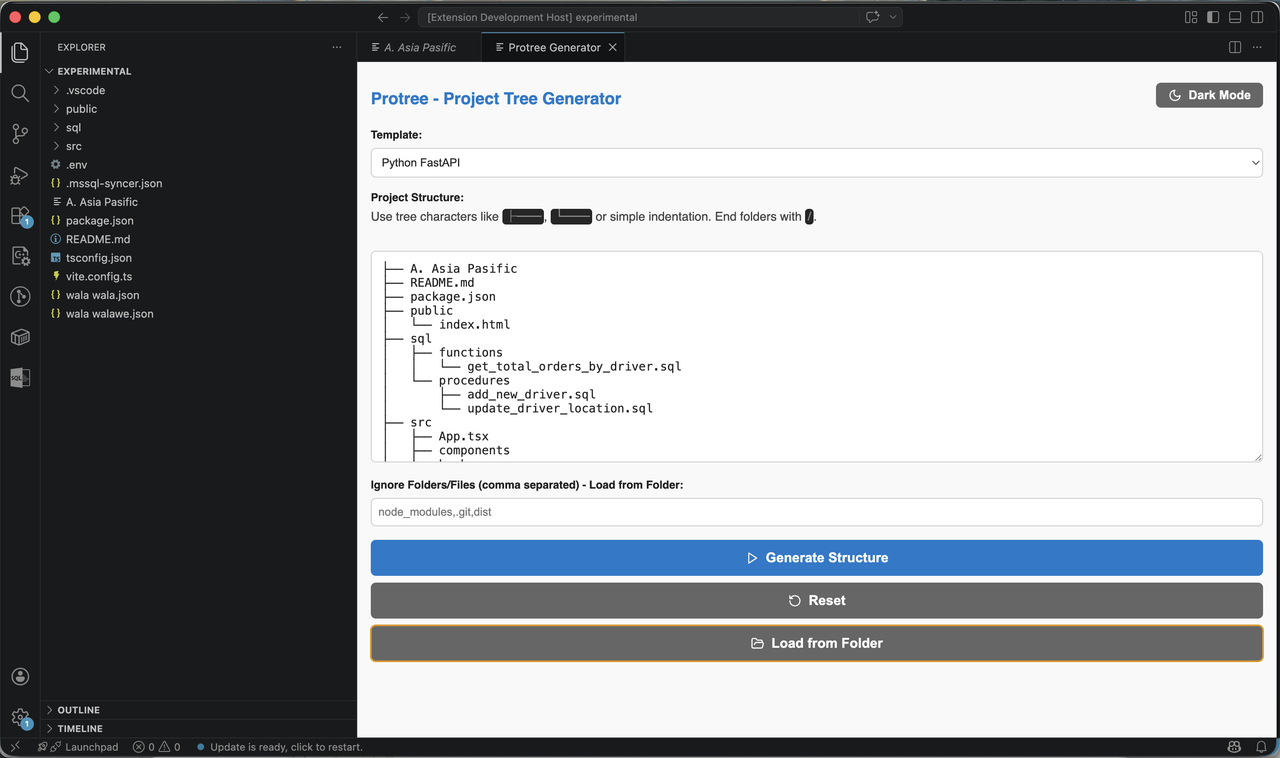
  • Minimalist webview layout with a clean light/dark theme toggle
  • Load Folder mode to reverse-generate tree text from an existing folder
  • Populate file contents option to create common starter content for files like README.md, package.json, main.go, or .ts/.js files
  • Multi-root workspace support via target folder selection

📸 Screenshot

Protree Screenshot


🚀 How to Use

1. Open Protree

  • Press Ctrl+Shift+P (Windows/Linux) or Cmd+Shift+P (macOS)
  • Run: Protree: Open Tree Generator

2. Build your tree structure

  • Use the built-in templates, or write your own tree layout

  • Example:
├── src/
│   ├── components/
│   ├── hooks/
│   └── App.tsx
├── public/
└── package.json

3. Choose options

  • Populate file contents will add starter content for supported file types
  • Load Folder converts a selected folder into tree-formatted text
  • Toggle Theme switches between light and dark UI modes

4. Create structure

  • Click Create to generate the structure under the selected workspace folder
  • Click Reset to remove the structure based on the same tree input

🔧 Tree Format Notes

  • Use ├── and └── for branches
  • Folder names may end with /
  • Empty lines are ignored
  • Comment lines are supported with # after the name
  • The tree is created relative to the selected workspace root
  • Contact us
  • Jobs
  • Privacy
  • Manage cookies
  • Terms of use
  • Trademarks
© 2026 Microsoft