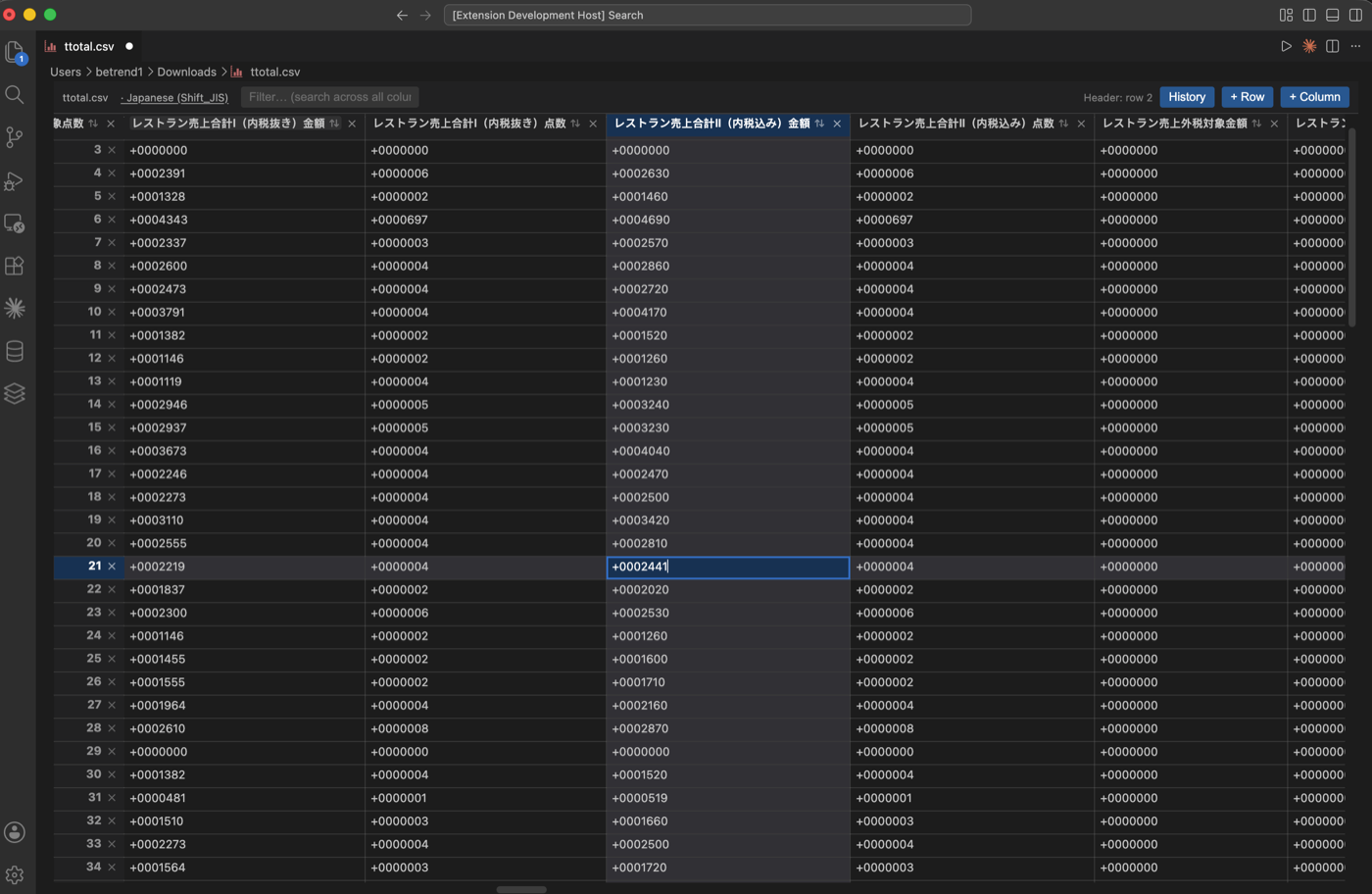
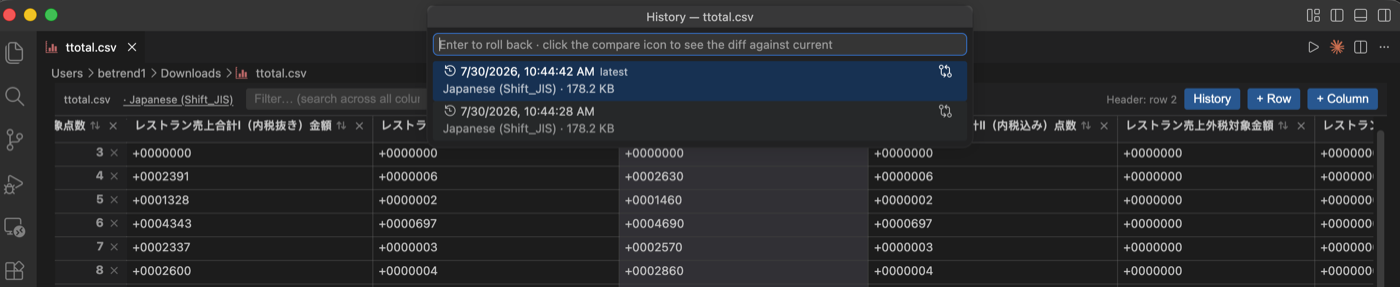
Open, view and edit CSV/TSV files as a spreadsheet grid: sort, filter, search, pick the encoding (UTF-8, UTF-16, Shift_JIS, Windows-1252/1258...), keep a save history and compare versions as a side-by-side table diff.
Installation
Launch VS Code Quick Open (Ctrl+P), paste the following command, and press enter.
Open, view and edit .csv and .tsv files as an editable grid inside VS Code,
with first-class encoding support and a persistent save history you can
diff and roll back to.
Features
Edit as a grid
Opens CSV/TSV files in a spreadsheet-like grid — no external tools.
Inline cell editing; add or remove rows and columns.
Full undo/redo through the standard Cmd/Ctrl+Z / Cmd/Ctrl+Shift+Z.
Pick your encoding
Auto-detects the encoding from the byte-order mark on open, and lets you reopen
or save with any of these via the clickable encoding label in the toolbar:
UTF-8, UTF-8 with BOM
UTF-16 LE, UTF-16 BE
Shift_JIS, EUC-JP
Windows-1252, Latin-1 (ISO-8859-1)
GBK, Big5, EUC-KR
Windows-1258 (Vietnamese)
Search, sort and headers
Cmd/Ctrl+F search across every cell with match highlighting and navigation.
Automatic header-row detection, keeping any metadata preamble above the table.
Three-state column sort (ascending → descending → original). Sorting is
view-only — it never reorders the data written back to disk.
Excel-style row and column highlighting for the selected cell.
History and diff
Every save is captured as a version (the last 50 are kept), stored in the
extension's global storage — not as stray files next to your CSV.
Open the History panel from the toolbar to browse past versions.
Compare any version with the current content in a side-by-side table diff
that highlights added, removed and changed rows.
Roll back to a version as unsaved changes, so you review before overwriting.
Usage
Open any .csv or .tsv file — it opens in the grid editor by default.
To switch an already-open file, use View: Reopen Editor With… and pick
CSV Table Editor.
Click a cell to edit. Use the toolbar buttons to add rows/columns.
Click the encoding label in the toolbar to reopen or save with a different
encoding.
Click History to view, diff, or roll back to a previous save.
Press Cmd/Ctrl+S to save.
Requirements
No additional setup. Encoding conversion is handled by the bundled
iconv-lite library.
Known limitations
Sorting and header detection are heuristic; a header can be one row off on
unusual files.
The table diff compares serialized CSV text, so purely formatting-level
differences (quoting style) may show as changes.
History is keyed by file path — renaming or moving a file starts a fresh
history.