
SFTP (watchlist fork)SFTP/FTP sync — local fork adding a pre-upload hook and an on-disk transfer log Installation Launch VS Code Quick Open ( Ctrl+P), paste the following command, and press enter.Copied to clipboard |

SFTP (watchlist fork)
A fork of Natizyskunk/vscode-sftp by
@DougJoseph, branched from release v1.16.3. Published on
the VS Code Marketplace as It adds three things to the upstream extension:
Everything else is upstream's, unchanged. The original README follows below the fork documentation. Fixed: downloads fail with
|

| Variable | Meaning |
|---|---|
SFTP_LOCAL_BASE |
Local root of the config in use |
SFTP_REMOTE_PATH |
That config's remotePath |
SFTP_HOST |
Target host |
SFTP_PROFILE |
Profile or context name, blank if the config has none |
SFTP_TARGET_LOCAL |
The file or folder acted on, locally |
SFTP_TARGET_REMOTE |
Its remote counterpart |
SFTP_OPERATION |
Which handler fired, e.g. upload file |
Worked example
1. Write the script. Anywhere you like; a relative path in sftp.json resolves against
the config's local root, because that is the working directory the command runs in.
scripts/prepare-upload.sh:
#!/bin/bash
set -euo pipefail

# Whatever has to be true before files leave this machine. Exit non-zero to stop the push.
echo "preparing $SFTP_OPERATION for profile '${SFTP_PROFILE:-none}'"
echo "  local root : $SFTP_LOCAL_BASE"
echo "  target     : $SFTP_TARGET_LOCAL"
echo "  going to   : $SFTP_HOST:$SFTP_REMOTE_PATH"

# e.g. generate a manifest of what is about to be sent
# find "$SFTP_LOCAL_BASE" -type f -print0 | xargs -0 shasum -a 256 > /tmp/manifest.txt

echo "ok"
2. Make it executable. A script without the executable bit fails to spawn, and because the hook fails closed that aborts every push from this config until it is fixed:
chmod +x scripts/prepare-upload.sh
3. Point the config at it, in that folder's .vscode/sftp.json:
{
  "host": "example.com",
  "remotePath": "/var/www/site",
  "beforeUpload": "./scripts/prepare-upload.sh",
  "beforeUploadTimeout": 120000
}
4. Reload the VS Code window. The extension caches sftp.json at load, so an edit does
not take effect until you do.
5. Confirm it is actually wired, which takes about a minute:
- Set
"beforeUpload": "echo hello"and upload any file. The Output panel should showbeforeUpload ➞ running …, thenbeforeUpload output: hello, thenbeforeUpload ✓ ok— all before thelocal ➞ remoteline. - Then set
"beforeUpload": "exit 3"and upload again. You should get an error naming exit 3, and nolocal ➞ remoteline at all. That absence is the proof it fails closed. - Reload between each change, then put your real command back.
The transfer log
Upstream logs only to the VS Code Output panel, which clears — so after a sync there is no record on disk of what went where. This fork writes the same lines to a monthly file inside the local folder the running config governs:
<config local root>/sftp-transfer-logs/sftp-transfer-YYYY-MM.log
{
  "transferLog": true,             // default true; false disables it for this config
  "transferLogKeepMonths": 24      // older monthly files are deleted
}
- Monthly files rather than numbered rotation, so "what happened on 15 August" is a filename rather than a search.
- Written per config, so each project's transfers land in that project's own log.
- Log lines carry a four-digit year, which the Output panel's own stamp omits.
- Lines emitted outside an operation — activation, config loading — belong to no project and stay panel-only.
⚠️ Add /sftp-transfer-logs to the ignore list of every sftp.json that uses this.
The folder sits inside a synced tree, so without that entry it would upload itself.
Installing this fork
- Download the
.vsixfrom Releases. code --install-extension sftp-watchlist-<version>.vsix- Disable the stock SFTP extension if you have it — both register the same
sftp.*command ids, and having both enabled makes the second one to load fail every registration. Disable rather than uninstall, so reverting is one click. - Reload the window.
Your existing sftp.json files work unchanged: the command ids, menus, keybindings and
config schema are all the same as upstream.
Building from source
git clone https://github.com/DougJoseph/sftp-watchlist.git
cd sftp-watchlist
git checkout watchlist
npm install
npm run compile
npx @vscode/vsce package
Two things worth knowing before you start:
- Branch from the release tag, not
develop. Upstream'sdevelopdoes not compile — it has a missing import insrc/commands/abstract/createCommand.tsand avscode-uriexport mismatch insrc/helper/paths.ts. This fork branches from tagv1.16.3, which builds clean. - The
packagescript calls the legacyvsce, which is not a dependency here. Usenpx @vscode/vsce packageas above.
sftp sync extension for VS Code
Maintained and updated version by @Natizyskunk 😀
(Forked from the no longer maintained liximomo's SFTP plugin)
- VS Code marketplace : https://marketplace.visualstudio.com/items?itemName=Natizyskunk.sftp
- VSIX release : https://github.com/Natizyskunk/vscode-sftp/releases/
VSCode-SFTP enables you to add, edit or delete files within a local directory and have it sync to a remote server directory using different transfer protocols like FTP or SSH. The most basic setup requires only a few lines of configuration with a wide array of specific settings also available to meet the needs of any user. Both powerful and fast, it helps developers save time by allowing the use of a familiar editor and environment.
- Features
- Browser remote with Remote Explorer
- Diff local and remote
- Sync directory
- Upload/Download
- Upload on save
- File Watcher
- Multiple configurations
- Switchable profiles
- Temp File support
- Commands
- Debug
- FAQ
Installation
Method 1 (Recommended : Auto update)
- Select Extensions (Ctrl + Shift + X).
- Uninstall current sftp extension from @liximomo.
- Install new extension directly from VS Code Marketplace : https://marketplace.visualstudio.com/items?itemName=Natizyskunk.sftp.
- Voilà!
Method 2 (Manual update)
To install just follow these steps from within VSCode:
- Select Extensions (Ctrl + Shift + X).
- Uninstall current sftp extension from @liximomo.
- Open "More Action" menu(ellipsis on the top) and click "Install from VSIX…".
- Locate VSIX file and select.
- Reload VSCode.
- Voilà!
Documentation
Usage
If the latest files are already on a remote server, you can start with an empty local folder, then download your project, and from that point sync.
- In
VS Code, open a local directory you wish to sync to the remote server (or create an empty directory that you wish to first download the contents of a remote server folder in order to edit locally). Ctrl+Shift+Pon Windows/Linux orCmd+Shift+Pon Mac open command palette, runSFTP: configcommand.- A basic configuration file will appear named
sftp.jsonunder the.vscodedirectory, open and edit the configuration parameters with your remote server information.
For instance:
{
    "name": "Profile Name",
    "host": "name_of_remote_host",
    "protocol": "ftp",
    "port": 21,
    "secure": true,
    "username": "username",
    "remotePath": "/public_html/project", // <--- This is the path which will be downloaded if you "Download Project"
    "password": "password",
    "uploadOnSave": false
}
The password parameter in sftp.json is optional, if left out you will be prompted for a password on sync.
Note: backslashes and other special characters must be escaped with a backslash.
- Save and close the
sftp.jsonfile. Ctrl+Shift+Pon Windows/Linux orCmd+Shift+Pon Mac open command palette.- Type
sftpand you'll now see a number of other commands. You can also access many of the commands from the project's file explorer context menus. - A good one to start with if you want to sync with a remote folder is
SFTP: Download Project. This will download the directory shown in theremotePathsetting insftp.jsonto your local open directory. - Done - you can now edit locally and after each save it will upload to sync your remote file with the local copy.
- Enjoy!
For detailed explanations please go to wiki.
Example configurations
You can see the full list of configuration options here.
- sftp sync extension for VS Code
Simple
{
  "host": "host",
  "username": "username",
  "remotePath": "/remote/workspace"
}
Profiles
{
  "username": "username",
  "password": "password",
  "remotePath": "/remote/workspace/a",
  "watcher": {
    "files": "dist/*.{js,css}",
    "autoUpload": false,
    "autoDelete": false
  },
  "profiles": {
    "dev": {
      "host": "dev-host",
      "remotePath": "/dev",
      "uploadOnSave": true
    },
    "prod": {
      "host": "prod-host",
      "remotePath": "/prod"
    }
  },
  "defaultProfile": "dev"
}
Note: context and watcher are only available at root level.
Use SFTP: Set Profile to switch profile.
Multiple Context
The context must not be same.
[
  {
    "name": "server1",
    "context": "project/build",
    "host": "host",
    "username": "username",
    "password": "password",
    "remotePath": "/remote/project/build"
  },
  {
    "name": "server2",
    "context": "project/src",
    "host": "host",
    "username": "username",
    "password": "password",
    "remotePath": "/remote/project/src"
  }
]
Note: name is required in this mode.
Connection Hopping
You can connect to a target server through a proxy with ssh protocol.
Note: Variable substitution is not working in a hop configuration.
Single Hop
local -> hop -> target
{
  "name": "target",
  "remotePath": "/path/in/target",

  // hop
  "host": "hopHost",
  "username": "hopUsername",
  "privateKeyPath": "/Users/localUser/.ssh/id_rsa", // <-- The key file is assumed on the local.

  "hop": {
    // target
    "host": "targetHost",
    "username": "targetUsername",
    "privateKeyPath": "/Users/hopUser/.ssh/id_rsa", // <-- The key file is assumed on the hop.
  }
}
Multiple Hop
local -> hopa -> hopb -> target
{
  "name": "target",
  "remotePath": "/path/in/target",

  // hopa
  "host": "hopAHost",
  "username": "hopAUsername",
  "privateKeyPath": "/Users/hopAUsername/.ssh/id_rsa" // <-- The key file is assumed on the local.

  "hop": [
    // hopb
    {
      "host": "hopBHost",
      "username": "hopBUsername",
      "privateKeyPath": "/Users/hopaUser/.ssh/id_rsa" // <-- The key file is assumed on the hopa.
    },

    // target
    {
      "host": "targetHost",
      "username": "targetUsername",
      "privateKeyPath": "/Users/hopbUser/.ssh/id_rsa", // <-- The key file is assumed on the hopb.
    }
  ]
}
Configuration in User Setting
You can use remote to tell sftp to get the configuration from remote-fs.
In User Setting:
"remotefs.remote": {
  "dev": {
    "scheme": "sftp",
    "host": "host",
    "username": "username",
    "rootPath": "/path/to/somewhere"
  },
  "projectX": {
    "scheme": "sftp",
    "host": "host",
    "username": "username",
    "privateKeyPath": "/Users/xx/.ssh/id_rsa",
    "rootPath": "/home/foo/some/projectx"
  }
}
In sftp.json:
{
  "remote": "dev",
  "remotePath": "/home/xx/",
  "uploadOnSave": false,
  "ignore": [".vscode", ".git", ".DS_Store"]
}
Remote Explorer
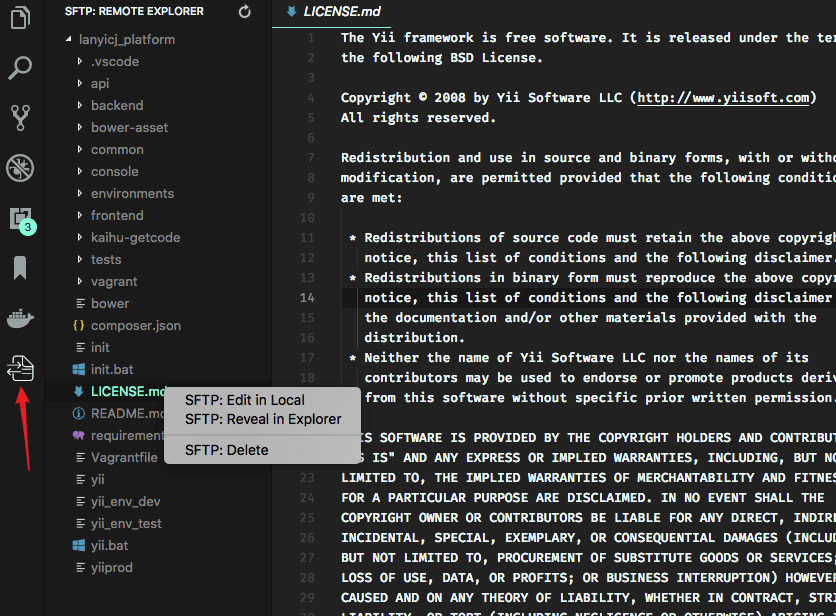
Remote Explorer lets you explore files in remote. You can open Remote Explorer by:
- Run Command
View: Show SFTP. - Click SFTP view in Activity Bar.
You can only view a files content with Remote Explorer. Run command SFTP: Edit in Local to edit it in local.
Multiple Select
You are able to select multiple files/folders at once on the remote server to download and upload. You can do it simply by holding down Ctrl or Shift while selecting all desired files, just like on the regular explorer view.
Note: You need to manually refresh the parent folder after you delete a file if the explorer isn't correctly updated.
Order
You can order the remote Explorer by adding the remoteExplorer.order parameter inside your sftp.json config file.
In sftp.json:
{
  "remoteExplorer": {
    "order": 1 // <-- Default value is 0.
  }
}
Debug
- Open User Settings.
- On Windows/Linux -
File > Preferences > Settings - On macOS -
Code > Preferences > Settings
- Set
sftp.debugtotrueand reload vscode. - View the logs in
View > Output > sftp.
FAQ
You can see all the Frequently Asked Questions here.
Donation
If this project helped you reduce development time and you wish to contribute financially
Buy Me a Coffee

PayPal

