Smart MCP Manager for VS Code
A comprehensive VS Code extension for managing Model Context Protocol (MCP) servers. Configure, monitor, and control MCP servers directly within VS Code — with a Smart Router that gives GitHub Copilot and other AI assistants full control over your server fleet.
Features
Server Management
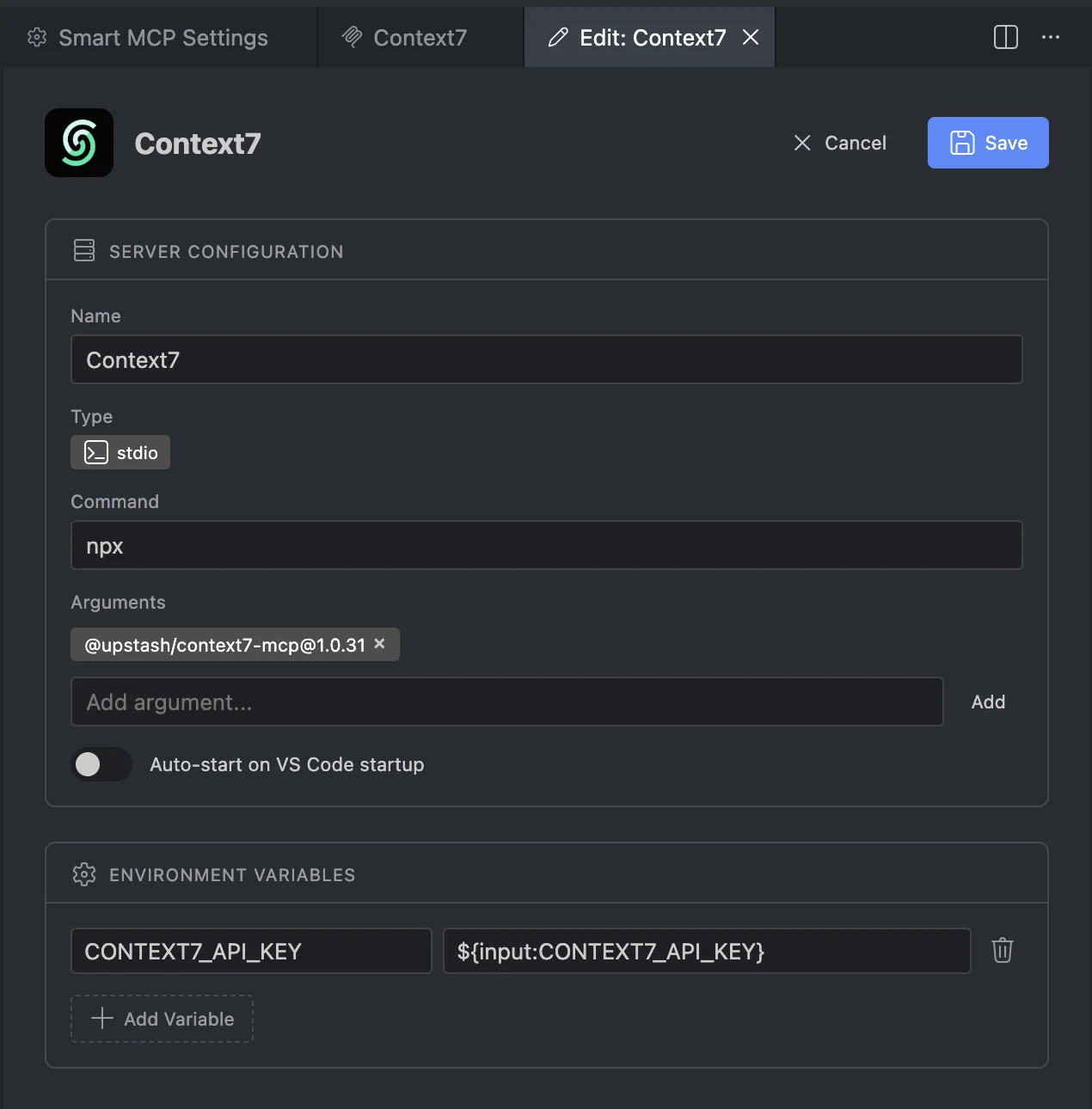
- Add / Edit / Remove MCP servers via an intuitive panel with stdio and HTTP modes
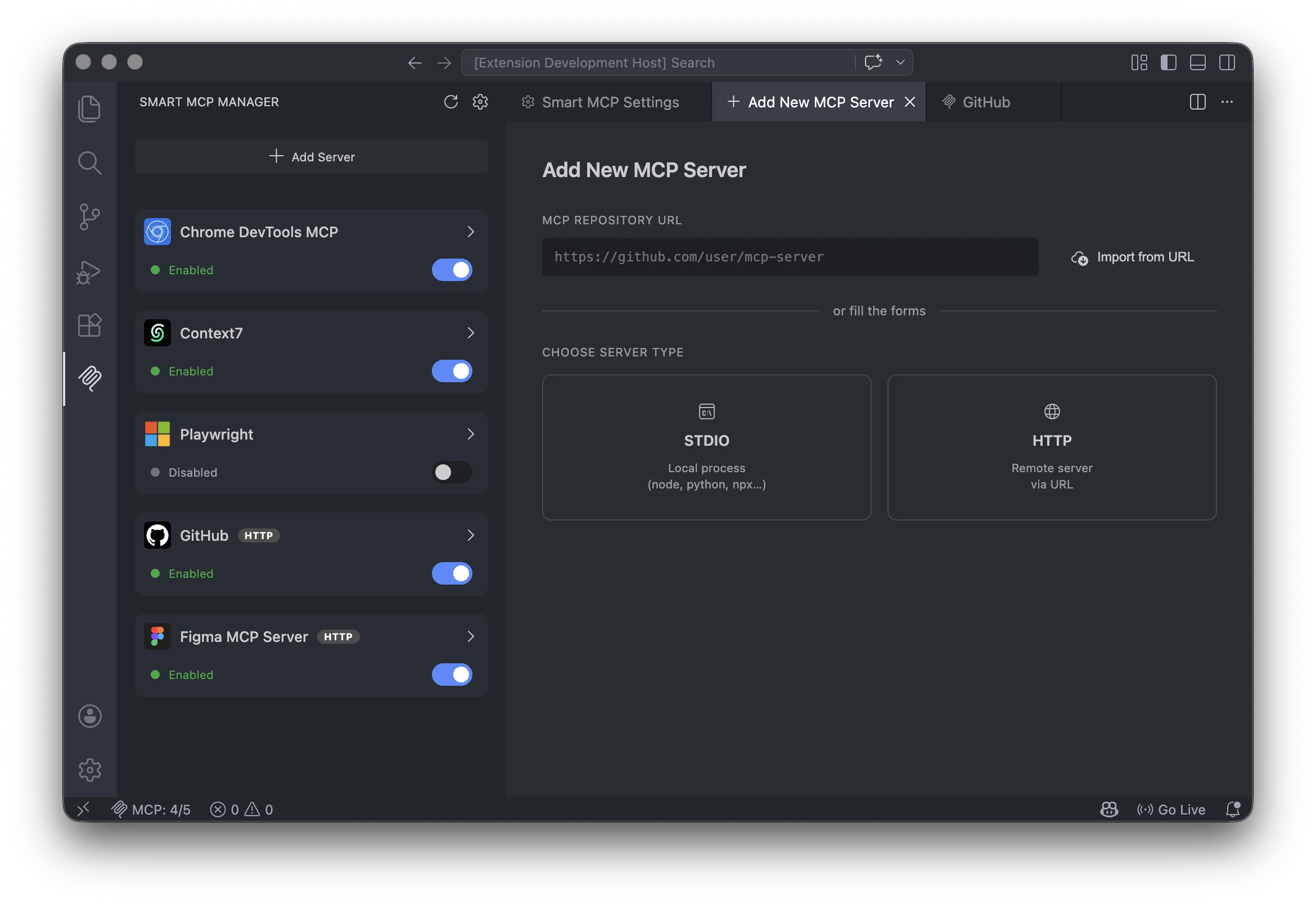
- Import from URL — paste a GitHub repo URL and the extension auto-scrapes the server config
- Enable / Disable servers with a single click (VS Code manages the process lifecycle)
- Auto-start servers when VS Code opens
- Real-time status monitoring with live updates
- Environment variables, custom headers, and working directory configuration per server
- Auto-import from VS Code chat — when you install an MCP server via chat (e.g. "Install Playwright MCP"), it is automatically imported into Smart MCP Manager and removed from VS Code's
mcp.json to avoid duplicate management
Dashboard & Monitoring
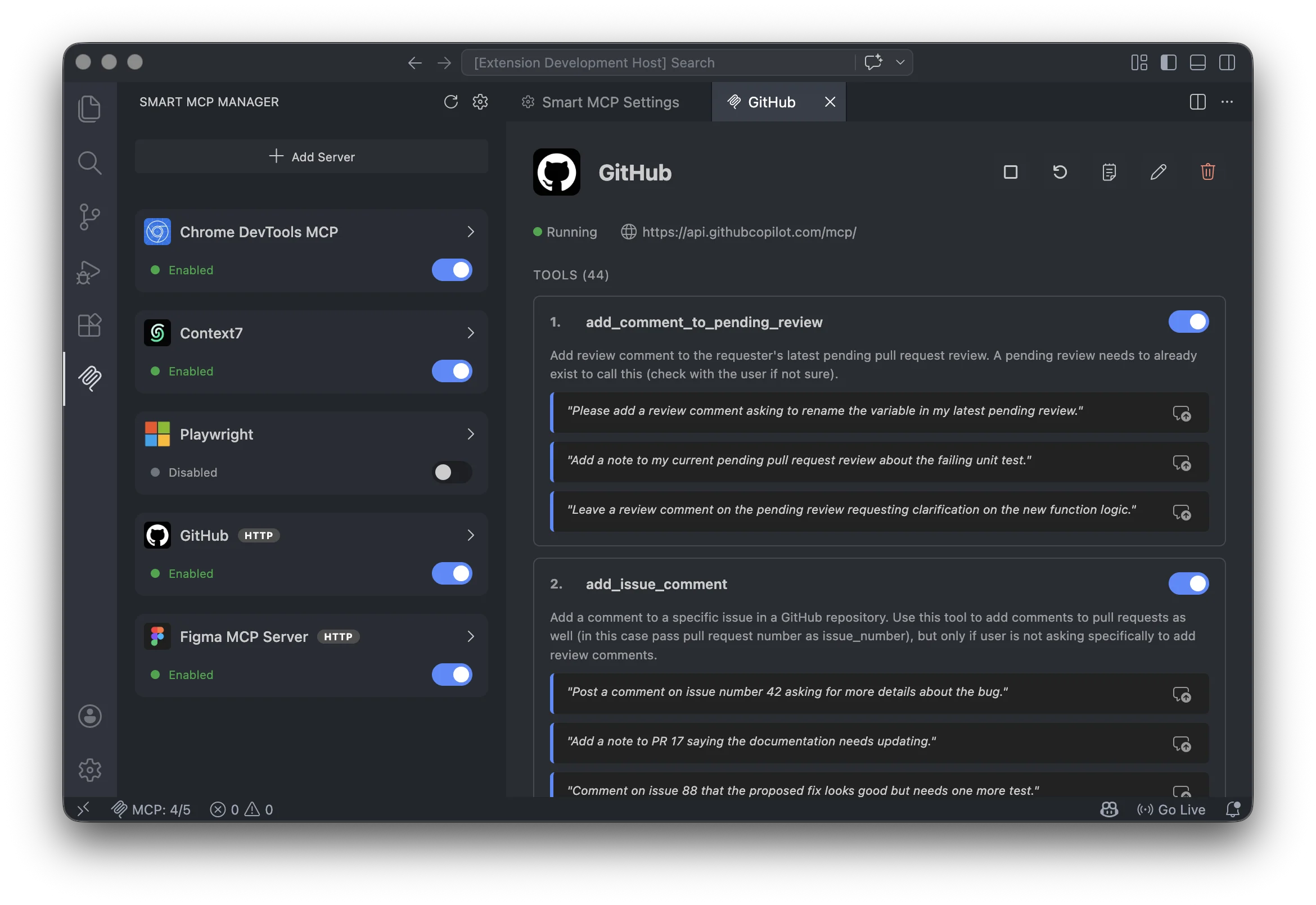
- Sidebar panel in the Activity Bar showing all configured servers as rich cards with status indicators, gallery icons, and action buttons
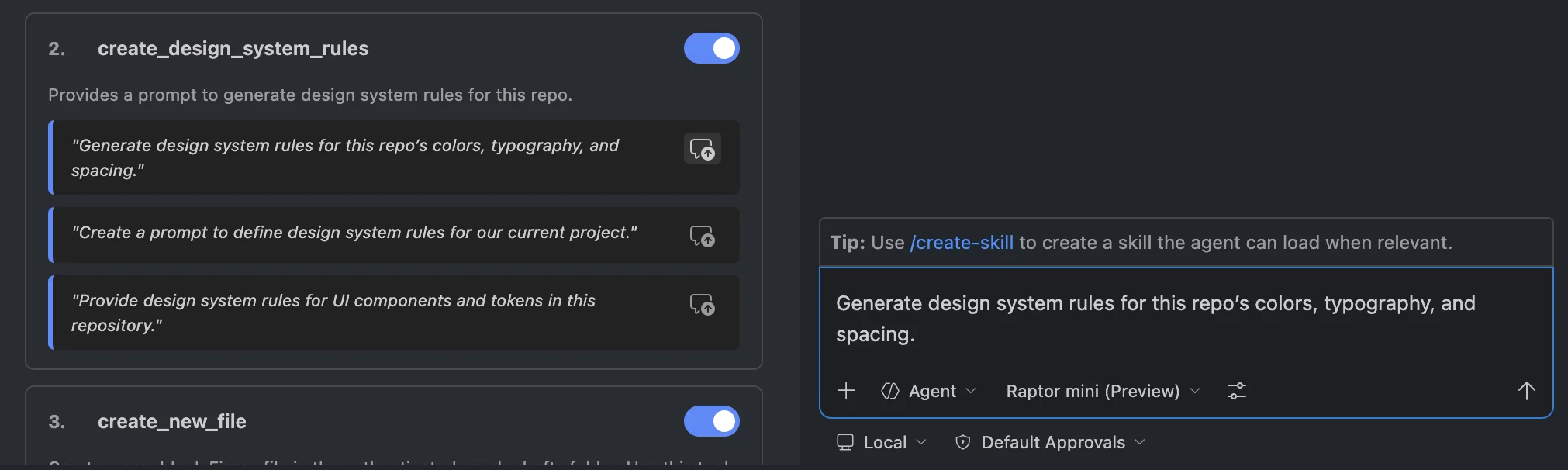
- Server Detail panel with status, full tool list, and AI-generated prompt examples per tool
- Status bar integration displaying running/total server count at a glance
- GitHub MCP Gallery integration — server display names and icons are fetched automatically from the official MCP gallery
- Tool cache persistence — discovered tools remain visible in the UI even when a server is stopped
Smart Router (AI Integration)
The extension registers 10 built-in tools directly with VS Code's language model API (vscode.lm.registerTool), making them available to GitHub Copilot and other AI agents:
| Tool |
Description |
smm_list_servers |
List all configured servers and their status |
smm_add_server |
Add a new server (stdio or HTTP) |
smm_add_server_from_url |
Scrape a GitHub URL and auto-configure a server |
smm_remove_server |
Remove a server with confirmation |
smm_start_server |
Enable a server (VS Code starts it) |
smm_stop_server |
Disable a server (VS Code stops it) |
smm_restart_server |
Restart a server |
smm_discover_tools |
Force tool re-discovery for a server |
smm_list_tools |
List all cached tools (optionally filtered by server) |
smm_activate_tool |
Smart Router — finds which server provides a given tool and enables it on demand |
The Smart Router (smm_activate_tool) is the key to agentic workflows: the AI asks for a tool by name or description, the extension identifies the server that provides it, enables the server, and returns the full tool schema — all without human intervention.
- Per-tool enable/disable switches in the Server Detail panel — disabled tools are excluded from the Smart Router catalog and from auto-activation
- Sidebar toggle per server — toggling a server OFF in the sidebar removes all its tools from the Smart Router catalog while keeping them visible; toggling back ON restores them
- Tool Catalog — an in-memory index of all tools across all servers, rebuilt on any state change, used by the Smart Router for instant lookups and fuzzy search
Prompt Examples
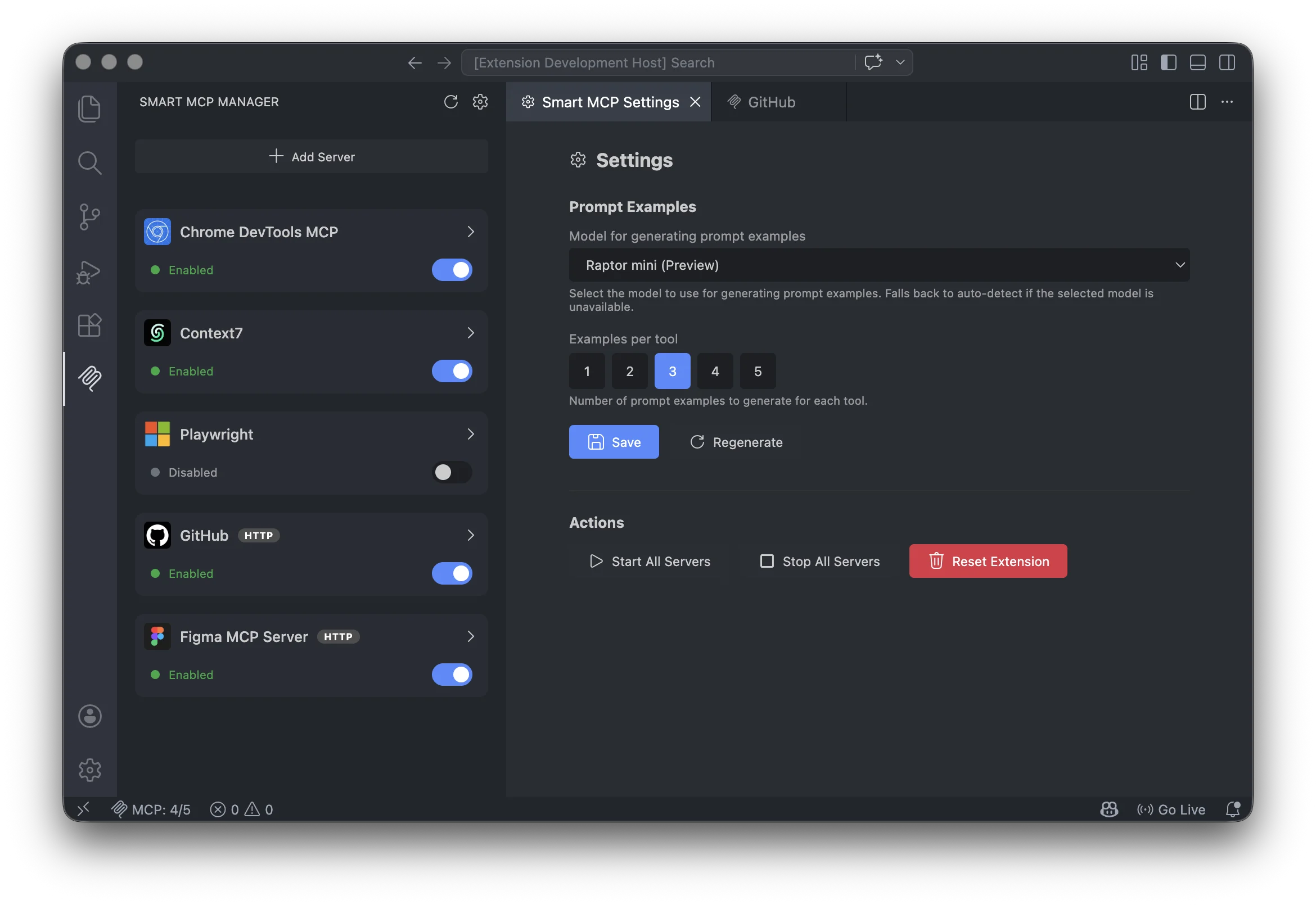
- AI-generated prompt examples — on first open of a server's detail panel, an available LLM generates 2–3 natural-language example prompts per tool, cached permanently
- "Add to chat" button — send a generated example prompt directly to the Copilot chat input
- Configurable model — set your preferred LLM family via
mcpServerManager.exampleModel; the extension falls back through a chain of free models (raptor-mini → gpt-5-mini → gpt-4o → gpt-4.1) if none is configured
Getting Started
Installation
- Open VS Code
- Open the Extensions view (
Ctrl+Shift+X / Cmd+Shift+X)
- Search for "Smart MCP Manager"
- Click Install
Or install from a .vsix file:
code --install-extension smart-mcp-manager-0.1.0.vsix
Adding Your First Server
Option A — Import from URL (recommended):
- Click the MCP Servers icon in the Activity Bar
- Click the + button and switch to the Import from URL tab
- Paste a GitHub repository URL (e.g.
https://github.com/owner/my-mcp-server)
- Click Import — the extension scrapes the config automatically
- Toggle Auto-start if desired, then click Add Server
Option B — Let VS Code install it:
- Open GitHub Copilot chat and ask: "Install the Playwright MCP server"
- VS Code installs the server — Smart MCP Manager detects the change in
mcp.json and auto-imports it into the sidebar
Option C — Manual configuration:
- Click the + button and stay on the Manual tab
- Choose stdio (command-based) or HTTP (URL-based)
- Fill in the fields and click Add Server
Managing Servers
- Use the sidebar panel action buttons on each server card
- Use the Command Palette (
Ctrl+Shift+P / Cmd+Shift+P) and search for MCP:
- Click a server card to open its Server Detail panel for full controls, tool list, and prompt examples
Configuration
Server configurations are stored in VS Code settings (mcpServerManager.servers). VS Code manages the actual MCP process lifecycle once a server is enabled.
// settings.json
{
  "mcpServerManager.servers": [
    {
      "name": "My MCP Server",
      "type": "stdio",
      "command": "node",
      "args": ["path/to/server.js"],
      "env": { "API_KEY": "your-key-here" },
      "autoStart": true,
      "disabledTools": ["dangerous_tool"]
    },
    {
      "name": "My HTTP Server",
      "type": "http",
      "url": "http://localhost:3000/mcp",
      "autoStart": false
    }
  ],
  "mcpServerManager.exampleModel": "gpt-4o"
}
Settings Reference
| Setting |
Type |
Default |
Description |
mcpServerManager.servers |
array |
[] |
Server configurations |
mcpServerManager.autoStartOnActivation |
boolean |
true |
Auto-start servers marked with autoStart when VS Code opens |
mcpServerManager.exampleModel |
string |
"" |
LLM family/ID for prompt example generation. Empty = auto-select from free models |
Server Configuration Properties
| Property |
Type |
Description |
name |
string |
Unique server name |
type |
"stdio" | "http" |
Transport type |
command |
string |
Command to run (stdio only) |
args |
string[] |
Command arguments (stdio only) |
env |
object |
Environment variables (stdio only) |
cwd |
string |
Working directory (stdio only) |
url |
string |
Server URL (http only) |
headers |
object |
HTTP headers (http only) |
autoStart |
boolean |
Start automatically on VS Code launch |
disabledTools |
string[] |
Tool names to exclude from the Smart Router |
Commands
| Command |
Description |
MCP: Add MCP Server |
Open the Add Server panel |
MCP: Edit Server |
Edit an existing server's configuration |
MCP: Remove Server |
Remove a server |
MCP: Start Server |
Enable a specific server |
MCP: Stop Server |
Disable a specific server |
MCP: Restart Server |
Restart a specific server |
MCP: Start All Servers |
Enable all configured servers |
MCP: Stop All Servers |
Disable all running servers |
MCP: Show Server Logs |
Open the Output Channel for a server |
MCP: Refresh |
Refresh the sidebar server list |
MCP: Show JSON Config |
Open mcp.json in the editor |
MCP: Open Settings |
Open the Smart MCP Manager settings panel |
Requirements
- VS Code 1.99.0 or later
- For Smart Router tools and prompt example generation: GitHub Copilot (or another VS Code language model extension)
Development
# Install dependencies
npm install

# Build
npm run compile

# Watch mode
npm run watch

# Package as .vsix
npm run package
License
MIT

