DevSpeak — AI Technical Translation
Stop explaining. Start communicating.
Transform informal stakeholder requirements into formal, audience-specific technical specifications — directly in your editor.


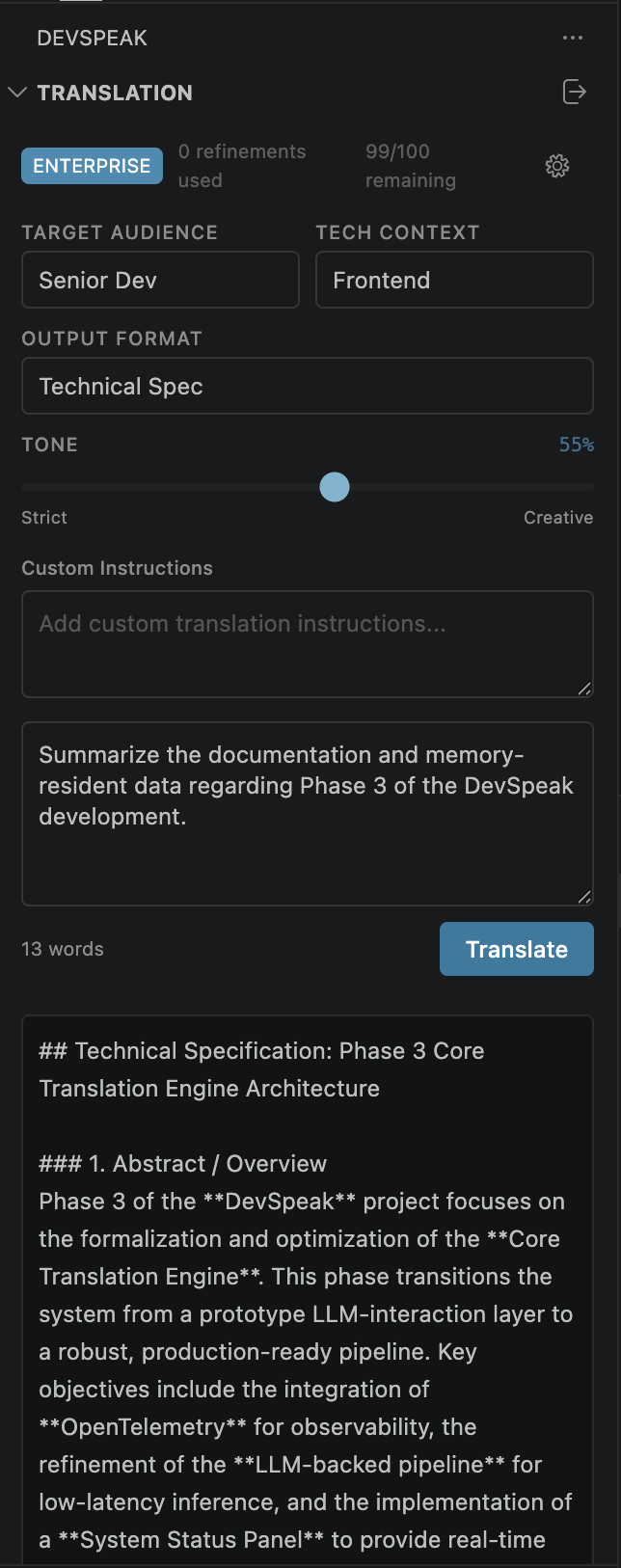
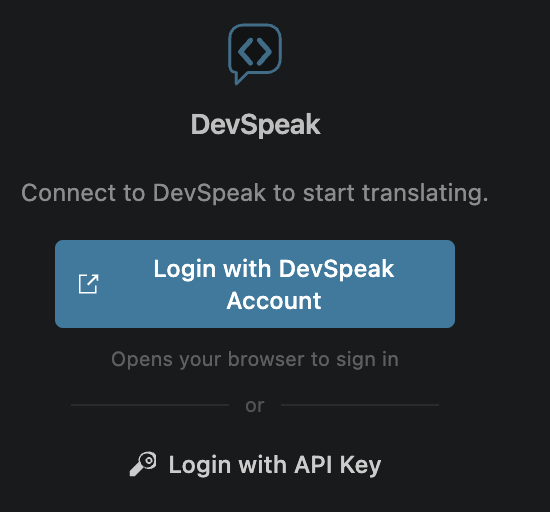
Screenshots
| Welcome Screen |
Full Editor with Output |
 |
|
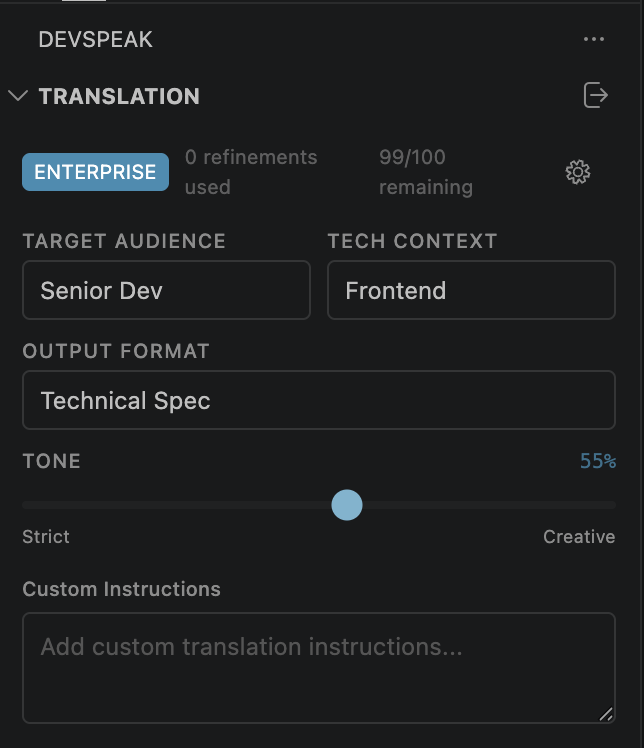
| Translation Panel |
Settings & Controls |
 |
|
Features
| Feature |
Description |
| Translation Panel |
Open the DevSpeak sidebar, type or paste a requirement, pick your audience/context/format/tone, and get a formal spec in seconds. |
| Translate Selection |
Select any text and press Cmd+Shift+T (Ctrl+Shift+T) — or right-click → Translate Selection. |
| CodeLens |
An "Optimize with DevSpeak" lens appears above TODO, FIXME, HACK, NOTE, BUG, and XXX comments. |
| Code Actions |
A refactor-rewrite quick action is available when you select text. |
| Iterative Refinement |
Give feedback on any translation and get a targeted revision — this is Post-Generation Refinement (Stage 3) operating on generated output, not a re-translation of the original input. |
| History |
Your last 100 translations are listed in the sidebar for quick recall. |
| Custom Instructions |
Add persistent free-text guidance that is appended to every prompt. |
| Workspace Context |
Automatically includes project metadata (language, framework, dependencies) for more relevant output. |
| Dark & Light Theme |
Inherits the active VS Code color theme. |
| i18n |
English and Spanish out of the box. |
Translation Workflow
DevSpeak implements a three-stage Stateful Translation Workflow. Understanding the distinction is important for effective use:
| Stage |
Action in VS Code |
What It Does |
| 1 |
Optimize / CodeLens |
Lexical Optimization: Polishes raw input text (grammar, tone, clarity) before translation |
| 2 |
Translate (panel) |
Translation Execution: Generates a formal specification from informal input |
| 3 |
Refinement Panel feedback |
Post-Generation Refinement: Iteratively modifies the generated document using user feedback |
- The Translate Selection command sends the selection to the panel for Stage 2 (Translation Execution); CodeLens actions and DevSpeak: Optimize Text run Stage 1 (Lexical Optimization)
- The Refinement Panel is a Stage 3 tool — it modifies generated output, not raw input
- For the full architectural reference, see ARCHITECTURE.md
Getting Started
- Install — search for DevSpeak in the Extensions Marketplace, or install the
.vsix manually.
- Sign In — run DevSpeak: Login from the Command Palette (
Ctrl+Shift+P).
- OAuth (Google / GitHub) requires a free DevSpeak account at devspeak.dev.
- Or paste a
dsk_live_ API key (Developer tier and above).
- Translate — select text →
Cmd+Shift+T (Ctrl+Shift+T), or open the sidebar and type directly.
Extension Settings
| Setting |
Default |
Description |
devspeak.apiEndpoint |
https://www.devspeak.dev |
DevSpeak API base URL |
devspeak.customInstructions |
"" |
Free-text guidance appended to every translation request |
devspeak.defaultAudience |
Senior Dev |
Target audience (Junior Dev, Senior Dev, Tech Lead, SRE, Data Engineer) |
devspeak.defaultContext |
Backend |
Technical context (Backend, Frontend, Mobile, Data/ML, DevOps) |
devspeak.defaultFormat |
Technical Spec |
Output format (Technical Spec, Jira Tickets, API Design, RFC, Data Model, Prompt, Optimize) |
devspeak.defaultTone |
75 |
Tone slider (10 = strict/concise → 90 = creative/detailed) |
devspeak.enableCodeLens |
true |
Show CodeLens above annotated comments |
devspeak.enableWorkspaceContext |
true |
Include workspace metadata in translation requests |
devspeak.notifyOnCompletion |
true |
Notify when a translation finishes while you are not looking at the panel (hidden, or another window has focus) |
devspeak.telemetry.enabled |
false |
Share anonymous usage data with DevSpeak (see Telemetry) — never sent unless VS Code's telemetry.telemetryLevel is all |
Where settings are saved
Editing a setting in the DevSpeak panel writes it to your user settings, except
Custom Instructions — those are written to the current workspace's
.vscode/settings.json so project-specific terminology and codebase paths do
not follow you into unrelated projects. When no folder is open, they fall back
to user settings.
A value you write directly into a settings.json always wins over the panel's
last remembered state, and is picked up without a reload. The most specific
scope applies: folder, then workspace, then user. Setting
devspeak.customInstructions to "" means "no instructions", not "fall back".
Custom Instructions set on your DevSpeak account are applied when the current
workspace has no instructions of its own; a workspace value is never
overwritten by your account value.
Commands
| Command |
Shortcut |
Description |
| DevSpeak: Login |
— |
Sign in via OAuth or API key |
| DevSpeak: Translate Selection |
Cmd+Shift+T / Ctrl+Shift+T |
Translate the selected text |
| DevSpeak: Optimize Text |
— |
Optimize the selected text |
| DevSpeak: Settings |
— |
Open DevSpeak settings |
| DevSpeak: Show Output Log |
— |
Open the DevSpeak output channel |
| DevSpeak: Clear History |
— |
Remove all history entries |
| DevSpeak: Logout |
— |
Sign out of the current session |
Requirements
- VS Code 1.85 or later (also works in Cursor and Windsurf)
- A DevSpeak account or API key — sign up free at devspeak.dev
This extension targets extensionKind: ["ui"] and uses standard VS Code APIs. It is verified to work in:
- Visual Studio Code (desktop and web)
- Cursor (via
.vsix sideload or Open VSX)
- Windsurf (via
.vsix sideload)
Telemetry
DevSpeak can collect anonymous usage data to learn which features are used and where requests fail. It is off unless you opt in. After your first successful translation, DevSpeak asks once; you can also turn it on or off anytime with the devspeak.telemetry.enabled setting. Your VS Code telemetry setting always wins: nothing is sent unless telemetry.telemetryLevel is all, whatever the DevSpeak setting says.
What is collected: which DevSpeak features and commands you use, the settings you choose (audience, context, format, tone), character counts, request durations, a closed error category (for example, network or rate_limited), your plan tier when a feature is not included in it, the editor family (VS Code, Cursor, Windsurf, VSCodium), the operating system, and the extension version.
What is never collected: the text you translate or optimize, generated output, refinement feedback, files or file names, paths, email addresses, your account identifier, or API keys.
Usage data is tied to a random identifier generated on this install. It is not linked to your DevSpeak account, and it is replaced when you turn telemetry off. Events are sent to DevSpeak, which forwards them to Google Analytics with advertising use disabled. Every event and property is listed in telemetry.json; run code --telemetry to see them alongside VS Code's own. See the Privacy Policy.
Telemetría
DevSpeak puede recopilar datos de uso anónimos para saber qué funciones se usan y dónde fallan las solicitudes. Está desactivado salvo que des tu consentimiento. Tras tu primera traducción exitosa, DevSpeak lo pregunta una sola vez; también puedes activarlo o desactivarlo cuando quieras con la configuración devspeak.telemetry.enabled. Tu configuración de telemetría de VS Code siempre prevalece: no se envía nada a menos que telemetry.telemetryLevel sea all, diga lo que diga la configuración de DevSpeak.
Qué se recopila: qué funciones y comandos de DevSpeak usas, la configuración que eliges (audiencia, contexto, formato, tono), recuentos de caracteres, la duración de las solicitudes, una categoría de error cerrada (por ejemplo, network o rate_limited), tu plan cuando una función no está incluida en él, la familia de editor (VS Code, Cursor, Windsurf, VSCodium), el sistema operativo y la versión de la extensión.
Qué nunca se recopila: el texto que traduces u optimizas, el resultado generado, los comentarios de refinamiento, archivos o nombres de archivo, rutas, direcciones de correo, el identificador de tu cuenta ni claves de API.
Los datos de uso se asocian a un identificador aleatorio generado en esta instalación. No está vinculado a tu cuenta de DevSpeak y se reemplaza cuando desactivas la telemetría. Los eventos se envían a DevSpeak, que los reenvía a Google Analytics con el uso publicitario desactivado. Cada evento y propiedad aparece en telemetry.json; ejecuta code --telemetry para verlos junto a los de VS Code. Consulta la Política de Privacidad.
Feedback & Issues
File issues at github.com/juanjaragavi/devspeak.
License
Apache-2.0

