
 Catppuccin for VSCode




Theme Showcase
🌻 Latte

🪴 Frappé

🌺 Macchiato

🌿 Mocha

Getting Started
Recommended Installation
Get the extension directly from one of these marketplaces:
Alternative Installation Method
You can also install manually by downloading the VSIX package from
the latest GitHub release.
After downloading, open the Command Palette and choose "Extensions: Install from VSIX...", then select the downloaded file.
JSON Theme Files
For developers who need the JSON theme files (e.g., for use with Shiki), these are available as an NPM package: @catppuccin/vscode.
Nix (Home-Manager) Setup
When configuring the theme with Nix, keep in mind that it requires write access to a mutable directory for storing JSON configuration files.
You have two options:
- Install the extension non-declaratively to grant file write permissions.
This requires completely removing nixpkgs.vscode-extensions.catppuccin.catppuccin-vsc from your configuration. Note that programs.vscode.mutableExtensionsDir = true; alone WILL NOT SUFFICE.
- Utilize our catppuccin/nix module to build the theme alongside your VSCode setup with custom overrides.
This approach provides a declarative method to compile the theme with your preferred settings. See the configuration example below.
{
  # in your inputs:
  inputs.catppuccin.url = "github:catppuccin/nix";

  # in your home-manager options:
  catppuccin = {
    enable = true;
    # optionally configure the extension settings, defaults are shown below:
    vscode = {
      accent = "mauve";
      settings = {
        boldKeywords = true;
        italicComments = true;
        italicKeywords = true;
        colorOverrides = {};
        customUIColors = {};
        workbenchMode = "default";
        bracketMode = "rainbow";
        extraBordersEnabled = false;
      };
    };
  };
  programs.vscode = {
    enable = true;
  };
}
Personalization
[!Note]
Don't forget to check out our Catppuccin Icon Pack as well!
Recommended VSCode Configuration
For optimal experience, we suggest adding these settings to your settings.json:
{
  // we try to make semantic highlighting look good
  "editor.semanticHighlighting.enabled": true,
  // prevent VSCode from modifying the terminal colors
  "terminal.integrated.minimumContrastRatio": 1,
  // make the window's titlebar use the workbench colors
  "window.titleBarStyle": "custom",

  // applicable if you use Go, this is an opt-in flag!
  "gopls": {
    "ui.semanticTokens": true,
  },
}
Theme Customization Options
The Catppuccin theme for VSCode offers extensive customization capabilities. Love the Catppuccin palette but find it too vibrant for late-night coding sessions? The customization features have you covered!
{
  // use Mocha as the base
  "workbench.colorTheme": "Catppuccin Mocha",
  // pink as the accent color
  "catppuccin.accentColor": "pink",
  // make Mocha specifically very dark
  // (this preserves other flavors!)
  "catppuccin.colorOverrides": {
    "mocha": {
      "base": "#000000",
      "mantle": "#010101",
      "crust": "#020202",
    },
  },
  // use your accent (pink) on the statusBar as well
  "catppuccin.customUIColors": {
    "mocha": {
      "statusBar.foreground": "accent",
    },
  },
}
📸 Preview
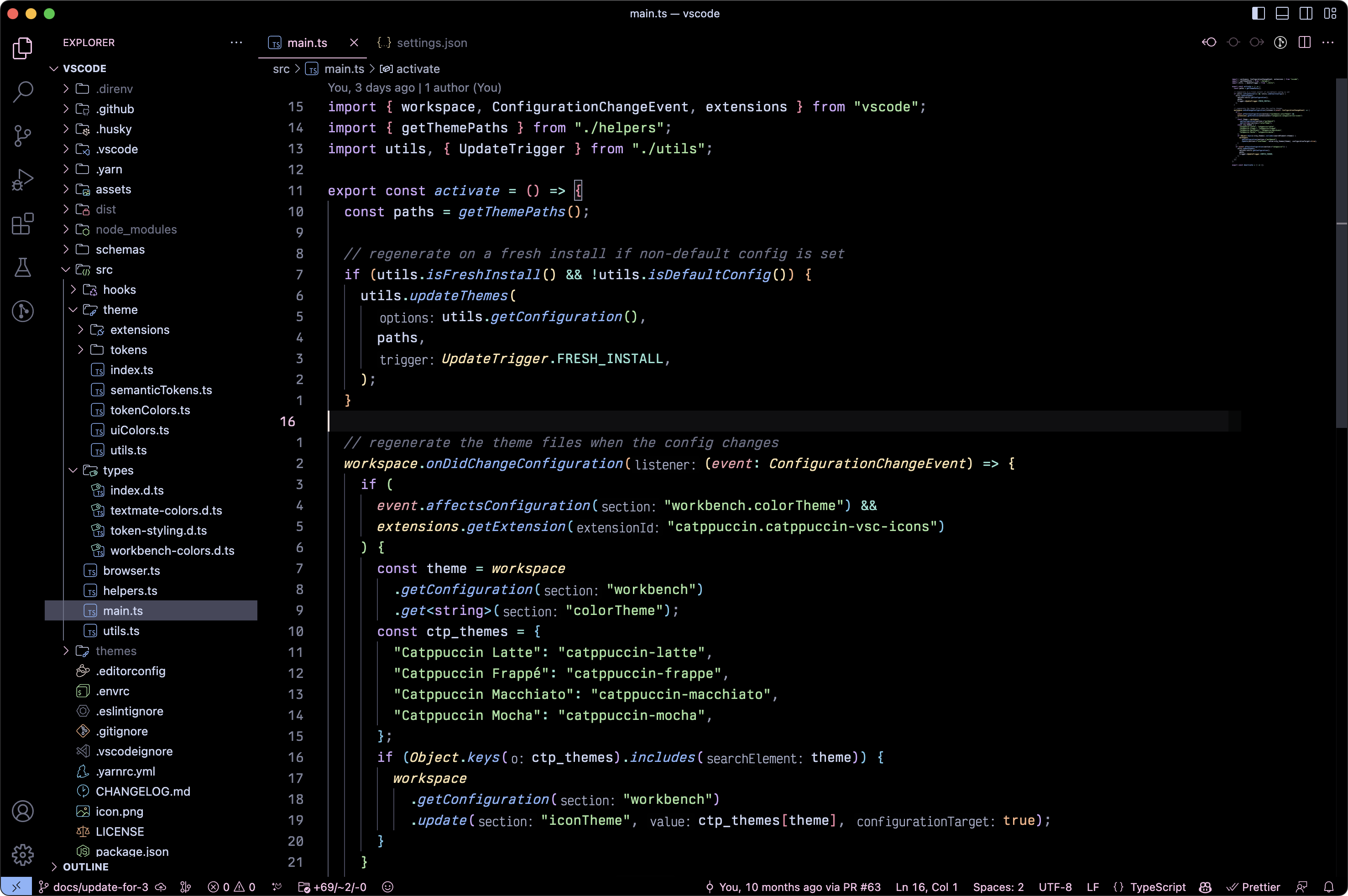
Browse all configuration options by opening your settings and navigating to Extensions > Catppuccin.
Selecting an Accent Color
catppuccin.accentColor
Pick any color from the palette to serve as your accent. While mauve serves as the default, feel free to express your style with any color you prefer!
Font Styling Controls
You have the ability to enable or disable:
- keyword italics:
catppuccin.italicKeywords
- comment italics:
catppuccin.italicComments
- keyword bold:
catppuccin.boldKeywords
Workbench Appearance Modes
catppuccin.workbenchMode
Out of the box, the Catppuccin theme for VSCode employs three distinct shades of the base color throughout the workbench interface.
In the Mocha flavor, this translates to:
base: #1e1e2e - the editor backgroundmantle: #181825 - the sidebarcrust: #11111b - the activity bar, status bar, and title bar
📸 Preview
For a flatter aesthetic, switch to flat mode! This configuration uses only base and mantle, simplifying to just 2 shades:
base: #1e1e2e - the editor backgroundmantle: #181825 - the sidebar, the activity bar, status bar, and title bar
📸 Preview
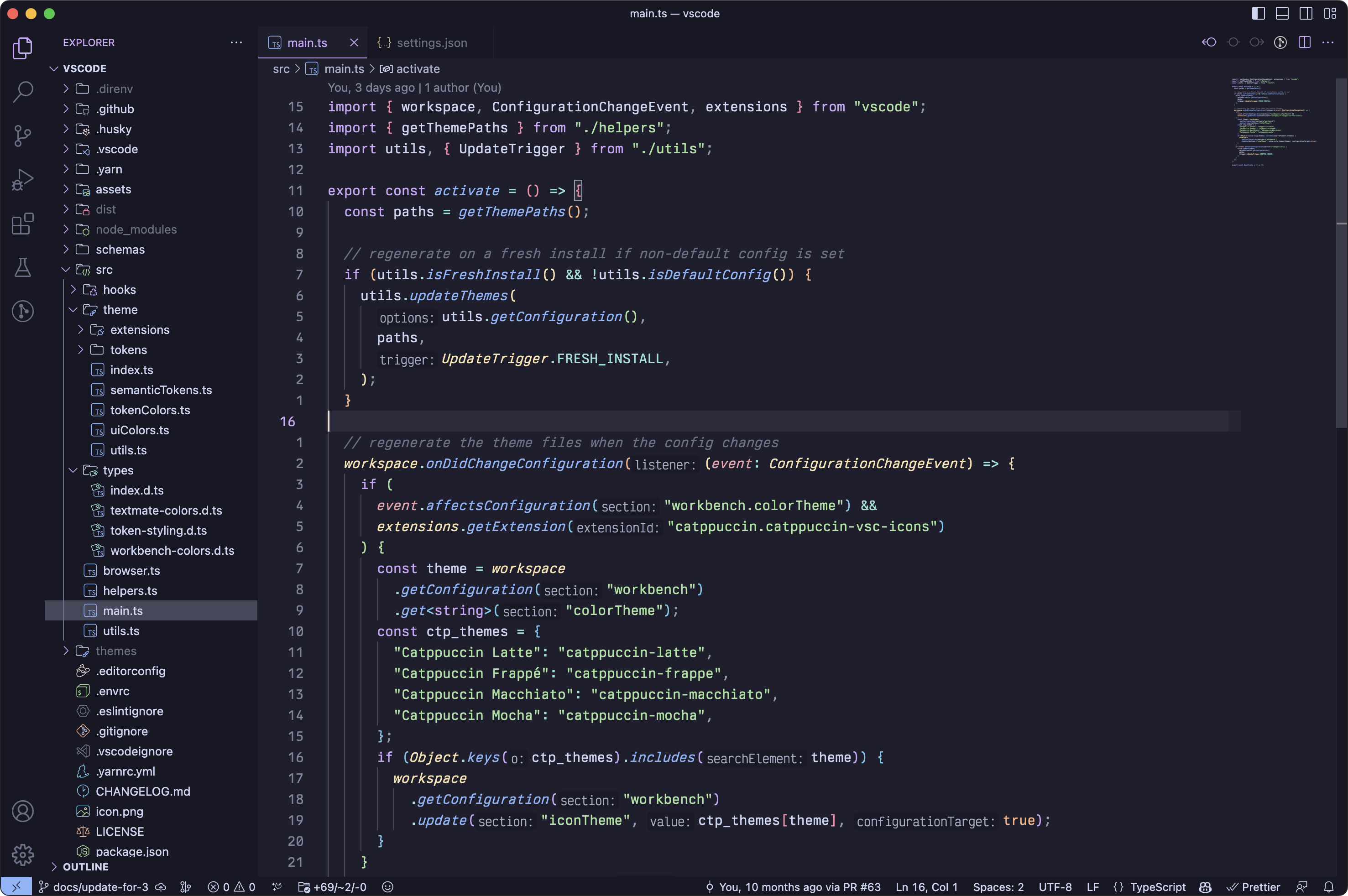
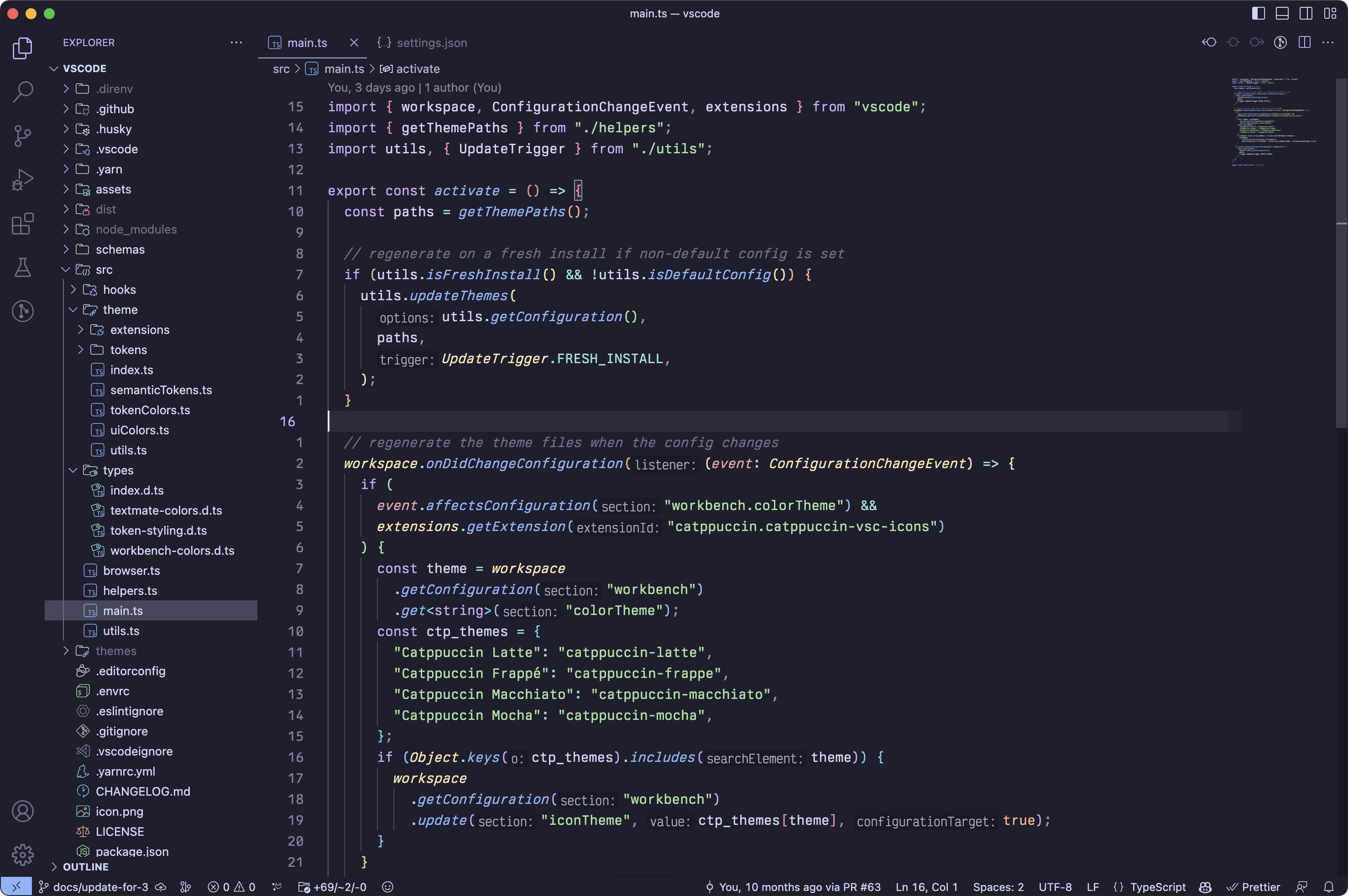
For the ultimate minimalist experience, opt for minimal mode; a single shade applied across the entire workbench.
- This uses only
base (#1e1e2e)
📸 Preview
Bracket Pair Coloring
catppuccin.bracketMode
The default configuration applies red, peach, yellow, green, blue, and mauve to matching bracket pairs. Customize this behavior with the following options:
rainbow serves as the default, applying the colors mentioned above.dimmed applies the same rainbow palette, but with 20% reduced saturation.monochromatic restricts colors to grayscale tones, ranging from subtext1 to surface2.neovim matches the color scheme used by nvim-ts-rainbow in our Neovim port.
Customizing Palette Colors
catppuccin.colorOverrides
Override any palette color directly in your JSON user settings:
{
  // ...your other settings...
  "catppuccin.colorOverrides": {
    // make text red red all flavors
    "all": {
      "text": "#ff0000",
    },
    // make Mocha "OLEDppuccin" - use black editor background
    "mocha": {
      "base": "#000000",
      "mantle": "#010101",
      "crust": "#020202",
    },
  },
}
Applying Palette Colors to UI Elements
catppuccin.customUIColors
To control where specific palette colors appear in the interface, configure it as follows:
{
  "catppuccin.customUIColors": {
    // make the breadcrumb "text" on "overlay0" for all flavors
    "all": {
      "breadcrumb.background": "overlay0",
      "breadcrumb.foreground": "text",
    },
    // but for mocha, use "crust" on your currently selected accent.
    "mocha": {
      // "accent" selects your current accent color.
      "breadcrumb.background": "accent",
      "breadcrumb.foreground": "crust",
      // you can use opacity, by specifying it after a space
      // "rosewater 0.5" would mean 50% opacity, here it's 20%
      "minimap.background": "rosewater 0.2",
    },
  },
}
A complete list of available theme color keys can be found here.
[!Note]
These customizations will respect your color overrides.
Compatible Extensions
The Catppuccin theme for VSCode also provides styling support for these popular extensions:
Getting Help
Have questions about this theme? You're welcome to create an issue or reach out in our Discord server, where we maintain a dedicated support channel.
Building from Source
- Clone this repository and open it in VSCode.
- Start the "Debug & Watch Files" configuration from the "Run and Debug" panel. This
launches a new VSCode window and begins watching files in
./src.
The file watcher enables hot-reloading of the theme when you modify
TypeScript source files, rather than waiting for JSON regeneration.
- Edit files in
./src to see your changes reflected instantly.
💝 Acknowledgments
Current maintainers
Contributions
Previous maintainer(s)

Copyright © 2021-present Catppuccin Org