▶ Handy Task Runner
Every script in your workspace, and everything currently running, in one list. Start, stop and
restart without ever going looking for a terminal tab.
Scripts scatter. A monorepo buries them across a dozen package.json files, the dev server you
started an hour ago is alive in a tab you can no longer find, and running anything by hand means
getting the directory and the package manager right first. Handy Task Runner collapses all of
that into one list, and gives you three ways to reach it.
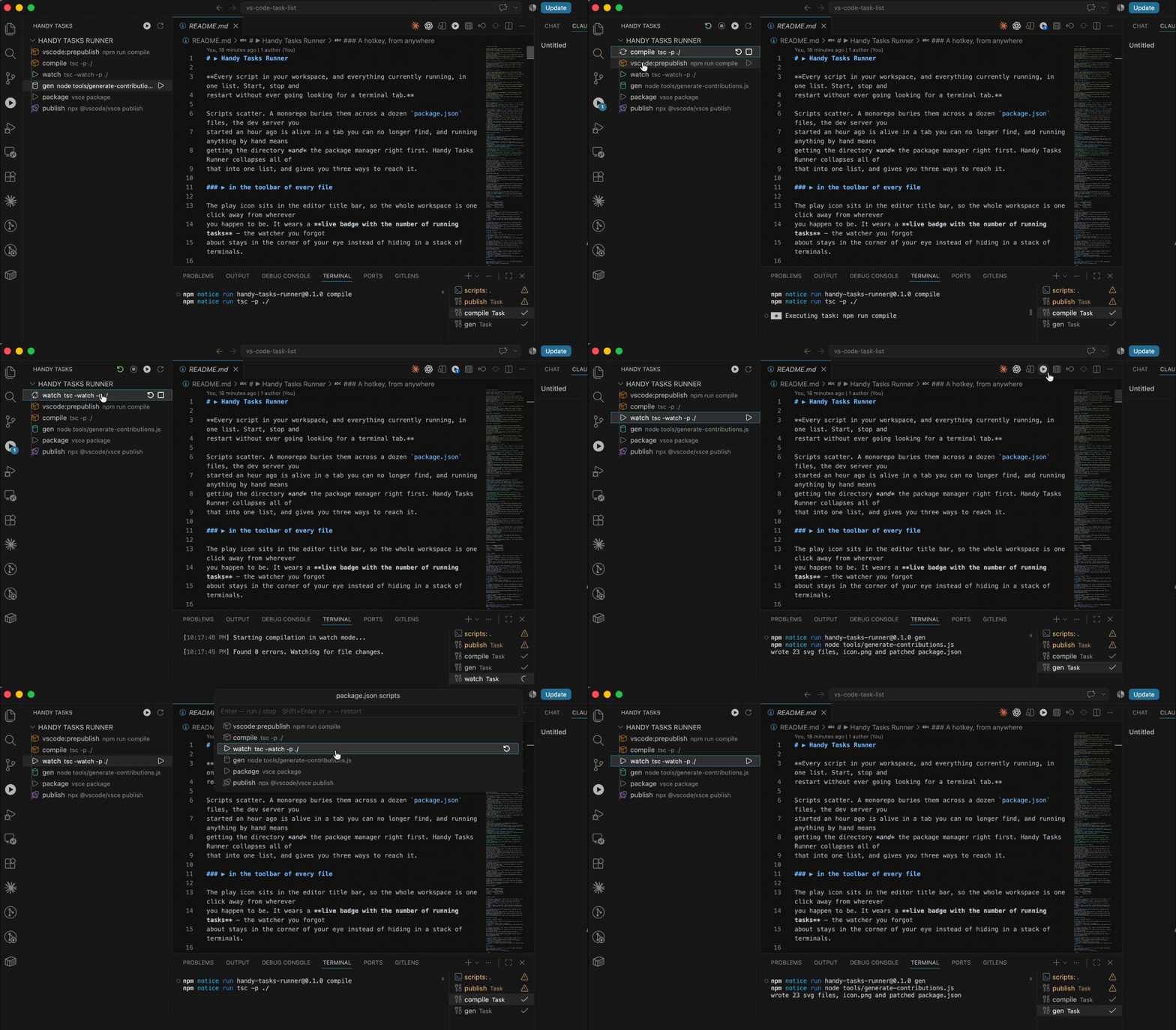
The play icon sits in the editor title bar, so the whole workspace is one click away from wherever
you happen to be. It wears a live badge with the number of running tasks — the watcher you forgot
about stays in the corner of your eye instead of hiding in a stack of terminals.
A hotkey, from anywhere
Ctrl+Cmd+T on macOS, Ctrl+Alt+T on
Windows and Linux. Every script of every package.json in the workspace, without touching the mouse
— from the editor, the terminal, anywhere. Both defaults were picked because VS Code leaves them
free, and changing them takes one line.
A panel in the left bar
Always there, whatever the active editor is: every script of every package.json and deno.json,
grouped by package, each row carrying its own icon and colour for what it actually does — ▶
for dev servers, a beaker for tests, a rocket for releases, a database for migrations. Running
scripts spin at the top of their group, and the count rides on the activity bar icon as a real VS
Code badge.
Two buttons appear in the panel header the moment anything is running: stop everything and
restart everything. Killing five watchers before a rebase, or bringing the whole stack back up
after switching branches, is one click rather than five terminal tabs. Every row also has inline
▶ / ⟳ / ■ buttons of its own.
And it knows how to run things
Whether a package wants npm run, yarn, pnpm run, bun run or deno task is read off the
project itself — the packageManager field, engines, or the lock files beside the package and
above it — so one list works unchanged across a mixed monorepo.
- All scripts, one list — every
package.json (scripts) and deno.json/deno.jsonc (tasks)
in the workspace, grouped per package, node_modules and build output skipped.
- Searchable by command, not just by name — type
vitest and find the script that runs it.
- Running tasks included — even ones this extension did not start: tasks from
tasks.json, other
extensions, or the built-in npm list. Stop or restart them from the same place.
- Toggle on Enter — start what is stopped, stop what is running; ⟳ or
Shift+Enter restarts, with a cleared terminal.
- Stop all / restart all — for when the whole stack needs to go down or come back.
- A live badge — the number of running tasks, on the toolbar icon, the panel and the status bar.
- Knows your runner — npm, yarn, pnpm, bun and deno, detected per package, overridable.
- Real tasks, not typed-out terminal commands — running state, stop and restart are reliable, and
every script also shows up under Run Task….
| Place |
Notes |
| Editor title bar (top right) |
The badged icon. Toggle with handyTasksRunner.showInEditorTitle. |
| Activity bar (left strip) |
The Handy Tasks view: the same list as a tree, with a native count badge. Always visible, whatever the active editor is. |
| Status bar (bottom left) |
$(play-circle) Handy Tasks, or $(sync~spin) Handy Tasks N while tasks run. Toggle with handyTasksRunner.showInStatusBar. |
| Command palette |
Handy Task Runner: Show Scripts |
| Keybinding |
Ctrl+Cmd+T on macOS, Ctrl+Alt+T on Windows and Linux — see Keyboard shortcuts |
The Command Center itself (the search field in the title bar) is not extensible: as of
VS Code 1.131 the only extension-facing toolbar menus are editor/title, view/title,
scm/title, notebook/toolbar and friends — commandCenter/center is internal. So the
top-of-window button lives in the editor title bar, which is the closest available spot.
If the title bar icon is missing
The editor title bar is not a guaranteed surface: some editors do not render extension actions
there at all (terminal-in-an-editor, the Settings and Extensions tabs, the Welcome page), and when
a group is narrow or another extension crowds the bar, VS Code folds actions into the … overflow
menu. Notebooks are covered separately through notebook/toolbar, and the icon is registered at
navigation@1 so it is among the first to survive the overflow — but the surface that is always
there is the activity bar view, plus the status bar entry and the keyboard shortcut.
The Handy Tasks view
The activity bar icon opens a tree with the same content as the dropdown: a Running group on
top, then one group per package. Clicking a row toggles it — run if stopped, stop if running — and
each row has inline ▶ / ⟳ / ■ buttons. The count of running tasks rides on the activity bar icon as
a real VS Code badge.
The view header holds four actions. Restart all (⟳) and stop all (◼) appear only while
something is running, so the header stays quiet on an idle workspace; open the dropdown (▶) and
refresh (↻) are always there. Stop-all and restart-all reach every running task, including ones
this extension did not start.
Clicking an activity bar icon can only reveal its view, never run a command, so it cannot literally
do "what the toolbar icon does". If you would rather have the dropdown anyway, set
handyTasksRunner.openDropdownFromActivityBar to true and it opens as soon as the view is revealed.
In the dropdown
Running (2) ─────────────────────
⟳ dev            vite          ⟳ ■
⟳ tsc: watch     Workspace task ⟳ ■
root-pkg — package.json ─────────
▶ build          tsc -p .        ⟳
▶ test:e2e       playwright test ⟳
| Action |
Effect |
Enter on a stopped script |
Starts it and closes the picker, so the task terminal is visible. |
Enter on a running task |
Stops it; the picker stays open and refreshes in place. |
Shift+Enter |
Restarts the focused entry (starts it if it was stopped). |
| ⟳ button |
Same as Shift+Enter, without leaving the keyboard row. |
| ■ button |
Stops that task. Only shown for entries that are actually running. |
The Running group lists all running tasks, including ones this extension did not start —
tasks from tasks.json, other extensions, or the built-in npm task provider. Tasks that map onto a
package.json script (our own and npm: ones) are shown as that script rather than duplicated, so a
script started from the built-in npm list can be stopped from here too.
Keyboard shortcuts
| Shortcut |
Platform |
Action |
Ctrl+Cmd+T |
macOS |
Opens the list, exactly like the ▶ icon in the editor title bar. |
Ctrl+Alt+T |
Windows, Linux |
The same. |
Shift+Enter |
all |
Restarts the focused entry — only while the list is open. |
The opening shortcut has no when clause, so it works from the editor, the terminal, the settings
tab, anywhere. The list opens as a normal VS Code quick pick, centred at the top of the window;
that position is fixed by VS Code and no extension can move it.
Both defaults were picked because VS Code leaves them free, which is worth spelling out — the
obvious candidates are not:
Cmd+Alt+R toggles regex in the find widget on macOS (Alt+R on Windows and Linux).Cmd+Alt+T is Close Other Editors on macOS. That binding is mac-only, which is why plain
Ctrl+Alt+T is still free on Windows and Linux.Ctrl+Cmd+T is bound to nothing at all on macOS, by VS Code or by the system.
Changing it
Press Cmd+K Cmd+S (Ctrl+K Ctrl+S), search for Handy Task Runner: Show Scripts and click the
pencil. Or write it out in keybindings.json:
{ "key": "cmd+alt+j", "command": "handyTasksRunner.show" }
That adds a shortcut. To retire the default as well, disable it with a leading -:
{ "key": "ctrl+cmd+t", "command": "-handyTasksRunner.show" }
On Ubuntu and most GNOME desktops Ctrl+Alt+T opens a system terminal, and the desktop takes the
key before VS Code ever sees it. Rebind it there — the shortcut above is the way.
Settings
Everything lives under handyTasksRunner.* and works in user settings as well as in a workspace's
.vscode/settings.json, so a repository can pin its own runner for everyone who opens it.
| Setting |
Default |
What it does |
packageManager |
auto |
Forces npm, yarn, pnpm, bun or deno instead of detecting it. Tasks from deno.json(c) ignore this — only Deno can run them. |
exclude |
**/{node_modules,.git,dist,out,build,.next,coverage}/** |
Glob of manifests to skip while scanning. Widen it in a large monorepo. |
showInEditorTitle |
true |
The badged ▶ icon in the editor title bar. |
showInStatusBar |
true |
The Handy Tasks entry in the status bar. |
openDropdownFromActivityBar |
false |
Also opens the dropdown whenever the activity bar view is revealed. Off because the view already shows the same list as a tree. |
colorIcons |
true |
Tints script icons by category. Turn off for plain foreground-coloured icons. |
categories |
[] |
Extra category rules, checked before the built-in ones. |
The two worth knowing about in a real project are packageManager and exclude. A monorepo that
keeps packages outside the default skip list scans faster once exclude covers them, and pinning
packageManager removes any doubt about which runner a script goes through.
categories decides the icon and colour of a script. Each rule matches the script name token by
token first, then the command behind it, so a script called ci that in fact runs vitest still
gets the test icon. A rule that repeats a built-in token overrides the built-in:
"handyTasksRunner.categories": [
  { "match": ["bench", "perf"], "icon": "dashboard", "color": "charts.purple" }
]
icon is a codicon id and color
a theme colour id — either one of handyTasksRunner.category.* or any built-in such as
charts.green. The built-in categories are run, test, quality, build, release, data and clean, and
each has a handyTasksRunner.category.<name> colour you can override in
workbench.colorCustomizations.
Behaviour
- Scans
**/package.json (the scripts field) and **/deno.json / **/deno.jsonc (the tasks
field), skipping node_modules, dist, out, build, .next, coverage (configurable via
handyTasksRunner.exclude). deno.jsonc comments and trailing commas are tolerated, and both the
string and the Deno 2 object task form ({ "command": …, "description": … }) are read.
- In a monorepo the idle list is grouped per package, showing the package name and relative path.
- Scripts run through the VS Code task system (not a raw terminal), which is what makes running
state, stop and restart reliable. Each script gets a dedicated task terminal that is cleared on
restart. The scripts also show up under Run Task… as
scripts: <name>.
- A scan is capped at 2000 manifests. Reaching the cap is reported once, rather than quietly
handing you a short list.
Staying up to date
The list is cached, and the cache is dropped whenever anything a scan depends on changes: a
package.json or deno.json(c), and equally a lock or config file — pnpm-lock.yaml, yarn.lock,
bun.lockb, package-lock.json, deno.lock and the rest of the detection
signals. Adding or removing a script shows up on its own, in both the tree and
an open dropdown.
Detected runners are dropped along with it. That matters because packageManager and engines live
in the very file being edited: switching a package from npm to pnpm has to change how its scripts
are launched, not just what the list says. The cost is a rescan plus a few stat calls per package,
on a change you made yourself.
Handy Task Runner: Refresh Scripts does exactly the same thing on demand, for the cases no
watcher can see — a manifest edited outside the workspace, say.
Runner detection
Checked in this order, per package, first match wins:
handyTasksRunner.packageManager, if set to something other than auto.- The
packageManager field — "packageManager": "pnpm@9.1.0".
- The
engines field — deno, bun, pnpm, yarn, then npm (so the usual
{ "node": …, "npm": … } still resolves to npm).
- Lock and config files, in the package directory first, then each parent up to the workspace
folder — which is where a monorepo keeps its lock file.
| Signal |
Runner |
pnpm-lock.yaml, pnpm-workspace.yaml |
pnpm run <script> |
yarn.lock, .yarnrc.yml |
yarn <script> |
bun.lockb, bun.lock, bunfig.toml |
bun run <script> |
deno.lock, deno.json, deno.jsonc |
deno task <script> |
package-lock.json, npm-shrinkwrap.json |
npm run <script> |
| nothing found |
npm run <script> |
Two details worth knowing:
- Deno signals are checked last within a directory, so a package.json project that also carries
a
deno.lock still runs its scripts with the npm-family runner its own lock file names.
- A task that came from a
deno.json(c) always runs as deno task <name>, including when
handyTasksRunner.packageManager is pinned to something else — no other runner can execute it.
How the badge works
The activity bar badge is a real API (TreeView.badge). The toolbar one is not: editor title icons
are static images with no way to draw on them. So media/ holds pre-rendered icons for counts 1–9
plus 9+, one command per variant, and the extension publishes the running count into the
handyTasksRunner.runningCount context key — the editor/title menu then shows whichever variant
matches. Those icons and the menu entries that reference them are generated:
npm run gen # tools/generate-contributions.js
It rewrites media/*.svg, the 256×256 media/icon.png used on the Marketplace (rasterised from the
same glyph, since SVG icons are rejected there) and the commands, menus, views and
keybindings sections of package.json. Edit the generator, not those files.
Development
npm install
npm run watch     # or: npm run compile
Then press F5 ("Run Extension") to open a second VS Code window with the extension loaded.
To build and install a package:
npx @vscode/vsce package --skip-license
code --install-extension handy-task-runner-0.1.4.vsix --force
Reload the VS Code window after installing (Developer: Reload Window).