Jumpy2





A VS Code extension that creates dynamic hotkeys to jump around files across visible panes. It's a new 'Jumpy' but from the original author (Atom package) for VS Code. It works with the major VSC vim extensions and I plan to maintain it.
How to jump
- Hit shift + enter
- Choose from your presented labels:
- Enter two characters.
- Keep coding!
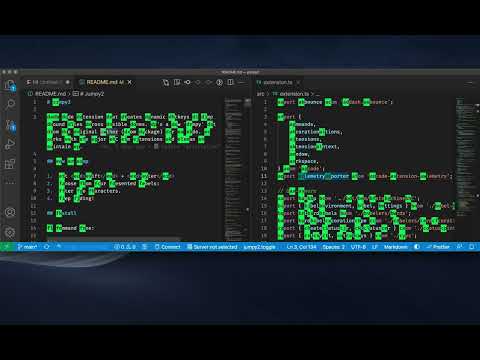
Watch the demo:
Install
On command line:
code --install-extension davidlgoldberg.jumpy2
Notes
- Works great with or without vim or neovim! See vim/nvim integration below
- Vim modes supported:
- 🆕 Now publishes to the Open VSX Registry for VSCodium and Cursor! Download it here: Jumpy2 on the OVSX Registry
- 🆕 Now supports number characters! NOTE: If you have customized
jumpy2.customKeys, you may want to reset it to use the new default value that includes numbers (abcdefghijklmnopqrstuvwxyz0123456789).
- 🆕 Now supports Unicode, CJK, and Emoji! NOTE: If you have customized
jumpy2.wordPattern, you may want to reset it to use the new default value that includes Unicode support.
- Recommended key mappings to replace 'f' in vim integration below.
- Recommended key mappings for back and forward below.
🌐 Web Support
Jumpy2 works in VS Code for the Web! Use it on:
- github.dev - Press
. on any GitHub repository
- vscode.dev - Open VS Code in your browser
- GitHub Codespaces and other web-based VS Code environments
All features work identically to desktop VS Code. For development details, see BROWSER_SUPPORT.md.
Key Bindings
Defaults
- Enter jump mode
- Enter selection mode
- Reset first character entered
- 🆕 Enter squint mode (labels every character, great for zoomed-in views)
- Suggested: ctrl + shift + enter (requires user keybinding, see Squint Mode)
- 🆕 Enter squint selection mode (squint + extend selection)
- Suggested: ctrl + shift + alt + enter (requires user keybinding, see Squint Mode)
- 🆕 Switch between Classic/Squint while in jump mode
- Cancel/exit jump mode (any of the following)
- shift + enter
- enter
- esc
- space
Squint Mode
Label every character(!) instead of just words or patterns. This is useful when you're zoomed in, using a large font, large monitor, or whenever the characters are large enough to divide into 2 human readable jumpy characters!
- Activate:
Jumpy: Toggle Squint Mode from the command palette, or bind a key (suggested: ctrl + shift + enter)
- Squint + Selection:
Jumpy: Toggle Squint Selection Mode from the command palette, or bind a key (suggested: ctrl + shift + alt + enter)
Note: Squint mode does not ship with a default keybinding to avoid overriding VS Code's built-in "Insert Line Above" (ctrl + shift + enter). To add a keybinding, open your keybindings.json and add:
{ "key": "ctrl+shift+enter", "command": "jumpy2.toggleSquint", "when": "editorTextFocus" },
{ "key": "ctrl+shift+alt+enter", "command": "jumpy2.toggleSquintSelection", "when": "editorTextFocus" }
- Switch mid-jump: Press tab while in any jump mode to toggle between Classic and Squint without exiting. This works both ways.
Invert Default Modes
If you prefer squint mode as your daily driver, use Jumpy: Invert Default Modes (Classic/Squint) from the command palette. This swaps the behavior for the current session for instance:
- shift + enter will open Squint Mode
- Your squint keybinding (if set) will open Classic Mode
The current mode is also shown in the status bar — click it (with a mouse :-\ 🔔!) to invert it (or call / bind command mentioned above).
Jump back and forward
Did you know VS Code has built in backwards and forward navigation functionality? You should probably map that to a hotkey for Jumpy!
I currently use the backspace key which overrides the default boring backspace functionality from vim (while in normal mode only of course).
For example with vim Edit this in your keybindings.json file:
    {
        "key": "backspace",
        "command": "workbench.action.navigateBack",
        "when": "editorTextFocus && vim.active && !inDebugRepl && vim.mode == 'Normal'"
    },
    {
        "key": "shift+backspace",
        "command": "workbench.action.navigateForward",
        "when": "editorTextFocus && vim.active && !inDebugRepl && vim.mode == 'Normal'"
    },
Custom set of keys to use (easier to type / faster?)
"jumpy2.customKeys": {
    "type": "array",
    "default": "fjdkslaghrueiwoncmv",
    "description": "Default characters to use"
},
The default might be easier for beginners. It is also probably better for larger screens (more labels before jumpy has to resort to utliizing uppercase letters).
"jumpy2.customKeys": {
    "type": "array",
    "default": "abcdefghijklmnopqrstuvwxyz",
    "description": "Default characters to use"
},
Word Pattern for Experienced Users
Once you've gotten comfortable with Jumpy2, I highly recommend trying a more aggressive word pattern such as [^\s]{1,3}:
"jumpy2.wordPattern": "[^\\s]{1,3}"
This matches any 1-3 non-whitespace characters, giving you far more jump targets. You'll be able to land precisely on punctuation, individual characters within symbols, and tight spaces that the default pattern skips. It takes some adjustment, but it's a game-changer for navigation speed.
Colors & Border
To override Jumpy's default label colors (black on green) try this
In your VS Code's settings.json file:
"workbench.colorCustomizations": {
  "jumpy2.beaconColor": "#ff0000af", // transparent red

  "jumpy2.labelFontColor": "#000000", // black font
  "jumpy2.labelBackgroundColor": "#ff0000", // red bg
  // In this example you would probably want to change the border to black if NOT using checkered-mode (below)
  // (useful when you have aggressive regexes with adjacent labels!)
  "jumpy2.labelBorderColor": "#ff0000", // red border

  // Checkered-mode (or Chess-mode) is the new default setting which alternates colors (like zebra stripes).
  // These styles are optional while using checkered-mode:
  "jumpy2.checkered_labelFontColor": "#ff0000", // red font
  "jumpy2.checkered_labelBackgroundColor": "#000000", // black bg
  "jumpy2.checkered_labelBorderColor": "#000000", // black border
},
However, it is probably wise to leave the defaults, and instead scope this to a theme or wildcarded (modified from VS Code's examples like so:
"workbench.colorCustomizations": {
  // NOTE: not all dark and light themes are conveniently labeled "dark" or "light" like this.
  // In that case, you can specify per theme, or again, just leave Jumpy's default or override the default with the example above.
  "[*Dark*]": {
    "jumpy2.labelFontColor": "#000000",
    "jumpy2.labelBackgroundColor": "#FFFFFF",
    "jumpy2.labelBorderColor": "#FF0000",
    "jumpy2.beaconColor": "#FF0000AF",
  },
  "[*Light*]": {
    "jumpy2.labelFontColor": "#FFFFFF",
    "jumpy2.labelBackgroundColor": "#000000",
    "jumpy2.labelBorderColor": "#FF0000",
    "jumpy2.beaconColor": "#FF0000AF",
  }
},
Vim integration
(see neovim below if interested)
Override vim's extension level backspace
If you want the backspace key to work as the jumpy "reset" command you must define a "user" level keybindings override in keybindings.json to override vim's "extension" level keybinding:
{
    "key": "backspace",
    "command": "jumpy2.reset",
    "when": "jumpy2.jump-mode && editorTextFocus"
}
(feel free to bind it to another key as well)
Bind 'f' and/or 'F' key
if f vim functionality is desired:
open settings as json and add:
  "vim.normalModeKeyBindingsNonRecursive": [
    {
      "before": ["f"],
      "commands": ["jumpy2.toggle"]
    },
    {
      "before": ["F"],
      "commands": ["jumpy2.toggleSelection"]
    }
  ],
Squint mode vim bindings
To add squint mode to your vim workflow, use gs for squint ("go squint") and gS for squint + selection (mirrors F for selection):
  "vim.normalModeKeyBindingsNonRecursive": [
    {
      "before": ["f"],
      "commands": ["jumpy2.toggle"]
    },
    {
      "before": ["F"],
      "commands": ["jumpy2.toggleSelection"]
    },
    {
      "before": ["g", "s"],
      "commands": ["jumpy2.toggleSquint"]
    },
    {
      "before": ["g", "S"],
      "commands": ["jumpy2.toggleSquintSelection"]
    }
  ],
If you use squint mode more often than classic, consider inverting your defaults (see above) and swapping these bindings so f opens squint and gs opens classic.
Neovim Integration
NOTE: I haven't fully configured neovim but used it successfully for a while with the following:
{
  "key": "f",
  "command": "jumpy2.toggle",
  "when": "neovim.mode =~ /^normal$|^visual$/ && !jumpy2.jump-mode && editorTextFocus"
},
{
  "key": "escape",
  "command": "jumpy2.exit",
  "when": "neovim.init && jumpy2.jump-mode && editorTextFocus"
}
for back and forward functionality with neovim:
{
  "key": "backspace",
  "command": "workbench.action.navigateBack",
  "when": "editorTextFocus && !inDebugRepl && neovim.mode != 'insert'"
},
{
  "key": "shift+backspace",
  "command": "workbench.action.navigateForward",
  "when": "editorTextFocus && !inDebugRepl && neovim.mode != 'insert'"
}
Telemetry
This extension collects anonymous usage data to help improve functionality and stability.
Telemetry is implemented using Visual Studio Code's built-in telemetry system. The data may include:
- Extension activation events
- Feature usage
- Error information (no personal data or file contents)
No personal information or user content is collected.
Telemetry respects Visual Studio Code's telemetry settings. You can disable it by setting:
"telemetry.telemetryLevel": "off"
For more information, see:
https://code.visualstudio.com/docs/getstarted/telemetry
Fun
See your achievements(!)
command palette (usually command/ctrl+shift+p) -> Jumpy: Show Jumpy Achievements (career jumps)
(a real ninja would bind it to a key though)
You can also disable this pop up if you're an uber important 1337 10x h4x0r that can't afford to hot key a tab closed once a year...
"jumpy2.achievements.active": false,
Emojis (Subtly useful)
Change the 'jumper' set (emojis)
in your VS Code's settings.json
add:
"jumpy2.jumperEmojis.jumperSet": ["🐒"],
The above tells jumpy to use the monkey emoji exclusively.
Of course you can turn these off too. If you have no soul.
"jumpy2.jumperEmojis.active": false,
Known Issues
- Can not jump to treeview or tabs.
Acknowledgements
(should we collab more? Reach out!)
Keywords
(A little SEO juice)
- Shortcuts
- Navigation
- Productivity
- Mouseless
- Plugin
- Extension
My previous Atom packages :)
Keyboard Enthusiast?
I made Bracklets — a minimal typing training tool for computer programmers or any keyboard enthusiasts who want to learn a new keyboard layout!
It offers focused and customizable drills, inspired by drumming rudiments, for developing muscle memory. Use it to learn any key, but especially those pesky brackets and curlies!
Support Jumpy2

