ADO Work Map for VS Code
Your whole Azure DevOps project at a glance, without leaving VS Code.
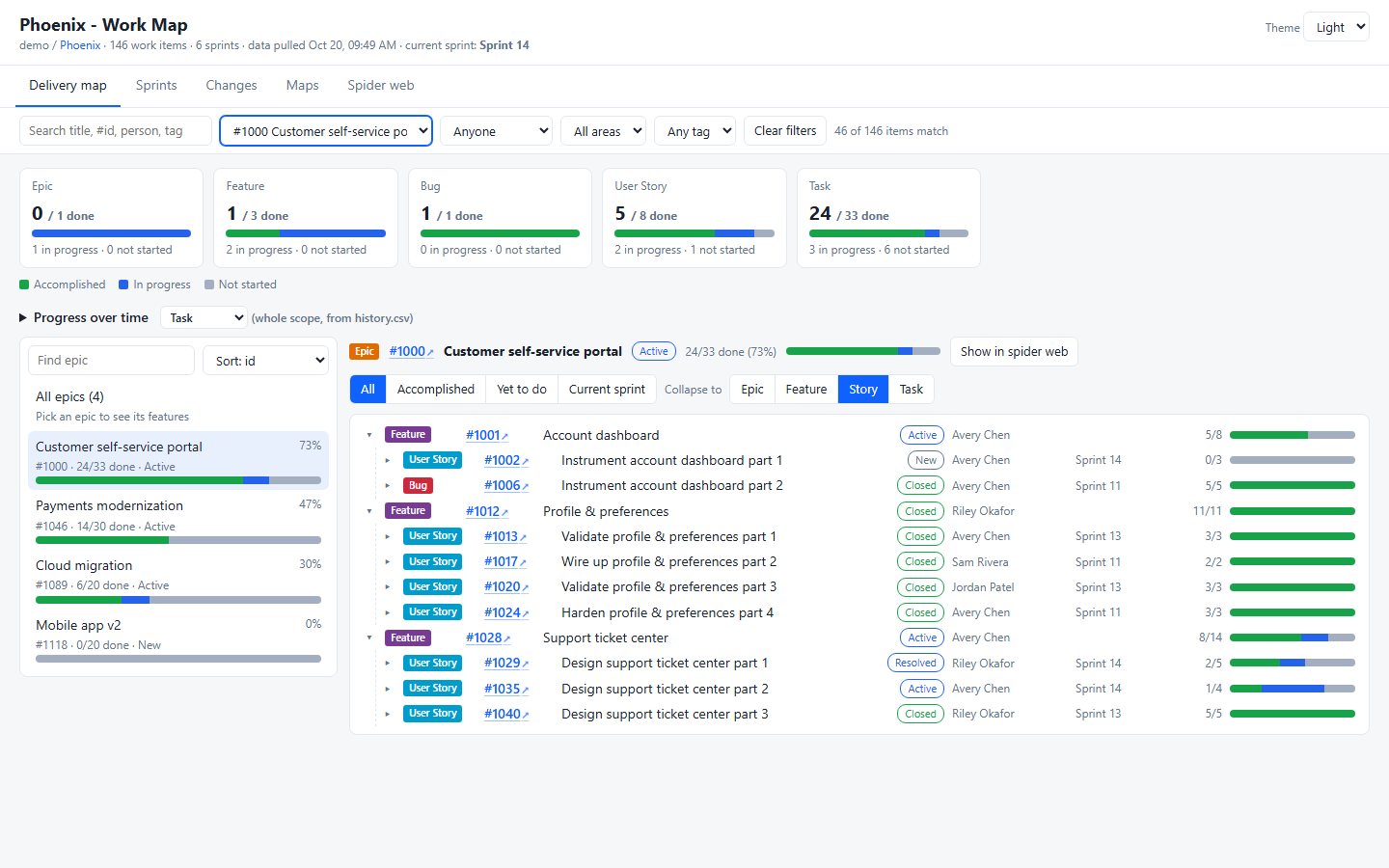
Epics, features, stories and tasks, every sprint, what changed, and how the work connects to your repos, in one self-contained report that works offline.
Try the live demo · Source on GitHub
Getting started
- Click the ADO Work Map icon in the Activity Bar.
- Click Open settings and fill in your organization (the part after
dev.azure.com/) and project.
- Click Set token and paste an Azure DevOps personal access token. Read-only scopes are enough: Work Items, Code, Project and Team, Build, and Analytics (only for history). VS Code keeps it in its secret storage (Windows Credential Manager).
- Click Pull changes. The first pull reads everything; every pull after that only fetches what changed.
- Click Open report.
Want a look first? Run ADO Work Map: Open Demo Report from the Command Palette.
What's in the report
|
|
| Delivery map |
Epic > Feature > Story > Task with done / in progress / not started roll-ups, collapsible to any level, and progress over time |
| Sprints |
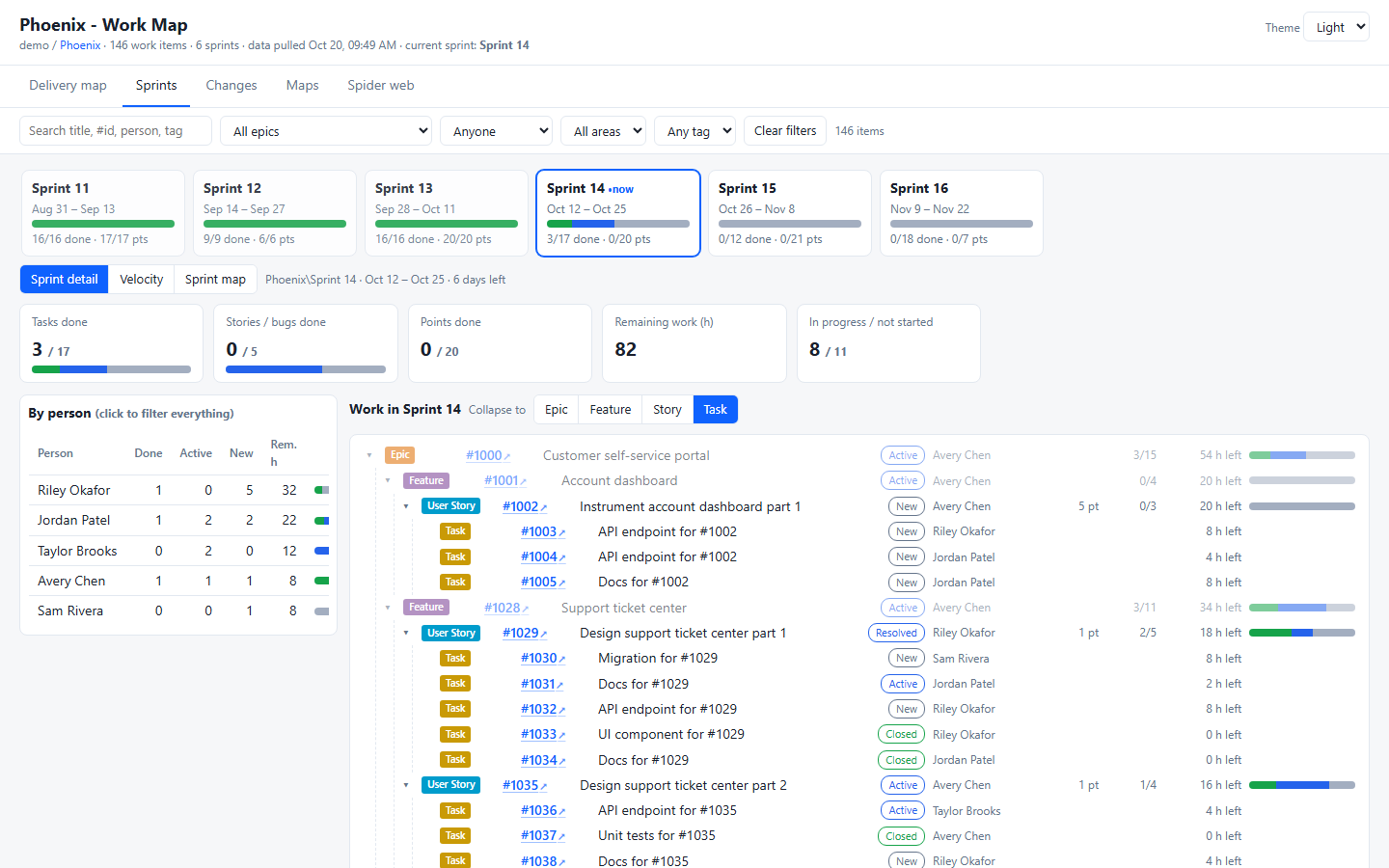
Every sprint on a timeline, work by person, velocity, and a sprint map of features against sprints |
| Changes |
What was created, completed, updated, moved or reassigned in any time frame |
| Maps |
Treemap by % done, a repo matrix, and a commit heatmap |
| Spider web |
Work items, links, pull requests, branches, commits and repos as a graph |
A filter bar (search, epic, person, area, tag) applies to every tab, with light and dark themes.
In VS Code
- Launch pad in the sidebar: setup checklist, your data at a glance, and one-click Pull changes, Full refresh, Rebuild report, Pull history, Clear archived data and Clear all data.
- Status bar: when your data was last pulled; click to pull changes.
- Commands: everything is in the Command Palette under ADO Work Map.
- Report opens in a VS Code tab (or your browser, see
adoWorkMap.openReportIn). Links to work items open in your browser.
- Automatic pulls:
adoWorkMap.pullOnStartup and adoWorkMap.autoPullMinutes.
Settings
| Setting |
|
adoWorkMap.organization, adoWorkMap.project |
Required |
adoWorkMap.team |
Team whose sprints are shown (default <project> Team) |
adoWorkMap.epicIds, adoWorkMap.areaPath, adoWorkMap.workItemTypes |
Narrow the scope |
adoWorkMap.closedWithinDays, adoWorkMap.includeRemoved |
What closed or removed work to keep |
adoWorkMap.historyDays, adoWorkMap.commitDays, adoWorkMap.archiveDays |
How far back to look and keep |
adoWorkMap.serverUrl |
For Azure DevOps Server (on-premises) |
adoWorkMap.dataFolder |
Where data is kept (default: the extension's storage, outside your repos) |
Requirements and privacy
- Windows (it runs the Windows PowerShell 5.1 that ships with Windows 10 and 11). Nothing else to install.
- Read-only: it never changes anything in Azure DevOps.
- No code: it reads work items, pull request metadata and commit dates and authors, never file contents or diffs.
- Your token stays in VS Code's secret storage and is passed to the script through its environment, never on a command line or in a file.
- The report and cache contain your work item titles and names, so keep the data folder wherever your organization says that kind of data belongs.
License
MIT
| |

