Visual Studio Solution Explorer
A VS Code extension that brings the Visual Studio experience to your C++ (and .NET) projects — a full Solution Explorer with filter-based tree view, a Resource View for editing .rc files (Dialog / Menu / Toolbar / String Table / Version Info / Bitmap / Icon), a VS-style Project Settings page (General / C/C++ / Linker — per build mode with All Configurations support and Set as Default build), Project References (browse + Add/Remove between projects), one-click MFC Project / Solution wizards, and NuGet package management for .NET — all with theme-aware UI and fast partial-refresh caching.
Features
🗂️ Solution Explorer
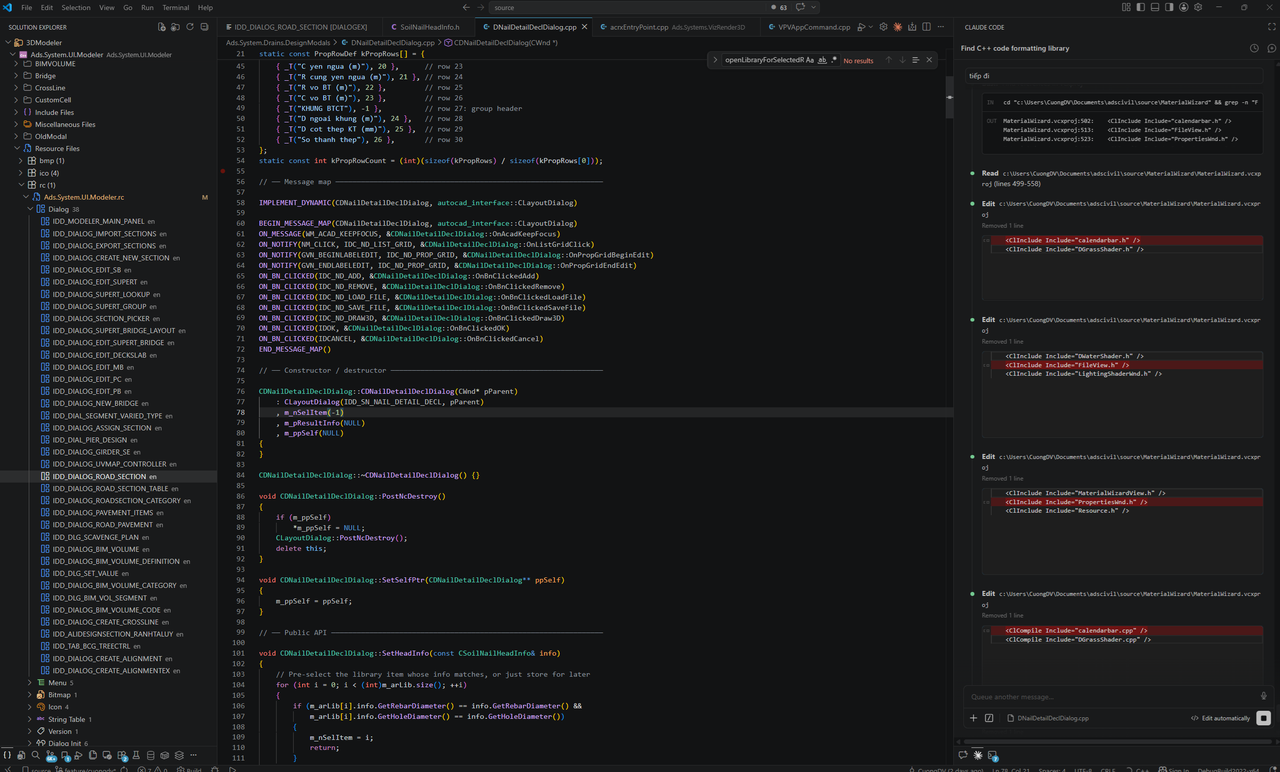
Displays .sln, .vcxproj, .csproj, .vbproj, and .fsproj files as a filter tree — identical to Visual Studio's Solution Explorer panel.
- Parses
.sln solution files and respects nested solution folders
- Reads
.vcxproj.filters to render Source Files / Header Files / Resource Files groups
.rc files expand inline to show their resource tree (Dialogs, Menus, Toolbars, Bitmaps, Icons, etc.)- Falls back to extension-based grouping (
.bmp, .ico, .rc, …) when no .filters file exists — grouping only applies inside Resource Files folders
- Auto-refreshes when
.vcxproj or .vcxproj.filters change on disk
📦 Resource View
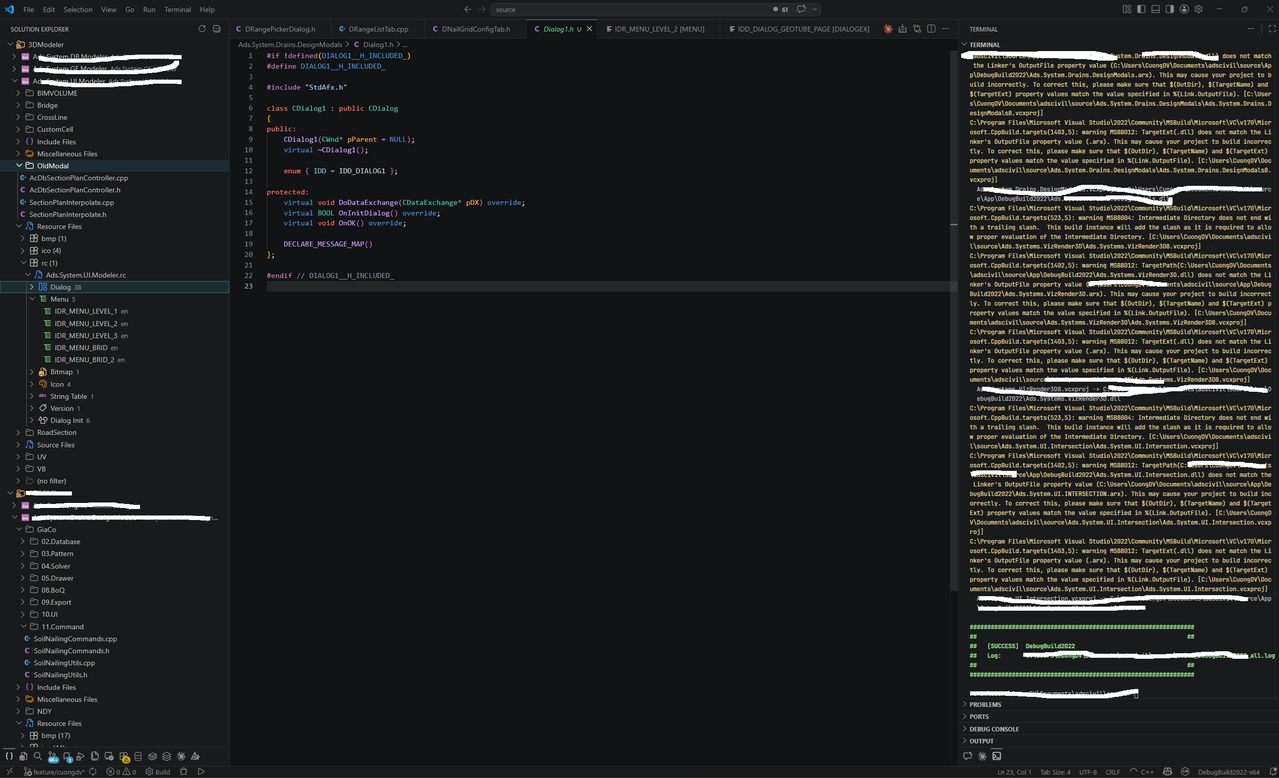
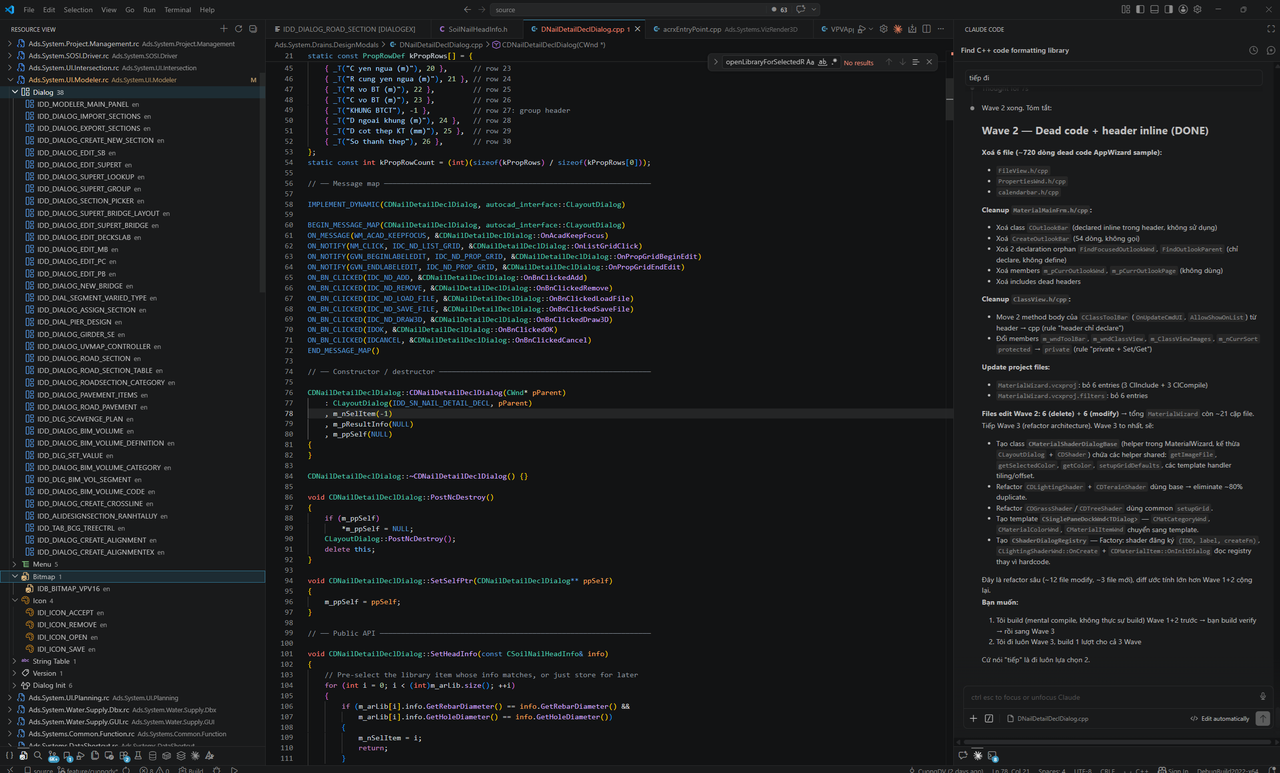
A dedicated activity-bar panel listing all .rc files in the workspace, grouped by resource type — mirrors VS2022's Resource View. Click any resource to open its editor:
| Resource |
Editor |
| Dialog |
Visual control editor — edit controls, positions, sizes and dialog properties |
| Menu |
Menu item editor — add, remove, reorder items and submenus |
| Toolbar |
Button list editor — manage button IDs and dimensions |
| String Table |
Full string editor — add/edit/delete entries, syncs IDs to resource.h |
| Version Info |
Edit FILEVERSION, PRODUCTVERSION and StringFileInfo values |
| Bitmap / Icon |
Preview image and update file path in-place |
All editors use partial tree refresh — only the changed .rc file node reloads, not the whole tree.
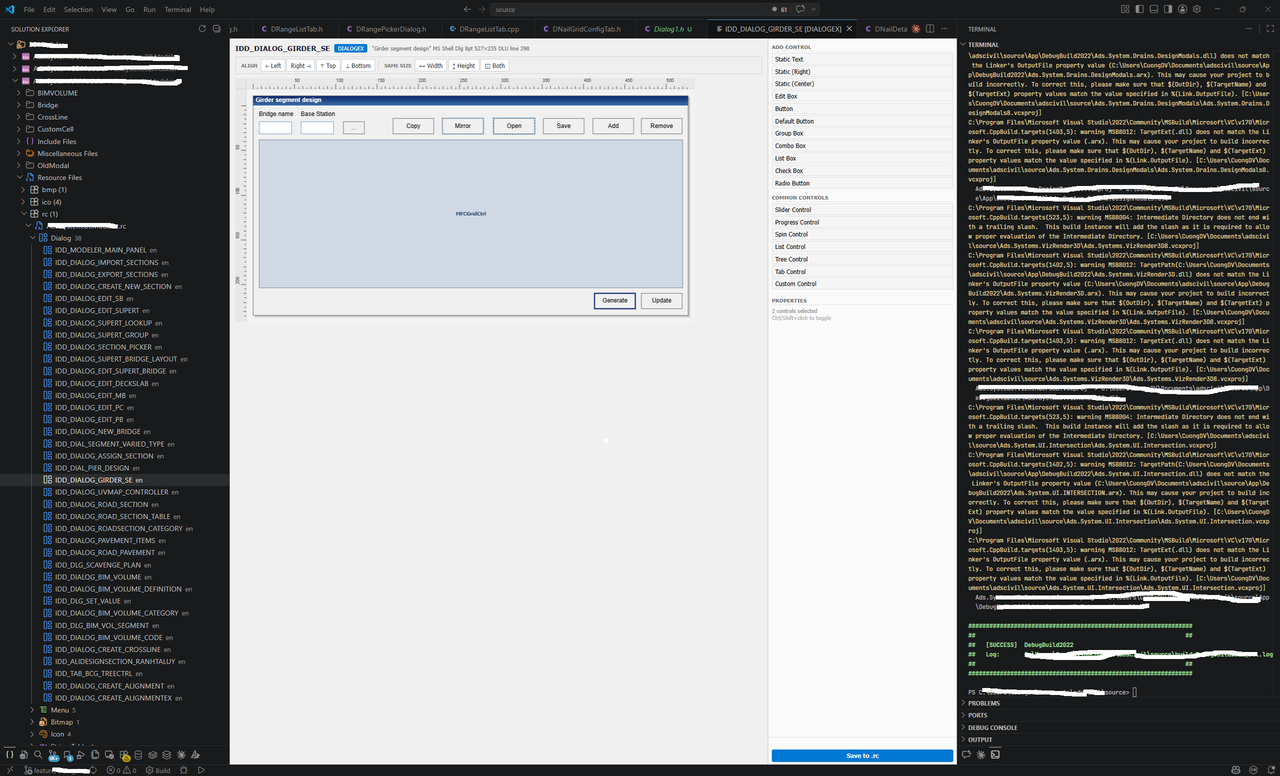
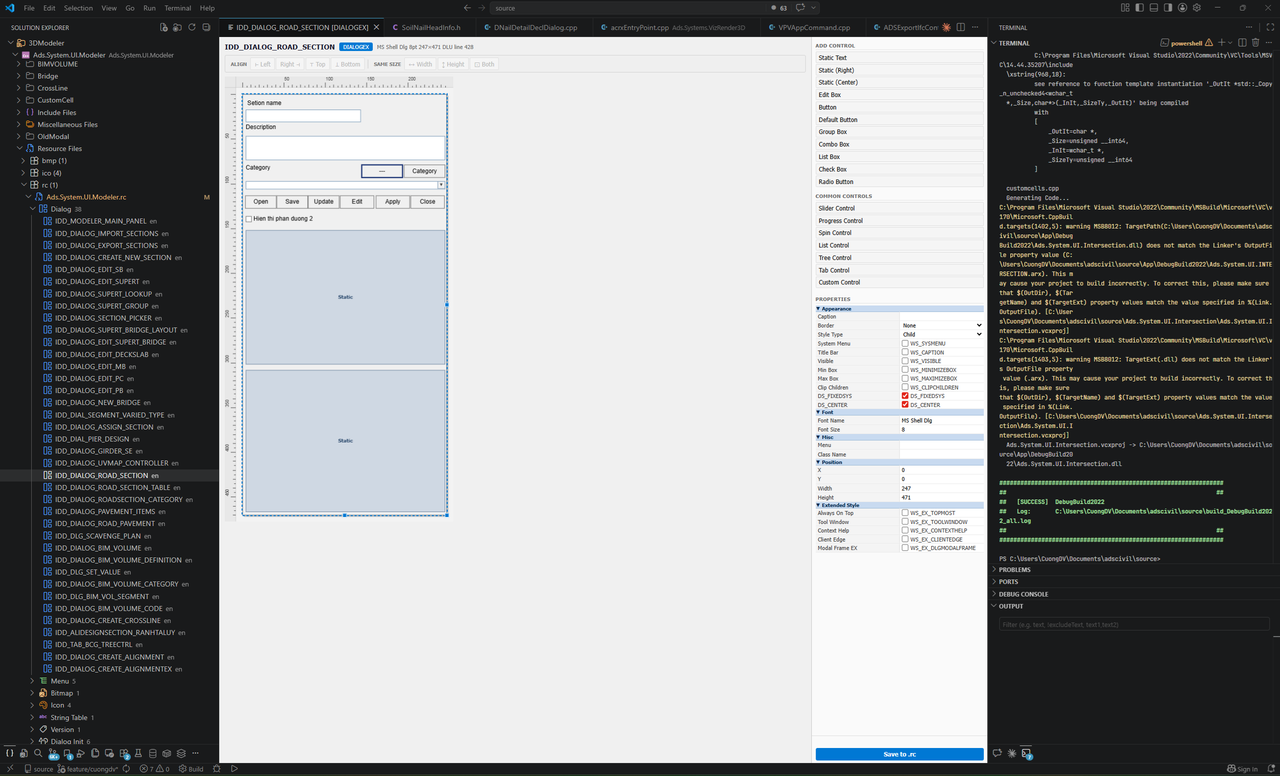
Dialog Editor — canvas-based control editor with snap-to-grid, multi-select, undo/redo, drag-handle resize, alignment toolbar (align left/right/top/bottom, same width/height), and live property grid:
✨ New Resource Wizard
Right-click any .rc file → New Resource…
Supports: Dialog, Menu, Accelerator, String Table, Toolbar, Bitmap, Icon
- Generates a default 16×16 gray
.bmp / .ico placeholder so the RC compiler never reports a missing file error
- Syncs new IDs into
resource.h (_APS_NEXT_* counters updated correctly)
- Toolbar creation also appends a companion
BITMAP entry with the same ID
🗑️ Delete Resource
Right-click any resource item → Delete Resource
- Removes the resource block from the
.rc file
- Toolbar delete also removes the companion
BITMAP entry
- Tree updates immediately without reloading other resources
➕ Add New File to Virtual Folder
Right-click any filter folder → Add New File…
- Enter a filename with extension (e.g.
MyDialog.cpp)
- Creates the file on disk, adds it to
.vcxproj and .vcxproj.filters, then opens it
🧩 New C++ Class
Right-click any filter folder → New C++ Class…
- Enter a class name (e.g.
CMyClass) — files are named without the leading C (MyClass.h / MyClass.cpp)
- Auto-detects Header Files / Source Files filters and places each file in the correct group
- Generated code is C++14 compatible
// MyClass.h
#pragma once

class CMyClass
{
public:
    CMyClass();
    virtual ~CMyClass();
};
📁 Add Existing File…
Right-click any filter folder → Add Existing File…
- Multi-select file picker
- For files outside the project folder, asks once per batch: Copy into project folder, or Add link (reference in place)
- Auto-detects item type from extension (
ClCompile, ClInclude, ResourceCompile, None)
- Updates both
.vcxproj and .vcxproj.filters
🖼️ Create Dialog Class
Right-click any Dialog resource → Create Dialog Class…
- Checks if a class already controls this dialog (searches for
IDD enum match in .h files) — shows existing class name if found
- Pre-fills class name from dialog ID (e.g.
IDD_MY_DIALOG → CMyDialog)
- Generates a full MFC
CDialog subclass with DoDataExchange, OnInitDialog, OnOK, DECLARE_MESSAGE_MAP
- Adds both
.h and .cpp to the correct filters in .vcxproj
// MyDialog.h
#if !defined(MY_DIALOG__H_INCLUDED_)
#define MY_DIALOG__H_INCLUDED_

class CMyDialog : public CDialog
{
public:
    CMyDialog(CWnd* pParent = NULL);
    virtual ~CMyDialog();

    enum { IDD = IDD_MY_DIALOG };

protected:
    virtual void DoDataExchange(CDataExchange* pDX) override;
    virtual BOOL OnInitDialog() override;
    virtual void OnOK() override;

    DECLARE_MESSAGE_MAP()
};

#endif // MY_DIALOG__H_INCLUDED_
🗑️ Delete File
Right-click any file in Solution Explorer → Delete File
- Confirmation prompt before any action
- Deletes the physical file from disk and removes it from
.vcxproj and .vcxproj.filters
🖱️ Drag & Drop Between Filters
Drag .h, .hpp, .c, .cpp, .rc files from one virtual folder and drop onto another.
- Updates
<Filter> assignment in .vcxproj.filters automatically
- Supports multiple files at once
- Cross-project moves are blocked with a warning
⚙️ Project Settings (VS-style property editor)
Right-click any .vcxproj → Project Settings…
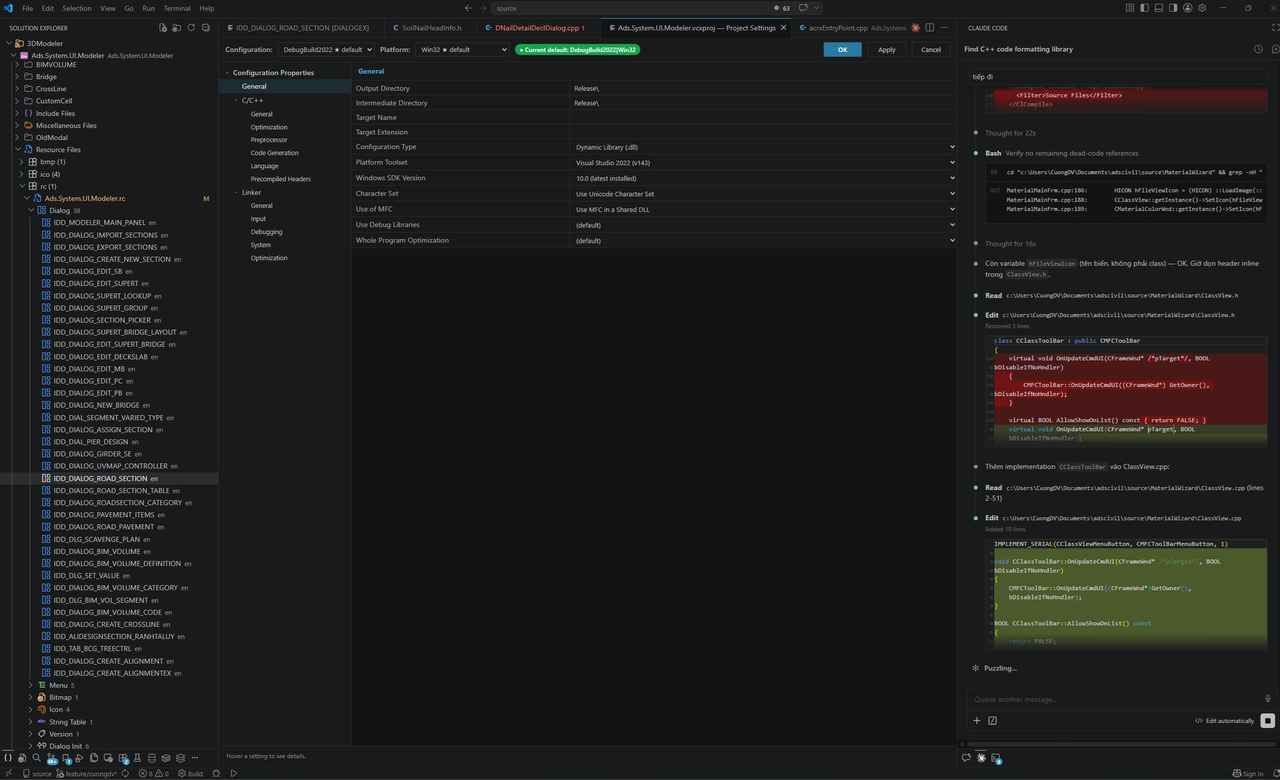
A full Visual Studio-style property page with left tree + right grid + per-config dropdowns, theme-aware (auto dark/light to match your VS Code theme).
Configuration / Platform
- Top dropdowns list every
Configuration|Platform from the project (e.g. Debug|x64, Release|Win32, …)
- All Configurations / All Platforms options apply edits across all matching combos at once
- Default build is auto-loaded on open and shown as a green badge ● Current default: Debug|x64
- Switch to any other config and click ★ Set as default to reorder
<ProjectConfiguration> items and write <Configuration Condition="'$(Configuration)'==''"> so msbuild picks it without /p:Configuration=...
Categories supported (~50 settings)
| Section |
Settings |
| General |
Output Directory, Intermediate Directory, Target Name / Extension, Configuration Type, Platform Toolset, Windows SDK Version (auto-detected installed SDKs as dropdown), Character Set, Use of MFC, Use Debug Libraries, Whole Program Optimization |
| C/C++ → General |
Additional Include Directories, Warning Level, Treat Warnings as Errors, Debug Information Format, SDL Checks, Multi-processor Compilation |
| C/C++ → Optimization |
Optimization, Inline Function Expansion, Intrinsic Functions, Favor Size Or Speed |
| C/C++ → Preprocessor |
Preprocessor Definitions, Undefine Preprocessor Definitions, Undefine All |
| C/C++ → Code Generation |
Runtime Library, Basic Runtime Checks, Enable C++ Exceptions, Enhanced Instruction Set, Floating Point Model |
| C/C++ → Language |
C++ / C Language Standard, Conformance Mode, Treat WChar_t, RTTI, Open MP Support |
| C/C++ → Precompiled Headers |
Precompiled Header (Use / Create / NotUsing), Header File, Output File |
| Linker → General |
Output File, Additional Library Directories, Link Library Dependencies |
| Linker → Input |
Additional Dependencies, Ignore All / Specific Default Libraries, Module Definition File |
| Linker → Debugging |
Generate Debug Info, Generate Map File, Map File Name |
| Linker → System |
SubSystem, Stack Reserve / Commit Size, Enable Large Addresses |
| Linker → Optimization |
References, COMDAT Folding, LTCG |
Editing
- 3 input types: text, dropdown enum (with VS-style labels), multi-line textarea (one entry per line — saved as
;-separated)
- Edited rows highlight yellow; when values differ across configs in All mode, shows
(Multiple Values) placeholder and editing overwrites all
- OK saves and closes, Apply saves and stays, Cancel discards
- Save writes to the right
<PropertyGroup> / <ItemDefinitionGroup> based on label and Condition — creates the group if missing, removes the tag entirely when value is cleared
🔗 Project References
A References folder appears at the top of every project (both C++ and .NET) listing project-to-project and package references.
| Action |
How |
| Browse references |
Expand the References node — click any project ref to open the target .vcxproj / .csproj |
| Add Reference… |
Right-click project → Add Reference… → multi-select QuickPick lists every other project of the same kind in the workspace, excluding self and already-referenced |
| Remove Reference |
Right-click any project reference → Remove Reference (with confirmation) |
- For C++: writes
<ProjectReference Include="..\Lib\Lib.vcxproj"><Project>{GUID}</Project></ProjectReference>. If the target has no <ProjectGuid>, one is generated and written into it.
- For .NET SDK-style: writes
<ProjectReference Include="..\Lib\Lib.csproj" />
- NuGet
<PackageReference> entries also appear in the References folder with their version (use the existing Add NuGet Package… / Remove NuGet Package… commands to manage)
🏗️ New Solution & MFC Project Wizard
Create a full Visual Studio solution and MFC projects directly from the Solution Explorer title bar.
Workflow:
- Click
New Solution… (folder icon) → choose VS version, enter solution name and location → generates an empty .sln
- Click
New MFC Project… (file-add icon) → choose project type, name, toolset and MFC linking → generates all source files → optionally adds the project to any .sln found in the workspace
Supported MFC project types:
| Type |
Description |
| Dialog-based |
CWinApp + CDialogEx main window |
| Single Document (SDI) |
CFrameWnd + CDocument + CView |
| Multiple Document (MDI) |
CMDIFrameWnd + CMDIChildWnd + CDocument + CView |
| Dynamic-Link Library (DLL) |
CWinApp DLL entry point + export header |
| Static Library |
Stub class ready to link into any MFC app |
Each project generates: .vcxproj, .vcxproj.filters, stdafx.h/cpp, all class headers and sources, resource.h, and .rc.
⚙️ .NET Project Commands
Right-click any .csproj / .vbproj / .fsproj node for:
| Command |
Action |
| Build |
dotnet build <project> |
| Run |
dotnet run --project <project> |
| Restore Packages |
dotnet restore <project> |
| Add NuGet Package… |
Prompts for package name + version, runs dotnet add package |
| Remove NuGet Package… |
Lists installed packages, runs dotnet remove package |
NuGet packages show their version number as the description in the tree.
Prerequisites for Building MFC Projects
The generated projects require MSBuild and the Windows SDK / MFC components to compile. These are not installed by this extension — you need to install them manually once.
Option A — Visual Studio (recommended)
Install Visual Studio 2022 Community (free) and select the following workloads:
- Desktop development with C++
- ✅ MSVC v143 (or v142/v141 depending on your toolset choice)
- ✅ Windows 10/11 SDK (any recent version, e.g. 10.0.22621)
- ✅ C++ MFC for latest build tools ← required for MFC headers and libs
Visual Studio installs MSBuild at:
C:\Program Files\Microsoft Visual Studio\2022\Community\MSBuild\Current\Bin\MSBuild.exe
If you do not need the full VS IDE, install Visual Studio Build Tools 2022 and select:
- C++ build tools workload
- ✅ MSVC v143
- ✅ Windows SDK
- ✅ C++ MFC for latest build tools
Verify the installation
Open a Developer Command Prompt for VS 2022 (Start Menu → Visual Studio 2022 folder) and run:
msbuild -version
You should see something like Microsoft (R) Build Engine version 17.x.x.
Building from the command line
Once MSBuild is installed you can build any generated project or solution with:
msbuild MySolution.sln /p:Configuration=Debug /p:Platform=x64
Or build a single project:
msbuild MyApp\MyApp.vcxproj /p:Configuration=Release /p:Platform=Win32
build.bat — quick build script
Create a build.bat in your solution folder for one-click builds:
@echo off
setlocal

:: Locate MSBuild (try VS 2022 first, then VS 2019, then Build Tools)
set MSBUILD=
for %%P in (
    "C:\Program Files\Microsoft Visual Studio\2022\Community\MSBuild\Current\Bin\MSBuild.exe"
    "C:\Program Files\Microsoft Visual Studio\2022\Professional\MSBuild\Current\Bin\MSBuild.exe"
    "C:\Program Files\Microsoft Visual Studio\2022\Enterprise\MSBuild\Current\Bin\MSBuild.exe"
    "C:\Program Files (x86)\Microsoft Visual Studio\2019\Community\MSBuild\Current\Bin\MSBuild.exe"
    "C:\Program Files (x86)\Microsoft Visual Studio\2019\BuildTools\MSBuild\Current\Bin\MSBuild.exe"
) do (
    if exist %%P set MSBUILD=%%P
)

if not defined MSBUILD (
    :: Try PATH (works if VS Developer Command Prompt or Build Tools are on PATH)
    where msbuild >nul 2>&1
    if %ERRORLEVEL% == 0 set MSBUILD=msbuild
)

if not defined MSBUILD (
    echo ERROR: MSBuild not found.
    echo Install Visual Studio 2022 with "Desktop development with C++" workload.
    echo Download: https://visualstudio.microsoft.com/vs/community/
    pause
    exit /b 1
)

set SLN=%~dp0MySolution.sln
set CONFIG=%1
set PLATFORM=%2
if "%CONFIG%"==""  set CONFIG=Debug
if "%PLATFORM%"=="" set PLATFORM=x64

echo Building %SLN% [%CONFIG%^|%PLATFORM%]...
%MSBUILD% "%SLN%" /p:Configuration=%CONFIG% /p:Platform=%PLATFORM% /m /nologo

if %ERRORLEVEL% NEQ 0 (
    echo BUILD FAILED
    pause
    exit /b %ERRORLEVEL%
)
echo BUILD SUCCEEDED
Usage:
build.bat              :: Debug|x64  (defaults)
build.bat Release x64  :: Release|x64
build.bat Debug Win32  :: Debug|Win32
Tip: Replace MySolution.sln with your actual solution filename, or pass it as a parameter.
Getting Started
- Open a workspace folder containing
.sln or .vcxproj files
- Click the Solution Explorer icon in the Activity Bar
- Expand projects to browse files by filter group
- Click the Resource View icon to browse and edit
.rc resources
To create a new project from scratch:
- Click New Solution… (folder icon in title bar) → fill in wizard → solution folder is created
- Click New MFC Project… (file-add icon) → fill in wizard → choose to add to the solution just created
- Install MSBuild if not already present (see Prerequisites)
- Build with
msbuild MySolution.sln /p:Configuration=Debug /p:Platform=x64 or use the build.bat template above
Settings
"solutionExplorer.excludeDirs": ["x64", "Win32", "Debug", "Release", ".git", ".vs", "node_modules", ".backup"],
"solutionExplorer.excludePatterns": [".bak"]
| Setting |
Description |
excludeDirs |
Directory names to skip when scanning for project files |
excludePatterns |
Substrings in .vcxproj filenames to exclude |
Requirements
- VS Code 1.80 or later
- Visual C++ projects (
.vcxproj / .vcxproj.filters) or SDK-style .NET projects (.csproj, .vbproj, .fsproj)
- To build MFC projects: MSBuild + Windows SDK + MFC component (see Prerequisites)
- To build .NET projects: .NET SDK — run
dotnet --version to verify
- MFC class generation targets C++14 — no external dependencies required for the extension itself
Known Limitations
- Drag-and-drop requires a
.vcxproj.filters file to be present
- Cross-project file moves are not supported
- Dialog class search scans the project directory up to 4 levels deep
🐛 Bug Reports & Feature Requests
Found a bug or have a feature request? Get in touch:
I read every message and try to respond as quickly as possible.
☕ Buy Me a Coffee
If this extension saves you time, consider buying me a coffee!
PayPal: adt.plus.vn@gmail.com
Go to paypal.com → Send & Request → enter adt.plus.vn@gmail.com → any amount you like ☕
Your support keeps this project alive and motivates new features. Thank you! 🙏


