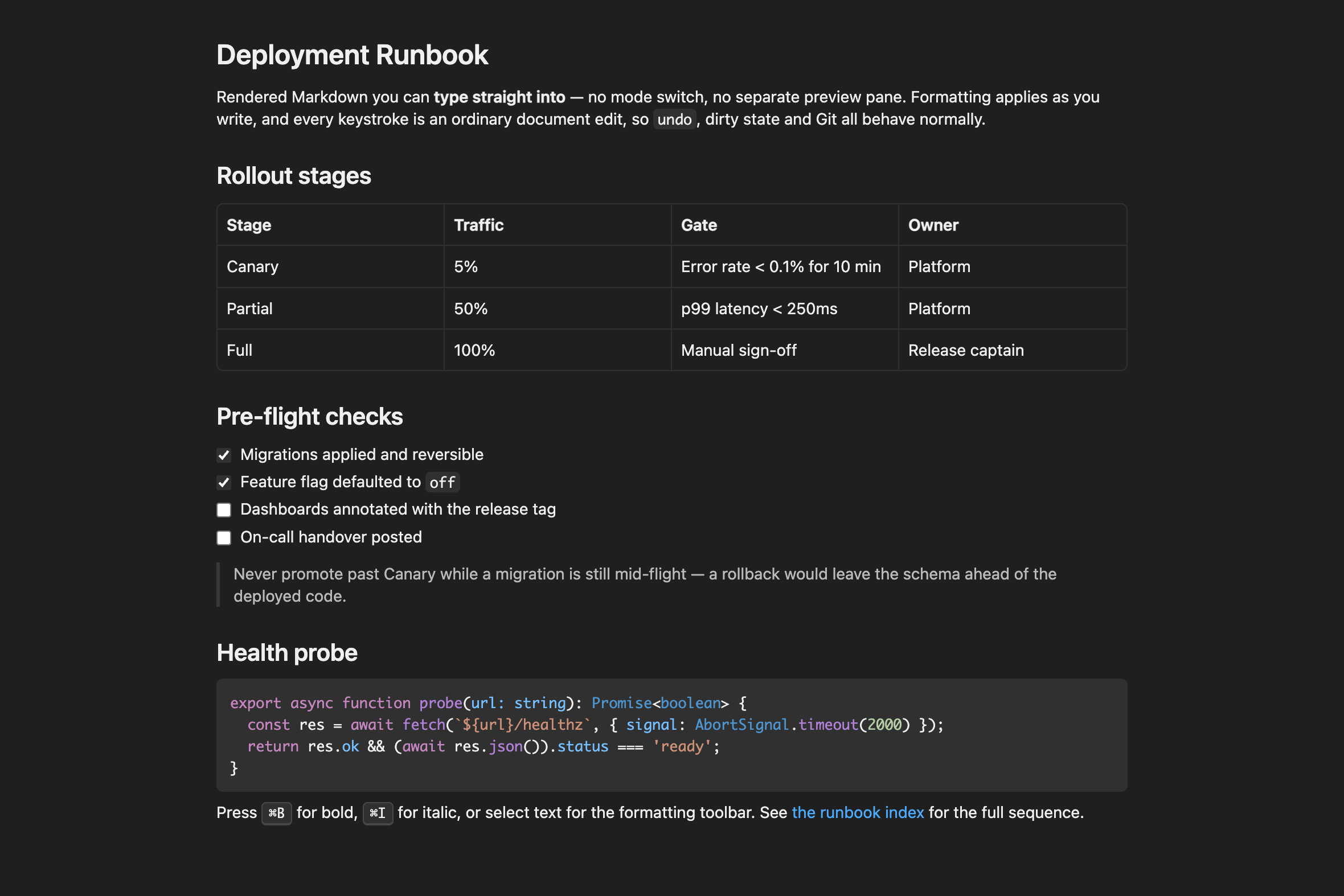
Cursor Style MarkdownCursor-style Markdown: .md files open as a rendered, directly editable document with a Preview / Markdown toggle. Installation Launch VS Code Quick Open ( Ctrl+P), paste the following command, and press enter.Copied to clipboard |

Cursor Style MarkdownCursor-style Markdown for VS Code. Every
WhyCursor renders Markdown in a native rich-text editor: a centred 800px column, borderless headings, soft code surfaces, and you type straight into the rendered page. VS Code's built-in preview is full-width, read-only, with underlined headings and boxed code blocks. Cursor Style Markdown brings the Cursor experience to VS Code, typography values included, while staying an ordinary extension. FeaturesEdit in the rendered view. No mode switch. The webview runs a
TipTap/ProseMirror rich-text editor over a Markdown serializer — the same
approach Cursor uses. Because it is a Formatting as you type. Markdown input rules (
Full GitHub-flavoured Markdown. Tables you can edit in place with drag-to-resize columns, task lists you can tick, strikethrough, autolinks, fenced code with syntax highlighting, heading anchors, and YAML front matter that stays hidden and intact. Cursor's look. Centred column, borderless weight-590 headings, 14px/1.4
workbench font, and Links and images behave. Relative links open the target file, Only two buttons. VS Code's own Markdown chrome — the "Open Preview" title-bar buttons, the breadcrumb editor-type dropdown, and the two built-in Markdown editors — is switched off so the Preview | Markdown pair is all you see. Each piece is individually reversible; see Settings. RequirementsVS Code 1.85 or later. InstallNot yet on the Marketplace. Build a Then reload the window ( If you use VS Code profilesA CLI install lands in the default profile only. In any other profile the extension is installed but never scanned — it will be missing from the editor picker with no error in any log. Install into each profile by name: Profile names come from Not recommended inside CursorCursor already ships a native Markdown editor that claims Settings
The last three write to the active profile's user settings, which is what makes the behaviour follow you between profiles. Every write is guarded and reversible: turning a setting off removes exactly what Cursor Style Markdown added and leaves your other values alone.
To make Editing normalizes formattingSaving from the rendered view rewrites the file from the document model, so
formatting is normalized: soft-wrapped paragraphs are joined onto one line and
table delimiter rows become Content is preserved — front matter, code fences, tables, task lists, links
wrapping inline code, and inline HTML such as DevelopmentPress F5 ("Run Extension") to launch an Extension Development Host, then open
any TrademarkNot affiliated with, sponsored by, or endorsed by Anysphere, the makers of Cursor. "Cursor" is used here only to describe the editing experience this extension reproduces in VS Code. License |