Use multiple JDBC data sources as a lightweight SQL workbench in Visual Studio Code (and compatible editors such as Cursor, VSCodium, and similar): write and run SQL, browse hierarchical metadata, view results in the bottom panel or editor area, and export. The extension calls JDBC through a local Java proxy and does not load drivers inside the Node process; sql.js provides metadata caching and persisted query history. Any engine that ships a JDBC driver (relational, analytical, gateways, etc.) is supported as long as you supply the matching JAR and configure the URL and classpath.
AI and LLM integration is a core part of the product—not an afterthought. A headless dbplatform CLI connects to the running extension over a local Agent Bridge so assistants can sync metadata into the same SQLite cache as the sidebar, fetch table/column schema before writing SQL, and execute queries against your saved JDBC connections without manual Run clicks. The CLI is installed automatically when the extension activates (~/.dbplatform/bin/dbplatform; integrated terminals also get dbplatform on PATH—no shell alias required). Behavior and API are defined in the Agent CLI spec.
Full CLI for agents — no separate MCP or extra package. Once Database Platform SQL is installed, the editor is open with the extension active, and at least one sidebar connection is configured, any assistant with terminal access can drive the same headless surface as the CLI: doctor, connection list/switch, metadata sync, schema get/search, and SQL run/explain (read-only by default). The Bridge reuses your saved JDBC sessions, driver paths, and metadata cache; the CLI does not connect to databases on its own.
Configure your assistant: copy the instruction blocks from Agent Skills (AI assistants) (below) into whatever your tool uses—Cursor Rules, Claude CLAUDE.md, Copilot custom instructions, ChatGPT project instructions, etc. Paste at least Setup, SQL agent, and Troubleshoot; add Metadata for bulk sync or deep refresh (keyword table search is in SQL agent). Those blocks are starting templates—you can work with your LLM to adapt or extend them for your team (connection naming, table-discovery keywords, report format, refresh policy, etc.). In Cursor, project skills can live under .cursor/skills/ (this repo ships dbplatform-* examples). The model should load schema via the CLI before generating SQL and run real terminal commands instead of inventing results.
Questions & suggestions
For usage issues, bugs, or feature ideas, open GitHub Issues.
Requirements
- Editor: VS Code ≥ 1.85, or a fork that implements the VS Code extension API (Cursor, VSCodium, etc.). Most features use standard APIs; in-editor line insets (see below) depend on Proposed API, which varies by distribution.
- Java: JDK 11+ on the machine (the proxy is built for Java 11 bytecode); JDK 17 is recommended to match common database tooling. The extension resolves
java in this order: dbplatform.javaHome → java.jdt.ls.java.home → java on PATH.
- Drivers: for real clusters, provide the engine’s JDBC JAR via the connection form driver directory or
dbplatform.driverPath; the proxy adds them to the classpath.
Necessary Settings
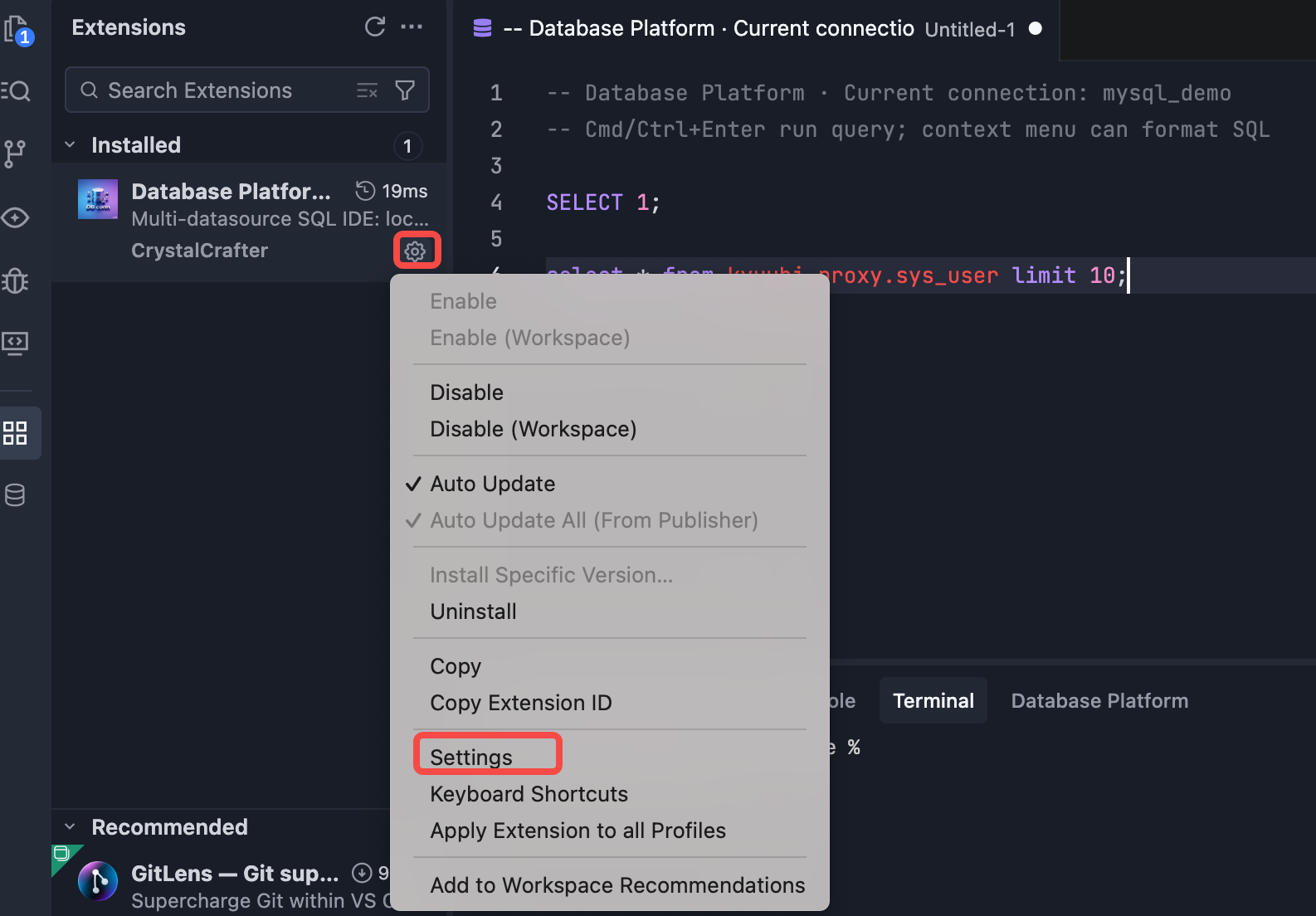
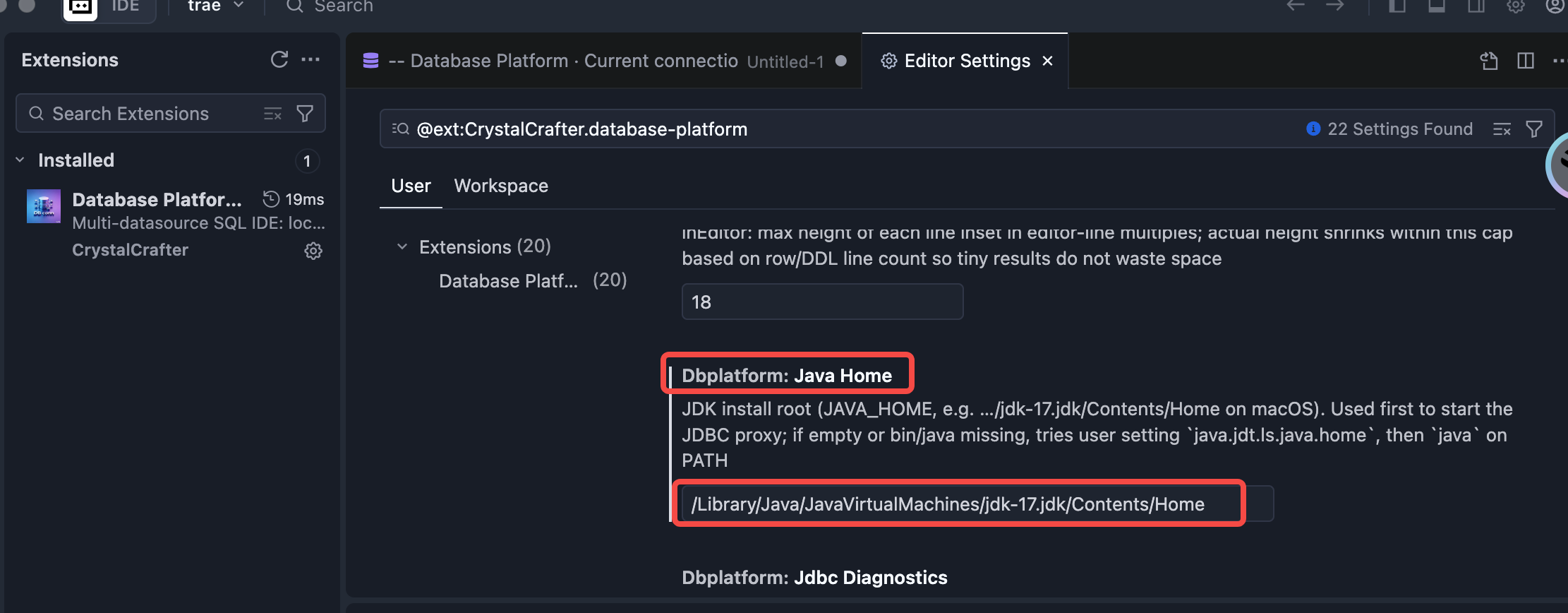
When your local Java environment is not Java 11 or Java 17, configure a separate JavaHome for extension execution. A VSCode restart is required for the new Java settings to take effect.
Open Settings
Configure the Java Home setting to point to your local Java installation directory path.
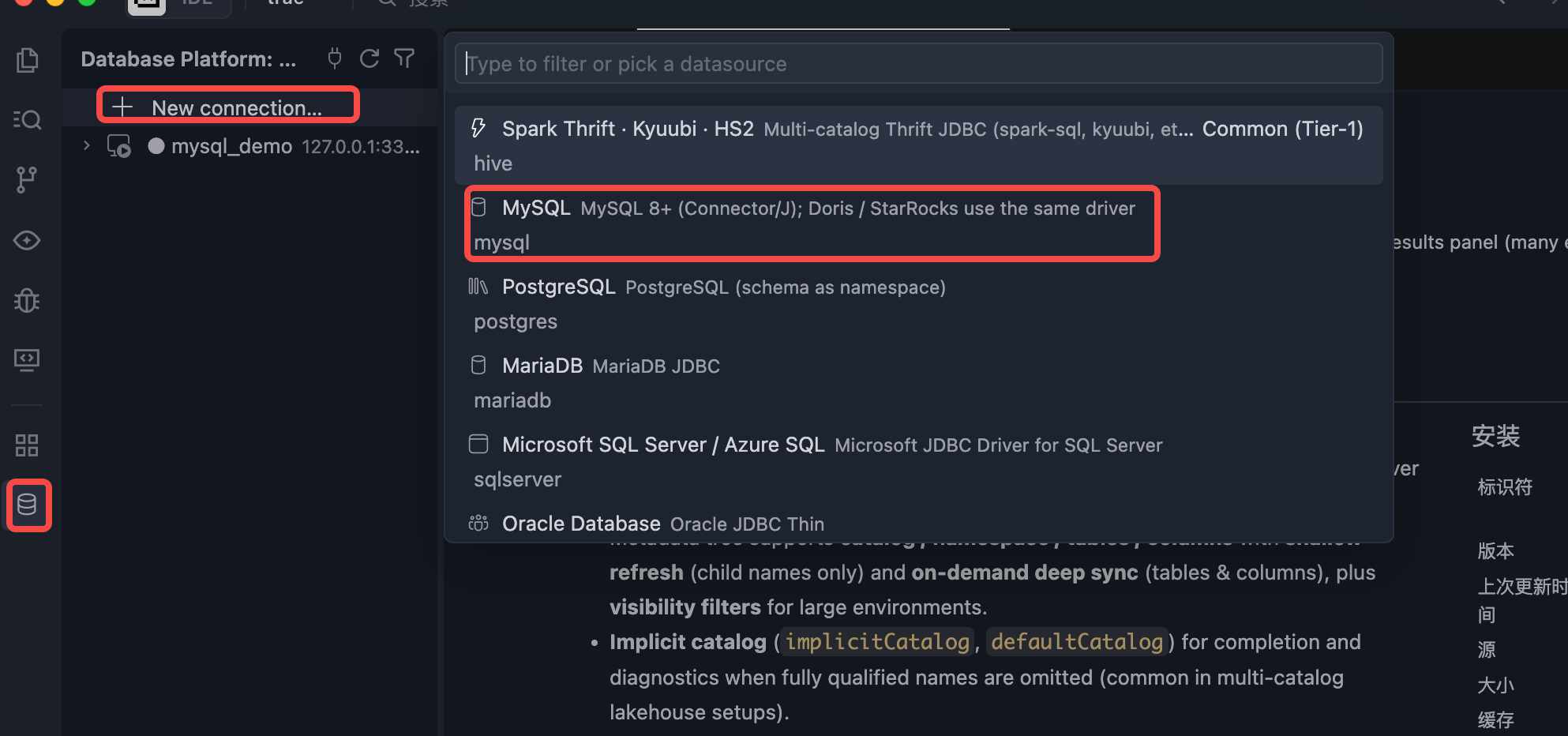
Connect
1.Open Database Explorer panel, then click the + button.
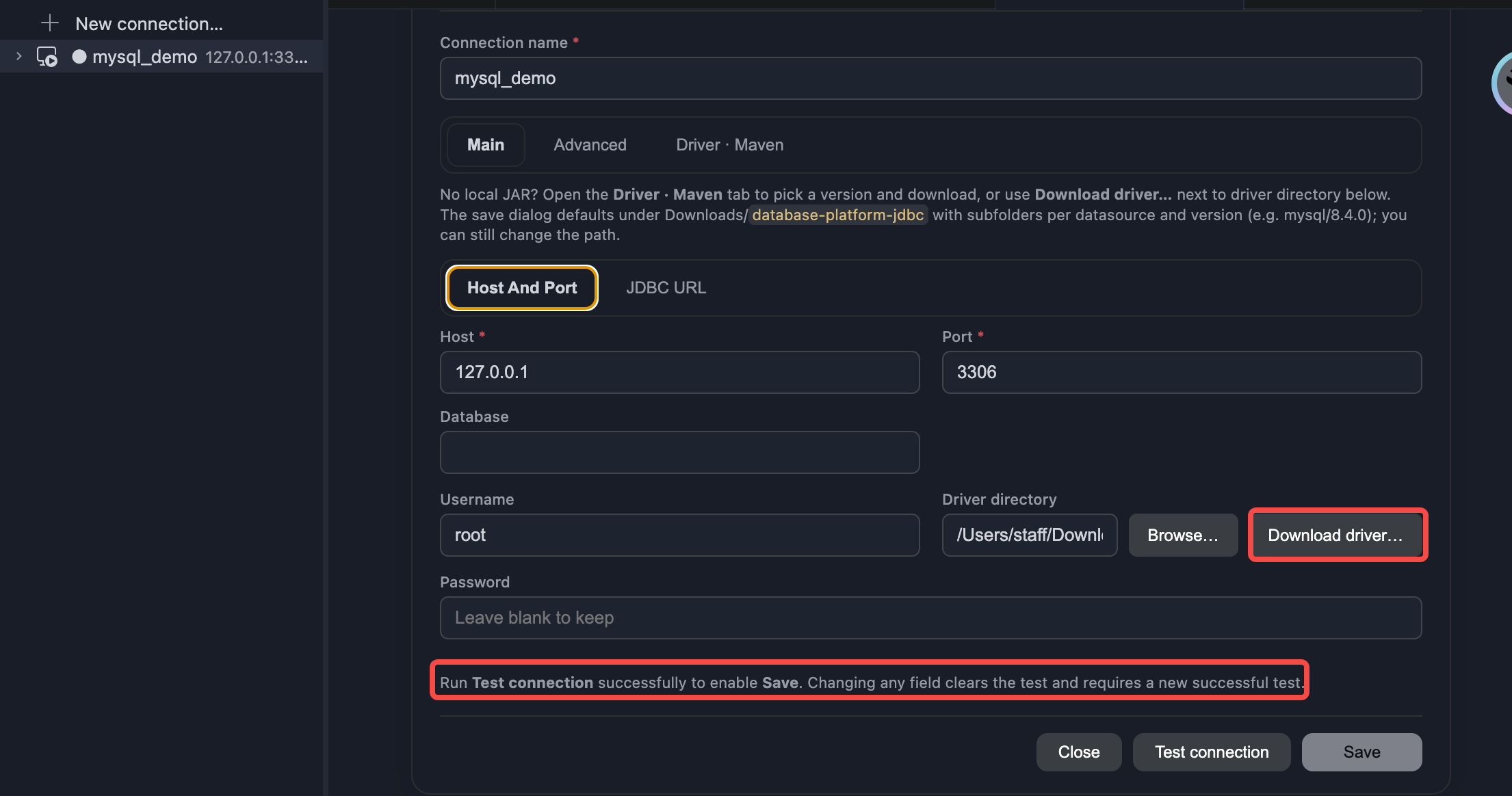
2.Select your database type, input connection config then click the connect button.
New Connection
1.Refreshing metadata at the connection level only refreshes databases or catalogs; refreshing metadata at the catalog level only refreshes the list of databases; clicking refresh metadata at the database level can refresh tables and fields.
2.The displayed metadata list can be filtered (e.g., showing only certain databases).
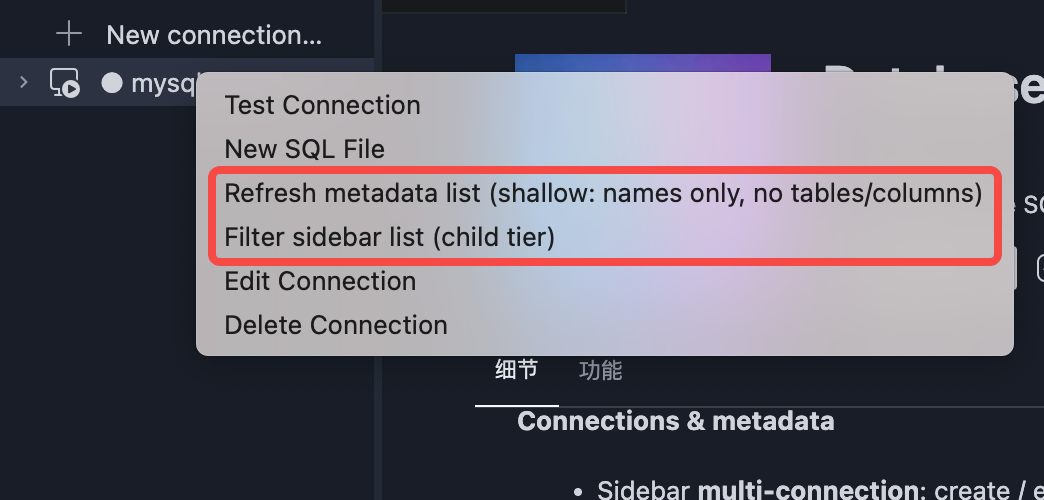
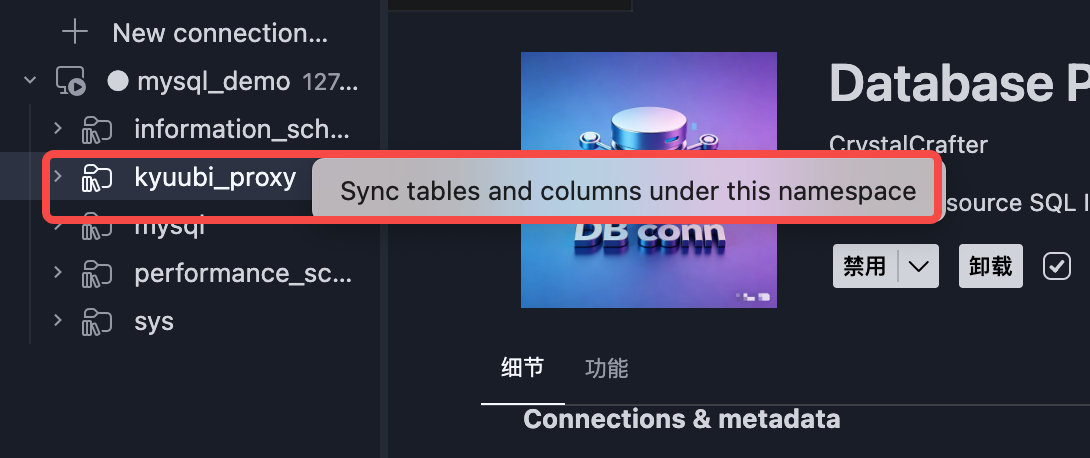
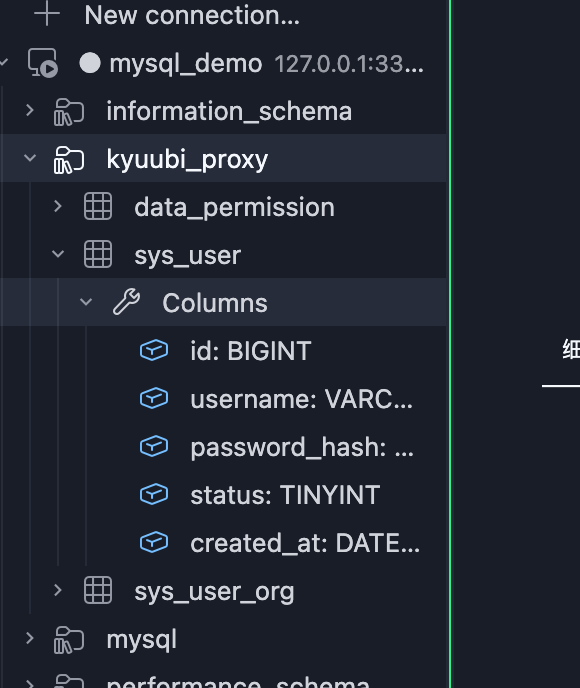
Execute SQL Query
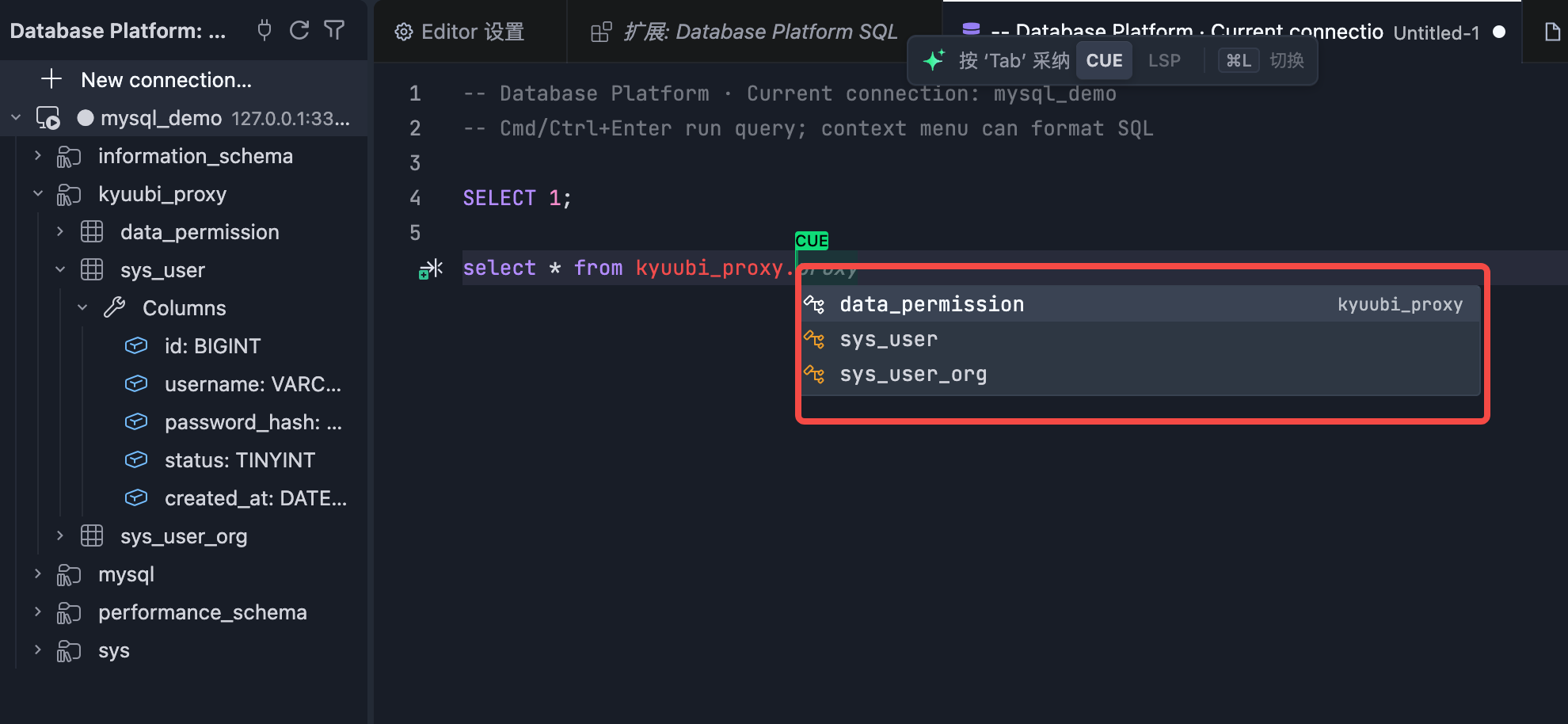
On the data connection, click 'New SQL File' to create a SQL editor.The editor supports auto-completion for databases, tables, and SQL statements.
Cmd/Ctrl+Enter run query.
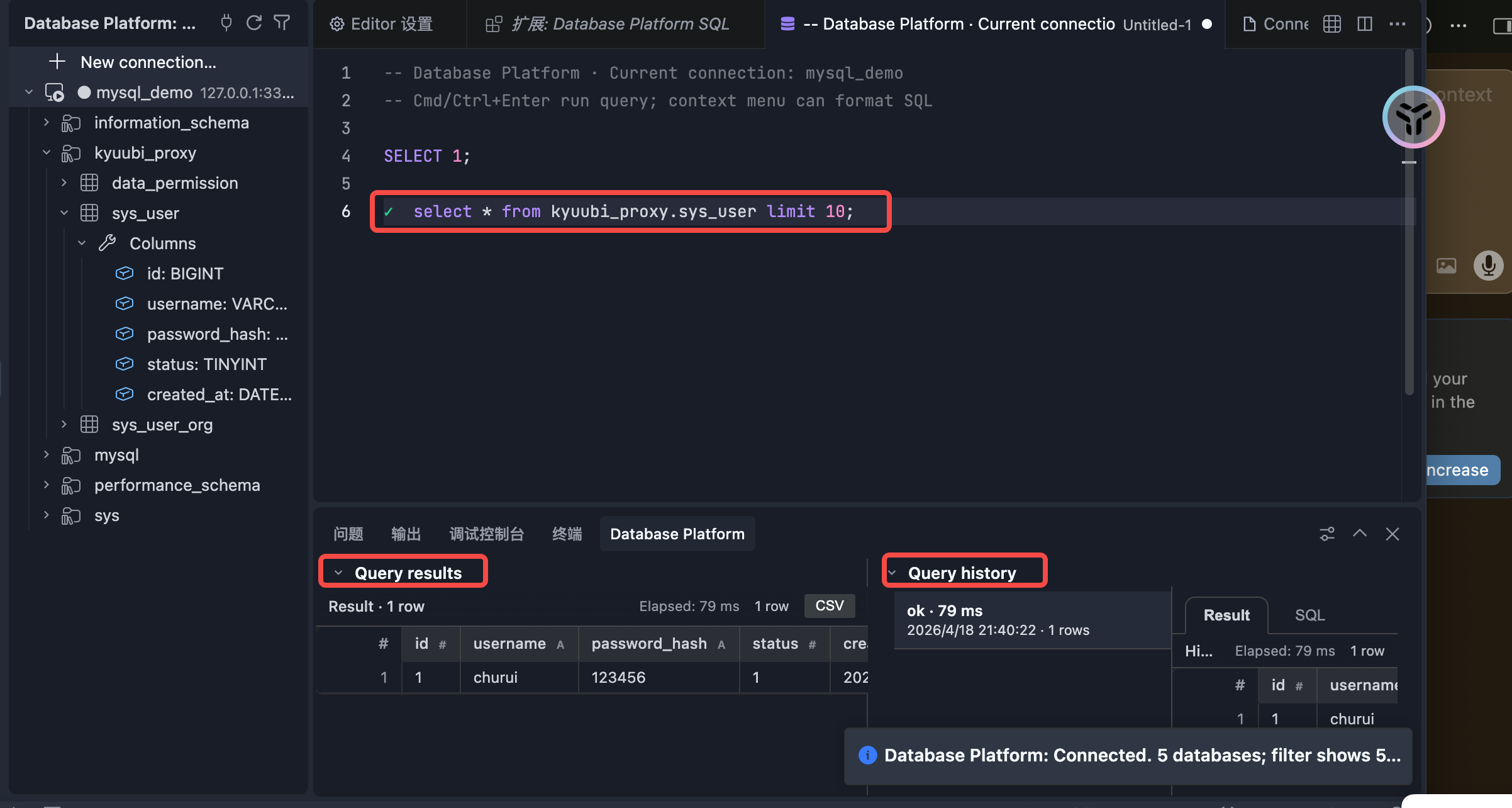
After executing the SQL, open Query history in the bottom panel to view results (or use in-editor line insets when configured).
New SQL File
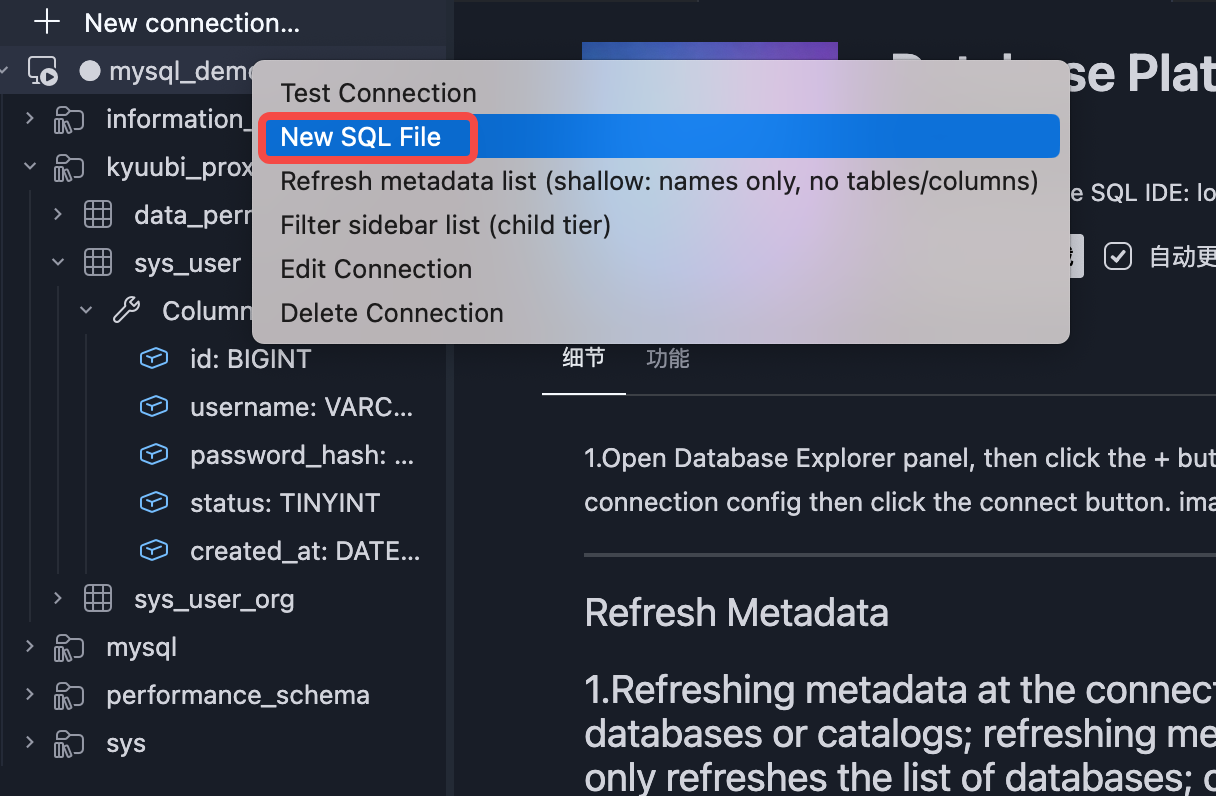
SQL Exampl
Execution Result
Export CSV
Features
- Sidebar “Connections & metadata”: manage multiple connections (create / edit / delete / switch / test), filter by connection type and tier, refresh catalogs / schemas / tables / columns on demand (shallow vs deep sync to reduce load on large clusters).
- Query & editing: run the current statement, format SQL, expand
SELECT * to a column list, EXPLAIN the current query when supported, copy schema context for in-editor chat or external assistants. Run / success / failure is indicated in the gutter immediately before each executed statement (leading -- / /* */ file headers are skipped).
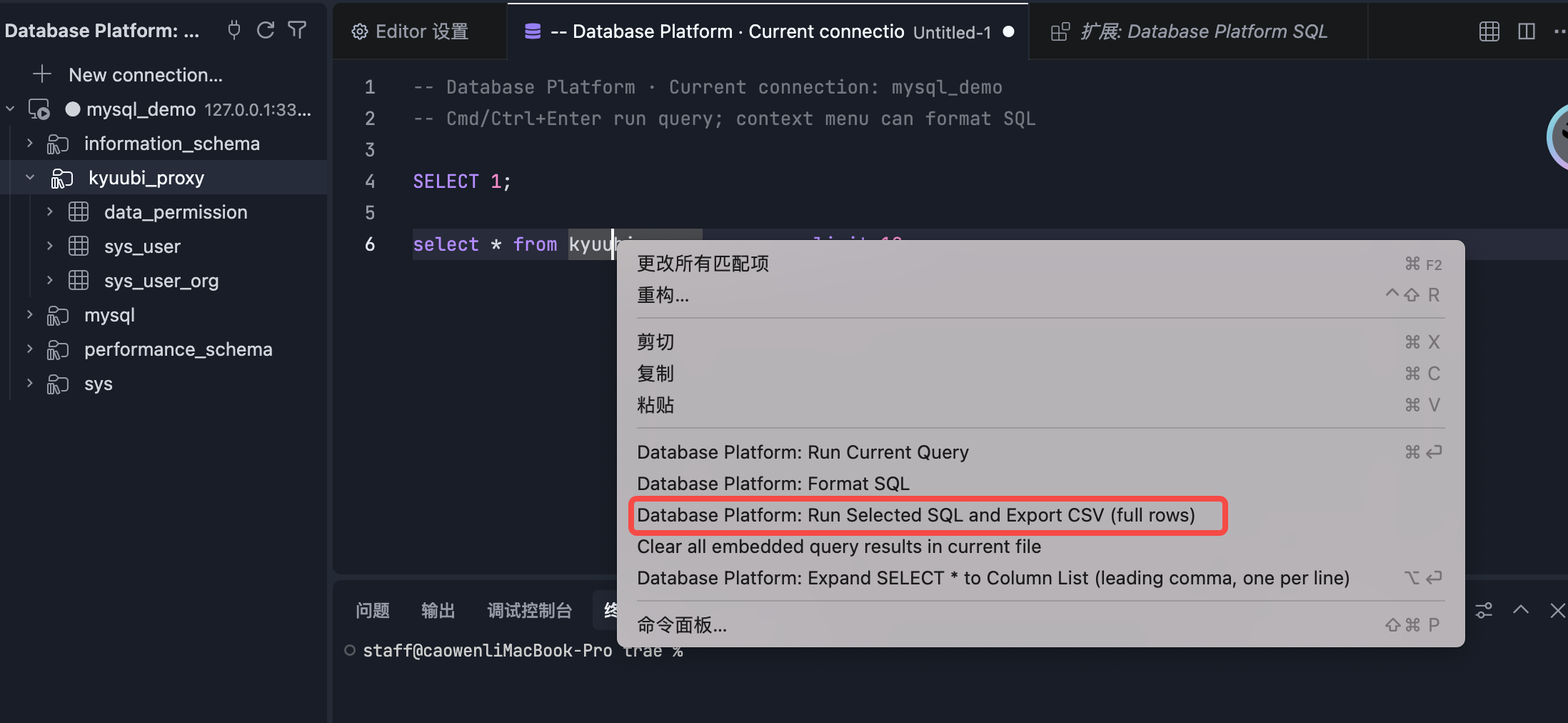
- Results & history: result grid in the bottom Query history panel (or optional tab beside the editor, or in-editor line insets with Proposed API); column widths follow cell content with horizontal scroll; click column headers to sort preview rows client-side; query history webview with Result / SQL tabs; CSV export (including “run selected SQL and export full rows”). The result toolbar shows a short summary (row count, execution plan, or DDL block)—not the SQL text; open Query History → SQL to read or copy the statement that produced a run.
- Runtime & diagnostics: configurable
fetchSize, preview row cap, export row cap, query/connect timeouts, idle session disconnect (to reduce server load); optional JDBC diagnostic logs (passwords excluded). When the local metadata cache does not contain a referenced table (or a column on a cached table), the extension marks the full qualified reference in the editor (including multi-part 'catalog'.'schema'.'table' style names) with red text and a hover explanation—not Problems-panel squiggles.
Agent Skills (AI assistants)
Copy the instruction blocks below into whatever your AI tool uses—Cursor Rules, Claude CLAUDE.md, Copilot instructions, ChatGPT custom instructions, etc. There is no separate install step and no specific editor required beyond Database Platform SQL (for JDBC + metadata + the dbplatform CLI).
Requires (see agent-cli-api-spec.md): extension installed; editor open with extension active (Agent Bridge running); at least one sidebar connection configured (JDBC password set if needed); CLI shim at ~/.dbplatform/bin/dbplatform. When these are met, the assistant gets the full CLI—connection management, metadata sync, schema lookup/search, and SQL execution—through the same Bridge as the UI.
Typical use: paste Setup + SQL agent + Troubleshoot always; add Metadata when refreshing large catalogs or deep/incremental sync (keyword table search is built into SQL agent).
Customize with your LLM: README blocks and .cursor/skills/dbplatform-* are defaults, not fixed rules. Ask your assistant to tune them for your environment—for example: which connection to prefer, business table aliases (“用户权限表” → db.table), dialect-specific SQL style, when to deep-sync metadata, or how to format query summaries. Keep the hard constraints (real CLI execution, schema before SQL, read-only unless allowed).
Cursor: attach or reference project skills under .cursor/skills/; no need to paste README blocks if those skills are already in the workspace.
When to use: First agent SQL session; dbplatform doctor fails; bridge not found; CLI cannot reach the extension.
Verify that Database Platform SQL is active and dbplatform can reach the local Agent Bridge. Do not write or run SQL until setup succeeds (then use dbplatform-sql-agent).
User must already have: extension enabled; at least one saved sidebar connection; JDBC password set if needed; a .sql file open or any extension command run once so the extension activates.
CLI (no manual PATH): ~/.dbplatform/bin/dbplatform (Windows: %USERPROFILE%\.dbplatform\bin\dbplatform.cmd), or "$DBPLATFORM_CLI", or dbplatform in the integrated terminal after activation.
Run in terminal (real commands, not simulated):
dbplatform doctor
dbplatform connection list
dbplatform connection current
doctor result |
Action |
ok: true, ready |
Continue with dbplatform-sql-agent |
| Bridge / file not found |
Open editor, reload window, open a SQL file |
| Unauthorized |
Reload window and retry |
| No connections |
Sidebar → Connections & metadata → create connection |
Optional: dbplatform connection use <connectionId>
Do not: invent query results; write SQL before schema load; ask user to edit shell rc for PATH.
When to use: User asks to write SQL, query data, validate SQL, run SELECT/EXPLAIN, or mentions Database Platform / dbplatform / warehouse SQL with real execution.
Write correct SQL and run it against the local IDE connection (same metadata cache and JDBC session as the extension).
CLI — Agent terminals often lack dbplatform on PATH. Prefer:
~/.dbplatform/bin/dbplatform   # macOS/Linux
# Windows: %USERPROFILE%\.dbplatform\bin\dbplatform.cmd
# or: "$DBPLATFORM_CLI"
Integrated editor terminals may use bare dbplatform after extension activation.
Hard rules
- Fetch schema before writing SQL — never guess column names.
- Run real CLI commands — never fabricate JSON or row counts.
- Read-only by default — only SELECT/EXPLAIN unless the user explicitly asks for writes/DDL.
- Prefer local
dbplatform schema over remote table-metadata MCP when this CLI is available.
- Missing
${var} → --var name=value; ask the user if unknown.
Workflow (stop on failure → troubleshoot or setup):
- Verify
dbplatform doctor
dbplatform connection current
Note connection.dialect from current — write SQL for that dialect (MySQL, Hive, etc.).
doctor passing means the Bridge is reachable; it does not guarantee sql run will succeed in a restricted Agent sandbox (see step 4).
- Load schema (mandatory before SQL)
Known qualified table (db.table):
dbplatform schema get --table qualified.table_one --table qualified.table_two
Unknown or business name only (e.g. “用户权限表”, “订单表”):
dbplatform schema search --keyword "permission" --limit 20
dbplatform schema get --table db.found_table
Pick the best matchIn: table hit in user databases (skip system schemas like mysql.* unless asked). If several candidates, confirm with the user or state your choice before querying.
Existing SQL draft:
dbplatform schema from-sql --sql "PASTE SQL HERE"
- Every
FROM/JOIN table must appear in schema output first.
- Use exact column names from JSON
columns.
- Missing/stale columns →
--force-sync or dbplatform-metadata (bulk sync / deep refresh).
Write SQL — match connection.dialect; use schema partition/date columns (do not assume dt/ds); plan --var for ${var}.
Execute
dbplatform sql run --sql "YOUR SQL" --max-rows 500
dbplatform sql run -f /path/query.sql --var start_date=2026-06-01
dbplatform sql explain --sql "YOUR SQL"
Cursor Agent sandbox: doctor and schema * usually work in the default sandbox; sql run / sql explain invoke the JDBC proxy and may fail with JDBC driver class not on classpath even when the sidebar runs queries fine. Retry with full permissions — do not switch to --mock or change driver settings.
Report results (from stdout JSON):
- Always show the SQL used,
rowCount, and truncated: true if set.
- Include connection name and dialect when helpful.
- Prefer core columns first; omit heavy JSON/BLOB columns unless the user asks.
- Small result sets: table summary; large sets: sample rows + total count.
| Step |
Command |
| Health |
dbplatform doctor |
| Context |
dbplatform connection current |
| Discover table |
dbplatform schema search --keyword "…" --limit 20 |
| Schema |
dbplatform schema get --table … / schema from-sql --sql "…" |
| Run |
dbplatform sql run --sql "…" [--max-rows N] [--var k=v] |
| Explain |
dbplatform sql explain --sql "…" |
When to use: User asks to refresh/sync metadata, reload the schema cache, or deep/incremental sync across many databases. For ad-hoc keyword lookup before a query, dbplatform-sql-agent (schema search) is enough; use this skill for bulk refresh or stale-cache recovery.
Sync is read-only (metadata APIs only). After a metadata refresh, continue with dbplatform-sql-agent (schema get → SQL).
Target connection — if the user names a connection or it is not active:
dbplatform connection list
dbplatform connection current
Use -c <connectionId> on every command below, or dbplatform connection use <connectionId> first.
Ask refresh depth when unclear — if the user says “刷新元数据” without specifying, use AskQuestion (multiple-choice, one pick). Do not ask for “回复 1/2/3” in plain chat.
Option id |
Label |
simple |
仅库名 — 只更新 database/schema 列表(快) |
deep |
深度刷新 — 各用户库下所有表 + 列(慢) |
incremental |
增量 — 指定库或表(下一步说明库名/表名) |
Title example: {连接名} — 元数据刷新方式. After incremental, ask for database/table names. Do not assume deep refresh unless the user already stated it.
| Mode |
Scope |
When |
| Simple (库名) |
connection |
Namespace names only; no tables/columns |
| Deep (深度) |
connection + database per user DB |
Full tables+columns for all user DBs |
| Incremental (增量) |
database or tables |
One DB or named tables; --force bypasses TTL |
Important: --scope connection does not load tables or columns.
Deep refresh — MySQL / PG / ClickHouse / SQL Server:
dbplatform metadata sync --scope connection -c <id>
dbplatform metadata sync --scope database --database <db> -c <id>   # repeat per user DB
Skip MySQL system DBs unless asked: information_schema, mysql, performance_schema, sys. Discover names: dbplatform sql run --sql "SHOW DATABASES" -c <id> (or datasource equivalent).
Hive / Spark deep refresh:
dbplatform metadata sync --scope connection -c <id>
dbplatform metadata sync --scope catalog --catalog <cat> -c <id>
dbplatform metadata sync --scope database --catalog <cat> --database <db> -c <id>
Incremental refresh:
dbplatform metadata sync --scope database --database <db> [-c id]
dbplatform metadata sync --scope tables --database <db> --tables t1,t2 [--force] [-c id]
Command reference
| Intent |
Command |
| Namespace list only |
dbplatform metadata sync --scope connection [-c id] |
| One catalog (Hive/Spark) |
dbplatform metadata sync --scope catalog --catalog CAT [-c id] |
| Database tables+columns |
dbplatform metadata sync --scope database --database DB [--catalog CAT] [-c id] |
| Specific tables |
dbplatform metadata sync --scope tables --database DB --tables t1,t2 [--force] [-c id] |
| Keyword search |
dbplatform schema search --keyword "…" --limit 20 [-c id] |
Verify: dbplatform schema search --keyword "…" --limit 5 -c <id> (expect stale: false) or schema get --table db.table.
If metadata sync / schema search are not available yet, use dbplatform schema get --force-sync --table … per table.
When to use: Any dbplatform command fails; agent SQL execution errors.
Always start with dbplatform doctor and the Database Platform output channel (no passwords in logs).
| Problem |
Fix |
| Bridge not found |
Open editor, activate extension (SQL file / run query), reload, retry |
command not found |
New integrated terminal; use ~/.dbplatform/bin/dbplatform or $DBPLATFORM_CLI |
| 401 Unauthorized |
Reload window |
| No active connection |
Sidebar select connection or dbplatform connection use <id>; set JDBC password |
missingVariables |
--var name=value |
| Write/DDL blocked |
User must allow dbplatform.agent.allowWriteSql |
| JDBC/proxy errors |
Check proxyMock=false, driver path, Java, URL, timeout; test connection in sidebar |
sql run JDBC/classpath in Agent while doctor ok |
Cursor Agent sandbox — retry with full permissions; not a driver misconfig if sidebar queries work |
| Empty/stale schema |
schema get --force-sync or metadata sync |
Escalate with: doctor JSON, connection current, output channel excerpt, exact command + stderr. Then retry dbplatform-sql-agent.
Settings
Search for dbplatform in Settings, or edit user or workspace settings.json.
Connection & JDBC
| Setting |
Description |
dbplatform.jdbcUrl / dbplatform.jdbcUser |
Default JDBC URL and user; saved sidebar connections take precedence. On first install, if these are already set, they are migrated into one saved connection. |
dbplatform.driverPath |
Absolute path to the directory containing driver JARs; used when the connection form leaves driver directory empty. |
dbplatform.proxyJarPath |
Absolute path to the local proxy JAR; leave empty to use the path bundled with the extension. |
dbplatform.proxyPort |
Proxy listen port; 0 lets the Java process pick a free port. |
dbplatform.proxyMock |
When true, uses the proxy’s built-in mock; keep false for real databases (default). |
| Setting |
Description |
dbplatform.implicitCatalog |
Catalog used for table completion and invalid-column diagnostics when SQL omits a catalog (default default_catalog); if empty, falls back to defaultCatalog, then no catalog filter. |
dbplatform.defaultCatalog |
Implicit catalog fallback used with implicitCatalog. |
dbplatform.defaultDatabase |
Default database name (used in some display paths). |
Java process & timeouts
| Setting |
Description |
dbplatform.javaHome |
JAVA_HOME used to start the proxy. |
dbplatform.connectTimeoutMs |
Default connect timeout; per-connection form can override. |
dbplatform.queryTimeoutMs |
Query timeout (sent to JDBC and used as the HTTP wait cap). |
dbplatform.sessionIdleDisconnectMs |
After idle time, disconnect the JDBC session proactively; 0 disables. Per-connection override supported. |
Results & UX
| Setting |
Description |
dbplatform.resultDisplay |
panel / beside / inEditor: open Query history after each run (default), tab beside editor, or line insets under SQL. |
dbplatform.maxPreviewRows / dbplatform.exportMaxRows |
Preview row cap and export fetch cap (0 = unlimited export; watch memory). |
dbplatform.fetchSize |
Default JDBC fetchSize. |
dbplatform.inEditorInsetHeightLines |
Max height of each inset block in line-multiple units. |
dbplatform.logLevel / dbplatform.jdbcDiagnostics |
Log level; diagnostics log connect parameters and full SQL (no password)—turn off after troubleshooting. |
Passwords & security
Use Database Platform: Set JDBC password to store credentials (avoids leaving secrets in settings.json). For multiple connections, the password applies to the connection selected in the sidebar.
In-editor line insets (Proposed API: editorInsets)
If dbplatform.resultDisplay is inEditor, enable Proposed API for this extension in your editor build, or the mode will fail. Extension id: CrystalCrafter.database-platform.
- Cursor: add
"enable-proposed-api": ["CrystalCrafter.database-platform"] to ~/.cursor/argv.json (on Windows often %USERPROFILE%\.cursor\argv.json), then restart the editor.
- VS Code: follow that build’s docs to enable Proposed API via
argv.json or launch flags (paths differ by platform); Insiders and marketplace policy may differ—refer to Microsoft’s documentation.
See CHANGELOG.md for release history.
License
MIT (see LICENSE or license in package.json).

