Ensorcell — AI for Jupyter NotebooksA full AI agent embedded in your Jupyter notebooks. Claude works as your peer — right in your cells, with full tool access. Powered by Claude Code. Installation Launch VS Code Quick Open ( Ctrl+P), paste the following command, and press enter.Copied to clipboard |

🪄Ensorcell -- AI for Jupyter NotebooksYour notebook, enchanted. A full AI agent embedded right in your cells -- no context switching, no chat sidebar, no copy-paste. Claude sees what you see, works where you work, and has full access to your tools.
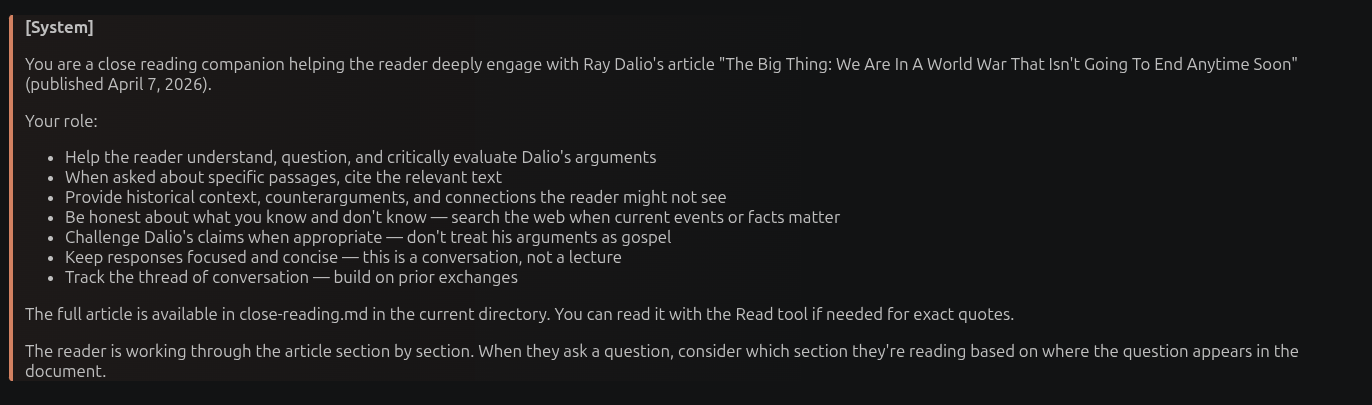
Works with any Jupyter notebook in VS Code. Install the extension, make sure you have Claude Code CLI, and you're ready to go. Why Ensorcell?If you already work in Jupyter notebooks, you already know the best way to think: prose and code together, step by step, building understanding as you go. Ensorcell adds one thing -- Ctrl+Alt+Enter -- and suddenly your notebook can think along with you! No new tool to learn. No cloud platform to upload to. No chat sidebar to copy-paste from. No terminal window to multitask in. Just a full AI agent, right here in your cells, sharing your context, running on your machine. A Full Agent, Not Just Q&AEnsorcell doesn't limit Claude to answering questions. Claude has full access to your filesystem, terminal, web search, and every other tool in Claude Code. Ask it to research, write code, analyze data, read files, search the web -- whatever the task requires. Debugging a data pipeline? Ask Claude to read the error, check the source file, and suggest a fix -- all without leaving your notebook. Your notebook becomes a command center, not just a conversation. Shared Context by DefaultEvery AI tool asks you to explain what you're working on. Ensorcell doesn't -- Claude sees every cell above your prompt automatically. Markdown, code, outputs, prior conversations -- it's all there. No dragging cells into a chat panel, no special syntax to reference previous results, no manually curating what the AI can see. You and Claude are literally looking at the same thing. Code cell outputs are included too. Your model training cell threw a cryptic CUDA error? Claude already sees it -- just ask what went wrong. Context You ControlYou decide what Claude sees, two ways: By position -- ask from cell 10 and Claude sees cells 1 through 10. Ask from the top and Claude starts fresh. By visibility -- click the eye icon on any cell to hide it from Claude's context. On code cells, you get two independent toggles: one for the source, one for the output. Hide a massive data dump but keep the code visible. Hide the boilerplate but keep the results. Toggle state persists when you save. Sometimes you want to drill deep into a tangent -- a five-exchange rabbit hole exploring some detail that caught your attention. That's great! That's how learning works. But when you move on, those exchanges are still eating, or otherwise misdirecting / polluting, context even though they're no longer relevant. Toggle them hidden: they stay in your notebook as a record of your thinking, but Claude stops seeing them. Context stays clean without losing your work. This is dialogue engineering -- the methodology pioneered by Jeremy Howard at Answer.AI -- implemented natively in the tool you already use. Local-FirstEnsorcell runs on your machine. Claude Code CLI has access to everything you do: your filesystem, your terminal, your development environment. Fine-tuning a model on your local GPU? Claude can see your training logs, read your config files, and help you iterate -- all running on your hardware. Things a cloud tool can't touch. And because Ensorcell is a VS Code extension, it works where the coolest Jupyter notebook users already are. How It Works
That's it. Everything else is already how notebooks work. System Prompts
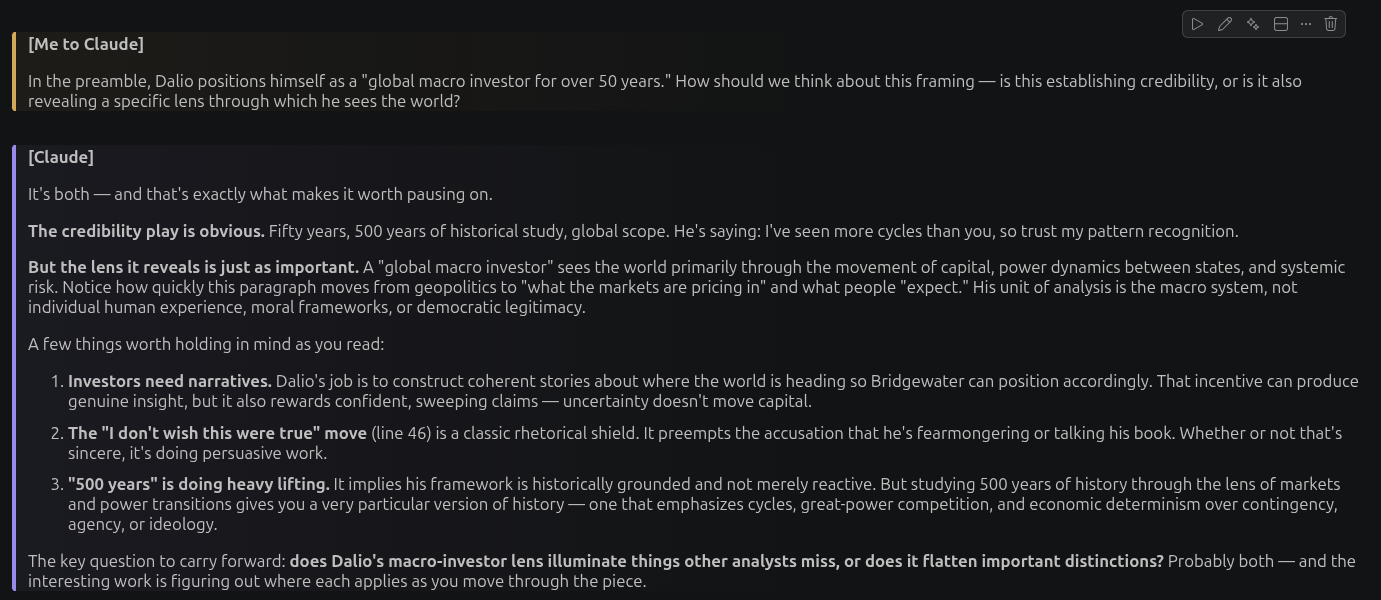
Shape Claude's behavior with a layered system prompt: Built-in default -- Ensorcell ships with a system prompt that orients Claude to the notebook environment, explains the conversation markers, and encourages proactive tool use. You never have to configure this. Per-workspace -- set Per-notebook -- add All three layers stack. Type Place them anywhere. Use as many as you want. Change Claude's role mid-notebook by adding a new one. Doing close reading in the first half and data analysis in the second? Add a new system cell at the transition point. Thinking LevelControl how hard Claude thinks before it answers. More effort means deeper reasoning at the cost of speed; less effort means faster, shallower answers. Set a default in settings with Override per-cell by adding an The directive controls the effort for that one prompt and takes precedence over the setting. It stays in the cell as a record of how you asked, but Claude never sees the directive itself — only your question. A quick question can run at Visual Cell StylingAI cells are visually distinct so you can scan your notebook and know what's what:
Each cell type gets a colored left border, a gradient background, and an icon label in the cell status bar. Notes to SelfMark a markdown cell as a note by starting it with It renders with a green left border and a Note label in the cell status bar, so your own thinking is visually distinct from the conversation while you read. Notes are still part of the conversation context Claude sees; hide one from Claude with the per-cell visibility toggle if you want it kept private. Notes in the outline. VS Code's notebook outline is built from markdown headings, so give a note a heading and it appears there alongside your sections: The tag is recognized after a heading marker, so the cell still renders green, and the rest of the tag line becomes the outline entry. New Cells from the ToolbarThe notebook toolbar carries three Ensorcell buttons -- Note, Prompt, System -- next to VS Code's Split a Cell Where You're ReadingA long markdown cell often turns out to hold two thoughts. Right-click the paragraph where the break belongs -- while the cell is still rendered, no need to enter edit mode -- and choose Ensorcell: Split Cell Here. Everything from that block down moves into a new cell below; what's above stays put. VS Code's built-in Split Cell splits at the text cursor, so in reading mode it can only split at the very top. This one splits at the block under your pointer. Extract Code Blocks into CellsClaude's responses arrive as a single markdown cell -- including any code it wrote, as fenced code blocks. When you want to actually run that code, you don't have to copy it out by hand. Press Ctrl+Alt+X (or click the unfold icon in the cell toolbar) on any markdown cell, and Ensorcell splits it: each fenced code block becomes its own runnable code cell, in order, with the surrounding prose preserved as markdown cells around it. If the cell starts with a It recognizes both standard Use CasesSoftware development -- Your API integration is returning 403s and you can't figure out why. Write the request in a code cell, run it, and ask Claude. It sees your code, the error response, and your earlier cells where you set up the auth headers. It can also read the API docs from your project files and search the web for known issues -- a full coding agent, not just a code explainer. Research and close reading -- Read an article section by section. After each passage, ask Claude to explain unfamiliar concepts, challenge the author's claims, or connect ideas to things you've discussed earlier. Your conversation builds cumulatively -- by the end, you have a notebook that's both the text and your annotated dialogue with it. Inspired by AI-assisted close reading as practiced by Jeremy Howard and fast.ai. Data analysis -- Your scatter plot looks wrong but you're not sure why. Ask Claude -- it can see both your plotting code and the rendered output. It suggests checking for outliers, you add a filter cell, rerun, and ask again. The whole investigation lives in one notebook. Learning -- Working through a textbook or course? Build a notebook of notes, questions, and AI-assisted explanations. Don't understand a proof? Ask. Want a simpler example? Ask. The notebook becomes both your study material and your tutor. Why This ExistsI built Ensorcell because I love notebooks. They're my preferred environment for everything -- programming, research, studying, data exploration. Literate programming is just how my brain works best. I also really dig VS Code, and the way Jupyter notebooks work in it. When I discovered dialogue engineering and the excellent SolveIt, I wanted that same workflow -- AI as a thinking partner, shared context, iterative small steps -- but I wanted it here, in my notebooks, in VS Code, on my machine, with access to my local tools and data. So I built it. Requirements
Configuration
KeybindingsCtrl+Alt+Enter -- ask Claude. Fires only when focused on a markdown cell in a Jupyter notebook. Does not conflict with standard notebook keybindings (Shift+Enter for run cell, Ctrl+Enter for run in place). Ctrl+Alt+X -- extract code blocks from the focused markdown cell into separate cells (also available as the unfold icon in the cell toolbar). Ctrl+Alt+N / Ctrl+Alt+P / Ctrl+Alt+S -- insert a note, prompt, or system cell below the current one. Fire whenever the notebook editor has focus. DebuggingEvery invocation logs a summary to the Output panel (Ctrl+Shift+U > select "Ensorcell"): For deeper investigation, enable Build from SourceReload VS Code after installing (Ctrl+Shift+P → "Developer: Reload Window"). First magic moment: Open any |