ConstantX
ConstantX is an opt-in MCP workflow for coding agents. It turns a markdown system plan into traceable implementation blocks, gathers block-specific evidence, supports user-guided redesign before specs, and gates code implementation behind approved evidence, approved specs, strict implementation context, and verification.
Use it from Codex, Claude, or another MCP-capable coding agent only when your prompt starts like this:
Use ConstantX. <workflow action>
ConstantX is not a general auto-run coding assistant. It is a staged engineering harness for moments where you want the agent to stay aligned with the system you intended to build.
Documentation
What It Does
- Decomposes a markdown plan into semantic implementation blocks from the actual plan, not generic phases.
- Stores each block as markdown artifacts for acceptance criteria, criteria diffs, evidence, pins, design sessions, directives, specs, and implementation records.
- Lets agents gather broad evidence: papers, official docs, repositories, datasets, benchmarks, model cards, API docs, implementation examples, user files, and local project files.
- Creates original-plan acceptance criteria upfront, embeds them in each block, and pins them with inline
[n] checkpoints backed by criteria.md, criteria-diff.md, and pins.md.
- Converts approved design decisions into implementation directives and concrete specs before implementation, with block refinement automatically recorded in
annotation-<BLOCK_ID>.md and design-session.md.
- Preserves strict gates so implementation starts only after approved evidence, approved spec, dependencies, strict implementation context, criteria coverage evidence, and non-minimal implementation requirements.
VS Code Setup
Install the extension, then run this command from the VS Code Command Palette:
ConstantX: First Run Setup
The extension starts the bundled shared HTTP MCP runtime, verifies MCP readiness, and generates provider configuration snippets. Leave constantx.rootPath empty unless you are developing against a local ConstantX source repo.
Marketplace users do not need to clone ConstantX or install external Node.js. The extension uses its bundled MCP server and VS Code's Electron executable.
Runtime files are stored under:
%LOCALAPPDATA%\ConstantX
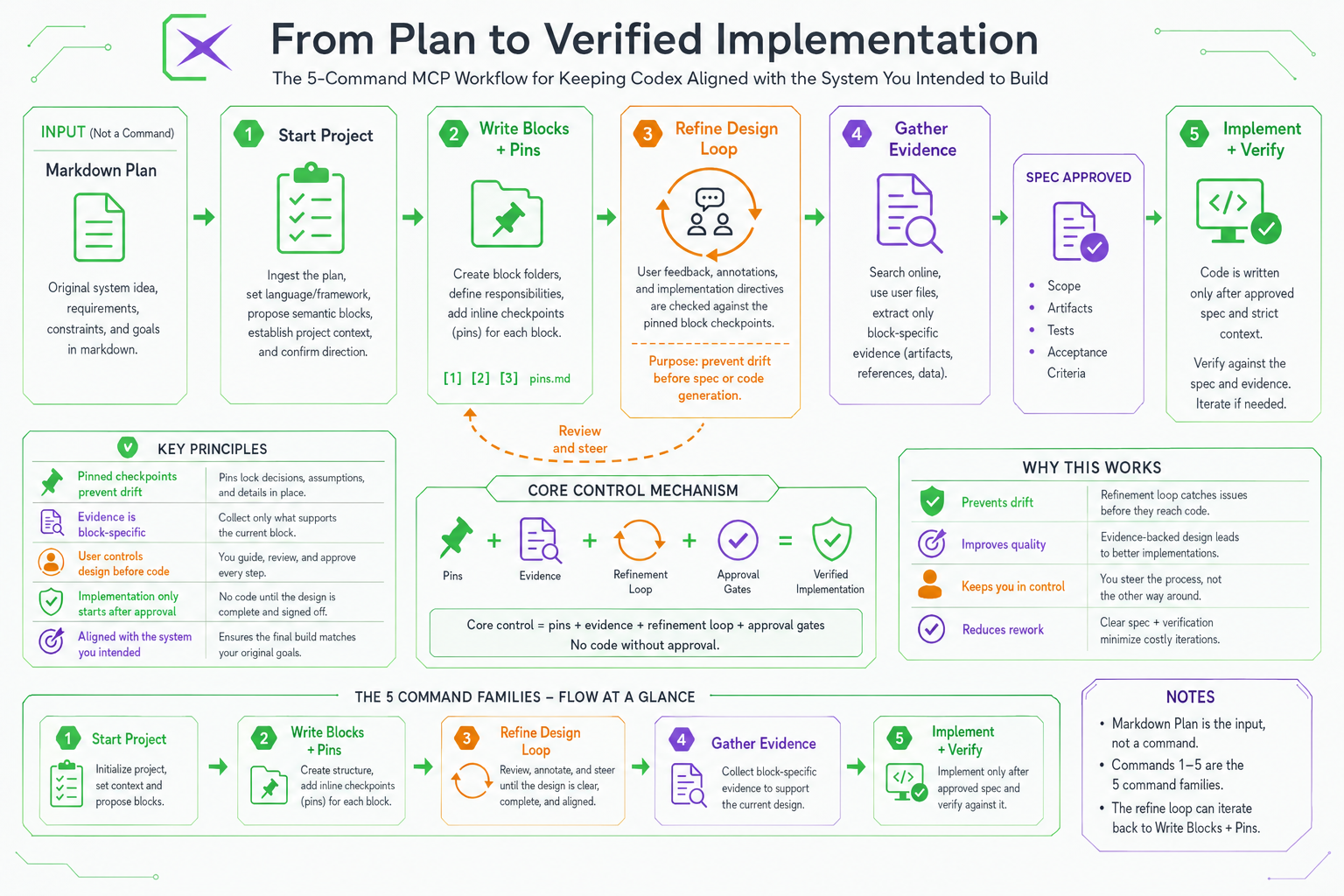
Five Workflow Families
Normal use should stay with these five workflow families. Lower-level planner tools exist for internal orchestration and compatibility.
| Stage |
Workflow family |
What happens |
| 1 |
workflow.start_project |
Creates the planner project, ingests the plan, sets language/framework, and proposes semantic blocks. |
| 2 |
workflow.write_blocks |
Writes approved block folders, original-plan acceptance criteria, graph data, and inline [n] pins. |
| 3 |
workflow.refine |
Discusses block redesign, records annotations/design sessions, and converts approved decisions into implementation directives. |
| 4 |
workflow.gather_evidence |
Searches online and uses user-provided files to extract only block-specific evidence. |
| 5 |
workflow.implement |
Approves the reviewed spec, prepares strict context, implements only that block, records changes, and verifies. |
The markdown plan is the input, not a command. The agent should not implement until the workflow reaches the implementation stage.
Typical Use Flow
Start from a markdown plan:
Use ConstantX. Start project <PROJECT_PATH> from plan <PLAN_MARKDOWN_PATH> with language <LANGUAGE> and framework <FRAMEWORK>. Propose no more than <MAX_BLOCKS> blocks. Do not write blocks until I approve.
After reviewing the proposed blocks:
Use ConstantX. Write the approved proposed blocks for project <PROJECT_PATH>.
Before specs or code, refine the design:
Use ConstantX. Refine block <BLOCK_ID> in project <PROJECT_PATH>. Use the existing [n] pins from block.md and pins.md, compare my requested changes against the block and extracted evidence if present, and keep recording the design discussion until I say we are done. Do not create specs or implement.
Gather evidence for the current block:
Use ConstantX. Gather evidence for block <BLOCK_ID> in project <PROJECT_PATH>. Search online and use any user-provided files. Extract only <BLOCK_ID>-specific evidence. Do not approve or implement.
Finalize and implement only after review:
Use ConstantX. Approve spec, implement, record, and verify block <BLOCK_ID> in project <PROJECT_PATH>.
Block Design Sessions
Block design sessions are the control loop before spec.md. They let you talk normally with the agent about what should change, what should be removed, which evidence should guide the implementation, and which [n] pins matter.
When workflow.refine targets a block, ConstantX creates or updates:
annotation-<BLOCK_ID>.mddesign-session.md- approved implementation directives when the session is finalized
Use this when you need the implementation to follow your intended direction before any code is generated. Full guide: Block Design Sessions.
Implementation Rules
ConstantX is not a scaffold generator. It rejects completed implementation records that describe stub, placeholder, toy, demo-only, minimal, superficial, TODO-driven, future-work, or partial output when the approved block requires concrete behavior.
Specs and implementations must stay traceable to:
- the original markdown plan
- block responsibilities and dependencies
- acceptance criteria and
[n] pins
- approved evidence and extracted research
- approved implementation directives
- exact artifacts to create, modify, remove, or replace
- verification commands and evidence
Status And Runtime Commands
The extension adds these commands:
ConstantX: First Run SetupConstantX: Start RuntimeConstantX: Stop RuntimeConstantX: Check RuntimeConstantX: Health CheckConstantX: Connect ProviderConstantX: Open Runtime LogsConstantX: Open Workflow PromptsConstantX: Open Status Panel
Use ConstantX: Health Check when a provider does not see the MCP tools. Use ConstantX: Open Status Panel to inspect recent runs, jobs, logs, verification files, and patch paths.
Important Path Rule
<PROJECT_PATH> must be the project directory, not the plan file path.
Example:
Project path: C:\Users\you\my-project
Plan path:    C:\Users\you\my-project\system-plan.md
On Windows, quote paths with spaces.

