
Developer toolbox for CompuTec AppEngine
plugins. It scaffolds SAP Business One Web Client UI API extensions (project
skeleton, views, and the config files — manifest.json, mta.yaml, app.json,
launch.json, .csproj — kept in sync) and generates UI5 dialogs built on
CompuTec's libraries via the CompuTec.AppEngine.Templates dotnet template package.
More AppEngine developer tooling is planned.
Features
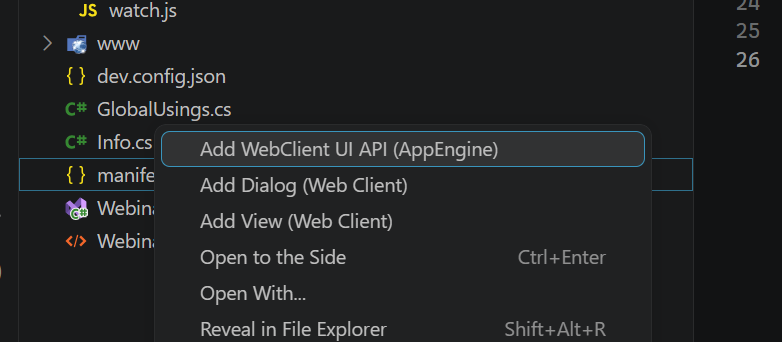
All commands are available from the Explorer context menu:
| Command |
Where |
What it does |
| Add WebClient UI API (AppEngine) |
right-click a plugin's manifest.json |
Scaffolds a complete UI API extension project (gulp build, mta.yaml, .vscode config) and registers it in the plugin |
| Add WebClient View to UI API (AppEngine) |
right-click mta.yaml |
Adds a new view module (controller, layout, i18n, models) to an existing UI API extension and updates all config files |
| Add Dialog to App (AppEngine) |
right-click a folder |
Generates a UI5 dialog scaffold from the CompuTec.AppEngine.Templates dotnet template. Checks the template is installed and offers a one-click install from nuget.org if it is missing, and suggests an update when a newer version is available |
The view scaffolding includes a picker for known SAP B1 Web Client BO view IDs
(Sales Order, Business Partner, etc.), so extensions bind to the correct
Fiori elements views out of the box.
Requirements
- A CompuTec AppEngine plugin workspace (the commands activate on the plugin's
manifest.json / the extension's mta.yaml).
- Node.js and npm on
PATH for building the generated UI API extension projects.
- The .NET SDK on
PATH for the dialog scaffolder. The
CompuTec.AppEngine.Templates template package is installed on demand — the
extension offers to install it from nuget.org whenever you add a dialog and
the template isn't already installed.
Getting started
- Open your AppEngine plugin workspace in VS Code.
- Right-click the plugin's
manifest.json → Add WebClient UI API (AppEngine).
- Answer the prompts (extension name, target BO view).
- Right-click the generated
mta.yaml → Add WebClient View to UI API (AppEngine) to add more views.
- To add a UI5 dialog, right-click a folder in your plugin's UI5 app →
Add Dialog to App (AppEngine). If the dotnet template is missing, accept
the install prompt and the dialog is generated once it completes.
Learn more
Release Notes
See the Changelog tab (the bundled CHANGELOG.md).
License
Apache License 2.0 — see LICENSE.md. © 2026 CompuTec S.A.
Third-party notices
The project templates bundled with this extension (templates/uiapi/) are
derived from SAP's @sap/generator-businessone-webclient-extension
(© SAP SE, Apache License 2.0) and were modified by CompuTec. See the
NOTICE file for attribution and LICENSE.md for the full license text.
Bundled npm packages retain their own license files under node_modules/.
SAP and SAP Business One are trademarks of SAP SE. This extension is an
independent CompuTec product and is not endorsed by or affiliated with SAP.

