
Claude Code AI cost / usage trackerCapture and track Claude Code AI usage costs across projects and branches. Access the data easily in VSCode sidebar. Installation Launch VS Code Quick Open ( Ctrl+P), paste the following command, and press enter.Copied to clipboard |

Claude Code AI Cost Tracker — VSCode ExtensionTrack your Claude Code AI costs in real-time directly in VSCode. Monitor daily and weekly spending, analyze model usage, and set cost alerts. ScreenshotsSidebar — Cost Overview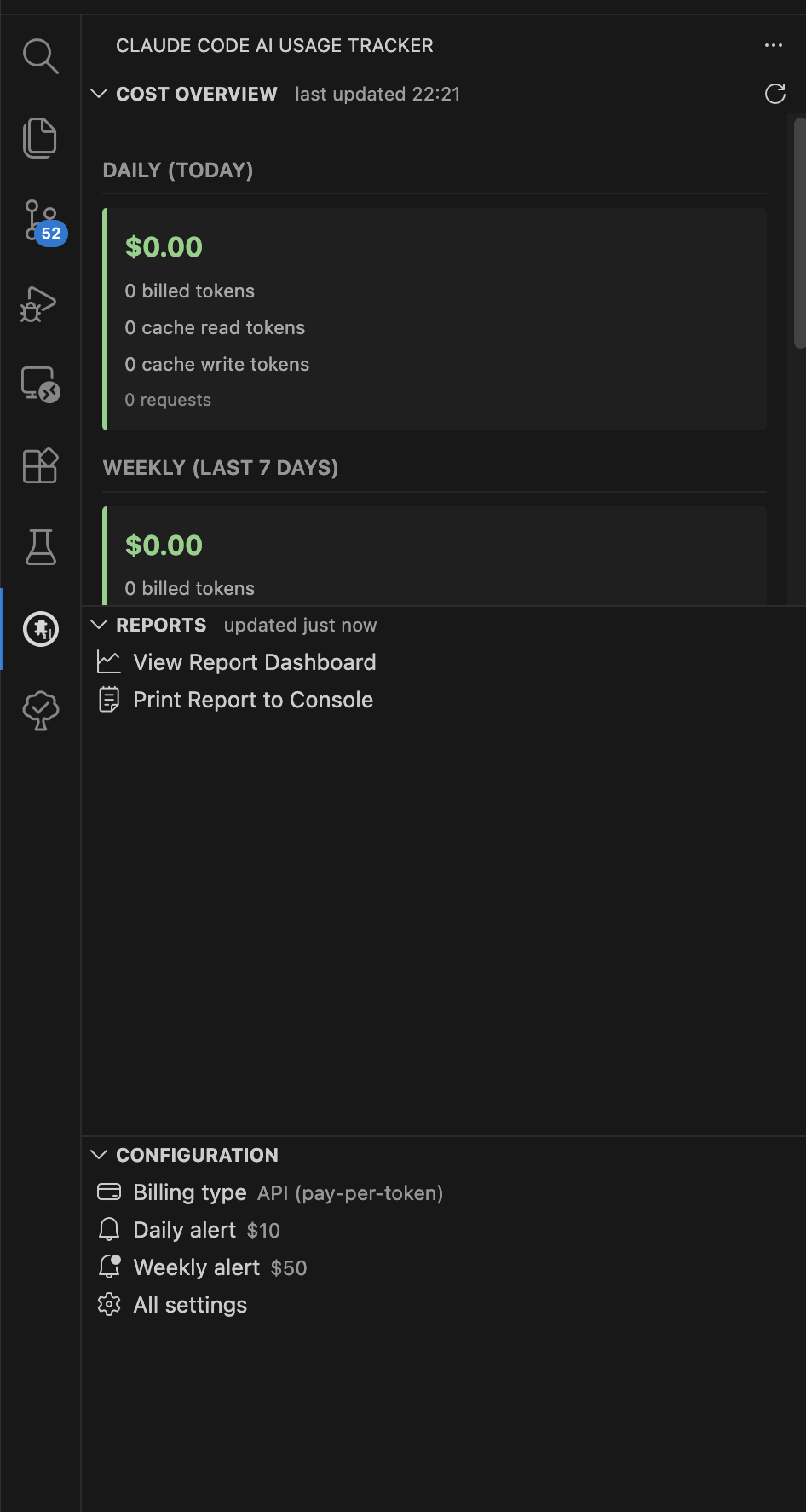
Reports Panel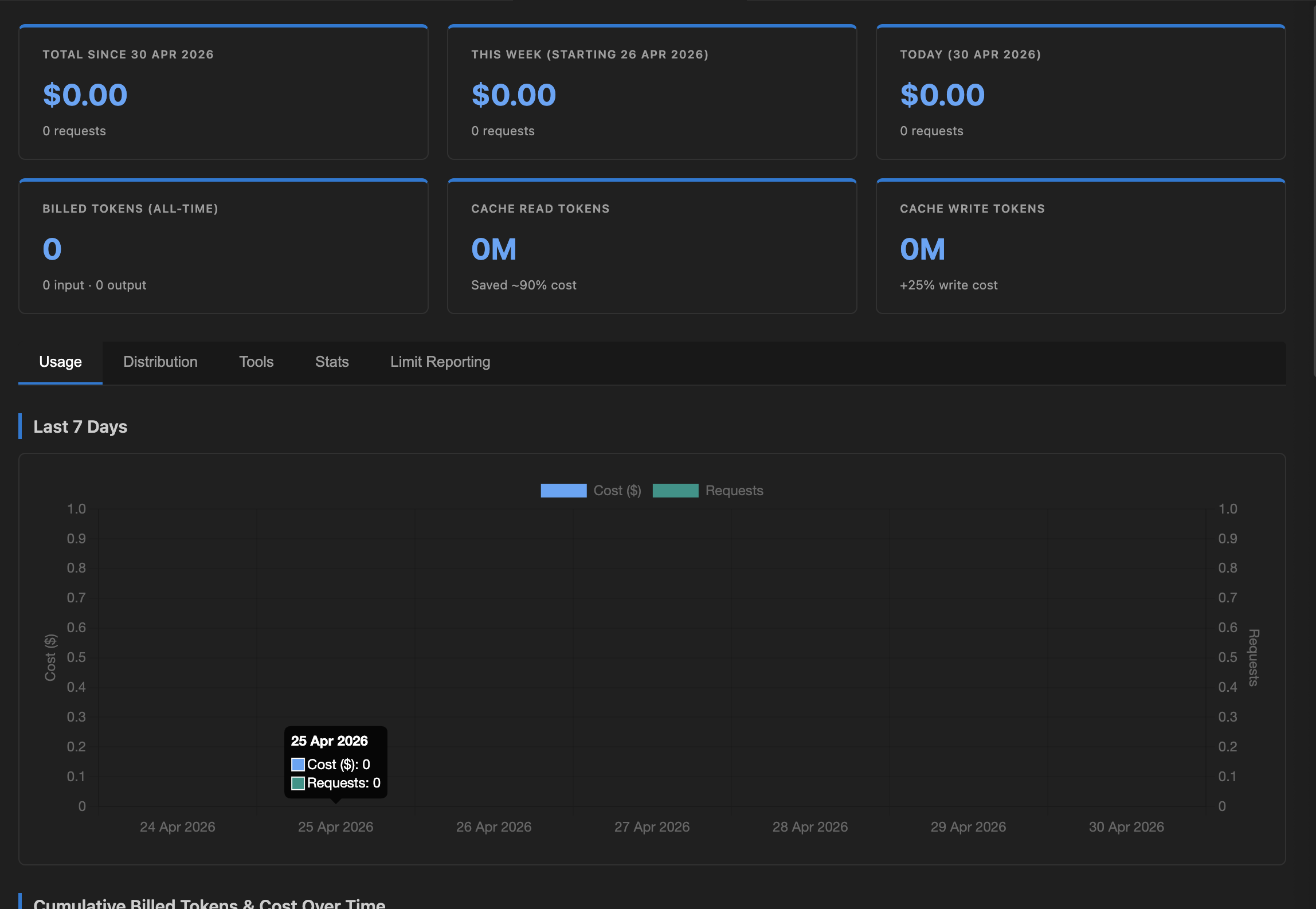
Console Report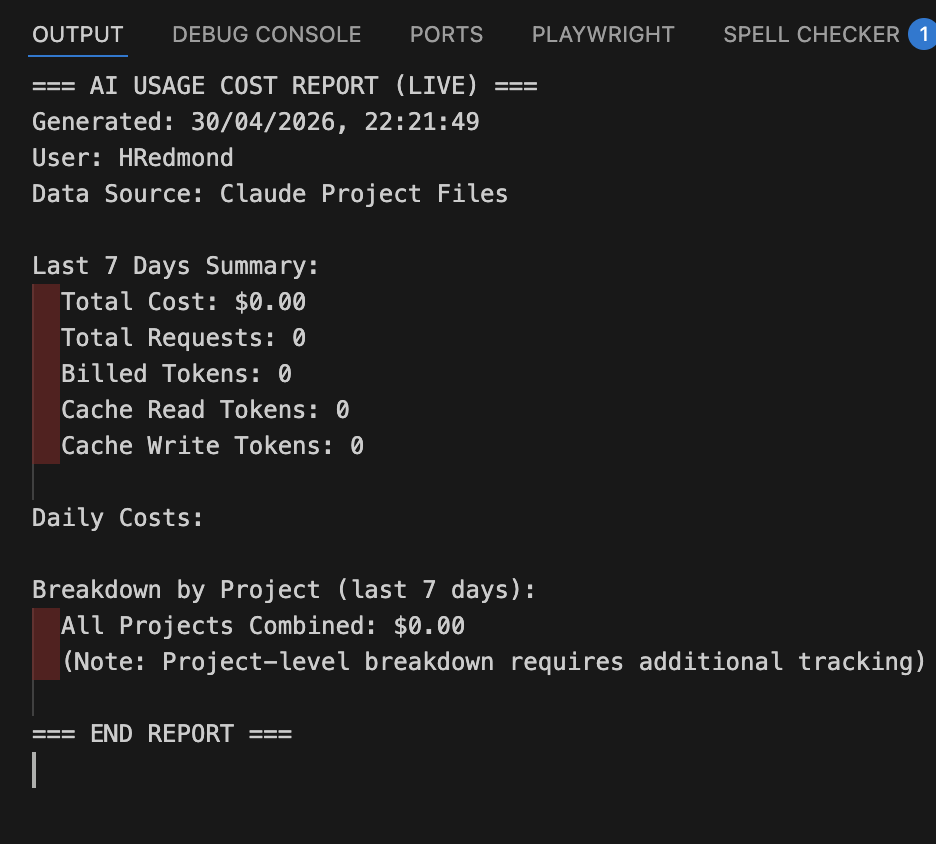
Features🎯 Real-Time Cost Tracking
🚨 Smart Alerts
📊 Comprehensive Dashboard
💾 Sidebar Integration
🧠 Impact Analysis (opt-in)
Quick Start (30 seconds)
That's it! The sidebar now shows today's costs, and the dashboard shows detailed breakdowns by day, week, and model. InstallationFrom Pre-Built VSIX (Quickest)Pre-built VSIX files are available in the
See install/README.md for details. Build from SourceQuick Method (Build & Install): This automatically:
Manual Method: Then manually copy the TestingTest the Extension During Development
Run TestsWatch Mode (Auto-Compile)While watch mode is running, code changes automatically recompile. Simply reload the extension window ( ConfigurationThe extension works automatically if Claude is installed, but you can customize it via VSCode settings: Open Settings (JSON) and add: Available Settings:
3. Enable the Sidebar & Status BarShow the Sidebar (Left Panel)The sidebar shows your daily cost at a glance: If sidebar is not visible:
To manually enable the sidebar:
Or:
Show the Status Bar (Bottom Right)A status bar item shows quick access to your costs: If status bar is not visible:
To toggle status bar visibility:
4. View Your DashboardOpen Command Palette ( Or click the "📊 View Reports" button in the sidebar. How It WorksUnderstanding the Cost CalculationIn Simple Terms:
Example: Data SourcesThe extension reads from two data sources: Live Data (
Historical Data (
Data Calculation PipelineThe extension uses a multi-stage pipeline to calculate costs from Claude's raw session data: Stage 1: Session File Reading (
|
| Model | Input | Output | Cache Read | Cache Write |
|---|---|---|---|---|
| Claude 3.5 Haiku | $1/M | $5/M | $0.10/M | $1.25/M |
| Claude 3.5 Sonnet | $3/M | $15/M | $0.30/M | $3.75/M |
| Claude Opus 4.6 | $5/M | $25/M | $0.50/M | $6.25/M |
Token Type Explanation:
- Input tokens: Text you send to Claude (cheaper, billed at lower rate)
- Output tokens: Text Claude generates (more expensive, ~5x input cost)
- Cache read tokens: Previously cached prompt reused (90% cheaper than fresh input!)
- Example: Reading 1M cached tokens costs $0.10 instead of $1.00
- Cache write tokens: Creating new cache (25% premium on top of output cost)
- Example: 1M tokens cached costs $1.25 instead of $1.00, but saves money on future reads
Example Cost Calculation (Haiku):
Session with:
- 10,000 input tokens
- 5,000 output tokens
- 50,000 cache read tokens

Input cost:     (10,000 / 1,000,000) × $1.00   = $0.01
Output cost:    (5,000 / 1,000,000) × $5.00    = $0.025
Cache read cost: (50,000 / 1,000,000) × $0.10  = $0.005
───────────────────────────────────────────────────
Total:                                          = $0.04 per session
Base rates are defined in src/utils/pricing.ts. See Configuring Pricing to override them.
Configuring Pricing
If Anthropic changes their pricing, you have a negotiated rate, or you want to zero out costs (e.g. on a Max plan), you can override any model's rates without editing code.
Set billing type — shown in the Configuration sidebar panel and used to label cost figures:
{ "aiUsageCost.billingType": "max" }
Override specific model rates — keys can be exact model names or partial substrings:
{
  "aiUsageCost.customModelPricing": {
    "haiku": {
      "inputPerMillion": 0.8,
      "outputPerMillion": 4.0,
      "cacheReadPerMillion": 0.08,
      "cacheWritePerMillion": 1.0
    },
    "claude-sonnet-4-6": {
      "inputPerMillion": 3,
      "outputPerMillion": 15
    }
  }
}
You only need to specify the fields you want to change — anything omitted falls back to the built-in rate. Overrides apply immediately on save and are used by both the live extension and the background data generation script.
You can also change billing type interactively via the Command Palette: Claude Code: Set Billing Type.
Usage
Viewing Your Dashboard
Method 1: Command Palette
- Press
Cmd+Shift+P(Mac) orCtrl+Shift+P(Linux/Windows) - Type "AI Usage: Show Dashboard"
- Press Enter
Method 2: Sidebar Button
- Look for the "Dashboard" button in the AI Usage sidebar
- Click to open dashboard
Dashboard Tabs
⚡ Live Usage
- Today's Cost: Total spent today
- Token Summary: Billed, cache read, and cache write tokens
- Today's Projects: Which projects used Claude today
- Hourly Breakdown: Cost by hour of day
- Daily Comparison: Last 7 days at a glance
📅 Daily Breakdown
- Sortable Table: Date, cost, tokens
- Alert Highlighting: Red rows where daily cost ≥ threshold
- Visual Bar Chart: Relative costs across days
- Click to Sort: Header columns are sortable
📊 Weekly Breakdown
- Week Starting Date: Shows each week's start date
- Weekly Totals: Cost and tokens per week
- Alert Highlighting: Orange rows where weekly cost ≥ threshold
- Configurable Weeks: Adjust week start day in settings
🤖 Models
- By Model: Cost breakdown for each Claude model used
- Historical Data: From stats-cache.json (aggregate across all sessions)
- Usage Trend: Which models you use most
📁 Projects
- By Project: Cost per project folder
- Session Details: Individual session records
- Project Breakdown: Total tokens and cost per project
🛠️ Skills & Tools
- Skills Usage: Which Claude skills you used today
- Tools Used: External tools called by Claude
🧠 Impact Dashboard (requires showInsightsAnalysis: true)
- Summary Cards: Session count, success rate, time saved, ROI multiplier, % time saved, avg helpfulness, dev value saved, and total API cost
- Outcome Distribution: Bar chart of session outcomes (successful, partial, failed, etc.)
- Session Type Distribution: Bar chart of session types (feature, debug, refactor, etc.)
- Goal Category Distribution: Bar chart of goal categories
- Helpfulness Distribution: Breakdown of helpfulness ratings across sessions
- Friction Factors: Common factors that reduced Claude's effectiveness
- Data: Read from
~/.claude/usage-data/facets/*.json(generated by/insightsin Claude Code)
Updating & Refreshing Data
The extension automatically updates data as you use Claude, but you can manually refresh to see the latest costs:
Sidebar Refresh
- Open the AI Usage Cost sidebar (left panel)
- Click the 🔄 Refresh Costs button
- Extension will:
- Scan
~/.claude/projects/*/for the latest session files - Regenerate cost calculations from all sessions
- Update the sidebar display with fresh data
- Complete in 1-3 seconds depending on session history
- Scan
Charts Panel Refresh
- Open the Charts panel (📊 View Charts button)
- Click the 🔄 Refresh button in the top-right
- Extension will:
- Re-run data generation from Claude project files
- Regenerate all charts with the latest data
- Update hourly distribution (last 24 hours)
- Refresh all metrics
Automatic Updates
The extension also automatically refreshes data:
- When the extension first loads
- Every 5 minutes (configurable via
pollIntervalMinutessetting) - When you switch back to VSCode window
- When you open the dashboard or charts
Note: Data accuracy depends on how often Claude writes to ~/.claude/projects/*/ session files. Most sessions are logged in real-time, so updates appear immediately.
Auto-Poll Interval
The extension automatically refreshes every pollIntervalMinutes (default: 5 minutes). The Reports sidebar panel shows a countdown to the next refresh. To change the interval:
- Open Settings and search "aiUsageCost.pollIntervalMinutes"
- Set the value in minutes (minimum: 1)
Setting Alerts
Open VSCode Settings:
- Press
Cmd+,(Mac) orCtrl+,(Linux/Windows) - Search for "aiUsageCost"
- Adjust
dailyAlertThresholdandweeklyAlertThreshold
Example:
- Set
dailyAlertThresholdto5to alert if daily cost ≥ $5 - Set
weeklyAlertThresholdto25to alert if weekly cost ≥ $25 - Set
weekStartDayto"sunday"to use Sunday-based weeks
Alert row colors:
- 🔴 Red: Daily cost exceeded threshold
- 🟠 Orange: Weekly cost exceeded threshold
Prerequisites
- VSCode: 1.60.0 or higher
- macOS / Linux / Windows: Any platform that VSCode supports
- Claude: Installed and used (creates
~/.claude/directory)
The extension automatically detects your Claude installation and reads from the standard Claude data files.
Troubleshooting
❌ "No data showing in dashboard"
Cause: No Claude sessions have been captured yet.
Solution:
- Use Claude through the terminal or the Claude IDE
- Wait a moment for data to sync
- Reload the dashboard (
Cmd+Shift+P→ "Developer: Reload Window")
❌ "Dashboard shows very low costs"
Cause: Alert thresholds in settings might be set too high.
Solution:
- Check your configuration: Open settings and search "aiUsageCost"
- Verify
dailyAlertThresholdandweeklyAlertThresholdare reasonable - Check that Claude CLI is installed:
which claude
❌ "Tables not sorting"
Solution:
- Reload VSCode window:
Cmd+Shift+P→ "Developer: Reload Window" - Close and reopen the dashboard
❌ "Sidebar not showing cost"
Cause: Stats-cache.json file not found or formatted incorrectly.
Solution:
- Verify Claude has been used:
ls ~/.claude/stats-cache.json - Ensure you've used Claude through the CLI
- Reload the extension window
Development & Architecture
Project Structure
vscode-extension-claude-code-ai-tracker/
├── src/
│   ├── extension.ts                  # Main extension entry point & command registration
│   ├── types.ts                      # TypeScript interfaces (CostRecord, etc.)
│   ├── services/
│   │   ├── aiStatsDataService.ts     # Reads & aggregates ai-stats-data.json
│   │   ├── claudeCapture.ts          # Session data capture from .jsonl
│   │   ├── claudeProjectsService.ts  # Project data aggregation
│   │   ├── claudeStatsService.ts     # Stats-cache.json parsing
│   │   ├── facetsService.ts          # Impact Analysis: reads ~/.claude/usage-data/facets/
│   │   ├── gitService.ts             # Git branch & project name
│   │   ├── jsonlCostService.ts       # .jsonl file parsing & session cost index
│   │   ├── statsCacheService.ts      # Historical data import
│   │   ├── storageService.ts         # VSCode globalState wrapper
│   │   └── __tests__/               # Jest unit tests for all services
│   ├── utils/
│   │   ├── pricing.ts                # Model pricing constants & cost calculation
│   │   ├── webviewHelpers.ts         # Nonce generation, URI helpers
│   │   └── __tests__/               # Tests for utils
│   ├── views/
│   │   ├── chartsPanel.ts            # Charts webview panel
│   │   ├── dashboardPanel.ts         # Main dashboard webview panel
│   │   ├── impactDashboardPanel.ts   # Impact Analysis full dashboard
│   │   ├── impactSidebarProvider.ts  # Impact Analysis sidebar webview
│   │   ├── reportDashboardPanel.ts   # Report/export webview panel
│   │   ├── sidebarProvider.ts        # Cost Overview sidebar webview
│   │   └── treeProviders.ts          # Reports & Configuration tree views
│   └── webview/
│       └── costHistory.html          # Cost history HTML template
├── media/
│   ├── chart.min.js                  # Bundled Chart.js
│   ├── icon.svg                      # Activity bar icon
│   └── webview.css                   # Shared webview stylesheet
├── generate-data.js                  # Node.js script: parses JSONL → ai-stats-data.json
├── ai-stats-data.json               # Generated data file (gitignored)
├── package.json
├── tsconfig.json
└── README.md
Build & Development
Build the extension:
npm run compile     # One-time build
npm run watch       # Watch mode (auto-recompile)
Debug the extension:
- Press
F5to launch Extension Development Host - Set breakpoints in TypeScript files
- Open Developer Tools: Help → Toggle Developer Tools
- Run commands in the test window
Rebuild after changes:
- Watch mode automatically recompiles (
npm run watch) - Reload window:
Cmd+Shift+P→ "Developer: Reload Window"
Data Flow Architecture
┌───────────────────────────────────────────────────────┐
│        ~/.claude/ (Claude's local data)               │
│  ├─ projects/                                         │
│  │  ├─ project-a/                                     │
│  │  │  └─ *.jsonl (session-by-session records)        │
│  │  └─ project-b/                                     │
│  │     └─ *.jsonl (session-by-session records)        │
│  └─ stats-cache.json (model aggregates)               │
└────────────────┬────────────────────────────────────┘
                 │
                 ▼
    generate-data.js (Node.js Script)
    ┌─────────────────────────────────┐
    │ 1. Read all .jsonl files        │
    │ 2. Parse session data           │
    │ 3. Calculate cost per session   │
    │ 4. Aggregate by time period:    │
    │    ├─ Hourly (last 24h)         │
    │    ├─ Daily                     │
    │    ├─ Weekly                    │
    │    ├─ Monthly                   │
    │    └─ By model/project          │
    │ 5. Write ai-stats-data.json     │
    └────────────┬────────────────────┘
                 │
                 ▼
    ai-stats-data.json (Generated)
    ├─ totals: { cost, input, output, tokens }
    ├─ hourly: { "2026-02-26T09": {...} }
    ├─ daily: { "2026-02-26": {...} }
    ├─ weekly: { "2026-W08": {...} }
    └─ projects: { "name": {...} }
                 │
    ┌────────────┴────────────────────┐
    ▼                                  ▼
Sidebar Provider              Charts Panel
(Quick View)                 (Full Analysis)
├─ Today's cost              ├─ Live Usage Tab
├─ This week's cost          ├─ Token & API Value
├─ All-time cost             ├─ Activity Tab
└─ Refresh button            ├─ Projects Tab
                             └─ Sessions Tab
When you click "🔄 Refresh Costs":
- Extension runs
generate-data.js - Script scans all session files in
~/.claude/projects/*/ - Calculates costs and aggregates by time period
- Writes updated
ai-stats-data.json - UI automatically reads new data and updates display
Key Services
JsonlCostService (src/services/jsonlCostService.ts)
- Reads session
.jsonlfiles from~/.claude/projects/*/ - Parses token counts and costs per session
- Used for real-time live usage tracking
ClaudeProjectsService (src/services/claudeProjectsService.ts)
- Aggregates daily and weekly costs from .jsonl data
- Groups by date and week
- Feeds data into Daily/Weekly tabs
ClaudeStatsService (src/services/claudeStatsService.ts)
- Reads historical
stats-cache.json - Extracts model-level cost breakdown
- Provides all-time cost and first session date
PricingService (src/utils/pricing.ts)
- Calculates USD cost from token counts
- Uses model-specific rates
- Handles cache read/creation token premiums
FacetsService (src/services/facetsService.ts)
- Reads JSON facets files from
~/.claude/usage-data/facets/ - Calculates session success rate, time saved, ROI, and helpfulness metrics
- Uses configurable per-session-type time baselines (
sessionTimeBaselinessetting) - Powers both the Impact Sidebar and Impact Dashboard
ReportsTreeProvider / ConfigSettingsTreeProvider (src/views/treeProviders.ts)
- Tree view providers for the Reports and Configuration sidebar panels
- Reports panel: links to dashboards with a live countdown to next auto-refresh
- Config panel: shows and allows editing alert thresholds and developer rate settings
ImpactSidebarProvider (src/views/impactSidebarProvider.ts)
- Webview sidebar for the Impact Analysis panel (shown when
showInsightsAnalysisis enabled) - Displays at-a-glance impact metrics and links to the full Impact Dashboard
ImpactDashboardPanel (src/views/impactDashboardPanel.ts)
- Full webview panel with impact charts (outcome distribution, session types, helpfulness, friction)
- Opens via command palette or the Reports tree view
Extending the Extension
Adding a New Dashboard Tab
- Add tab button in
dashboardPanel.tsgetHtml() method - Create HTML tab content
- Add CSS styling in
<style>block - Add JavaScript handler for tab switching
- Recompile and test
Updating Model Pricing
Edit src/utils/pricing.ts:
const CLAUDE_PRICING = {
  'claude-3-5-haiku': {
    input: 0.80 / 1_000_000,
    output: 4.00 / 1_000_000,
    cacheRead: 0.10 / 1_000_000,
    cacheCreation: 5.00 / 1_000_000,
  },
  // Add or update models here
};
Adding Alert Thresholds for Other Metrics
Currently supports daily/weekly cost thresholds. To add token-based thresholds:
- Add new setting in package.json configuration
- Read setting in
dashboardPanel.tsgetHtml() - Pass to JavaScript via template variable
- Add comparison logic in
checkAndDisplayAlerts() - Update CSS for new alert class
Features
Core Capabilities
✅ Automatic Cost Tracking: No manual commands needed — reads live Claude data
✅ Auto-Refresh: Configurable polling every N minutes with countdown in the sidebar
✅ Multi-Tab Dashboard: Live Usage, Daily, Weekly, Models, Projects, Skills
✅ Smart Alerts: Highlight rows exceeding your daily/weekly cost thresholds
✅ Token Analysis: Detailed breakdown of input/output/cache read/cache write tokens
✅ Historical View: Aggregate statistics from stats-cache.json
✅ Sortable Tables: Click headers to sort by date, cost, or tokens
✅ Model Analytics: See which Claude models you use most
✅ Sidebar Panels: Cost Overview, Reports, Configuration, and Impact Analysis
✅ Status Bar: Quick cost view at the bottom of VS Code with cycling modes
✅ Impact Analysis (opt-in): ROI, time saved, success rates from /insights facets data
Impact Analysis (opt-in)
Enable by setting aiUsageCost.showInsightsAnalysis: true.
Requires running /insights in Claude Code, which generates session facets JSON files at ~/.claude/usage-data/facets/. Once enabled:
- The Impact Analysis panel appears in the sidebar
- The Reports tree view gains an "View Impact Dashboard" button
- The full Impact Dashboard is accessible via command palette
Example ROI calculation:
Sessions: 10 (8 successful)
Time baselines: feature_implementation=60min, debugging=30min
Estimated time saved: 8 × avg(60, 30) = 360 minutes
Dev value saved: (360/60) × $50/hr = $300
API cost: $2.50
ROI: 300 / 2.50 = 120× return
Not Included (Removed Features)
These features from earlier versions are no longer needed:
- ❌ Manual "Capture Cost" commands (now automatic)
- ❌ Per-branch tracking (focused on overall cost tracking)
- ❌ VSCode Memento storage (uses Claude's native files)
FAQ
Q: Does the extension capture costs automatically?
A: Yes! The extension automatically reads from Claude's session files. No manual commands needed.
Q: What data sources does it use?
A: Two sources:
- Live sessions (
~/.claude/projects/*.jsonl) - Real-time session data - Historical stats (
~/.claude/stats-cache.json) - Aggregate statistics
Q: Can I export the data?
A: The dashboard shows all costs in real-time. You can:
- Take screenshots of the dashboard
- Copy tables from the dashboard
- Note the displayed totals manually
Future versions may add direct CSV/JSON export.
Q: What if I haven't used Claude yet?
A: The .claude/ folder and files are created automatically when you first use the Claude CLI. The extension will show "No data" until then.
Q: Can I reset the costs?
A: Costs come from Claude's official data files. To start fresh:
- Delete or rename
~/.claude/folder - Use Claude again to create new files
- Restart VSCode
Q: Why isn't my alert highlighting working?
A: Check your settings:
{
  "aiUsageCost.dailyAlertThreshold": 10,
  "aiUsageCost.weeklyAlertThreshold": 50
}
Set thresholds to reasonable values for your usage patterns.
Q: How often does the data update?
A: The extension auto-refreshes at a configurable interval (default: every 5 minutes, controlled by aiUsageCost.pollIntervalMinutes). The Reports sidebar panel shows a live countdown to the next scheduled refresh. You can also trigger a manual refresh at any time via the 🔄 button in the Cost Overview sidebar or the Claude Code: Refresh Data command.
Available Commands
All commands are accessible via Command Palette (Cmd+Shift+P / Ctrl+Shift+P):
| Command | Description |
|---|---|
| Claude Code: Open Dashboard | Open the full Live Usage / Daily / Weekly / Models / Projects dashboard |
| Claude Code: Open Charts | Open the charts panel with advanced visualizations |
| Claude Code: Open Report Dashboard | Open the detailed report/export dashboard |
| Claude Code: Open Impact Dashboard | Open the Impact Analysis dashboard (requires showInsightsAnalysis: true) |
| Claude Code: Refresh Data | Manually refresh cost data from Claude's session files |
| Claude Code: Capture Cost Now | Manually trigger cost data capture (usually automatic) |
| Claude Code: Show Cost History | Display cost history in output channel |
| Claude Code: Import Historical Data from Cache | Import costs from stats-cache.json into extension storage |
| Claude Code: Clear All Data | Clear all stored cost data (caution: cannot undo) |
| Claude Code: Print Report to Console | Print a text summary to the Output panel |
| Claude Code: Edit Daily Alert Threshold | Set daily cost alert threshold interactively |
| Claude Code: Edit Weekly Alert Threshold | Set weekly cost alert threshold interactively |
| Claude Code: Edit Developer Hourly Rate | Set developer hourly rate for ROI calculation |
| Claude Code: Edit Developer Hours Per Week | Set contracted weekly hours for % time saved calculation |
| Claude Code: Set Billing Type | Switch between api (pay-per-token) and max (subscription estimate) billing labels |
| AI Usage Cost: Toggle Status Bar | Show/hide cost display in status bar (bottom-right) |
| AI Usage Cost: Cycle Status Bar Mode | Toggle status bar between daily/weekly/monthly/all-time views |
Keyboard Shortcuts
| Action | Shortcut | Alternative |
|---|---|---|
| Open Command Palette | Cmd+Shift+P |
Ctrl+Shift+P (Linux/Windows) |
| Show Dashboard | Search "AI Usage: Open Dashboard" in palette | |
| Show Charts | Search "AI Usage: Open Charts" in palette | |
| Developer Tools | Cmd+Option+I |
Ctrl+Shift+I (Linux/Windows) |
| Reload Window | Search "Developer: Reload Window" in palette |
License
MIT License - See LICENSE file for details.
Contributing
Contributions welcome! Areas to help:
- Bugs: Report issues on GitHub
- Features: Suggest new dashboard views or metrics
- Documentation: Improve this README
- Testing: Test across different OSes
- Code: Submit PRs for improvements
Development Setup
git clone <your-fork-url>
cd ai-usage-cost-vscode-extension
npm install
npm run watch     # Auto-compile on changes
f5                # Launch Extension Development Host
Support
- Issues: GitHub Issues for bugs and feature requests
- Documentation: This README and inline code comments
- Community: Fork and extend as needed
Track your Claude costs efficiently! 📊💰