Overview Version History Q & A Rating & Review
Clean Markdown Live Preview
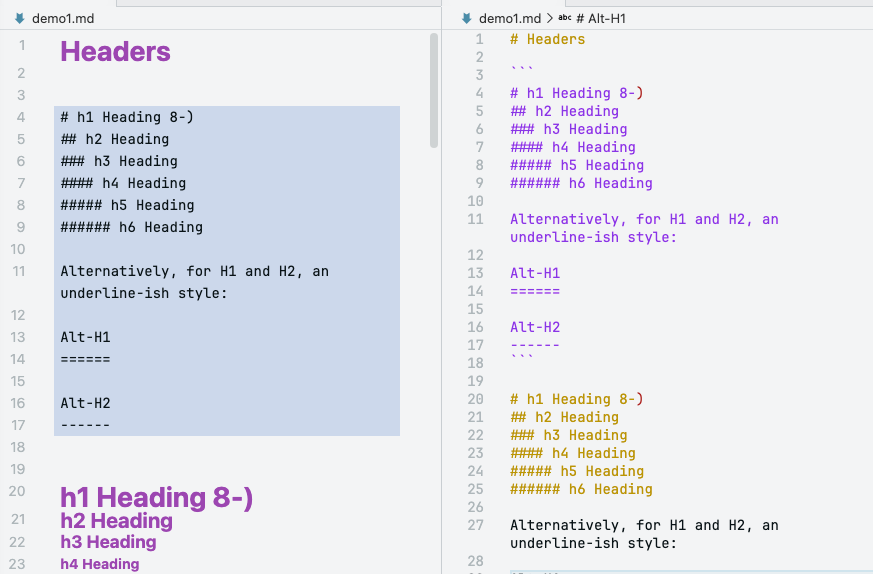
Obsidian-style live preview for markdown files in VS Code: edit markdown with inline rendering, keep raw syntax when a line is active, and get a clean reading experience when inactive.
Changelog
Full release history: see CHANGELOG.md in this repository
Latest release: 1.2.8
Added live preview rendering for hard line breaks created with trailing spaces.
Added paragraph separation styling in live preview so blocks separated by blank lines look distinct.
Why This Extension
Write and review in one surface: no constant split-view context switching.
Keep markdown source transparent: active line shows raw syntax.
Improve readability: heading hierarchy, blockquotes, checkboxes, links, tables, frontmatter, and horizontal rules are rendered inline.
Supported Elements
Headings (H1-H6) with optional custom IDs
Bold / italic / strikethrough / subscript / superscript
Highlight syntax (==text==)
Emoji shortcodes (:rocket:, :joy:, :+1:)
Markdown links, wiki links, and email autolinks
Bullet lists, ordered lists, and interactive task checkboxes
Tab/Shift+Tab list indentation while editing
Definition lists (term + : definition)
Footnotes ([^1] references and [^1]: definition blocks)
Find and replace overlay (Cmd+F / Ctrl+F) with match counter and replace-all
Fenced code blocks, indented code blocks, and inline code
PlantUML diagram rendering with zoom and pan
Tables (rendered widget with resizable columns)
Frontmatter properties panel
Horizontal rules
Blockquotes
Install
From VS Code Marketplace (recommended)
Option 1 — Quick Open:
Press Ctrl+P (Windows/Linux) or ⌘P (macOS) to open Quick Open
Type ext install CleanSoftwareOne.md-live-preview
Click Install , then Enable
Option 2 — Extensions panel:
Press Ctrl+Shift+X (Windows/Linux) or ⇧⌘X (macOS) to open Extensions
Search for Clean Markdown Live Preview
Click Install , then Enable
Option 3 — Command line:
code --install-extension CleanSoftwareOne.md-live-preview
From a downloaded VSIX file
If you have downloaded the .vsix file directly:
Option 1 — Extensions panel:
Press Ctrl+Shift+X (Windows/Linux) or ⇧⌘X (macOS) to open Extensions
Click the ... menu (top-right of the panel)
Select Install from VSIX...
Choose the downloaded .vsix file
Option 2 — Command line:
code --install-extension path/to/md-live-preview-1.2.0.vsix
Then run Developer: Reload Window (Ctrl+Shift+P / ⇧⌘P → "Reload Window").
Quick Start
Open a .md file.
Run Clean Markdown Live Preview: Open in Live Preview from Command Palette.
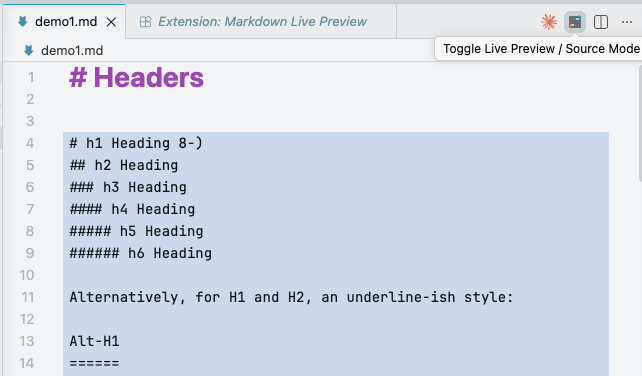
Use the title-bar toggle button to switch modes.
Usage
Open In Live Preview
Use either:
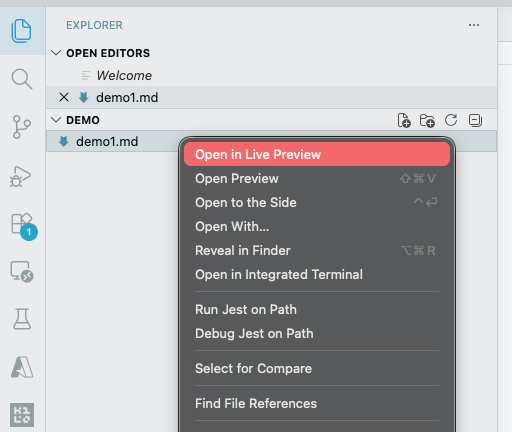
Explorer context menu: Open in Live Preview
Command Palette: Clean Markdown Live Preview: Open in Live Preview
Toggle Live / Source Mode
Use the title-bar toggle button or Command Palette:
Clean Markdown Live Preview: Toggle Live Preview / Source Mode
Edit While Rendered
Inactive lines render markdown syntax into readable content.
Active line reveals raw markdown for precise editing.
Task checkboxes can be toggled directly in live mode.
Use Tab / Shift+Tab to indent or outdent list items while editing.
Commands
Clean Markdown Live Preview: Toggle Live Preview / Source ModeClean Markdown Live Preview: Open in Live PreviewFind and Replace: Cmd+F / Ctrl+F (built-in, no Command Palette entry needed)
Troubleshooting
If UI changes do not appear: run Developer: Reload Window .
If packaging changes are missing: rebuild with pnpm build and repackage with pnpm package.
For contributor setup and release automation details, see CONTRIBUTING.md.
License
MIT