Skip to content
| Marketplace
Sign in
Visual Studio Code>Programming Languages>Aider ChatNew to Visual Studio Code? Get it now.
Aider Chat

Aider Chat

ChristopherBlodgett

|
4 installs
| (0) | Free
Manage Aider with local (Ollama) or remote (Claude API) LLM backends from VS Code
Installation
Launch VS Code Quick Open (Ctrl+P), paste the following command, and press enter.
Copied to clipboard
More Info

Aider Chat logo

Aider Chat

Chat with Aider directly inside VS Code / Cursor.
Switch between a free local LLM (Ollama) and Claude API with a single dropdown.


Why Aider Chat?

Running Aider in a terminal works, but it means constant window switching, no file context integration, and no way to toggle providers on the fly. Aider Chat fixes all of that:

  • Stay in your editor — a dedicated chat panel right in the sidebar
  • Save money — use a local Ollama model for everyday tasks, switch to Claude only when you need it
  • Zero friction — the "Driven by" dropdown lets you swap providers in one click, no restart needed
  • Smart resource management — Ollama starts and stops automatically so it's not eating your RAM when you're using Claude

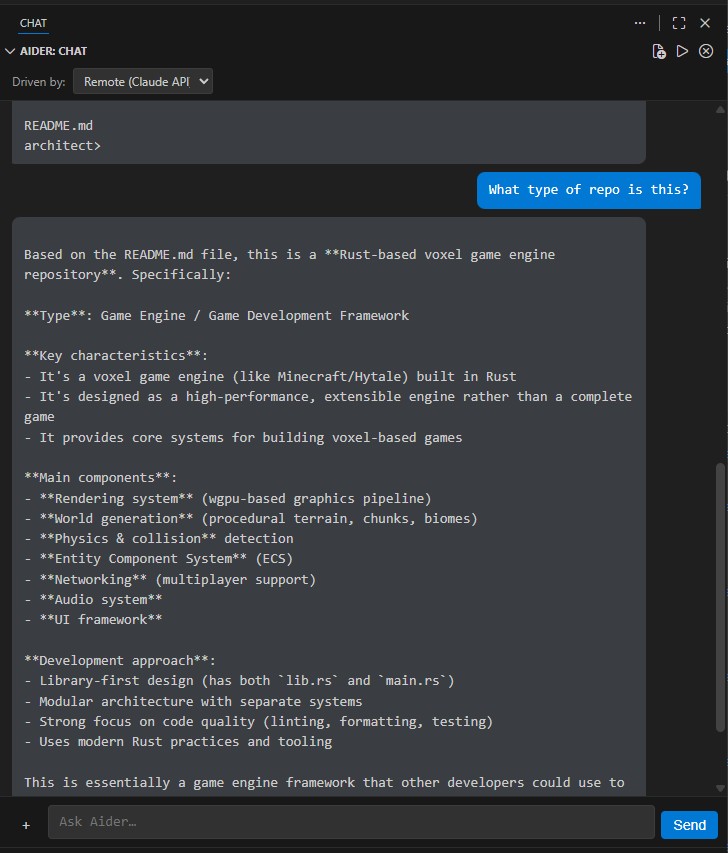
Chat panel with provider dropdown and AI response

Installation

From the Marketplace

Search "Aider Chat" in the VS Code Extensions panel, or:

ext install ChristopherBlodgett.aider-chat

From Source

git clone https://github.com/shotah/aider_chat.git && cd aider_chat
npm install
npm run compile
# Press F5 to launch the Extension Development Host

Prerequisites

Tool Purpose Install
Aider AI pair programming CLI pip install aider-chat
Ollama Local LLM server (for local mode) curl -fsSL https://ollama.com/install.sh \| sh
A coding model Local inference ollama pull qwen2.5-coder:14b
Anthropic API key Claude access (for remote mode) console.anthropic.com

Getting Started

  1. Open the Aider Chat panel from the Activity Bar (the chat bubble icon)
  2. Choose your provider from the "Driven by" dropdown at the top
  3. Run Aider: Start Engine from the command palette (Ctrl+Shift+P)
  4. Type a message and press Enter

That's it — you're pair-programming with AI.

Switching Providers

Use the "Driven by" dropdown at the top of the chat panel to switch between:

Provider Backend Cost Best for
Local (Ollama) Your machine Free Everyday tasks, privacy, offline work
Remote (Claude API) Anthropic API Pay per token Complex reasoning, large refactors

When you switch to Remote, Ollama shuts down automatically to free your RAM/VRAM. When you switch back to Local, it starts right back up.

Adding Files to Context

Give Aider the files it needs to work with. Three ways to do it:

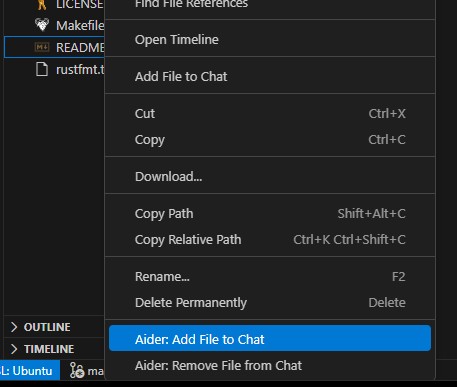
Right-click in the Explorer or Editor — select "Aider: Add File to Chat"

Right-click context menu showing Aider: Add File to Chat

Click the + button next to the chat input to open a multi-file picker.

Command palette — Ctrl+Shift+P → "Aider: Add File to Chat" or "Aider: Pick Files to Add..."

To remove a file from context, right-click it and choose "Aider: Remove File from Chat".

Commands

Command What it does
Aider: Start Engine Start Aider with the selected provider
Aider: Stop Engine Stop Aider (and Ollama if using local)
Aider: Switch Provider Toggle between Local and Remote
Aider: Add File to Chat Add the current or right-clicked file to Aider's context
Aider: Remove File from Chat Remove a file from Aider's context
Aider: Pick Files to Add... Open a file picker to select multiple files

Configuration

API keys (.env file)

Keep your API key out of settings and version control by using a .env file:

cp .env.example .env
ANTHROPIC_API_KEY=sk-ant-api03-your-key-here

The .env file is gitignored and never committed. It takes priority over system environment variables and VS Code settings.

Settings

All settings are under aiderAgent.*. Open Settings (Ctrl+,) and search "Aider Chat".

Setting Default Description
aiderAgent.provider "local" Active backend: "local" or "remote"
aiderAgent.local.model "ollama_chat/qwen2.5-coder:14b" Ollama model for Aider
aiderAgent.local.apiBase "http://localhost:11434" Ollama API URL
aiderAgent.remote.model "claude-sonnet-4-20250514" Claude model identifier
aiderAgent.remote.apiKey "" Anthropic API key (if not using .env)
aiderAgent.extraArgs [] Extra CLI flags passed to Aider

Model Sizing Guide

Not sure which local model to pick? Here's a quick guide:

Your RAM Recommended model Ollama tag
~20 GB free Qwen 2.5 Coder 14B (~9 GB) ollama_chat/qwen2.5-coder:14b
~52 GB free Qwen 2.5 Coder 32B (~20 GB) ollama_chat/qwen2.5-coder:32b
Any DeepSeek Coder V2 16B (~9 GB) ollama_chat/deepseek-coder-v2:16b

Example: Claude Opus 4

# .env
ANTHROPIC_API_KEY=sk-ant-api03-your-key-here
// .vscode/settings.json
{
  "aiderAgent.provider": "remote",
  "aiderAgent.remote.model": "claude-opus-4-20250514"
}

Contributing

See DEVELOPMENT.md for architecture diagrams, build instructions, testing setup, and CI/CD details.

License

MIT

  • Contact us
  • Jobs
  • Privacy
  • Manage cookies
  • Terms of use
  • Trademarks
© 2026 Microsoft