GherkinLens
Python BDD support for pytest-bdd and behave in VS Code.
GherkinLens helps teams discover existing steps, write readable .feature files, navigate to Python definitions, validate missing coverage, edit Gherkin tables, and run BDD tests without leaving VS Code.
Version 2 adds a native GherkinLens Activity Bar with:
- Step Library - browse, search, insert, and reuse indexed step definitions.
- Tag Explorer - understand scenarios by tag, folder, feature file, or runnable tag expression.
- Snippets - save and insert reusable multi-step flows from workspace JSON.
- Gherkin Table Editor - edit
Examples and step data tables with spreadsheet-style controls.
GherkinLens still includes the editor intelligence from earlier releases: autocomplete, Go to Definition, hover, diagnostics, Quick Fix, CodeLens usage counts, formatting, syntax highlighting, persistent indexing, and the native VS Code Testing runner.
At A Glance
| Workflow |
Feature |
What it helps you do |
| Discover |
Step Library |
Find existing step definitions before you know the exact wording. |
| Discover |
Tag Explorer |
See which scenarios exist by tag, folder, file, or tag expression. |
| Write |
Autocomplete |
Complete indexed step definitions with tab stops for parameters. |
| Navigate |
Go to Definition |
Jump from a Gherkin step to its Python decorator. |
| Navigate |
Hover |
See the matching decorator, signature, source file, and line. |
| Navigate |
CodeLens |
See how many scenarios use each step definition and peek references. |
| Validate |
Diagnostics |
Highlight unmatched steps in open .feature files. |
| Validate |
Quick Fix |
Scaffold missing step definitions from unmatched steps. |
| Compose |
Snippets |
Reuse named multi-step flows from .gherkinlens/snippets.json. |
| Author |
Gherkin Table Editor |
Edit Examples and data tables like a small spreadsheet. |
| Tidy |
Document Formatting |
Format indentation, blank lines, keyword casing, and table alignment. |
| Run |
BDD Runner |
Run or debug features, scenarios, examples, and tag expressions. |
| Ambient |
Syntax + Status Bar |
Get Gherkin highlighting, file icons, step counts, and unmatched counts. |
Quick Start
- Install GherkinLens in VS Code.
- Open a Python BDD workspace that contains
.feature files and Python step definitions.
- Open the GherkinLens Activity Bar view to use Step Library, Snippets, and Tags.
- Open a
.feature file and use autocomplete, diagnostics, formatting, table editing, and runner commands directly from the editor.
- Open a Python step file to see CodeLens scenario usage counts above step decorators.
GherkinLens supports both pytest-bdd and behave. The default framework mode is auto, which detects the framework from imports in your step files. Set gherkinLens.framework to pytest-bdd or behave if your workspace needs an explicit choice.
The BDD runner is enabled by default. If you only want editor features, disable it:
{
  "gherkinLens.runner.enabled": false
}
Features
Step Library
The Step Library is the v2 front door for existing BDD vocabulary. It appears in the GherkinLens Activity Bar and is built from the same step-definition index used by autocomplete, hover, Go to Definition, diagnostics, Quick Fix, and CodeLens.
Use it to:
- Browse all indexed BDD step definitions.
- See steps grouped by category, with curated metadata separated from path guesses.
- Search steps with a native VS Code QuickPick.
- Insert a selected step into the active
.feature file.
- Jump to the Python step definition.
- Find all scenario usages.
- Copy a step as Gherkin text.
- Refresh or reindex the library when needed.
The tree keeps rows clean and readable:
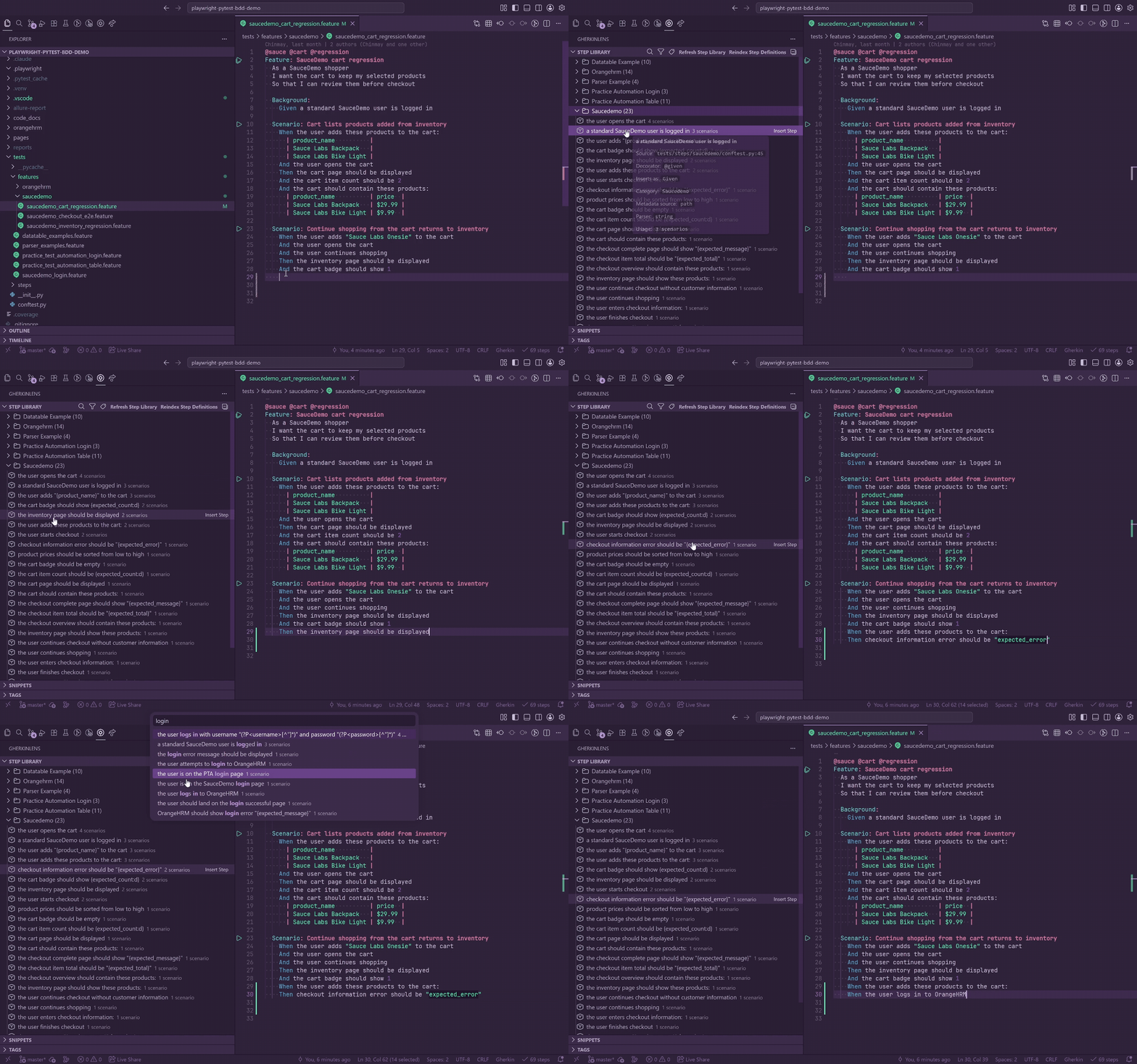
The tree separates intentional metadata from automatic guesses:
Curated Categories
  Authentication (18)     10 annotation • 5 override • 3 rule
Path Categories
  Api (24)
Uncategorized
  step with no useful category
Inline annotations, config overrides, and config rules are grouped under Curated Categories. Path-derived categories are grouped under Path Categories. Steps with no useful category remain under Uncategorized.
Step rows show the step pattern only. Given, When, Then, and And are not repeated in the row label, usage count appears in the row description, and file path, line number, parser type, category source, and tags are available in the tooltip.
GherkinLens can categorize steps with no configuration by deriving a category from the step file path:
features/steps/api/login_steps.py      -> Api
features/steps/auth_steps.py           -> Auth
features/steps/database/user_steps.py  -> Database
The path heuristic prefers a meaningful folder under steps/, falls back to the cleaned Python file name, removes generic words such as steps, test, bdd, and conftest, and keeps Uncategorized sorted last.
For more control, add inline metadata above a step definition:
# @gl:category Authentication @gl:tags login,api
@step('the user is logged into (.*) as(?: a)? (.*?)(?: (via API))?')
def user_logged_in(context, product, role, via_api=None):
    ...
Inline metadata supports @gl:category, @gl:tags, quoted or unquoted category names, comma-separated tags, multiple decorators on one function, and @step expansion while preserving the same metadata.
You can also define workspace category rules in .gherkinlens/categories.json:
{
  "version": 1,
  "overrides": [
    {
      "category": "Authentication",
      "tags": ["login", "api"],
      "patterns": [
        "the user is logged into (.*) as(?: a)? (.*?)(?: (via API))?"
      ]
    },
    {
      "category": "Database",
      "tags": ["db", "setup"],
      "paths": ["**/features/steps/database_steps.py"]
    }
  ],
  "rules": [
    {
      "category": "Authentication",
      "tags": ["auth"],
      "keywords": ["login", "logout", "password", "session"],
      "paths": ["**/auth*/**", "**/*auth*_steps.py"]
    },
    {
      "category": "API",
      "tags": ["api"],
      "keywords": ["api", "request", "response", "endpoint"],
      "paths": ["**/api*/**", "**/*api*_steps.py"]
    }
  ]
}
Metadata precedence is:
- Inline annotation
- Config override
- Config rule
- Path heuristic
Uncategorized
One category config is loaded per workspace folder. The file is watched automatically, and creating, editing, or deleting it refreshes the Step Library. Invalid JSON is non-fatal and is logged in the GherkinLens output channel.
Usage Counts, Search, And Filters
The Step Library shows scenario usage counts for every step. Counts come from the same feature usage index that powers CodeLens in Python files. A step used twice in one scenario still counts as one scenario usage.
Steps are sorted by:
- Scenario usage count, descending.
- Keyword/decorator order.
- Step pattern text.
Search uses a native QuickPick, keeps labels focused on the step pattern, includes usage count in the description, respects active category and tag filters, and sorts matches by quality plus usage count.
Title-bar filters let you filter by category, tag, or metadata source. Source filters include Inline Annotation, Config Override, Config Rule, Path Category, and Uncategorized. Active filters affect the tree, search results, and category/tag/source counts. The TreeView description shows the active filters, such as Authentication / api / Inline Annotation.
The Step Library refreshes automatically when the step definition index changes, feature usage counts change, or .gherkinlens/categories.json is created, edited, or deleted. Refreshes are debounced to avoid UI flicker during rapid file changes.
Insert, Navigate, And Copy
Clicking a step in the tree, or selecting it from search, inserts it into the active .feature editor.
- If the active line already contains a Gherkin keyword, the line is replaced.
- If the active line is blank, the full step line is inserted there.
- If the active line has other text, the step is inserted on a new line.
- The inserted keyword comes from the decorator.
@step definitions insert and copy with And by default.
Examples:
@given("the user is on the login page")
Inserts:
Given the user is on the login page
@step("the user is logged into (.*) as(?: a)? (.*?)(?: (via API))?")
Inserts:
And the user is logged into (.*) as(?: a)? (.*?)(?: (via API))?
Step insertion reuses the same snippet conversion logic as autocomplete. {param} placeholders become tab stops, parsers.parse(...) patterns keep named placeholders, and named regex groups become useful snippet fields where possible.
@given(parsers.parse('the user is logged in as "{role}"'))
Inserts as:
Given the user is logged in as "${1:role}"
Each step row supports:
- Insert Step
- Go to Definition
- Find Usages
- Copy as Gherkin
If no .feature file is active, GherkinLens warns you and offers to jump to the step definition instead.
Tag Explorer
The Tags view indexes tags written in .feature files and shows where each tag is used.
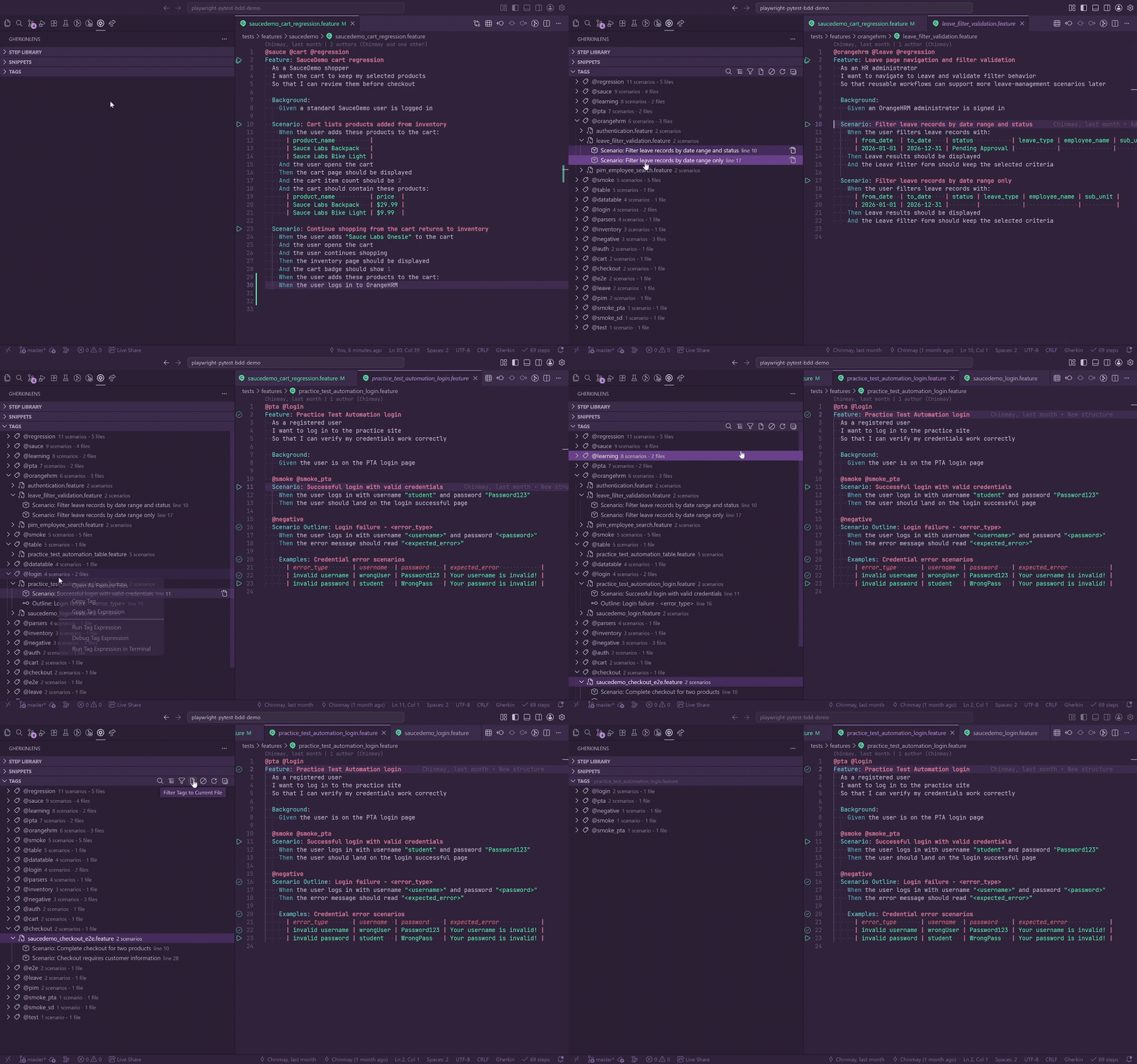
Tag Explorer can:
- Browse all Gherkin tags found in indexed feature files.
- Show scenario and feature-file counts per tag.
- Group each tag by feature file.
- Open a scenario or Scenario Outline at its source line.
- Search tags from a native QuickPick.
- Search tagged scenarios by scenario name, tag, feature name, or path.
- Filter the tree by feature folder.
- Filter the tree to the active
.feature file.
- Toggle untagged scenarios.
- Copy tags, feature paths, scenario names, scenario locations, and scenario tags.
- Open all feature files associated with a tag.
- Run, debug, or run in terminal using the selected tag expression.
Tags are sorted by scenario count and then tag name. Feature files under each tag are sorted by scenario count, visible file name, and full relative path. Scenario rows show Scenario: ... or Outline: ... with the source line in the description.
Counting behavior is intentionally scenario-focused:
- One
Scenario counts as one scenario.
- One
Scenario Outline counts as one scenario.
Examples rows are never shown or counted separately.- Tags above
Examples: make the parent Scenario Outline appear once under that tag.
- Duplicate tags do not inflate counts.
- Scenarios and outlines with no effective tags appear under
Untagged.
Tag Explorer reads tags from .feature files only. Python-side pytest markers are not included in the tag inventory. Runner warnings and runtime behavior still come from the configured BDD framework.
Tag Explorer adds no new settings. It reuses gherkinLens.excludePattern, benefits from the hidden index cache controlled by gherkinLens.indexCache.enabled, and uses existing runner settings for run/debug actions.
Snippets
The Snippets view stores reusable multi-step flows in your workspace:
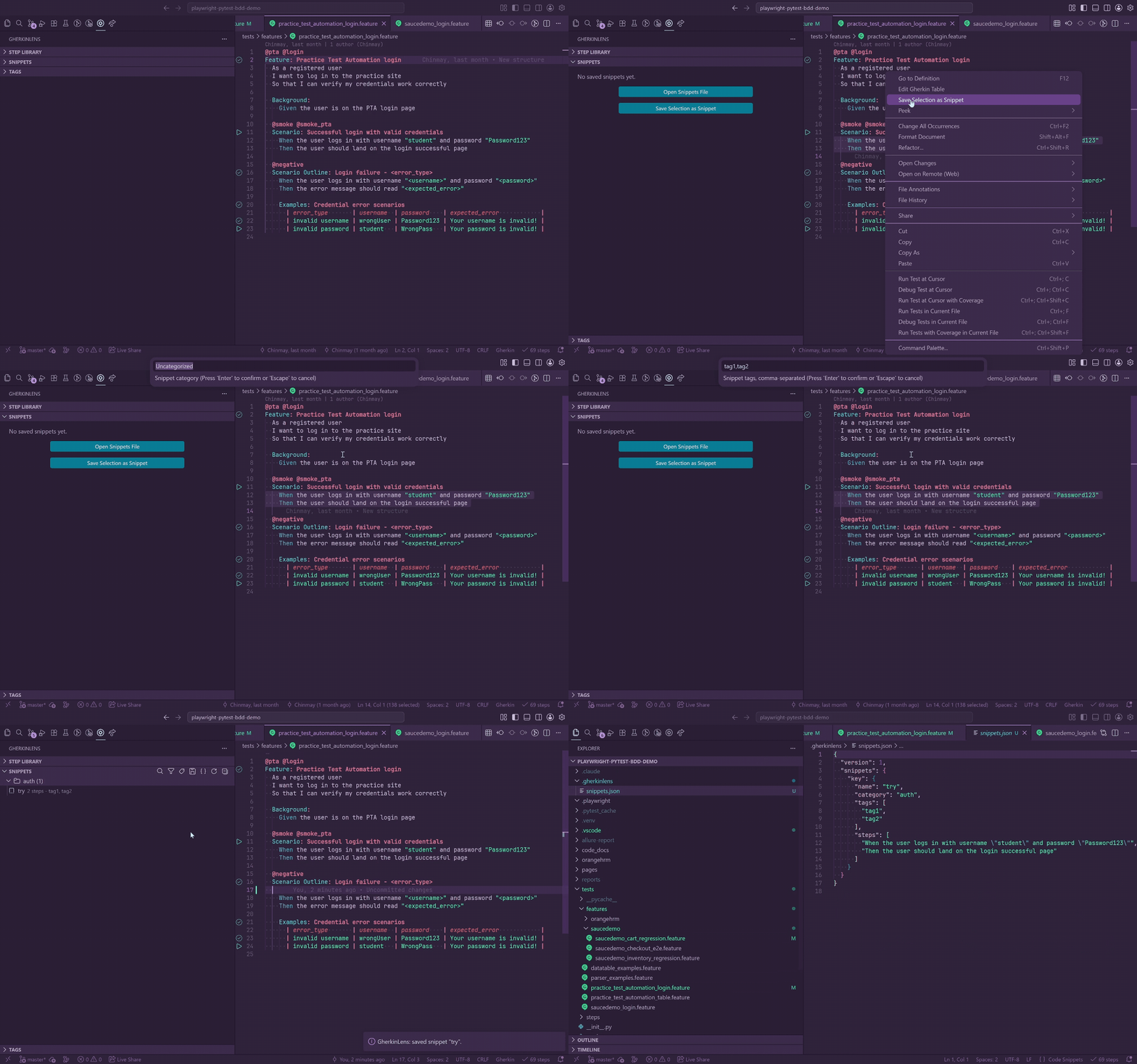
.gherkinlens/snippets.json
Example:
{
  "version": 1,
  "snippets": {
    "loginFlow": {
      "name": "Standard login flow",
      "category": "Authentication",
      "tags": ["login", "auth"],
      "steps": [
        "Given the user is on the login page",
        "When the user enters \"{username}\" and \"{password}\"",
        "Then the user should be redirected to \"{path}\""
      ]
    }
  }
}
Snippet features:
- Group snippets by category in the native tree.
- Filter snippets by category or tag.
- Show active filters in the view description, such as
Authentication / login.
- Insert all steps from a snippet into the active
.feature file.
- Search snippets by name, key, category, tags, and step text.
- Turn inserted
{placeholder} values into VS Code tab stops across the multi-line snippet.
- Copy a full multi-line Gherkin snippet.
- Copy the stable JSON key, such as
loginFlow.
- Rename the display name while keeping the JSON key stable.
- Delete a snippet after confirmation.
- Open or create
.gherkinlens/snippets.json.
- Edit snippet JSON at the selected snippet key.
- Prompt you to pick a snippet when a Command Palette action needs one and no tree item is selected.
Insertion behavior:
- Replaces a non-empty editor selection.
- Replaces the current blank line.
- Replaces the current Gherkin step line.
- Otherwise inserts below the current line.
- Applies the active line indentation to every inserted snippet line.
To turn existing feature text into a reusable snippet, select one or more steps in a .feature file and run:
GherkinLens: Save Selection as Snippet
The command prompts for snippet name, snippet key, category, and tags. Only selected Gherkin step lines are saved; non-step lines are ignored. If .gherkinlens/snippets.json does not exist, GherkinLens creates it. If the file contains invalid JSON, the save is aborted and the file is opened so it can be fixed safely.
In v2, repeated snippet placeholders become separate tab stops.
Editor Intelligence
GherkinLens turns .feature files into first-class VS Code documents by indexing Python step definitions and wiring the index into completion, navigation, hover, diagnostics, Quick Fix, and usage counts.
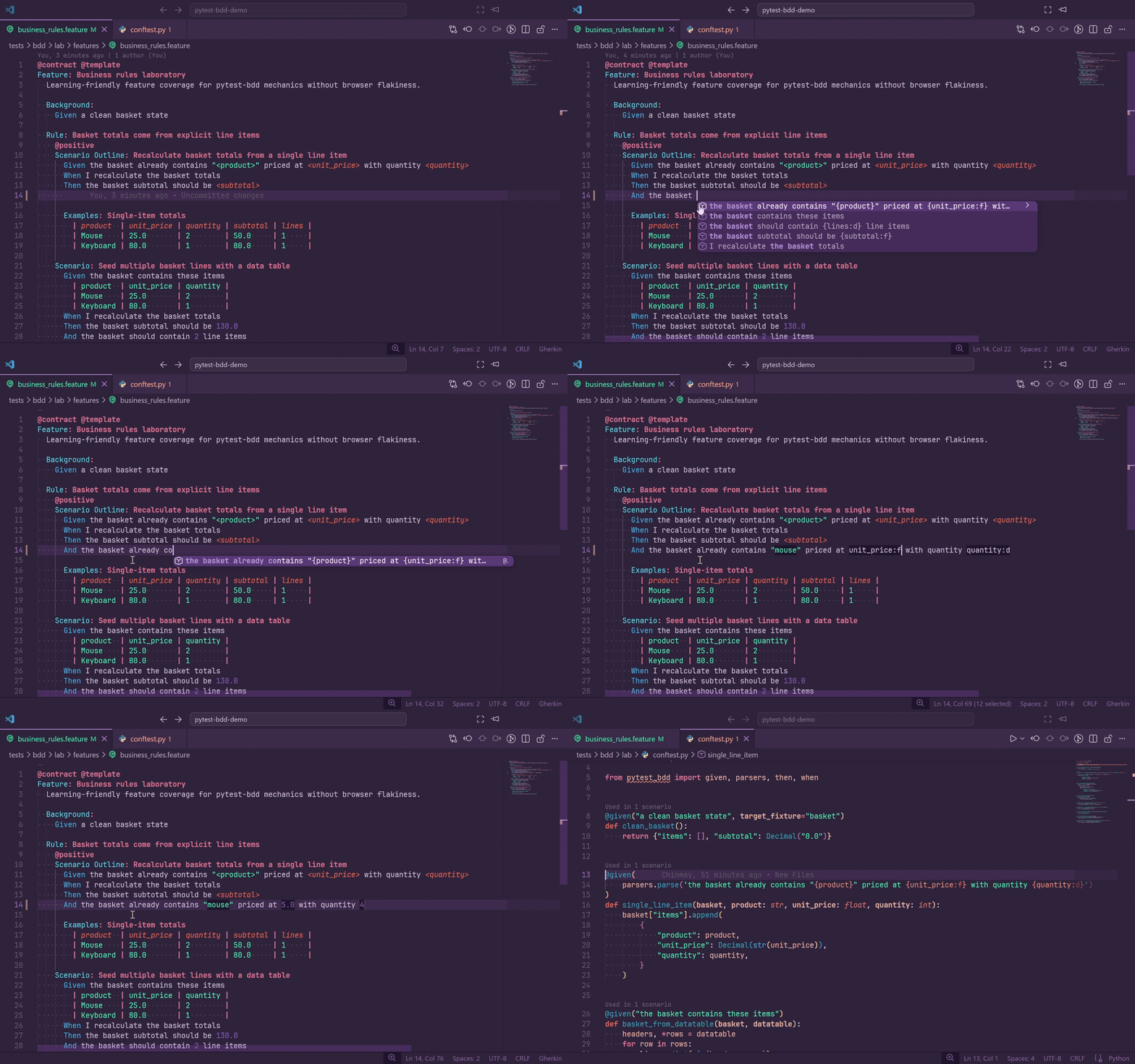
Autocomplete
Start typing a Gherkin step keyword (Given, When, Then, And, But, or *) followed by a space, and GherkinLens offers completions sourced from indexed step definitions.
- Completions show the decorator type and source file/line in the detail line.
- The documentation popup includes a Python code block with the decorator and function signature.
{param} placeholders in parsers.parse patterns become snippet tab stops.- Named capture groups in
parsers.re patterns become named tab stops.
- Snippet session tracking keeps Tab focused on fields after accepting a completion.
@step decorators appear only once in the completion list.- Once the current line already matches a known definition, automatic suggestions are suppressed; manual
Ctrl+Space still works.
Go To Definition
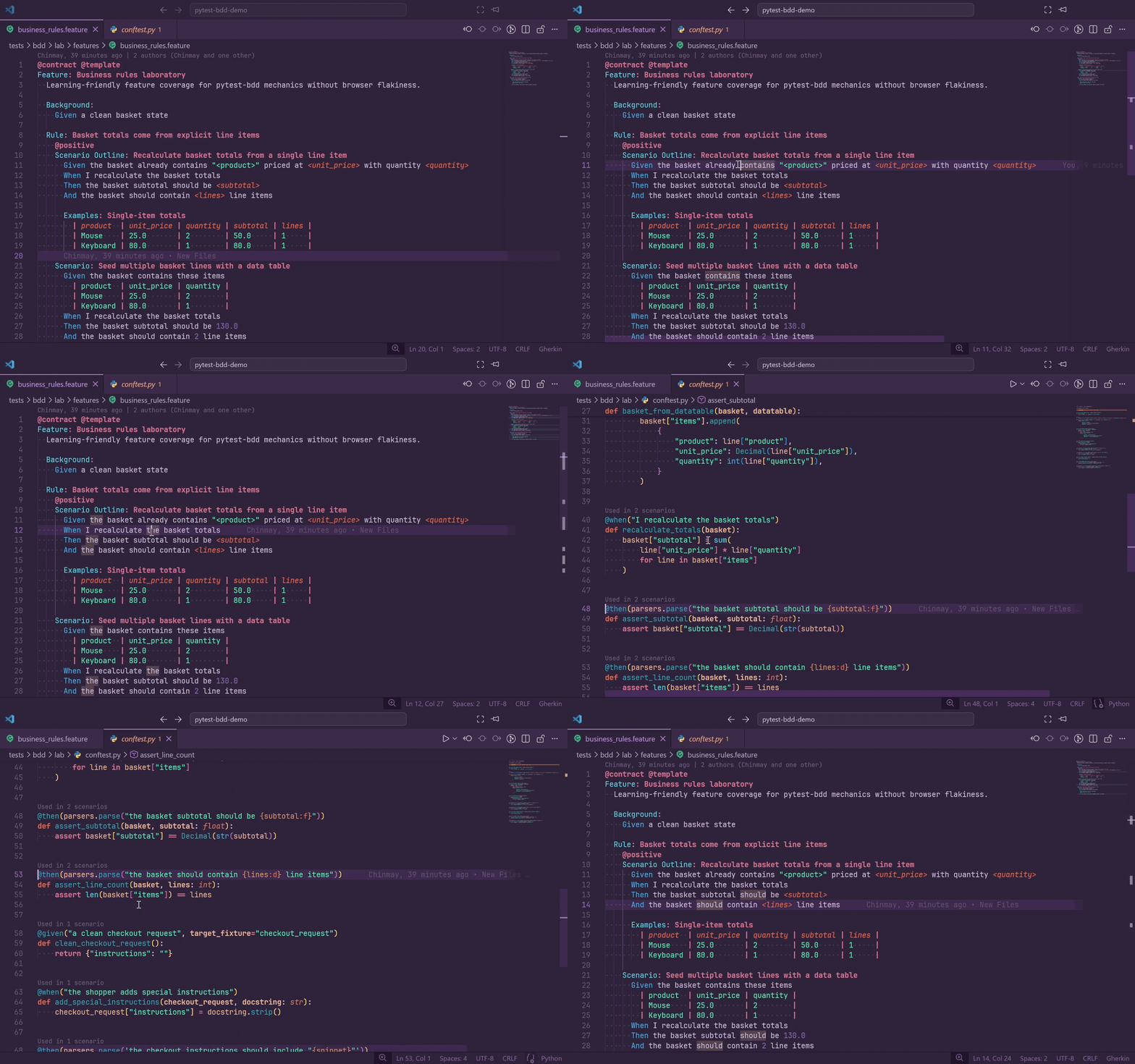
Press F12 or Ctrl+Click on any Gherkin step to jump directly to the matching Python decorator in your step definition file.
- Works for
@given, @when, @then, and @step.
- Supports plain strings,
parsers.parse(...) format strings, and parsers.re(...) regular expressions.
- Holding Ctrl while hovering underlines the full step line so you can preview the target before jumping.
Hover
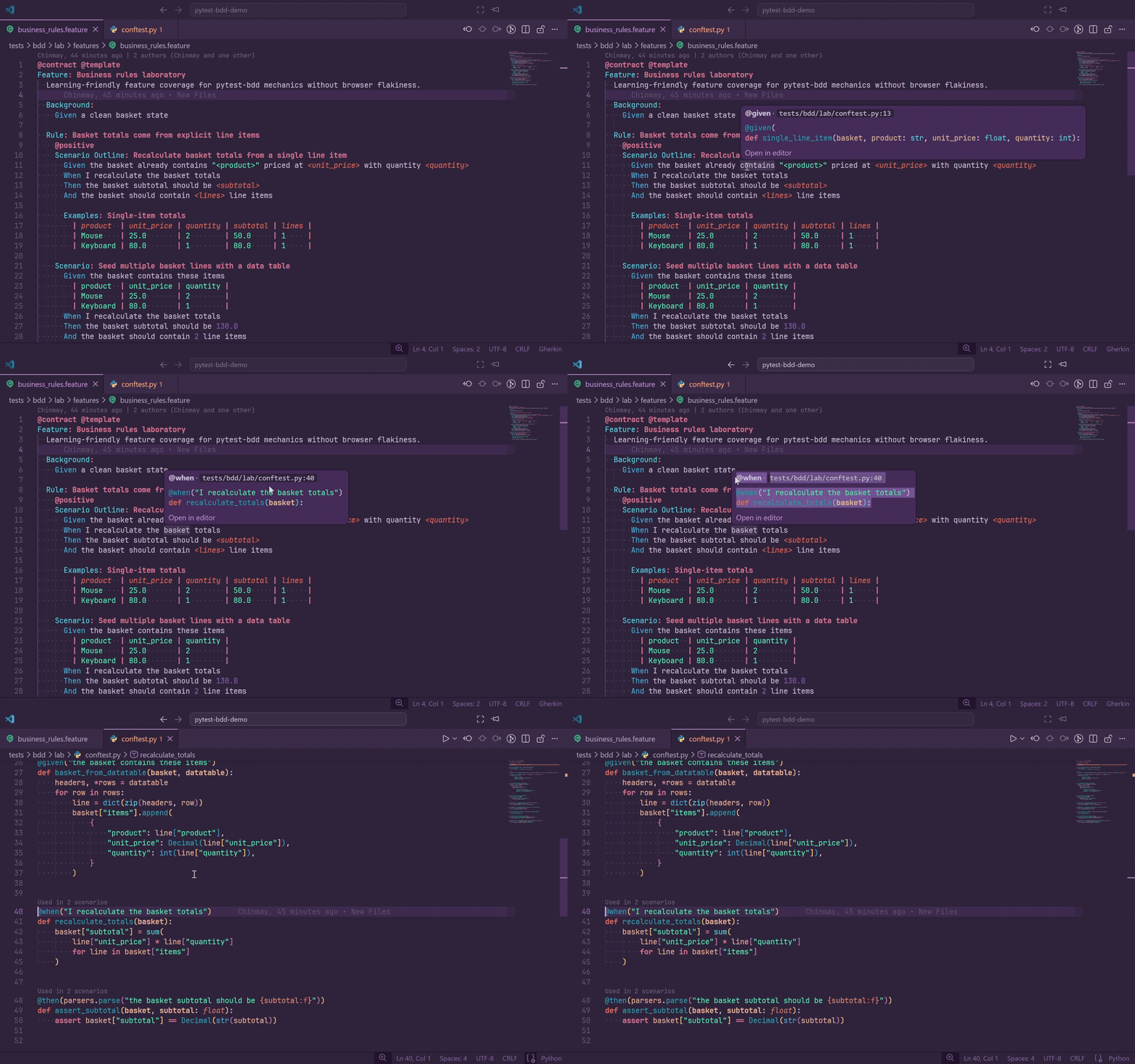
Hover over any Gherkin step to see rich inline documentation from the matching Python source:
- Decorator line, such as
@given(parsers.parse("the user {username} logs in")).
- Function signature, including multi-line decorator support.
- Relative file path and line number.
- Clickable Open in editor link.
When a step matches multiple definitions, each match is shown as a separate section. If you prefer quieter hover behavior, set gherkinLens.hover.enabled to false; Go to Definition, Ctrl+Click, diagnostics, autocomplete, and CodeLens continue to work.
CodeLens Usage Counts
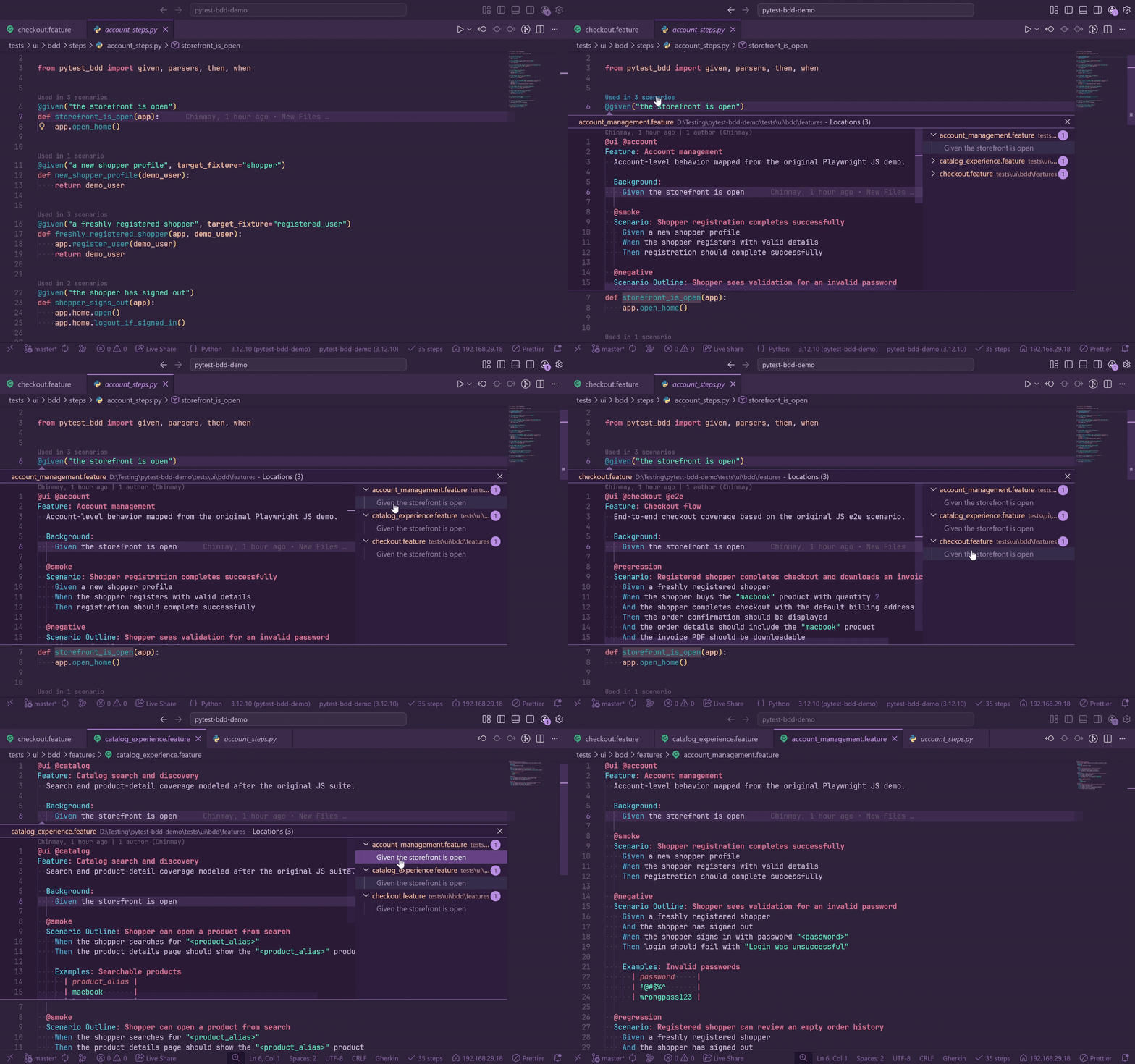
Every step definition decorator in a Python file gets a CodeLens line showing how many unique scenarios use that step.
Used in 3 scenarios
@given(parsers.parse("the user {username} is logged in"))
def step_the_user_username_is_logged_in(username):
    ...
- Click the CodeLens to open the References peek panel.
- References are grouped by feature file and support jump-to-line navigation.
- Counts are per unique scenario, not per raw step occurrence.
- Counts update automatically when Python or feature files change.
- Rapid saves are debounced to avoid flicker.
Diagnostics
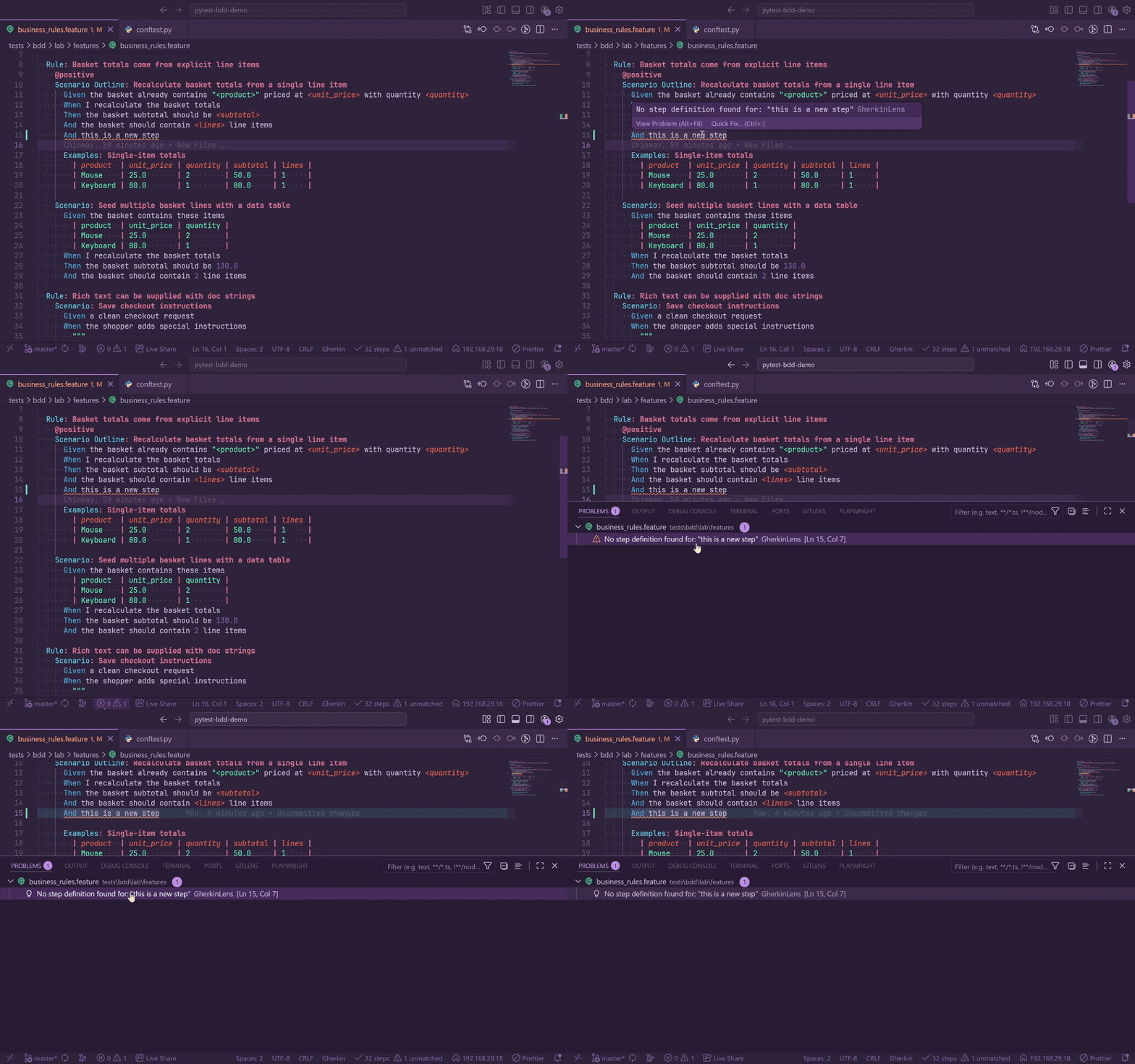
GherkinLens continuously checks every open .feature file against indexed step definitions.
- Unmatched steps get a warning squiggle from the first non-whitespace character to the end of the step text.
- Unmatched steps appear in the Problems panel with
No step definition found for: "...".
- Diagnostics update when
.feature files open or save, Python step files save, or you run GherkinLens: Reindex Step Definitions.
- The status bar shows unmatched counts when open files contain broken steps.
- Scenario Outline step matching expands Examples row values for diagnostics and usage linking.
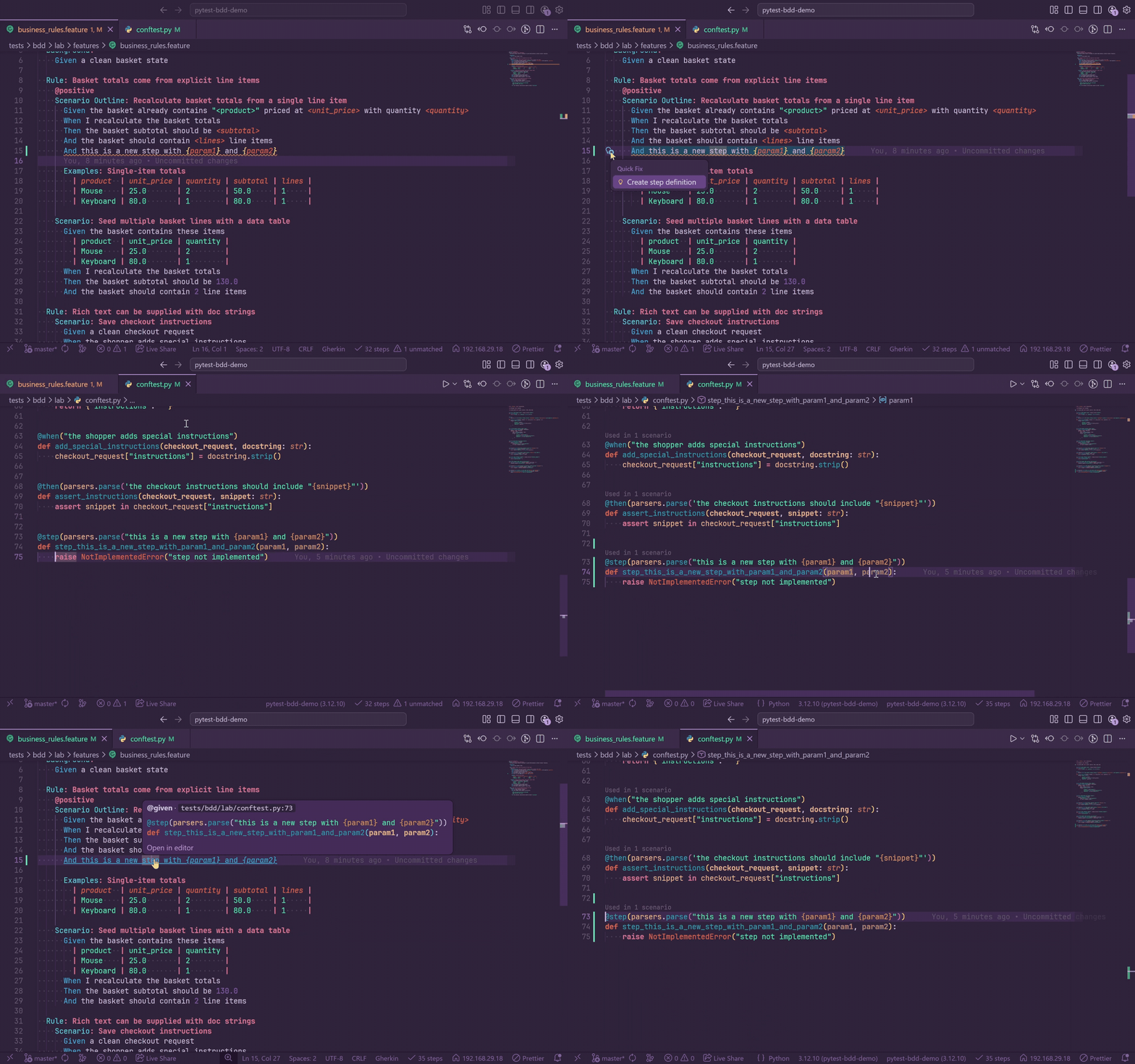
Quick Fix - Create Step Definition
When a step is unmatched, a lightbulb appears on that line. Click it or press Ctrl+. and select Create step definition to scaffold a stub.
GherkinLens generates:
- A snake_case Python function name derived from the step text and truncated at a word boundary.
- A
@given, @when, @then, or @step decorator matching the feature keyword.
- Smart parameter placeholders for quoted values.
- Numeric placeholders for standalone floats and integers.
- A
raise NotImplementedError("step not implemented") body.
For pytest-bdd, generated parameterized decorators use parsers.parse(...) and import parsers when needed. For behave, generated stubs use from behave import ..., include context as the first parameter, and do not wrap patterns in parsers.parse().
The file picker lists indexed Python files and offers Create new file.... After insertion, the file opens at the stub body, saves automatically, triggers re-indexing, and clears the feature-file squiggle when the new step matches.
Gherkin Table Editor
GherkinLens includes a spreadsheet-style table editor for .feature files:
GherkinLens: Edit Gherkin Table
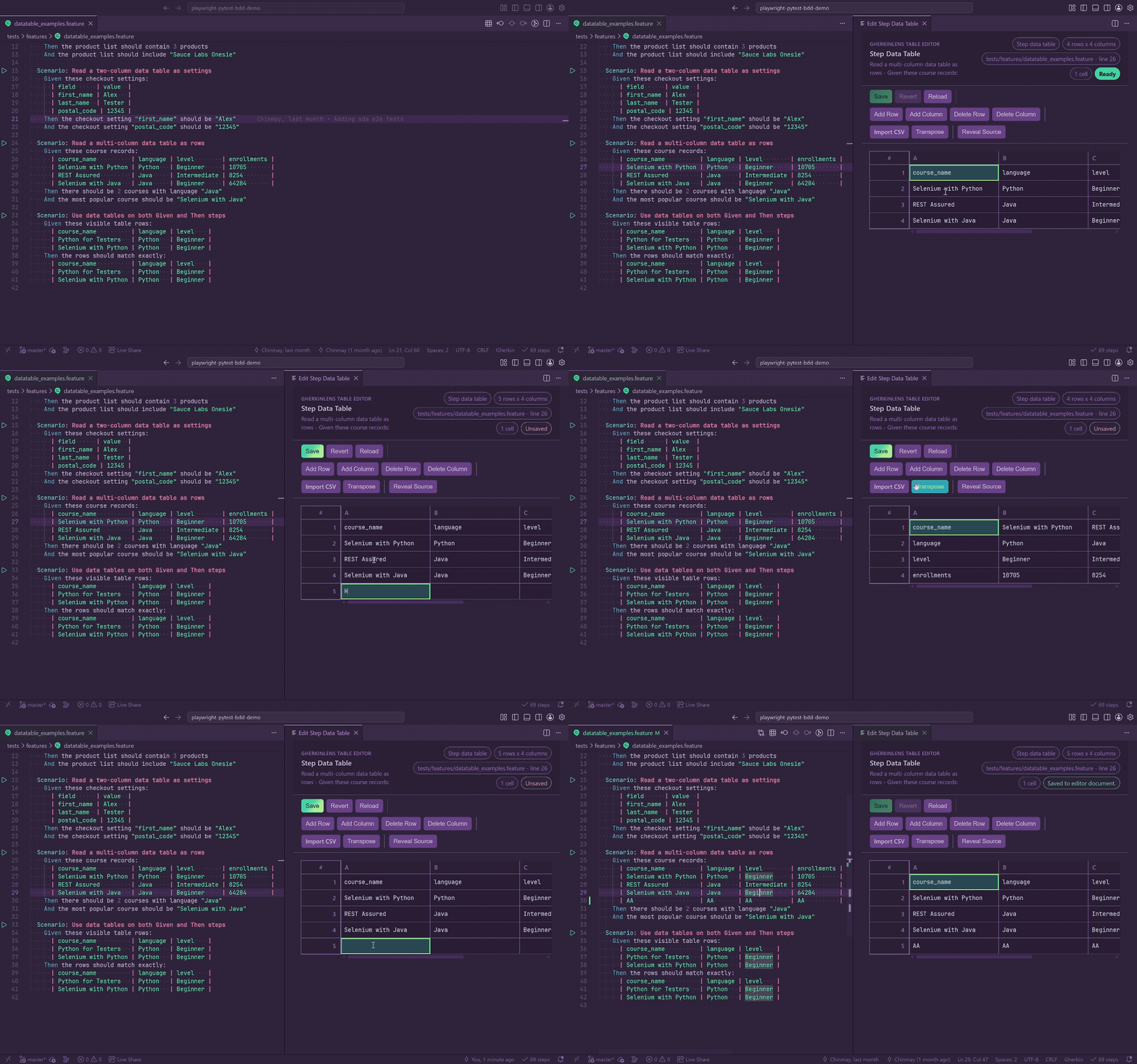
The command opens a webview editor beside the active feature file and supports both:
- Scenario Outline
Examples tables.
- Step data tables below
Given, When, Then, And, But, or *.
Table detection behavior:
- If the cursor is inside a pipe table, that table opens directly.
- If the cursor is on a step with a data table below it, that table opens.
- If the cursor is on or near
Examples:, the Examples table opens.
- If the location is ambiguous, GherkinLens shows a QuickPick of tables in the current feature file.
Editor features:
- Edit any cell, including Examples header cells.
- Add rows and columns.
- Delete selected rows or columns.
- Transpose the table.
- Import CSV.
- Copy selected cells as TSV for Excel, Google Sheets, and plain text.
- Cut selected cells with Ctrl+X or Cmd+X.
- Paste blocks from Excel or Google Sheets into the grid.
- Expand the table automatically when pasted data needs more rows or columns.
- Clear a selected range with Delete or Backspace.
- Undo and redo local table edits with Ctrl+Z, Ctrl+Y, or Ctrl+Shift+Z (and the equivalent macOS shortcuts).
- Save local table edits with Ctrl+S or Cmd+S.
- Save literal
| characters as escaped \|.
- Write back to the open VS Code document while preserving normal undo and dirty-file behavior.
Selection behavior:
- Click a cell to edit it.
- Drag across cells to select a range.
- Shift-click to extend the current selection.
- Click a row number to select a row.
- Click a column label to select a column.
- Click the corner label to select the whole table.
- Press Escape to cancel the current cell edit or collapse a multi-cell selection.
The table editor uses the same shared Gherkin table formatter as document formatting, so saved output is aligned cleanly.
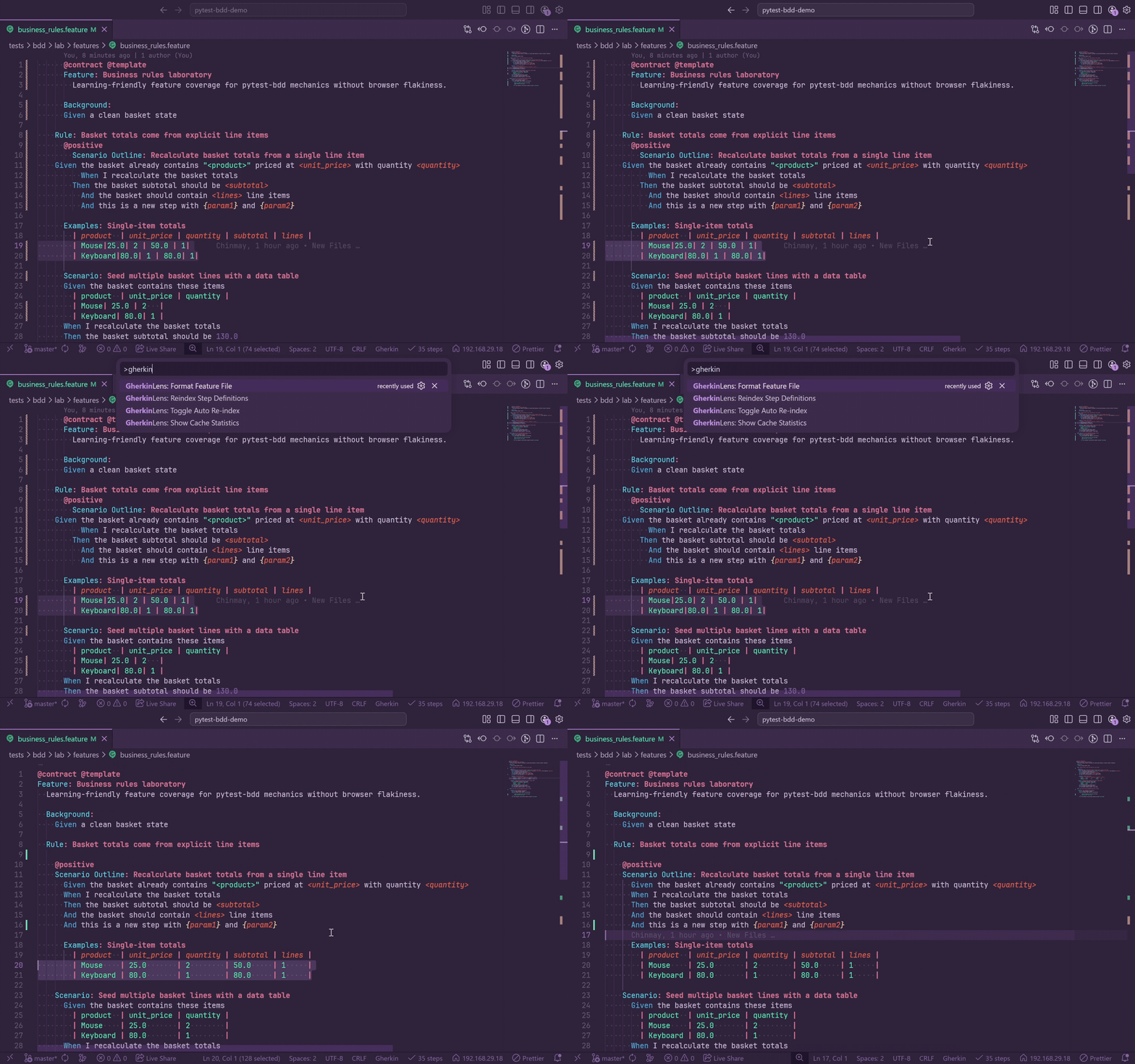
Format any .feature file with Shift+Alt+F or run:
GherkinLens: Format Feature File
GherkinLens implements a complete Gherkin formatter without requiring an external tool.
Indentation
With the default indentSize of 2 spaces:
Feature: User authentication
  Background:
    Given the database is running

  Scenario: Successful login
    Given the login page is open
    When the user enters "alice"
    Then the dashboard is shown
      | column | value |
      """
      content
      """

  Rule: Admin users
    Scenario: Admin panel access
      Given the user is an admin
Blank Lines
| Location |
Blank lines enforced |
Before Background:, Scenario:, Scenario Outline:, Rule:, Examples: |
Exactly 1 |
Before Feature: |
0, always first |
| Between tags and their element |
0 |
| Between a step and its data table |
0 |
| Between a step and its docstring |
0 |
| Consecutive blank lines anywhere |
Collapsed to 1 |
Table Alignment
# Before formatting
| Name | Age | City |
| Alice | 30 | New York |
| Bob | 25 | LA |

# After formatting
| Name  | Age | City     |
| Alice | 30  | New York |
| Bob   | 25  | LA       |
Keyword Casing
The gherkinLens.format.keywordCase setting controls keyword casing:
| Mode |
Example |
title |
Feature:, Scenario:, Given, When, Then |
lower |
feature:, scenario:, given, when, then |
upper |
FEATURE:, SCENARIO:, GIVEN, WHEN, THEN |
preserve |
Leaves keyword casing unchanged |
Docstring content is preserved as written. Only the opening and closing delimiters are re-indented, and trailing whitespace is trimmed. Tags stay attached to their element without a blank line between them. Rule: blocks increase indentation for nested scenarios and steps. The whole format operation is applied as one edit, so one undo reverts the full format.
BDD Runner
GherkinLens adds a lightweight BDD runner to VS Code's native Testing view. It supports both pytest-bdd and behave and uses the same gherkinLens.framework setting as indexing.
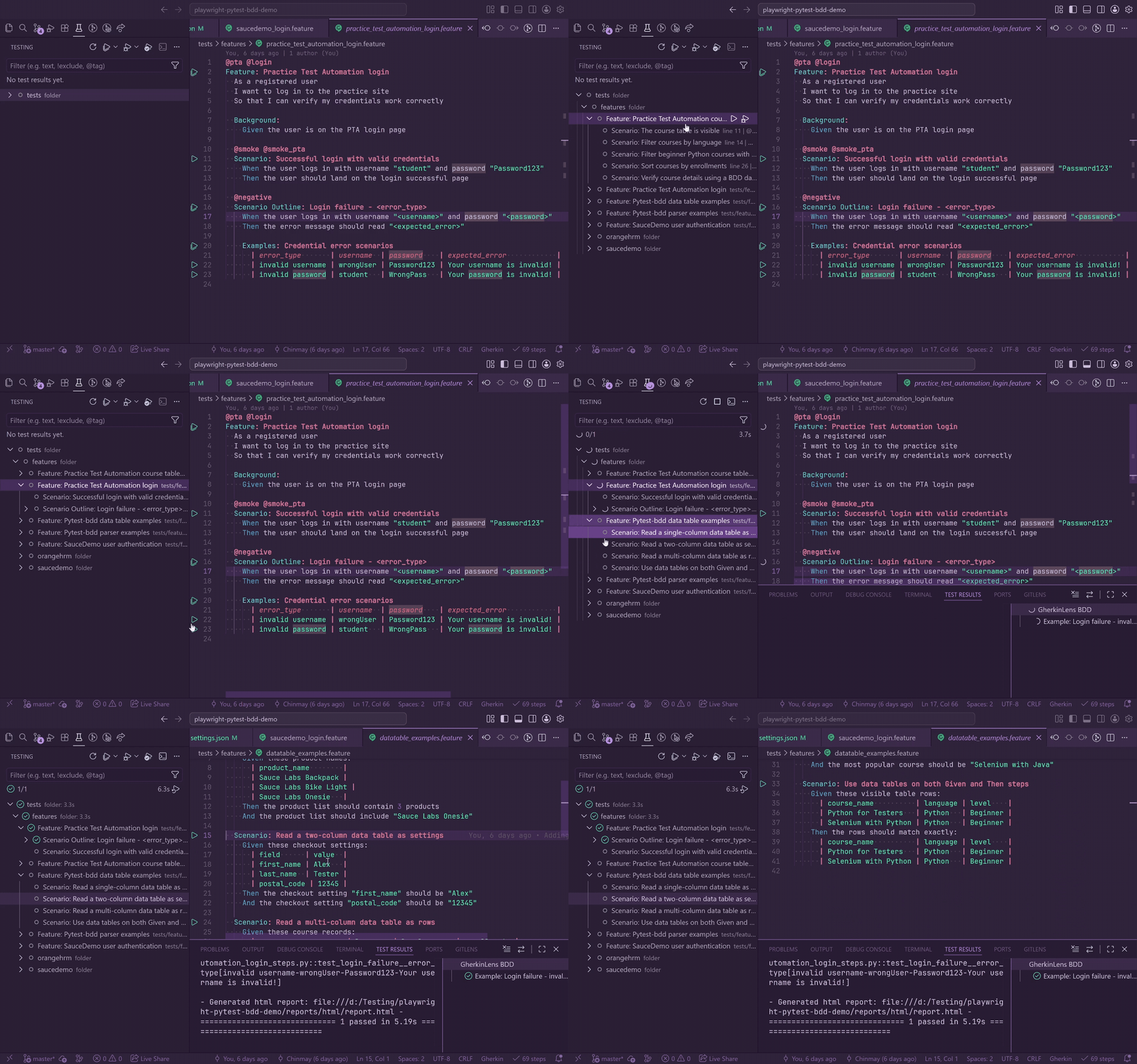
Use it to:
- Run or debug the current feature, scenario, Scenario Outline, or rendered example row.
- Group feature files by workspace folders in the Testing view.
- See BDD node types as Feature, Scenario, Scenario Outline, Examples, and Example.
- Run or debug by tag expression, such as
@smoke, @negative, or @smoke and not @wip.
- Run selected BDD items through integrated terminal commands.
- See pytest-bdd scenarios start and finish while the run is active, with safe setup/call/teardown output attached to the matching Testing item.
- Follow the dedicated
BDD status-bar indicator through Preparing environment, Discovering, Ready, Running, Cancelled, and Configuration error states.
- Retry a transient cold, empty pytest discovery once inside the original action instead of requiring a second click.
- Use custom Behave terminal runners with
gherkinLens.runner.behaveCustomCommand.
- Prompt for a tag when the current feature/scenario must be combined with a custom runner argument.
- Keep pytest/behave invocation lazy; frameworks run only when you refresh, run, debug, or use terminal run commands.
The runner reuses the shared semantic index for its tree, then uses framework bridge scripts with structured JSON for discovery/result mapping. Pytest live events are optional: the final bridge response remains authoritative and automatically provides a fallback if live transport is unavailable.
Runner status transitions are also written as [runner] status: ... lines in Output: GherkinLens. Ready describes runner availability; individual test pass/fail outcomes remain in the Testing/Test Results UI.
Disable it with:
{
  "gherkinLens.runner.enabled": false
}
Syntax Highlighting, Status Bar, And Indexing
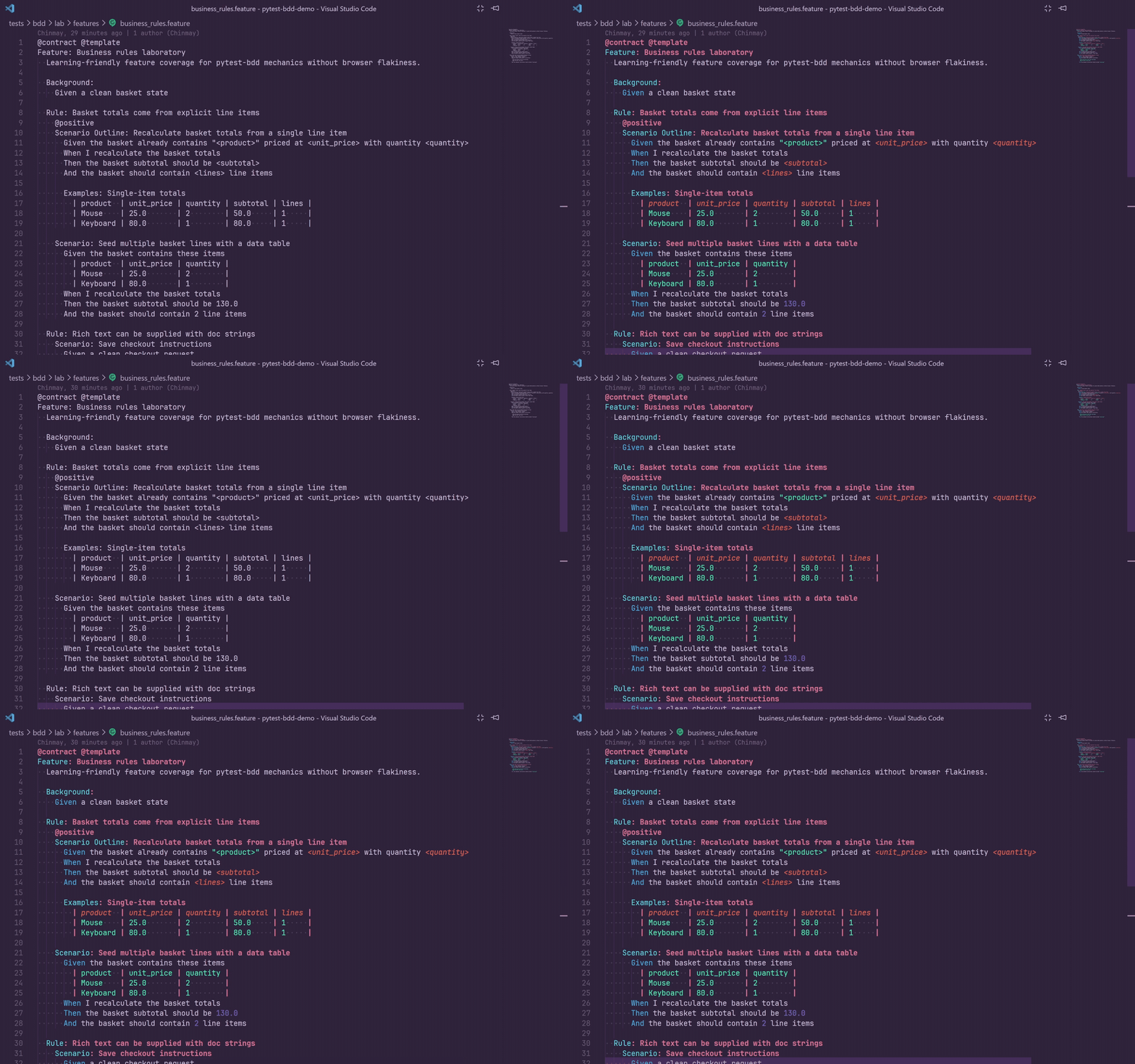
Syntax Highlighting
GherkinLens registers a full TextMate grammar for .feature files covering:
- Block keywords:
Feature, Rule, Background, Scenario, Scenario Outline, Scenario Template, Example, Examples, Scenarios.
- Step keywords:
Given, When, Then, And, But.
- Tags such as
@smoke.
- Step parameters such as quoted strings and
<angle bracket placeholders>.
- Data table cell separators and content.
- Docstrings with triple-quote or backtick delimiters.
- Comments.
The .feature file icon is registered for light and dark themes.
Status Bar
A status bar item appears after indexing completes or a saved index is restored.
| Display |
Meaning |
42 steps |
Indexing complete and all open steps are matched. |
42 steps / 3 unmatched |
Three steps in open files have no matching definition. |
42 steps / auto re-index off |
Auto re-index is disabled. |
42 steps / 3 unmatched / auto re-index off |
Both conditions are active. |
Click the status bar item to run GherkinLens: Show Cache Statistics. The tooltip shows the full count, such as GherkinLens: 42 step definitions in 7 files, and notes when auto re-index is off.
Live File Watching
GherkinLens uses one semantic index and owns one Python watcher and one feature watcher:
- Python file create/update/delete events refresh the step index when auto re-index is enabled.
- Feature file create/update/delete events refresh CodeLens usage counts, Tag Explorer data, and runner discovery.
- Watchers respect
gherkinLens.excludePattern.
- Virtual environments and build directories are excluded by default.
- Persistent cache updates are debounced and saved back to hidden workspace storage.
Persistent Index Cache
GherkinLens stores a persistent copy of its step-definition index and feature-usage index in VS Code's hidden per-workspace extension storage. Reloading VS Code can restore unchanged workspaces without parsing every Python and feature file again.
The cache file is named index-cache-v2.json and is stored under VS Code's context.storageUri, not in your project folder. GherkinLens 2.1 intentionally performs one fresh background build instead of migrating the v1 cache, then removes v1 after the first successful v2 write.
The cache stores:
- Active framework mode.
- Workspace and indexing settings metadata.
- Python step definition records and source file metadata.
- Feature semantic snapshots (runner tree, step usages, scenarios, examples, and tags) and source file metadata.
The cache is ignored when its schema/parser version, workspace folders, framework, include pattern, or exclude pattern changes, or when the cache file cannot be read. Patch releases do not invalidate an otherwise compatible cache.
Use GherkinLens: Clear Index Cache to delete the saved cache for the current workspace. This does not delete project files and does not clear the already-loaded in-memory index for the current VS Code session.
Decorators that appear after a # on the same line are never indexed. Commenting out a step definition removes it from the cache on the next re-index.
# @given("this step is disabled and will not appear in completions")
@given("this step is active")
def step_active():
    ...
Unused Step Definitions
Run GherkinLens: List Unused Step Definitions to open a searchable list of indexed step definitions with no indexed .feature usages. Selecting a result opens the Python file at the decorator line.
Set gherkinLens.unusedSteps.decorations.enabled to true to show opt-in gutter markers on unused step definitions. Dynamic usages such as context.execute_steps() or excluded feature files may not be detected.
Framework Support
GherkinLens supports pytest-bdd and behave out of the box for editor intelligence, indexing, formatting, Step Library, snippets, Tag Explorer, and runner actions.
Auto-Detection
By default, gherkinLens.framework is auto. GherkinLens reads import statements in your step files:
from pytest_bdd import ... activates pytest-bdd mode.from behave import ... activates behave mode.
Set the framework explicitly when auto-detection is not correct:
{
  "gherkinLens.framework": "behave"
}
Framework Differences
| Area |
pytest-bdd |
behave |
| Decorators |
@given, @when, @then, @step from pytest_bdd |
@given, @when, @then, @step from behave |
| Parse patterns |
parsers.parse("...") |
Bare strings with the active matcher |
| Regex patterns |
parsers.re(r"...") |
use_step_matcher("re") plus bare regex strings |
| Quick Fix imports |
from pytest_bdd import given, when, then, step, parsers |
from behave import given, when, then, step |
| Quick Fix function args |
Parameters from placeholders |
context first, then parameters |
| Runner |
python -m pytest bridge |
python -m behave bridge or custom terminal command |
Behave Regex Steps
GherkinLens tracks use_step_matcher("re") in behave step files so regex steps are matched correctly. parse and cfparse style behave steps are handled through {param} placeholder matching.
Commands
Open the Command Palette with Ctrl+Shift+P and type GherkinLens to see available commands.
Core Commands
| Command |
Use when |
GherkinLens: Reindex Step Definitions |
Re-scan Python step files and rebuild feature usage data. |
GherkinLens: Show Cache Statistics |
Show indexed step count and source file count. Also available from the status bar. |
GherkinLens: List Unused Step Definitions |
Search for step definitions with no indexed .feature usages. |
GherkinLens: Clear Index Cache |
Delete the persisted cache for the current workspace. |
GherkinLens: Toggle Auto Re-index |
Turn automatic Python step re-indexing on or off. |
GherkinLens: Format Feature File |
Format the active .feature file. |
GherkinLens: Edit Gherkin Table |
Open the table editor for an Examples or step data table. |
Step Library Commands
| Command |
Use when |
GherkinLens: Refresh Step Library |
Refresh Step Library data. |
GherkinLens: Search Steps |
Find and insert or inspect a step definition. |
GherkinLens: Filter Steps by Category |
Show only steps in a selected category. |
GherkinLens: Filter Steps by Tag |
Show only steps with a selected library tag. |
GherkinLens: Filter Steps by Source |
Show only steps categorized by inline annotation, config override, config rule, path heuristic, or uncategorized fallback. |
GherkinLens: Clear Step Library Filters |
Restore the full Step Library tree. |
GherkinLens: Insert Step |
Insert the selected step into the active .feature file. |
GherkinLens: Go to Definition |
Open the selected step definition. |
GherkinLens: Find Usages |
Peek feature-file usages for the selected step. |
GherkinLens: Copy as Gherkin |
Copy the selected step as a complete Gherkin line. |
Snippet Commands
| Command |
Use when |
GherkinLens: Search Snippets |
Search snippets by name, key, category, tags, or step text. |
GherkinLens: Filter Snippets by Category |
Show snippets in a selected category. |
GherkinLens: Filter Snippets by Tag |
Show snippets with a selected tag. |
GherkinLens: Clear Snippet Filters |
Restore the full Snippets tree. |
GherkinLens: Insert Snippet |
Insert the selected multi-step snippet. |
GherkinLens: Refresh Snippets |
Reload snippets from workspace JSON. |
GherkinLens: Copy Snippet |
Copy all steps from a snippet. |
GherkinLens: Open Snippets File |
Open or create .gherkinlens/snippets.json. |
GherkinLens: Save Selection as Snippet |
Save selected Gherkin step lines as a reusable snippet. |
GherkinLens: Rename Snippet |
Rename a snippet display name while keeping its key. |
GherkinLens: Delete Snippet |
Remove a snippet after confirmation. |
GherkinLens: Edit Snippet JSON |
Open the snippet JSON at the selected key. |
GherkinLens: Copy Snippet Key |
Copy the stable JSON key. |
Tag Explorer Commands
| Command |
Use when |
GherkinLens: Refresh Tags |
Rebuild feature tag data. |
GherkinLens: Search Tags |
Pick a tag and filter the tree to it. |
GherkinLens: Search Tagged Scenarios |
Search scenarios/outlines by name, tag, feature name, or path. |
GherkinLens: Filter Tags by Folder |
Show tags from a selected feature folder. |
GherkinLens: Filter Tags to Current File |
Show tags from the active .feature file. |
GherkinLens: Clear Tag Filters |
Restore the full tag tree. |
GherkinLens: Toggle Untagged Scenarios |
Show or hide the Untagged group. |
GherkinLens: Copy Tag |
Copy the selected tag, such as @smoke. |
GherkinLens: Copy Tag Expression |
Copy the selected tag as a runnable expression. |
GherkinLens: Run Tag Expression |
Run matching tests through the Testing view runner. |
GherkinLens: Debug Tag Expression |
Debug matching tests through the Testing view runner. |
GherkinLens: Run Tag Expression in Terminal |
Run the selected tag through the terminal runner flow. |
GherkinLens: Open All Feature Files |
Open every feature file associated with a tag. |
GherkinLens: Open Feature File |
Open a selected feature file. |
GherkinLens: Copy Feature Path |
Copy the full relative feature path. |
GherkinLens: Go to Scenario |
Open a scenario or outline at its source line. |
GherkinLens: Copy Scenario Name |
Copy the scenario or outline name. |
GherkinLens: Copy Scenario Location |
Copy path:line. |
GherkinLens: Copy Scenario Tags |
Copy effective tags for a scenario or outline. |
BDD Runner Commands
Runner commands use gherkinLens.runner.enabled: true, which is the default. If the runner is disabled, runner commands prompt you to enable it again.
| Command |
Runs in |
Use when |
GherkinLens Runner: Refresh BDD Tests |
Testing View |
Feature files changed and you want to rebuild the runner tree. |
GherkinLens Runner: Run Current BDD Test |
Testing View |
Run the feature, scenario, outline, or example row at the cursor. |
GherkinLens Runner: Debug Current BDD Test |
Testing View |
Debug the current BDD item. |
GherkinLens Runner: Run BDD Tag Expression |
Testing View |
Run every indexed test matching a tag expression. |
GherkinLens Runner: Debug BDD Tag Expression |
Testing View |
Debug every indexed test matching a tag expression. |
GherkinLens Runner: Run Current BDD Test in Terminal |
Terminal |
Run the current BDD item and show the real command line. |
GherkinLens Runner: Run Current BDD Test With Tag in Terminal |
Terminal |
Run the current BDD item plus a prompted tag, useful for custom Behave runners. |
GherkinLens Runner: Run BDD Tag Expression in Terminal |
Terminal |
Run indexed features/scenarios matching a tag expression in the terminal. |
Quick choices:
- Current cursor item only: Run Current BDD Test in Terminal
- Current cursor item plus a tag: Run Current BDD Test With Tag in Terminal
- All tests matching a tag expression: Run BDD Tag Expression in Terminal
- Reliable pass/fail mapping in VS Code: use Testing View commands
Settings
All settings use the gherkinLens namespace and can be set in User Settings or Workspace Settings.
Indexing
| Setting |
Default |
Description |
gherkinLens.framework |
"auto" |
BDD framework for the workspace: auto, pytest-bdd, or behave. |
gherkinLens.includePattern |
"**/{*_steps.py,*steps.py,test_*.py,*_test.py,conftest.py,steps/*.py,steps/**/*.py}" |
Python files scanned for step definitions. |
gherkinLens.excludePattern |
"**/{node_modules,.venv,venv,env,virtualenv,.tox,__pycache__,dist,build,.eggs}/**" |
Files and directories skipped during indexing. |
gherkinLens.autoIndexOnStartup |
true |
Validate or build the shared semantic index in the background after activation. |
gherkinLens.indexCache.enabled |
true |
Persist indexes in hidden workspace storage for faster reloads. |
gherkinLens.autoReindex |
true |
Re-index automatically when matching Python files change. |
gherkinLens.performance.verboseLogs |
false |
Add per-file and batch details to the always-on [perf] summaries in Output: GherkinLens. |
Editor Experience
| Setting |
Default |
Description |
gherkinLens.hover.enabled |
true |
Show rich hover details for matched Gherkin steps. |
gherkinLens.unusedSteps.decorations.enabled |
false |
Show opt-in gutter markers on unused step definitions. |
BDD Runner
| Setting |
Default |
Description |
gherkinLens.runner.enabled |
true |
Enable the native VS Code Testing runner. |
gherkinLens.runner.autoDiscover |
true |
Refresh the test tree when feature files change. |
gherkinLens.runner.featurePattern |
"**/*.feature" |
Feature files shown by the runner. |
gherkinLens.runner.pythonPath |
"" |
Python interpreter used by the runner. Blank uses the Python extension interpreter, python.defaultInterpreterPath, or python. |
gherkinLens.runner.pytestArgs |
[] |
Extra pytest arguments for discovery and execution. |
gherkinLens.runner.liveProgress.enabled |
true |
Show pytest-bdd scenario progress during the run. Event transport falls back to final results if unavailable. |
gherkinLens.runner.liveOutput.mode |
"phase" |
Show safe captured output after pytest phases, or set "off". It does not change pytest capture. |
gherkinLens.runner.behaveArgs |
[] |
Extra behave arguments for execution. Do not override --format or --outfile. |
gherkinLens.runner.behaveCustomCommand |
"" |
Optional Python script replacing native python -m behave for Behave terminal commands only. |
gherkinLens.runner.behaveCustomArgs |
[] |
Arguments for the custom Behave terminal command. |
gherkinLens.runner.verboseLogs |
false |
Write detailed runner diagnostics to Output: GherkinLens. |
Custom Behave terminal commands support placeholders:
| Placeholder |
Resolves to |
${featureBasename} |
Feature filename without .feature, such as fundfire_log_in. |
${featureFile} |
Absolute .feature path. |
${featurePath} |
Workspace-relative .feature path. |
${featureName} |
Parsed Gherkin Feature: name. |
${scenarioName} |
Current scenario name when one clear scenario is selected. |
${line} |
1-based line number when one clear line is selected. |
${tag} |
Simple tag without @, such as test. |
${tagExpression} |
Raw tag expression entered in the prompt. |
${locations} |
One or more feature:line locations. Must be its own array item in behaveCustomArgs. |
Example:
{
  "gherkinLens.runner.behaveCustomCommand": "D:\\Testing\\QA_BDD\\ParallelTestRunner.py",
  "gherkinLens.runner.behaveCustomArgs": [
    "-env", "qa-1",
    "-feature", "${featureBasename}",
    "-tag", "${tag}"
  ]
}
From fundfire_log_in.feature, entering @test runs the custom command with -feature fundfire_log_in -tag test.
For runner troubleshooting:
{
  "gherkinLens.runner.verboseLogs": true
}
Then open Output -> GherkinLens, run GherkinLens: Refresh BDD Tests, and retry the failed run/debug action. Useful lines start with [runner], [runner:warn], or [runner:debug].
| Setting |
Type |
Default |
Description |
gherkinLens.format.indentSize |
number from 1 to 8 |
2 |
Spaces per indent level when formatting .feature files. |
gherkinLens.format.keywordCase |
title, lower, upper, preserve |
"title" |
Casing applied to Gherkin keywords. |
Full JSON Example
{
  "gherkinLens.framework": "auto",
  "gherkinLens.includePattern": "**/{*_steps.py,*steps.py,test_*.py,*_test.py,conftest.py,steps/*.py,steps/**/*.py}",
  "gherkinLens.excludePattern": "**/{node_modules,.venv,venv,env,virtualenv,.tox,__pycache__,dist,build,.eggs}/**",
  "gherkinLens.autoIndexOnStartup": true,
  "gherkinLens.indexCache.enabled": true,
  "gherkinLens.autoReindex": true,
  "gherkinLens.hover.enabled": true,
  "gherkinLens.unusedSteps.decorations.enabled": false,
  "gherkinLens.runner.enabled": true,
  "gherkinLens.runner.autoDiscover": true,
  "gherkinLens.runner.pytestArgs": [],
  "gherkinLens.runner.behaveArgs": [],
  "gherkinLens.runner.behaveCustomCommand": "",
  "gherkinLens.runner.behaveCustomArgs": [
    "-env",
    "qa-1",
    "-feature",
    "${featureBasename}",
    "-tag",
    "${tag}"
  ],
  "gherkinLens.runner.featurePattern": "**/*.feature",
  "gherkinLens.runner.pythonPath": "",
  "gherkinLens.runner.verboseLogs": false,
  "gherkinLens.runner.liveProgress.enabled": true,
  "gherkinLens.runner.liveOutput.mode": "phase",
  "gherkinLens.format.indentSize": 2,
  "gherkinLens.format.keywordCase": "title"
}
Smart Matching
GherkinLens never imports or executes your Python code for editor intelligence. It scans source text and matches feature steps against indexed decorators.
Plain Strings
@given("the login page is open")
Plain strings are matched by normalized string comparison.
parsers.parse Patterns
@given(parsers.parse("the user {username} logs in as {role}"))
{param} placeholders are converted to capture groups for matching and tab stops for insertion/completion.
parsers.re Patterns
@given(parsers.re(r"the user (?P<username>\w+) logs in"))
Python regex syntax is translated to JavaScript-compatible equivalents:
(?P<name>...) named groups become (?<name>...).(?P=name) backreferences become \k<name>.- Inline flags such as
(?imsx) are extracted and applied as regex flags.
Scoring And Ranking
When multiple definitions could match a step, GherkinLens ranks them by confidence:
- Exact string match.
- Regex match with
parsers.re.
- Word overlap score for
parsers.parse patterns.
Low-confidence parse matches are discarded so broader patterns do not hide better matches.
Narrow The Include Pattern
The default include pattern covers common pytest-bdd names and Behave steps/ folders. If your project has a specific layout, narrow it:
{
  "gherkinLens.includePattern": "**/tests/steps/**/*.py"
}
Expand The Exclude Pattern
Make sure virtual environments, generated code, and build output are excluded:
{
  "gherkinLens.excludePattern": "**/{node_modules,.venv,venv,env,virtualenv,.tox,__pycache__,dist,build,.eggs,.mypy_cache,.pytest_cache}/**"
}
Keep Persistent Cache Enabled
The persistent index cache is enabled by default:
{
  "gherkinLens.indexCache.enabled": true
}
For large projects, keep this on unless you are troubleshooting cache behavior. If you suspect stale or corrupted cache data, run GherkinLens: Clear Index Cache, then GherkinLens: Reindex Step Definitions.
Disable Auto Re-index For Large Projects
{
  "gherkinLens.autoReindex": false
}
You can also run GherkinLens: Toggle Auto Re-index without opening Settings. The status bar shows when auto re-index is off.
How It Works
GherkinLens scans Python step files for decorator patterns and builds an in-memory step index grouped by decorator type. @step definitions are expanded for matching but shown once in the v2 Step Library so shared neutral steps do not clutter the tree.
For editor intelligence, parsing is done from source text only:
- No Python interpreter is required for indexing.
- Your Python code is not imported or executed.
- Virtual environments are irrelevant to step indexing.
- pytest plugins and
conftest.py runtime behavior are not required for editor features.
The feature usage index links feature-file step lines back to step definitions. It powers CodeLens scenario counts, Step Library usage counts, unused-step detection, and references peek results.
Tag Explorer reads tags from indexed .feature files and stores scenario/file counts for each tag. Runner commands reuse the same feature parsing where possible, then invoke pytest-bdd or behave only for discovery, run, debug, terminal commands, and result mapping.
The table editor shares parsing and formatting utilities with document formatting, so a table saved from the webview is written back to the .feature document in the same aligned style as a full document format.
Keyboard Shortcuts
| Action |
Default shortcut |
| Go to Definition |
F12 or Ctrl+Click |
| Peek Definition |
Alt+F12 |
| Format Feature File |
Shift+Alt+F |
| Quick Fix |
Ctrl+. |
| Trigger Completions |
Ctrl+Space |
| Show Problems panel |
Ctrl+Shift+M |
| Save table editor changes |
Ctrl+S or Cmd+S |
| Undo table editor change |
Ctrl+Z or Cmd+Z |
| Redo table editor change |
Ctrl+Y or Ctrl+Shift+Z / Cmd+Shift+Z |
Release Notes
2.1.2
Table editor keyboard controls
- Added local undo and redo for cell edits, paste, import, transpose, revert, and row or column operations.
- Added keyboard shortcuts to save, cut cells, clear selected ranges, cancel cell edits, and collapse selections.
2.1.1
Reliable first pytest run and live scenario feedback
- Stabilized the selected Python interpreter before pytest discovery, preserving launcher prefix arguments returned by the Python extension.
- Added a cached Python/pytest/pytest-bdd preflight with clear environment errors and runner performance timings.
- Added one bounded same-request retry for transient cold discovery, while collection, import, argument, and cancellation failures remain non-retryable.
- Added live pytest-bdd scenario start, phase output, teardown-aware completion, and multi-node Scenario Outline aggregation in the Testing view.
- Kept the final JSON response as the reliable fallback; live event transport cannot fail an otherwise valid run.
- Added atomic bridge responses, request correlation, bounded live output, and new
[runner] / [perf] diagnostics.
2.1.0
Shared semantic index and faster activation
- Added one shared semantic index for editor providers, usage/tag views, diagnostics, and the native BDD runner.
- Feature files are parsed once per document version or disk refresh; the Testing tree reuses parsed semantic snapshots instead of rereading files.
- Removed duplicate runner file watchers and consolidated index lifecycle ownership.
- Warm startup now hydrates the v2 cache first and validates it in the background; cold startup builds in the background.
- Removed generic
onLanguage:python activation so Python-only workspaces no longer start GherkinLens.
- Added stable, always-on
[perf] output records and opt-in gherkinLens.performance.verboseLogs detail.
- Added the compact
index-cache-v2.json format containing runner-ready feature snapshots.
2.0.0
Step Library, Tags, Snippets, and Table Editor
- Added the GherkinLens Activity Bar container with Step Library, Snippets, and Tags views.
- Added Step Library browsing, search, category/tag filters, step insertion, copy-as-Gherkin, usage counts, and navigation actions.
- Added inline step metadata with
@gl:category and @gl:tags.
- Added optional
.gherkinlens/categories.json for workspace category/tag overrides and rules.
- Added workspace snippets in
.gherkinlens/snippets.json, including search, filters, insert, copy, rename, delete, edit JSON, and save-selection flows.
- Added Tag Explorer with tag/scenario search, folder/current-file filters, untagged scenarios, copy actions, and tag-expression run/debug actions.
- Added spreadsheet-style editing for Gherkin
Examples and step data tables.
1.7.x
Focused terminal tag runs
- Added GherkinLens Runner: Run Current BDD Test With Tag in Terminal.
- Added custom Behave terminal workflows that combine current feature context with prompted tags.
- Improved Scenario Outline matching by expanding Examples row values for diagnostics and usage linking.
1.6.x
Behave runner support
- Added native VS Code Testing runner support for behave projects.
- Added
gherkinLens.runner.behaveArgs.
- Added terminal-only
gherkinLens.runner.behaveCustomCommand and gherkinLens.runner.behaveCustomArgs.
- Behave tag-expression commands use GherkinLens tag filtering and selected
feature:line locations.
1.5.x
Performance, indexing, and unused steps
- Added faster step matching paths and exact-match indexing.
- Added diagnostics caching and shared feature parsing.
- Improved auto re-index reliability.
- Added timing logs for cache, indexing, diagnostics, feature usage, and runner workflows.
- Added GherkinLens: List Unused Step Definitions and opt-in gutter markers.
- Expanded the default include pattern to include Behave
steps/ folders.
1.3.x
Persistent index cache
- Added hidden per-workspace index caching for step definitions and feature usage records.
- Added
gherkinLens.indexCache.enabled.
- Added GherkinLens: Clear Index Cache.
- Cache invalidates automatically when workspace, version, schema, parser, or indexing settings change.
1.2.x
BDD runner foundation
- Added the native VS Code Testing runner for pytest-bdd feature files.
- Added BDD-first test tree support for features, scenarios, scenario outlines, examples, and rendered rows.
- Added run/debug support for current BDD item and tag expressions.
- Improved runner interpreter resolution and scenario result mapping.
1.1.x
Behave framework support and hover preference
- Added behave framework support for editor intelligence.
- Added
gherkinLens.framework with auto, pytest-bdd, and behave.
- Added behave step-file discovery and
use_step_matcher tracking.
- Added framework-aware Quick Fix generation.
- Added
gherkinLens.hover.enabled.
1.0.x
Initial release
- Added Go to Definition, Hover, Autocomplete, Diagnostics, Quick Fix, CodeLens, Status Bar, Syntax Highlighting, Document Formatting, Live File Watching, and Comment-Aware Indexing.
Roadmap
The v2 foundation is designed to support later improvements without replacing the native Step Library:
- Richer webview search panel with wrapped rows and advanced layout.
- Drag-and-drop snippet insertion.
- Commands to edit category metadata from the UI.
- Team workflows for generating
.gherkinlens/categories.json.
- Advanced analytics for unused, duplicate, or overlapping step definitions.
- Table validation for duplicate headers, unused Scenario Outline placeholders, and missing required columns.

