Helsing ThemeA scholarly daylight theme for VS Code with warm paper, graphite text and restrained semantic colour. Installation Launch VS Code Quick Open ( Ctrl+P), paste the following command, and press enter.Copied to clipboard |

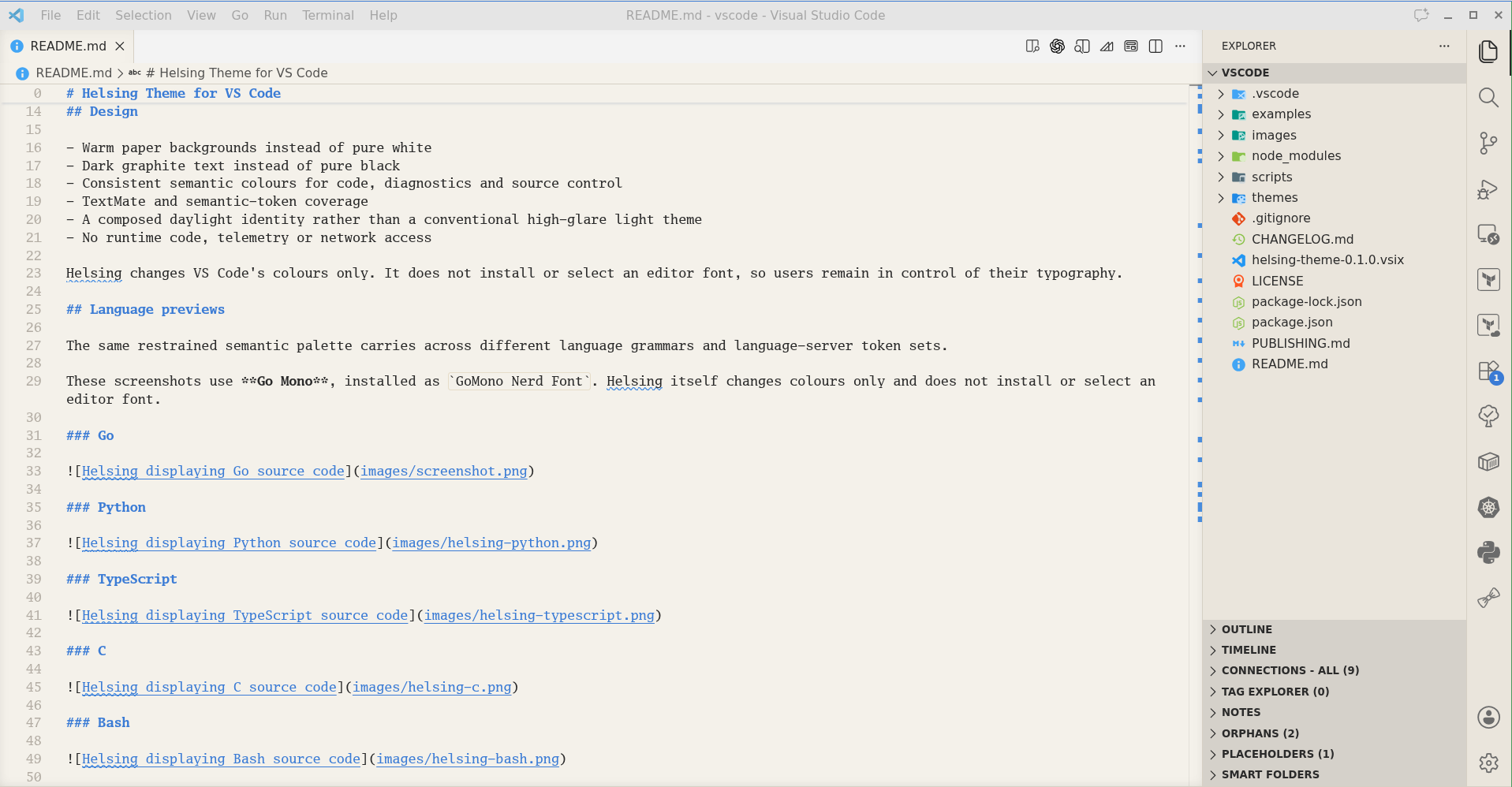
Helsing Theme for VS CodeEvery famous vampire eventually needs a Van Helsing. Helsing is a disciplined light theme built around paper warmth, restrained accents and stable semantic colour roles. Named for Abraham Van Helsing, the scholar, physician and adversary of Dracula, conceived as the spiritual daylight counter that Dracula Theme always needed: less crypt, more study.
Helsing is designed to remain pleasant during long working sessions. Structure comes from measured contrast, and colour is used to communicate meaning rather than decorate every token. The result is a theme with an old-world scholarly character and a modern, workmanlike interface.
Design
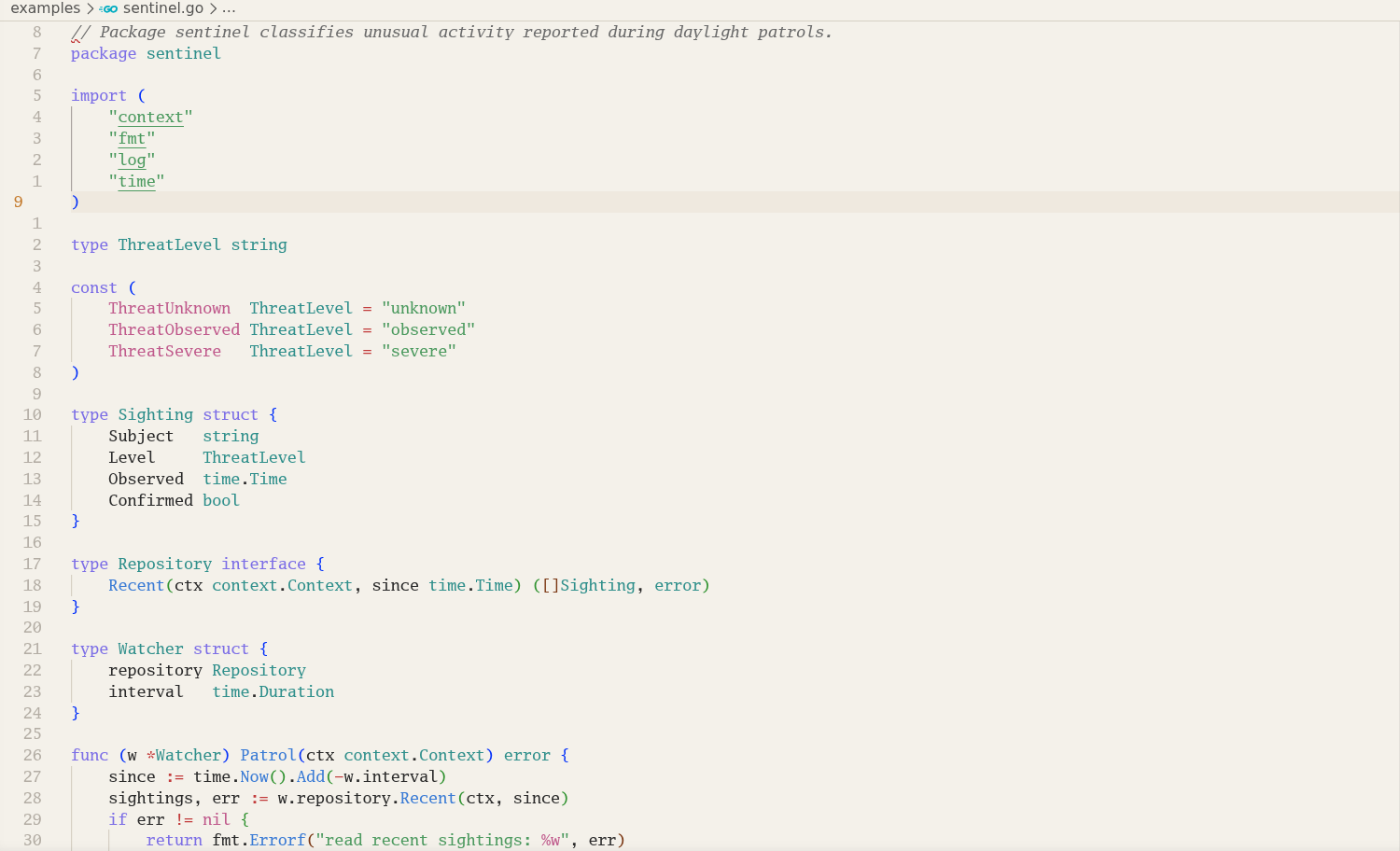
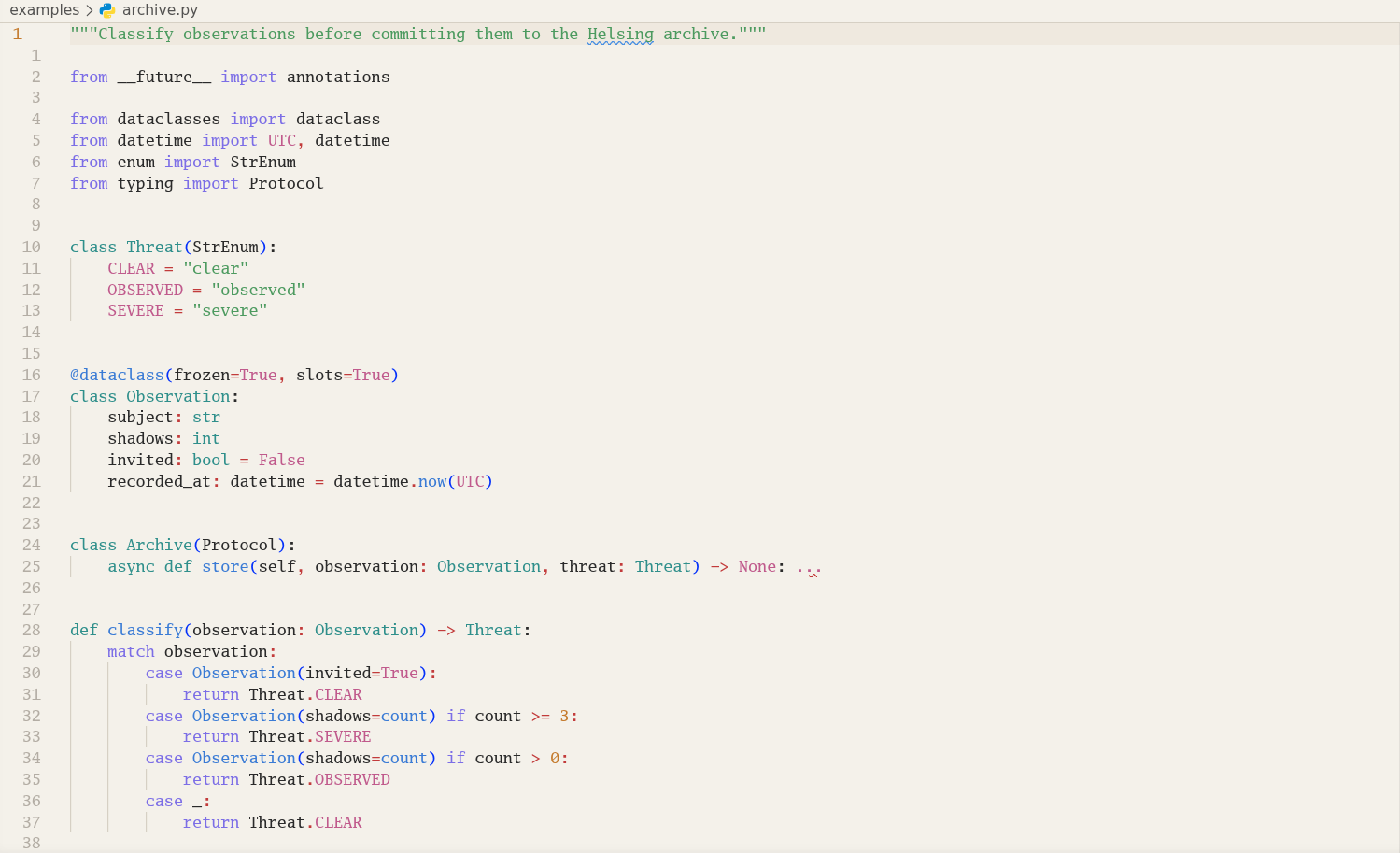
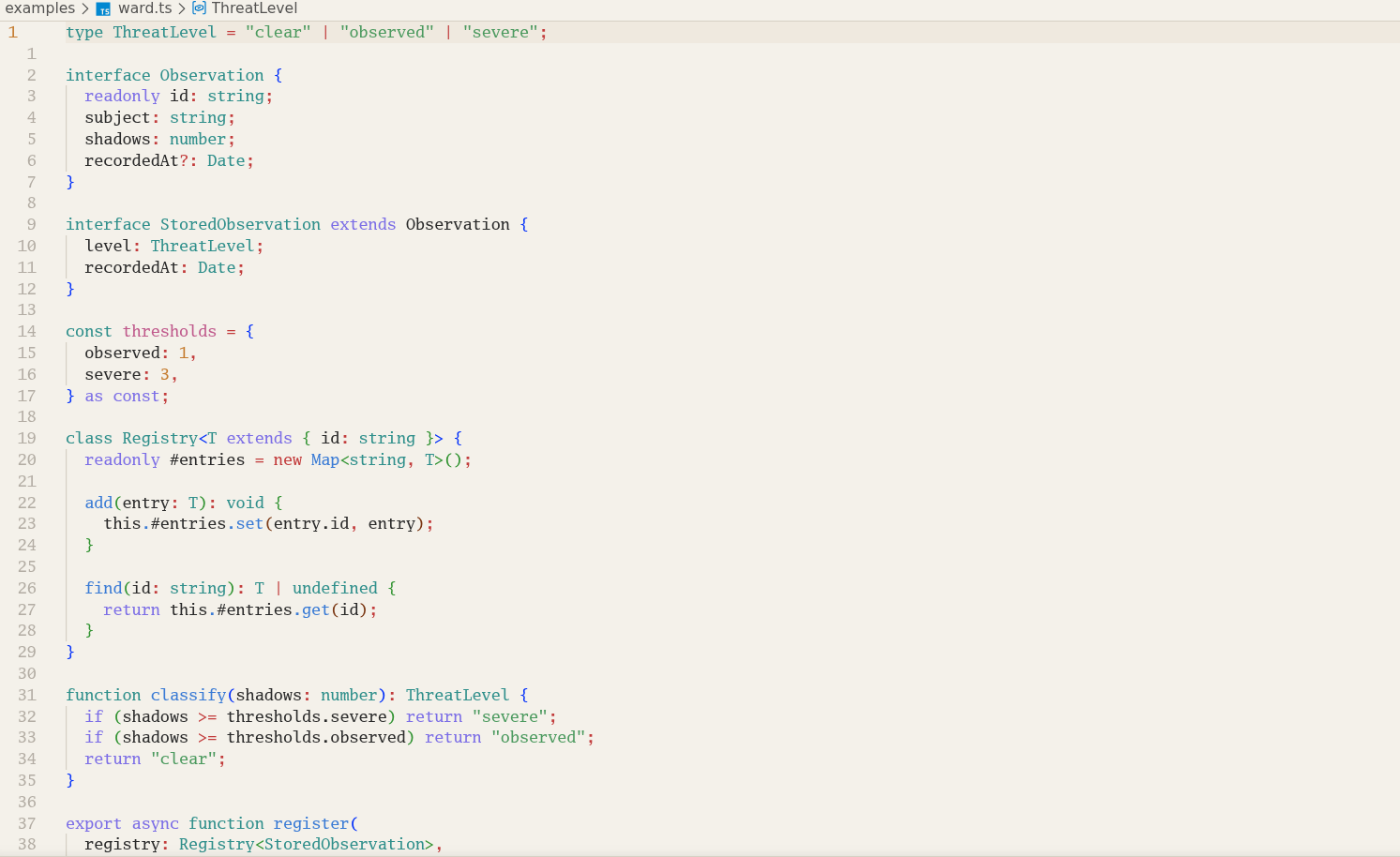
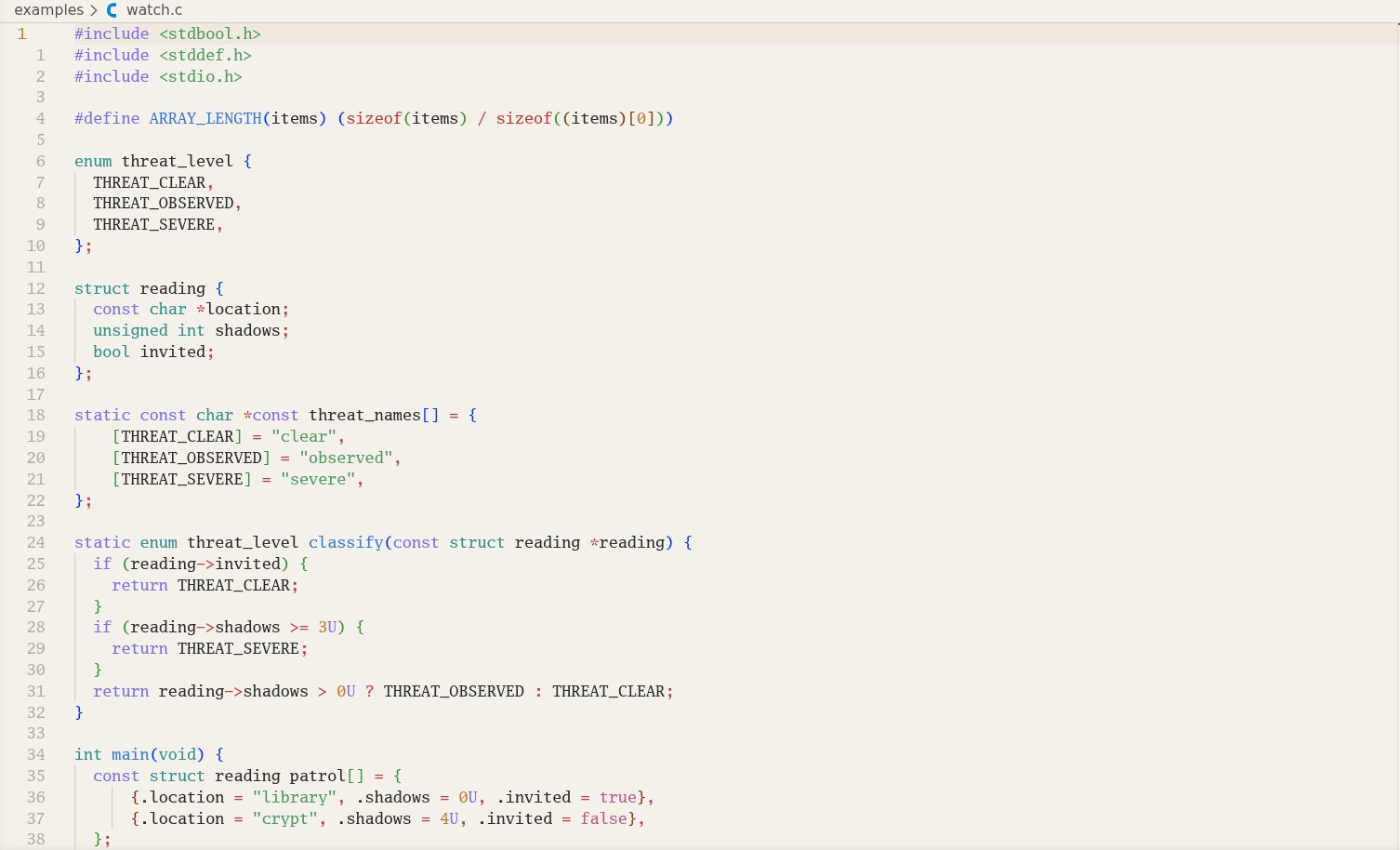
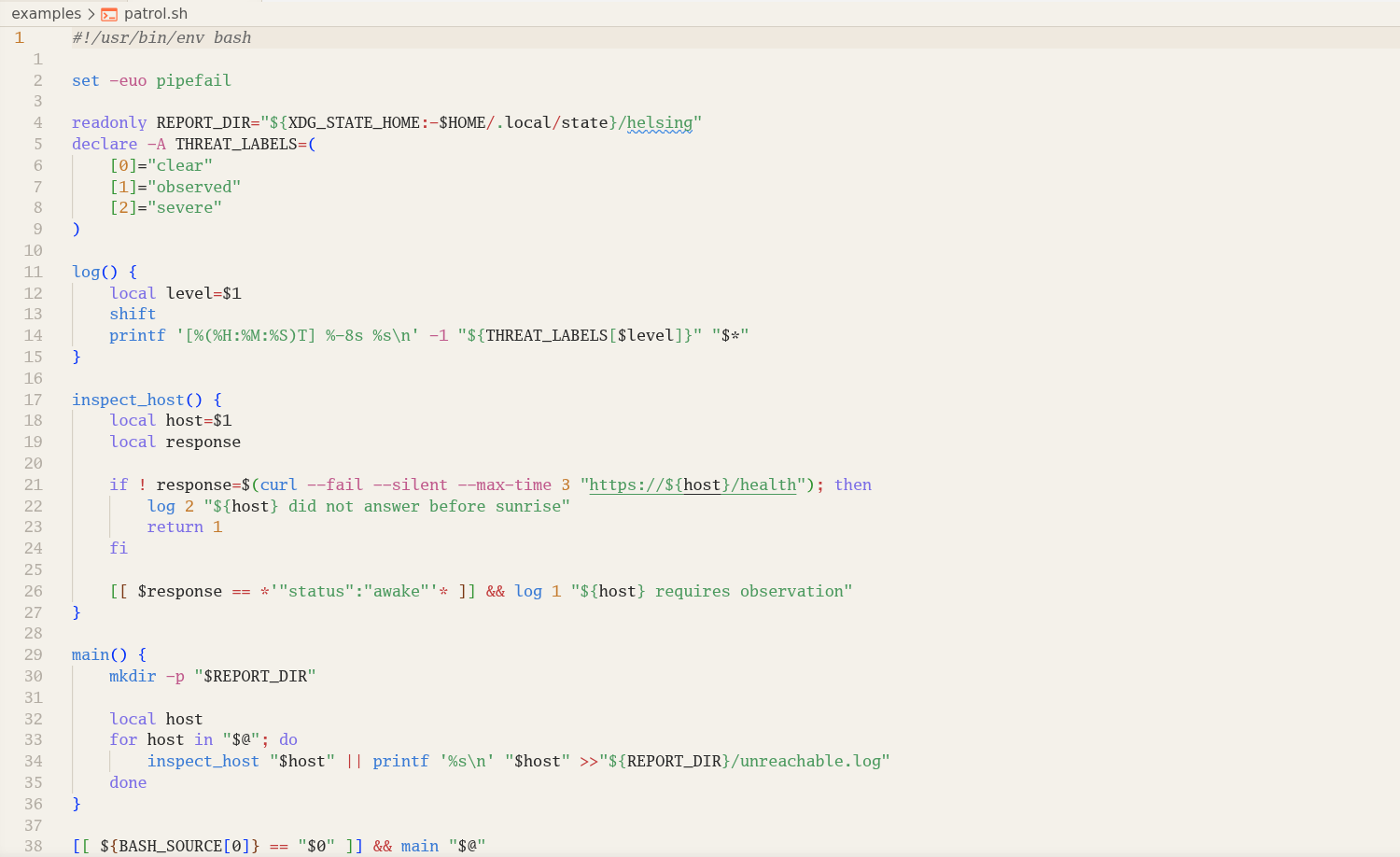
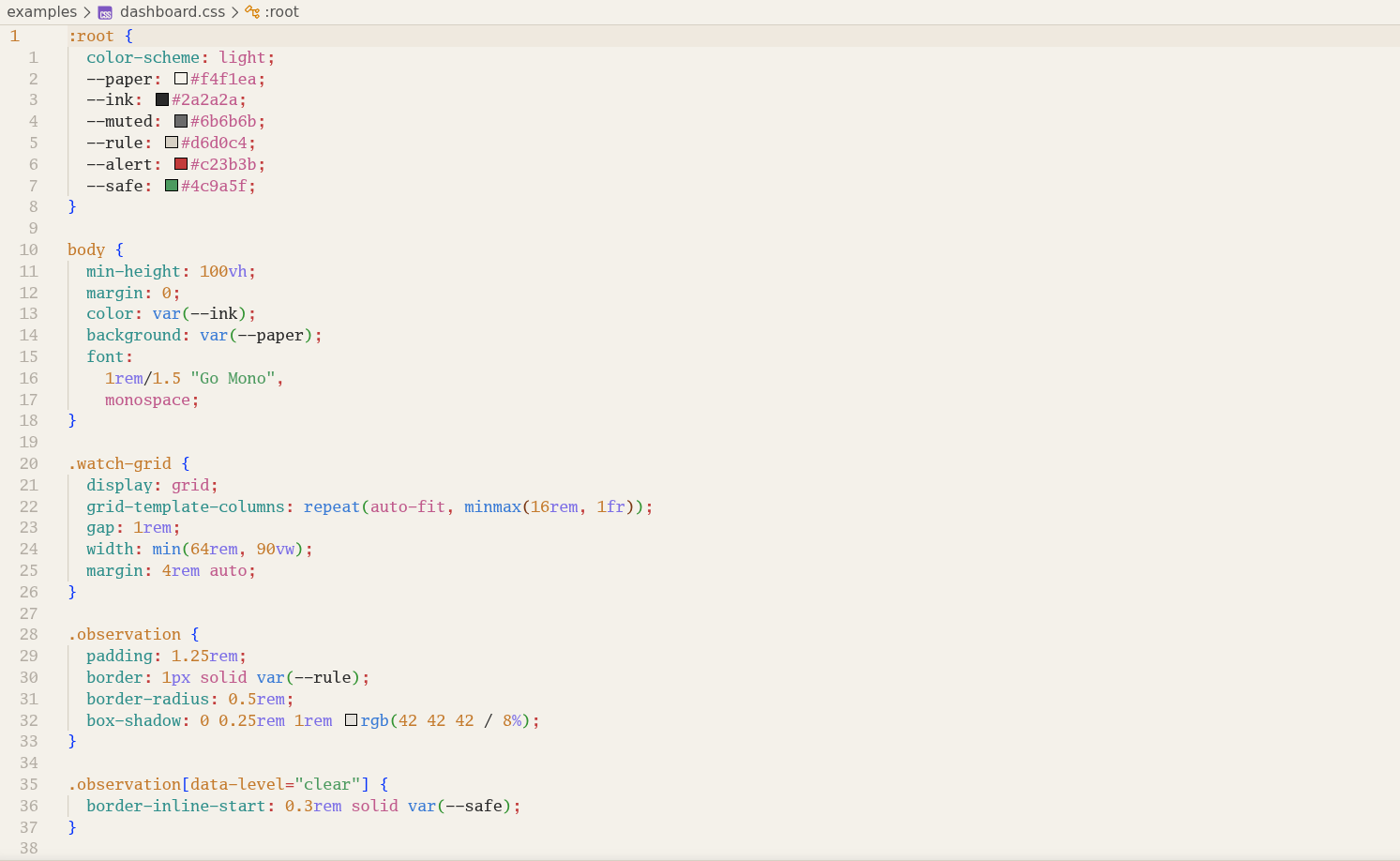
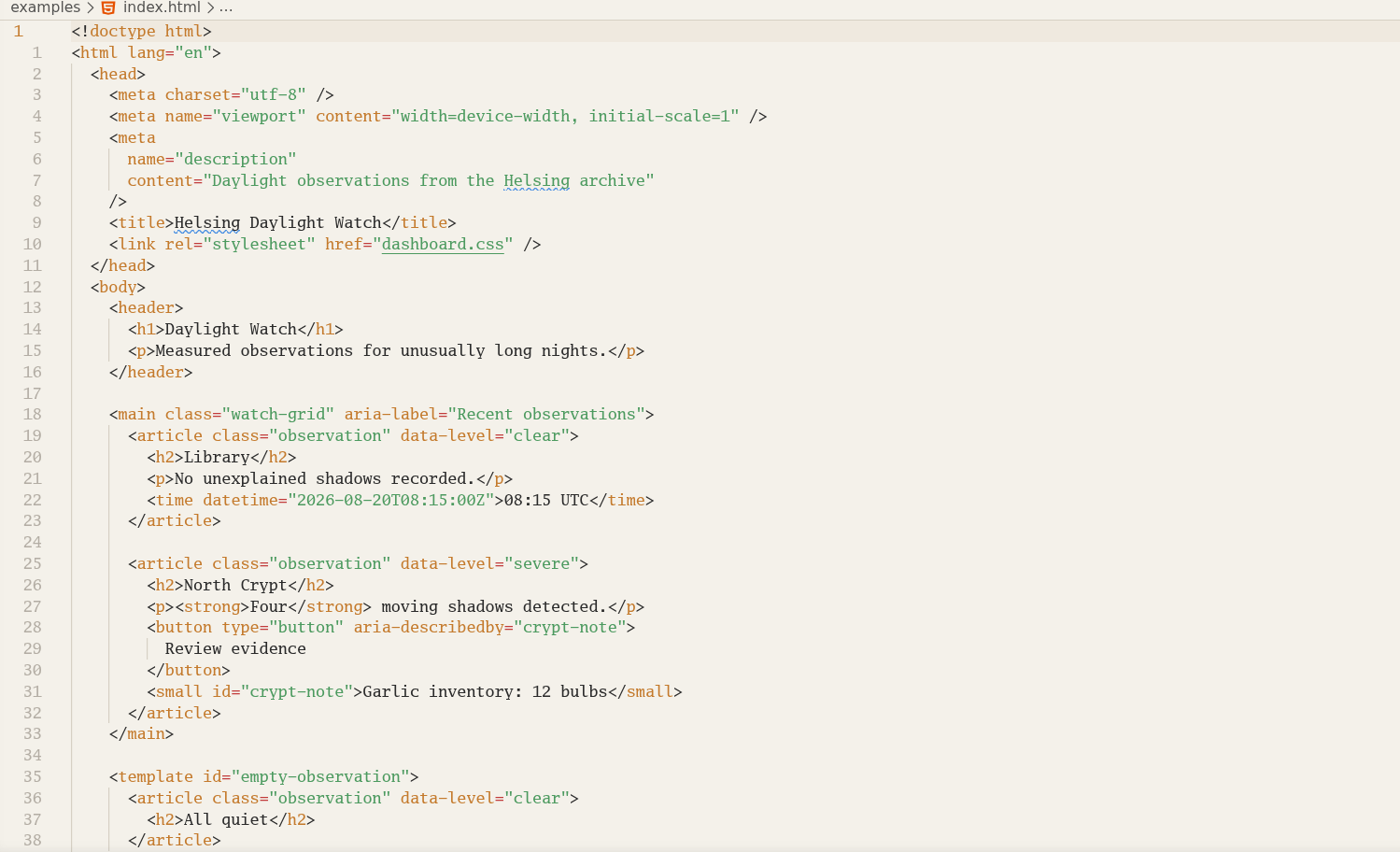
Helsing changes VS Code's colours only. It does not install or select an editor font, so users remain in control of their typography. Language previewsThe same restrained semantic palette carries across different language grammars and language-server token sets.
Go
Python
TypeScript
C
Bash
CSS
HTML
Install and activateAfter installing the extension:
FeedbackReport inconsistent colours or missing language coverage through the Helsing issue tracker. When reporting syntax highlighting, include the language, the relevant source sample and a screenshot. DevelopmentThe published theme is generated from Helsing's palette contract rather than edited directly:
Open this directory as the VS Code workspace and press To install dependencies, validate the generated contract, and package from this directory: If you intentionally change the palette or VS Code mapping, run LicenseHelsing Theme is available under the MIT License. |